



 Download VideoSolo Player For FREE!
If you enjoy watching high-quality Blu-ray movies, you may have run into BDMV files and questioned how to play them smoothly on your computer. I have tested different best options for both Windows and Mac to determine the most reliable and feature-packed BDMV players. In this article, I will reveal 7 players with which I have personally had great experiences and whose features, pros, and cons I have summarized, as well as the real usage experience. Whether you are after a mere player or something with advanced playback controls, this post will lead you to the one that makes your movies look and sound their absolute best.
Part 1. The Best BDMV Player [Hot]
To me, VideoSolo Player is the number one choice when it comes to playing BDMV files. In case you are searching for the best BDMV player, this software offers a combination of seamless, smooth playback, broad format compatibility, and handy features. It is ideal for both novices and pros.
 Features
- Supports BDMV, Blu-ray, DVD, MKV, MP4, AVI, and more
- Smooth 4K UHD playback without lag
- Adjustable subtitles, audio tracks, and video settings
- Screenshot capture and full-screen mode
- Works on Windows and macOS
 pros
pros
- Highly stable, even with large BDMV files
- Smooth navigation of playlists and media libraries
- Automatic updates for new formats and codecs
 Cons
Cons
- Initial loading may take slightly longer for very large files
- Occasional prompts for premium features
Steps to Use VideoSolo Player
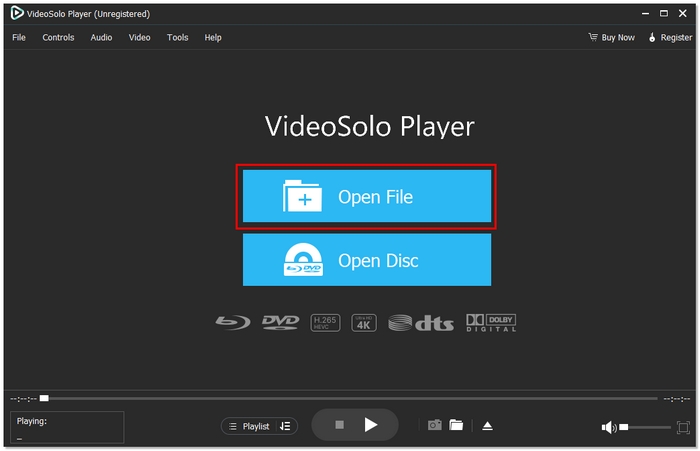
Step 1. Get the official VideoSolo Player and complete installation. Launch the player and click Open File to select your BDMV folder or files.
Step 2. Adjust subtitles, audio, and video preferences in the Audio, Video, and Tools sections. (optional)
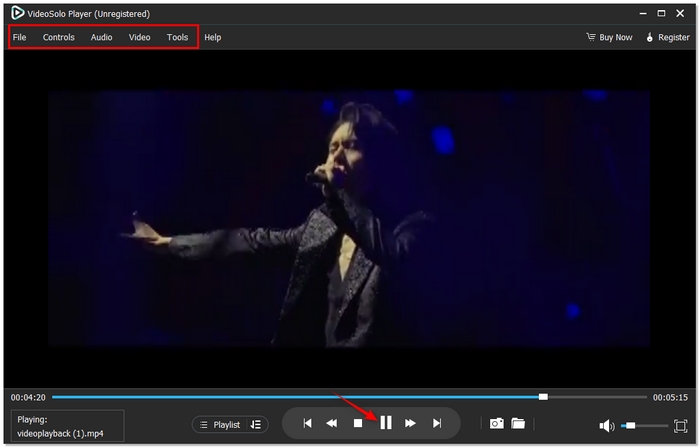
Step 3. Click Play for smooth and high-quality playback of your BDMV.
Using Experience
As far as I can tell, VideoSolo Player simply sails through BDMV files. From my side, the feature that impressed me the most was the smooth playback, intuitive navigation, and the possibility of adjusting subtitles and audio, which thus makes the experience of watching movies more fun. It certainly justifies the name of the best BDMV player if you are one of those people who want hassle-free, high-quality playback
Part 2. Top 3 BDMV Player [Windows]
Playing BDMV files on Windows is pretty complicated if your player doesn’t support the format well. Here I have gathered the top three BDMV player Windows that provide playback that you can trust, smooth performance, and helpful features. Each media player has its own strengths, so whether you want simplicity, advanced controls, or a fully featured Blu-ray experience, there’s something here for everyone.
1. VLC Media Player – Best for Free and Versatile Playback
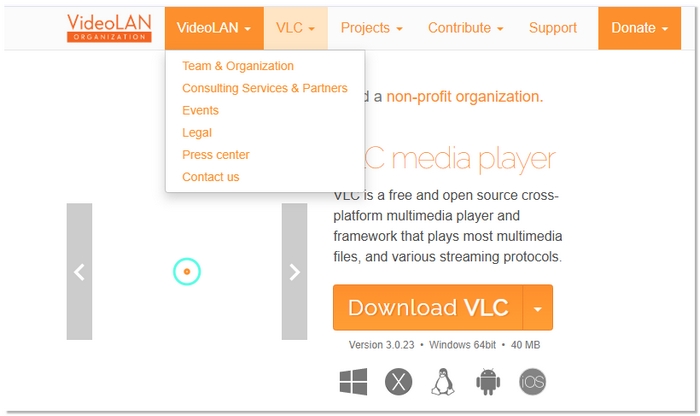
VLC Media Player is a free and multi-functional BDMV player compatible with nearly any Windows desktop PC. It is most known for its wide range of format support and small size, which makes it a great choice for users who want a reliable player without having to install extra software or codecs.
pros
- Supports many audio and video formats in addition to BDMV
- It is small and doesn’t cause your system to lag
- Able to broadcast information from internet sources or via networks
- You can also use VLC to repair video.
Cons
- Lacks advanced Blu-ray menu navigation
- Limited options for customizing video filters and effects
Using Experience
From my experience, VLC Media Player plays BDMV files smoothly and reliably. Opening large BDMV folders is quick, and playback is stutter-free. While it doesn’t offer advanced Blu-ray menu controls, it’s a dependable BDMV player for everyday use on Windows.
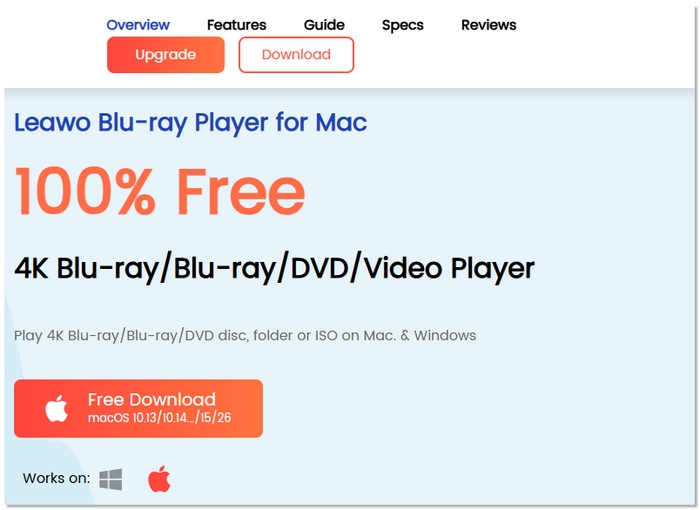
2. Leawo Blu-ray Player – Best for Free Full-Feature Playback
Leawo Blu-ray Player is a BDMV player free to use that provides an excellent balance between usability and advanced playback features. It’s perfect for Windows users who want a robust player without paying for premium software.
pros
- Completely free with no hidden charges
- Supports BDMV, Blu-ray, DVD, and popular video formats
- Offers subtitle and audio track customization
Cons
- Occasional ads or prompts for premium upgrades
- Fewer advanced video enhancement tools compared to paid players
Using Experience
From my experience, Leawo Blu-ray Player plays BDMV files very smoothly with almost no lag. After getting used to it, the interface is pretty simple, and the subtitles and audio switching are spot-on. It’s a very dependable free BDMV player that can satisfy both casual and high-quality playback needs on Windows.
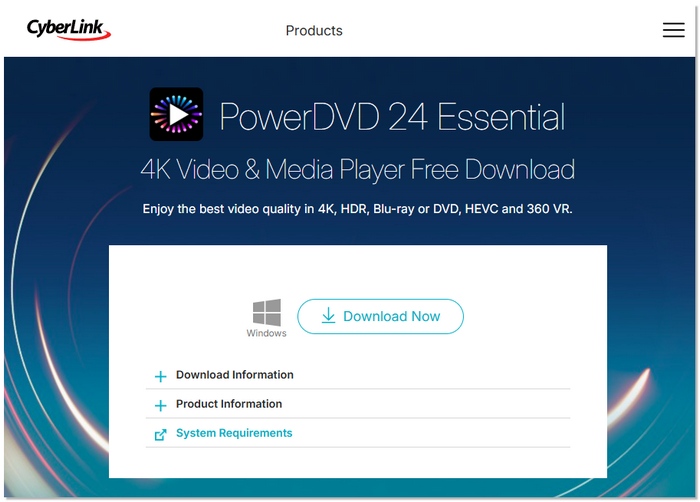
3. CyberLink PowerDVD – Best for Premium Playback Experience
CyberLink PowerDVD is a versatile 4K BDMV player for Windows that offers excellent playback quality and a wide range of features. It is perfect for those who want a top-tier professional viewing experience and still value performance.
pros
- Excellent support for Blu-ray menus and BDMV structures
- Smooth 4K UHD and HDR playback
- Advanced audio enhancements for immersive sound
Cons
- Slightly heavier on system resources than lightweight players
- Compared to the premium version, the free edition offers fewer sophisticated features
Using Experience
From my personal experience, PowerDVD has been quite effective in opening BDMV files in very clear and high-quality audio. Going through Blu-ray disks’ menus is very intuitive, and one can even play back large UHD files without any noticeable jerk.
Part 3. Top 3 BDMV Player [Mac]
Playing BDMV files on a Mac may be challenging if your media player is not compatible with the format. I have collected below the top three BDMV player Mac options that provide smooth playback, high-quality video, and handy features. These players are all you need to play BDMV on Mac.
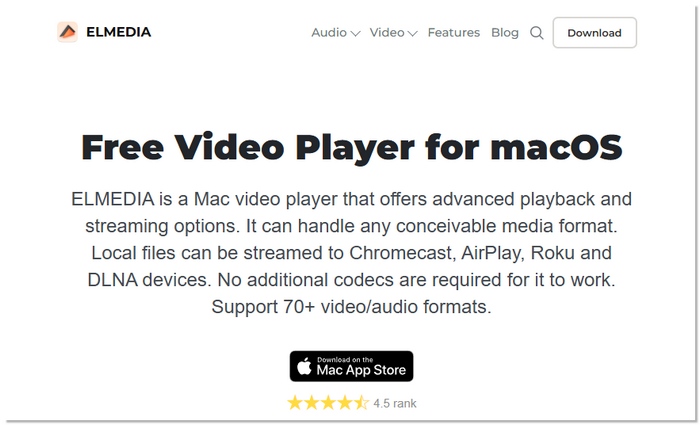
1. Elmedia Player – Best for Lightweight Mac Playback
Elmedia Player is in first place, a very easy-to-use free BDMV player for Mac. It is a very versatile AV player for users who prioritise smooth and natural play over the complicated setup of the software and hardware.
pros
- Lightweight and doesn’t consume much system resources
- Supports a wide variety of formats, including BDMV, MP4, MKV, and AVI
- Offers adjustable subtitles and audio track selection
Cons
- Lacks advanced Blu-ray menu support
- Minor issues with very large UHD files
Using Experience
From my experience, Elmedia Player is always pretty fast in loading BDMV files, and playing them is quite smooth on Mac. It’s not only easy to change the audio track and subtitle, but also the lightweight design of the software makes it a good choice for watching a movie casually.
2. 5KPlayer – Best for Streaming & High-Resolution Playback
5KPlayer is a multifunctional media player for Mac that supports BDMV files and high-resolution video playback. It stands out for combining local playback with wireless streaming features, making it more than just a standard player.

pros
- Built-in AirPlay and DLNA for wireless streaming
- Supports high-resolution videos, including 4K and 5K
- No need for additional codecs during installation
Cons
- It takes longer to start up than lightweight players
- Additional system resources may be required for background features
Using Experience
When using 5KPlayer, BDMV files play smoothly once loaded, with clear, stable playback quality. The wireless streaming options are convenient if you want to mirror or share content across devices, though the interface takes some getting used to.
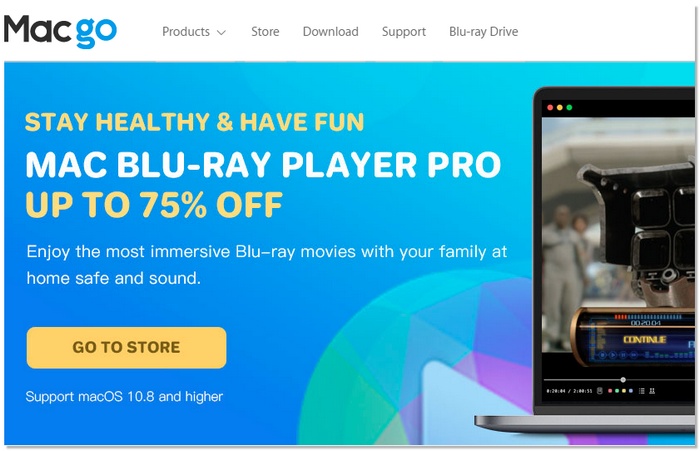
3. Macgo Mac Blu-ray Player Pro – Best for Authentic Blu-ray Navigation
Macgo Mac Blu-ray Player Pro is a premium media player designed specifically for macOS users who want true Blu-ray and BDMV playback. Unlike general-purpose players, it focuses on delivering an experience that closely mirrors a physical Blu-ray player, including original menus and chapter navigation.
pros
- Plays BDMV folders with complete Blu-ray menu access
- Optimized for macOS with stable and consistent performance
- Delivers detailed visuals with accurate color reproduction
Cons
- Limited customization options for subtitles and playback
- Not ideal for users looking for an all-in-one media hub
Using Experience
Macgo Mac Blu-ray Player Pro generally seems to be a refined and dependable player based on actual user experience. BDMV files are loaded in a snap, the menus react as expected, and the playback never stutters, even with huge Blu-ray folders. It may be a little short on extras such as streaming or downloads, but it is a specialist in its job of delivering a neat, cinema-like BDMV viewing experience on Mac.
Part 4. A Comparison Chart of 7 HEVC Players
Below is a clear, easy-to-compare chart of 7 popular HEVC players, focusing on supported formats, operating systems, overall rating, maximum resolution, and system requirements. This helps readers quickly see which player best fits their device and performance needs.
| Player | Supported Formats | OS | Rating | Max Resolution | System Requirements |
|---|---|---|---|---|---|
| VideoSolo Player | BDMV, Blu-ray, DVD, MKV, MP4, AVI, etc. | Windows, macOS | ⭐⭐⭐⭐⭐ | 4K UHD | Moderate |
| VLC Media Player | BDMV, MP4, MKV, AVI, etc. | Windows | ⭐⭐⭐⭐ | 4K | Low |
| Leawo Blu-ray Player | BDMV, Blu-ray, DVD, common formats | Windows | ⭐⭐⭐⭐ | 4K | Moderate |
| CyberLink PowerDVD | BDMV, Blu-ray, DVD, 4K, HDR | Windows | ⭐⭐⭐⭐⭐ | 4K UHD / HDR | High |
| Elmedia Player | BDMV, MP4, MKV, AVI, etc. | macOS | ⭐⭐⭐⭐ | 4K | Low |
| 5KPlayer | BDMV, 4K, 5K, common formats | macOS | ⭐⭐⭐⭐ | 5K | Moderate to High |
| Macgo Mac Blu-ray Player Pro | BDMV, Blu-ray, common formats | macOS | ⭐⭐⭐⭐⭐ | 4K | Moderate |
Conclusion
I hope that after going through this review, you will be able to choose a BDMV player that better suits your needs. We explored different players for both Windows and Mac, ranging from free options to premium tools specially engineered for smooth Blu-ray and 4K playback. The main takeaway is that your decision should be based on how you watch videos. Basic players are made to fit the most common and simplest needs. Advanced players, however, generally offer better quality, sound, and image stability. You should select the BDMV player that best matches your device and the way you watch for the best experience.
More Reading

Play your videos/music in 100+ formats and region-free DVDs/Blu-rays with 4K and Dolby Atmos experiences.

