



 Download Video Converter Ultimate For FREE!
These days, it's a typical practice to convert videos to audio files. This is mostly done when you want to save music pieces, take out a podcast from a video, or just release some space on your device. If you have ever been curious about how you can turn your MP4 videos into top-quality audio, this post is for you. We will demonstrate the simplest and most trustworthy methods to convert MP4 to M4A on Windows, Mac, and online. You are going to learn about native ways, potent third-party utilities, and expert tips to get your audio always clean and delightful.
| Best for | Tool |
|---|---|
| Best for Speed & Quality | VideoSolo Video Converter Ultimate |
| Best Built-in Tools | QuickTime Player (Mac) / Rename Trick (Windows) |
| Best Online Tool | Clideo |
Part 1. Officially Convert MP4 to M4A on Windows/Mac [Easiest Way]
If you prefer not to install extra software, you can still convert your files using built-in free video converter or small tricks on Windows and Mac. These official methods are simple, quick, and perfect for basic audio extraction tasks.
For Windows
Without installing any additional software, Windows users can convert MP4 to M4A using simple built-in methods. Here's how:
Rename Trick (Quick Extraction)
Step 1. In File Explorer, find your MP4 file. Choose Rename with a right-click.
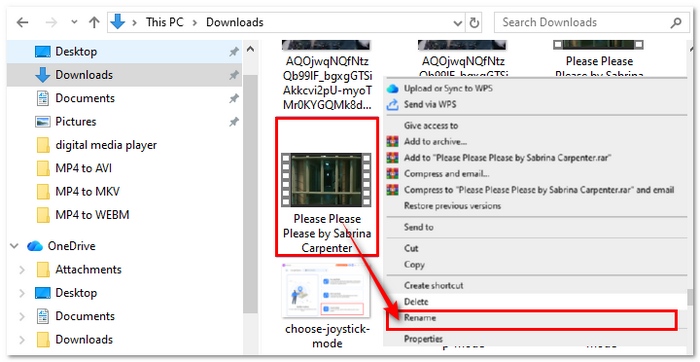
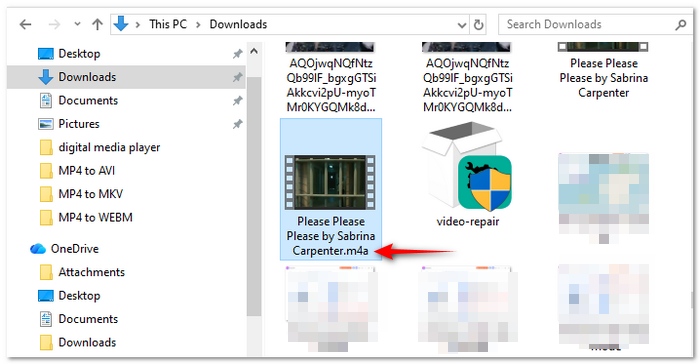
Step 2. Make the file extension .m4a instead of .mp4.
Step 3. Click Enter. This method works for basic audio extraction, but note that it may not preserve all quality or metadata.
Windows Media Player Legacy Rip/Save Settings
Step 1. Open Windows Media Player, then add your MP4 file to the library.
Step 2. Go to Rip Settings > Format, and select M4A.
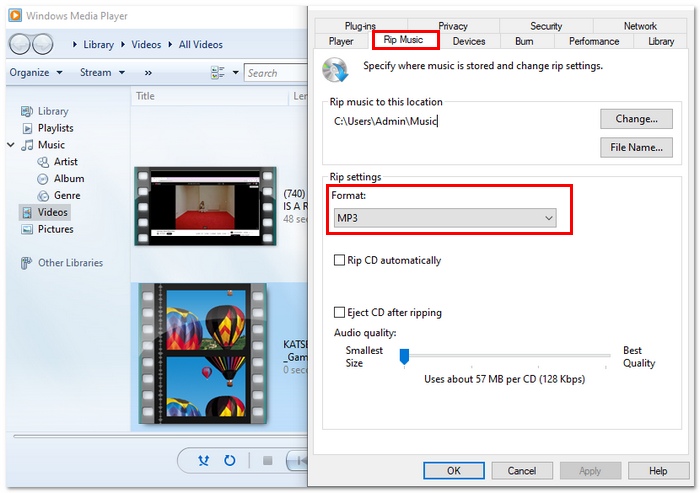
Step 3. Choose your preferred audio quality (bitrate). After that, click Rip to save the MP4 audio as M4A.
These built-in methods make it easy to convert MP4 to M4A quickly on Windows without extra software.
For Mac
Mac users have a couple of easy built-in options to convert MP4 to M4A without additional software:
QuickTime Player – Export as Audio Only
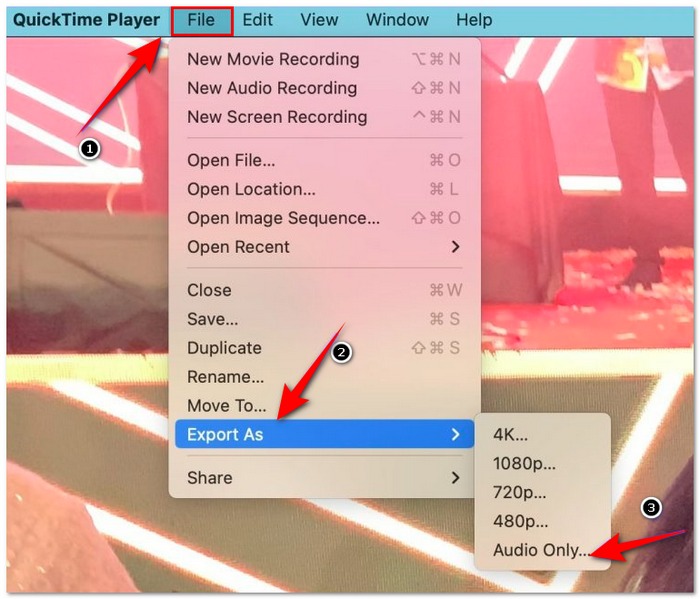
Step 1. Open your MP4 file in QuickTime Player. Go to File > Export As > Audio Only.
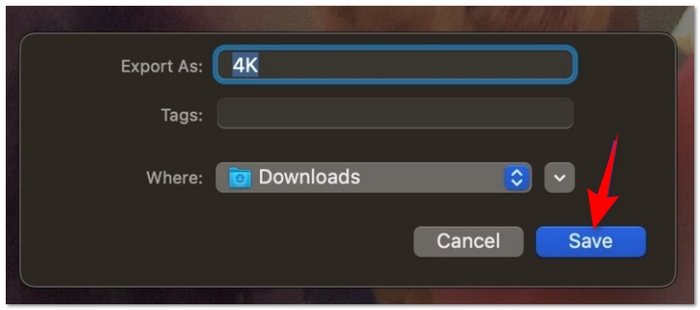
Step 2. Choose the destination folder and click Save.
Step 3. QuickTime will extract the audio and save it as an M4A file.
Finder – Encode Selected Video Files
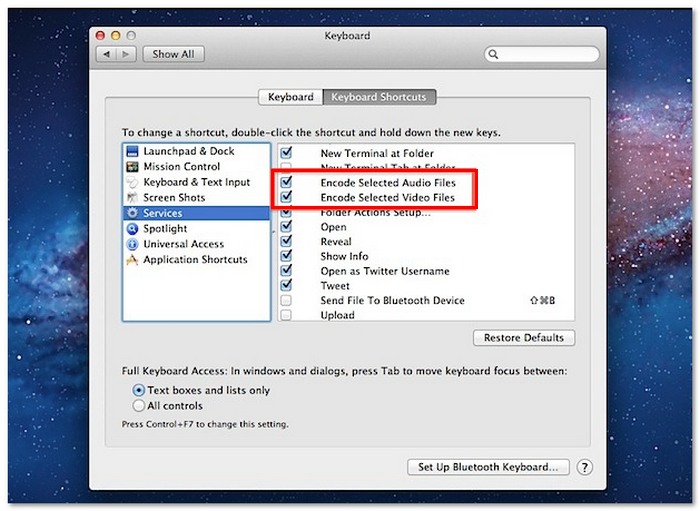
Step 1. In Finder, choose your MP4 file or files. Select Encode Selected Video Files using a right-click.
Step 2. Choose Audio Only (M4A) as the format in the pop-up window.
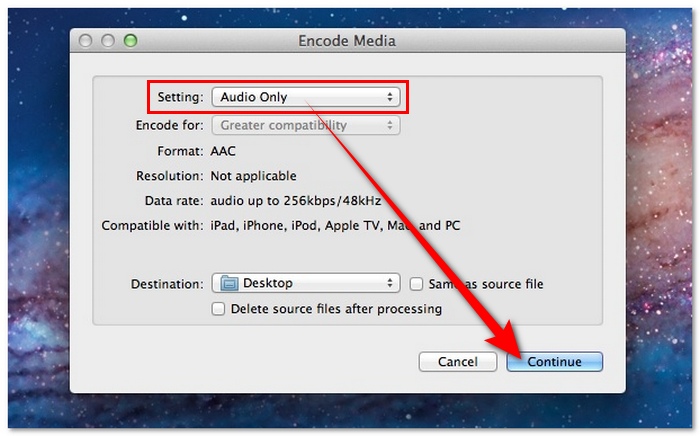
Step 3. Hit Continue to save your new M4A file.
Limitations
- • Batch conversion collapses for big file sets because basic tools skip bitrate tweaks and metadata storage.
- • Audible data often vanishes when exports ignore key settings like encoding rates.
- • Third-party setups win in messy jobs, though they're only needed when exact quality and naming rules matter.
Part 2. Turn MP4 to WAV Using Third-Party Tools on PC, Mac, or Phone
A reliable MP4 to M4A converter gives users precise control and faster processing, letting them tweak settings and batch handle several videos. Pretty much any device can run these tools now. It turns out, speed and flexibility matter most when working with video files.
1. VideoSolo Video Converter Ultimate [Best]
VideoSolo Video Converter Ultimate is a powerful all-in-one tool designed for fast and high-quality media conversion. It makes it simple for users to extract audio from videos and supports a large variety of formats.
 Features
- Supports 300+ video and audio formats
- High-speed conversion with GPU acceleration
- Batch conversion for multiple files
- Customizable audio settings (bitrate, codec, sample rate)
 pros
pros
- Fast and stable performance
- High-quality audio output
- User-friendly interface
- Supports bulk conversion
 Cons
Cons
- Paid software (free trial has limitations)
- Requires installation
How to Use:
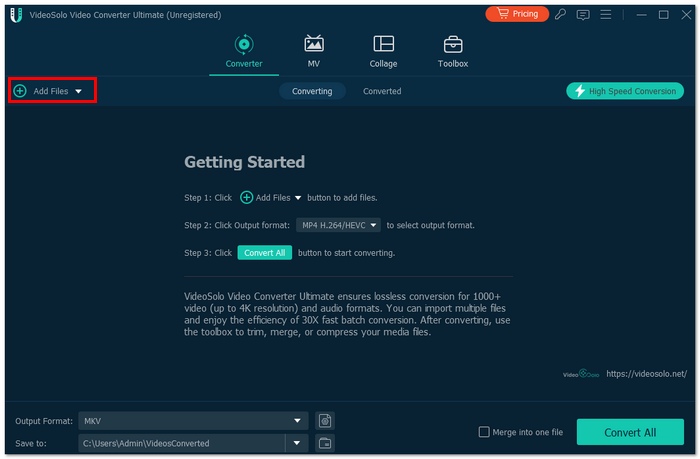
Step 1. Launch VideoSolo Video Converter Ultimate and click Add Files to import your MP4 video.
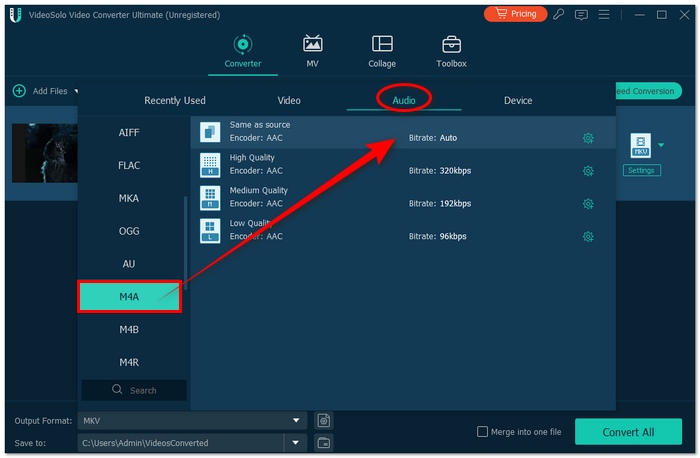
Step 2. Click the Format icon and go to the Audio tab. Select M4A, then click the Custom Profile to adjust bitrate or codec if needed.
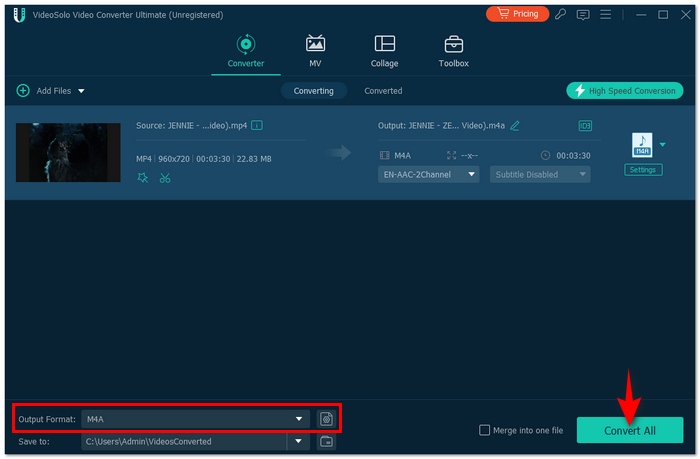
Step 3. At the bottom of the screen, select your output folder. Then hit the Convert All to start the conversion process.
With its advanced features and ease of use, VideoSolo stands out as a reliable tool for MP4 to M4A conversion with excellent speed and quality.
2. Format Factory [Windows]
Format Factory handles MP4, AVI, MKV, and dozens more formats on Windows. Pretty much any video or audio file can be converted without buying software. This turns out to also extract pictures from videos easily.
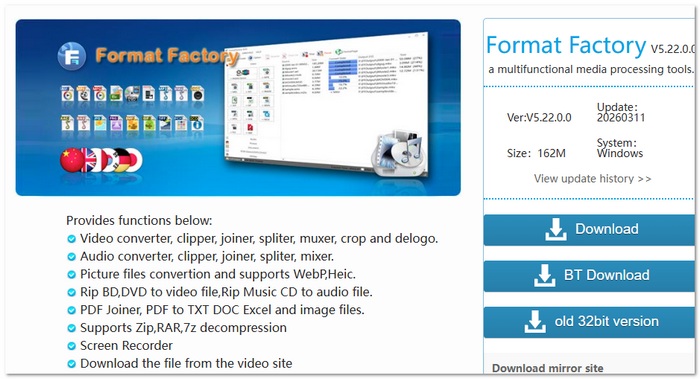
Features
- All-in-one converter for video, audio, and images
- Built-in DVD/CD ripping capabilities
- File compression to reduce media size
- Audio and video merging, splitting, and mixing tools
pros
- Supports a wide variety of file formats
- Includes extra tools beyond conversion (ripping, joining, and compressing)
- Simple interface suitable for beginners
Cons
- Only available on Windows (no Mac support)
- The installer may include optional bundled software
3. Clideo [Mobile-Friendly]
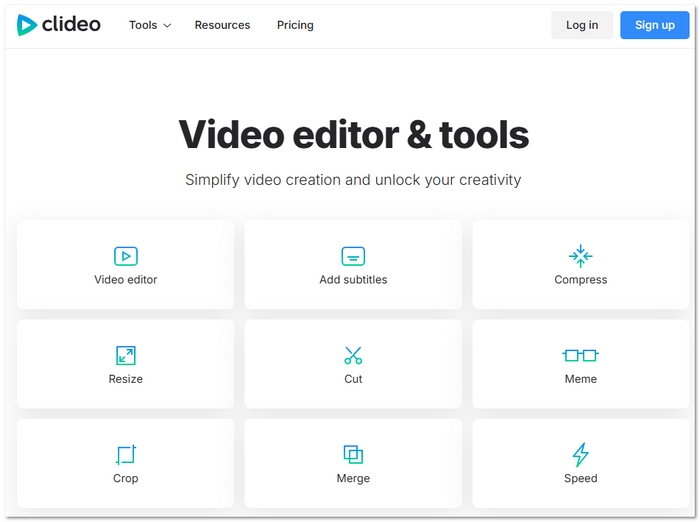
Mobile and desktop users can convert videos online using Clideo without installing anything. This MP4 converter runs straight in the browser, so editing files happens fast and doesn't require downloads. Pretty much any format works, at least in theory.
Features
- Completely online utility that doesn't require installation
- Compatible with desktop, tablet, and mobile browsers
- Supports a number of file sources, such as devices, Dropbox, and Google Drive
- Provides more than 20 tools, including editing and video/audio conversion.
pros
- Accessible anywhere with an internet connection
- Beginner-friendly and easy to navigate
- No need for high device storage or specs
Cons
- The free version has file size restrictions and applies a watermark
- Uploading and processing can be slow for large files
This tool is ideal if you want a quick and convenient way to handle MP4 to M4A conversions directly from your browser without installing anything.
Part 3. Pro Tips for Converting MP4 to M4A
To get the best audio quality and smooth conversion results, it’s important to follow a few practical tips. These simple guidelines can help you avoid common issues and make your conversion process more efficient.
Choose the Right Codec (AAC or ALAC)
When moving to M4A, choosing the appropriate codec is crucial. While ALAC retains all of the original sound's details without sacrificing quality, AAC reduces files without sacrificing quality.
Batch Convert Smartly
If you have multiple files, use programs that allow batch conversion. This ensures consistent settings for all of your audio outputs in addition to saving time.
Adjust Bitrate for Better Quality
Audio clarity is directly impacted by bitrate. While 256–320 kbps gives a richer and more detailed listening experience, 192 kbps offers respectable quality for the majority of users.
Avoid Online Tools for Sensitive Files
Online converters are handy, but you have to upload your files. To protect your data, it is safer to utilize offline software for confidential or important stuff.
Part 4. FAQs about MP4 to M4A Conversion
Can I convert MP4 to M4A for free?
M4A files can be converted from MP4 using QuickTime Player on Mac or free software online. Still, some tools slow down the process, limit file sizes, or don't offer much control over settings.
Does M4A work on non-Apple devices?
M4A works well across Windows, Android, and common media players - but not all versions behave the same. AAC tends to run smoother than ALAC on older or less advanced systems.
Can I convert MP4 to M4A without quality loss?
Using ALAC might keep audio clear if the MP4 started out sharp, but AAC could fade detail slightly, even if bitrates are high. For better or worse, quality differences often don't show up unless one is listening closely.
Conclusion
It doesn't have to be difficult to convert video files into audio. We looked at a variety of methods for converting MP4 to M4A, from utilizing Windows and Mac built-in utilities to depending on robust third-party software and internet converters. Bitrate selection matters when converting MP4 to M4A. Codex settings can be adjusted for finer control, though many just keep the default options. Output stays crisp even without tweaking, mostly on older screens. Overall, smart picks ensure files look good everywhere they are played back.
More Readings

