



 Download VideoSolo Player For FREE!
MP4 is probably the most common video format, but it is not always clear what is the best way is to open and watch such files on your PC. Here we explain how to use six safe methods to play an MP4 file on Windows and Mac. You will receive detailed instructions, useful features, and handy tips to ensure a flawless viewing experience when using any of the methods described: a versatile media player or built-in software. After reading this article, you will be able to decide which method is the most suitable for you and how to watch your videos in a very simple manner.
Part 1. What are MP4 Files
MP4 stands for a video file format that is the most common and likely one that you will find is used for the videos you come across. The reason is that it maintains high video quality while keeping the video size small so that it can be effortlessly stored and shared. Besides, MP4 files can contain video, audio, subtitles, and even images, making them very versatile. Most probably, you have an MP4 in your hand. The very first step in learning how to play an MP4 smoothly on your device is to have a basic understanding of what an MP4 file is.
Part 2. 6 Best Methods to Play MP4 Files on Windows & Mac
In case you don't know how to play MP4 files on your computer, there is an adequate number of dependable players that will do it flawlessly. I am going to unveil six simple ways. Whether it is a mighty external program or a vintage built-in application, you will discover the answer that matches your way of watching and your gadget.
Method 1. How to Play MP4 Files via VideoSolo Player
VideoSolo Player is a simple, dependable tool that is great for learning how to play an MP4 on Windows or Mac. The software can handle nearly any video format, loads files quickly, and delivers stable, visually appealing performance at high quality without any complex configuration. The player makes it possible to perform the task without any hassle and in the most comfortable way.
Key Features
• Supports MP4, MKV, MOV, AVI, WMV, and more
• Plays HD, 4K, and even Blu-ray-quality videos
• Clear audio and video enhancement options
• Simple, intuitive interface
• Lightweight and fast loading
How to Play MP4 Using VideoSolo Player
Step 1. Open the program, then hit Open File to select your MP4 file.
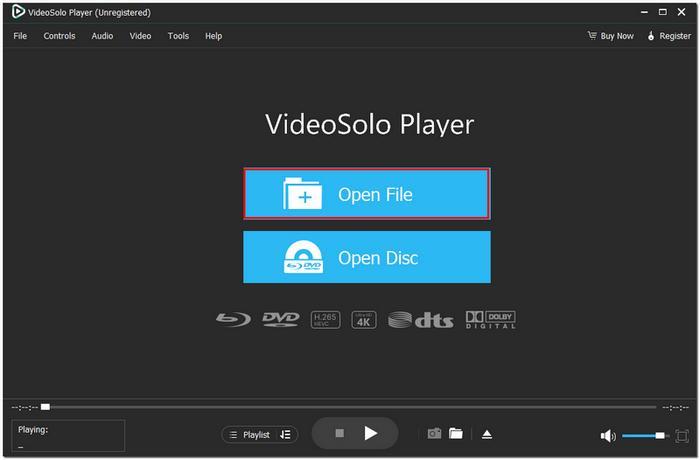
Step 2. The video will start playing instantly with no extra setup needed.
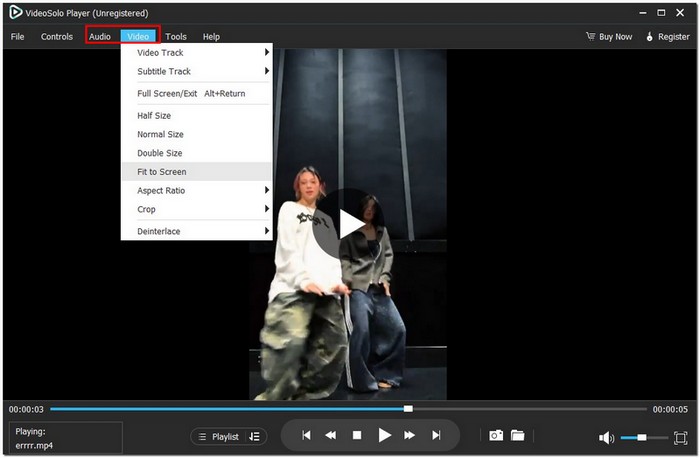
Step 3. You can change the MP4's audio or video settings in the menu bar to suit your preferences!
Using Experience
Using VideoSolo Player feels smooth and stress-free. The controls are simple to use, MP4 files open in a matter of seconds, and playback is stable even with large HD videos. If you're looking for a reliable player without complicated steps, this is a great choice.
Method 2. How to Play MP4 Files via Windows Media Player
Windows Media Player (WMP) is the built-in media player for most Windows computers, making it one of the easiest ways to open and watch MP4 videos. Since it’s already installed on many PCs, you can instantly use it without needing extra downloads. If you're wondering how to play an MP4 file, this method is one of the quickest solutions.
Steps to Play MP4 Files Using Windows Media Player
Step 1. Click the Start Menu, search for Windows Media Player, and open it.
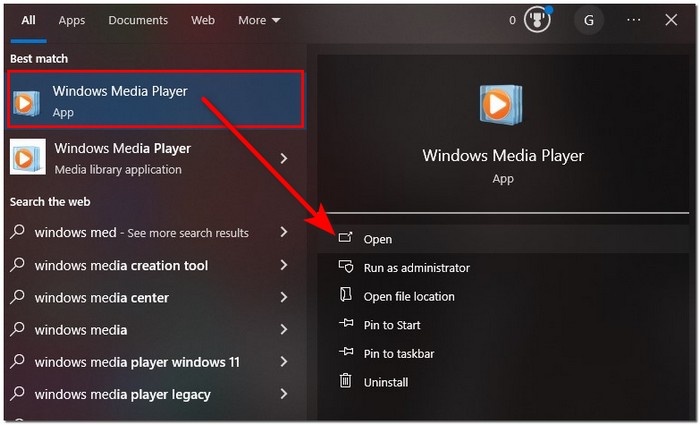
Step 2. In the Library, click Videos. Select the MP4 file you want to play
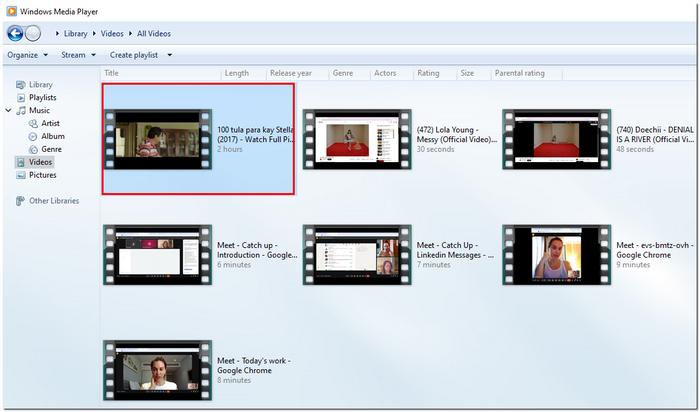
Step 3. Hit the Play button. Once loaded, your video will start playing automatically.
Using Experience
Playing MP4 files with Windows Media Player is simple and efficient. Because the layout is neat and well-known, it can be considered user-friendly for beginners. Nevertheless, some outdated WMP versions may have difficulty with specific MP4 formats or lack certain codecs. However, in the majority of cases, those with the latest version of Windows found their Windows Media Player can not play without hassle.
Method 3. How to Play MP4 Files via VLC Media Player
Steps to Play MP4 Files Using VLC
Step 1. Install VLC and run VLC from your desktop or Start Menu.
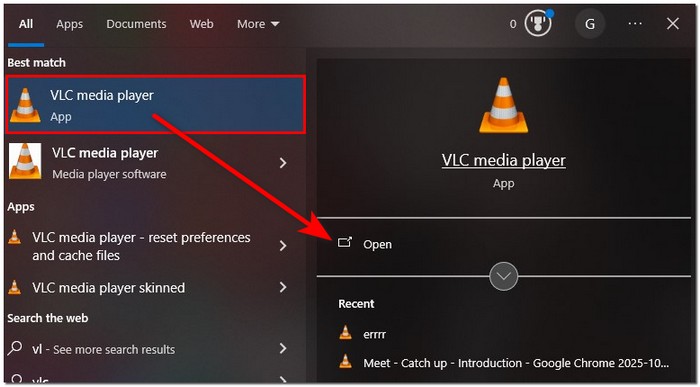
Step 2. Click Media, then Open File. Navigate to your MP4 video and select it.
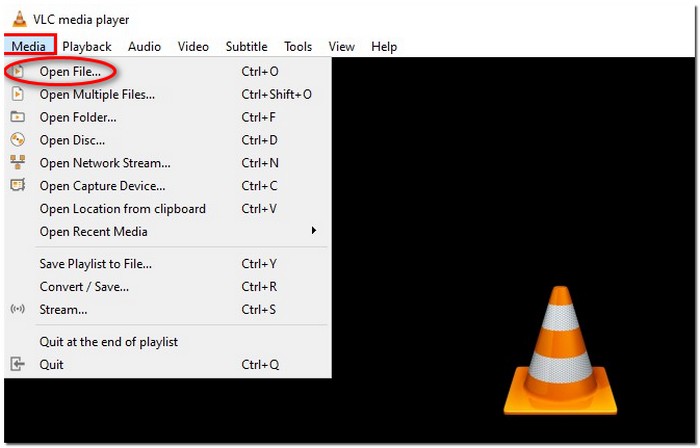
Step 3. After loading the file, VLC will automatically begin playback.
Using Experience
VLC is very adaptable and runs without a hitch most of the time. It is almost never confused with an MP4 file, even if it uses an unusual codec or is very high resolution. The player's control buttons are easy to understand and use, and it also offers neat features like subtitles, speed control, and screen recording. Furthermore, if your MP4 file is corrupted or damaged, you can also try VLC to repair the MP4 file. In short, VLC is a reliable and convenient way to play your files.
Method 4. How to Play MP4 Files via 5KPlayer
5KPlayer is a free multimedia player known for smoothly handling high-resolution videos, including 4K and even 8K MP4 files. It’s a good choice if you want a player that performs well with larger video sizes and offers extra features like DLNA streaming and AirPlay support.
Steps to Play MP4 Files Using 5KPlayer
Step 1. Launch the app after installing it on your computer.
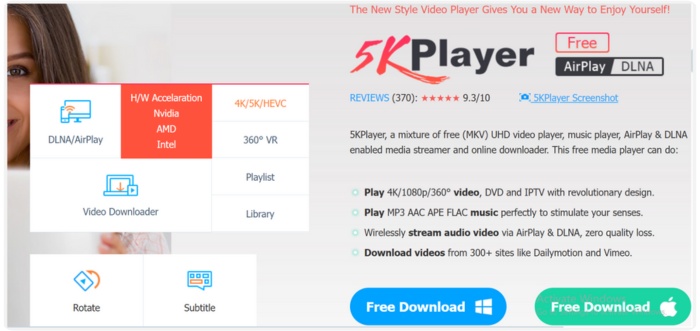
Step 2. Hit the Video button on the main interface and browse and select your MP4 file.
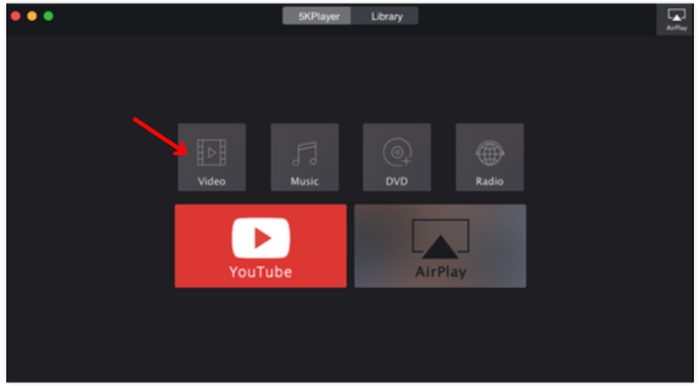
Step 3. Your video will begin playing automatically once loaded.
Using Experience
5KPlayer offers a clean, modern interface that is easy to navigate. MP4 files load quickly, and playback is generally smooth, even for larger or high-resolution videos. The player also has useful extra features, but for basic MP4 viewing, it stays beginner-friendly and reliable.
Method 5. How to Play MP4 Files via KMPlayer
KMPlayer is a flexible media player known for supporting a wide range of codecs. It supports almost any video format, including MP4, without the need for additional installations. If you want a customizable player with smooth playback and handy controls, KMPlayer is a solid option.
Steps to Play MP4 Files Using KMPlayer
Step 1. Open the KMPlayer after installation.

Step 2. Drag and drop your MP4 file into the KMPlayer window, or right-click inside the player. Then click the Open File and select your MP4 video.
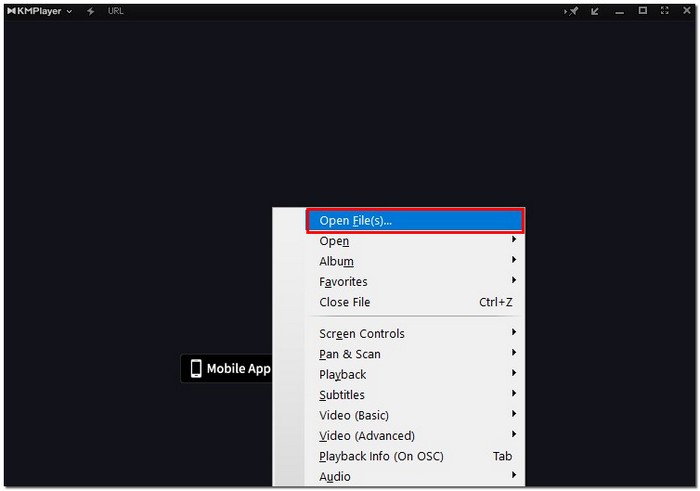
Step 3. The video will play, and you can adjust subtitles, speed, and quality using its built-in controls.
Using Experience
MP4 playback is smooth and the video quality is clear when you use KMPlayer. An interface is more than one would expect from a basic player, and you can still adjust audio, speed, and filters through it. Though a handful of features are beyond necessary for a few users, the application is still a good choice if you want to simply watch an MP4 file.
Method 6. How to Play MP4 Files via PotPlayer
PotPlayer is a media player that is not heavy on the system but still very effective and is generally known for its smooth functioning and advanced playback controls. Using MP4 files is a piece of cake, and it provides as many customization options as users want for a more flexible viewing experience. If you need an additional method you can always count on to play an MP4, PotPlayer is an excellent choice.
Steps to Play MP4 Files Using PotPlayer
Step 1. Start the application from your desktop or Start Menu.
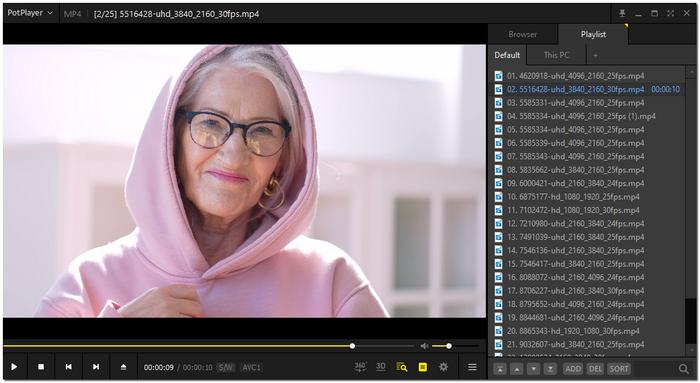
Step 2. Instead of dragging files, right-click anywhere in the player window and choose Open, then click Open File. Browse your folders and select the MP4 file you want to watch.

Step 3. PotPlayer will begin playing the video right away. Use its clean interface to adjust playback speed, screen size, or sound settings as needed.
Using Experience
Viewing MP4 videos through PotPlayer is quite smooth and fast. Even when the player is given large or high-resolution MP4 files, there's no delay, and with the player's customization tools, you can easily adjust your viewing setup. Although at first glance it might seem more complicated than your average player, it turns out to be a great performance once you get used to it.
Conclusion
It is not hard at all to play MP4 videos. There are many trustworthy media players for both Windows and Mac, offering you the freedom to choose the option that best suits your equipment and you. In case you want a built-in player or a feature-loaded instrument, every choice is equally convenient for you to have fluent video playback at any time. After figuring out how to play MP4 files, you can expect watching your preferred videos to be easy and quick from now on.
More Reading
- Two Easy Ways to Convert MP4 to M4A
- How to Convert MP4 to AVI with High Quality
- 6 Best MP4 Converters Recommended in 2026 [Free and Paid]
- Which Video Format is Better? MKV or MP4

Play your videos/music in 100+ formats and region-free DVDs/Blu-rays with 4K and Dolby Atmos experiences.

