Contents
Install and Register
VideoSolo Online Player is a free, versatile multimedia player that allows you to play video, audio, and DVD/Blu-ray discs on your computer without software installation.
Note: If you want to play DVD & Blu-ray folder/ISO files, please upgrade to VideoSolo Player.
VideoSolo Player offers you a free trial version with limitations as follows:
If you are fond of this application, you can choose the full version with no limitations, so you can enjoy free lifetime technical support and upgrades.
When you complete the purchase, the registration code will be sent to the email address you filled in at the time of purchase within 30 minutes. Then, fill in the following blanks with the email address and registration code you received. Click the Register button, and it will take you to the registration page, which means you have registered successfully.
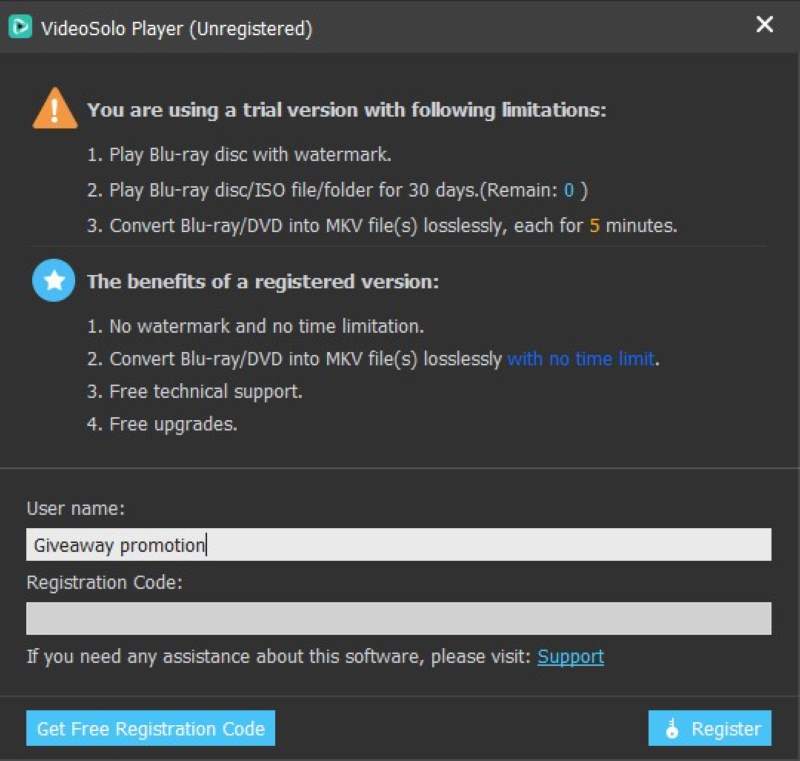
If you do not receive the registration code or encounter any problems during registration, please go to the Support page and submit your problem to our team. We will provide you with a solution as soon as possible.
Tips: Registration requires an internet connection. Otherwise, you may fail to register.
Step 1. Download and run the VideoSolo Online Player Launcher on your PC/Mac.
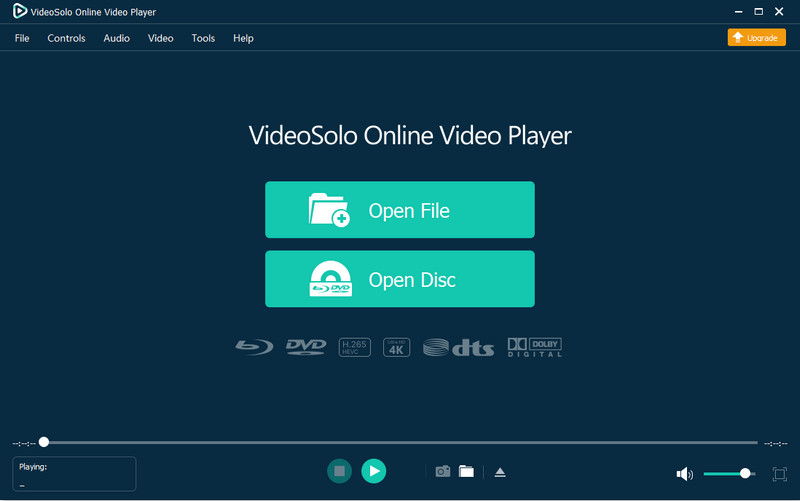
Step 2. Click “Open File” and choose the video/audio you want to play. Then, enjoy your best experience!
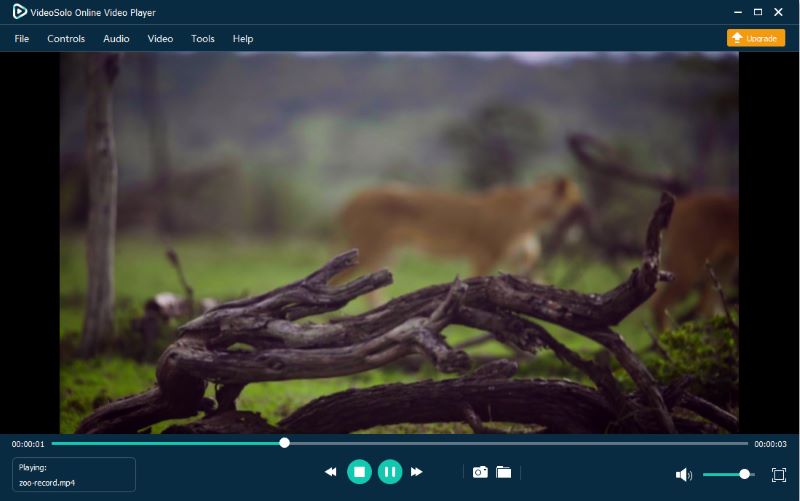
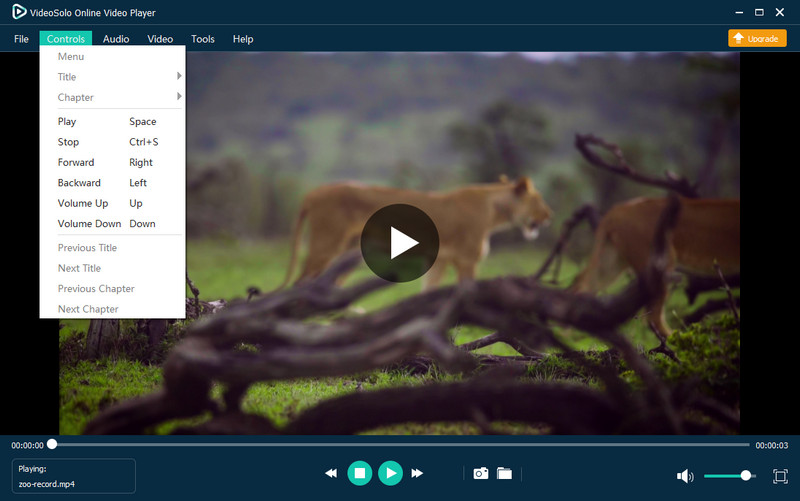
Click Controls to play, stop, forward, or backward the video, or adjust the volume as you need.
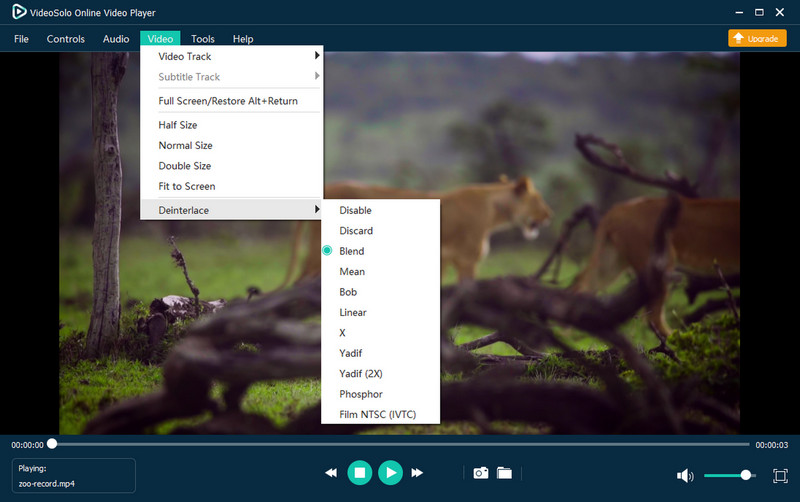
For Video: Tab Video, you can choose video tracks, add subtitle tracks, select deinterlace, adjust the screen size (Full Screen, Half Size, Normal Size, Double Size, or Fit to Screen), or video size.
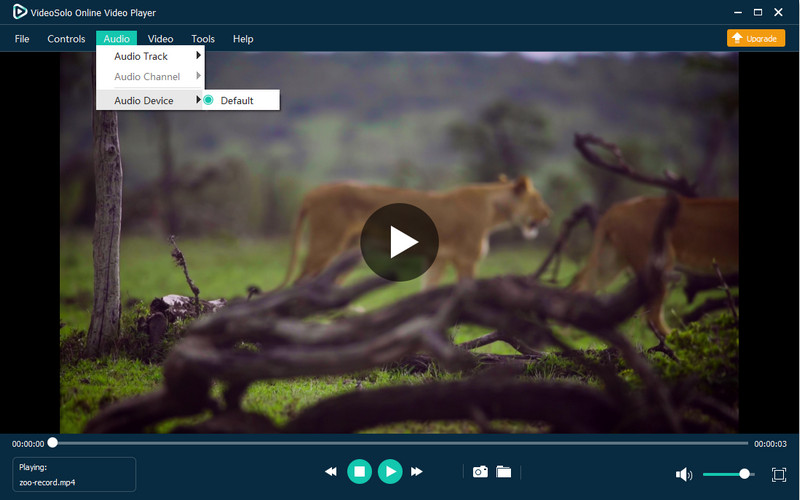
For Audio: Tab Audio, you can select the audio track, audio device, or change the audio channel to Stereo, Reverse Stereo, Left, or Right.
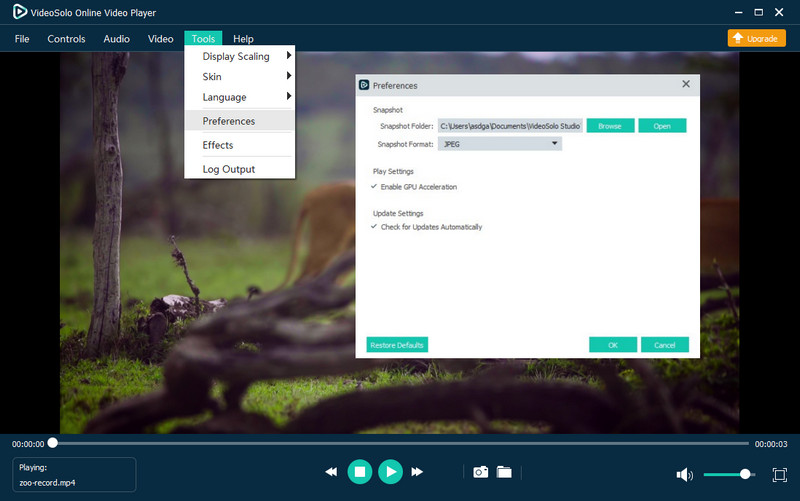
Go to Tool > Preferences, you can check out the output snapshot folder and select snapshot format as JPEG/PNG/BMP. For a fluent and high-quality viewing experience, please set up Hardware-accelerated decoding/ HDMI/SPDIF audio passthrough/ File caching.
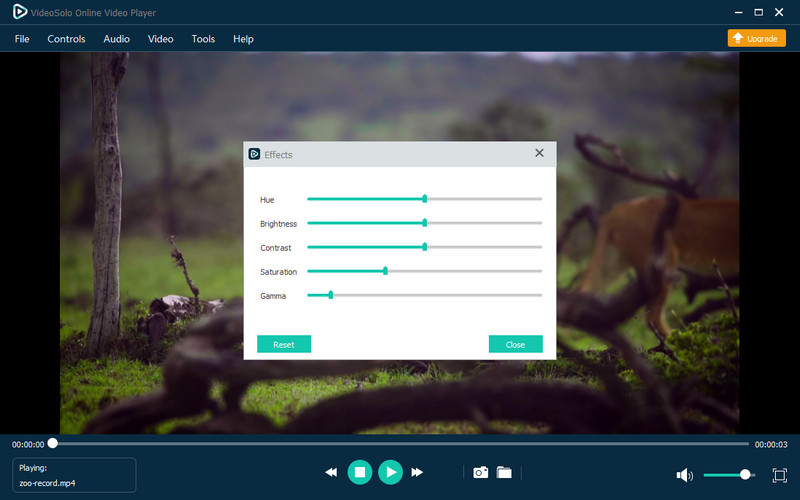
Go to Tool > Effects, and you can adjust hue, brightness, contrast, saturation, and gamma to enhance the video for a unique look.