



 Download Video Repair For FREE!
If you're watching a video on your computer and suddenly encounter the 0xc10100aa error, it can ruin your day. It occurs when a video file is partially compatible, corrupted, or your media player can't decode it correctly. In this guide, we'll investigate what causes this error and then show you step-by-step how to resolve the error. You’ll learn a fast method using specialized repair software as well as manual solutions like updating drivers, switching video players, or resetting apps on Windows and Mac. By the time you finish reading, you’ll be ready to enjoy your videos without any hiccups, and you’ll know how to prevent this error from happening again.
Part 1. What Caused the 0xc10100aa Error Code
Seeing the 0xc10100aa error can be confusing, especially when your video won't play. Typically, this indicates issues with the actual video file, such as corruption or an incomplete download. However, it is not simply the file. You may not have the proper codecs to decode the video file with your media player, or your media player may be out of date. Hardware can also contribute to the error. An obsolete GPU driver (Intel, NVIDIA, or AMD) may also cause stuttered playback. Moreover, Windows applications (Movies & TV) or third-party media players may crash with an error message. Likewise, a system update or permissions error may also create problems. Recognizing the issue's nature is important because it helps you determine if you need a quick software solution or make some manual tweaks in your system settings. Understanding why this happens allows you to avoid wasting too much time scrambling for the appropriate fix, and it will keep your video playing well.
Part 2. How to Fix 0xc10100aa Error [3 Steps]
If you’re dealing with the 0xc10100aa MP4 error, a reliable way to get your video playing again is by using VideoSolo Video Repair. This tool is designed specifically to handle corrupted or unplayable video files, making it simple for anyone to repair videos without complicated tech steps.
Main Features
Fixes MP4, MOV, and other video formats that are broken or corrupt
Both rapid and sophisticated repair modes are supported
Fixes playback problems while maintaining original quality
Easy-to-use interface; no technical knowledge required
Steps to Fix 0xc10100aa Error using VideoSolo Video Repair
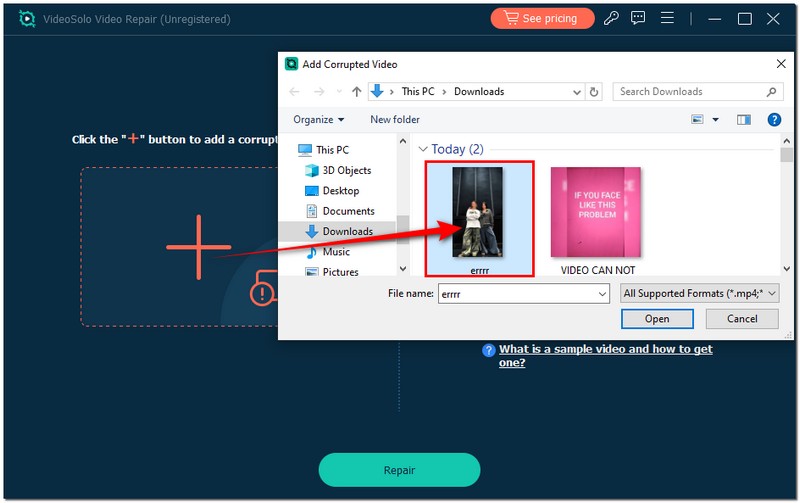
Step 1. Open the software, click +, and then import the MP4 file that’s showing the 0xc10100aa error.
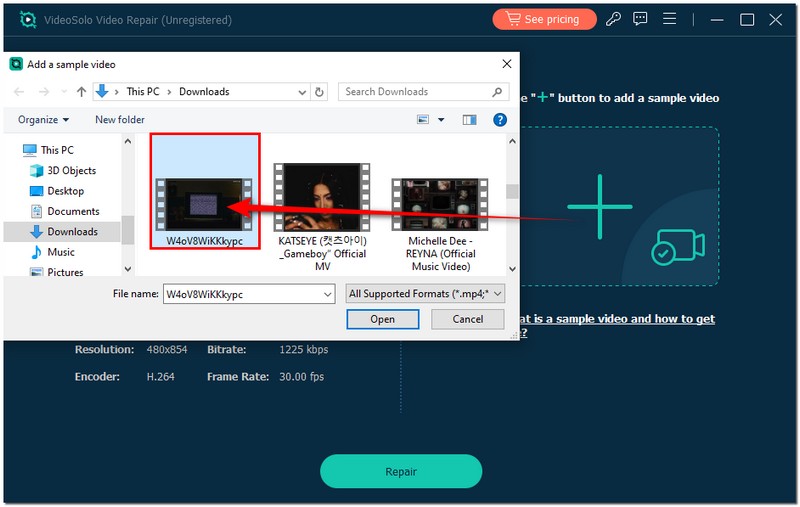
Step 2. Add the necessary sample video, made with the same device and format, to the right.
Step 3. Click Repair, wait for a few seconds to finish, then preview your video. Once satisfied, click Save to export the fixed file to your preferred folder.
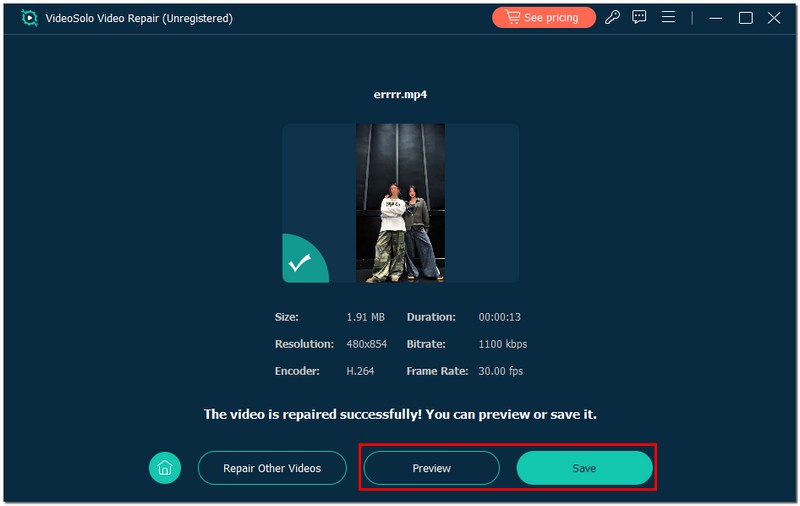
By following these three simple steps, you can restore your MP4 video and make it playable again, eliminating the hassle of manual troubleshooting or trying multiple apps.
Part 3. How to Fix 0xc10100aa Error Manually
If you still encounter the 0xc00d11d2 0xc10100aa Windows 10 issue after applying the repair tool, don't be discouraged!t There are a few manual solutions to explore. The problem doesn't always lie in corrupted video files. It could be a software, driver, or media player problem. This section will examine some hands-on fixes, including updating your GPU driver, trying a different player, or resetting some apps and settings in your Windows or Mac PC. These methods may take a bit longer than simply using the repair tool, but they are a useful way to repair system-related issues that are linked to the error.
Fix 1. Update or Reinstall the GPU Driver (Intel, NVIDIA, AMD)
A common cause of the 0xc10100aa error is outdated or faulty GPU drivers. The graphics driver is an important factor in displaying and decoding video. A corrupted or incompatible driver may be causing issues with certain files. Here’s how to find and update or reinstall your GPU driver based on the graphics card you are using:
Step 1. Hold Windows + X and select Device Manager. Expand Display adapters to see whether you’re using Intel, NVIDIA, or AMD graphics.
Step 2. Right-click on your GPU name and select Update driver. Choose Search automatically for drivers and let Windows install the latest version.
Step 3. If updating doesn’t help, uninstall the driver:
• Right-click on the GPU again and choose Uninstall device.
• Restart your PC, and Windows will automatically reinstall the proper driver.
• Visit the website of your manufacturer (Intel, NVIDIA, or AMD) to download the most recent version.
Fix 2. Use Another Video Player
At times, the issue may not be with your video file but the player in question. For example, the Windows built-in Movies & TV app or the Windows Media Player can have issues loading certain video formats or video codecs, which can result in the 0xc1010aa error. If this is the case, simply switching to a different video player may lead to instant success! For example, install a more open media player like VLC Media Player to see if it works. You can not only use it as a player, but also apply VLC to repair video.
Step 1. Download and install VLC Media Player.
Step 2. Open your video file with VLC by right-clicking Open with and selecting VLC Media Player.
Step 3. If the video plays smoothly, it means your previous player didn’t support the format properly.
Fix 3. Update or Reset Your Computer (Windows & Mac)
If you have tried different methods and are still unable to fix the 0xc10100aa error, it is now time to look at your system itself. Sometimes, an outdated or conflictingly updated media component can prevent it from streaming correctly. Consider updating or resetting your operating system to correct any possible software bugs, driver conflicts, or corrupted settings causing the video playback issues like a black screen video.
For Windows:
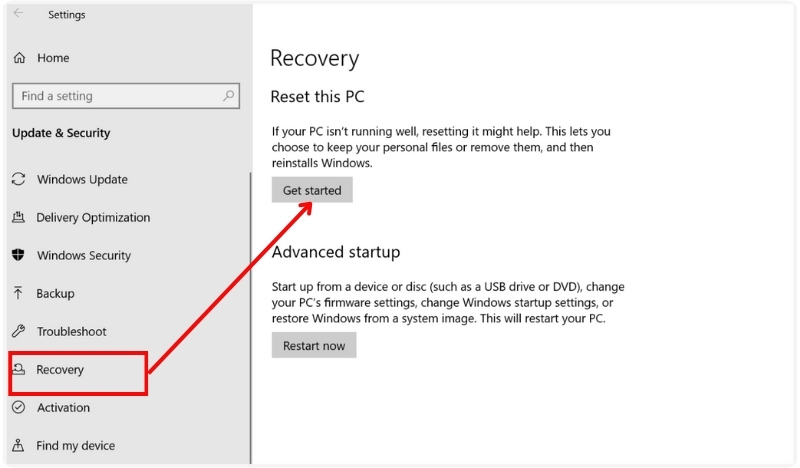
Step 1. Go to Settings, select Update & Security, and then click Windows Update.
Step 2. Hit Check for updates and install all available ones.

Step 3. After that, restart your computer and try playing the video again. If the procedure does not resolve the issue, pick Recovery. Select Reset this PC and continue through the steps to reinstall Windows while preserving your files.
For Mac:
Step 1. Click the Apple menu, find System Settings, and click General. After that, choose the Software Update.
Step 2. Hit Update Now if there is an update available.

Step 3. After updating, restart your Mac and try playing the video again. If needed, you can reset macOS settings by booting into Recovery Mode and reinstalling macOS without erasing your data.
Fix 4. Reset the Movies & TV App
If you’re still getting the 0xc10100aa error while using the Movies & TV app, the app itself might be the issue. Over time, it can collect corrupted cache or settings that interfere with how your videos play. Resetting it gives the app a clean slate. No more bugs or stored errors.
Here’s how to reset the Movies & TV app on Windows
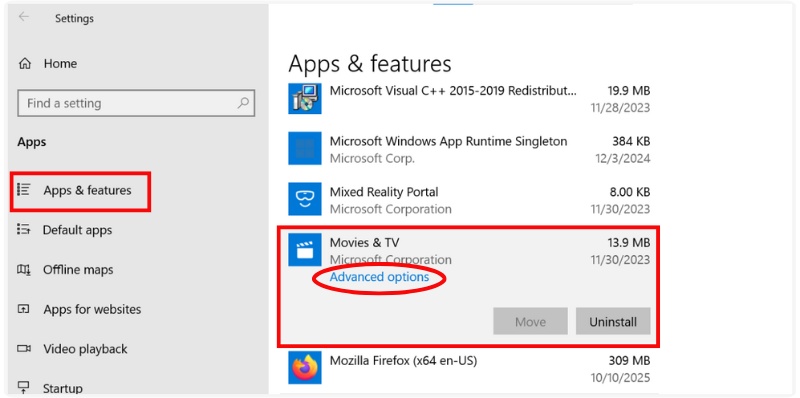
Step 1. Press Windows + I to open Settings.
Step 2. Go to Apps and click Apps & features.
Step 3. Find Movies & TV in the list and click Advanced options.
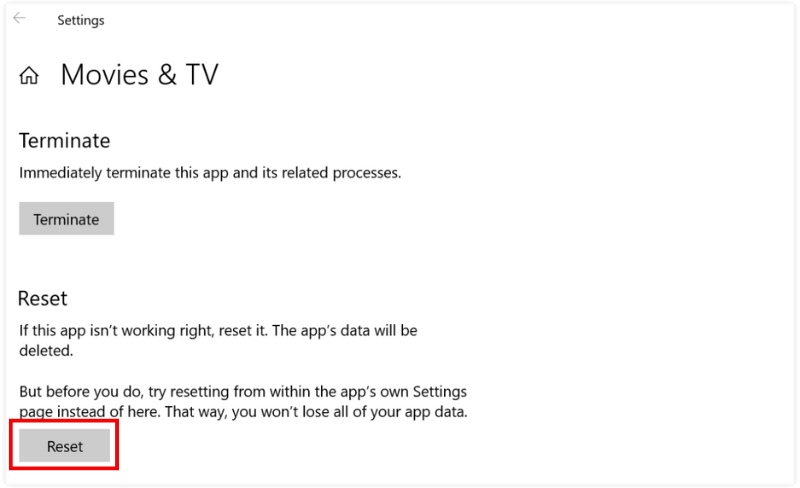
Step 4. Scroll down and select Reset. Confirm when prompted, then reopen the app and try playing your video again.
Part 4. Tips to Prevent 0xc10100aa from Happening
Now that you’ve fixed the 0xc10100aa error, the next step is keeping it from showing up again. The good news is that prevention is easy if you know what habits to maintain. The following straightforward yet powerful advice will help you steer clear of this playback problem in the future:
1. Keep your video players and drivers updated
Regularly check for updates on your media player, GPU drivers, and operating system. Outdated software can trigger compatibility errors like 0xc10100aa.
2. Use reliable video converters or editors
If you frequently convert or edit videos, ensure you’re using trusted tools to prevent file corruption that can cause playback issues.
3. Do not abruptly shut down your system while playing or moving videos
If you turn off your computer or storage devices while transferring video files, the files could become corrupted.
4. Scan your system for malware periodically
The media player may malfunction or crash due to corrupted files caused by viruses or malicious software.
5. Back up your videos
Always keep a backup copy of important files. If corruption occurs, you’ll still have an untouched version ready to play.
You can significantly lessen the possibility of encountering the 0xc10100aa error again and enjoy worry-free, fluid video playback by following these simple steps.
Conclusion
In general, you do not have to worry about the process of addressing the 0xc10100aa error. With adequate tools, updated drivers, and a well-maintained system, you can easily clear the error and prevent it from affecting your video playback.
More Reading

Repair your damaged, unplayable videos with multiple mainstream formats like MP4, MOV, 3GP, etc.

