



 Download Video Repair For FREE!
You're ready to watch a video on your Windows computer, but an error message appears, displaying 0xc00d36cb, and the video won't play. It is a common playback issue on Windows that can occur suddenly, leaving you to wonder what went wrong and how to fix it quickly. It would normally suggest that a video file is corrupted, not authorized, or that there is a technical issue with your operating system. Today, we will explain the 0xc00d36cb error and how to resolve it quickly. We will first discuss the cause and then demonstrate the quickest fix using VideoSolo Video Repair. Then, for those less familiar with this type of software, we will provide six additional manual fixes, including resetting Windows apps, adjusting folder permissions, or updating Windows settings. We will show you how to fix your videos without the headaches!

Part 1. What is Error 0xc00d36cb
The 0xc00d36cb error is one of those annoying Windows glitches that pops up when you try to play a video, but something in your system just isn’t cooperating. Usually, this error appears in apps like Movies & TV, Windows Media Player, or even third-party players. In simple terms, it means your computer can’t properly read or access the video file.
There are several reasons this might happen. Your file may be corrupted, your media player settings are misconfigured, or Windows permissions are preventing the video from playing. Other times, it could be due to missing codecs, Windows updates, or a bug in the Movies & TV app itself.
Actually, it’s not as risky as it sounds because there are several easy ways to get your videos playing smoothly again, and we’ll walk through both the quick fix and the more advanced methods next.
Part 2. How to Fix 0xc00d36cb Error Code [Quickest Way]
Whenever you try to access your video, you encounter the bothersome error message "0xc00d36cb can’t play." The quickest way to resolve this issue is with a dedicated and reputable video repair software like VideoSolo Video Repair. This program is built specifically to repair corrupted and unreadable video files that could cause this Windows error. Whether the video was damaged during transfer, editing, or download, VideoSolo can restore it to a playable state without losing quality.
Key Features
Repairs all major video formats (MP4, MOV, AVI, WMV, etc.).
Fixes playback errors caused by corruption, incomplete downloads, or crashes.
Supports batch repair, allowing you to fix multiple videos at once.
Uses sample file technology to improve recovery accuracy.
Simple interface for quick, no-hassle operation.
Steps to Fix the 0xc00d36cb Error Code Using VideoSolo Video Repair
Step 1. Launch VideoSolo Video Repair on your PC. Register first by entering the code provided by the tool.
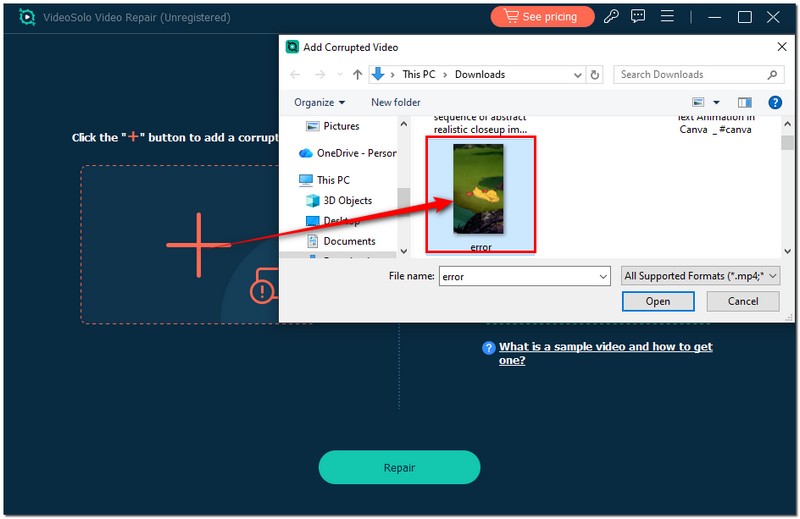
Step 2. Click Add File to import the damaged video, which will display the 0xc00d36cb error on the left side.
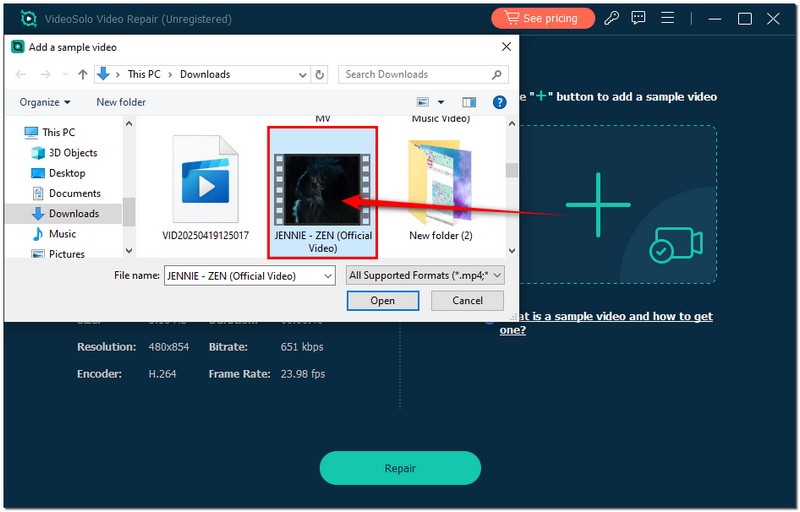
Step 3. Upload a sample video from the exact device to the right side to help the software understand the correct encoding.
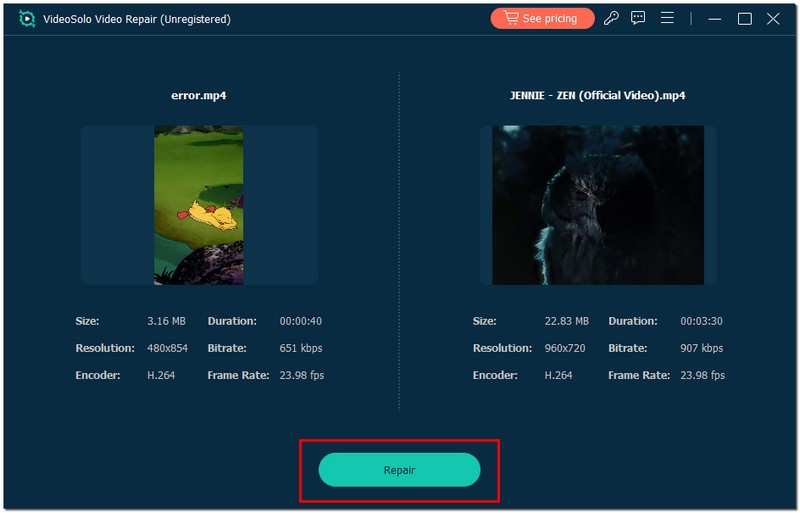
Step 4. Hit Repair and wait for the process to complete.
Step 5. Once done, click preview to check the restored file. If everything looks good, save your fixed video to your desired location.
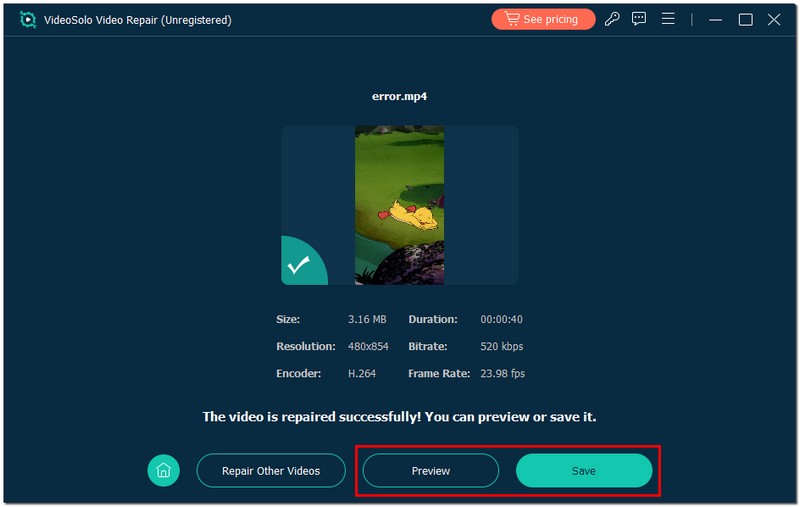
Using VideoSolo is by far the quickest and easiest fix for the 0xc00d36cb video error, requiring no complicated Windows settings or risky registry edits. It gets straight to the point, making your videos playable again and fixing your frozen video in just a few clicks.
Part 3. Other 6 Ways to Fix 0xc00d36cb [Complex]
If the quick solution doesn’t work, there are still several manual ways to try a 0xc00d36cb fix on your Windows computer. These methods may require more time and patience, but they can often resolve deeper system or permission issues that prevent your videos from playing. Below, we’ll go through six practical fixes you can try, step by step.
Fix 1. Use Windows Video Troubleshooter
One of the most effortless ways to start fixing the 0xc00d36cb error is by using Windows’ built-in Video Playback Troubleshooter. This handy tool automatically scans your system for common playback issues and applies quick fixes, no technical knowledge required.
Here’s how to do it:
Step 1. Press Windows + I to open Settings.
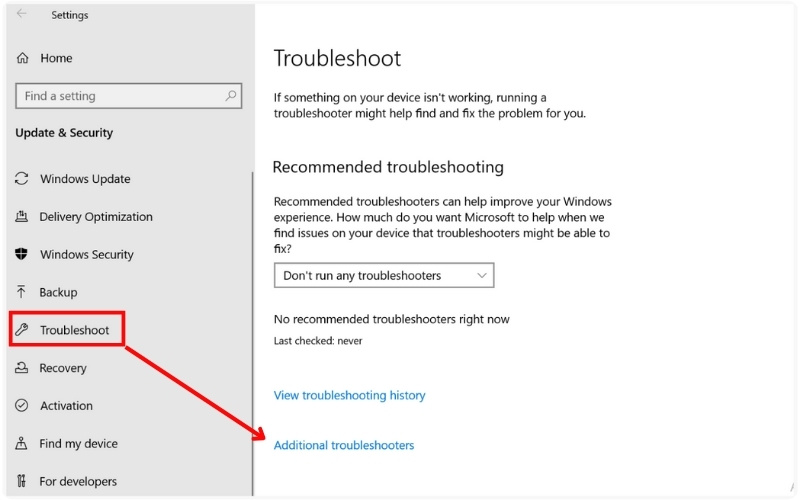
Step 2. Go to Update & Security, select Troubleshoot, and then click Additional Troubleshooters.
Step 3. Find Video Playback from the list and click Run the Troubleshooter.
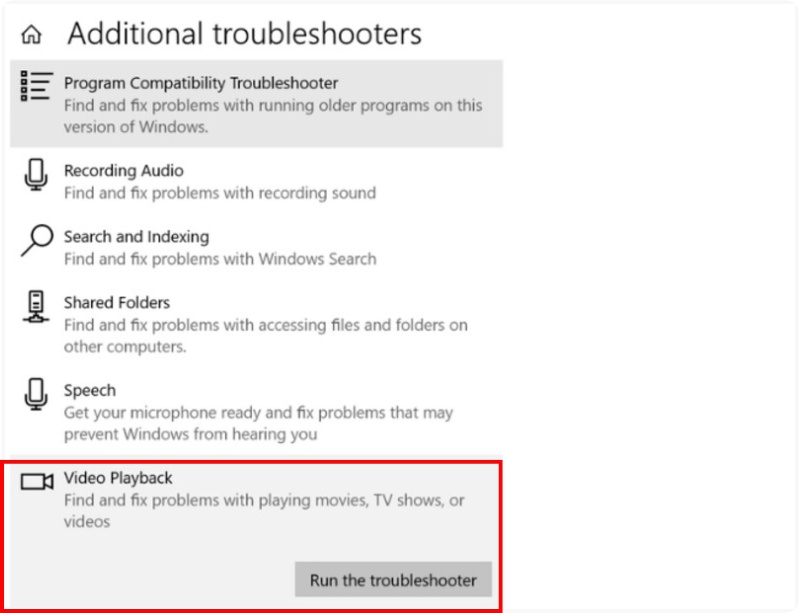
Step 4. Wait for Windows to detect problems and follow the on-screen instructions. Once done, try playing your video again to check if the issue is fixed.
Fix 2. Reset Movies & TV on Windows
If you still experience error 0xc00d36cb, the issue might be with the Movies & TV app itself. Occasionally, the data or cached files within the app become corrupted, which can prevent videos from playing back. The app can be reset to its default settings, helping to resolve any underlying issues.
Here’s how to reset the Movies & TV app
Step 1. Go to Settings again, then find the Apps section and click on either Installed Apps or Apps & Features.
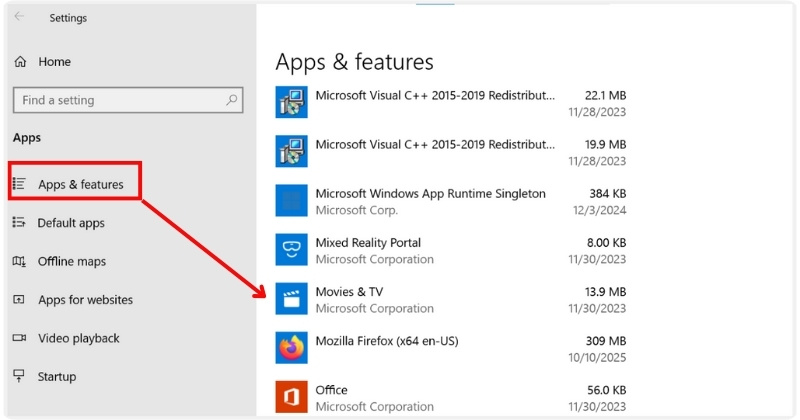
Step 2. Scroll down and find Movies & TV, then click Advanced Options.
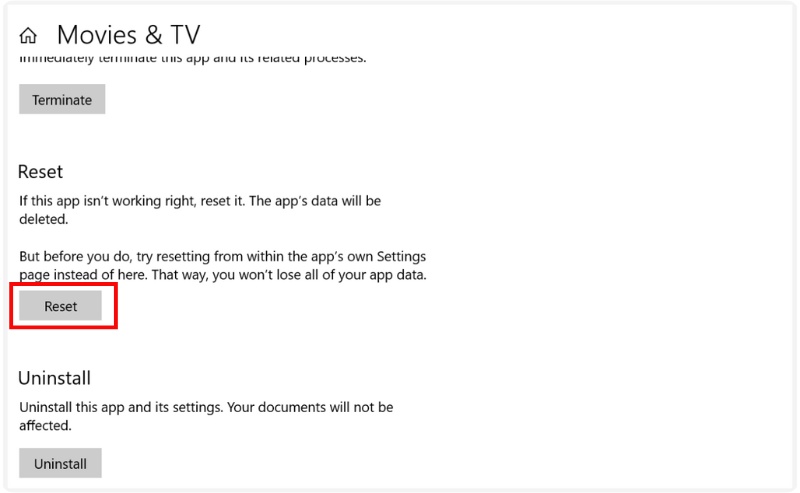
Step 3. Hit the Result button, and once the reset is done, reopen the app and try playing your video again.
Fix 3. Reset Microsoft Store
If resetting the Movies & TV app didn’t resolve error 0xc00d36cb, the issue could be connected to the Microsoft Store itself. Since Movies & TV is a Microsoft app, problems with the Store’s cache or updates can affect how the app performs. Resetting the Microsoft Store helps clear corrupted data and ensures your video apps run properly.
Here’s how to reset the Microsoft Store
Step 1. To enter the run dialog box, press Windows + R.
Step 2. Type wsreset.exe and hit Enter.
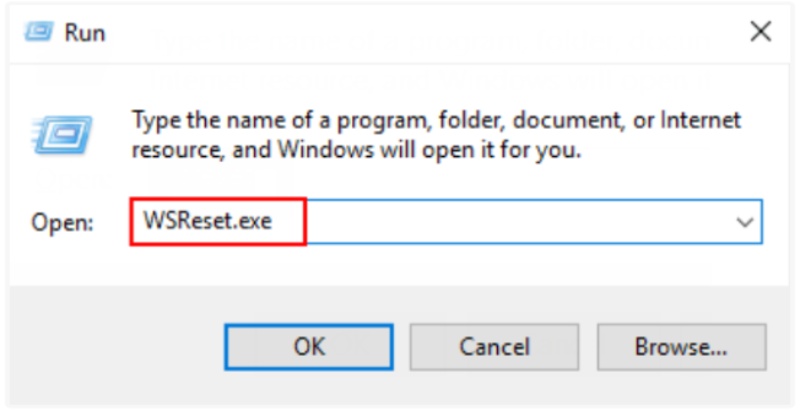
Step 3. An empty Command Prompt window will pop up in a few seconds. Wait until it automatically closes. Once it’s done, the Microsoft Store will open automatically, indicating the reset is complete.

Fix 4. Create A New User Account
Sometimes, the 0xc00d36cb video error appears because your current Windows user profile is corrupted or misconfigured. If that’s the case, creating a new user account can give you a fresh environment where apps and permissions function properly. It’s a simple but effective workaround, especially when all other methods fail.
Here’s how to create a new user account
Step 1. Find the Settings, go to Accounts, and click Family & other users.
Step 2. Under Other Users, click Add account.
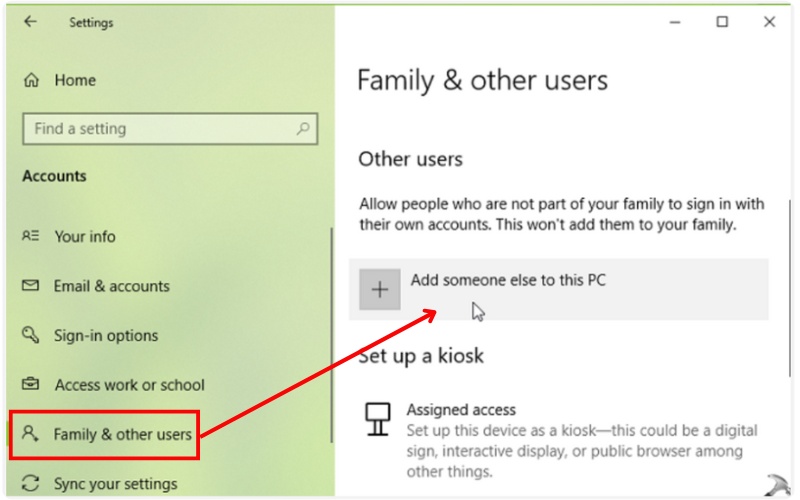
Step 3. Click on I don’t have this person’s sign-in information, then in the next window, hit Add a user without a Microsoft account.
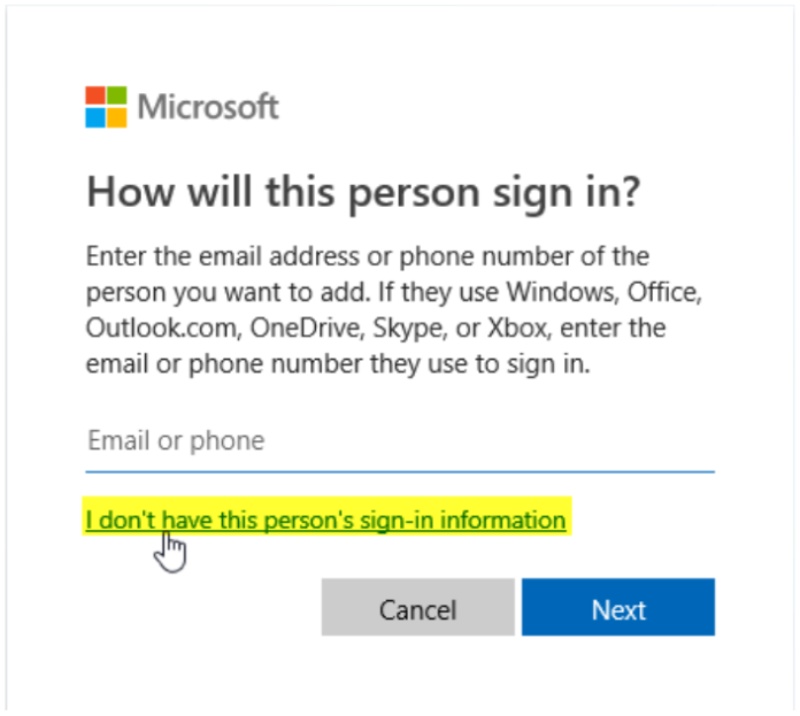
Step 4. Please put your username and password, then click Next.
Step 5. Sign in with the new account after logging out of the old one.
Fix 5. Grant the File Permission
If your system has no permission to read the video file, you may experience the 0xc00d36cb error. This error is common when the video was copied from another device, downloaded from the internet, or saved in a restricted folder. Granting the necessary permissions will enable Windows to read and play the video file.
Here’s how to do it
Step 1. Right-click the video file and choose Properties.
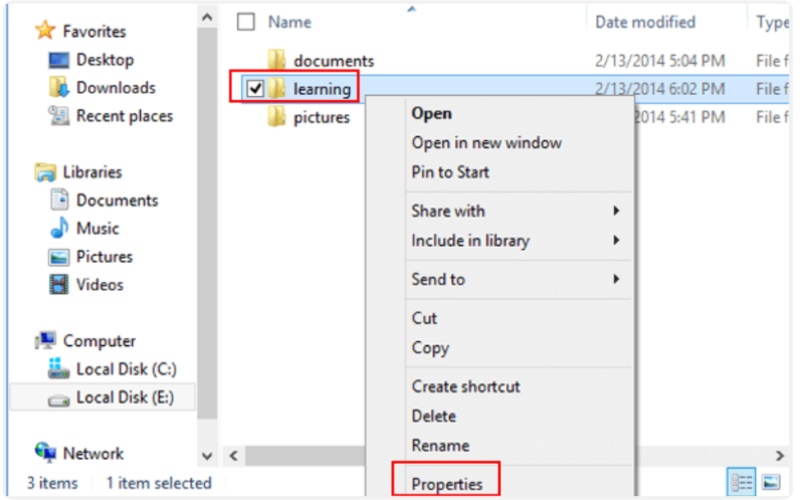
Step 2. Look for the Security tab, then click Edit.
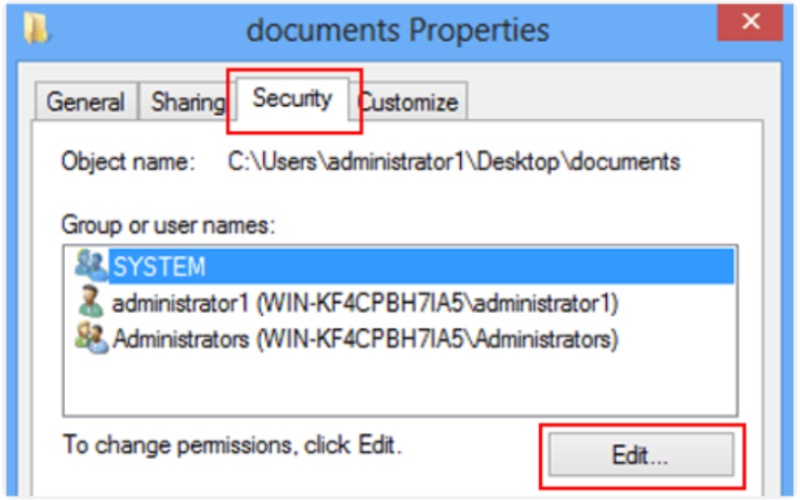
Step 3. Under Group or user names, select your username.
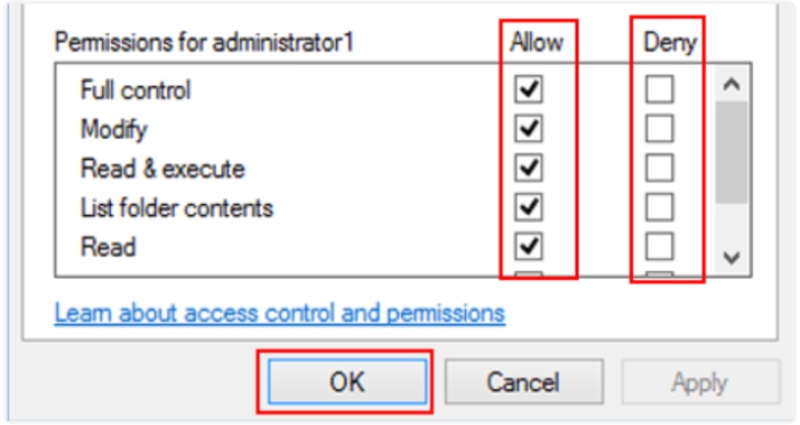
Step 4. In the Permissions section, check Allow next to Full control.
Step 5. After you allow it, click the Ok button to save it.
Fix 6. Update or Reset Your Windows
If none of the fixes we provide worked, your system files or Windows settings are likely the real culprit behind the 0xc00d36cb video error. Outdated or corrupted system components can interfere with how your PC handles media playback.
To update Windows
Step 1. In your Settings, go to Update & Security and click on Windows Update.
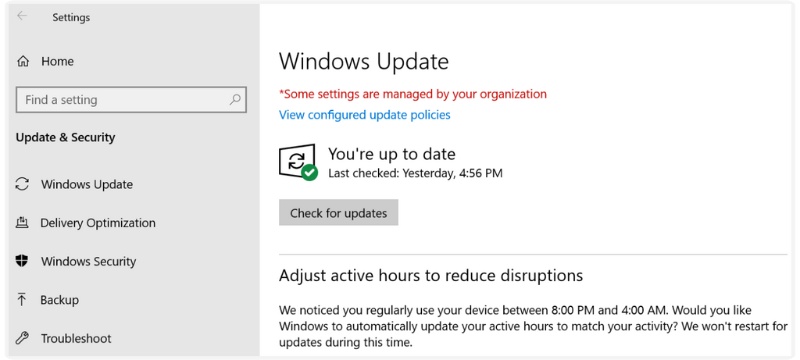
Step 2. Install any available updates after checking for them.
If updating doesn’t solve it, you can reset your PC as a last resort
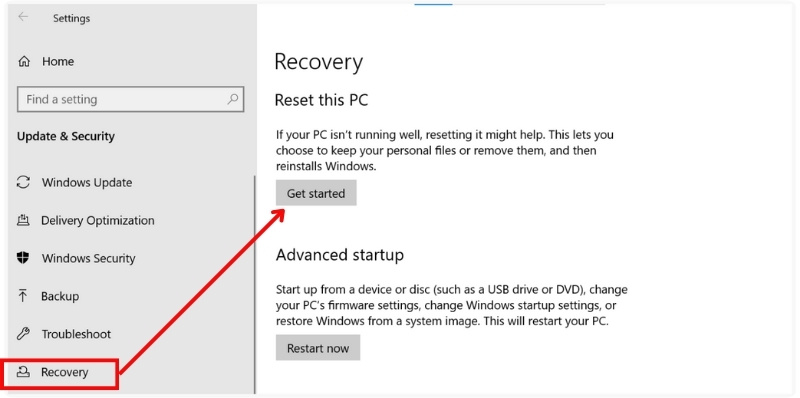
Step 1. Go to Update & Security and click Recovery.
Step 2. Under Reset this PC, click Get started.
Step 3. Choose Keep my files to avoid losing data and follow the prompts.
Part 4. How to Prevent Error Code 0xc00d36cb
After finally resolving the 0xc00d36cb video error, the last thing you want is for it to recur. You can prevent it from happening again with a few easy habits and quick system checks.
Here are some practical tips to keep your videos running smoothly
1.Keep Windows Updated – Regular updates patch bugs and improve system stability, so always install them when available.
2.Ensure your Media Players are Up to date - Whether you are utilising the Movies & TV app or another video player, outdated software may cause playback issues.
3.Prevent File Corruption - When moving videos, ensure you properly eject external drives and avoid stopping the download or copying process mid-transfer.
4. Use Common File Types - If you're ever unsure, it’s better to be safe and go with a ubiquitous, good-quality file type like MP4 or MKV (Learn more about MKV vs.MP4 can help you choose the best format), to lessen the chances of encountering a compatibility issue.
5.Perform Regular System Maintenance - Utilize utilities like Disk Cleanup or Windows Troubleshooter to keep your system healthy.
6.Download Known and Trusted Codecs and Drivers - Outdated or mis-typed codecs can sometimes cause playback errors. Just make sure they’re up-to-date and match the drive.
Conclusion
To sum up, the error 0xc00d36cb can be frustrating. If you opt for a quick fix like VideoSolo Video Repair or use one of the manual methods in Windows, you shouldn't find difficulty in getting your videos playing again. Keep your system updated and take care of your files to avoid encountering this issue again.
More Reading

Repair your damaged, unplayable videos with multiple mainstream formats like MP4, MOV, 3GP, etc.

