



 Download Video Repair For FREE!
Ever tried playing a video and all of a sudden the screen freezes, followed by a message saying error code 224002? It is one of the most frequent playback issues affecting browsers and mobile devices. However, the good part is that this error is generally just irritating and not serious, and it can be fixed in a very short time. This article will inform you about the true causes of the issue, the easiest tool for repairing corrupted videos, and device-specific step-by-step solutions. If you are willing to stop the interruptions and get back to smooth viewing, you are in the right place. Let’s unpack it.
Part 1. Possible Reasons That Caused Error Code 224002
In case you come across the "Error code 224002 this video cannot be played" message, it generally signifies that your browser or device is being hindered from loading the video in the right way. Such a problem might manifest itself on a computer, a smartphone, or a tablet, and even in certain applications. The below-listed reasons are the most typical ones:
1. Browser Cache or Cookies Are Corrupted
Overloaded or outdated cache files can go so far as to mess with video playback, and eventually, your browser will be the one to fail when loading media content.
2. Faulty or Conflicting Browser Extensions
Certain extensions, if you take your example as an ad blocker, privacy add-ons, or script blockers, that can block essential video scripts, could be the reason for the error and thus the final trigger.
3. Outdated Browser Version
An outdated or unsupported browser might struggle to decrypt modern video formats, leading to issues with video playback.
4. Weak or Unstable Internet Connection
Slow or unstable network connections may cause continuous video buffering and prevent the video from loading.
5. Video File or Source Is Corrupted
If the content you are trying to watch is broken or not encoded correctly, the player won't be able to open it unless you have repaired your damaged video files.
6. Unsupported Format or Codec
Some browsers do not support certain codecs (most notably high-quality or proprietary ones), so they will show playback errors.
7. Device or Browser Restrictions
Security settings, firewalls, or blocked scripts can be the reasons the video player is not functioning normally.
Part 2. Top Choice to Fix Error Code 224002
If you’re looking for a quick and effective way to repair videos affected by error code 224002, VideoSolo Video Repair is one of the most dependable options available. It’s to fix corrupted, damaged, or unplayable video files caused by browser issues, incomplete downloads, transfer errors, or unsupported formats. This tool works smoothly across both Windows and Mac. What makes it especially helpful is how simple the repair process is. Even beginners can learn how do you fix error code 224002 using this tool without any technical knowledge.
Key Features
• Rectifies a diverse array of video formats, encompassing MP4, MOV, MKV, AVI, M4V, among others
• Fixes multiple video issues, including corruption, stuttering, video not opening, audio-video sync errors, no audio on the videos, and playback failures.
• Supports HD, Full HD, and 4K videos, ensuring high-quality results after repair.
• Offers advanced repair mode using a sample file for severely corrupted videos.
• Fast repair processing with high success rates.
Follow the steps detailed below to fix your video and address playback issues, such as error 224002:
Step 1. Install and run VideoSolo Video Repair on your Mac or Windows computer, then open it to access the main dashboard.
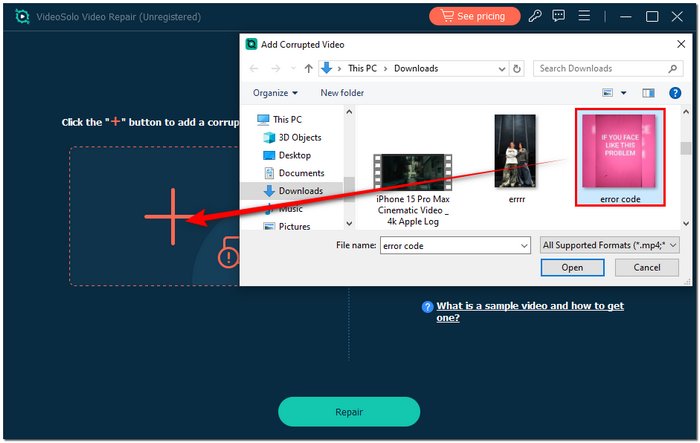
Step 2. Click the Add Video section and import the video file that shows the error on the left.
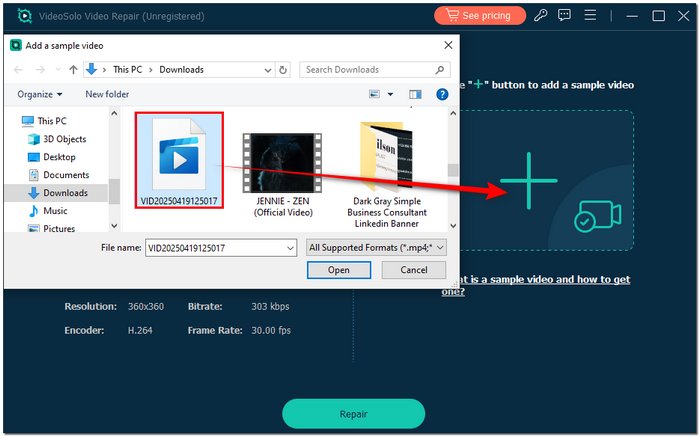
Step 3. If the corrupted file is severely damaged, please upload a sample video on the right that has the same format and recording source. It significantly enhances the precision of repairs.
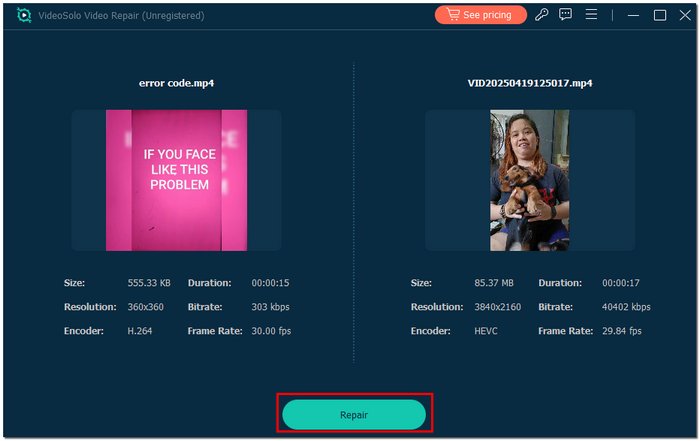
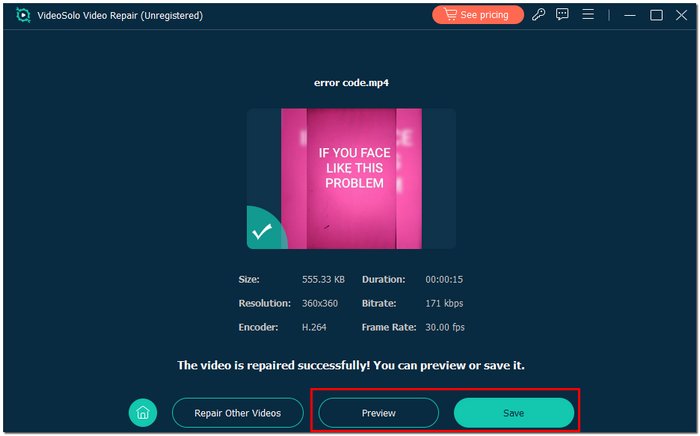
Step 4. Click the Repair button. The program will automatically evaluate and correct the file. You can monitor advancement as it happens.
Step 5. Once done, hit Preview to check the result. If everything appears to be fine, click Save to download the fixed video to your device.
Part 3. How to Fix Error Code 224002 on a PC
When this video issue appears on your browser, the good news is that most solutions are quick and easy to perform on your computer. Before assuming the video file is damaged, start with a few browser-level fixes. These often resolve the problem instantly. Here’s how to fix error code 224002. The steps below will guide you through the most effective PC troubleshooting methods.
1. Clear the Cookies and Cache
Overloaded cache files and outdated cookies can cause your browser to malfunction, leading to playback issues like Error 224002.
Step 1. Open your browser settings.
Step 2. Go to Privacy & Security.
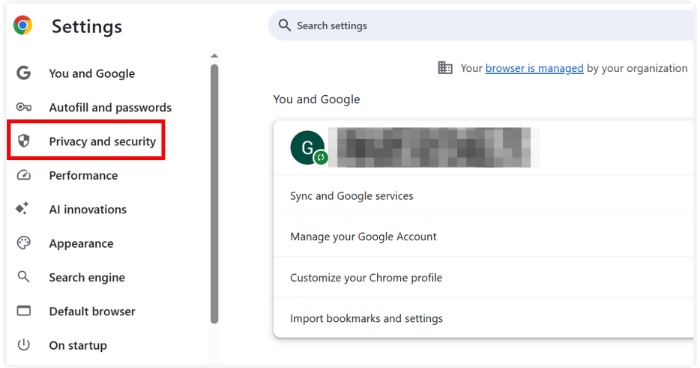
Step 3. Choose Delete browsing data, then select temporary files and cookies. Once you have cleared, restart your browser and try playing the video again.
2. Delete Unnecessary Browser Extensions
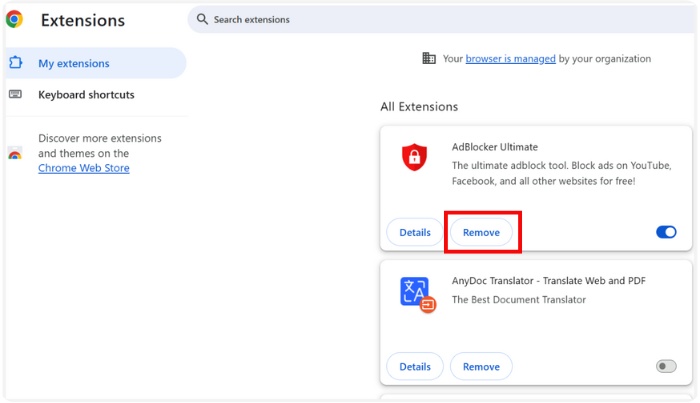
Step 1. Access the Extensions or Add-ons section of your browser.
Step 2. Turn off extensions individually, particularly those associated with advertisements or media.
Step 3. Refresh the video page to see if the problem is fixed. If the video plays after disabling one, you’ve found the culprit.
3. Update or Reinstall Your Browser
Old browsers frequently have a problem with modern video formats and player scripts. Here are the actions to resolve it:
Step 1. Check your browser's configuration for updates, and download the latest version.
Step 2. If updating doesn’t help, uninstall the browser completely and reinstall a fresh copy. It resets corrupted files and ensures full compatibility with video players.
Part 4. How to Fix Error Code 224002 on Phones
The reason for such an error on mobile browsers is mostly outdated data, browser glitches, or system issues. Fortunately, a few quick steps to refresh your browser and ensure your device is running smoothly will fix it on your phone.
1.Clear the Cookies and Cache
Excessive or old browsing data can prevent videos from loading properly. Clearing your phone's cookies and cache allows it to reload the video, which often swiftly resolves Error Code 224002.
Android (Chrome)
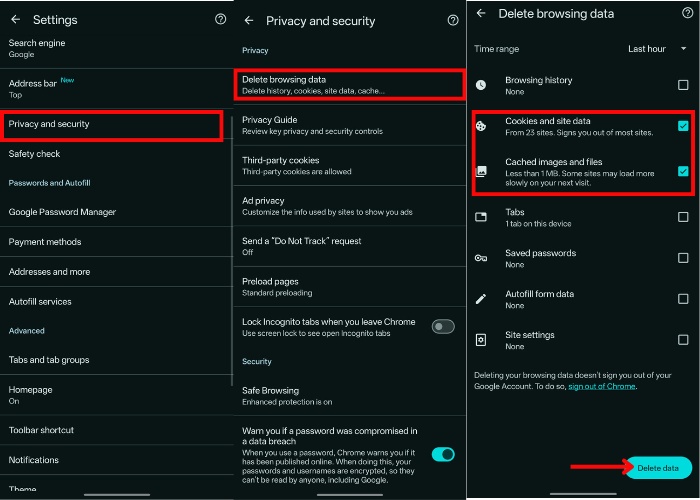
Step 1. Go to Chrome, tap the three dots, then tap Settings.
Step 2. Select Privacy and security and tap Delete browsing data.
Step 3. Choose All time, then check Cookies and site data, and Cached images and files.
Step 4. Tap Delete data and restart Chrome.
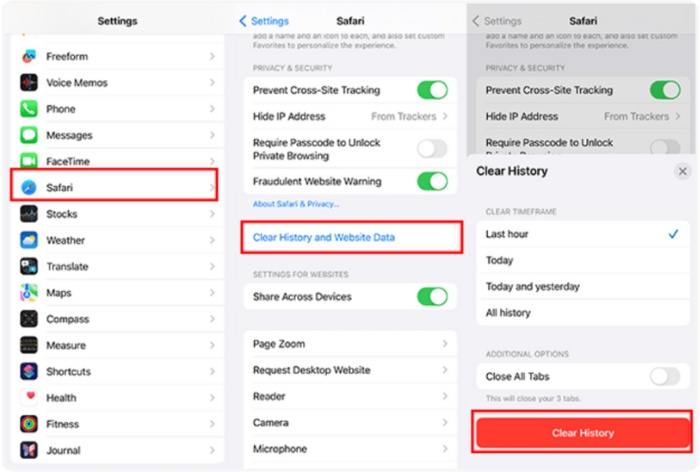
iPhone (Safari)
Step 1. Open Settings and tap Safari.
Step 2. Select Clear History and Website Data.
Step 3. Confirm and reopen Safari.
2.Update or Reinstall Your Browser
An outdated or faulty browser may struggle with modern video playback. Updating or reinstalling it ensures better compatibility and removes hidden glitches affecting video loading.
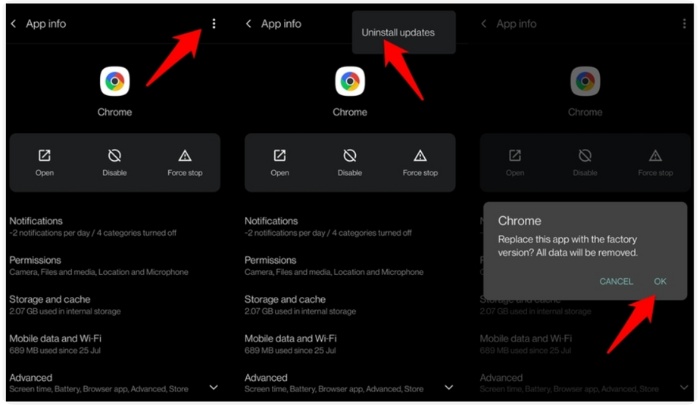
Android
Step 1. Go directly to the Google Play Store and check if your browser has an Update button.
Step 2. Update it, then try the video again.
Step 3. If it still fails, uninstall the browser. Reinstall it from the Play Store.
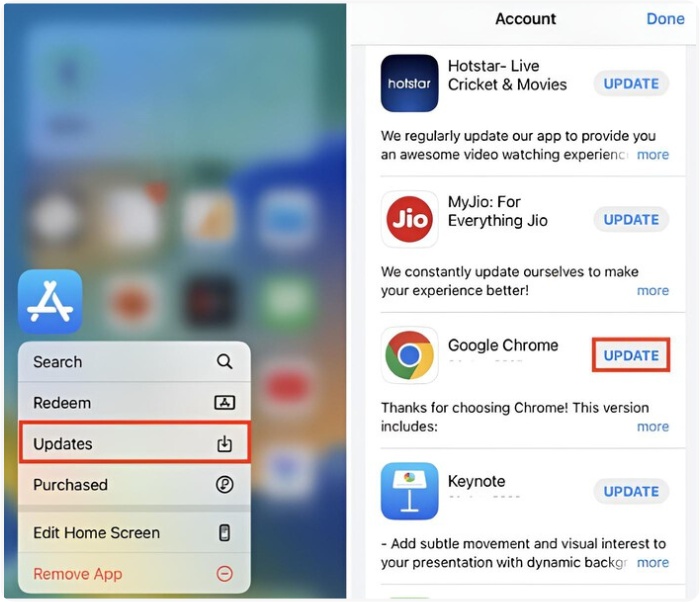
iPhone
Step 1. Open App Store and visit your profile page.
Step 2. heck if your browser has an available update.
Step 3. Update it and test the video. If needed, delete the browser and reinstall it from the App Store.
3.Make Sure Your Phone’s OS Is Updated
In case your gadget is using a less recent operating system, some video playing features may not function properly. By upgrading the operating system, the device will run faster, any existing problems will be resolved, and smooth video playback will be re-established.
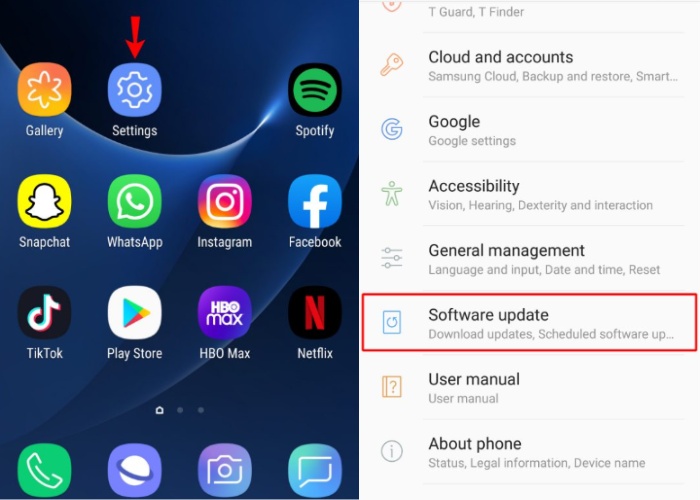
Android
Step 1. In your Settings, navigate to System or Software Update.
Step 2. Tap Check for updates, then install any available updates.
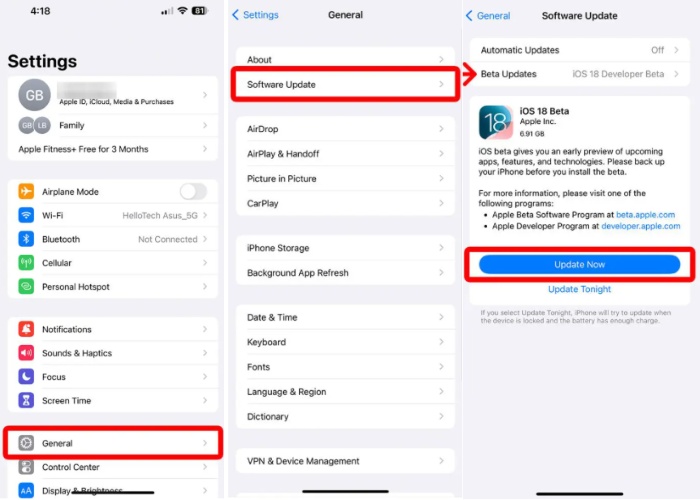
iPhone
Step 1. o to your Settings and find the General option.
Step 2. If you want to update your device, press on Software Update. Download and install the update if it is available.
Part 5. How to Prevent Error Code 224002 From Happening Again
Avoiding error code 224002 in the future is largely dependent on the regular maintenance of your device and browser. There are a few habits that help in keeping video playback smooth.
1. Keep your browser updated
Always make sure that you are using the latest version of your browser. Updates are mostly performance improvements and fixes for video playback issues.
2. Clear cache and cookies regularly
An old set of browsing data might be the reason videos are loading slowly or causing conflicts. Clearing your cache once every couple of weeks is definitely a good way to keep your device running smoothly.
3. Avoid installing too many extensions
Extensions can cause problems with video players. Just keep the ones that you really need and take off the others.
4. Use a reliable Internet connection
A weak or unstable connection may cause loading errors. By switching to a stronger Wi-Fi network, you can eliminate interruptions.
5. Update your device’s OS
System updates normally contain fixes for compatibility and playback bugs. Keeping your OS updated is like getting the best overall performance.
6. Restart your device sometimes
Just a restart will free your system from temporary glitches and refresh it, preventing random playback errors.
Conclusion
"Error code 224002, this video cannot be played" is a common issue often caused by minor software hiccups, an outdated browser, a full cache, or a phone that simply needs to be rebooted. It is said that most solutions to this problem are easy and do not require any technical knowledge. If you keep your browser tidy, update your device regularly, and use trustworthy tools when needed, you will keep this trouble at bay and enjoy a smooth video-playing experience without interruptions. Stick to the basics, and you will be able to resume your activity without interruption.
More Reading

Repair your damaged, unplayable videos with multiple mainstream formats like MP4, MOV, 3GP, etc.

