



 Download VideoSolo Online Player For FREE!
Want to find a reliable free video player that works smoothly on different platforms? How to tell if a video player is all-around? Here, we will review and compare the top 7 free video players and their main features, allowing you to make a decision about which player suits your needs.

Part 1. The Key Elements to Choose A Good Video Player
Essentially, you need to understand what features make a free video player reliable before you choose one:
- • Support various file formats.
- • Stable and smooth playback without any kind of lag.
- • Provide HD or 4K resolution with correct subtitles and other information.
- • Easy to use and has simple controls and settings.
- • Compatible with your operating system.
By considering these factors, you will be able to select a suitable free video player that is in line with your viewing habits, and thus, you will not encounter the majority of playback problems.
Part 2. 7 Best Free Video Players
This part enumerates those video players that have been reliable over time and are popular among users, and you do not have to spend a dime to use them. While a lot of users search for an online video player free, desktop players are usually more stable, can handle more formats, and are able to play back more fluidly. We will review seven free video players to help you find the best option for your device and viewing needs!
 How We Tested
We have tested all of the free video players below against leading video standards. We played 4K H.265 (HEVC) and AV1 encoded files in Chrome/Safari and measured their performance, including first-frame loading speeds, video/audio quality, GPU hardware acceleration efficiency, and subtitle compatibility, to ensure a valid assessment.
1. VideoSolo (Online) Video Player — Overall Free Choice for Online/Desktop
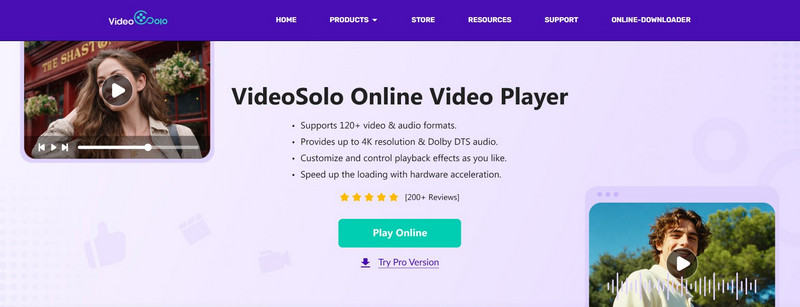
VideoSolo Online Video Player, a free web-based 4K video player for PC/Mac, provides a very good performance that is not behind any other video player software. It supports playing most common video and audio files with 120+ popular media formats, such as MP4, MKV, AVI, MOV, MP3, and FLAC. With a clean interface without overloading, anyone can have an HD/UHD image clarity and Dolby Atmos & DTS audio effect, making high-quality viewing for daily users.
Features
- Plays almost all video and audio format files.
- Provides high-definition visual playback effect
- Built-in subtitle loading and synchronization.
- Multiple playback controls with a clean interface.
- Optimized for stable and smooth performance
 pros
pros
- Supports 120+ video & audio formats.
- Provides up to 1080p/4K image quality.
- Offers Dolby DTS audio effects.
- Customized playback control and settings.
- Plays videos smoothly without any lagging.
 Cons
Cons
- No support for DVD/Blu-ray disc content.
Steps to Use VideoSolo Online Video Player
Step 1. Click Play Online and open VideoSolo Launcher.
Step 2. Click the Open File button on the main interface, and choose the video files.
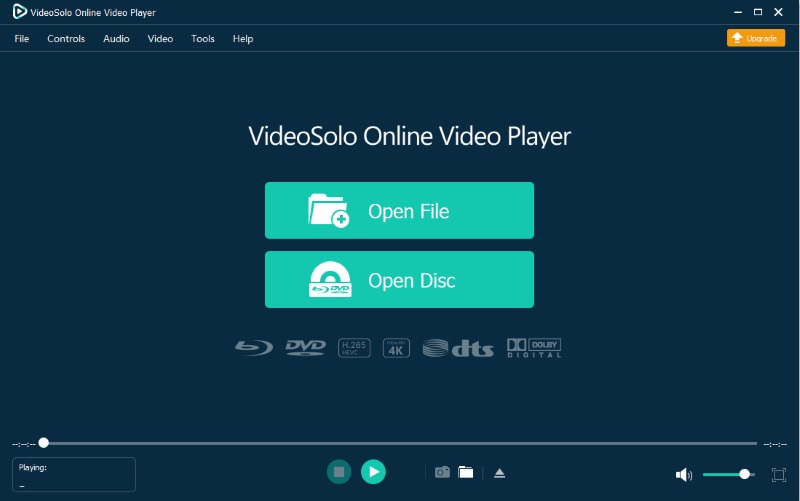
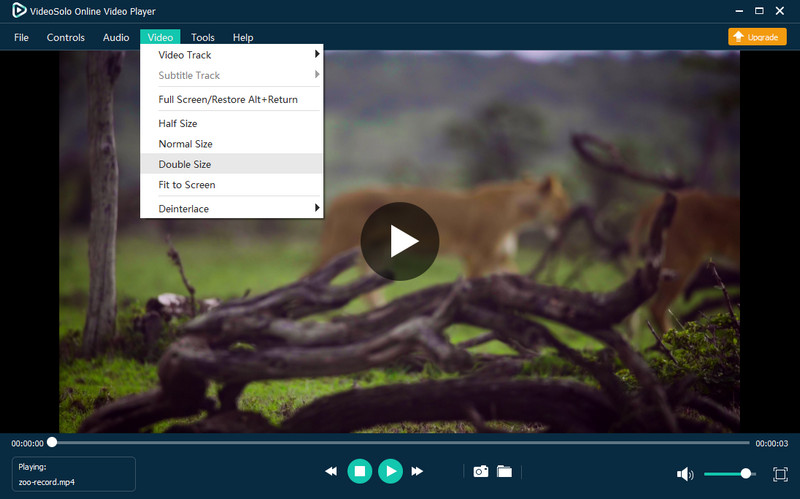
Step 3. Now you can adjust playback settings like speed, volume, or subtitles while watching the content.
 Tips
Tips
For quick, hassle-free streaming without complex installation, VideoSolo Online Video Player offers seamless, instant playback right in your browser. But if your media library includes advanced formats like region-coded Blu-rays, DVDs, or raw ISO images, the online program can’t work for that. Please upgrade the desktop Pro version, VideoSolo Player, to unlock full hardware acceleration, unlimited playback, and a lifetime upgrade.
Using Experience
VideoSolo Online Video Player comes across as really quick and very stable right from the very first time you open it. Everything seems to work very fast as the videos are loaded without any delay, you can easily understand what to do with the controls, and the 4K content is running smoothly, thus making it a primary choice to be called a trusted free media player for such users who do not require any threshold.
2. VLC Media Player — Best for Versatile and Reliable Playback [Windows, MacOS, Linux]
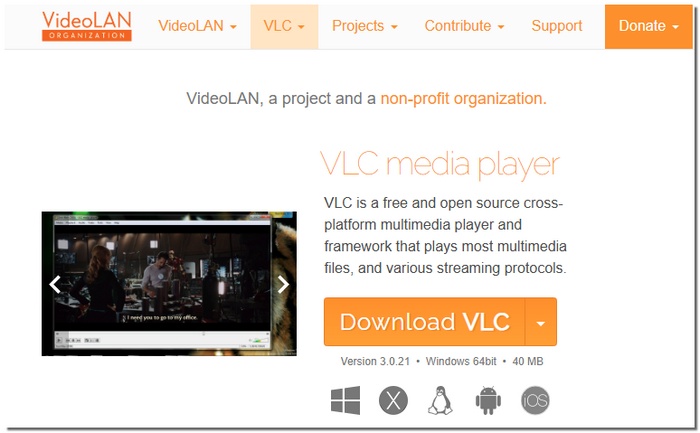
One of the most well-liked and reliable free VLC video player for Windows, Mac, and Linux is VLC Media Player. Many users choose it because of its versatility, which allows it to accept nearly all video and audio formats without the need for extra codecs.
Features
- Advanced streaming capabilities (play videos directly from URLs or network streams)
- Built-in support for a variety of subtitle formats
- Extensive video and audio filter options
- Snapshot and recording tools for videos
pros
- Can stream media from the internet directly
- Highly customizable with skins and extensions
- Supports recording and snapshot capture
Cons
- The interface may feel basic compared to modern players
- Some features are hidden in menus, making them harder to find
Using Experience
VLC is capable of handling large or rare files without any hiccups, and it is also very stable when streaming videos from URLs. Once you get used to the controls, they are basically intuitive.
3. PotPlayer — Best for Advanced Playback Control on Windows
PotPlayer is a fantastic media player limited to Windows that is well-suited to users demanding extensive video playback control. Being a completely free video player for PC Windows 11, it concentrates more on performance optimization and providing various tuning options rather than being user-friendly; thus, it is mainly used by advanced users who are comfortable with its complexity.

Features
- Frame-by-frame playback and detailed timeline control
- Hardware acceleration optimization for smoother performance
- Extensive hotkey and shortcut customization
- Multiple audio track control with real-time switching
pros
- Extremely smooth playback even for high-bitrate files
- Highly configurable for power users
- Consumes minimal system resources
Cons
- Set up and settings require time to understand fully
- Windows-only availability
Using Experience
PotPlayer offers fine control and quick, fluid playback, particularly for viewing lengthy or high-resolution videos. It is intended for people that prefer efficiency and customization than a straightforward interface.
4. Windows Media Player — Best for Built-In and Hassle-Free Playback on Windows
Windows Media Player is the default media playback application from Microsoft that is already installed on the majority of Windows machines. Being a free video player for Windows, its main emphasis is on ease of use and being automatically integrated with the system. Thus, it is a handy tool for users who simply need to play videos and do not want to install additional software.
Features
- Windows operating system native integration
- Simple playback controls with a few parameters
- Support for CD and DVD playback
- Media transfer to devices via a sync feature
- You can also repair video in VLC
pros
- No installation required on most Windows PCs
- Stable and lightweight performance
- Clean, familiar interface for Windows users
Cons
- Lacks advanced playback customization
- Minimal codec handling options, causing videos can’t be played in Windows Media Player.
Using Experience
Windows Media Player functions as you would anticipate for regular watching and is user-friendly. It is really good for standard file formats and videos that are saved locally on your device. There is no need to set anything up, and the whole experience is just perfect.
5. Elmedia Player — Best for Smooth MP4 Playback and Clean Controls [MacOS]
Elmedia Player is a great and simple media player for users who want a refined playback without a ton of settings. Because it is capable of smooth playback of the most common formats, it can be considered a free MP4 video player, which is the best solution for people who are looking for downloaded or locally stored videos only.
Features
- Playback that is optimized for MP4 and other widely used formats
- Simple timeline navigation with a preview of the frame
- Integrated features for manual syncing and subtitle search
- Controlling playback speed and looping modes
pros
- Excellent MP4 playback stability
- Helpful subtitle controls for foreign films
- Smooth performance even with high-resolution files
Cons
- Certain sophisticated features are only available in the Pro edition.
- There are fewer choices for personalization than for players who are power users
Using Experience
Elmedia Player is a neat and cozy app, especially when you are playing MP4 videos. Everything stays pretty well. You can easily control the player with the intuitiveness of the functions, and if you are the kind of person who needs the simplest way to handle subtitles with support of formats being reliable, then you will have no trouble at all.
6. DivX — Best for High-Quality Digital Video Playback [Windows & Mac]
DivX is an old but popular media player that is famous for its significant support of high-quality digital video formats. The application is targeted at users who are looking for sharp visuals and smooth playback, in particular, if the films are encoded in DivX or the like and are to be played on Windows and Mac.
Features
- Native support for DivX, AVI, MP4, and MKV files
- Hardware acceleration for smoother high-definition playback
- Chapter navigation for movie-style video files
- Video library view for organizing local media
pros
- Excellent video clarity with efficient compression handling
- Smooth playback for HD and large movie files
- Built-in media organization tools
Cons
- Upgrade prompts are optional in the free version.
- Limited options for customizing subtitles
Using Experience
DivX is pretty stable, and you can say that it is focused on movies. Playing back is excellent, especially for full-length movies, and videos open fast without any kind of stuttering. So it is a good choice for those users who mainly watch high-quality videos locally and want the performance to be reliable without a complex setup.
7. IINA — Modern macOS-Native Video Player
IINA is a new-generation media player, an open-source one, that is designed for macOS only. In the manner of Apple's design language, it is created to provide a less complicated and user-friendly playback experience. Hence, it can be considered as one of the top 5 best free video players for Mac if the user is looking for simplicity and native performance.
Features
- Touch Bar and gesture support in a native macOS interface
- macOS-optimized picture-in-picture mode
- Keyboard and trackpad-based advanced playback controls
- Automatic loading and searching of subtitles
pros
- Clean, Apple-style design that feels natural on macOS
- Lightweight and fast with minimal system impact
- Strong subtitle handling without extra setup
Cons
- macOS-only (not available for Windows or Linux)
- Fewer built-in video filters than some advanced players
Using Experience
IINA seems like a refined and efficient app that one would expect to function without any issues. Videos are up to the point. Controls are visually present and hence, easy to get hold of; while using native gestures, the whole playback experience sounds pretty logical on a Mac.
Part 3. Comparison Table of The Best Free Video Players
To help you quickly see how each option stacks up, this comparison table highlights the key differences between the best free video players, including platform support, resolution, formats, filters, and subtitle options.
| VideoSolo Online Video Player | Platform | Max Resolution | Supported Formats | Video Filters | Subtitle Import |
|---|---|---|---|---|---|
| VideoSolo Video Player | Online, Windows, macOS | Up to 4K | 120+ formats | Yes | Yes (SRT, ASS, and more) |
| VLC Media Player | Windows, macOS, Linux | 4K Ultra HD | Almost all formats | Yes | Yes |
| PotPlayer | Windows | Up to 8K | MP4, MKV, AVI, FLV, TS | Yes | Yes |
| Windows Media Player | Windows | Up to 4K | MP4, WMV, AVI | Limited | Limited |
| Elmedia Player | Windows, macOS, Linux | Up to 4K | MP4, MOV, MKV, FLV | Yes | Yes |
| DivX Player | Windows, macOS | Up to 4K | MP4, AVI, MKV, DivX | Limited | Yes |
| IINA | macOS | Up to 4K | MP4, MKV, MOV, WEBM | Limited | Yes |
Tips
VLC and PotPlayer are the two that come very close if you want to have the maximum format support and customization. IINA is perfect for a modern macOS experience, whereas VideoSolo Online Video Player provides a balanced choice with high-resolution playback and user-friendliness.
Part 4. FAQs on Free Video Players
Q1: Can I play a local MP4/MKV video online through a browser without installing any software?
A: Yes. Many online tools, like VideoSolo Online Video Player, allow you to upload standard local files (such as MP4, MKV, or WebM) and start watching immediately. It requires no accounts, no extensions on your computer - making it the perfect option for temporary use or borrowed devices.
Q2: How can I play a Blu-ray ISO file or BDMV folder on my PC for free?
A: To play raw Blu-ray content, a video player needs to require advanced decryption keys and codecs. You can choose the open-source VLC Media Player, which has to manually install libdvdcss for accessing DVDs without external decryption.
Q3: Can a free video player play subtitles?
A: Yes, almost all modern free video players support subtitles. Free tools like VideoSolo Online Video Player, with extensive format support, allow you to easily add external subtitle files directly onto the playing video.
Conclusion
Your decision of the best video player simply depends on the way you watch videos and what features are most important to you. There is a range of choices from a basic playback to an advanced format support and a flawless 4K performance, and hence, each solution has its own merits. By understanding these differences, you can confidently pick the best free video player that fits your device, viewing habits, and long-term needs without sacrificing quality or convenience.
More Reading

Play your videos/music in 100+ formats and region-free DVDs/Blu-rays with 4K and Dolby Atmos experiences.

