



 Download VideoSolo Player For FREE!
For me, it has always been a priority to smoothly watch 4K and HD videos, and the right HEVC player can significantly impact both the quality and performance. To find out which ones are best at playing HEVC videos, I have taken several players on Windows and Mac through their paces, from ultra-lightweight, no-frills applications to fully-featured software with sophisticated playback options. In this post, I’ll guide you through seven top-notch HEVC players, pointing out their individual advantages, most attractive features, and sharing the experience of using them in real-life situations. It will be crystal clear to you which player gives the perfect blend of smooth playback, support for high resolution, and a user-friendly interface after reading this.
- Top 1. VideoSolo Player – The Best All-in-One HEVC Player
- Top 2. Windows Media Player – Best for Built-In Compatibility
- Top 3. VLC Media Player – Best for Wide Format Support
- Top 4. MPC-HC – Best for Lightweight Performance
- Top 5. PotPlayer – Best for Advanced Playback Controls
- Top 6. Kodi – Best for Media Library Management
- Top 7. MPV Player – Best for Minimalist Power
- A Compression Chart of 7 HEVC Players
Top 1. VideoSolo Player – The Best All-in-One HEVC Player
VideoSolo Player is the main recommendation of mine if you want a dependable HEVC video player that blends fluid playback, a broad range of format support, and a user-friendly interface. Beginners as well as professionals who want great video performance without a complicated setup will find it perfect.
 Features
- Supports HEVC, H.264, 4K UHD, Blu-ray, MP4, MKV, AVI, and more
- Smooth playback with minimal lag or buffering
- Customizable subtitles, audio tracks, and video settings
- Screenshot and full-screen mode available
- Works on Windows and macOS
 pros
pros
- Consistent stability even with large 4K HEVC files and it rarely crashes or stalls
- Smooth navigation through playlists and media libraries
- Automatic updates keep formats and codecs current
 Cons
Cons
- Initial launch can take slightly longer with huge files
- Some advanced customization panels are hidden under deeper menus
Steps to Use VideoSolo Player
Step 1. Get VideoSolo Player and complete the installation. Launch the player and click Open File to select your HEVC video.
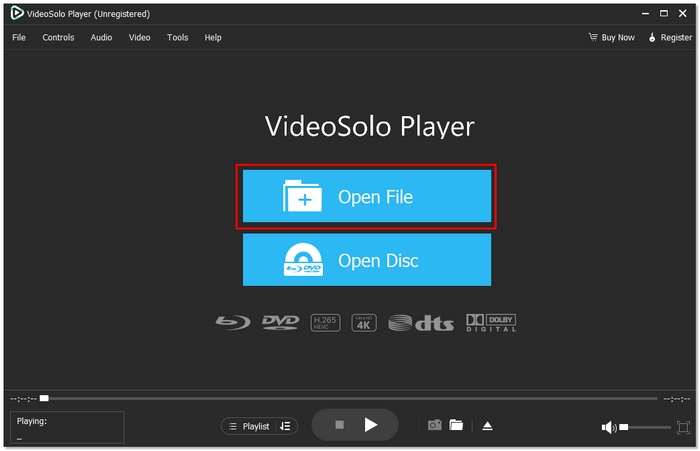
Step 2. If necessary, alter the audio, video, or subtitles.

Step 3. For fluid, excellent playback, click Play. For still images or moments that can be shared, use the screenshot tool.
Using Experience
In my experience, VideoSolo Player can play HEVC videos very smoothly and almost without any system load. The interface is neat and simple to use, and through the customization options, I was able to quickly adjust subtitles and audio. With no doubt, it’s my top choice for an HEVC video player when it comes to any high-resolution video.
Top 2. Windows Media Player – Best for Built-In Compatibility
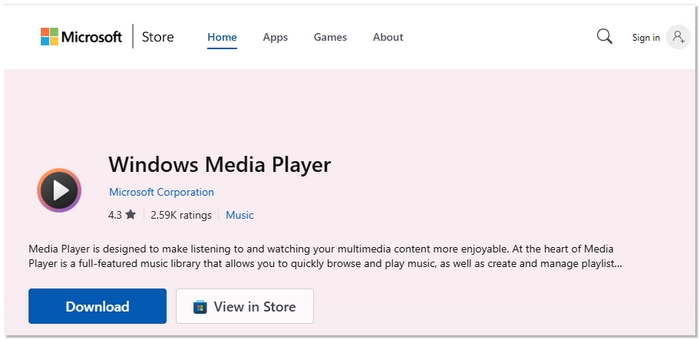
Windows Media Player represents the old timer among H. 265 players as it is naturally available on most new PCs without the need for extra installation. Even if you lack some fancy functions that other advanced players may offer, it is still a strong player providing dependable performance along with decent sound management during normal viewing.
pros
- Smooth playback for standard HEVC/H.265 files
- An easy-to-use interface
- Basic audio enhancements are supported
Cons
- No subtitle customization or Blu-ray support
- Minimal video tuning or upscaling options
- Low support for wide codecs, causing Windows Media Player cannot play.
Using Experience
Windows Media Player plays H.265 videos with good audio features and without any complex steps. It opens and plays files rapidly, making it a handy tool for simple video watching. Although it does not have sophisticated functions, it is a reliable H. 265 player for doing the most basic HEVC video playback.
Top 3. VLC Media Player – Best for Wide Format Support
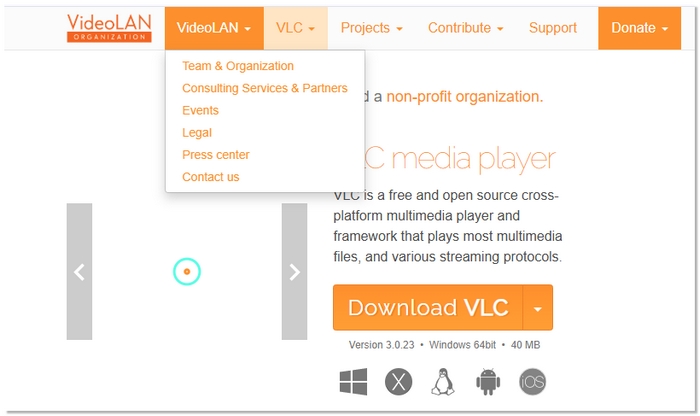
VLC Media Player is one of the well-known open-source options and a dependable HEVC 265 player for users who want broad format compatibility without paying anything. It supports HEVC playback out of the box and works across multiple platforms, making it a flexible choice for different devices and file types.
pros
- Plays HEVC/H.265 files without extra codecs
- Works on Windows, macOS, Linux, and mobile platforms
- Can stream network and online media
- Additionally, you can use VLC to repair video
Cons
- Some users feel that the interface is out of date
- It could take longer to load large files
Using Experience
VLC Media Player is reliable for opening almost any file format, including HEVC videos. Playback is generally smooth, and it’s easy to use for everyday viewing. While it’s not the most polished visually, it remains a trusted HEVC 265 player for users who prioritize compatibility and flexibility over advanced controls.
Top 4. MPC-HC – Best for Lightweight Performance
MPC-HC is a simplified but very capable HEVC player free option if you don't want to be bothered with bloatware and unwanted features. The player is built to work flawlessly even on outdated or low-spec computers, thus it’s a perfect pick for performance-focused users who are not interested in flashy interfaces.
pros
- Incredibly light and quick to launch
- Outstanding performance on entry-level devices
- Playback controls and keyboard shortcuts are very responsive
Cons
- Limited built-in streaming or online playback features
- Requires external codecs for some HEVC files
Using Experience
As far as I am concerned, MPC-HC is extremely rapid and reliable in handling HEVC videos. It immediately opens files and plays smoothly without any stress on the hardware. Although it looks plain, it is a dependable HEVC player free option for users who want pure performance without being distracted.
Top 5. PotPlayer – Best for Advanced Playback Controls
PotPlayer is a feature-rich HEVC player for Windows that truly stands out by giving the user deep customization options and highly selective playback controls. It can be a wonderful pick for people who are into adjusting media settings a lot and tailoring video/audio to their liking, particularly when they are working with high-definition HEVC files.
pros
- Comprehensive control over filters and video rendering
- Highly configurable UI layouts and keyboard shortcuts
- Effective operation even while dealing with big HEVC files
Cons
- Default settings require adjustment for best results
- Windows-only availability
Using Experience
In my experience, PotPlayer offers impressive flexibility once you get familiar with its settings. HEVC videos play smoothly, and the level of control over playback is unmatched. While there’s a learning curve, it’s an excellent HEVC player for Windows for users who want precision and customization rather than simplicity.
Top 6. Kodi – Best for Media Library Management
Kodi is a feature-rich video player for HEVC that goes beyond simple playback by turning your device into a complete home theater system. It’s ideal for users who manage extensive video collections and want everything- movies, shows, and media- organized in one place.
pros
- Powerful media library and metadata management
- Excellent support for add-ons and extensions
- Strong community support and regular updates
Cons
- Overkill for basic video playback requirements
- For the best HEVC performance, manual tuning is necessary
Using Experience
In my experience, Kodi works best with a big HEVC library rather than with one file only. After the initial configuration, smooth and immersive playback is guaranteed, and browsing through well-structured content feels like operating a media center just for you. If you are looking for a full home theater experience rather than a simple player, it is an excellent HEVC video player.
Top 7. MPV Player – Best for Minimalist Power
MPV Player is a lightweight yet powerful HEVC player built for users who prefer speed, precision, and control without a traditional graphical interface. It’s highly efficient and excels at playing high-bitrate HEVC videos with impressive performance.

pros
- High-speed and efficient playback engine
- Excellent support for high-bitrate HEVC files
- Highly scriptable and configurable
Cons
- Configuration relies heavily on command lines or config files
- Lacks built-in media library features
Using Experience
For my use, MPV Player has proven excellent at smoothly playing HEVC videos without putting much load on the system. It really depends on one’s willingness to invest some time in the learning curve, especially since it’s not fully GUI-based at the moment. After the initial setup, it's highly dependable. Those who care about efficiency and a no-frills setup will find MPV an effective HEVC player.
A Compression Chart of 7 HEVC Players
To help you quickly compare all the options, I have created a simple comparison table highlighting the main differences among the seven HEVC players. This is mainly about real-life factors like the formats the players support, the operating systems they run on, their performance rating, the maximum resolution, and how hard the system each player makes.
| HEVC Player | Supported Formats | OS | Rating (10) | Max Resolution | System Consumption |
|---|---|---|---|---|---|
| VideoSolo Player | HEVC, H.264, MP4, MKV, AVI, Blu-ray | Windows, macOS | 9.7 | 4K UHD | Low |
| Windows Media Player | HEVC, MP4, WMV, AVI | Windows | 8.0 | 4K | Low |
| VLC Media Player | HEVC, MP4, MKV, AVI, FLV | Windows, macOS, Linux | 8.8 | 4K | Medium |
| MPC-HC | HEVC, H.264, MP4, MKV | Windows | 8.4 | 4K | Very Low |
| PotPlayer | HEVC, MP4, MKV, AVI, MOV | Windows | 8.9 | 4K | Low |
| Kodi | HEVC, MP4, MKV, AVI, MOV | Windows, macOS, Linux | 8.6 | 4K | High |
| MPV Player | HEVC, MP4, MKV, AVI | Windows, macOS, Linux | 8.7 | 4K | Very Low |
Conclusion
This post is made to help you quickly compare HEVC players to know which one fits your needs the most. You can easily pick the right HEVC video player for smooth and high, quality playback just by considering the performance, simplicity, and the consumption of system resources.
More Reading

Play your videos/music in 100+ formats and region-free DVDs/Blu-rays with 4K and Dolby Atmos experiences.

