



 Download Video Repair For FREE!
One day, when you open a travel vlog, the conference video, or a short movie, but find the video won’t play! This sudden but common issue cramps your mood and even destroys important tasks. But there’s no need to worry that the tricky playback problem is unsolvable. Practical methods can help you recover the file. Below, we’ll introduce 4 solutions to fix MP4 files that won’t play and get your video working again.
Part 1. Common Errors and Reasons of MP4 Files Won’t Play
Before finding the most effective method, we talk about the common errors of MP4 files that won’t play. It’s common on Windows, Mac, iPhone, Android, and various media players, such as Windows Media Player, QuickTime, VLC, and Movie Maker. The common symptoms include no video display, no audio, audio and video out of sync, stuttering or frame drops, pixelation, and player error codes.
So why are MP4 files not playing? In fact, you may be able to work out the cause of the playback from the pop-ups. For example, Windows systems may display “The item was encoded in a format that’s not supported.”, while Mac systems will display “The file isn’t compatible with QuickTime Player.” Both instances are caused by the mismatched codecs, which is the most common factor.
MP4 files need special decoders to play properly. Maybe your codecs are updated, or your video player is not installing the correct codec packs. Anyway, it’s always hard to figure out technical stuff. To put it simply, other various reasons why an MP4 file won't play are related to:
• Player issues: Outdated version, or limited format support.
• MP4 file issues: Interrupted transfer/recording, incomplete downloads causing file corruption, virus infection, or the video parameters (high resolution/FPS/bitrate) are incompatible with the playback device.
• System issues: Missing computer system components, outdated graphics card drivers, or software conflicts with malware.
Part 2. Four Methods to Fix MP4 Files that Won’t Play
After learning about the common errors and key causes behind unplayable MP4 files, we’ll dive into practical solutions. In this part, we’ll introduce 4 efficient and feasible methods, whether it’s codec mismatching, video corruption, or problems of player adaptation, you can find the best approach to quickly restore proper MP4 files.
Install Relevant MP4 Codecs
Sometimes, when you play an MP4 video on Windows, an irritating error notice like 0xc00d36c4 error will show on the screen. One of the reasons is that the file has an unmatchable codec with the player.
You can install the required codecs like K-Lite Codec Pack, Media Player Codec Pack, and other relevant codecs through MP4 codec sites and other official sources, making sure MP4 files play normally on the media player.
Specifically, if you use Windows Media Player, you can directly install a codec pack in it. The solution is below:
Step 1. Open the media player and navigate to Tools > Options > player.
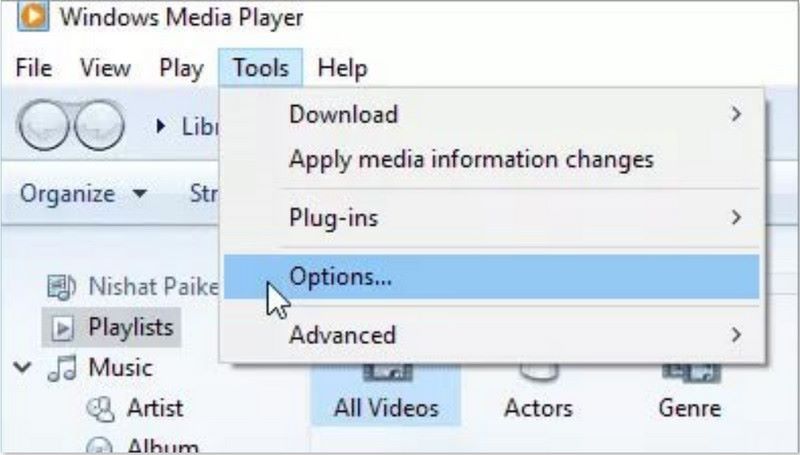
Step 2. Click OK to download codecs automatically.
Step 3. A prompt that asks you to install, tab Install.
To confirm whether the MP4 video is working or not. If not, try to use other methods to figure out why an MP4 file won't play.
Professional Repair Tool to Fix MP4 Files that Won't Play [Preferred]
If installing codec packs doesn't resolve the issue, the video itself may be corrupted. In such cases, you need to rely on third-party tools like VideoSolo Video Repair to fix the MP4 file that won’t play. With advanced AI technology, it can automatically scan various kinds of errors in damaged and unplayable videos, and then restore missing data frame-by-frame. This video repair software offers strong compatibility with mainstream video formats, including MP4, MOV, 3GP, and AVI. No matter smartphone, a digital camera, or other old devices, it can finish a high-quality restoration smoothly.
Features of VideoSolo Video Repair
• Fix corrupted video files via AI with a 99.8% success rate.
• Output video with lossless output quality as the original format and details.
• Supported on Windows and macOS.
• Multiple mainstream formats like 3GP, MP4, MOV, and AVI.
• High speed of restoration and conversion.
An easy, quick fix process just in three steps:
Step 1. Click the left area to add the MP4 file that is not playing.
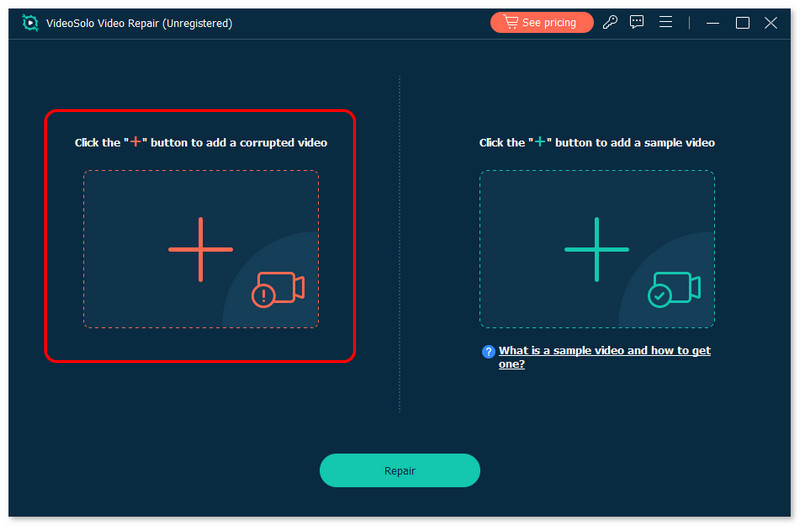
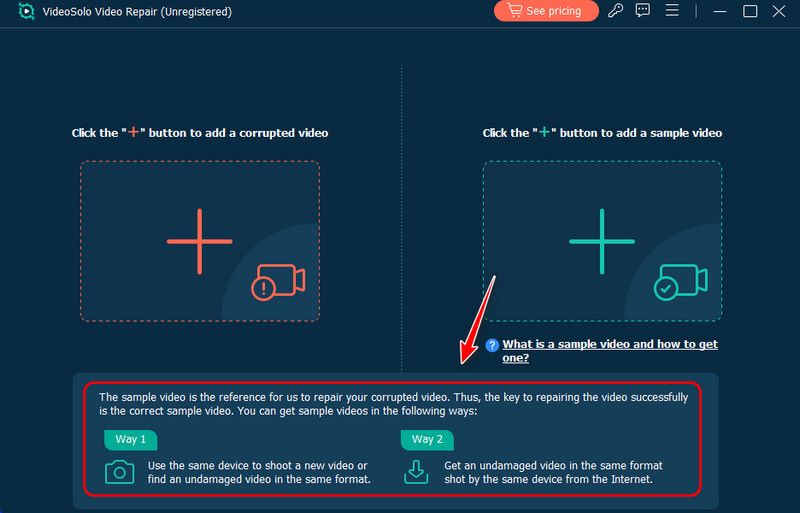
Step 2. In the right square spot, pick a sample video to upload. This is for better recovery. If you don’t understand what a sample video is, tab the question below the green box to find the answer.
Step 3. Click Repair to start the repair process. Waiting for several minutes or even a few seconds, you can choose Save to download the recovered video. In order to prevent unnecessary actions, you can click Preview to confirm the results before exporting.
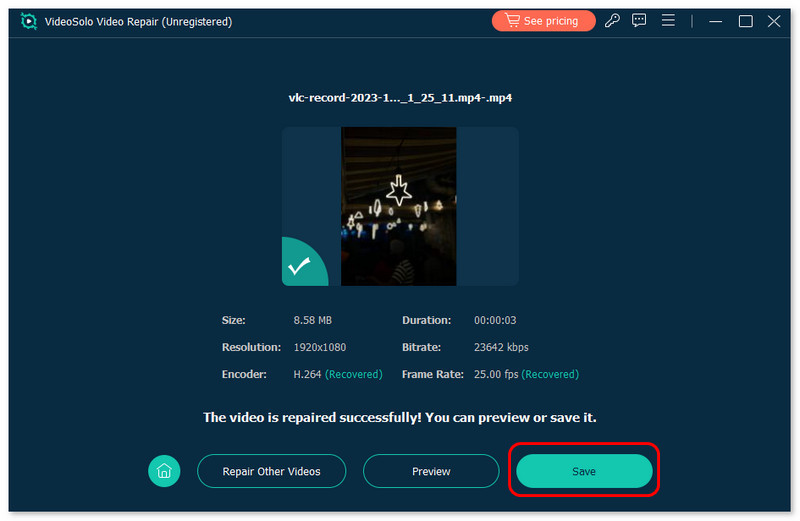
VideoSolo Video Repair stands out among other repair software, showing effective results in fixing common video corruption issues, such as minor data loss and encoding errors. You must recover precious family footage or professional work videos!
Repair Damaged MP4 Video Files Online for Free
If you feel troubled or don’t have enough space to install new software on your computer, you can choose an online tool to solve the problem that a large MP4 file won't play. Clever Online Video Repair can better serve your needs. This totally free website specializes in repairing video damage during recording into a range of file formats, like MP4. The size of the file is up to 20GB.
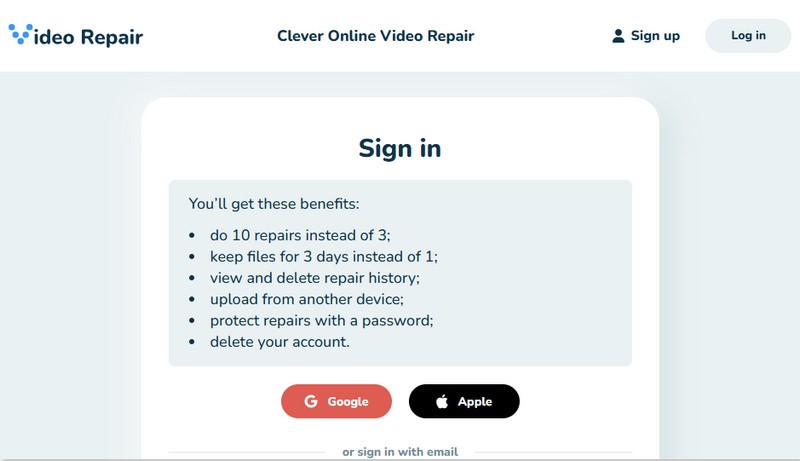
Step 1. Go for the Clever Online Video Repair in your browser. Here, you’d better sign up and log in. If you don’t do that, only 3 broken MP4 files can be repaired, and 24 hours of storage.
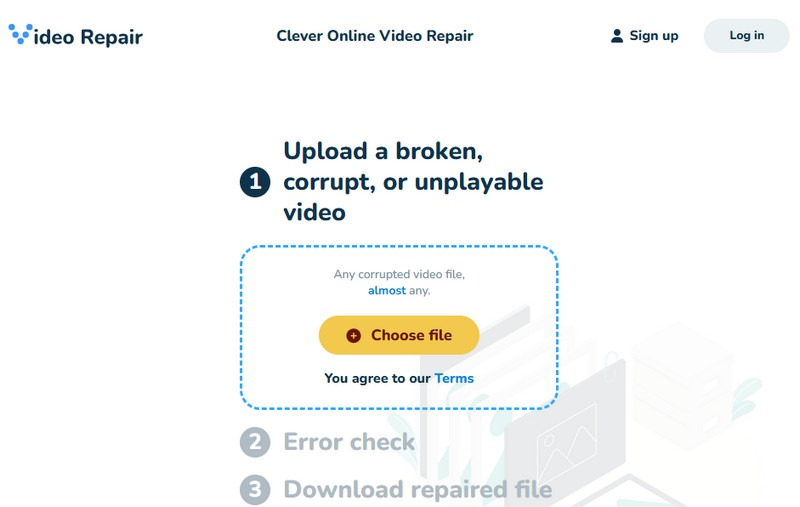
Step 2. Upload the broken MP4 file. Then you can select the type of recording device, brand, and model for ideal quality.
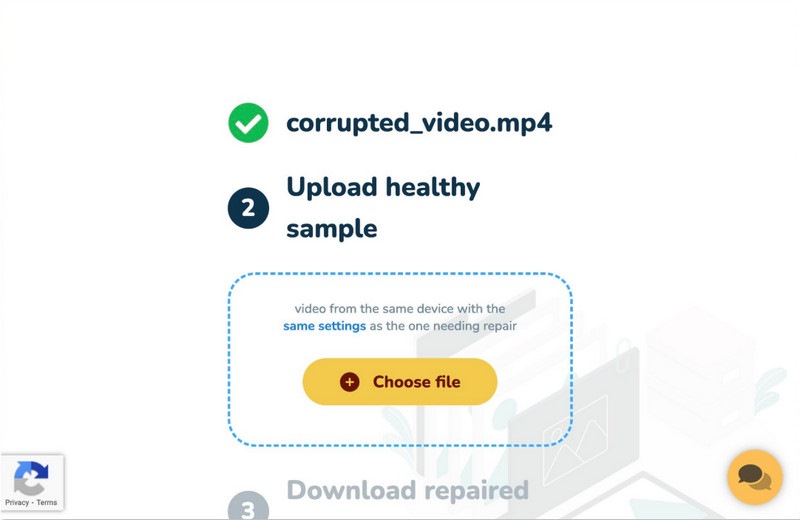
Step 3. Provide a reference video on the same device that recorded the damaged MP4 file.
Step 4. Click Repair to start the process. Once finished, download the repaired video within 3 days.
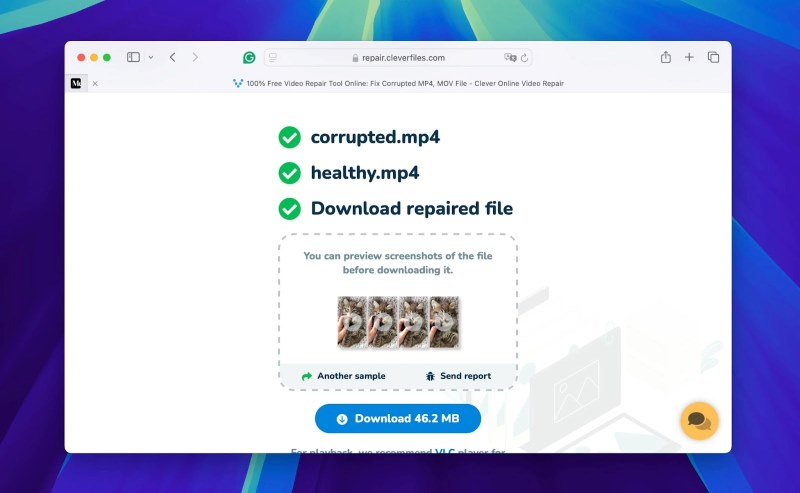
If the iPhone-recorded video is not playing, turn on the tool using your phone's browser. Conveniently, you don’t copy the files to your computer.
Change Another Player to Open MP4 video Files Won’t Play
If your MP4 files that won’t play have not been destroyed, opt for another media player to watch videos. VLC media player is a good choice. It’s a free and open-source cross-platform for Windows 11/10 and Mac, which can play most multimedia files. The reminder is that all the settings of the player need to be correct. Otherwise, the video can’t play well.
Step 1. Turn on the app. Click Media > Open File.
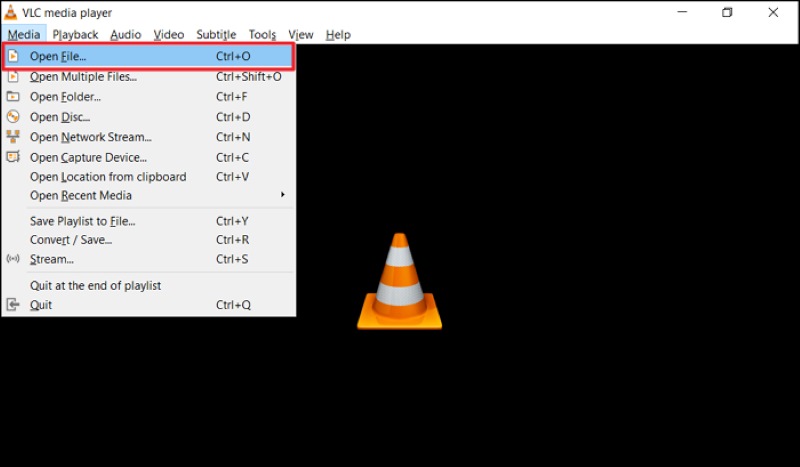
Step 2. Choose the MP4 file in your folder and open it.
Additionally, many users may encounter a problem where VLC also can’t work. You can refer to the article to debug it: How to Fix VLC Crash Easily: Complete Troubleshooting Guide.
Conclusion
The MP4 file playback issue happens all the time. Today, we have to talk about why MP4 files won't play and how to fix them. The key is to find the cause of the problem and choose a suitable way to address it. We can see that using VideoSolo Video Repair to restore corrupted video is a hassle-free solution. No matter audio drift, missing frames, or playback errors, it can fix videos quickly with pristine quality and a perfect watching experience.
More Reading

Repair your damaged, unplayable videos with multiple mainstream formats like MP4, MOV, 3GP, etc.

