



 Download Video Repair For FREE!
An Instagram Reels glitch can be very disappointing, but this article will guide you through it quickly and effectively. I will show you effective workarounds for the glitch and also guide you through the most common issues that cause Reels to freeze, lag, or not function properly. Moreover, you will learn helpful tips and tricks to avoid such problems again, ensuring a bug-free viewing or content experience. The solutions are simple, practical, and designed for both casual users and serious Instagram creators. Stay in sync, and your Reels will run smoothly. You will have no trouble browsing without any technical know-how or complicated settings.
Part 1. Why are Instagram Reels Glitching
There are various reasons for Instagram Reels not working properly, and most of them are due to the app, the device, or the internet connection that you use daily. Reels can be made to load slowly or even to stop halfway if the network is weak or unstable, which is one of the most frequent causes. Additionally, an outdated application version may cause bugs that interfere with the video's execution. Sometimes, corrupted temporary files or a full cache can cause conflicts that prevent Reels from working smoothly.
Moreover, your gadget is capable of being a factor. Limited storage, obsolete system software, or too many apps running in the background can cause slowness. And sometimes, Instagram servers may be down, causing glitches for users. Knowing these reasons helps you to choose the appropriate remedy and to have your Reels functioning as usual again.
Part 2. How to Fix Instagram Reels Glitch [Hot]
If you’re looking for how to fix Instagram Reels glitch in the fastest and most reliable way, VideoSolo Video Repair is one of the best tools you can use. When a Reel becomes corrupted, stutters, or plays poorly, it usually means the video file itself is damaged. VideoSolo Video Repair helps restore broken or distorted videos so you can upload or view them without errors.
Key Features
• Repairs corrupted or glitchy Instagram Reels caused by crashes, incomplete downloads, or file damage.
• Quick repair process with a simple, beginner-friendly interface.
• Preview repaired videos before saving them.
• High success rate thanks to its advanced repair algorithms.
• Works on both Windows and Mac, making it accessible for most users.
How to Use VideoSolo Video Repair
Step 1. Install and launch the program, and click the (+) Add to import the glitching Instagram Reel on the right.
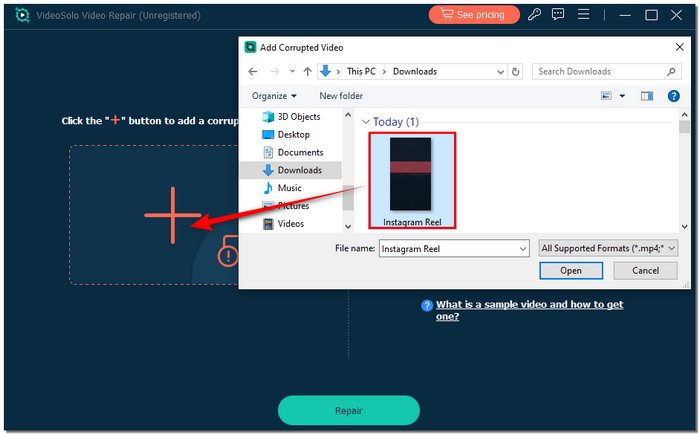
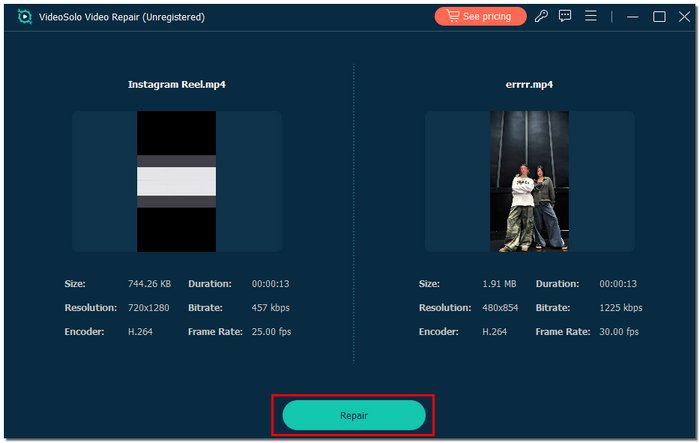
Step 2. Add a sample video on the right that works properly to improve the repair accuracy of your video.

Step 3. Click Repair to start repairing your reel.
Step 4. Wait for the repair to finish, then preview the result to check if the glitch is gone. Click Save to save the fix reel video to your device if everything appears to be in order.
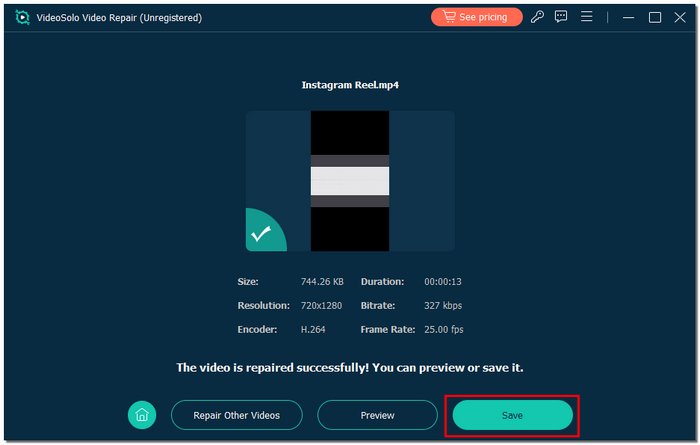
This tool is an excellent option for repairing damaged video file problems because it allows you to restore smooth playback when a reel is destroyed quickly.
Part 3. 6 Other Solutions to Fix Instagram Reels Glitch
If your Reels have not been fixed by the primary fix that you tried, there are a few easy troubleshooting steps you can perform right on your phone. Most instances of Instagram Reels glitching result from minor app issues, network problems, or outdated user settings. The ways listed below are among the fastest and most convenient repairs you can implement before moving to the next level of solutions.
Solution 1: Clear the Cache
Clearing the cache is one of the fastest methods to fix issues like freeze, an Instagram Reels audio glitch, or even video lagging on Mac or Windows. Over time, cached data can become outdated or corrupted, which affects how the app loads and plays Reels.
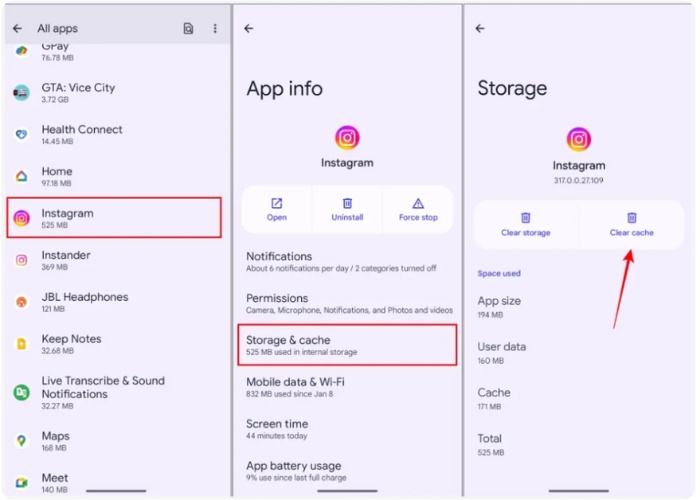
How to clear the cache (Android)
1. Open Settings on your phone and go to Apps, then select Instagram.
2. Select Storage, then tap Clear Cache.
For iPhone
iOS is not allowing us to clear cache directly. Thus, one must remove the Instagram app, then reinstall it from the App Store.
It is a great way to refresh the app’s data, and a very common solution when the video is not playing or there is no sound.
Solution 2: Update or Reinstall Instagram
If your application is not current or the files are damaged, you could see that the app freezes, lags, or that there is an Instagram Reels glitch. By updating or reinstalling the app, it refreshes the app's system files and ensures it is compatible with the latest features.
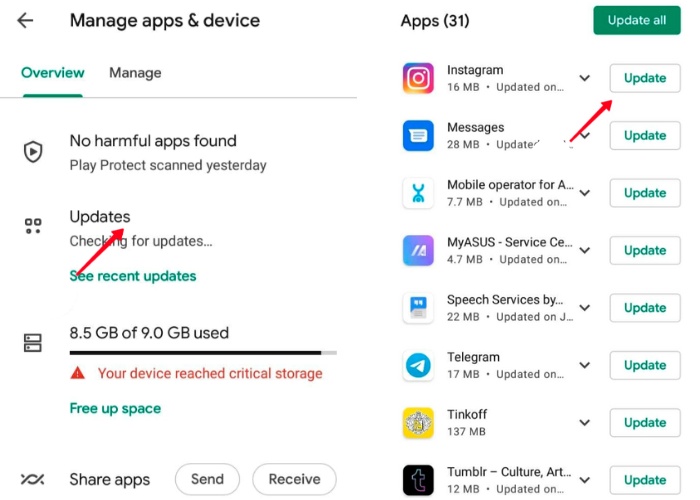
How to update Instagram
Step 1. Open the App Store (iPhone) or Google Play Store (Android). Find Instagram by searching for it.
Step 2. If there is an Update option, tap it.
How to reinstall Instagram
Step 1. Remove the Instagram application from your gadget.
Step 2. Switch off your device, then reinstall Instagram from the App Store or Play Store.
This is a way to frequently fix your app if it is full of bugs without waiting for a solution from the developers.
Solution 3: Check Your Internet and VPN
One of the most frequent causes of Instagram Reels not loading or malfunctioning is a weak or erratic internet connection. If your Wi-Fi drops, mobile data is slow, or a VPN interferes with the connection, Reels may freeze, buffer endlessly, or fail to play properly.
How to check your internet
Step 1. Try loading a webpage or another app to see if it responds quickly.
Step 2. Switch between Wi-Fi and mobile data, and vice versa, to see which works better.
Step 3. Turn off and then on again your modem if the connection is shaky.
If you have a VPN
Put off using the VPN for a moment, as it can slow your connection or send your data through servers in areas where Reels might not work properly.
By ensuring that your network is stable, you can very quickly get rid of most of the playback problems.
Solution 4: Make Sure Reels Are Available in Your Country
Instagram Reels is not fully available in every region, and this may cause functionalities to work incorrectly or not to be displayed at all. If Reels is not officially available in your country, you may encounter glitches, missing audio, or the feature may not open properly.
How to check
Step 1. Check the Instagram Help Center website or do a web search to find out if Reels is available in your region.
Step 2. If it is not accessible, you can try updating the application, as Instagram sometimes extends support without giving many hints.
Step 3. If you were using a VPN, turn it off. Going to a region where the service is not supported can also cause Instagram Reels to malfunction, and certain features may be hidden.
Knowing whether the service is available gives you an idea of whether the problem is technical or just a local restriction.
Solution 5: Disable Data Saver
Instagram’s Data Saver feature helps reduce mobile data usage, but it can also slow video loading. When enabled, it may cause Reels to appear blurry, load slowly, or glitch during playback.
How to disable it
Step 1. Open Instagram and go to your profile.
Step 2. Tap the menu in the top-right corner, then select Settings & privacy.
Step 3. Go to your app and media or Media quality and turn Data Saver off.
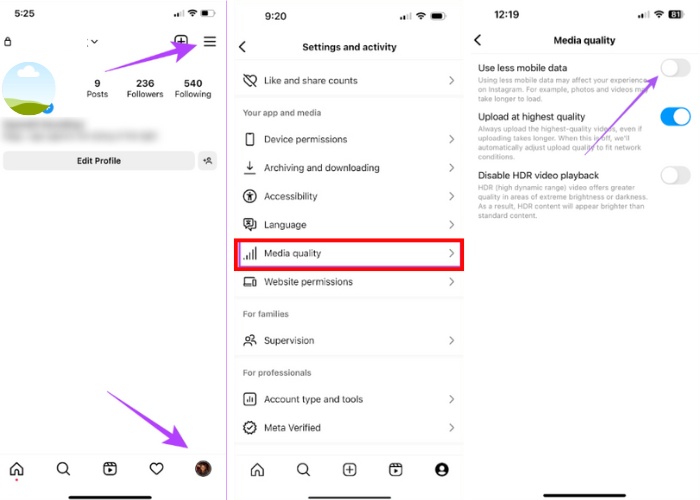
With Data Saver disabled, Instagram can load videos at their intended quality and speed, reducing the chances of Reels freezing or glitching.
Solution 6: Check Your OS for Updates
If the operating system on your device is too old, it may have problem to be compatible with Instagram, and as a result, you can experience some kind of errors like crashes or playback problems in Reels. The reason is that updating your OS ensures your device receives the latest performance enhancements, security patches, and app compatibility.
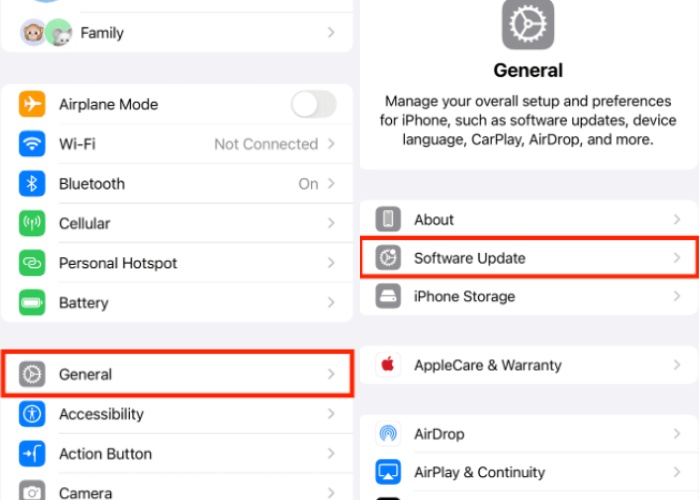
How to find the updates
For iPhone
Step 1. Access Settings and hit the General tab.
Step 2. Tap Software Update, then see if an update is available.
For Android
Step 1. Open Settings, then either scroll down to System or click Software Update.
Step 2. Tap on Check for updates. If there is an update available, you have to download and install it.
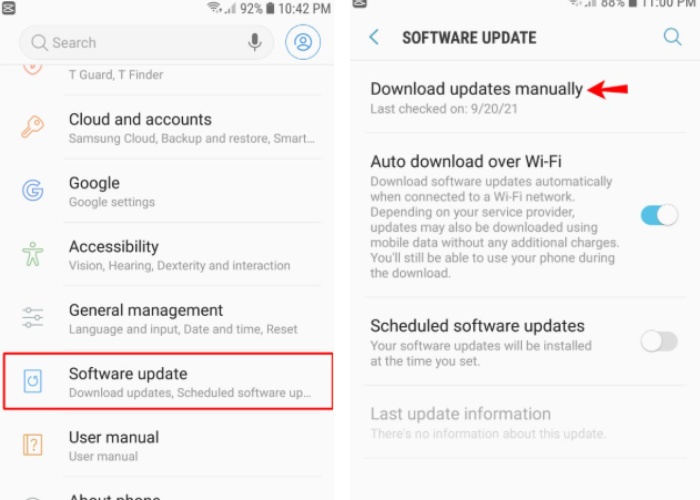
By regularly updating your OS, Instagram will be able to function properly, and you will have a lower chance of running into Reels glitches.
Part 4. FAQs about Fixing a Glitching Instagram Reel
Why are my Reels taking so long to upload?
Your upload rate may be slow if you have long delays during the upload. You may also be experiencing large video file sizes or background apps that are consuming your bandwidth. Video compression and a better connection will be helpful.
Why does Instagram change the colors or brightness of my Reels?
Instagram can change the colors of the video automatically when the file is being compressed. It is always better to export the video by following the system's recommendations to maintain quality.
Why are my Reels turning into a black screen in the middle of editing?
This situation may arise due to temporary app bugs, insufficient memory on your device, or corrupted videos. Most of the time, clearing the cache or restarting the application helps to get rid of this problem.
Conclusion
Almost all troubles related to Instagram Reels glitching are capable of resolution by performing some easy inspections and changes. If the problem is coming from your device, the app, or your network, you can get video playback back to normal very quickly by combining practical fixes with tools. After following this manual's instructions, the Reels will be in a normal state, and you will be able to view, create, and upload them without interruption. And if you engage in a small amount of upkeep in your daily life, you will be able to avoid the occurrence of glitches and continue with your Instagram smoothly.
More Reading

Repair your damaged, unplayable videos with multiple mainstream formats like MP4, MOV, 3GP, etc.

