



 Download Video Converter Ultimate For FREE!
Large video files can be a real bother sometimes, or if you want a format that provides you with more versatility and quality, you're not the only one experiencing it. I've been doing a lot of exploring ways for video conversions, and the format that frequently keeps popping up is MKV. It is excellent for maintaining top-quality videos, allowing various audio tracks and subtitles, without the file size going up significantly. Here, I will tell you about everything related to MP4 to MKV conversion, including the best software on your computer, and quick online tools, allowing you to choose the one that suits your videos best, and also helping you to avoid common mistakes.
Part 1. Why Choose MKV Over MP4
When I first started working with different video formats, I realized that not all formats are created equal. While MP4 is widely used and very convenient, MKV offers more flexibility, especially if you care about quality and extra features. So, MKV vs. MP4, which should you choose? Learn more with us now:
Benefits of MKV
From my experience, MKV (Matroska Video) stands out because it’s more than just a video format. It’s a flexible container. Here’s why I sometimes prefer it over MP4:
- • Better for high-quality videos: MKV is capable of containing video and audio of very high quality without the need for a lot of compression.
- • Supports multiple audio tracks: If you want various languages within a single file, this is just right.
- • Handles subtitles easily: You have the option to add several subtitle tracks without the need to create other files.
- • Great for archiving: This is the best format to store original video quality for future use in the future.
MP4 vs. MKV Comparison
| Feature | MP4 | MKV |
|---|---|---|
| Compression | High compression (smaller size) | Less compression (better quality) |
| File Size | Smaller and more portable | Usually larger but richer in data |
| Compatibility | Works on almost all devices and platforms | Limited support on some devices |
| Use Cases | Streaming, sharing, social media | Movies, backups, high-quality storage |
| Quality | Good quality with compression | Higher quality with more flexibility |
Part 2. MP4 to MKV Professional Desktop Software ]Best for Quality, Batch & Large Files[
If I’m working with large videos or want the best output quality, I always rely on desktop tools since they’re faster and more stable. These options are perfect if you need to convert MP4 to MKV with better control and batch processing support.
1. VideoSolo Video Converter Ultimate (Best for High-Quality & Batch Conversion)
VideoSolo Video Converter Ultimate is definitely a software I keep coming back to whenever I am looking for a simple and dependable method to change videos without sacrificing quality. It works wonders, especially for big files or several videos at the same time.
 Features
- Supports 300+ formats, including MP4 and MKV
- Fast conversion with GPU acceleration
- Batch conversion for multiple files
- Built-in editing tools (trim, crop, filters, subtitles)
 pros
pros
- Maintains high video quality after conversion
- Easy-to-use interface even for beginners
- Handles large files without lag
 Cons
Cons
- The free version has limited features
- Requires installation on your device
If you’re wondering how to change MP4 to MKV, here’s exactly how I do it using this tool:
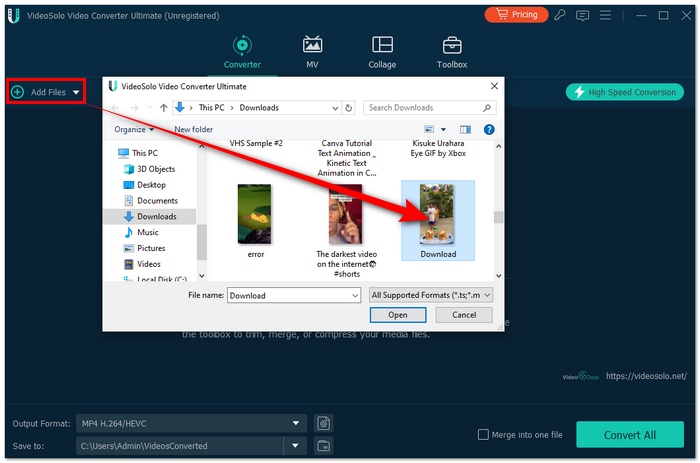
Step 1. Start by installing VideoSolo on my computer, then click on Add Files and select your MP4 video.
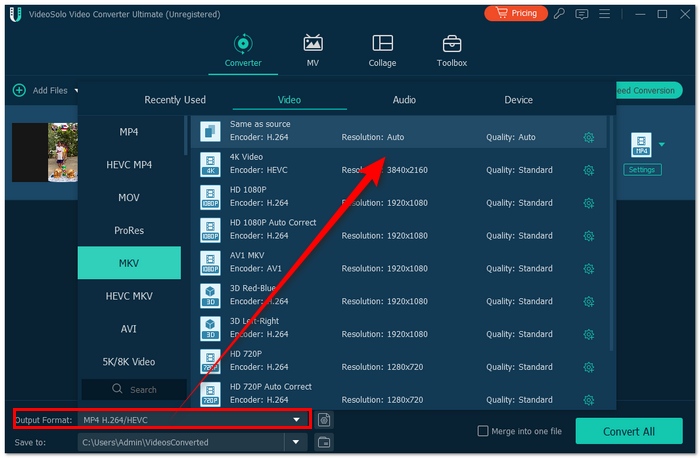
Step 2. Go to the format section located below and select MKV as the output format.
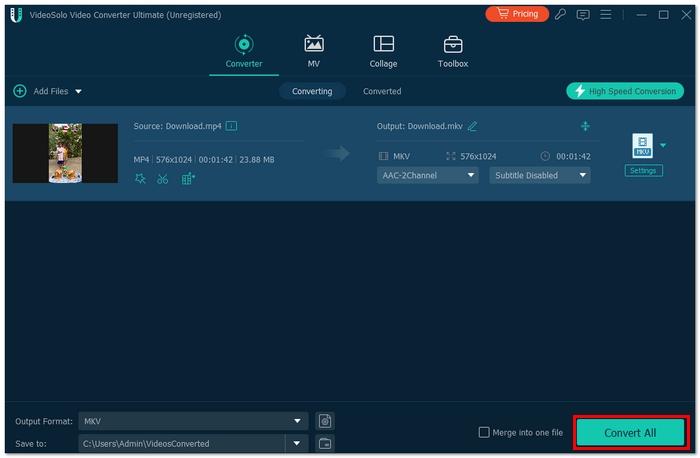
Step 3. If you wish to make any minor changes to your video, edit it first. Once you're finished, hit the convert button and watch as it completes.
This is the method I personally find the easiest when I need a reliable way to convert videos without complications.
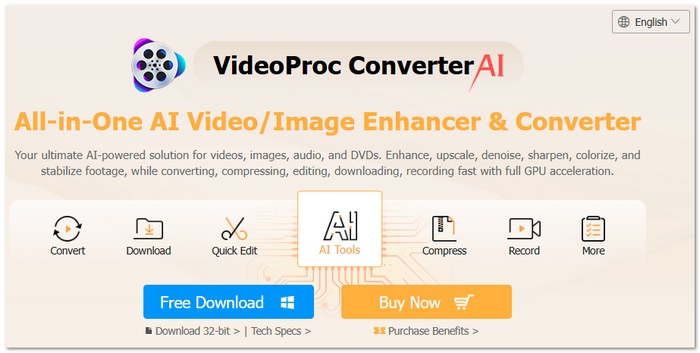
2. VideoProc Converter AI (AI-Powered Conversion with Video Enhancement)
VideoProc Converter AI is a great option if you want more than just basic conversion. It focuses on using AI technology to improve video quality while working as a reliable MP4 to MKV converter.
Features
- AI-powered upscaling and noise reduction for better video quality
- Full GPU acceleration for smoother and faster processing
- Supports large 4K/8K video files without crashing
- Built-in tools for downloading and recording videos
pros
- Improves the quality of the video when converting
- Effectively manages big, high-resolution files
- Combines additional media tools with conversion
Cons
- AI processing can take more time than standard conversion
- Some advanced features require a paid version
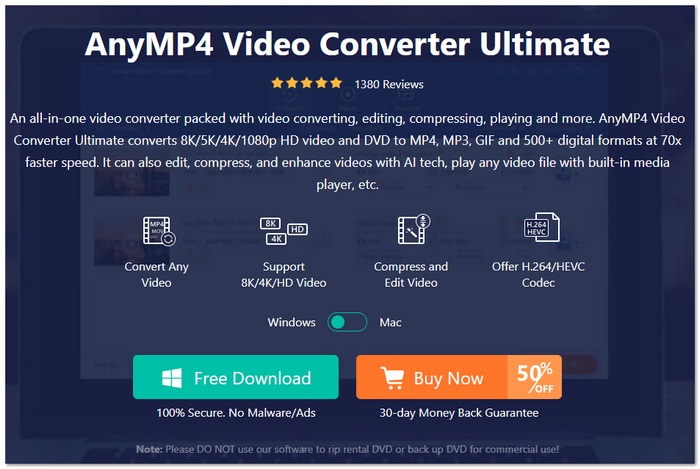
3. AnyMP4 Video Converter Ultimate (Balanced Conversion with Editing Flexibility)
AnyMP4 Video Converter Ultimate is a well-rounded tool that I find useful when I want both conversion and creative control. It’s a solid choice if you need to convert an MP4 file to MKV while also making small edits before exporting.
Features
- MP4, MKV, AVI, and MOV formats are supported
- Video editing tools offer filters, effects, and watermarking
- A built-in collage maker starts creativity
- Hardware acceleration speeds up conversions. The app handles video creation smoothly
pros
- Excellent for people who wish to utilize a single tool for editing and converting
- provides innovative features that go beyond simple conversion
- Performance that is responsive and fluid
Cons
- Interface can feel slightly feature-heavy for beginners
- Full features require upgrading to the paid version
4. Windows Movie Maker (Simple Windows-Based Editing Tool)
I occasionally use Windows Movie Maker, a simple movie editor, for easy tasks. Even though it's not a specific converter, you may convert MP4 to MKV format on Windows PCs using a small workaround.
Features
- Basic video editing tools like trim, split, and transitions
- Simple timeline interface for beginners
- Export options for different video settings
- Lightweight and runs well on older Windows PCs
pros
- Incredibly simple to use, especially for novices
- Performs well on outdated or low-spec computers
- Excellent for brief adjustments before conversion
Cons
- No direct support for MKV export (needs additional procedures or tools)
- Fewer characteristics than those of contemporary converters
Part 3. Online MP4 to MKV Converters
If you don’t want to install anything, online tools are a quick and convenient option. These platforms work directly in your browser, making it easy to use an MP4 to MKV converter online for simple and fast conversions.
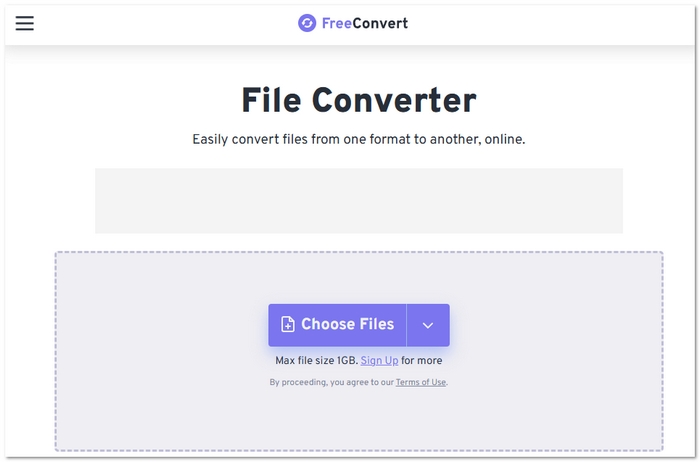
1. FreeConvert (Flexible Online Tool with Advanced Settings)
FreeConvert is a browser-based tool that offers more control than most web converters. It’s a great option if you’re looking for an MP4 to MKV freeware solution without installing software.
Features
- Advanced settings for codec, resolution, and compression level
- Cloud-based conversion with support for large file uploads
- Drag-and-drop interface with support for multiple file sources (device, URL, cloud)
- Option to adjust video size and compression before converting
pros
- Offers more customization than typical online converters
- Works on any device with a browser
- No installation required
Cons
- The free version has file size and usage limits
- Upload and download speed depend on the internet connection
2. Convertio (Cloud-Based Converter with Wide Format Support)
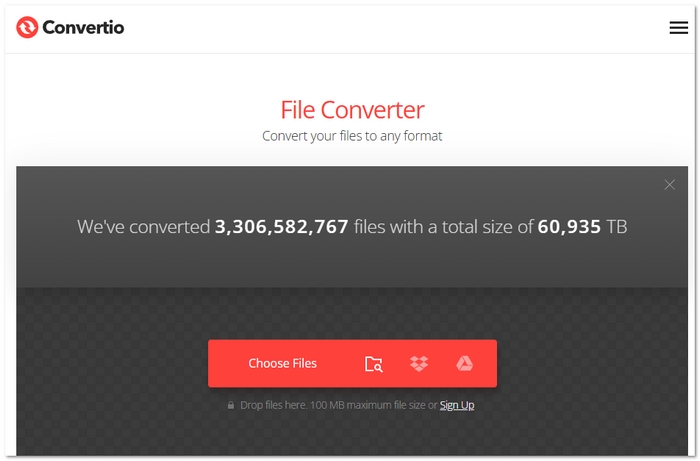
Convertio is a popular cloud-based platform that makes it easy to handle file conversions directly online. It’s a convenient choice if you want a simple way to process MP4 to MKV without dealing with software installations.
Features
- Supports 300+ file formats, including video, audio, and documents
- Cloud processing reduces the load on your device
- Integrates with Google Drive and Dropbox for file import/export
- Automatic file deletion after a set time for added privacy
pros
- An easy-to-use interface for beginners
- functions flawlessly on various platforms and devices
- System resources are not required because conversion takes place in the cloud
Cons
- Limited file size for free users
- Requires a stable internet for smooth uploads and downloads
Part 4. How to Fix: Common Issues
Conversion issues can still arise even with the appropriate tools. The following are some of the most frequent problems I've run upon, along with easy fixes:
Audio-Video Mismatch
Problem: The audio doesn’t sync with the video after conversion.
Fix:
- • Choose the correct frame rate and codec settings before converting
- • Use a reliable converter with built-in auto-sync features
- • Try re-converting the file using a different format preset
Slow Conversion Speed
Problem: The conversion takes too long, especially for large files.
Fix:
- • In your converter settings, turn on GPU acceleration.
- • To free up system resources, close any apps that aren't needed.
- • If ultra-high quality is not required, reduce the bitrate or resolution.
File Not Playing After Conversion
Problem: The MKV file won’t open or play properly.
Fix:
- • Make use of a VLC or other universal media player.
- • Verify whether your player supports the chosen codec.
- • Reconvert the file with a codec option that is more compatible.
Output File Too Large
Problem: The converted MKV file is bigger than expected.
Fix:
- • Reduce bitrate or resolution during conversion
- • Use compression settings if available
- • Remove unnecessary audio or subtitle tracks
Conversion Failed or Stuck
Problem: The process freezes or doesn’t complete.
Fix:
- • Make sure there is no corruption in the source file.
- • Update to the most recent version of your MP4 converter.
- • If the problem continues, try using a different tool.
Quick Tip: By utilizing a trustworthy converter and selecting the appropriate settings, most problems may be prevented. Your final product can be significantly improved with a few minor tweaks.
Part 5. FAQs about Converting MP4 to MKV
Is it possible to convert MP4 to MKV for streaming?
You can, however, MP4 is typically more appropriate for streaming. MKV is ideal for offline viewing or preservation.
Do codecs need to be installed in order to play MKV files?
Occasionally, yes. If your media player doesn't support MKV, you could need more codecs or use a player like VLC.
Is MKV supported on smart TVs and gaming consoles?
Some modern devices support MKV, but compatibility varies. It’s best to check your device specifications before converting.
Conclusion
Based on all that's been discussed, I've figured out that picking the right software and config can have a huge impact during video conversion. MKV would be an excellent choice if you desire excellent quality and flexibility, whereas MP4 is made mainly for compatibility. But after knowing your requirement, it will be very easy to convert MP4 to MKV without loss of quality.
More Readings

