



 Download Video Repair For FREE!
It's simply a problem to have video troubles when you are impatiently waiting to do some editing, and then you find out that Adobe Premiere Pro 2 won't open MP4 files. If that's the case with you, take it easy! Most of the time, this inconvenience can be sorted out in no time.This guide will teach you through the most common reasons why MP4 files refuse to open, show you practical solutions you can try right away, and even help you repair damaged MP4 videos if needed. If you read this till the end, you’ll know exactly what to do to get your clips working smoothly again. Just keep on reading this and find out!
Part 1. Possible Reasons That Adobe Premiere Pro 2 Won't Open MP4
If an MP4 video won't open in Premiere Pro, it is mostly a case of the file being different from what the software expects in terms of content or system resources. Although MP4 might seem pretty straightforward at first, it can have different codecs, frame rates, or even metadata inside that can cause Premiere Pro to have issues accessing this information. Here are some of the most common situations:
1. Unsupported or Missing Codecs
On the other hand, not all codecs in an MP4 container are compatible with Premiere Pro, even though MP4 is widely accepted. For example, certain HEVC, variable frame rate (VFR), or non-standard encodes may result in a loading failure.
2. Corrupted or Damaged MP4 Files
If a video is interrupted during recording, downloading, or transfer, its audio or video tracks may be broken, and the video file cannot be played. Premiere may detect this and refuse to open the file.
3. Outdated Premiere Pro Version
Features and functionality of newer versions usually include codec support. Therefore, in older versions of Premiere, fewer codecs will be supported. Your outdated version might not even identify the newer MP4 formats, much less handle them.
4. Hardware Acceleration Conflicts
When GPU acceleration is enabled, conflicts with certain GPUs or drivers may cause Premiere to freeze or crash unexpectedly.
5. Incorrect File Extension or Metadata Errors
Pretending everything else is fine, a mismatched MP4 file metadata, a wrong file extension, or naming issues may be the reason Premiere blocks the import.
6. Insufficient System Resources
Low RAM, high CPU utilization, or an older hardware setup where Premiere software might skip file import or cause other errors or glitchy behavior. Happens mostly with large-sized 4K or higher standard of MP4 videos.
Part 2. How to Fix Adobe Premiere Pro 2 Won't Open MP4
Now that you know why Premiere might be struggling with your video, it’s time to look at the solutions. Most problems are solvable by making minor changes of a straightforward nature. No advanced skill level is necessary. Here, we will show you practical steps that can help you get your footage running smoothly again. These solutions will take you through Adobe Premiere Pro, how to open and edit MP4 without the typical annoyances. The time has come to explore the working methods.
Restart the Program and Your PC
Restarting Premiere Pro as well as your computer is probably the fastest method of fixing any MP4 video playback or import problems in the program. A new reset may still be needed to remove the temporary glitches that cause the issue and to answer the frequently asked question, "Can I open an MP4 file in Premiere Pro?" without errors.
How to Do It
Step 1. Close Adobe Premiere Pro completely. Save and close any other apps also.
Step 2. Restart your computer. A reboot clears cached processes that may be interfering with video imports.
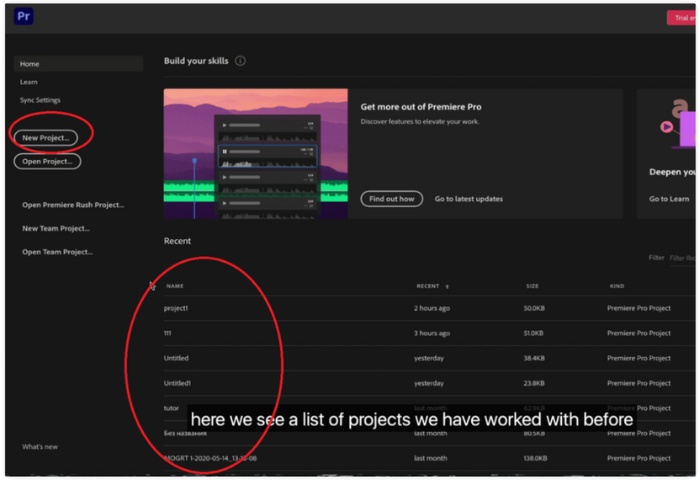
Step 3. Open Premiere Pro again and launch a fresh project or reopen your existing one.
Step 4. Try importing your MP4 file again by selecting File > Import or by dragging the file into the timeline.
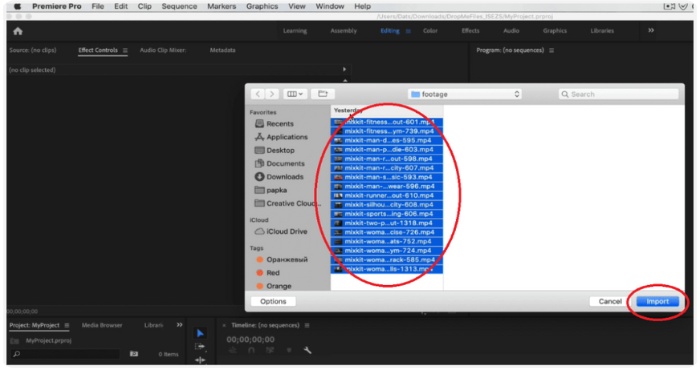
If the issue was caused by a temporary software conflict or memory overload, your MP4 should now import without any trouble.
Turn Off Hardware Acceleration
If Adobe Premiere Pro 2 won't open MP4, the issue may be due to hardware acceleration. This feature is intended to boost performance, but it sometimes causes conflicts with certain MP4 codecs. Disabling it can help Premiere import and play your videos smoothly again.
How to Turn Off Hardware Acceleration
Step 1. Launch the program and go to your workspace. Click Edit and select Preferences (Windows) or Premiere Pro and click Preferences (Mac).
Step 2. Select Media from the sidebar, then uncheck the Enable hardware-accelerated decoding option.
Step 3. Click Apply, then OK. A quick restart ensures your new settings take effect.

Once hardware acceleration is turned off, try importing your MP4 again. It often resolves codec conflicts and allows the file to load properly.
Update Premiere Pro and GPU driver (Intel, Nvidia, AMD)
Sometimes MP4 files fail to open simply because Adobe Premiere Pro or your GPU drivers are outdated. Newer MP4 codecs may not work well with older software versions, so updating both can instantly fix compatibility problems.
Update Adobe Premiere Pro
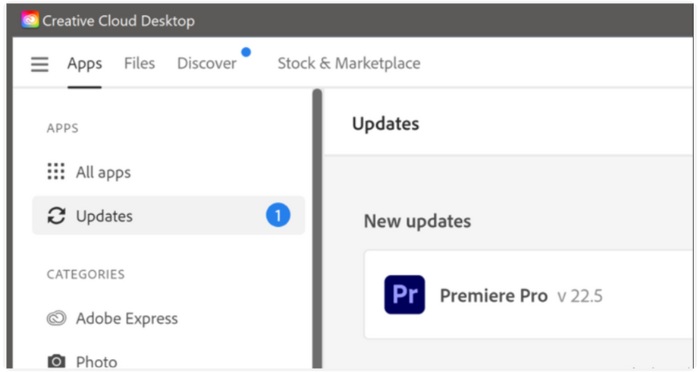
Step 1. Open the Creative Cloud desktop app and go to the Apps tab.
Step 2. Look for Adobe Premiere Pro in the list and click Update beside it.
Step 3. Restart Premiere Pro and try opening your MP4 again.
Update Your GPU Driver
Updating your graphics driver ensures smoother playback and fewer errors when handling MP4 files.
For Intel GPU Users
Step 1. Visit the Intel Driver & Support Assistant website. Download and install the tool.
Step 2. Run the scan, and it will detect outdated drivers.
Step 3. Click Install for the recommended update. Then restart your PC.
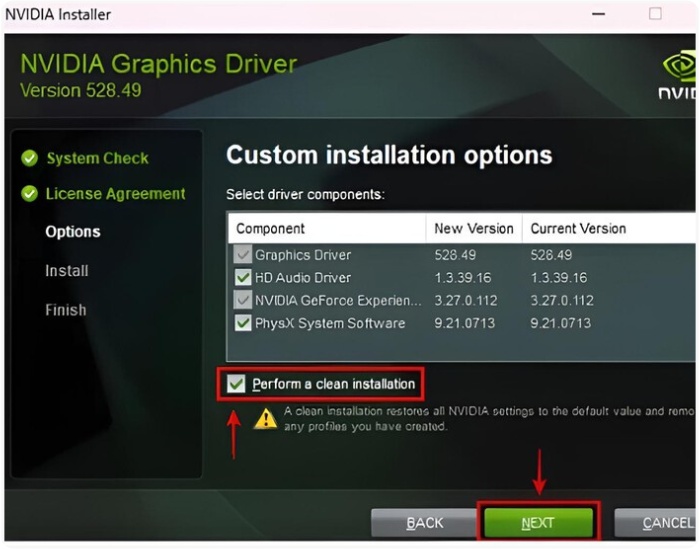
For NVIDIA GPU Users
Step 1. Open the NVIDIA GeForce Experience app. If you don’t have it, download it from NVIDIA’s site.
Step 2. Navigate to the Drivers section and choose Check for updates.
Step 3. Select Download, then Express Install. After that, restart your PC.
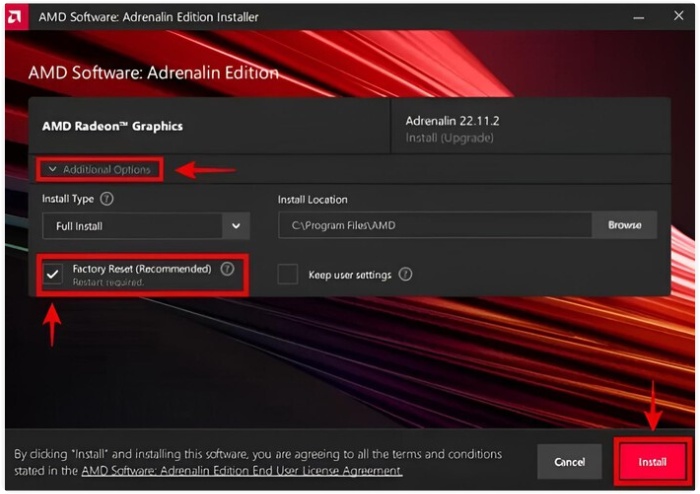
For AMD GPU Users
Step 1. Open the AMD Software: Adrenalin Edition app and click Check for Updates.
Step 2. Download the latest recommended driver, install it, and restart your PC.
Step 3. After updating Premiere Pro and your GPU driver, try importing your MP4 again. In many cases, this completely resolves the playback and importing issue.
Change the File's Name or Extension
If your MP4 file still won’t open in Premiere Pro, the issue may be caused by a corrupted file name, unusual characters, or an incompatible extension tag. Renaming the file or changing its extension can prompt Premiere Pro to re-read the file structure, and sometimes that’s enough to make it work.
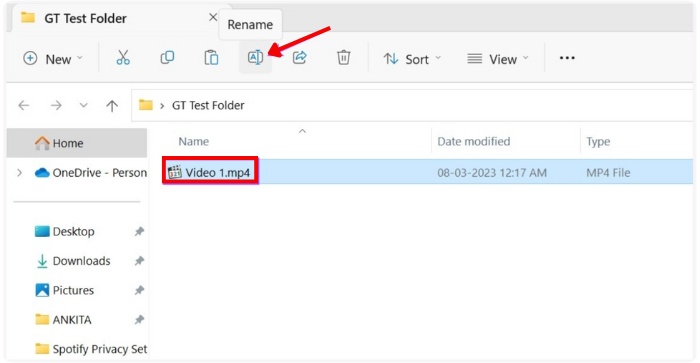
How to Rename and Change File Extension
Step 1. Find your MP4 file and right-click it. Select Rename and change the name to something with only simple letters and numbers.
Step 2. If that doesn’t work, try changing the extension from .mp4 to .mov, .m4v, or .mpg.
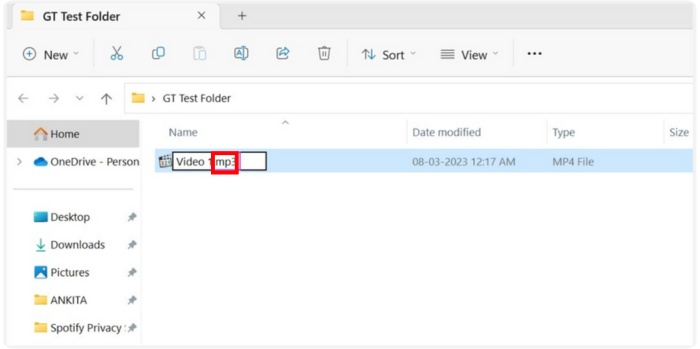
Step 3. Click Enter, confirm the change if prompted, and import the file back into Premiere Pro.
This quick method often resolves minor metadata or naming conflicts that stop your MP4 from opening.
Part 3. Extension: How to Repair a Damaged MP4 File
If none of the previous methods worked, there’s a good chance your MP4 file itself may be corrupted. When a video is damaged, Premiere Pro will struggle to read it, no matter what fixes you try. In this case, repairing the file is the best move. This is where VideoSolo Video Repair becomes incredibly useful. The goal of VideoSolo Video Repair is to restore damaged, problematic, or unviewable video files while maintaining their original quality. It is a dependable ally when you need your footage recovered quickly, as it supports MP4 and several other key formats.
Key Features
• Repairs AVI, MP4, MOV, MKV,, and more
• Supports repair for 4K, HD, and even highly compressed footage
• Uses sample video technology for high repair success
• Keeps the original audio, color, and clarity
• Works on both Windows and Mac
How to Repair a Damaged MP4 Using VideoSolo Video Repair
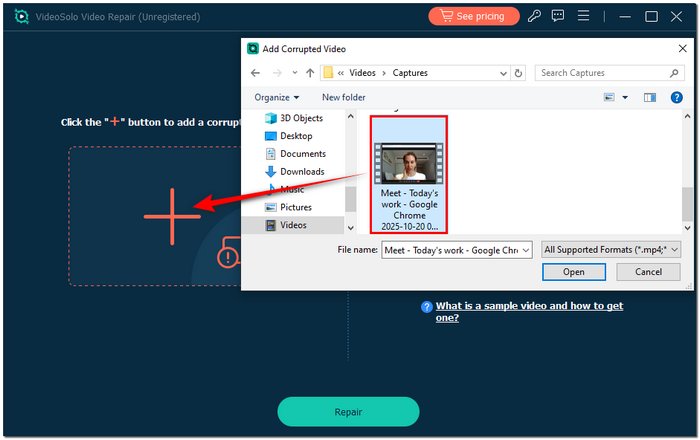
Step 1. Open VideoSolo Video Repair on your Windows PC or Mac. Then, click the + and import the MP4 file that won’t open in Premiere Pro.
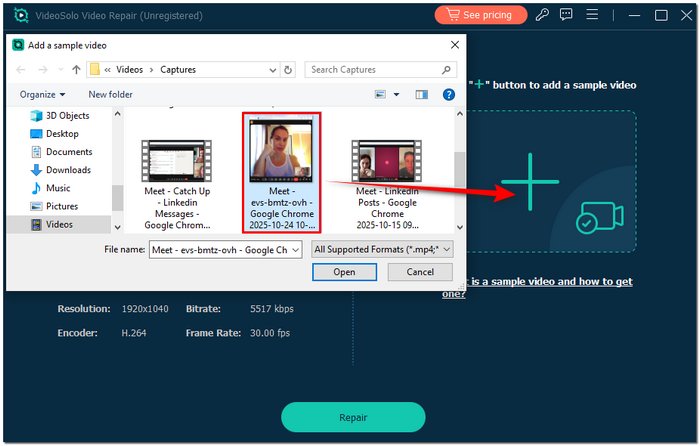
Step 2. Click + on the right to add a sample video and upload a clean video from the same device or camera.
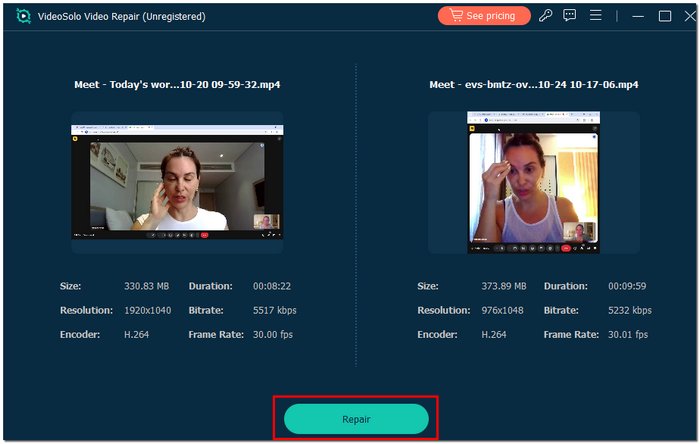
Step 3. Hit the Repair button, then hold on for the tool to analyze your video.
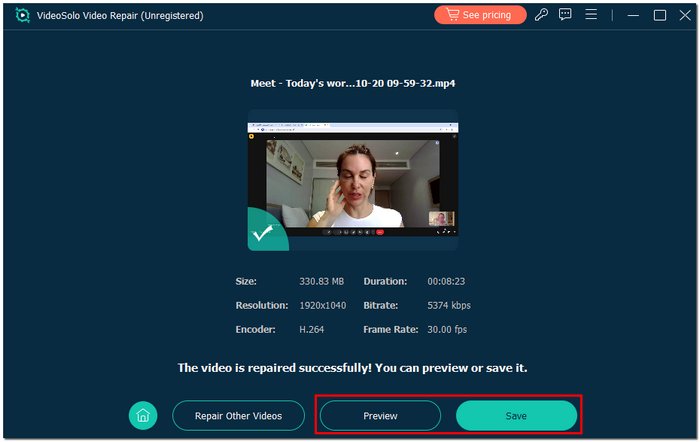
Step 4. When completed, click Preview to review the outcomes. If you’re happy, click Save to obtain the fixed MP4 file.
Part 4. FAQs about MP4 Not Opening in Premiere Pro
Can variable frame rate (VFR) MP4 videos cause import issues?
Yes, Numerous screen captures and mobile videos utilize VFR, potentially leading to desynchronization or import issues. Changing the file to a constant frame rate (CFR) frequently proves beneficial.
Can audio-only codecs in MP4 cause import problems?
Yes. If the MP4 uses unsupported or unusual audio codecs, such as certain AAC-LC variants or AMR, Premiere Pro may reject or partially import the file.
Is it better to import MP4 directly from an SD card?
No. Importing directly from memory cards sometimes causes issues. It’s better to transfer the MP4 to your hard drive first.
Conclusion
Once you identify the cause, MP4 import problems in Premiere Pro are typically simple to resolve. You can resolve the issue and regain a smooth understanding of Adobe Premiere Pro how to open and edit MP4 in Adobe Premiere Pro by updating your program, changing settings, or fixing a corrupted file. Try each technique one at a time, and you'll be able to resume editing without any hiccups.
More Reading

Repair your damaged, unplayable videos with multiple mainstream formats like MP4, MOV, 3GP, etc.

