



 Download VideoSolo Player For FREE!
Knowing how to play MP4 on Windows is vital for anyone who is a regular video consumer on a PC, as different applications and systems do not treat MP4 files identically. If your videos are not opening, playing without sound, or getting pixelated, the right methods can greatly improve your viewing experience. First, we will answer a frequently asked question in this guide: Can MP4 be played on Windows? After that, we will discuss the best ways to open MP4 files without losing quality, provide you with completely free options that can be used immediately, and even introduce you to some handy web-based solutions that do not require installation.
Part 1. Can MP4 Play on Windows
If you ever happened to click on a video and think why it doesn't open, you might have asked yourself the question, Can MP4 play on Windows? The brief answer is yes! A Windows computer generally supports MP4 formats. If your video can’t be played on MP4 but can be played on other devices, you can consider an MP4 converter to convert it to a device-compatible format. Back to the point, as we said before, MP4 files are playable by Windows, but how good the playback will be depends on the application that you choose to use. There are players which can handle the files perfectly, while there are others which may give you problems with certain formats or missing codecs. So it is very helpful to be aware of the correct method of playing MP4 files in Windows in order to avoid wasting time and getting annoyed. Also, if you are using the latest version, you might be looking for tips on how to play MP4 on Windows 11, especially when you have to deal with high-quality or rare video types. Do not worry, we will review everything so that you can play your videos without errors or confusing settings.
Part 2. How to Play MP4 on Windows [No Quality Losses]
If you wish to watch your videos in super-clear quality and free from stutters or weird pixelation, then the use of a stable media player is what makes all the difference. A single instrument that is always capable of providing smooth, high-quality playback is VideoSolo Player, and it is actually one of the simplest ways to play MP4s on Windows while maintaining the same quality. Regardless of whether you are viewing a casual vlog or a high-resolution movie, VideoSolo is doing a great job of keeping everything crisp and steady, thus making it a good solution if you have been looking for the best app to play MP4 on Windows or just require a straightforward method to play MP4 on Windows without inconvenience.
Main Features
• Plays MP4 and almost any other video format with zero quality loss
• Supports 4K and HD playback for crisp, smooth viewing
• Clean, beginner-friendly interface that anyone can navigate
• Offers audio track and subtitle customization
• Perfectly compatible with Windows 10 and Windows 11
Step 1. Install VideoSolo Player on your computer after downloading it.
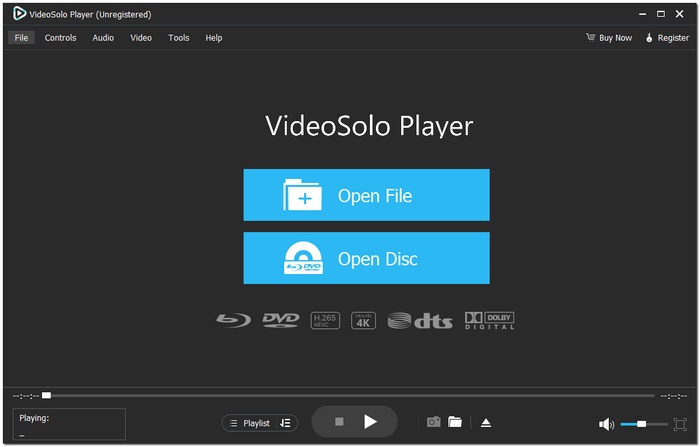
Step 2. Pick the audio or video you wish to play by clicking Open File.

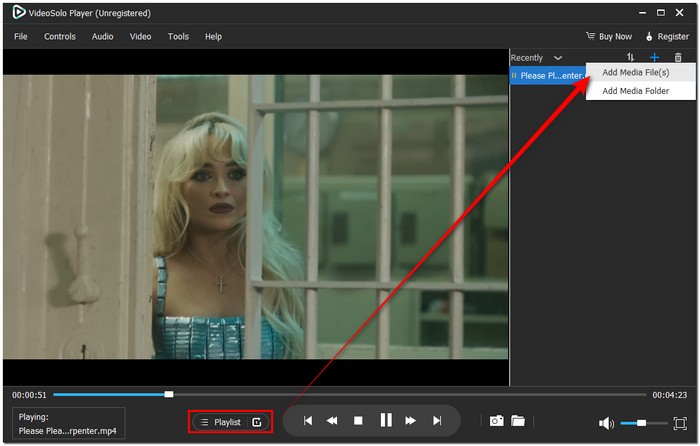
Step 3. To play every video you want and then enjoy the experience, you can also add more files to the Playlist.
Using Experience
Users find VideoSolo's ease of use most appealing. The program plays your movie flawlessly as soon as you launch it; you don't need to adjust settings or install additional codecs. Large HD files are handled without stalling, everything looks sharp, and the settings are simple. Because it just works, you can install this type of player once and keep using it.
Part 3. How to Play MP4 on Windows [Free]
If you’re on a budget or just prefer using free apps, there are several reliable media players that can help you play mp4 on Windows smoothly without spending a cent. These tools are perfect if you’re still figuring out how to play an mp4 file on Windows or want something simple that works on both Windows 10 and Windows 11. Below are some of the best free options you can try.
Method 1. VLC Media Player – The Most Reliable Free Option
VLC is the quintessential media player that comes to most people's minds when asked. And with good reason, too. It is a bare-minimum resource consumer, user-friendly, and virtually supports any video format you can think of. If you were to ask how to play MP4 on Windows 11, VLC would be the answer almost every time because it is a plug-and-play kind of thing.
How to Use VLC Player
Step 1. Install the VLC player and launch the app.
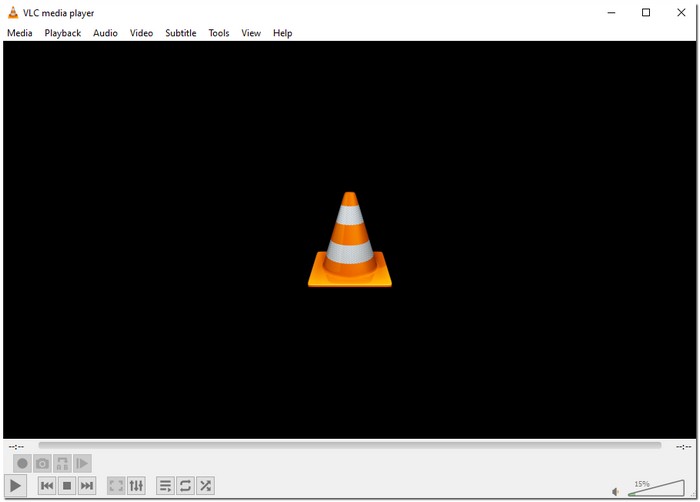
Step 2. Click Media on the menu bar, then click Open File.
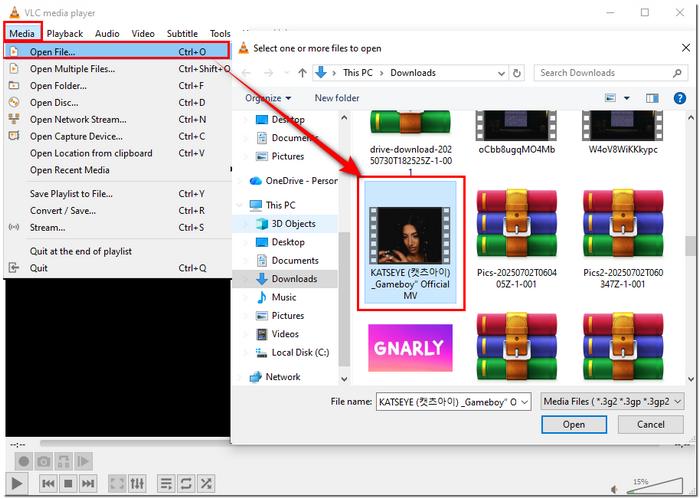
Step 3. Choose your MP4 video and enjoy instant playback.

Using Experience
VLC is extremely reliable. It loads videos quickly, the controls are straightforward, and you can change settings like brightness, audio tracks, and subtitles without any hassle. This is basically the type of instrument you put on your device once and keep using for eternity because it is compatible with no problems.
Method 2. KMPlayer – A Feature-Packed Player for Customization Fans
KMPlayer is a great choice if you like having control over how your video looks and sounds. It supports high-resolution files and offers tons of playback settings without confusing beginners.
How to Use KMPlayer
Step 1. Download KMPlayer and launch the app.
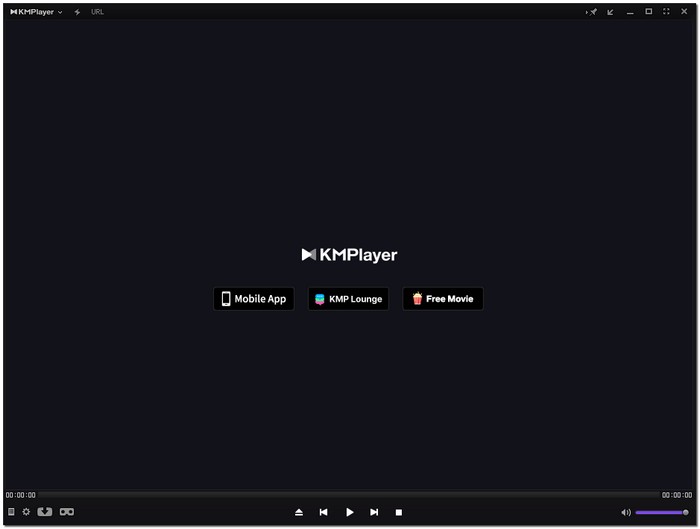
Step 2. Drag and drop your MP4 file into the window.
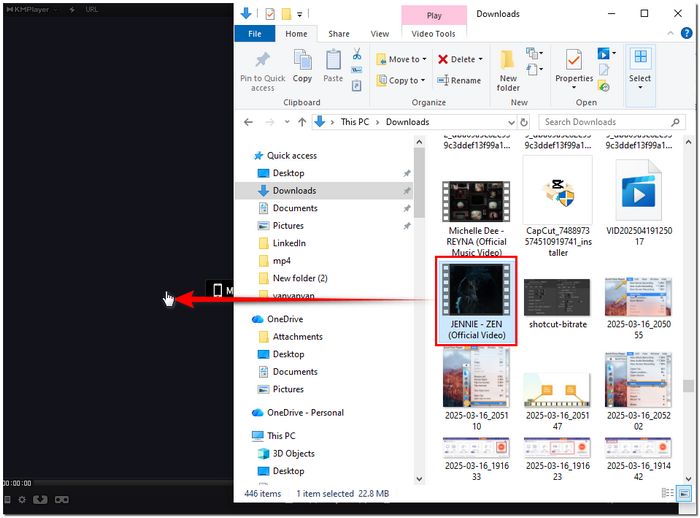
Step 3. If necessary, change the playback settings or simply click Play.

Using Experience
KMPlayer feels smooth and modern. People love that you can fine-tune brightness, contrast, playback speed, and even audio enhancements. It’s a nice upgrade if you want something free but slightly more customizable than VLC.
Method 3. QuickTime Player – A Simple and Clean Option
While QuickTime is basically a macOS application, a lot of people running Windows still find its neat interface and simple operation attractive. It doesn't have much stuff, it's one of the simplest, and that's why it's the best way to watch your MP4 files if you don't want to be disturbed.
How to Use QuickTime Player
Step 1. Get QuickTime Player for Windows installed on your device.
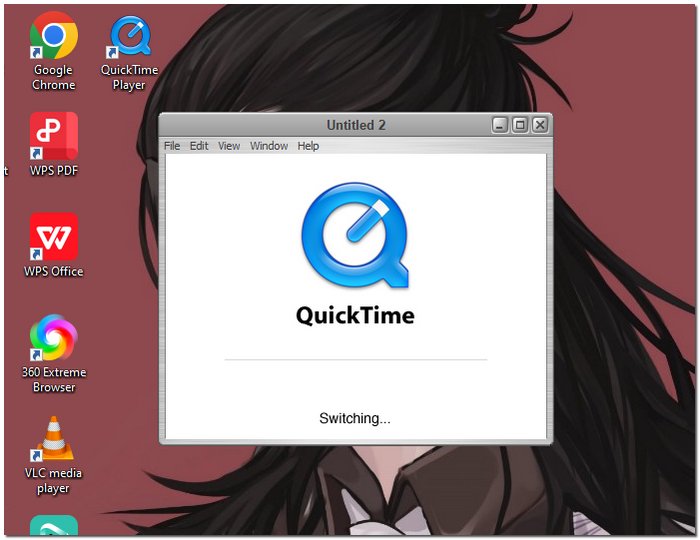
Step 2. Launch the app and go to File and select Open File.
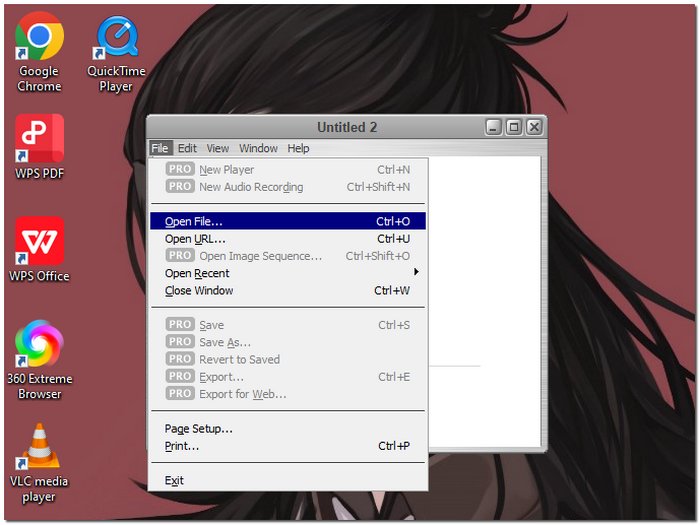
Step 3. Select your MP4 video and view it.
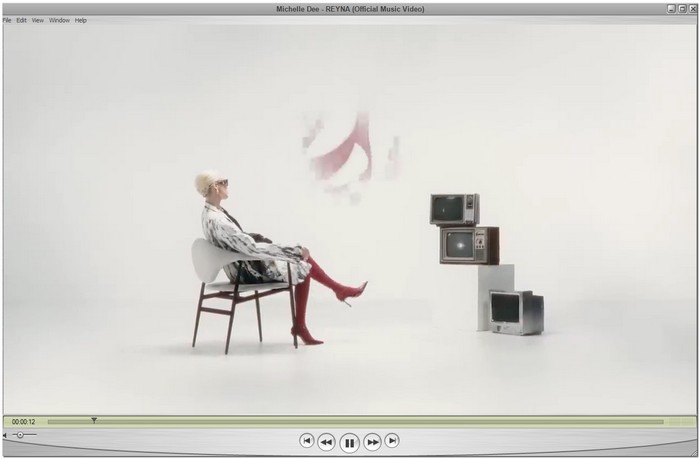
Using Experience
QuickTime feels very user-friendly. The interface is uncluttered, making it great for people who want basic controls without too many extra settings. It’s ideal if you want a clean, simple player that just opens your video and plays it smoothly.
Part 4. How to Play MP4 on Windows [Web]
If you don’t want to install any software or just need a quick way to watch MP4 videos online, web-based players are a lifesaver. They make it easy to play MP4 on Windows directly from your browser, whether you’re at home or on the go. If you’ve been asking yourself how to play an MP4 file on Windows, these web players are perfect for instant access without compromising quality.
Option 1. Adilo Video Player – Quick and Reliable Online Playback
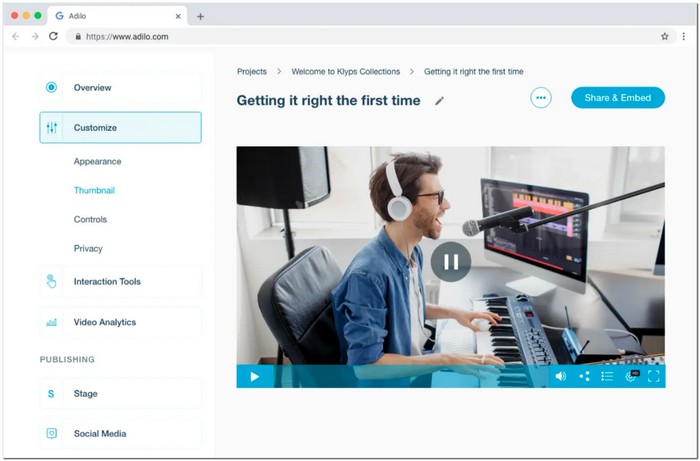
Adilo is a straightforward online player that enables you to view your MP4 videos right away without the need of saving them on your device. This player is built for quick streaming and noise-free playback, thus an easy selection for those how to play MP4 on Windows questions raised in the world of web.
Step 1. Open your browser and navigate to the Adilo website.
Step 2. Paste the video link or upload your MP4 file.
Step 3. Click Play and enjoy your video immediately.
Using Experience
Adilo feels effortless. The player interface is straightforward to use, and videos begin almost instantly. It's ideal for sharing or watching videos quickly without having to deal with additional apps.
Option 2. Wistia Video Player – Professional-Looking Web Playback
Wistia is popular for business videos, but it works just as well for personal MP4 files. It's a sophisticated web-based player that ensures smooth, high-quality playback of your videos. Wistia is a good option if you want to play MP4 on Windows without installing anything.
How to Use Wistia
Step 1. Go to the Wistia page and enter your credentials if necessary.
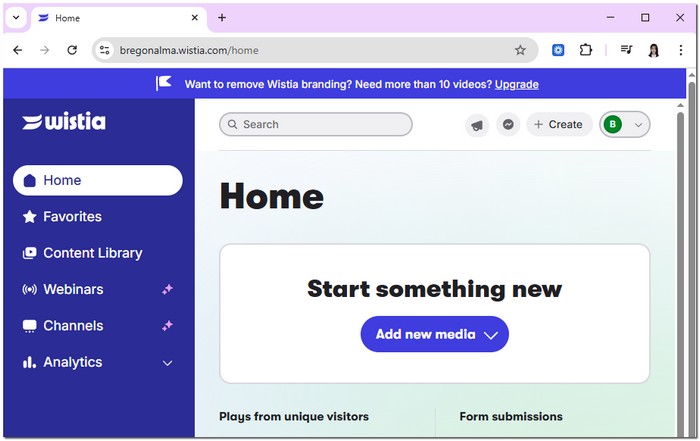
Step 2. Upload your MP4 video, or, if you prefer, share it via a link.
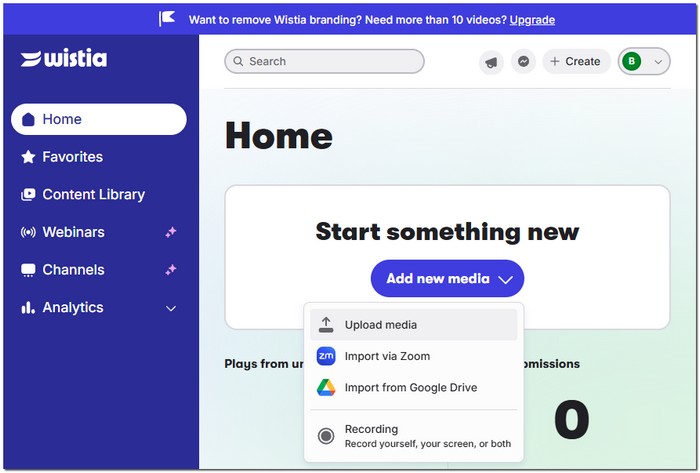
Step 3. Hit the Play button to watch your video in HD right away.

Using Experience
Wistia is a good choice if you want to give off a professional and trustworthy vibe. The viewing experience is uninterrupted, loading time is almost nonexistent, and the user interface is attractive. If you want your videos to be visually appealing and neatly organized on the web, it is a great tool.
Option 3. Vidyard Video Player – Fast and Interactive Web Viewing
Vidyard is another excellent web-based option, especially if you want a balance between speed and additional features like captions and video analytics. It’s intuitive and a great tool for quickly learn how to play an MP4 file on Windows directly in your browser.
Step 1. Open Vidyard in your browser and sign up if required.
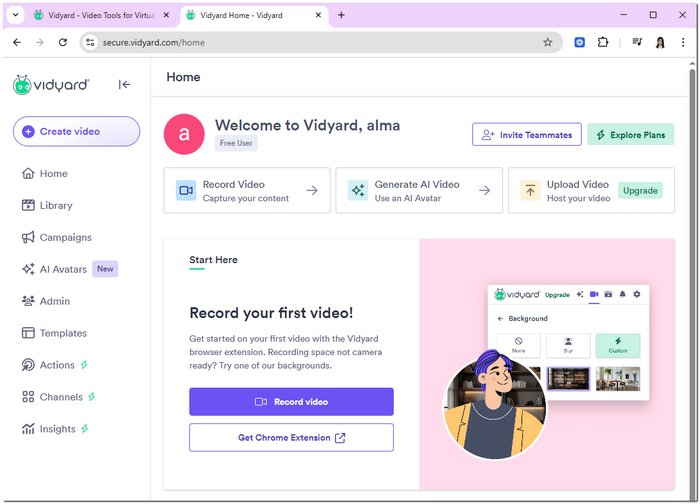
Step 2. Upload your MP4 file to the platform.
Step 3. Click play and watch your video immediately.
Using Experience
Vidyard feels modern and user-friendly. Videos play smoothly, the controls are clear, and you can even interact with additional features if needed. It’s perfect for people who want a free, reliable, and web-based way to enjoy MP4 files without installing anything.
If these players still can’t play your MP4 video, it is reasonable to consider that your MP4 video is damaged or corrupted. Therefore, you can use many reliable tools to repair your corrupted MP4 video before normal playback.
Conclusion
It is a cakewalk for Windows to play MP4 on Windows, be it your choice of built-in apps or online tools. However, if you are after the simplest, top-notch-quality option without the slightest hassle of the file not playing, then VideoSolo Player should be the one you go for. Along with supporting all the widely used formats, the software also ensures that the video plays at 1080p smoothly and that the user interface is quite handy for both casual viewers and movie lovers.
More Reading
- [Free Included] Top 6 Best MP4 Video Cutters
- MPEG-4 vs MP4: What Are the Differences between MPEG-4 and MP4
- 8 Ways to Crop MP4 Video on Mac/Windows
- How to Add Subtitles to MP4 on Windows/Mac 2026 (Full Guide)

Play your videos/music in 100+ formats and region-free DVDs/Blu-rays with 4K and Dolby Atmos experiences.

