



 Download Video Repair For FREE!
You record a great moment on your iPhone, excited to replay it later, but when you hit play, nothing happens. The screen freezes, or the video fails to load altogether. It says like this, "iPhone recorded video not playing"! It is honestly one of the most frustrating things to happen! There are several reasons for this issue, including file corruption, format incompatibility, or high-efficiency phone usage that some devices cannot read. But, it is fixable! In this article, we will show you seven different ways to get your iPhone video to work again, using both repair software and adjusting specific settings. Let’s get your memories back to life!

- Part 1. Possible Reasons That Caused iPhone Recorded Video Not Playing
- Part 2. Videosolo Video Repair: 98% Success Rate
- Part 3. Use VLC to Fix The Damaged Video
- Part 4. Install The Necessary Video Codec Package
- Part 5. Update or Reset The Movies & TV App
- Part 6. Convert Video to Another Format
- Part 7. Turn Off High-Efficiency Format on iPhone
Part 1. Possible Reasons That Caused iPhone Recorded Video Not Playing
It’s pretty disappointing when you try to replay a video you just recorded on your iPhone, and it suddenly won’t play. It doesn’t always mean the video is gone for good. In most cases, the issue is simple and fixable once you understand what’s behind it. The recorded video not playing error usually happens because of a few common reasons, such as file corruption, unsupported formats, or outdated software. Let’s take a look at what might be causing it before we move on to the solutions.
Corrupted Video File: If the recording was interrupted, such as by a sudden shutdown or low storage, the file might be incomplete or damaged.
Unsupported Format: Some iPhone videos recorded in HEVC or HDR formats might not play properly on older devices or media players.
Outdated Software: Running an outdated iOS version or media player could prevent your video from loading correctly.
Transfer Issues: Sometimes, when videos are transferred from an iPhone to another device, they lose compatibility or get corrupted.
Storage Glitches: If your phone’s storage is full or fragmented, it can affect how videos save and play.
Part 2. Videosolo Video Repair: 98% Success Rate
If recorded videos not playing on iPhone and don't look or sound as they should, it means the video file has become corrupt at some point during recording, transferring, or saving. However, you don't need to stress about losing your treasured memories because you can retrieve them with the video repair tool VideoSolo Video Repair. The software enables you to easily and efficiently repair broken video files in a few clicks, all while maintaining the video quality.
Key Features
• Works with popular video formats like MOV, MP4, M4V, and more.
• Its advanced algorithms can fix even severely corrupted iPhone videos with up to a 98% success rate.
• You can check the repaired video before exporting it.
• Fix multiple damaged videos at once to save time.
• No tech background needed because it’s clean and simple to use.
Steps to Repair iPhone Videos Using VideoSolo Video Repair
Step 1. Download and install VideoSolo Video Repair on your PC (Windows or Mac). Open the program and import your corrupted iPhone video by clicking Add File.

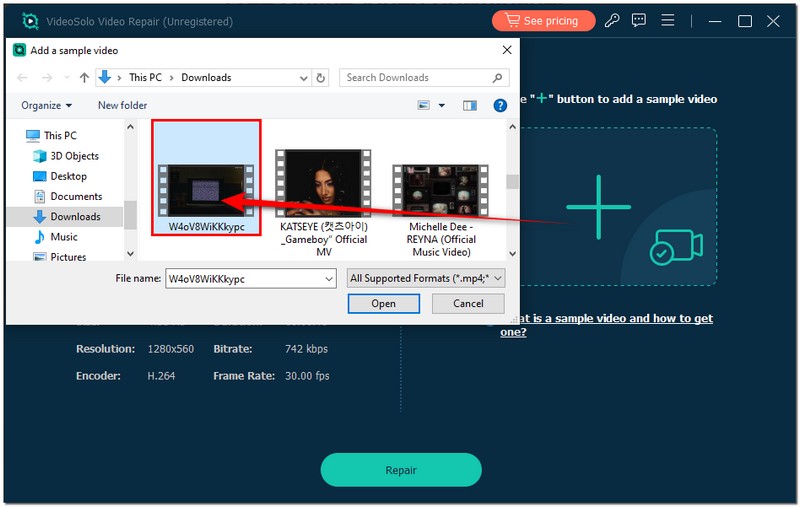
Step 2. For better results, you can upload a sample video recorded from the same device as a reference.
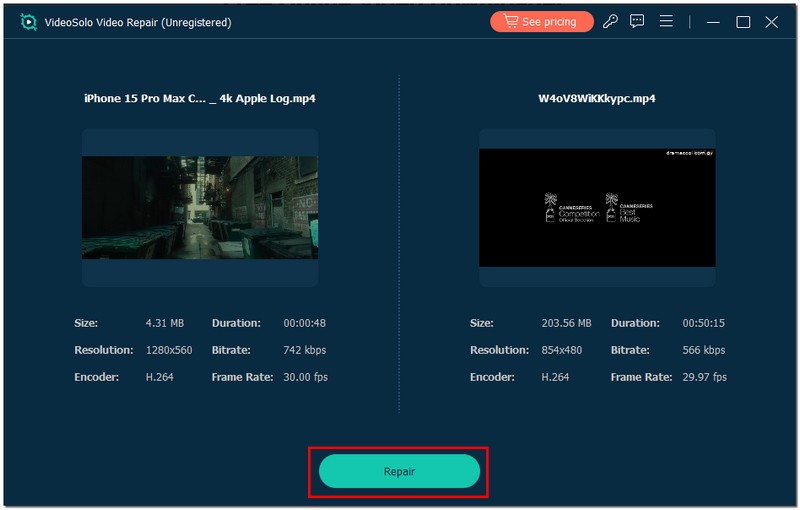
Step 3. To repair the damage to the video coming from your iPhone, click the Repair button to fix it immediately.
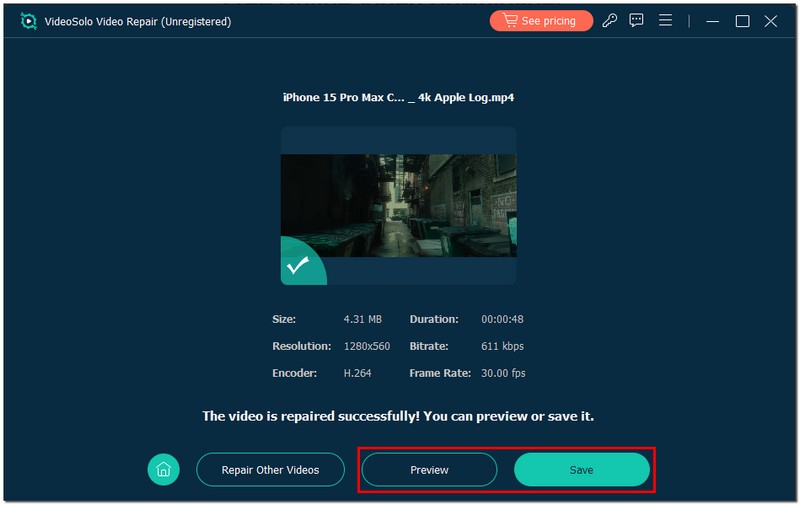
Step 4. After completing the process, preview the fixed video to ensure it plays correctly, then click Save to export it. That’s it! Your once-unplayable iPhone video should now play smoothly again, just like it was meant to.
Part 3. Use VLC to Fix The Damaged Video
If you’re still facing the issue of iPhone recorded video not playing, one of the easiest and free methods you can try is using VLC Media Player. VLC isn’t just a video player, but it also includes built-in repair tools that can help fix minor corruption issues in video files, especially MOV or MP4 formats recorded from iPhones. Here’s how you can use VLC to repair video:
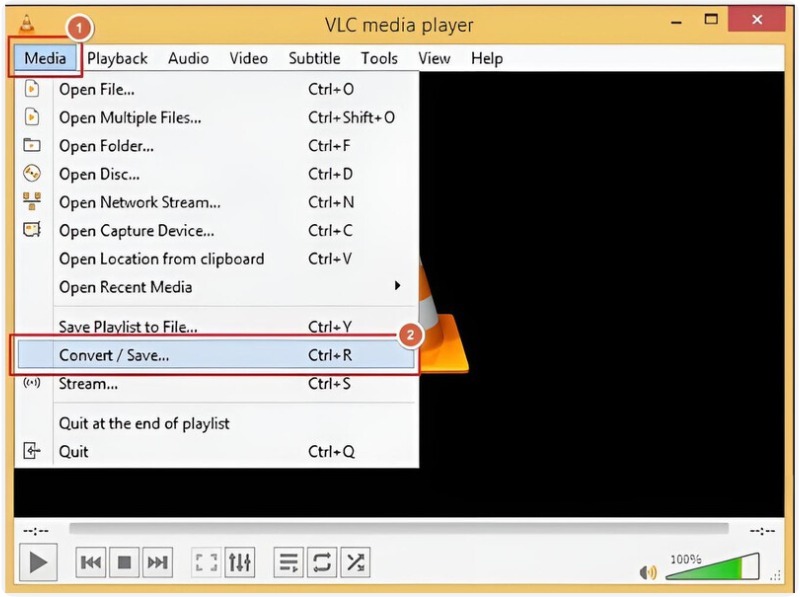
Step 1. Open VLC Media Player on your computer. Go to the Media tab at the top and click Convert / Save.
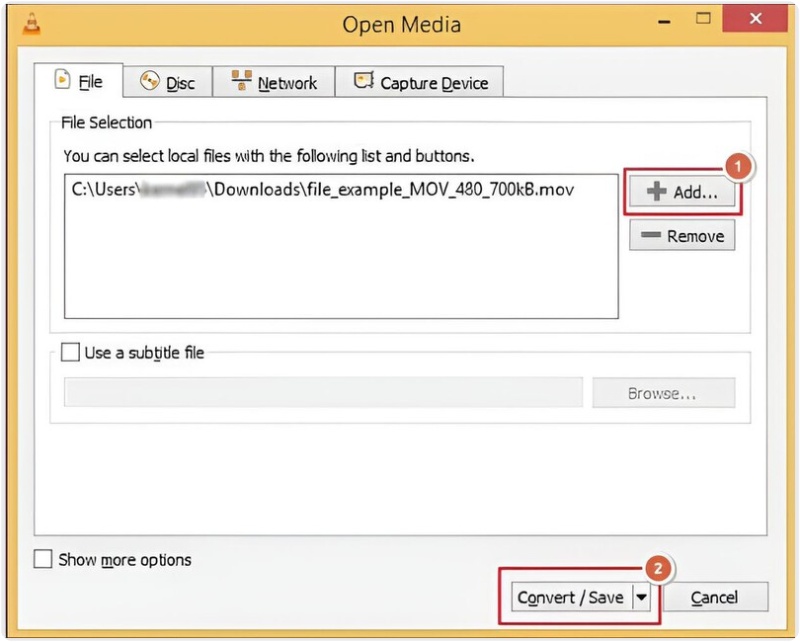
Step 2. Click Add and select the damaged iPhone video file.
Step 3. Hit the Convert / Save button, then choose the output format, preferably MP4.
Step 4. Under Profile, select a suitable codec option like H.264 + MP3 (MP4).
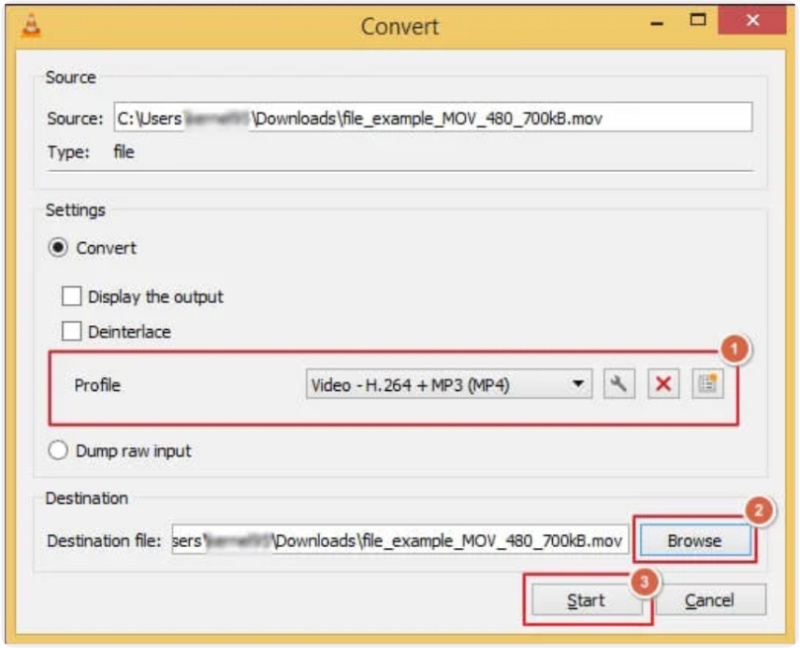
Step 5. Choose a save location, click Start, and let VLC process the file.
Alternatively, if your file has a .avi extension, VLC also offers a direct repair option:
Step 1. Go to Tools, select Preferences, and click Input/Codecs.
Step 2. Under Damaged or incomplete AVI file, choose Always Fix. Save the settings and re-open your video.

 Tips
Tips
Although VLC is a robust free solution, it is most effective for minor corruption. Your best option is to use a specialized tool like VideoSolo Video Repair if the video is severely damaged or still won't play.
Part 4. Install The Necessary Video Codec Package
On rare occasions, when the iPhone recorded video not playing issue occurs, it is not a damaged file at all. It may be because your computer lacks the proper codec to read the video format. Codecs are like translators that your device needs to understand how to play specific video types. Without them, your device will not recognize the file. To fix this, you can install a video codec package to add support for more file types and formats. One reliable option is the K-Lite Codec Pack, which is safe, free, and compatible with most Windows versions.
Steps to Install the K-Lite Codec Pack
Step 1. Visit the official K-Lite Codec Pack website. Choose the Standard or Full version for the best compatibility.
Step 2. Download and run the installer. Just follow the on-screen procedures and complete the setup.

Step 3. Restart your computer and try playing your iPhone video again.
Tips
Installing codec packs not only helps with iPhone videos but also prevents playback errors for other formats like MKV, MOV, and HEVC in the future.
Part 5. Update or Reset The Movies & TV App
If you're experiencing an iPhone recorded video not playing issue on your Windows computer, the problem might be with the app you are using, rather than the video itself. Sometimes, a Movies & TV app may glitch, be outdated, or have corrupt cache files, which can cause the video to play smoothly. These glitches can often be quickly resolved by resetting and/or updating the Movies & TV app.
Steps to Update or Reset the Movies & TV App
Step 1. Open your Settings. Go to Apps and select Apps & features.
Step 2. Find the Movies & TV and click Advanced options.
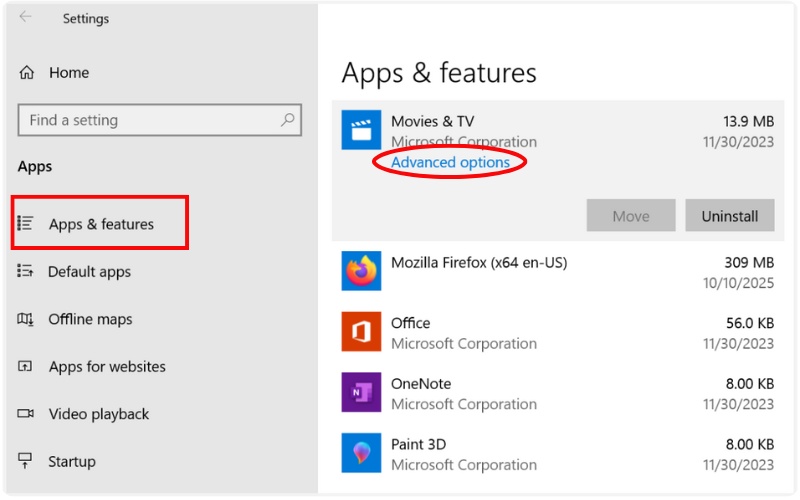
Step 3. First, try selecting Repair to fix any small app issues. If the problem persists, choose Reset. It will clear the app’s cache and restore it to default settings.

Tips
After resetting, make sure your Windows system is up to date. Sometimes, compatibility issues between Windows updates and the Movies & TV app can also cause video playback errors.
Part 6. Convert Video to Another Format
If your video won't play on iPhone, it may be saved in a format not supported by the media player. The iPhone commonly records video in HEVC (H.265) or HEIF format, and older media players (or computers) do not decode the video/audio correctly. The simplest solution is to convert the video to another format like MP4 (H.264) using a trusted media converter. One of the most beginner-friendly tools for this is Aiseesoft Free Video Converter Online, with no installation required. It’s quick, safe, and perfect for converting iPhone videos without losing quality.
Steps to Convert iPhone Videos to Another Format
Step 1. Install the Aiseesoft Free Video Converter Online. Upload your iPhone video file by clicking Upload Files.
Step 2. Pick MP4 as the output format and adjust video settings if needed.
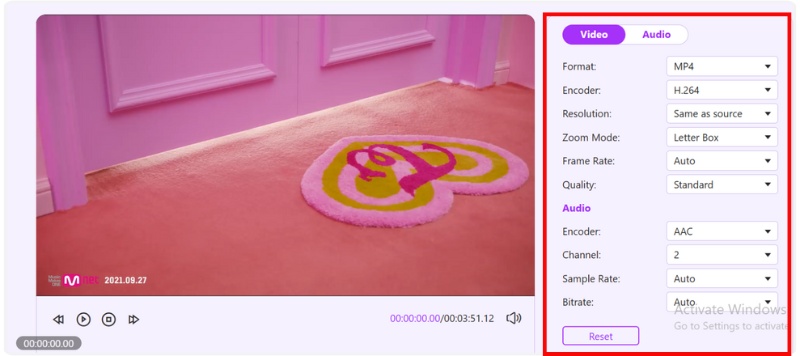
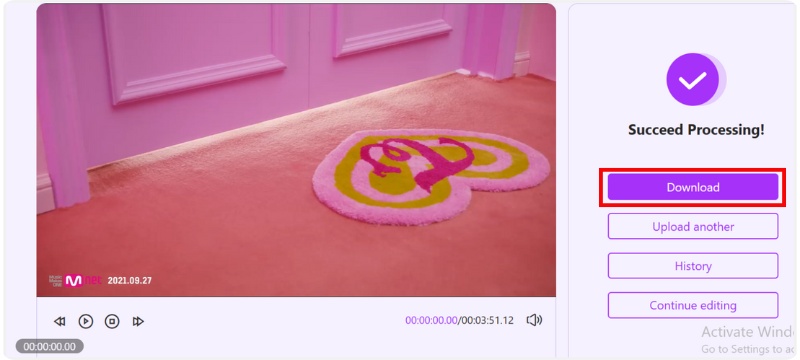
Step 3. Save the new video and wait for the process to complete. Click Download to export your converted video.
Tips
After conversion, try playing your video again on your computer or phone; you’ll likely find it plays smoothly without any compatibility issues.
Part 7. Turn Off High-Efficiency Format on iPhone
If you often find recorded videos not playing on iPhone, the issue might be caused by your camera settings, specifically, the High-Efficiency format. iPhones record videos in HEVC (High-Efficiency Video Coding) by default to save storage space. While this format is great for reducing file size, it’s not always compatible with every device or media player, especially older computers or Android phones. To prevent this issue from recurring, consider switching your iPhone camera settings to record in a more universal format, such as H.264, which is compatible with nearly all devices.
Steps to Turn Off High-Efficiency Format on iPhone
Step 1. Open the Settings on your iPhone, find and tap Camera.
Step 2. Select Formats and choose Most Compatible instead of High Efficiency.
Step 3. Once done, your future videos will be recorded in a standard format that’s easier to play, share, and edit on any device, eliminating worries about playback errors or incompatibility.

Conclusion
If your recorded video not playing, it is perfectly reasonable to assume it is lost for good, but that's rarely the case. Most of the time, you just need to make a minor adjustment, or it may require coaxing to get things back on track. This may involve adjusting your iPhone settings, updating the apps you use, or selecting the right tool to access the file. You should be able to access your clips once more. Take a minute or two for the potential solutions available to you. Some of your most cherished memories may be waiting for you to click play.
More Reading
Repair your damaged, unplayable videos with multiple mainstream formats like MP4, MOV, 3GP, etc.