



 Download Video Repair For FREE!
When you’re looking to relax with some short, fun content, the last thing that you would want is TikTok not loading. If you have come across TikTok videos not playing and are stuck in a buffer, or a black screen is being displayed, this is for you! These playback problems can occur for various reasons, such as app glitches or connection issues, and can completely mess up your scrolling flow. This article explains why TikTok videos aren't working and the precise steps you can take to fix the issue on your device. It will be a great help in getting TikTok working properly again. Let’s start with reviving your feed.

Part 1. Why are TikTok Videos Not Playing
Few things could be more aggravating and frustrating in a user's TikTok experience than clips that refuse to load. You tap a clip, wait for it to play, but you get a spinning circle, a frozen screen, or a blank video instead. It's frustrating, especially when you are just trying to relax and catch up with the trends. So the question arises: why aren't TikTok videos playing? The actual reasons for this problem are as follows:
1. Your Internet Connection Isn’t Stable
TikTok is very demanding when it comes to the internet connection as it should be fast and stable. If your Wi-Fi is not working properly or your mobile data signal is weak, the app will have a hard time loading content, which users see as continuous buffering or videos that do not play.
2. The App Cache Is Overloaded
TikTok stores temporary files to speed things up. But when the cache gets too full, it backfires. A cluttered cache often causes glitches, lags, and video playback failures.
3. You Have an Old Version of TikTok on Your Phone
If the app hasn't been updated on your device for some time, you might have compatibility issues. An older version, for example, can hinder video playback if there are no recent bug fixes or if the features are not supported.
4. The Social Media Platform, TikTok, Has Problems
It is not always your equipment that is at fault. There might be a situation where TikTok's servers are down or undergoing maintenance. Consequently, for a considerable number of users, videos might not load.
5. Your Device Is Running Out of Power Literally
Low storage, too many apps running in the background, or an aging phone can all slow down TikTok. When your device struggles, the app struggles too.
6. VPN Interference or Network Restrictions
A VPN can cause unstable connections or cause you to be matched to the wrong region. Also, there may be cases where a network, such as a business or school Wi-Fi, blocks or restricts media loading.
7. The Video File Itself Is Damaged
If the problem is with a video on your phone, the file may be corrupted. It is usually due to incomplete downloads or file transmission failures. You need to repair the damaged video files before normal playback.
Part 2. How to Fix TikTok Videos Not Playing
If TikTok stops loading videos out of the blue, it is definitely going to kill your scrolling vibe pretty fast. Almost all of these problems can be solved by taking very simple measures, and you don’t need to have any technical skills. If the app is slow, getting stuck, or displaying the irritating could not play video TikTok error, then there are several trustworthy methods you can use to make the situation go away again. Here are the easiest and most effective solutions you can try right away to get your TikTok feed working again. Let’s get your videos playing like they used to!
Fix 1. Clear the Cache
Cached data helps TikTok load faster, but over time, it can become corrupted, causing playback issues. It is one of the most common reasons TikTok videos not playing in browser or the mobile app.
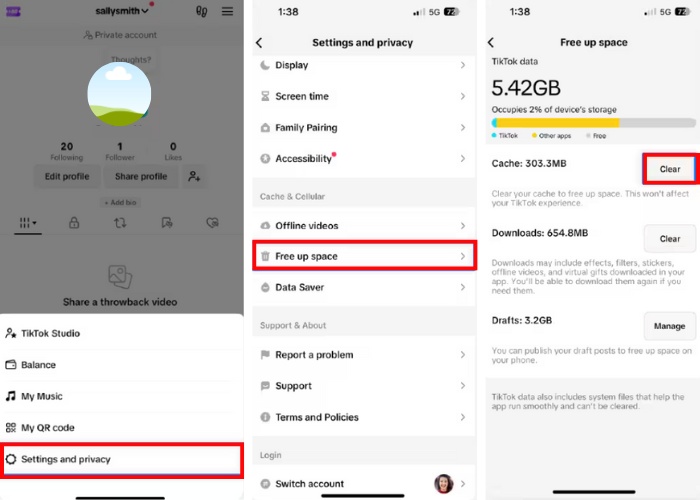
How to clear TikTok cache
Step 1. Open TikTok and go to Profile.
Step 2. Tap the menu and select Settings and privacy.
Step 3. Tap Free up space and choose Clear cache.
How to clear browser cache
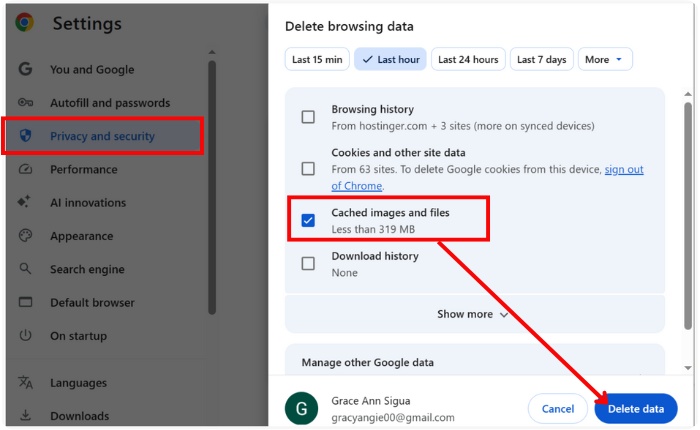
Step 1. Open your browser settings and go to Privacy or History.
Step 2. Choose Clear browsing data and examine the files and images that have been cached.
Step 3. Click the Clear data.
Fix 2. Update or Reinstall TikTok
If the app is outdated or corrupted, it can cause TikTok videos not playing on PC and mobile devices. Updating or reinstalling TikTok often fixes hidden bugs and restores normal playback.
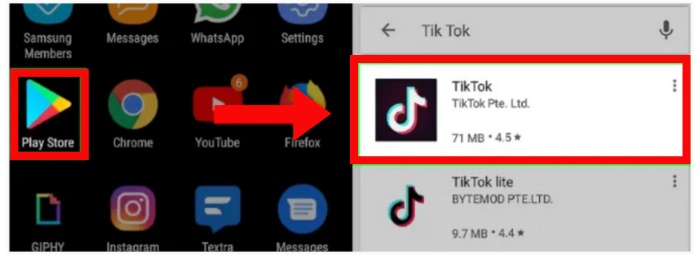
How to update TikTok
Step 1. Go to the App Store or Google Play Store, then search for TikTok.
Step 2. Tap Update if available.
How to reinstall TikTok
Step 1. Remove the application from your gadget and then reboot your mobile or computer.
Step 2. Get TikTok once more from the legitimate store, sign in, and have a go at playing videos.
This app renewal is equivalent to a new install, as it replaces corrupted files without your knowledge.
Fix 3. Check Your Network and VPN
Sometimes, a poor or erratic internet connection is the only reason why TikTok videos won't load. Video streaming might be interrupted by slow Wi-Fi, mobile data dropouts, or routing problems.
• To see which is more effective, alternate between Wi-Fi and mobile data.
• If the connection is sluggish, restart your modem or router.
• Because some VPNs block TikTok servers, temporarily disable your VPN.
• Try a different VPN server location if necessary.
Once your network becomes stable, TikTok videos should start playing smoothly again.
Fix 4. Reboot Your Phone
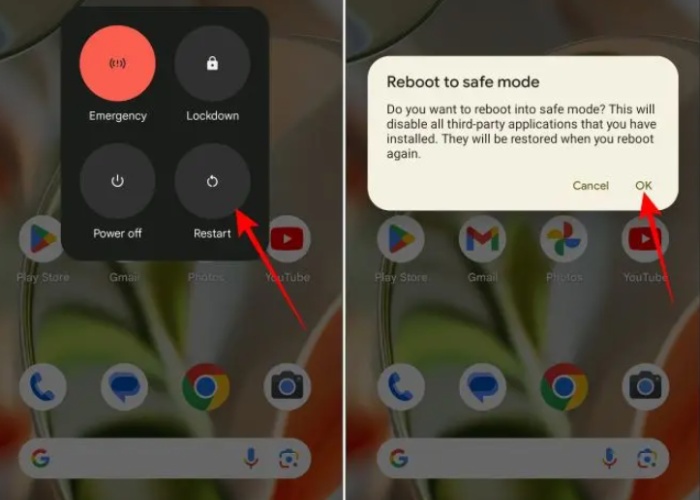
Rebooting your phone is a way to get rid of minor system glitches that prevent videos from being loaded. It is a very fast and easy way to restore the normal functioning of background apps, memory, and network connections, which may be why TikTok videos not playing.
Step 1. Press and hold the Power button.
Step 2. Tap Restart or Reboot and wait for your phone to turn back on.
Step 3. Open TikTok and test the video again.
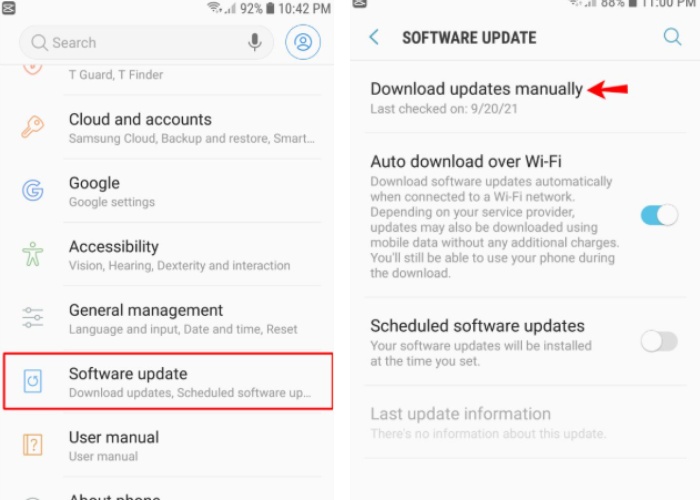
Fix 5. Update Your OS Version
Apps like TikTok may not work with an outdated operating system. Updating the software on your phone can help resolve bugs and enhance performance, which could prevent TikTok videos from playing.
Step 1. Open Settings and go to Software Update or System Update
Step 2. To download and install the most recent version, tap Check for updates.
Step 3. Restart your phone after the update.
Part 3. Extension: How to Fix a Damaged Local TikTok Video
On some occasions, the issue may not be with TikTok, but the video file that is saved on your device. If the video is cut off in the middle of downloading, transferring, or recording, it may become corrupted and may not play. Therefore, if such situations arise, a video repair tool can be used to rescue the file rather than remove it. VideoSolo Video Repair is easy-to-use desktop software that can resolve issues with corrupted or unplayable video files. The software essentially reverses the damage by taking a working sample video and reassembling the broken file structures, making the damaged videos playable without requiring any complicated technical steps.
Key Features
• Supports several popular formats, including AVI, MOV, and MP4.
• Fixes videos with black screens, stalling, or playback issues.
• Accurately reconstructs files using a sample video. Keeps the original video quality as much as possible
How to Use VideoSolo Video Repair
Step 1. Download our tool, launch the program, and click Add to upload the damaged TikTok video.

Step 2. Upload a sample video that was captured in the same format and on the same device.
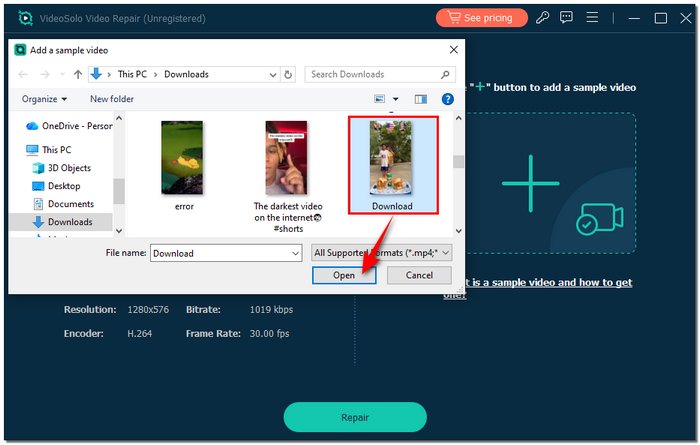
Step 3. Click Repair and wait for the process to finish

Step 4. Save the fixed video to your device after previewing it.

This method is especially helpful when a local TikTok video is important and can’t be played or re-downloaded. In addition to TikTok video playback issue, you can also use it to fix prime video error and other similar video problems.
Conclusion
Almost all difficulties can be resolved by a few straightforward steps. This post explains the typical reasons and feasible remedies so you can continue your videos without any inconvenience. These ways, which range from clearing the cache to verifying your connection and upgrading your device, are designed to resolve the problem efficiently and securely. If you ever see the could not play video TikTok error, you now know what to do and why it happens. The goal of this guide is to help you enjoy smooth, uninterrupted viewing on TikTok.
More Reading

Repair your damaged, unplayable videos with multiple mainstream formats like MP4, MOV, 3GP, etc.

