



 Download Video Converter Ultimate For FREE!
What makes a GIF is the ability to grab those quick moments that can be viewed repeatedly. It's the kind of thing that just seems to require a true standard. That's where GIFs become great, lightweight, auto-looping, social-media-friendly tutorials, reactions, or super-fast visual demos.
The only major problem is that not every conversion method causes good playback or good quality. You might get a blurry, oversized, improperly timed GIF. And this is why I made this guide to assist you in guide to assist you in with the most convenient device and method you could find presently. No matter if you are more of a desktop software user, or you need a free online converter, or you look for a solution integrated in the device itself, no matter where you want to generate perfect-looking GIFs with limited file size and smooth animation, this article will tell you the easiest way.
Part 1. Why Convert MP4 to GIF
Most of the time, it is just more convenient to change your MP4 video to a GIF, since GIFs are easier to share and view at a glance, and are ideal short visual clips where audio is unnecessary. Here are some of the reasons why people prefer them:
Auto-looping playback
A GIF can be played without any user having to start playing it over again, making it ideal for short footage, reactions, or repetitive demonstrations.
Need no sound
When your video contains no spoken words, there will be no need to add any sound to the message you are passing through the footage.
Universal
Almost all places where one may find a need to use video footage accept GIFs due to their universal nature.
Easier to share
As compared to video files, GIFs can be uploaded to the web and shared more easily due to their lightness.
Beginner friendly
One does not require special technical skills when creating and using GIFs, which makes GIFs beginner-friendly.
Good for attracting attention
The short animation feature in GIFs makes them ideal for drawing attention.
Basically, converting MP4 to GIF involves reducing the video footage into short loops to attract more interest.
Part 2. Top 3 Third-party Tools for High-Quality GIFs
1. VideoSolo Video Converter Ultimate [Recommended]
So if you want an easy but professional quality way to make edited GIFs, VideoSolo Video Converter Ultimate is a good option. It will give you more flexibility when making GIFs, and it is easy to use for the first time.
 Features
- MP4 to GIF direct conversion
- Customizable resolution and frame rate
- Inbuilt trimming and clipping options
- GPU optimization for rapid conversion
- Preview option before exporting
 pros
pros
- Produces high-quality GIFs without visible artifacts
- Provides detailed customization of animation parameters
- Stable performance when working with HD videos
 Cons
Cons
- Needs software installation
- Some features are only available in the premium version
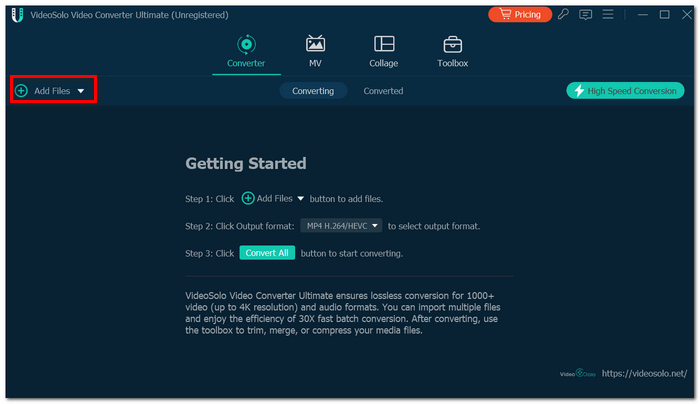
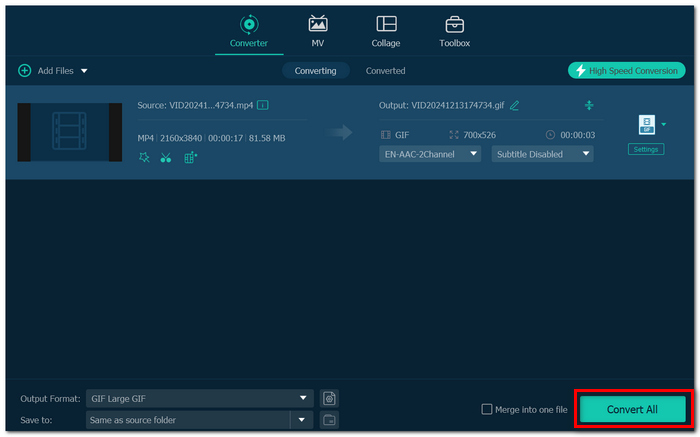
Step 1. VideoSolo Video Converter Ultimate is the first thing that needs to be installed. Add your MP4 file by clicking on Add Files.
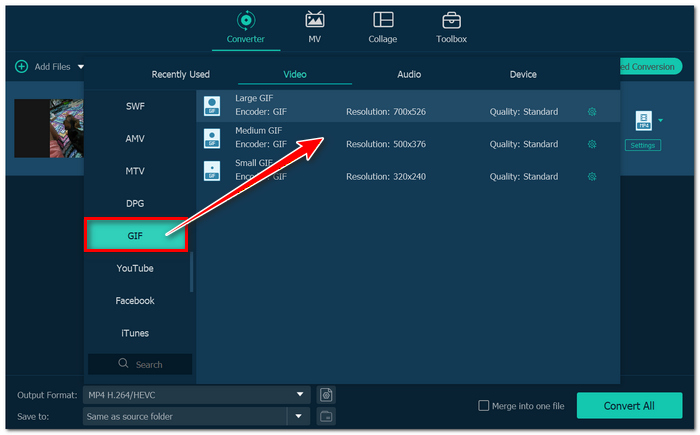
Step 2. Choose GIF as the format for your output video.
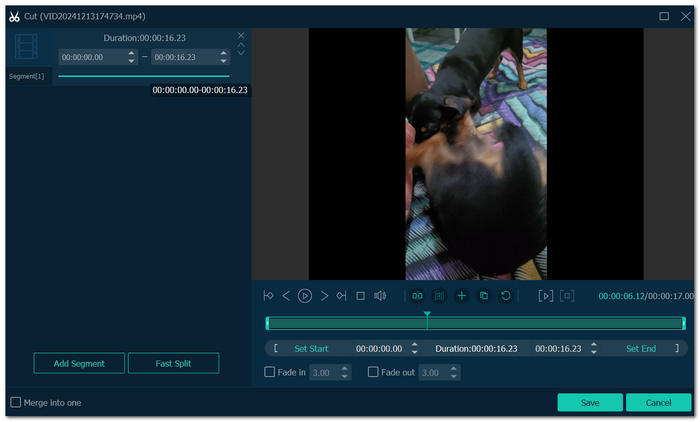
Step 3. Crop your video to select the portion you desire. Make changes to the resolution, frame rate, and loop count.
Step 4. Pick the output folder and hit Convert All to convert your video into a GIF. This is definitely one of the simplest methods for converting MP4 to an animated GIF.
2. Ezgif [Free Online]
An alternative solution in these circumstances is Ezgif. This is a quick, straightforward web tool that is practical and easy. It is useful for small MP4s where time is more of an issue than quality.
Features
- MP4 to GIF converter via the browser
- Trimmer and cropping functionalities
- Resizing and optimization features
pros
- Excellent tool for occasional conversions
- Ability to compress GIFs once created
- Inbuilt features for optimizing GIFs
Cons
- File upload speed is dependent on your internet connection
- It may take a longer time with bigger videos
Usage Guide:
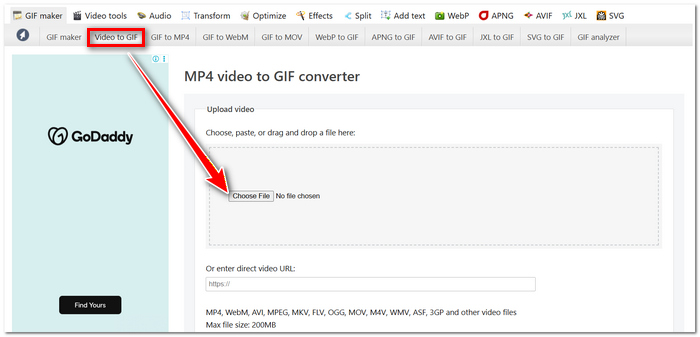
Step 1. Open Ezgif using your web browser and select Video to GIF.
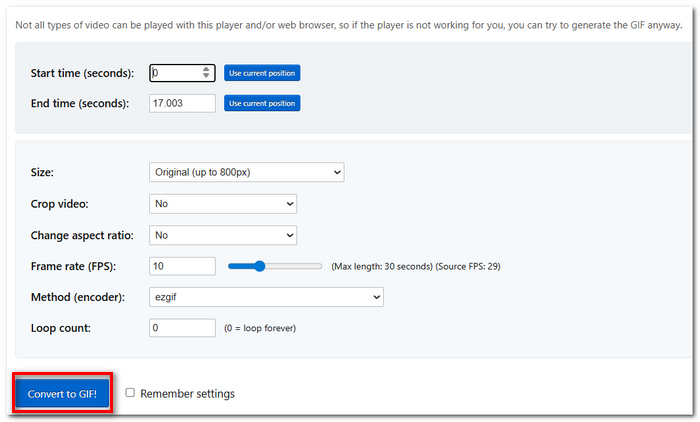
Step 2. Click on Choose File to upload your MP4 video file. Give the start and end times for the video clip.
Step 3. Set the frame rate and size options. Then click Convert to GIF. Now, save the converted GIF file to your PC.
This is a perfect MP4 to GIF converter online if you don't want to install any other MP4 converters for quick conversion.
3. Adobe Express [For Social Media]
If you wish to use the app mostly for GIF making for sharing, stories, or advertisements, then Adobe Express comes across as the Most Useful. It has been built for visual rapidfire creation, and it makes the whole process of creating cool GIFs easy.
Features
- Converting MP4 to GIF format for social media
- Built-in presetting for resizing on social media
- Basic editing and trimming options
pros
- Designed specifically for content created for sharing purposes
- It makes the job easier when resizing for social media websites
- Good for brand development elements
Cons
- A few exporting abilities that require a premium subscription
- No technical options for making GIFs
How to Use
Step 1. Launch Adobe Express in your web browser and upload the MP4 video file.
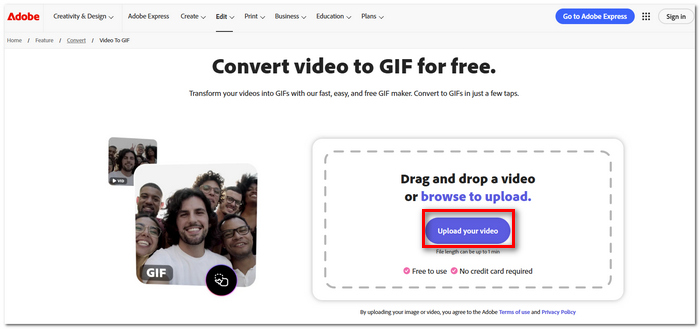
Step 2. Crop the video to the desired segment and scale it down if necessary for your target destination.
Step 3. Add some text or basic design elements if you wish. Save and download your animation.
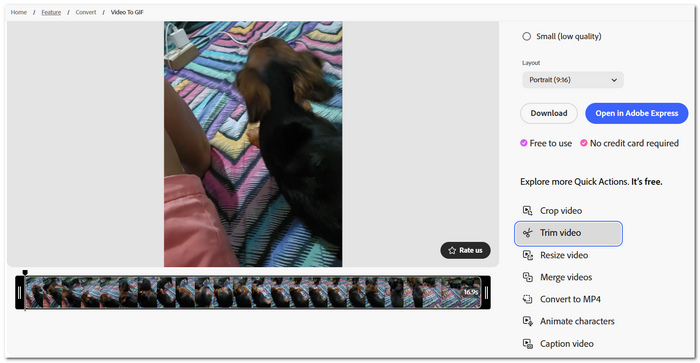
For creators who are trying to figure out how to convert MP4 to GIF for social media use, this tool offers a much more efficient experience.
Part 3. How to Convert MP4 to GIF Using Built-in Tool [Mac/Windows/Mobile]
How to Convert MP4 to GIF Using Built-in Tool [Mac]
If you've got a Mac, you can also make a GIF from video without installing other software; you will need a combination of QuickTime Player and Shortcuts. While it's a few more steps than a dedicated MP4 to animated GIF converter, it gets the job done quickly.
Using QuickTime Player and Shortcuts
Step 1. Use QuickTime Player to open your MP4 file. Click on Edit > Trim. Adjust the yellow sliders to retain only the part you require and save the cropped MP4 video.
Step 2. Launch the Shortcuts app and click on the + icon to create a new shortcut.
Step 3. Look up the Make GIF feature in the actions bar. Add the action to your workflow and provide the cropped MP4 video as the input parameter.
Step 4. Make changes to the automatic looping preferences. Modify the speed of the animation if necessary. Then preview the generated animation.
Step 5. Execute your workflow. Save the output in the desired folder and preview the resulting GIF animation.
Using this built-in method on your Mac is advantageous if you require only a GIF animation in your project and do not want to download any additional software.
On Windows: Using Microsoft Photos or Clipchamp
Conversion is also simple for Windows users like Microsoft Photos or Clipchamp which are readily available on most Windows 10,11 PC/laptop/Macbook for file editing and converting to gif or other formats.
Method 1. Using Microsoft Photos
Step 1. Open the MP4 video in Microsoft Photos. Click on Edit or Trim.
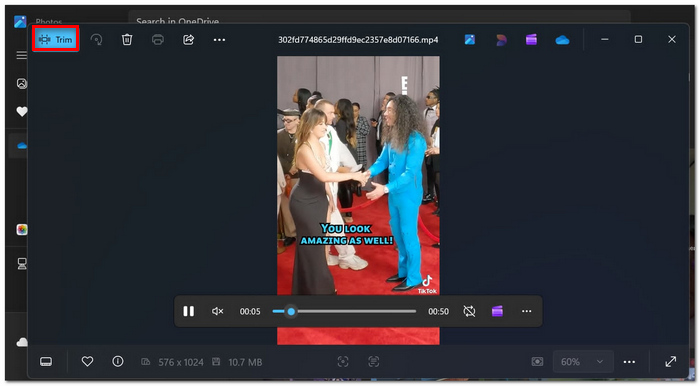
Step 2. Choose the part of the video that you wish to convert to a GIF file. Save the trimmed video clip.
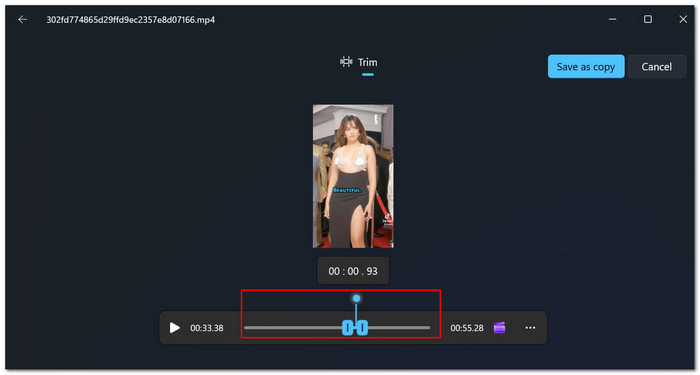
Step 3. Save your new GIF video.
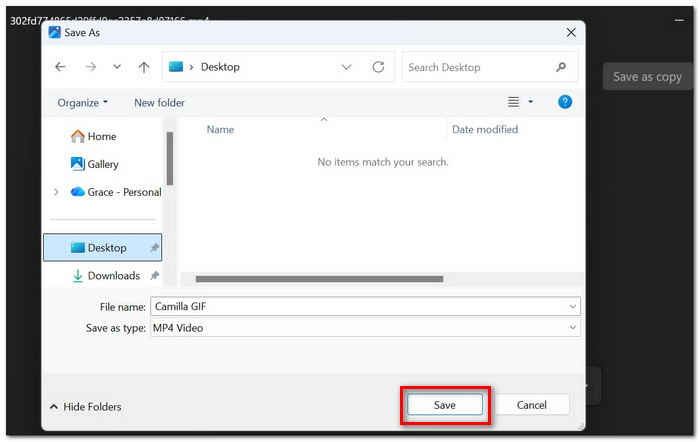
This is ideal when you only need basic trimming and want to take the video further using another built-in application.
Method 2. Using Clipchamp
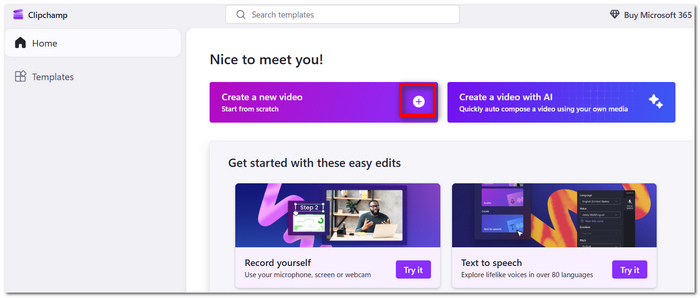
Step 1. Launch Clipchamp and make a new project. Import the MP4 file into the software.
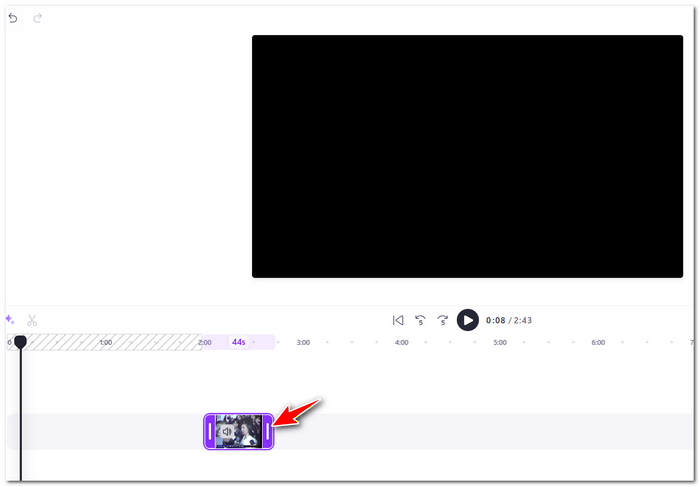
Step 2. Place the video onto the timeline. Cut the video until you get to the desired point and adjust its size if necessary.
Step 3. Export the project as a GIF file and save the created animation.
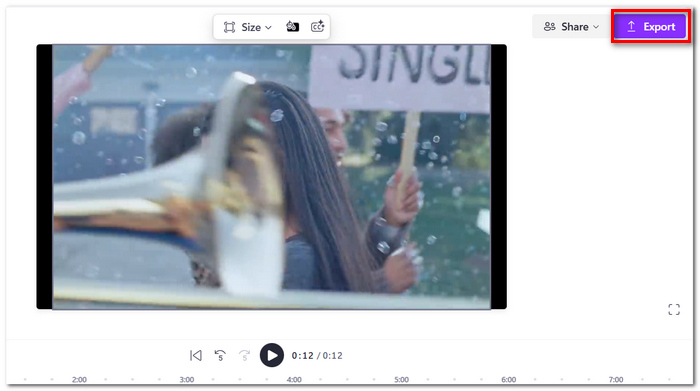
Clipchamp is typically a more convenient tool for creating GIFs than any other option available on Windows by default.
On Mobile: Using the Live Photo Trick or GIPHY
For conversions of MP4 files on your phone, a few simple, built-in, friendly options exist given your platform. The Live Photo manipulation process on iPhone or GIPHY will do precisely this most simply on mobile.
Method 1. Applying the Live Photo Hack (for iPhone Users)
This method is most suitable for brief video clips that can be easily turned into animated videos.
Step 1. Open your MP4 video in the Photos app. Turn the clip into a Live Photo via any compatible iOS shortcut or application.
Step 2. Open the resulting Live Photo in the Photos application. Swipe up on the photo.
Step 3. Choose either Loop or Bounce. After that, save and distribute the animated image.
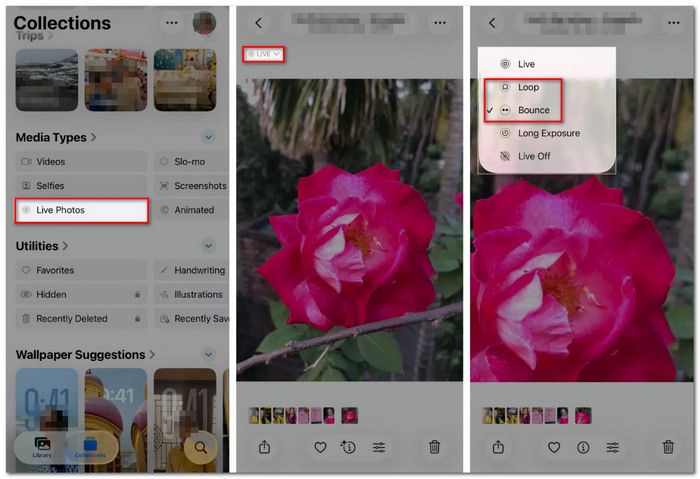
This trick is quite effective for making casual animations without the need for an extra app.
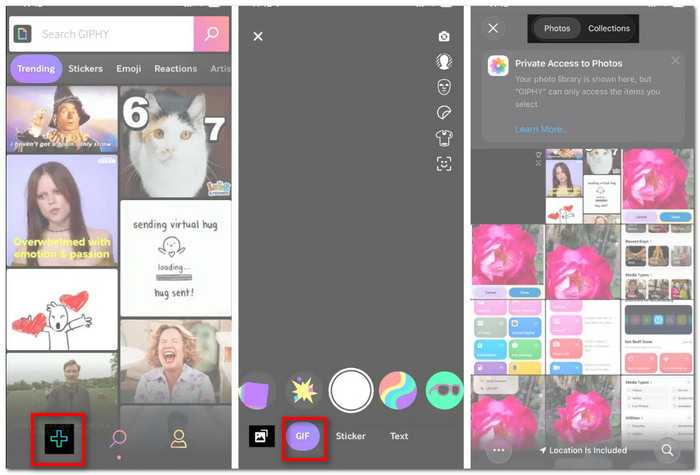
Method 2. Creating Your GIF on GIPHY
Step 1. Install and launch GIPHY. Either log in to your account or proceed as a guest if that is allowed.
Step 2. Press Create and import your MP4 file from the gallery.
Step 3. Crop and resize the clip. Optionally, add any text or stickers to it.
Step 4. Save your GIF locally.
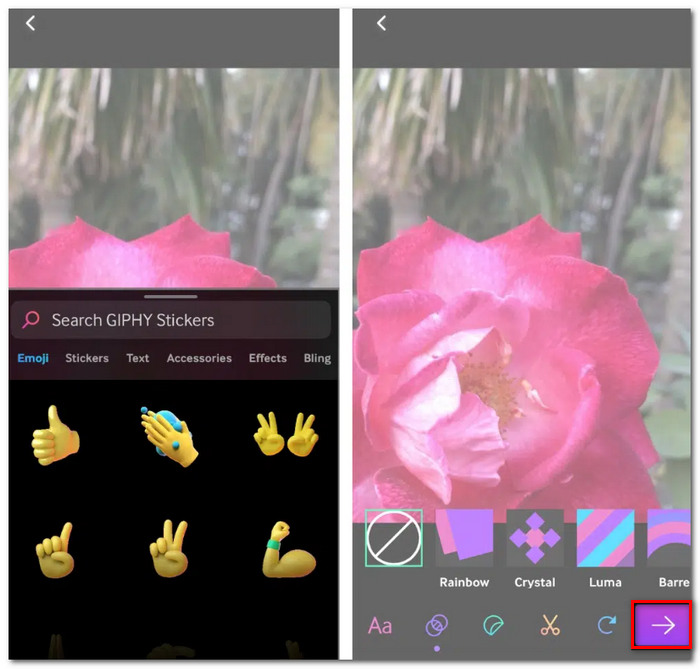
If you own a smartphone, GIPHY is typically the easier way to go for full customization of the GIF.
Part 4. Pro Tips: How to Balance Quality and File Size
The trick to making a good GIF is balancing what you want between smooth frames and small size. If you set the parameters in the wrong range, the results will either be too big or won't look smooth enough. Here are some ideas to get better results.
Maintain an Acceptable Frame Rate
While higher frames per second (FPS) can make animation smoother, it can also result in increased file size. Most GIFs will do fine with 10-15 FPS without becoming overly large.
Only Trim the Necessary Portion
A shorter duration results in a smaller file size. Make sure that you only trim the necessary portion of the video that highlights what you want to share.
Opt for Reduced Dimensions
Larger resolution means increased file size. Unless you require higher resolution due to your intended purpose, reducing the dimensions to 480p or less may be sufficient for messaging platforms.
Minimize the Number of Colors
GIFs have a limited color palette. Reducing the number of colors used can greatly decrease file size without affecting the visual clarity of the animation.
Pick Less Complex Scenes
Complex and high-motion scenes tend to generate larger GIFs. Choose less complex scenes or those with relatively simple motion, which compress better.
Utilize Compression Functions
Most online GIF makers allow you to compress the output file. Some tools even offer lossy compression functions to significantly reduce the size without compromising the quality.
View Preview Before Exporting
Always view the preview before exporting the GIF. This gives you an opportunity to identify any quality issues and tweak settings accordingly.
Part 5. Troubleshooting Common Issues
Even when you select the correct tool, minor problems could occur in your final GIF. Below are some of the common problems that may occur and how you can address them.
Why is My GIF so Grainy?
This is mostly caused by poor color palette settings or too much dithering while converting images. Due to the limited number of colors that GIFs can hold, many converters minimize quality for reduced image sizes.
Fixes:
- • Raise the color palette to maximum
- • Increase source clip resolution
- • Minimize compression ratio
- • Minimize excessive dithering if possible
The GIF is too Large for Email?
GIF images can grow too big very fast, particularly those that are high in resolution or long in playing time. Most email providers impose restrictions on the maximum size of attachments.
How to Solve the Problem:
- • Use lossy compression
- • Decrease the frame rate
- • Cut the GIF into a smaller piece
- • Scale it down to smaller sizes
- • Reduce the palette to fewer colors
Such measures will dramatically reduce the size of your image.
The Animation Moves too Fast or too Slow?
This problem is common if the frame delay isn’t configured properly.
Solution:
- • Raise the frame delay to slow down the animation
- • Lower frame delay to speed up the animation
- • Preview the GIF before saving it
- • Try various frame rates until you get natural playback
A minor timing tweak can make your GIF much more natural to view.
Part 6. FAQs on Converting MP4 to GIF
Is there a way to convert an MP4 video clip into a GIF?
Yes, but you might consider trimming it down first. The larger the video file, the bigger the GIF becomes. A large GIF could take time to load or may even refuse to upload to some platforms.
How long should a GIF be?
A good quality GIF animation works best between 3 to 10 seconds.
Does it delete the audio from the MP4 video when converting to a GIF?
Yes. A GIF cannot contain audio information.
Conclusion
Making MP4 into GIF is quite simple with the proper tool and preset selections. Regardless of whether you want to use a desktop software, an online converter, or even the built-in function, the biggest reason is the trade-off between quality and size.
Using the tools in this guide, you will now be able to convert MP4 to animated GIF just like this! Simply and efficiently create seamless animations that are easy to share online.
More Readings

