



 Download Video Repair For FREE!
Running into a corrupted MOV file on your Mac can catch you off guard, especially when it’s a video you need to watch, share, or edit right away. Instead of giving up on the file, you can try several reliable methods to restore it. This article explains how to fix a corrupted MOV file on my Mac in a clear, approachable way with no complicated steps or technical jargon. You’ll learn what typically causes MOV files to get damaged and the most effective tools and fixes you can use. Lately, you’ll have a solid set of solutions to help you recover your video smoothly and prevent similar issues in the future.
Part 1. How Did MOV File Get Corrupted
MOV files can become corrupted for several reasons, and most of them happen quietly in the background without you noticing. One common cause is an interrupted transfer. For example, when you move a video from your camera or phone to your Mac, the process is interrupted. Corruption can also occur when the recording device runs out of battery or storage while capturing the video, leaving the file incomplete.
Another common cause for software-related problems, which includes situations where the software crashes while editing or the use of outdated apps that are not fully compatible with the MOV format, is frequently mentioned. There are instances where bad sectors on your storage drive or sudden shutdowns that can result in the damage of video data. Even codec problems when your Mac doesn’t have the right components to read the video properly can make a MOV file unplayable.
Knowing these reasons enables you to select the best solution later and avoid the same issues in subsequent recordings.
Part 2. How to Fix A Corrupted MOV File on My Mac
If you’re trying to figure out how to repair corrupted MOV files on Mac, the good news is that you can try many viable solutions, even if the file appears to be totally unreadable. A few fixes are done using macOS built-in tools, whereas others are performed with a dedicated repair program for heavily damaged files. Here, you will see the different ways from the mends, which take only a few minutes, to the more skilled approaches. Thus, you can select the one that suits you best and perhaps remake your video without losing any of its important parts.
Method 1. Use VideoSolo Video Repair (Recommended)
If you’re looking for the most reliable way on how to fix corrupted video files MOV on Mac, VideoSolo Video Repair is one of the best tools to try. It’s specifically to repair damaged, unplayable, or broken video files without affecting their quality. Whether your MOV file got corrupted during transfer, editing, or recording, this tool can restore it with just a few simple actions.
Key Features
• Fixes various video issues, such as freezing, audio lag, screen tearing, and playback errors.
• Supports many formats, including MOV, MP4, M4V, and more.
• Uses sample video technology to restore severely corrupted files.
• Keeps the original resolution and avoids quality loss.
• Beginner-friendly interface with straightforward controls.
How to Repair MOV Files Using VideoSolo Video Repair
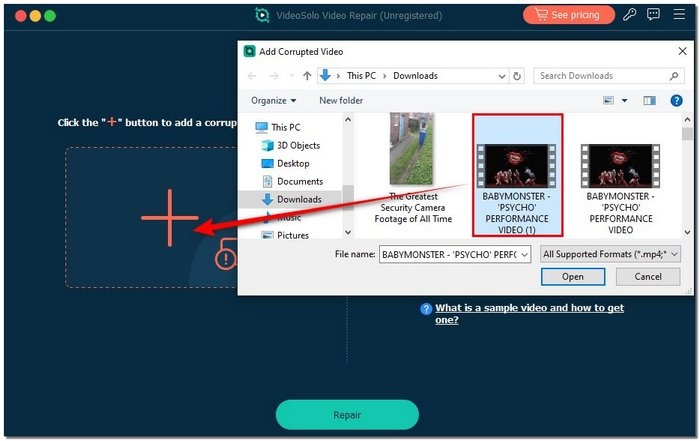
Step 1. Launch VideoSolo Video Repair on your Mac and import the corrupted MOV file you want to repair by clicking the + button.
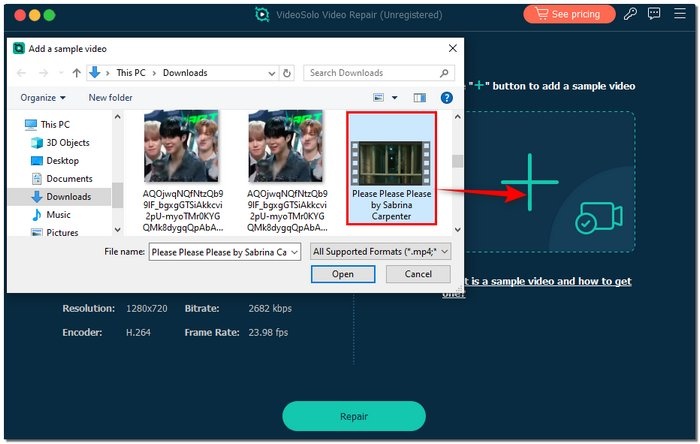
Step 2. Add a sample video from the right + button to help the software rebuild the damaged file.
Step 3. Hit Repair and wait for the process to complete.
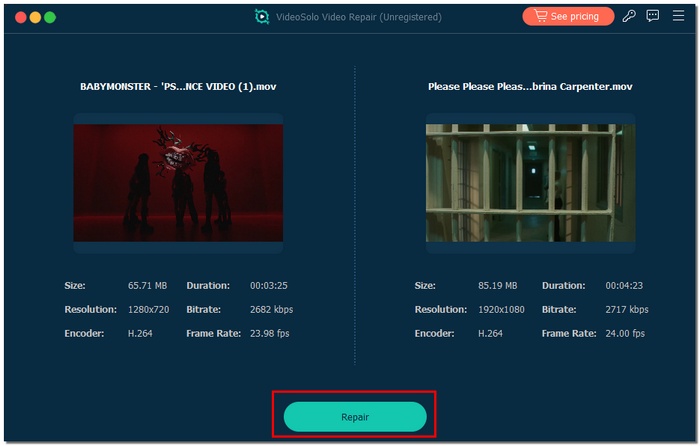
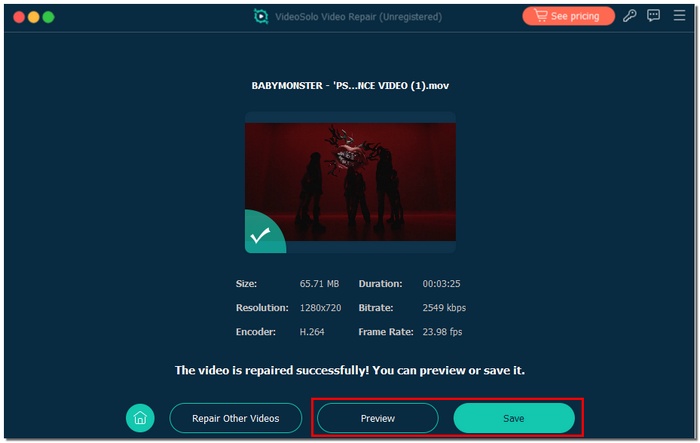
Step 4. Once finished, preview the repaired MOV video and save it to your preferred folder.
Method 2. QuickTime – Offers a Simple Built-In Fix for Corrupted MOV Files
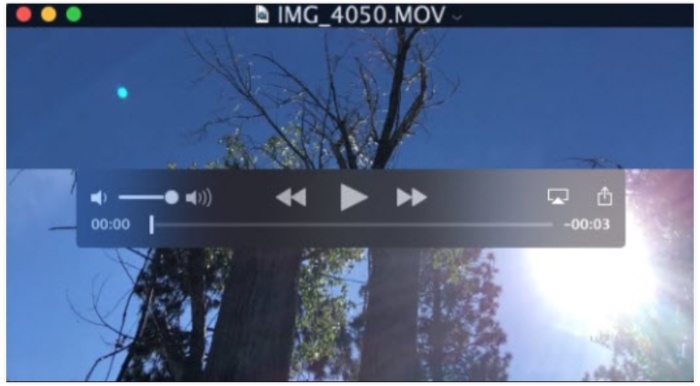
Just in case you have "how to fix a corrupted MOV file on my Mac" in mind and you need the simplest built-in way, QuickTime Player is the tool that can be used to fix the minor playback issues that come up with the file in most cases, without the need for any other software. QuickTime Player is not the one to fix hard-drive damage, but it is quite handy for minor glitches and even for re-exporting the video to regain compatibility.
How to Use QuickTime to Fix a Corrupted MOV File
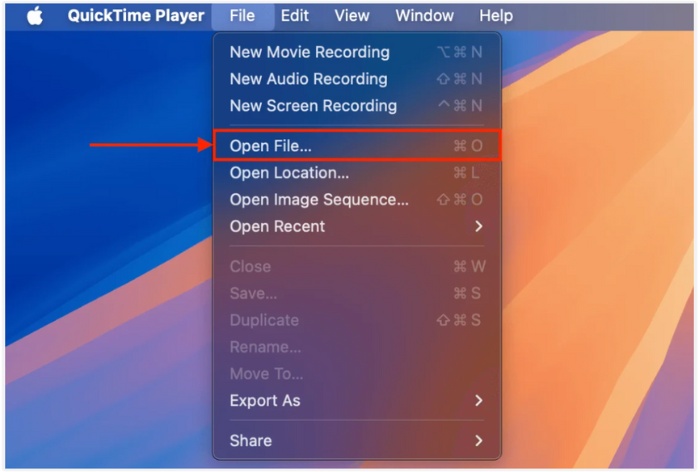
Step 1. Launch QuickTime Player on your Mac, click File, and select Open File to upload your corrupted MOV video.
Step 2. Then go to File again, click Export As, and choose a higher resolution.
Step 3. Save the newly exported file. This process rewrites the video structure, which may remove minor corruption.
Step 4. Try playing the new file to check if the issue is resolved.
Method 3. Convert MOV to Another Format Using Zamzar
When a MOV file won't open or keeps throwing errors, changing its format is a sure way to make it work again. Online converters such as Zamzar are a fast and easy way to convert file formats if you don't want to install any software. This method is especially helpful if you're exploring how to fix corrupted MOV video files on Mac online, offering a simple workaround when the original format becomes unstable.
Steps to Convert MOV Using Zamzar
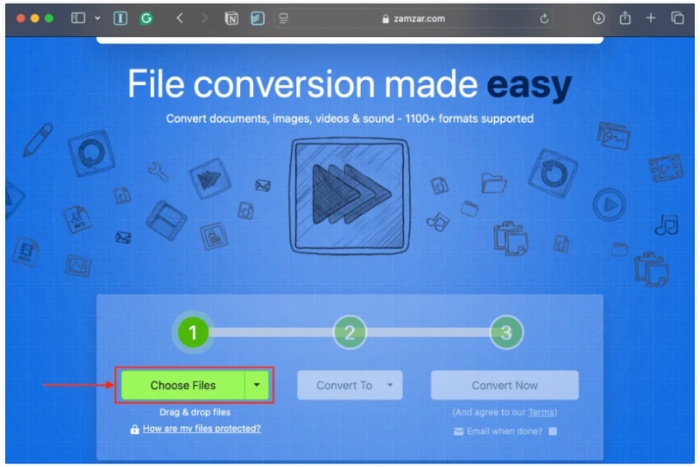
Step 1. Open your browser and visit the official Zamzar online converter.
Step 2. Click Choose Files, then select the corrupted MOV file on your Mac.
Step 3. Pick a widely compatible format like MP4 to increase the chance of successful playback.
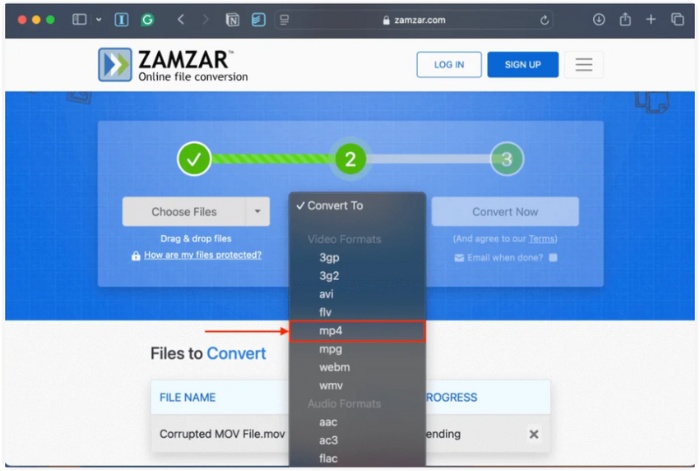
Step 4. Hit Convert Now and wait for the file to process.

Step 5. Once the conversion is complete, download the new file and attempt to open it on your Mac.
Method 4. VLC Media Player – Alternative Way to Repair Playback Issues
A popular free program that can fix minor playback problems in corrupted MOV files is VLC Media Player. While it’s not as powerful as a dedicated repair program, VLC’s built-in features can still fix simple errors and get your video running again, making it a handy option when you need a quick, no-cost solution.
Steps to Try Repairing or Converting a MOV File Using VLC AVI Repair
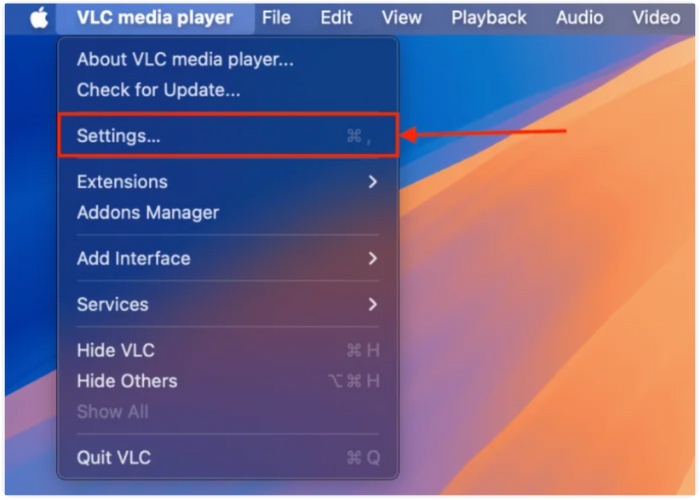
Step 1. Click VLC Media Player, then select Settings in the Apple menu bar.
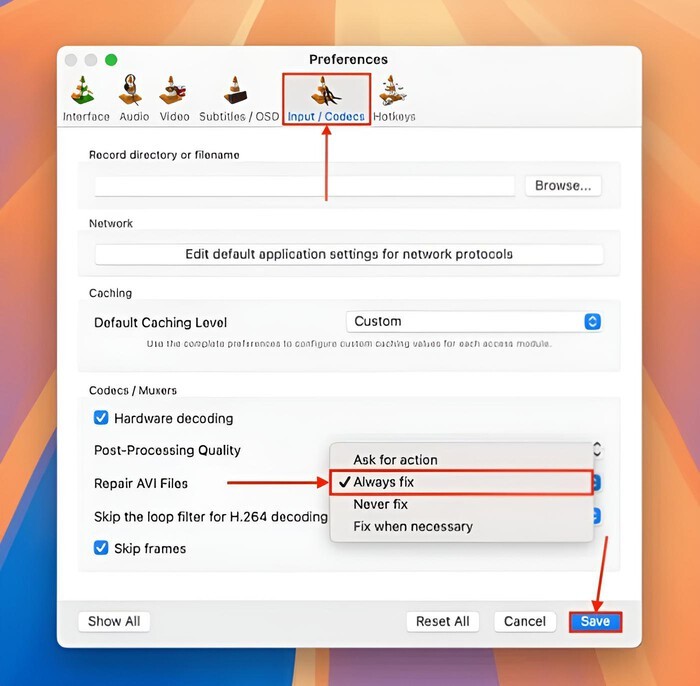
Step 2. Go to the tab for Input/Codecs. Choose Always fix from the dropdown menu next to Repair AVI Files. Click Save after that.
Step 3. Click File, then choose Convert / Stream in VLC Media Player.

Step 4. To access your corrupted MOV file, click Open media.
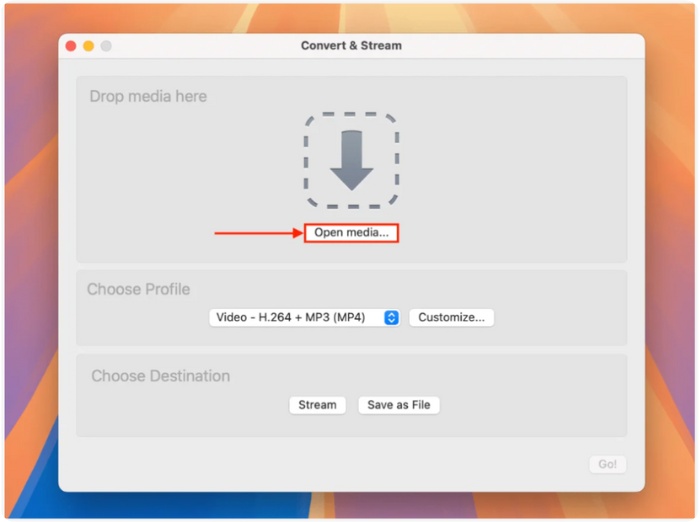
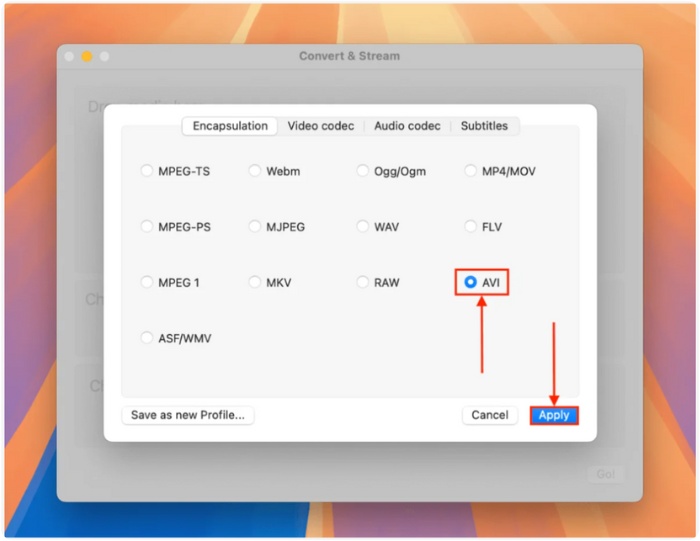
Step 5. Click Customize in the Choose Profile section. Then go to the Encapsulation menu and click Apply after choosing AVI.
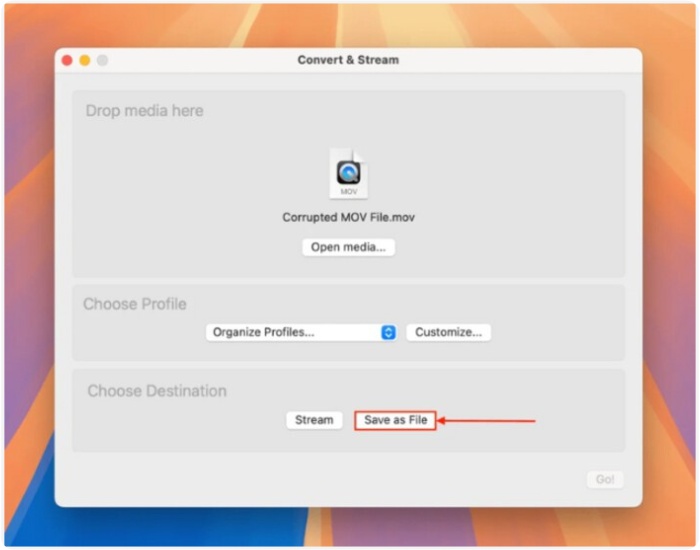
Step 6. Hit the Save As File. Select the file name, tags, and save location that you want. Click Save after that.
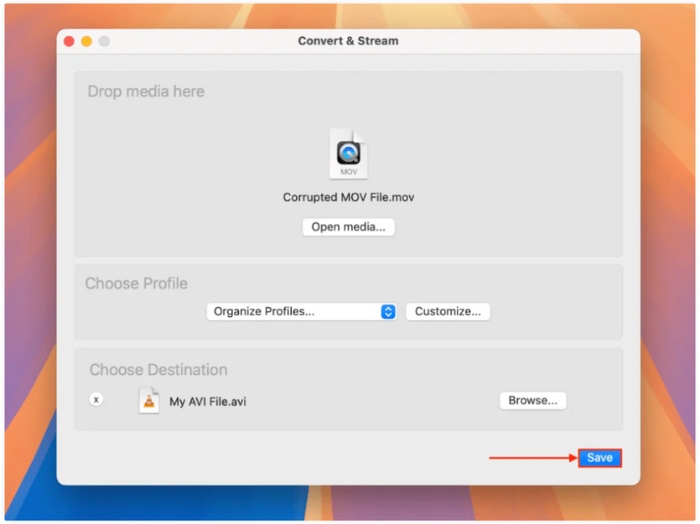
Step 7. In the Convert & Stream window, hit Save. After that, open the AVI file with VLC Media Player and see if the video plays. Locate the file in your directory, then open it with VLC by selecting File > Open File.
Part 3. Tips to Prevent MOV Files from Getting Damaged
Dealing with corrupted MOV files can take a lot of your energy, thus it's always better to keep the problem away from you. Below are some safe habits that you can follow so that your video files remain intact and you don’t have to worry about corruption issues on your Mac in the future:
1. Safely eject external drives
Do not forget to properly eject USBs, SD cards, and external hard drives before removing them from the machine. Abrupt unplugging can result in an incomplete file transfer, and video files may become damaged.
2. Avoid interrupting video transfers
Ensure that your Mac is not set to sleep mode and that it does not run out of battery while MOV files are being copied or exported. Any abrupt stoppage can lead to file corruption.
3. Keep your macOS and apps updated
It is known that outdated systems, video editors, or media players may cause compatibility issues. If you keep them updated, it will be easier for you to work with MOV files.
4. Maintain enough storage space
Inadequate disk space typically results in file corruption and can lead to incomplete saves or exports. When transferring or editing huge videos, always leave some room.
5. Back up important videos regularly
Create copies of your MOV files and keep them either in the cloud or on an external drive. If corruption takes place, you will still have a safe version to revert to.
6. Use reliable video editing and exporting tools
Unstable software may be the cause of your videos suddenly crashing while saving. To be on the safe side, use only those apps that are reliable and trusted.
Part 4. FAQs about Fixing Corrupted MOV File on Mac
Can antivirus software help prevent corrupted MOV files?
Yes. A malware or virus infection can also harm file integrity. So, it is always good to keep your Mac safe to ensure your video files are out of harm's way.
Does repeatedly editing a MOV file increase the risk of corruption?
Frequent re-editing, such as rotating a MOV videos, will not harm it, but if you keep re-exporting or rendering on a system with low storage, you may be more prone to errors and incomplete saves.
Why does my MOV file show audio but no video?
The most common reason for this is that the video codec in the MOV file is either damaged or missing. A repair tool or format conversion may help to bring back the video.
Conclusion
Knowledge of how to fix corrupted MOV files on Mac is definitely helpful. The goal of this article is to guide you through trustworthy methods, starting with fast, built-in Mac fixes and progressing to more sophisticated repair tool options, so you will always have a suitable choice for the situation. In addition to these methods, simple preventive habits will help you store your video files securely and let you recover most corrupted MOV files without any guesswork. So, you have become better at handling errors and safeguarding your valuable videos going forward.
More Reading

Repair your damaged, unplayable videos with multiple mainstream formats like MP4, MOV, 3GP, etc.

