



 Download Video Converter Ultimate For FREE!
You may find yourself in many circumstances in which you want to convert MP4 to MOV. You could be working in Apple applications, having other device compatibility issues, or just wanting a more useful format for your purposes. MP4 is accepted readily by most, but MOV delivers the best in productivity and performance in professional editing and Apple applications.
Luckily, it's not hard to convert MP4 to MOV at all. Mostly, if you are using the right converter. Here in this tutorial, I am going to share with you the best converter choices, show you their amazing features, and recommend to you the easiest step-by-step instructions about how to do conversion easily just within several clicks. If you are looking for both online and desktop converter tips, just read on.
How We Test
For the evaluation of every MP4 to MOV converter that we came across, we conducted various tests taking into account factors such as conversion speed, output quality, user-friendliness, batch conversion capabilities, supported file formats, compatibility with various platforms, and especially the smooth playback of the MOV file without degradation of its quality.
Quick Picks
| Tool | Best For | Key Features |
|---|---|---|
| VideoSolo Video Converter Ultimate | Overall Best | Fast conversion, batch processing, quality retention |
| Wondershare UniConverter | Beginners | Simple interface, presets |
| HandBrake | Free Desktop Use | Open-source, advanced controls |
| Aiseesoft Video Converter Ultimate | Advanced Editing | Extra editing tools |
| Convertio | Browser Conversion | No install needed |
| ConvertFiles | Quick One-Time Use | Simple direct conversion |
Why We Picked VideoSolo Video Converter Ultimate?
Suitable for: Fast and efficient MP4 to MOV conversion
 Features
- MP4 to MOV batch conversion
- Resolution maintained during conversion
- Hardware acceleration
- Customizable output options
- Comprehensive compression tool
Part 1. Top 6 MP4 to MOV Converters
1. VideoSolo Video Converter Ultimate — Best for Fast High-Quality MP4 to MOV Conversion
For a reliable and smooth conversion, VideoSolo Video Converter Ultimate is one of the most powerful converters for MP4 to MOV. It is designed for users who want fast conversion, want to keep quality, and need a user-friendly operation.
Why It Stands Out
Its fast processing and built-in compression tools make it practical for handling both small clips and larger video projects.
 pros
pros
- Preserves the clarity of the original videos effectively
- Reliably works with high-quality videos
- Customize your output file settings easily
 Cons
Cons
- Premium features are available only in the paid version
User Experience
Most consumers agree on the rapid conversion and high-quality output. Many others praise its intuitive user interface design.
How It Handles MP4 to MOV Conversion
Using VideoSolo Video Converter Ultimate, converting MP4 to MOV can be done very easily. Generally, you just need to add a video, choose MOV as output format, select optional parameters like resolution or bitrate, and then convert. Nothing else is to do, and the software will do all other work for you before preserving the video quality and maintaining fast speed using hardware acceleration.
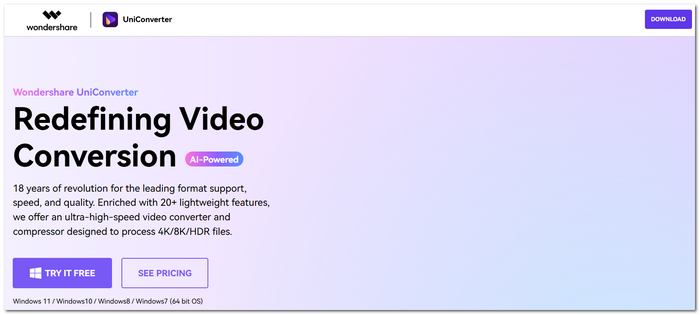
2. Wondershare UniConverter — Best for Beginner-Friendly Conversion
Want an easy-to-use tool to convert files to MP4 to MOV format? Wondershare UniConverter is a good choice. It is designed for those who like to have a very straightforward process without many unnecessary options.
Features
- One-click MP4 to MOV conversion
- Preset output profiles for different devices
- Batch file processing
- Basic trimming and editing tools
pros
- Very easy for first-time users
- Offers ready-made conversion presets
- Stable performance for standard files
Cons
- Premium pricing is higher than some alternatives
- Limited deep customization options
User Experience
Users often praise its straightforward interface and reliable conversions. Some mention that while it’s beginner-friendly, the paid version can feel pricey for casual use.
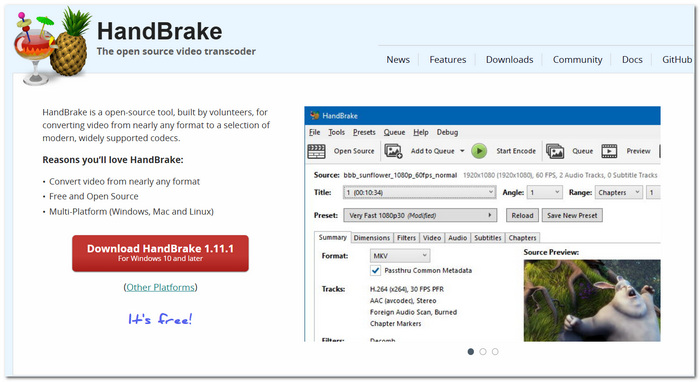
3. HandBrake — Best for Free Open-Source Conversion
When you are looking for a tool that will enable you to transform MP4 to MOV, and the program should be free of charge, Handbrake is one such program you can try.
Features
- Complicated video encoding features
- Customizable output settings
- Support for batches
- Tools for compression control
pros
- Absolutely free of charge
- Offers highly customizable output settings
- Most suitable for experienced users
Cons
- Harder to learn compared to basic software
- Does not offer some convenient features
User Experience
The software is appreciated for its high productivity and versatility at an invaluable cost. However, many novice users report that the program interface is quite confusing. You can also try some HandBrake alternatives.
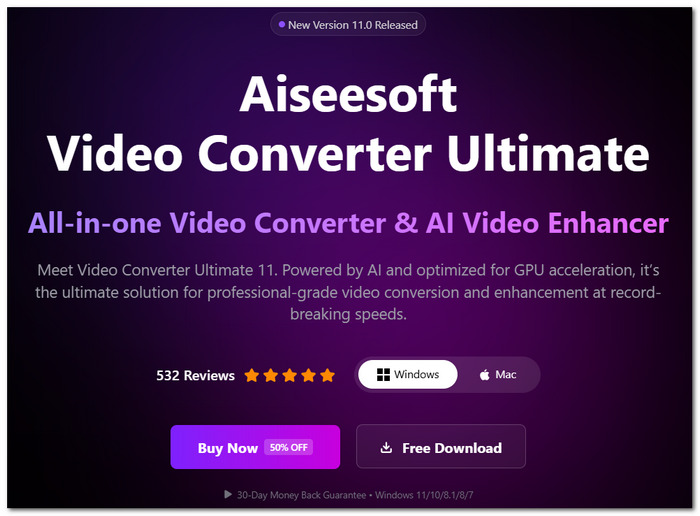
4. Aiseesoft Video Converter Ultimate — Best for Extra Editing and Conversion Tools
If you need more than basic file conversion, Aiseesoft Video Converter Ultimate is a great alternative to VideoSolo. It combines reliable MP4 to MOV conversion with extra editing and enhancement tools, making it ideal for users who want more flexibility in one platform.
Features
- Conversion of MP4 to MOV with formatting options
- Integrated video enhancement tools
- Toolbox with compression and optimization options
- Tools for video editing, including trimming and effects
pros
- Perfect for those who do several jobs at once with videos
- The output can be customized greatly
- It converts videos smoothly, even the bigger ones
Cons
- All the features become unlocked after the purchase of the software
User Experience
They usually appreciate its all-in-one concept and good output results. The most common opinion is that it works great for those who need both conversion and enhancement.
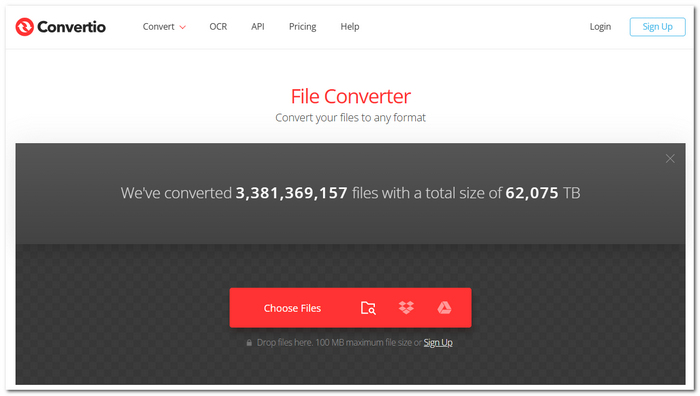
5. Convertio — Best for Fast Browser-Based Conversion
For a fast MP4 to MOV conversion without installing anything, Convertio is a user-friendly solution. Because it runs in your web browser, it is suitable if you only convert files from time to time.
Features
- Online service for converting MP4 to MOV format
- Dragging and dropping file uploads
- In-built cloud storage support
- Customizable output options
pros
- Does not need installation
- Extremely user-friendly from anywhere
- Convenient for occasional file conversions
Cons
- The free version only allows uploading small files
- Internet connection speeds affect conversion times
User Experience
Many users find it very convenient for quick jobs. Some reviewers point out that it performs well with small-sized files but might be slow with large video uploads.
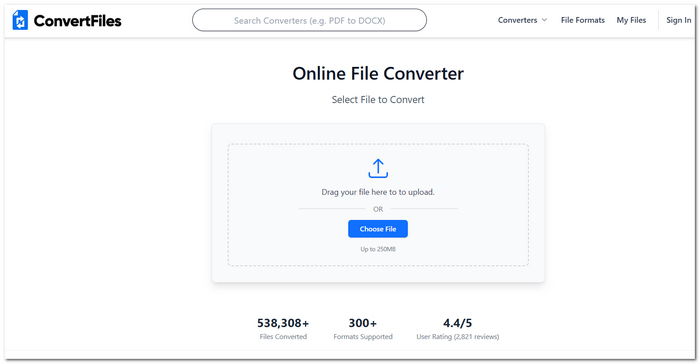
6. ConvertFiles — Best for Simple One-Time Conversion
ConvertFiles is not as versatile as other services, but it can be useful if you only need a simple web application to do the MP4 to MOV conversion. It is designed to do fast file format conversions with little additional work.
Features
- Easy file uploading
- Can be used for conversion between various formats
- Download link sent via email
- Operates through most popular web browsers
pros
- Doesn’t require account creation
- Suitable for quick, occasional conversions
- Has a lightweight web-based interface
Cons
- Outdated user interface
- Conversion speed varies with the amount of traffic on the server
User Experience
The program is described by users as being good for easy conversions. Some reviews state that although it gets the job done, its user interface isn’t very up-to-date.
Part 2. Comparison of 6 Tools to Convert MP4 to MOV
Here is a side-by-side comparison of the six tools so you can easily select the best MP4 converters based on factors including ease of use, speed, quality, and cost.
| Tool | Best For | Platforms | Speed (1GB Conversion) | Output Quality | Batch Conversion | Pricing | User-Friendly |
|---|---|---|---|---|---|---|---|
| VideoSolo Video Converter Ultimate | Fast high-quality conversion | Windows, Mac | 3–5 mins | Excellent | Yes | Paid (Free Trial) | Very Easy |
| Wondershare UniConverter | Beginners | Windows, Mac | 4–6 mins | Very Good | Yes | Paid | Very Easy |
| HandBrake | Free advanced conversion | Windows, Mac, Linux | 8–12 mins | Excellent | Yes | Free | Moderate |
| Aiseesoft Video Converter Ultimate | Editing + conversion tools | Windows, Mac | 3–5 mins | Excellent | Yes | Paid (Free Trial) | Easy |
| Convertio | Browser-based conversion | Web | 10–20 mins (upload dependent) | Good | Limited | Free / Paid | Very Easy |
| ConvertFiles | Quick one-time tasks | Web | 12–25 mins (server dependent) | Moderate | No | Free | Easy |
Part 3. How to Transform MP4 to MOV
Having looked at all the top format converters, I will now take you through how to convert your MP4 to MOV so you will be able to do it in no time without quality loss. It's really easy and will take you just a few minutes.
How to Change MP4 to MOV with VideoSolo Video Converter Ultimate
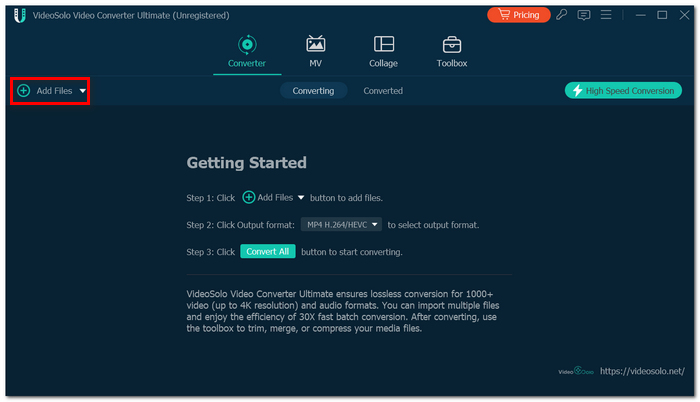
Step 1. Install and launch the application. Click the "+ Add Files" and add your MP4 video file.
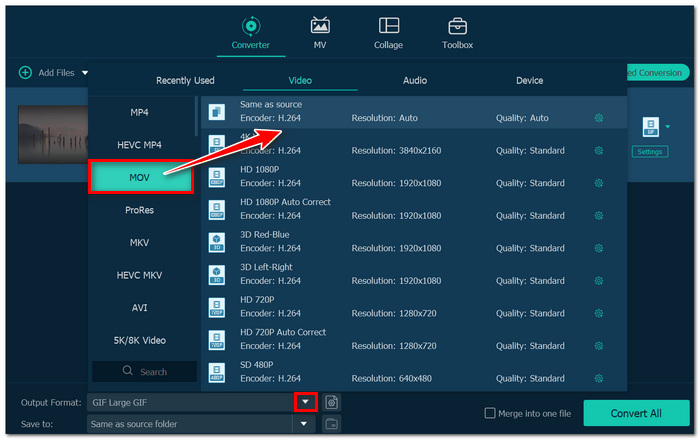
Step 2. Go to the output format section and select "MOV" from the video formats list.
Step 3. Change resolution/bitrate if necessary. After that, select your output folder and simply hit the "Convert All" button to begin the process.
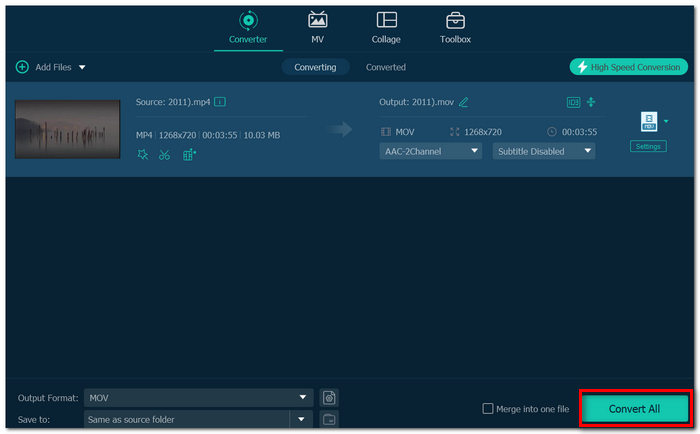
If you want to know how to turn MP4 into MOV in an efficient way, then this is the software to help you do the job without compromising on the output quality.
Pro Tip: Compress the MOV File If It Gets Too Large
Step 1. Navigate to "Toolbox" and click on "Video Compressor".
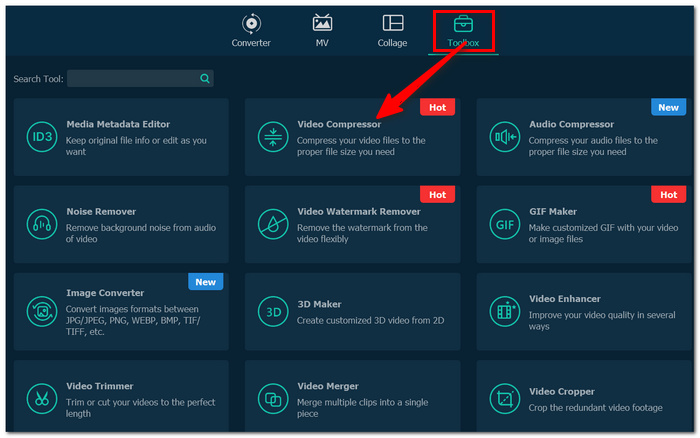
Step 2. Upload the video file that has been converted into MOV format. Tweak file size, resolution or bitrate options.
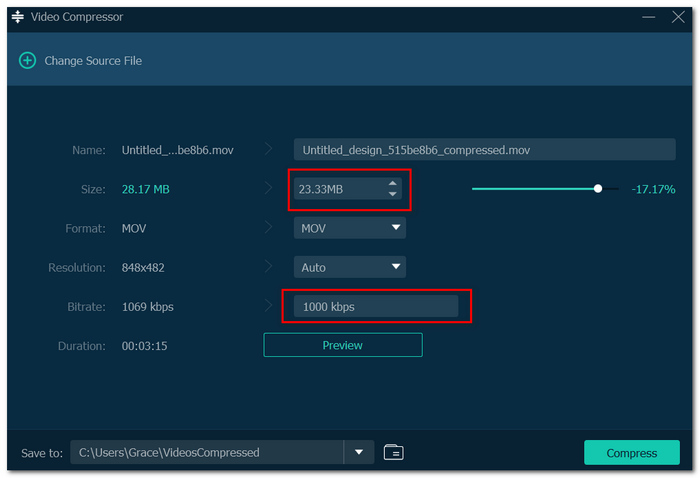
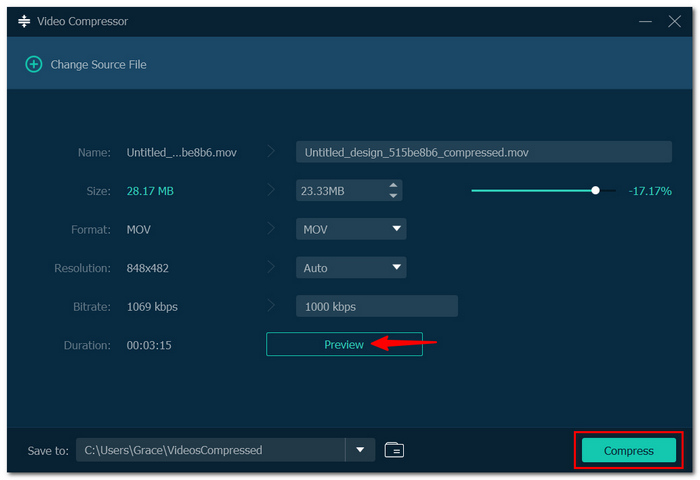
Step 3. Get a preview of the final file size and set the location for saving the compressed file.
Step 4. Click "Compress" to make the MOV file smaller. This is a fast method if you find the MOV file too big for storing, transferring, or uploading.
Part 4. FAQs on Change MP4 to MOV
Is MOV or MP4 more suitable for editing?
MOV is generally considered preferable for editing purposes, particularly when using Apple-supported editing software.
Is it possible to preserve the subtitles after converting from MP4 to MOV?
Yes, as long as your chosen converter allows for that or enables embedding subtitles during the conversion process.
Will batch converting MP4 files result in a decrease in quality?
No, provided that you configure the right output parameters.
Conclusion
Switching video formats is far more simple if you find the perfect converter for that particular task. If you're looking for the quickest conversion speed, best editing support, the easiest browser based conversion, or something else, you'll find that there are a ton of tried and true methods for converting MP4 to MOV smoothly.
The most important principle is selecting the least tool to get the task done as your practice for fast conversion, effective output files.
More Readings

