



 Download Video Converter Ultimate For FREE!
Sometimes, there are so many reasons why a person only needs the audio from a video file, not a whole video. For example, if you want to extract music, save voice recordings, edit sound professionally, or keep high-quality audio for the purposes of archiving, the conversion of MP4 files to WAV can definitely represent a wise option.
For this MP4 to WAV tutorial, I'm planning on showing you different methods, including how to convert videos into audio using professional desktop software, free programs, and, finally, converting online. Besides, I'm gonna let you in on those valuable insider tips that will help you keep the good audio quality.
Part 1. Why Convert MP4 to WAV
MP4 is well-known as a video format that can also store audio. Though sometimes you want to get the audio part only. That is when WAV is a good choice. Known as a high-quality audio format, WAV is capable of keeping every sound detail without heavy compression. Because of this, it is a great option for audio editing, recording, and other professional audio projects.
Features and Benefits of WAV
- • Provides an audio quality that is either uncompressed or lossless
- • Maintains better auditory information compared to compression-based audio
- • Compatible with virtually any professional audio editing application
- • Ideal for creating music, podcasts, and voice recordings
- • Allows for more freedom in enhancing audio
Common Use Cases
- • Getting the voices of the speakers from the talk shows
- • Keeping the music that is played in the background of the movies
- • Modifying the noises that are used to create videos
- • Making good-quality copies of the key recordings
- • Getting the voice ready for expert editing or mixing.
Choosing to convert MP4 to WAV will help you produce cleaner, more polished audio if you value sound quality and editing flexibility.
Part 2. The Professional Cross-Platform Choice: VideoSolo [Recommended]
If you are looking for a reliable and professional tool for audio extraction from videos, VideoSolo Video Converter Ultimate is one of the most stable and feature-rich software available. Besides being compatible with both Windows and Mac, it also supports high-quality audio extraction and conversion with a fast processing speed that even surpasses that of many free online converters. And, what's more, it pretty much preserves the original audio quality throughout the conversion process, mostly when the output format is WAV.
 Features
- Supports batch conversion
- Can maintain good quality and lossless sound
- Speeding up processing using hardware acceleration
- Essential editing functions such as cutting, trimming, and clipping
- Supported with 4k and HD video files
 pros
pros
- Intuitive interface for users
- Rapid conversion process
- Maintains audio quality during conversion
- Can be used offline with unlimited uploads
 Cons
Cons
- Limited use of advanced functions in the free version
- Needs to be installed
How to Use
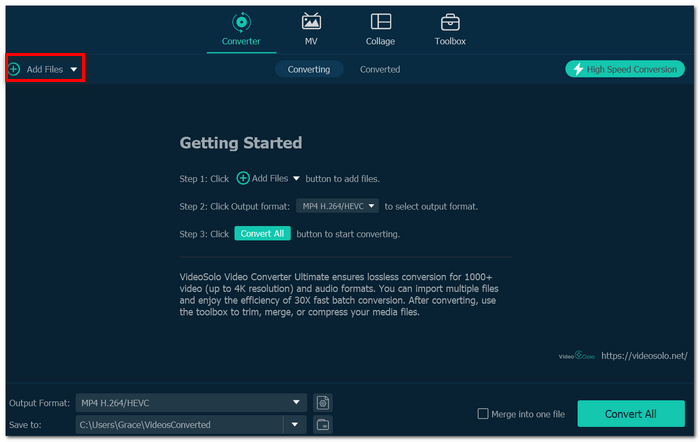
Step 1. Launch VideoSolo Video Converter Ultimate on your computer and click the "+ Add Files" to import your MP4 video.
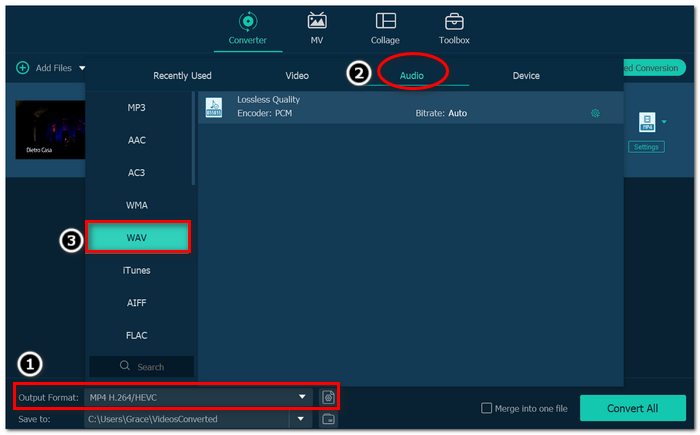
Step 2. Open the "Output Format" menu and go to the Audio section, and select "WAV".
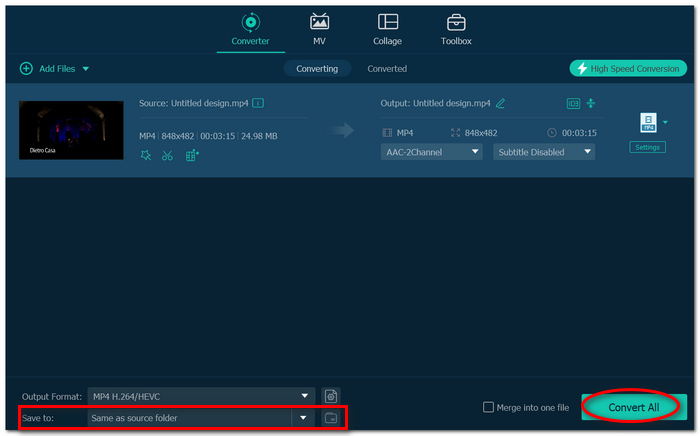
Step 3. Adjust audio settings like bitrate or sample rate if needed. After that, choose your output folder location.
Step 4. Click "Convert All" to start the conversion process.
For users who regularly work with high-quality audio extraction, this MP4 to WAV converter provides a reliable balance of speed, quality, and ease of use.
Part 3. Other Software to Transform MP4 to WAV
In case you want more choices, there are many other utilities that could be useful for transforming MP4 to WAV according to your requirements. Some might be ideal for fast online conversion services, whereas others might come in handy due to their advanced editing capabilities or desktop availability.
1. CapCut – Best for Quick Editing and Audio Extraction
CapCut is not only popular as a video editor, but it is also able to retrieve sound from MP4 and export it in various formats. This makes it a feasible choice for those looking for a more straightforward editor with simple sound conversion capabilities.
pros
- Desktop and mobile availability
- Editing software is integrated into the application
- Quick file export procedure
Cons
- Limited WAV file export capabilities based on software version
- Primarily used for video editing rather than audio conversion
How to Do It
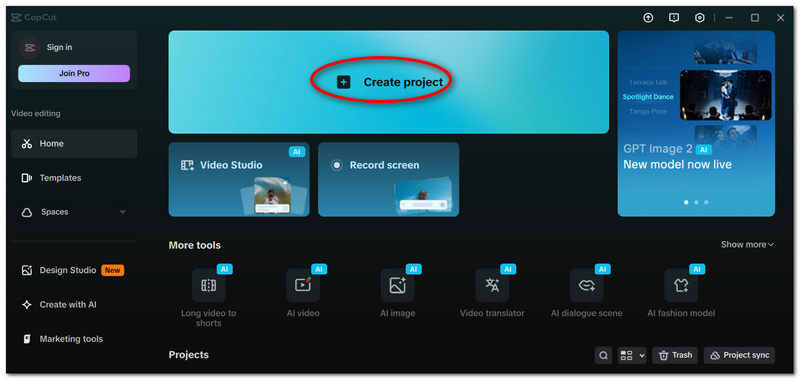
Step 1. Launch CapCut and start a new project. Upload your MP4 file.
Step 2. Drag it into the timeline and detach the audio track from it.
Step 3. Pick the "Export" feature. If possible, select the "WAV" format and save the file.
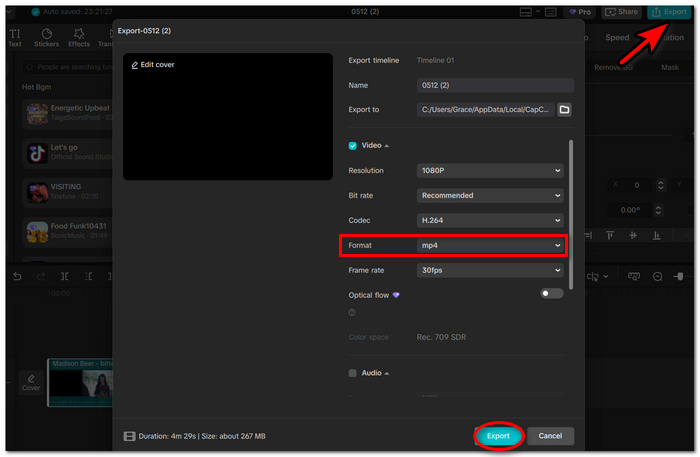
It’s a good choice if you’re using CapCut to edit videos and want to convert MP4 to WAV.
2. Tipard Video Converter Ultimate – Best for High-Speed Batch Audio Conversion
Tipard Video Converter Ultimate is a media converter designed with convenience for people who want to do quick, steady conversion of many formats. And it is handy if you often convert large files, MP4s, and prefer more adjustment of audio features.
pros
- Superb batch conversion performance
- Has the capability to provide customization of audio settings
- Handles huge videos with ease
Cons
- UI can be somewhat complicated for new users
- All features come with licensing only
Steps to Follow
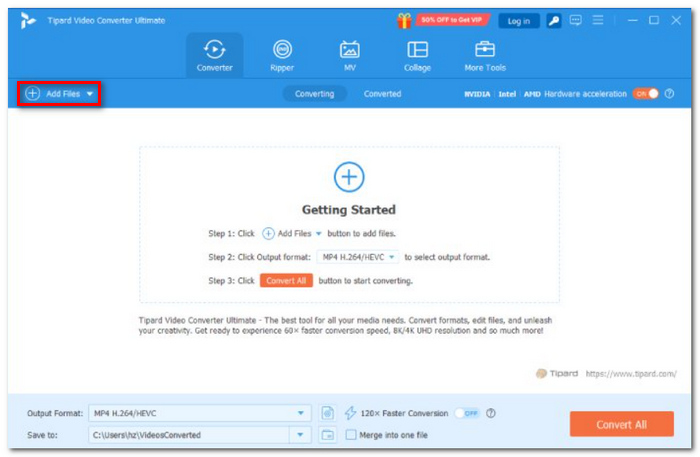
Step 1. Download and install Tipard Video Converter Ultimate. After that, add your MP4 by clicking on the "Add Files" button.
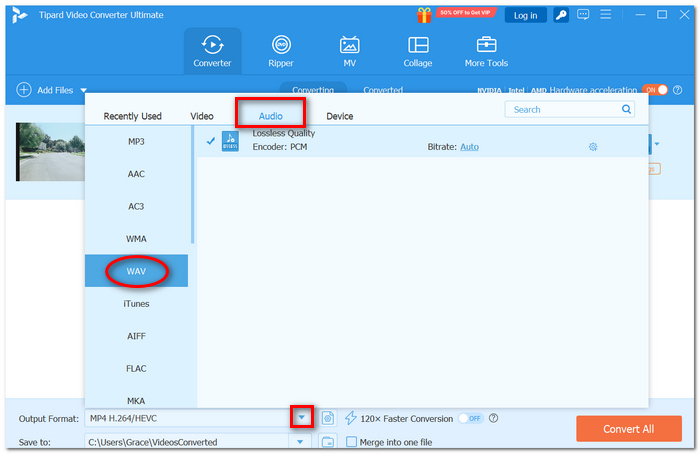
Step 2. Go to the "Format" drop-down list. Choose the "WAV" format from the list of audio formats.
Step 3. Modify other parameters such as bitrate, sample rate, etc., if required.
Step 4. Set the output destination and click the "Convert All" button to start the conversion process.
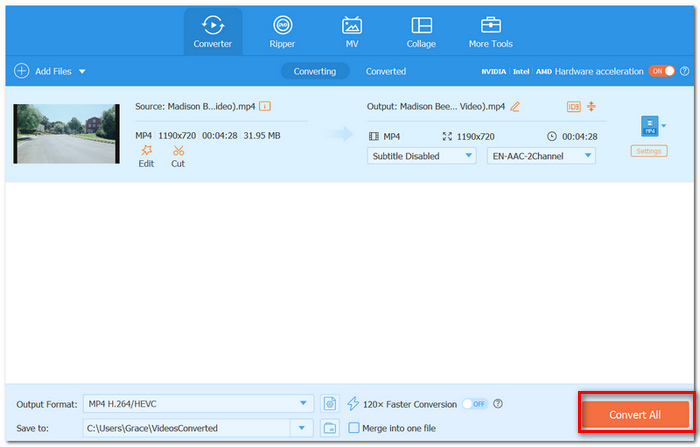
This software can be considered an effective choice for people who want to know how to convert MP4 to WAV.
3. VLC Media Player – Best for Free Desktop Audio Conversion
VLC Media Player is most commonly known as a media player, but it also has an integrated conversion facility that allows you to grab audio from a video file. It's a good free choice for users who already have VLC installed and just need a simple conversion tool.
pros
- Compatible with Windows, Mac, and Linux
- No advertisements and no need for subscriptions
- Compact size and highly reliable
- You can also use VLC to repair MP4 file.
Cons
- Confusing conversion options for beginners
- Less output customization than other specialized software
Useful Steps
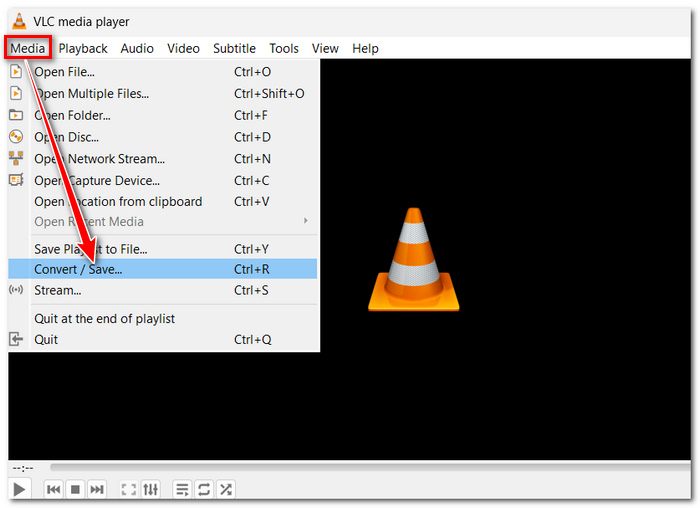
Step 1. Launch VLC Media Player and go to "Media" and select "Convert/Save".
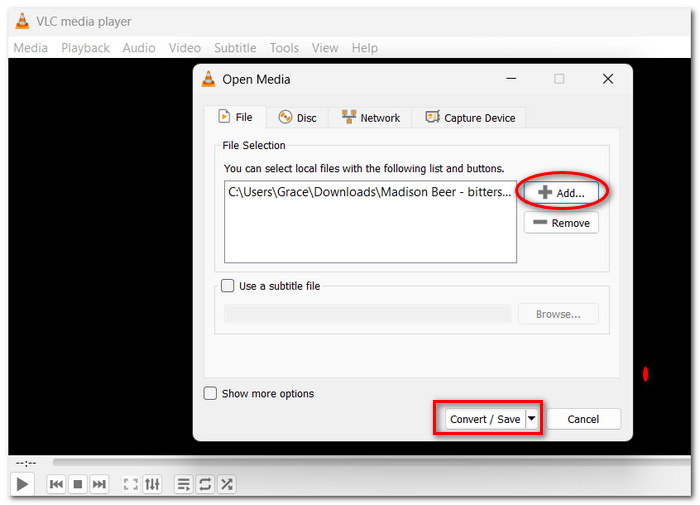
Step 2. Choose "Add" and add your MP4 video. Then click on "Convert/Save".
Step 3. In Profile, select "Audio-WAV". Choose where to save your converted audio file and click "Start".
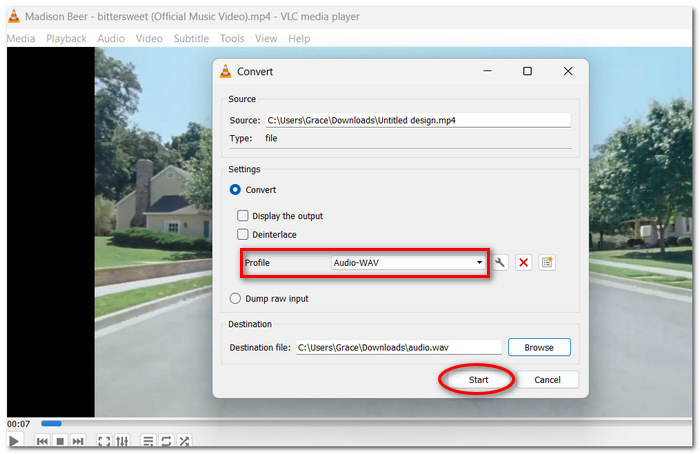
VLC media player is one of the best options when you need an easy solution for how to change MP4 to WAV.
4. Zamzar – Best for Simple Browser-Based Conversion
Zamzar is a web converter for those who simply need to convert a file and do not want to install any software. It is perfect if you need to convert the odd file on the web.
pros
- Does not require software installation
- Supports numerous file types
- Direct access via any web browser
Cons
- Dependent on the internet speed during uploading
- The free version has restrictions on file size
How to Use
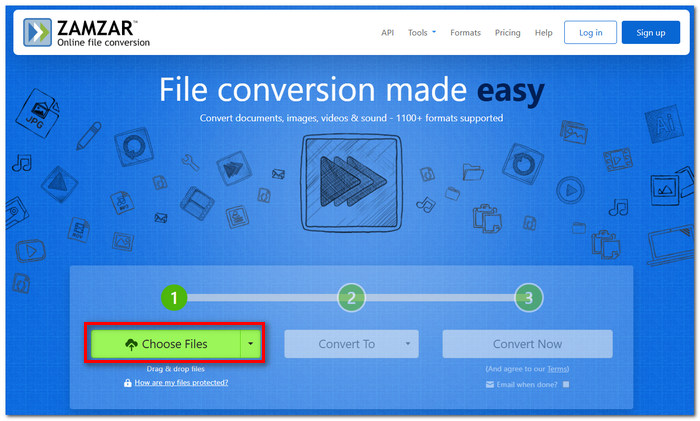
Step 1. Launch Zamzar from your web browser. Click "Choose Files" to select your MP4 video file.
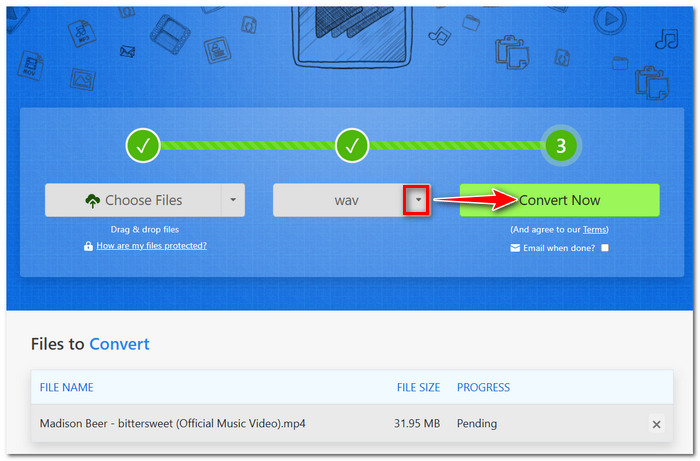
Step 2. Set "WAV" as the desired output format and hit "Convert Now".
Step 3. Allow time for the conversion process to finish and download the WAV file to your computer.
It is a great choice for fast and simple online conversions without having to download any desktop application software.
5. CloudConvert – Best for Customizable Online Audio Conversion
CloudConvert is a more advanced online converter that offers users more control over output settings than most of the simple browser tools. It's a solid option if you want to do something online but tweak quality settings.
pros
- Customizable bitrate and sample rate
- Cloud file importing from Google Drive and Dropbox
- Universal to all devices and browsers
Cons
- The Internet is required for every conversion
- Large files may take time uploading, depending on internet speed
Steps to Follow
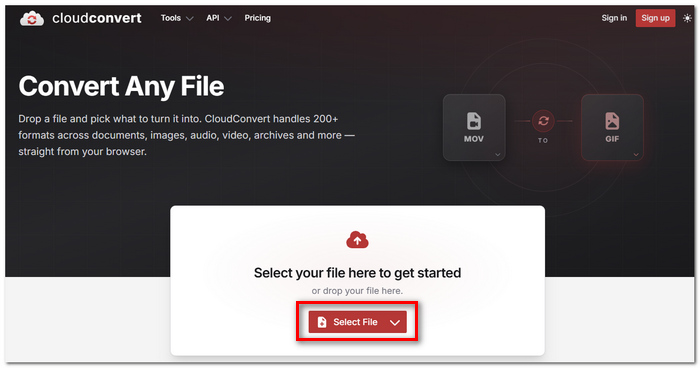
Step 1. Launch CloudConvert on your computer and select the file you wish to convert from MP4 to WAV.
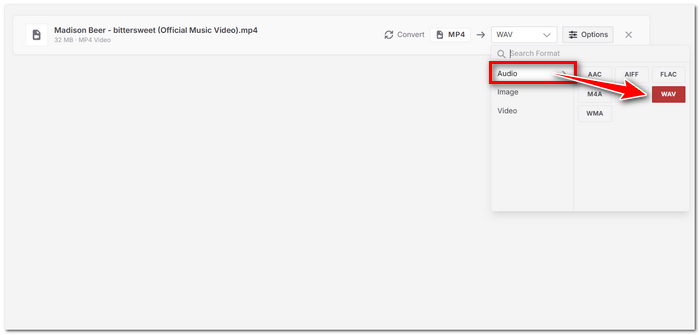
Step 2. Choose "WAV" as your output format.
Step 3. Modify any required audio settings and click the "Convert" button to start the conversion process. Save the converted WAV file after the process finishes.
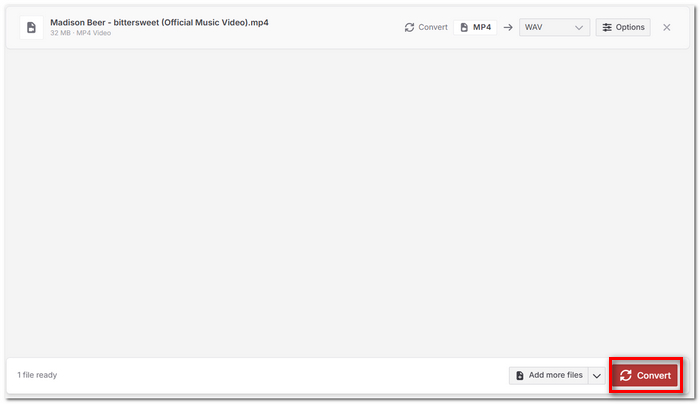
CloudConvert is recommended for users looking for an online converter with advanced controls.
Part 4. Expert Tips for MP4 to WAV Conversion
For optimal audio quality during MP4 to WAV conversion, there are certain guidelines that could prove effective in preserving audio clarity and managing file size and the conversion process efficiently.
Set Highest Conversion Rate Options
While performing conversions from MP4 video files to WAV format, it is recommended to use the highest possible sample rate and bitrate settings in order to retain all original audio data without losing any quality during conversion.
Minimize WAV File Size if Required
Compared to other audio formats, WAV files tend to be large in size. In case storage capacity becomes a concern, consider reducing the sample rate or removing audio parts that are not necessary. Or you can also use a video file size reducer.
Employ Batch Conversion Functionality
In case you have multiple MP4 files to convert, consider using software that supports batch conversion functionality.
Trim Before Conversion
For a particular audio segment from the file, trim the MP4 audio file before conversion. It helps reduce the size of the output file and eliminates unwanted audio.
Verify Source Audio Quality
The quality of the resultant WAV is dependent on the source MP4 audio file. The sound quality remains unchanged despite converting the audio format.
Properly Manage Output Files
Keep the output files in designated folders for easy access at a later time, particularly when working on more than one project at once.
Part 5. FAQs about MP4 to WAV
Can Windows Media Player convert MP4 to WAV?
Unfortunately, Windows Media Player cannot convert MP4 files to WAV since there is no file conversion option within the application.
Does macOS have a built-in WAV converter?
There is no built-in WAV file converter in Mac OS. However, there are workarounds where you can use the existing applications to convert MP4 files to WAV files.
How do I batch convert on Mac without crashing?
It would help if you utilized reputable MP4 to WAV file converters available on your desktop computer. Make sure to close any running applications on your computer.
Conclusion
This is a simple way to convert MP4 to WAV, so that you can use it easily for editing, archiving, or sound design. Professional audio projects require speed and greater options, so a desktop app will be better. Though for simple conversions or quick work, online tools will be easier.
Knowing which settings are suitable, managing file sizes, and batch processing can all help you achieve cleaner results with less difficulty. So, if you choose a trustworthy MP4 to WAV converter, you can not only keep the quality of sound but also speed up your conversion process.
More Readings

