



 Download Video Repair For FREE!
Ever put a DVD into your computer expecting it to start playing right away, and then nothing happens? Everyone using Windows 10 is experiencing the same thing. A lot of people don't expect that DVDs won't play automatically like they used to. Hence, this guide was made to assist you. There are many ways to play DVDs on Windows 10 without losing your mind that I will share with you in this post. First, we will check if Windows 10 has built-in DVD playback support or not. Next, we will present to you the best programs for the job. After that, you will learn the most straightforward step-by-step methods guaranteed to work. Also, I will tell you the typical issues behind DVD failure that always make you wonder if it's your DVD or your player, and offer you quick solutions. When you get to the last page, you will be fully equipped with knowledge not only about what to get and how to do it, but also how to avoid wasting time on tech issues so that you can enjoy your DVDs hassle-free on Windows 10.
Part 1. Can You Play a DVD on Windows 10
Windows 10 is different from the older versions of the OS (like Windows 7) in that it does not have DVD playback support built in anymore. Microsoft removed the native DVD decoder to avoid paying license fees, so when you insert a DVD in your computer, it may not play automatically, especially if you are trying to open it with the default Movies & TV app.
However, this doesn’t mean you can’t play DVDs at all. You absolutely can! You just need the right software.
There are two main things you need:
1. A computer with a DVD drive (either built-in or an external USB DVD drive).
2. A DVD playback software that supports Windows 10.
Without proper playback software, you might encounter issues like:
- • The DVD is not opening
- • An error message saying the format isn’t supported
- • No video or audio playback
So yes, you can play a DVD on Windows 10, but you’ll need a third-party media player to do it smoothly.
Part 2. How to Play DVD on Windows 10 [Best Choice]
If you want to find the simplest and most dependable method for how to play DVDs on Windows 10, a professional DVD player software is the top choice. Rather than dealing with unsupported formats or a lack of codecs, a special player will allow you to have a smooth and hassle-free experience in the whole process. One of the most recommended tools is VideoSolo Blu-ray Player. It is mainly for disc playback and runs flawlessly on Windows 10. If you need a quick fix for how to play dvd on Windows 10, this software takes away the uncertainty.
 Features
- Smooth DVD playback on Windows 10
- Supports DVD menus and chapters
- Full HD 1080p video quality
- Customizable subtitles and audio tracks
- Supports Blu-ray and ISO files
Steps to Play a DVD on Windows 10
Step 1. Click the Download button and install the VideoSolo Blu-ray Player on your Windows 10 computer. Then insert your external DVD drive
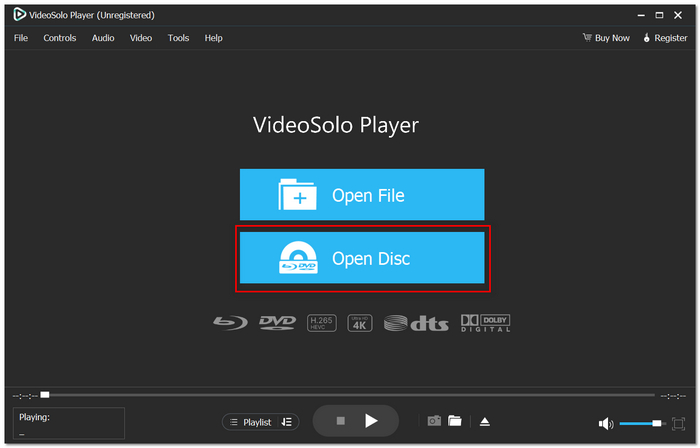
Step 2. Open the software and hit Open Disc.
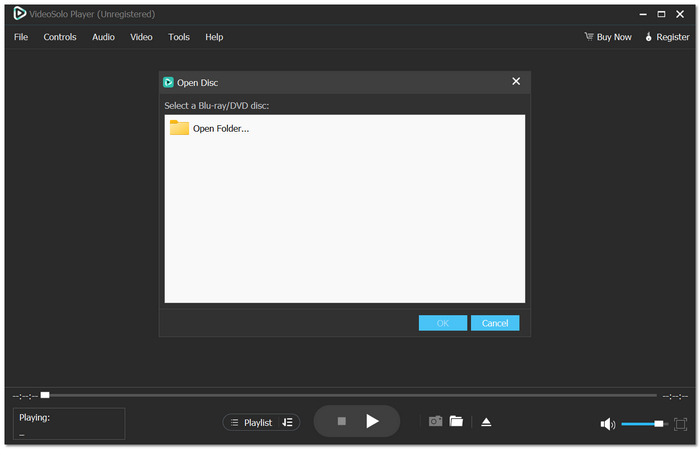
Step 3. Select your DVD and hit the play button. The movie will start with full menu navigation support.
Using Experience
On a practical level, everything seems to work seamlessly and without fuss. The program identifies the disk pretty much instantly, brings up the menus correctly, and movies are played without any stuttering or mistakes. Video quality doesn't deteriorate, and sound stays crisp even when you decide to watch on a bigger screen or use external speakers.
Part 3. Other 5 to Play DVD on Windows 10
If, after the major suggestion, you are still considering other alternatives, this part will introduce you to five more tools that you can use for DVD playback. Every software has its unique advantages, installation steps, and viewing experience, so you can pick the one that suits your requirements and system performance the most. If you are dealing with playback problems or just want to explore different options, knowing your choices will definitely help you in making a decision on how to get dvd to play on Windows 10 easily and without frustration.
Way 1. VLC Media Player – Best for Free and Open-Source DVD Playback
VLC Media Player is among the top free media players available today. It is open-source, lightweight, and supports a large variety of video and audio formats, including DVDs. If you are asking yourself, how can I play DVDs on Windows 10 without buying software, most people usually consider the option of VLC first. It is compatible with regular DVDs. However, a few encrypted or protected discs might need additional setup.
Steps to Play a DVD with VLC
Step 1. Download and install VLC Media Player on your Windows 10 PC. Place the DVD into your computer’s internal or external disc drive.
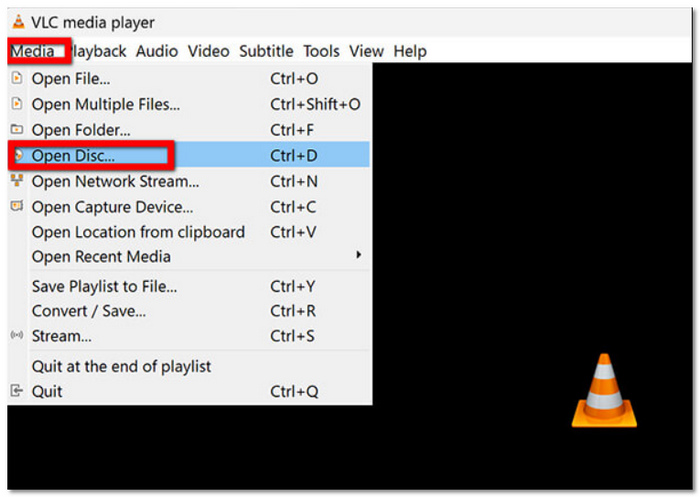
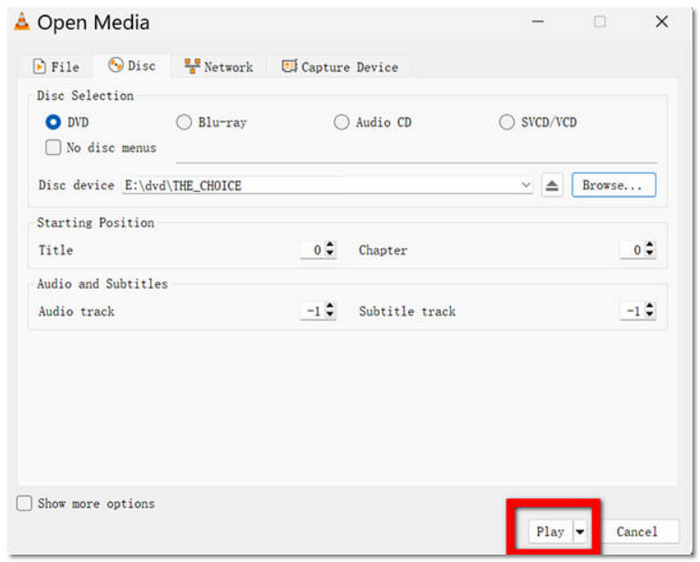
Step 2. Launch VLC, click on Media in the top menu, then select Open Disc.
Step 3. Choose the DVD option and click Play. Your movie should begin automatically.
Using Experience
In my experience, the VLC player is pretty simple and easy to work with, especially if you just want to play a DVD. It starts up fast and uses very little of the computer's resources. Nevertheless, the user interface looks more like something that works rather than something that has been tastefully designed, and at times, DVD menus may not appear as smoothly as they do with standalone DVD players.
Way 2. PlayerFab DVD Player – Best for Premium DVD Menu Navigation
PlayerFab DVD Player is a powerful media player with an emphasis on disc playback. It can handle DVDs, Blu-rays, and 4K UHD discs, which means you will get a great picture and can use the menu smoothly. If you are curious about how to play a DVD on Windows 10 for free, PlayerFab has a trial version available for free use that lets you try out how it plays DVDs before buying it. Compared to basic players, it focuses more on delivering a cinema-like viewing experience.
Step 1. Download and install the software on your Windows 10 computer. Place the DVD into your disc drive.
Step 2. Launch PlayerFab and select the Disc from the main interface. The program will automatically detect the disc.
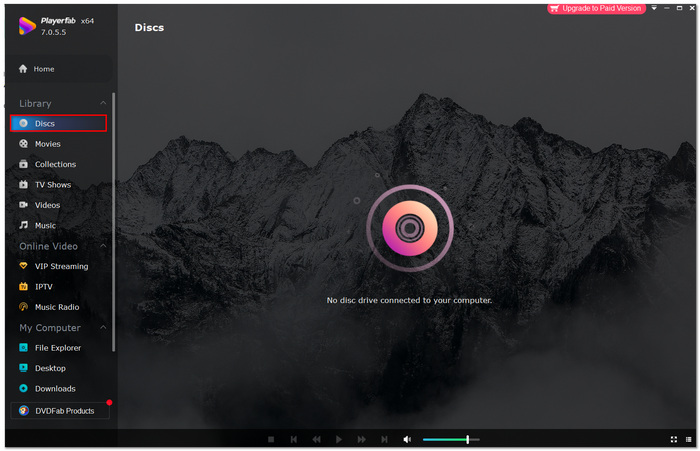
Step 3. Choose to play the movie in full menu mode or simple playback mode.
Using Experience
From a usability perspective, PlayerFab seems pretty sleek and up to date. The layout is decent, and DVD menus respond without any hang-ups, with correct chapter navigation. Visuals and sound were at a high level, no doubt, even on big screens. Still, the free version only serves for testing. However, if you aim for a more top-notch experience on Windows 10, PlayerFab is a great choice.
Way 3. Windows Media Player – Best for Built-in Windows Option
Windows Media Player is a media software by Microsoft built into the system and usually comes pre-installed on many Windows PCs. Obviously, some people will use it to solve the problem of how to play a DVD on a Windows 10 PC. Earlier Windows versions had more straightforward support for DVD playback. However, Windows 10 has restricted native DVD support without the need for additional codecs. Nevertheless, it may work in some cases, particularly if a suitable DVD decoder is installed.
Step 1. Place your DVD into your computer’s DVD drive.
Step 2. Launch the program from the Start menu.
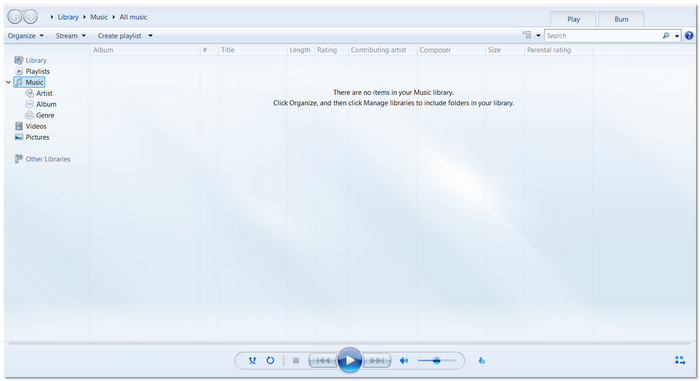
Step 3. If supported, the DVD will appear in the navigation panel. Click it to begin playback, but you can use the VLC player or the VideoSolo Player.
Using Experience
The experience is easy but not very broad. If it works, you can simply do playback, but compatibility issues usually arise on Windows 10 if we don't have extra codecs, causing your Windows Media Player no sound or can’t play DVD. It is nice that it is built in, but it is not the most trustworthy DVD solution.
Way 4. PowerDVD – Best for Smooth Playback
PowerDVD is one of the most trustworthy ways to watch your favorite movies, TV shows, and videos from DVDs, with excellent video and audio quality. It can also play Blu-ray discs and comes with additional features such as subtitle control and scene search.
Step 1. Install and run the PowerDVD installer and follow the on-screen instructions.
Step 2. Place your DVD into the computer’s DVD drive. Open PowerDVD from your desktop or Start menu.
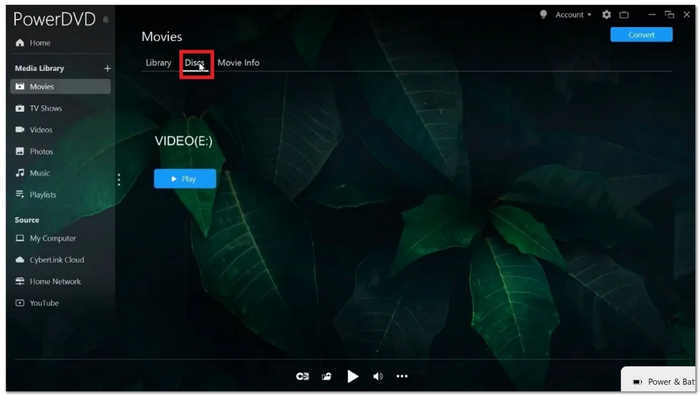
Step 3. In PowerDVD, go to Media Library and select Movies/TV.
Step 4. Click the Disc Tab and select your DVD drive.
Using Experience
PowerDVD delivers smooth playback with high-quality video and audio. Menus load instantly, and changing chapters is very smooth. The interface is so simple to use that even beginners can enjoy DVDs without experiencing any delays or glitches.
Way 5. 5KPlayer – Best for Lightweight Free Playback
Windows 10 does not have built in DVD support, and thus 5KPlayer is a free and small tool that can manage DVD discs, ISO files, and VIDEO_TS folders. Besides, it is compatible with various video formats and provides some basic streaming functionalities.
Step 1. Get the latest Windows version from the official website and complete the installation. Place your DVD into the computer’s DVD drive.
Step 2. Open the software from your desktop or Start menu. Click the DVD icon to automatically load the disc or go to Menu > File > Open DVD Disc and select your drive.
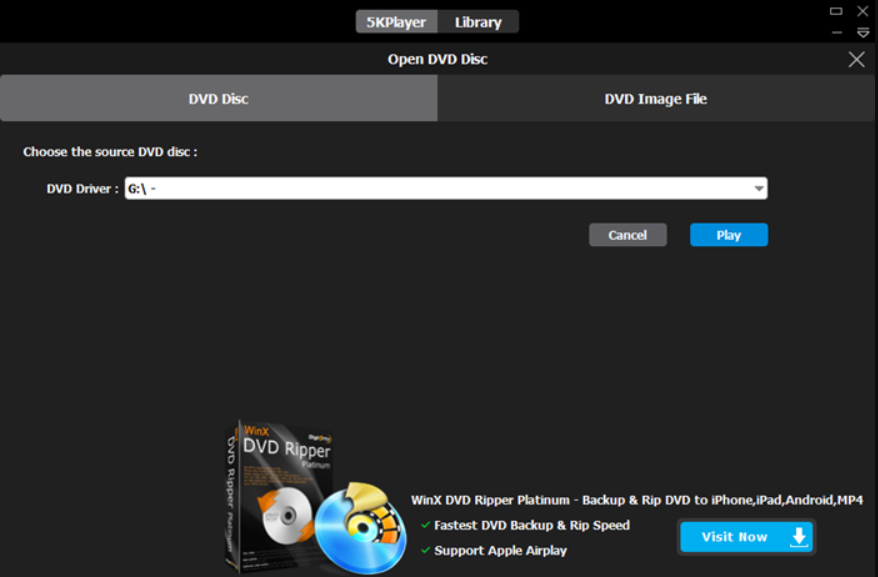
Step 3. The DVD will start playing. Use the controls to pause, skip chapters, adjust volume, and enable subtitles.
Using Experience
Playback is smooth with clear video and audio. The interface is simple, making it easy to start watching DVDs quickly, and it also supports ISO/VIDEO_TS folders for added flexibility.
Part 4. Tips: Why Can't Play DVD on Windows 10
Reasons
- • No Built-in DVD Decoder – Windows 10 no longer includes a native DVD playback feature, so Media Player cannot read discs directly.
- • Outdated or Missing Drivers – DVD drive or graphics drivers may be outdated or missing, preventing playback.
- • Damaged DVD Disc – Scratches or corruption on the disc can make it unreadable.
- • Region Code Restrictions – DVDs may have region locks that prevent them from playing on certain drives.
- • Software Conflicts – Third-party apps or security software can sometimes block DVD playback.
Solutions
- • Use a DVD Player Software – Install tools like VLC Media Player, PowerDVD, PlayerFab, or 5KPlayer to play DVDs smoothly.
- • Update Drivers – Check and update your DVD drive and graphics drivers through Device Manager.
- • Clean or Replace the DVD – Ensure the disc is clean and free from scratches; try another disc if needed.
- • Check Region Settings – Make sure your DVD drive region matches the DVD disc, or use region-free software.
- • Disable Conflicting Programs – Close unnecessary background apps or temporarily disable antivirus software while playing DVDs.
 Tips
Tips
For hassle-free playback, using reliable DVD player software like PowerDVD or VLC is usually the quickest solution.
Conclusion
It might look quite complicated to play DVDs on Windows 10 because the system doesn't support it anymore, but actually, there are solutions for almost every kind of user. With just the appropriate software selection and a few easy steps, anybody will be able to watch their favorite films without interruptions. The following article reveals the top choices and ways for mastering how to play DVDs on Windows 10.
More Reading

Play your videos/music in 100+ formats and region-free DVDs/Blu-rays with 4K and Dolby Atmos experiences.

