



 Download Video Converter Ultimate For FREE!
Who hasn't tried to open one on their iPhone and been faced with the dreaded unsupported format error message? MP4 is one of the most commonly used video formats and is supported by iPhones. Yet, even if a video is an MP4 format, it may not be supported by your iPhone due to Apple's strict codec requirements, such as H.264 or HEVC.
This is where things start to get complicated. In this article, I will show you how to play MP4 on iPhone easily, practically, and without much effort, be it by solving compatibility problems by converting file formats, by using trusted online converting tools, or by selecting mobile apps capable of supporting varied video codecs. So at the end of this article, you will know precisely how to put any MP4 video on your iPhone.
Can You Play MP4 on an iPhone?
Yes, but here's the tricky part. You might have asked yourself, can an iPhone play MP4? Well, this question isn't answered easily as many would believe, and it all comes down to what exactly is in that MP4 file.
A lot of people think that MP4 is one universal file type, but in reality, it's nothing more than a video container where the video is encoded using certain codecs. And iPhones have their preferences when it comes to codecs and are compatible only with H.264 and HEVC (H.265) codecs.
And that is why you get those error messages on your iPhone, like:
"Cannot open file"
"Unsupported format"
"Black screen with audio only"
"Video does not load"
This normally occurs when the MP4 was encoded with 'rarer' codecs, odd frame rates, and audio that is not in an accepted format. One simple way around this is to use a specialized video converter to convert video to iPhone format.
With the right converter, you simply re-encode the file into a format compatible with the iPhone. This involves running the video through the converter and selecting the preferred playback capabilities to modify the video parameters as a result. This will have the same quality as the original, but should now be playable without errors.
Method 1. Play MP4 on iPhone using VideoSolo VideoPro [Ultimate]
Best for: Users who require the most effective solution for the repair of unsupported MP4 files without any compromise on video quality.
So if you're annoyed by errors during playback and are not sure how to play MP4 on iPhone, then VideoSolo VideoPro is one of the best options there. It turns your media file into a format that is supported by the iPhone rather than trying to play the incompatible file to play. It is a professional video conversion application for converting videos to various devices, including iPhones.
 Features
- Built-in iPhone output presets
- Converts unsupported codecs to H.264/H.265
- Fast hardware-accelerated processing
- Batch conversion support
- Maintains high video quality
Step-by-Step Guide
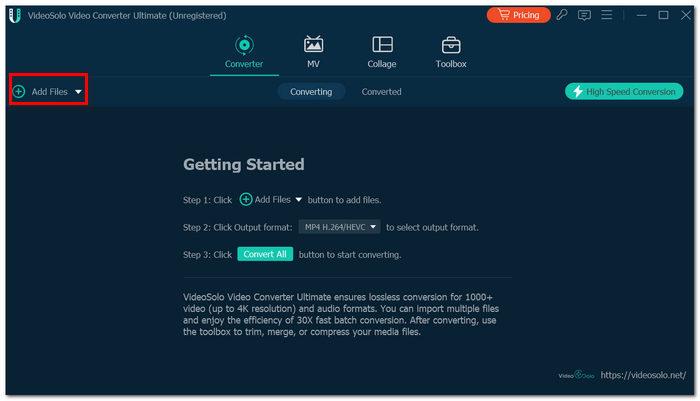
Step 1. Download and install VideoSolo VideoPro. Launch and hit Add Files, and import your MP4 video.
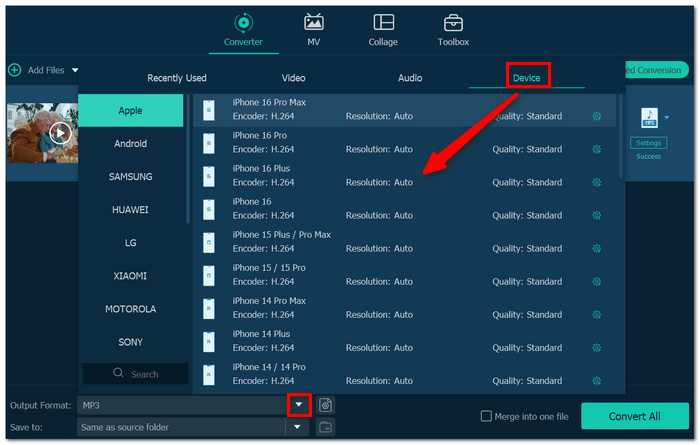
Step 2. Open the Output Format menu. Choose Device > Apple > your specific iPhone model.
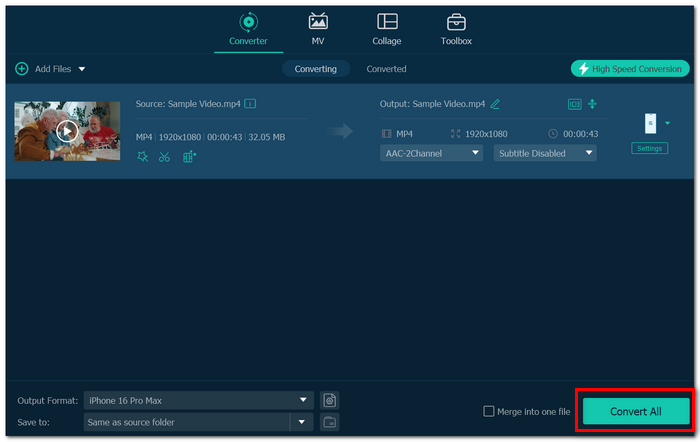
Step 3. Adjust resolution or quality settings if needed. Click Convert All to begin processing.
Step 4. Transfer the converted file to your iPhone using Apple Devices, AirDrop, or iCloud.
Open the video on your iPhone and play it normally.
This is one of the most practical answers for how to play MP4 on iPhone when the file refuses to open because of codec restrictions.
 pros
pros
- Reliable playback compatibility
- Fast conversion speed
- Preserves original quality well
- Great for multiple files
 Cons
Cons
- Full features require the paid version
Method 2. Free Online MP4 to iPhone Converters [No Install]
Best For: Users who need a fast solution and don’t want to install any software
For those who only have one or two videos that need conversion, web converters can serve as an easy method of converting MP4 on an iPhone without having to install any additional software on their PC.
What are Web MP4 to iPhone Converters?
Online converters run from your browser. All you have to do is upload the MP4 file, select an iPhone-friendly output format, wait while the cloud server processes it, and download your converted video.
The two most popular sites for doing this are CloudConvert and Zamzar.
- • While CloudConvert allows more format customization and output options,
- • Zamzar is famous for having an extremely user-friendly interface.
They are very efficient at converting MP4 on iPhone into a supported format.
pros
- No installation needed
- Works in almost all browsers
- Perfect for occasional use
Cons
- Dependent on the internet speed while uploading
- Unproductive when converting large HD videos
Step-by-Step Process (CloudConvert Usage)
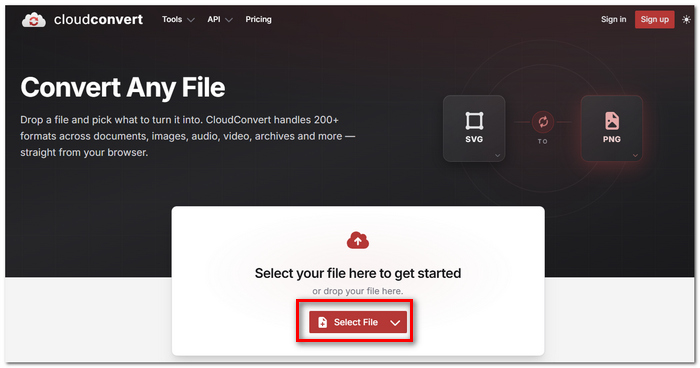
Step 1. Launch the CloudConvert application via your browser. Click Select File and select your MP4 video file.
Step 2. Choose MP4 format in the Output Format box.
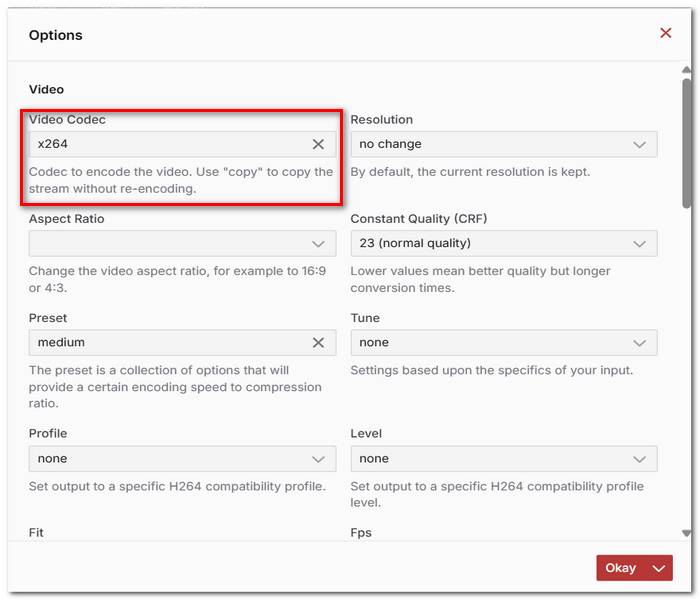
Step 3. Launch the Settings Menu. Select H.264 Video Codec. Change the resolution if necessary for your iPhone.
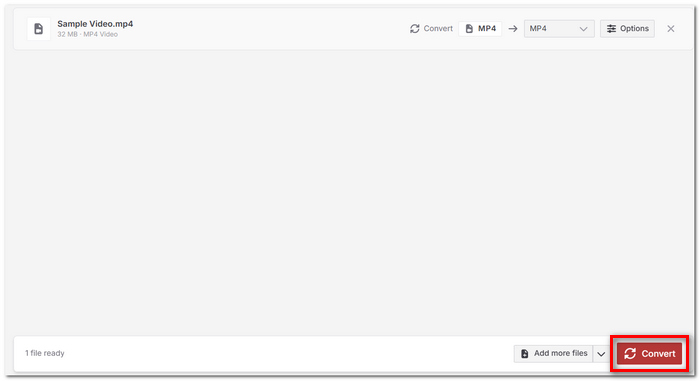
Step 4. Click Convert and wait until the conversion process is complete.
Step 5. Download the converted file and send the file to your iPhone via AirDrop, iCloud, or the Files Application.
This process is ideal where there is a need for fast conversion of MP4 to be played on an iPhone with zero installation of software.
Method 3. Mobile Apps to Play MP4 on Your Phone
Best for: Users who don’t want to convert files and prefer using alternative media players
If resourcefully saving an MP4 video to Camera Roll seems like a bit of an effort for this purpose, a quick and straightforward solution is to get third-party media player apps that will play MP4 videos directly, avoiding the potential rejection by the built-in player.
VLC for Mobile — The Classic Choice for Wide Codec Support
VLC for Mobile is a popular free media player that supports many video codecs. The native iPhone player doesn’t handle them well. It’s especially useful for playing non-native MP4 files without converting them first.
One of its most useful features is Wi-Fi Sharing, which lets you wirelessly transfer videos from your computer to your iPhone.
pros
- Supports many uncommon MP4 codecs
- No conversion required
- Simple playback controls
Cons
- Interface feels basic compared to premium apps
- Some very large files may load more slowly
Step 1. Get the VLC for Mobile app from the App Store. Launch the application on your iPhone.
Step 2. Tap on the Network option at the bottom of your phone. Toggle on Sharing via WiFi. Take note of the web URL provided.
Step 3. Launch the same web URL using your computer. Drag and drop your MP4 video into your browser window.
Step 4. Allow some time for the transfer to complete. Go back to your application and select the transferred video. You can now play the video.
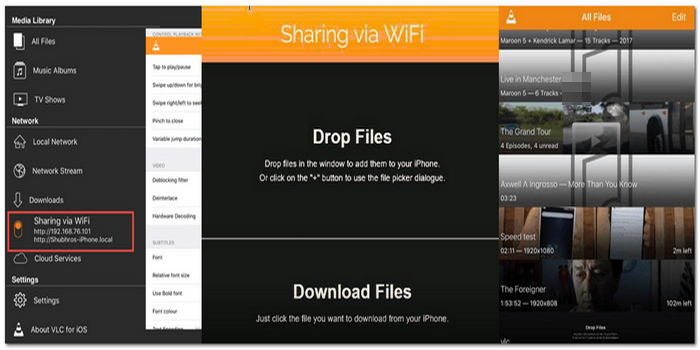
This is one of the simplest methods of viewing unsupported videos without having to convert them first.
nPlayer — Best for Advanced Playback and Cloud Streaming
If you're after more advanced playback functionalities, nPlayer is a great payware option to try out. It's a top-quality media player, aimed at those who require a wider range of supported codecs and improved playback of high definition files.
The unique selling point for the player is its superior DTS audio support with seamless integration with cloud services such as iCloud, Google Drive, Dropbox, and OneDrive. The files can then be streamed or accessed from the MP4 file without necessarily storing the file on the iPhone.
pros
- Supports cloud storage
- Fast playback even of large HD files
- Playback settings are highly customizable
Cons
- Priced app
- Certain functions require exploration
Step 1. Get nPlayer from the App Store. Launch the app on your iPhone and choose how you wish to import your MP4 video: from the Files app, WiFi transfer, or Cloud storage connection.
Step 2. Select the video file and click to start playing.
Step 3. Modify audio settings, subtitles, and other playback options if necessary.
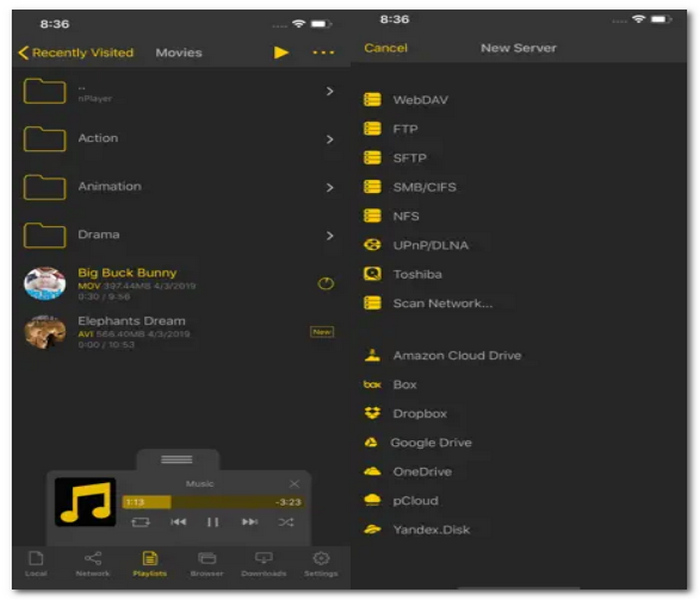
For those who need to play various video files and require extended audio features, nPlayer is a better choice compared to regular iPhone video players.
FAQs on Playing MP4 on iPhone
My MP4 works on sound, but shows a black screen on the iPhone. What should I do?
This indicates that you have selected an incompatible video codec, although the audio codec is fine.
Why does my MP4 have lags during playback?
The problem may be caused by a high-resolution video or a high bitrate that doesn’t go well with your device.
Why does my transferred MP4 file get deleted from the Photos application?
There are two possible reasons behind this problem. First, the file could be damaged or not properly copied.
Conclusion
Much easier to play videos on an iPhone when you're aware that not all MP4 files are playable by iOS. The key point to remember from this guide is that if it won't open, it's not the file format (codec) to blame.
Regardless of whether you convert the file, use an internet-based service, or even install a third-party media player, you can easily troubleshoot these issues. After you learn how to play MP4 on iPhone, you will never encounter these irritating errors again.
More Readings

