



 Download Video Repair For FREE!
You're ready to unwind with the video you've been wanting to watch, but then you see the message "Video Codec Not Supported" on the screen. The issue arises more frequently than you may realize due to a problem with the device or the media player's inability to read or decode the video format. This covers everything you need to know about the situation! You’ll learn what it really means, why it happens, and how to fix it in the easiest way possible. We’ll also introduce you to VideoSolo Video Repair. Plus, we’ll cover other handy fixes, such as converting your video to another format or installing missing codecs so that you can enjoy smooth playback again without the tech headache.
Part 1. What Does Video Codec Not Supported Mean
When the notification appears, it is the device's way of saying, "I am unable to handle this file correctly." All video files rely on a specific codec, which is the method used for compressing and decompressing the video. If your media player does not recognize or support that codec, it will not play back the file, leading to this irritating message. Here are some reasons why this may occur:
• Unsupported file format: Your video might be using a codec your player doesn’t recognize (like HEVC or DivX).
• Outdated media player: If your player hasn’t been updated, it may not support newer codecs.
• Corrupted video file: A damaged or incomplete video can make the codec unreadable.
• Missing codec pack: Some systems need external codec packs to play certain formats.
• Device limitation: Older devices or systems may not support high-efficiency codecs correctly.
So next time this issue pops up, don’t stress! It doesn’t mean your video is gone for good. In the following sections, we’ll guide you through several reliable methods to resolve your video codec not supported error and get things running smoothly again.
Part 2. The Best to Fix Video Codec Not Supported [Recommended]
If your video won't play and you see the "Video Codec Not Supported" error message, a simple solution is to use VideoSolo Video Repair. It is capable of handling several production-related issues, including a broken codec, corrupted files, and playback issues. You will likely be able to get your video running again.
Main Features
Easily repairs damaged or corrupt video files in a short time.
Repair can be carried out on a variety of formats (MP4, MOV, AVI, etc.)
Repairs will retain the original quality of the video
User-friendly for both novice and more experienced users.
Steps to Fix Video Codec Issues
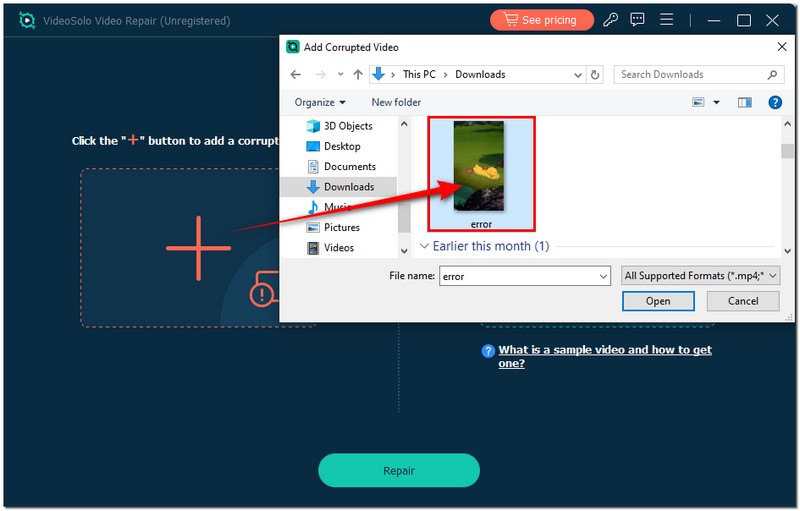
Step 1. Launch VideoSolo Video Repair on your computer. Hit the Add button and pick the file that cannot be played due to video codec issues.
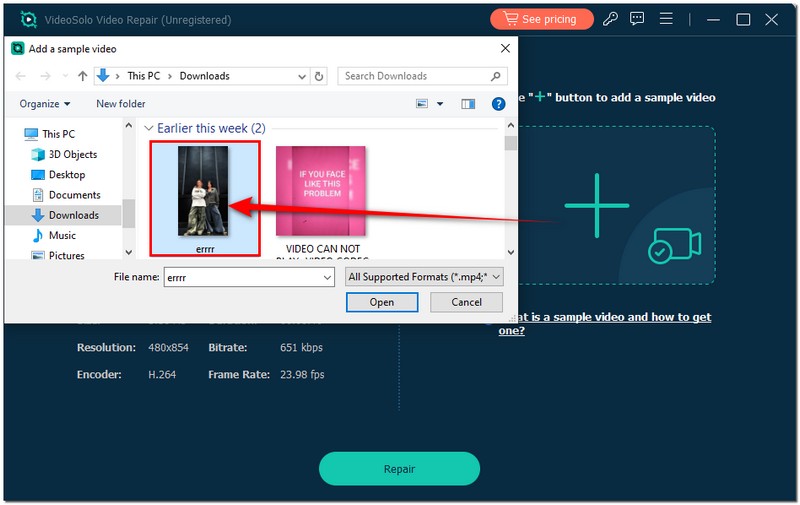
Step 2. On the right side, you can add a sample video to help guide your video codec settings.
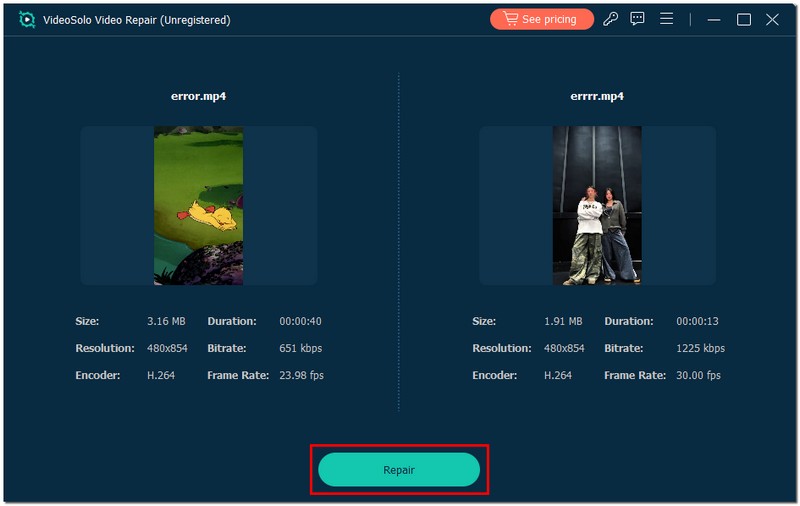
Step 3. Hit the Repair button and let the software automatically fix the video codec problems.
Step 4. Once the repair is complete, preview your video and save it to your desired location.
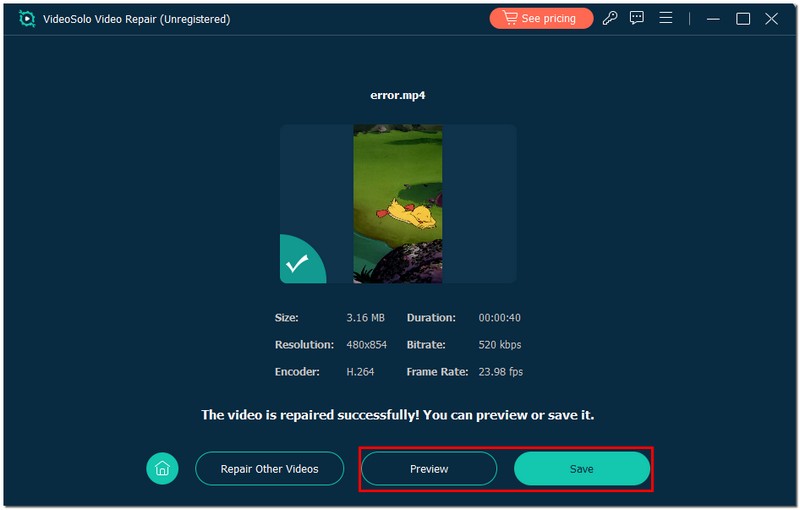
Using this method is straightforward and efficient, making it perfect for anyone dealing with the can’t play video audio codec not supported problem.
Part 3. Other Complicated Solutions to Fix Video Codec Not Supported
If the simple approach listed for VideoSolo doesn't work, you could try some more complicated alternatives. These involve converting the video, changing media players, or downloading an appropriate codec to allow your system to read the file. These may require more effort, but they are effective when a simple fix is not possible. This section is beneficial for any situation, including one in which you may have received an error stating something like unable to playback video codec not supported Discord.
Way 1. Convert Video to Another Format
Sometimes, the simplest way to fix a 'codec video not supported' error is by converting your video into a format that your device or player can read. One reliable tool for this is Aiseesoft Free Video Converter Online. Here’s how to do it step by step:
Step 1. Open your web browser and go to Aiseesoft Free Video Converter Online. Select the video file that is giving you the codec issue.
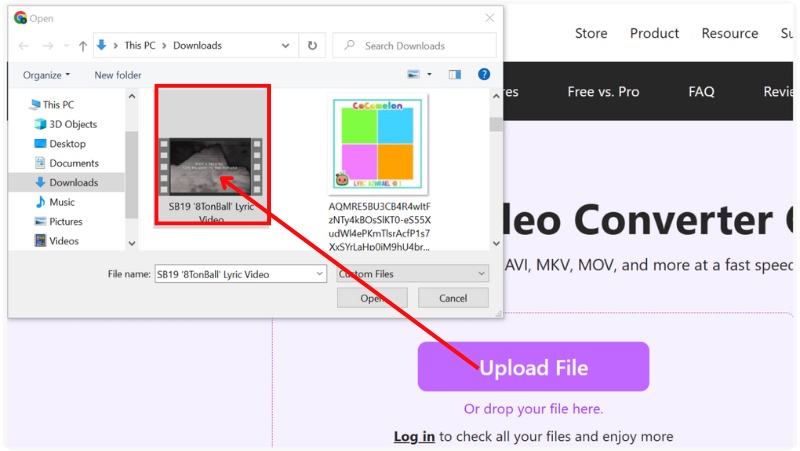
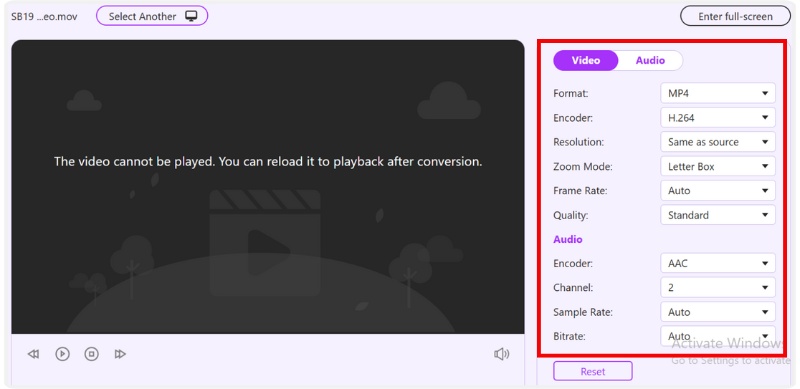
Step 2. Select an output format compatible with your device, such as MP4. Optionally, adjust video settings like resolution or bitrate to improve quality.
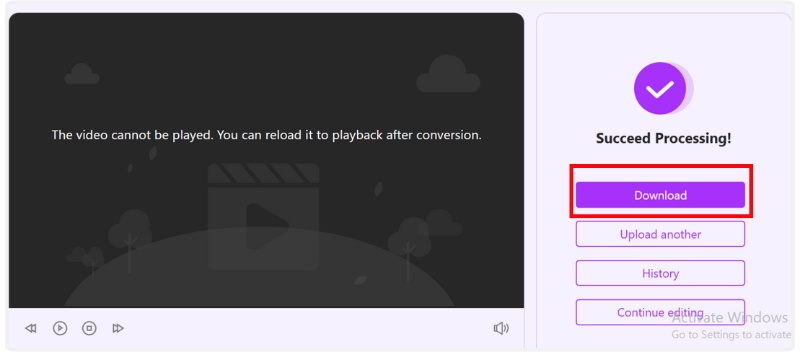
Step 3. Click Save and wait for the process to complete. After that, download the converted video and try playing it in your media player.
Way 2. Use Another Video Player
If converting doesn’t solve the codec video not supported error, try using a different media player that supports a wider range of codecs. PotPlayer, a robust and free video player for Windows that supports practically any audio or video format without the need for additional codec packs, is a great option.
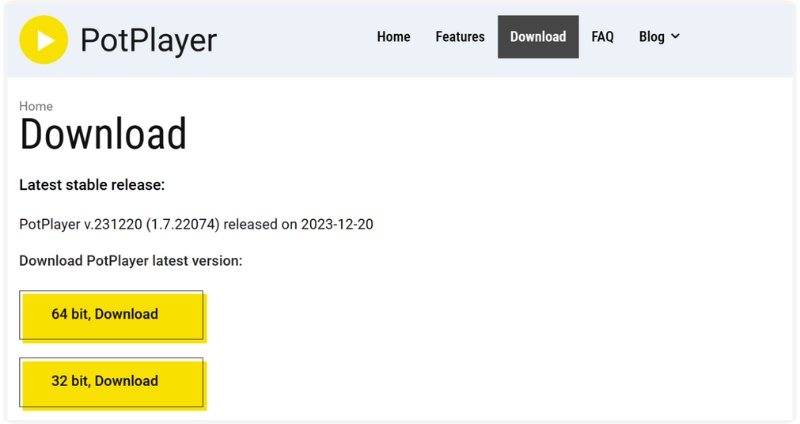
Step 1. Go to the official PotPlayer website and download the installer. To install it on your computer, adhere to the setup guidelines.
Step 2. Once installed, open PotPlayer. Drag and drop your damage video file into the PotPlayer window.
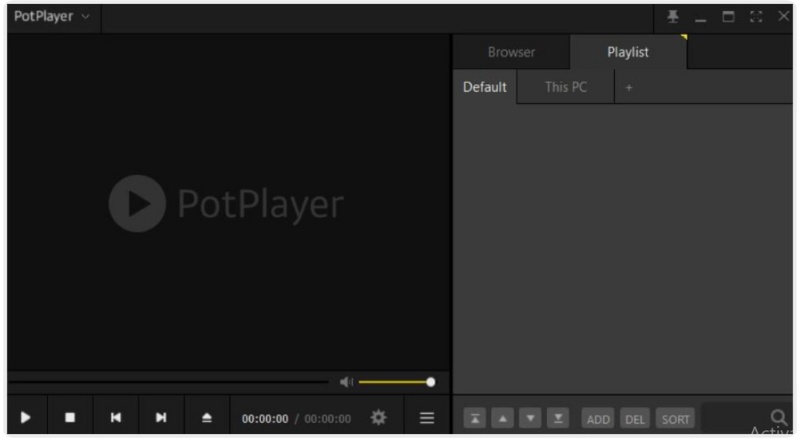
Step 3. The video should now play smoothly without displaying the "codec video not supported" error. If it still doesn’t play properly, go to Preferences, select the Filter Control, click Video Decoder, and switch to a built-in decoder for better compatibility.
Way 3. Use VLC Media Player
Another effective way to fix the video codec not supported issue is by using VLC to repair video. VLC is one of the most trusted and versatile players available today. It can handle nearly every video and audio format without requiring you to install separate codec packs. It’s free, open-source, and works perfectly across Windows, macOS, and even mobile devices.
Step 1. Visit the official VLC Media Player website to download the version compatible with your device. Install VLC by following the on-screen instructions.
Step 2. Once installed, open VLC, click Media, and then choose Open File.
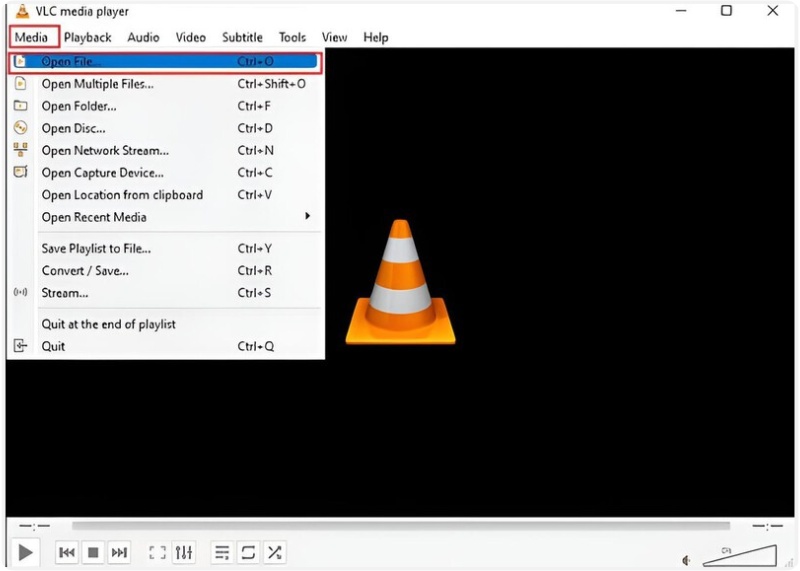
Step 3. Select the video that shows the codec video not supported error and click Open.
Step 4. VLC will automatically detect and play most codecs. If playback still fails, go to Tools, select Preferences, and click Input/Codecs, and adjust the codec settings. Try enabling hardware-accelerated decoding or switching it off for testing.
Way 4. Install the Missing Video Codecs
If none of the previous methods worked, your system may be missing the right codecs needed to play your video. Installing a trusted codec pack can often instantly resolve the "codec video not supported" issue. One of the most reliable tools for this is the K-Lite Codec Pack, a free and safe solution that supports nearly all video and audio formats.
Step 1. Go to the official K-Lite Codec Pack website. Choose the version that fits your needs. For most users, the Standard pack is enough. Download and run the installer, then follow the on-screen setup instructions.
Step 2. During installation, keep the default settings if you’re unsure. K-Lite automatically selects the best configuration for your system.
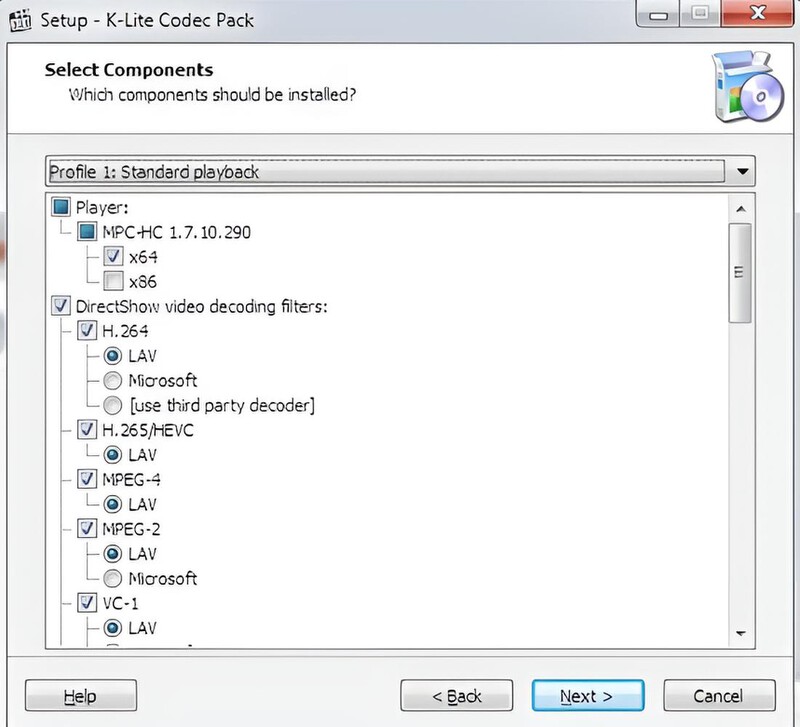
Step 3. Once the installation is complete, restart your computer. Try playing your video again using your preferred media player.
Part 4. FAQs about Video Codec Not Supported
What is a codec in a video file?
A codec, short for coder-decoder, compresses and decompresses digital video files. Without the right codec, your device can’t interpret the video’s data, which is why you see errors like video codec not supported.
Can mobile phones also show "video codec not supported" errors?
Yes. Some mobile devices, especially older Android or iOS versions, may not support newer formats like HEVC or AV1. Updating your system or changing the video to a compatible format will resolve this.
Do all smart TVs support every video codec?
No. Smart TVs have limited codec support. If you see a codec video not supported on your TV, convert the video to a compatible format such as MP4 (H.264).
Conclusion
When dealing with playback issues, it can be a hassle to figure out what does video codec not supported mean. But now you understand that it is just your device that can't read the video format. Whether you decide to fix the file with something like VideoSolo, convert the video file to another format, or install a missing codec, there is always a solution for playback issues. Just remember to keep your player and system updated, and smooth and pain-free playback will be yours every time.
More Reading
Repair your damaged, unplayable videos with multiple mainstream formats like MP4, MOV, 3GP, etc.

