



 Download VideoSolo Player For FREE!
If you are a regular video watcher on your PC, you have likely recognized the fact that players don't level up the same. Some may have issues with specific formats, while some may not have enough playback controls, and a few may just not be smooth enough for daily use. Selecting the right Windows Media Player is thus a crucial decision. In this blog, I’ll walk you through some of the best media players made for Windows users, breaking down what each one does well, where it falls short, and who it’s best for. Later on, you’ll have a clear idea of which player fits your viewing habits, whether you want simplicity, advanced features, or the best possible playback quality.
- 1. Videosolo Video Player — Best Overall Choice for Windows Users [Hot]
- 2. VLC Media Player — Best for Broad Format Support and Long-Time Reliability
- 3. PowerDVD — Best for Premium Playback and Home Theater Experience
- 4. KMPlayer — Best for Advanced Playback Controls and Custom Viewing
- 5. Zoom Player — Best for Smart Navigation and Keyboard Control
- 6. PotPlayer — Best for Performance Tuning and Smooth Playback
- 7. Kodi — Best for Media Center and Custom Add-Ons
- 8. Comparison Table of Windows Media Players
1. VideoSolo Video Player — Best Overall Choice for Windows Users [Hot]
VideoSolo Video Player is a great modern, stable, and versatile choice for Windows users in need of hassle-free playback. With its capacity to play nearly any video or audio format, it offers a cleaner, more adaptable experience than a typical Microsoft Media Player. Thus, it can be reckoned as an effective all-around solution for daily viewing.
 Features
- Plays almost all video and audio formats, including MP4, MKV, AVI, MOV, and more
- Supports HD, 4K, and even 8K playback with high visual clarity
- Advanced playback controls for speed, audio tracks, and subtitles
- Hardware acceleration for smoother performance on Windows PCs
 pros
pros
- Excellent video quality with stable playback
- An easy-to-use interface that is appropriate for all users
- Strong subtitle and audio track management
 Cons
Cons
- The free version has limited advanced features
- Full features require upgrading to the paid version
How VideoSolo Video Player Works
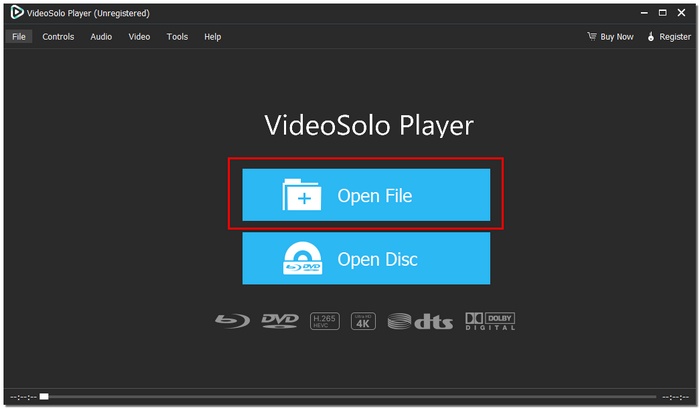
Step 1. After installation, simply open VideoSolo Video Player, load your video file, and start watching.
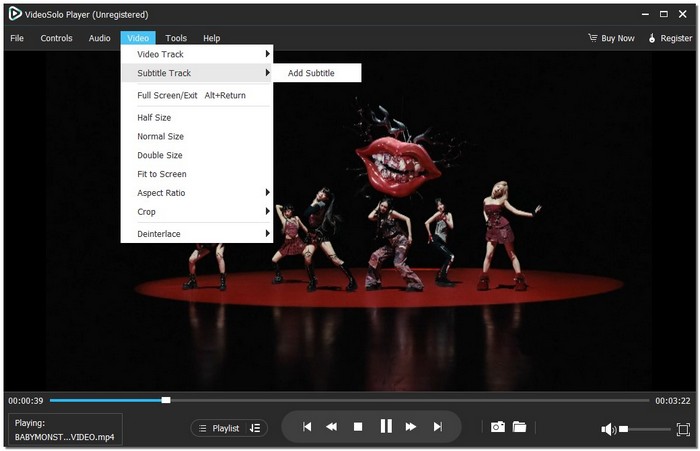
Step 2. Playback controls, subtitle options, and audio settings are easy to access, even for first-time users.
User Experience
The whole experience of using VideoSolo Video Player is quite smooth and goes without any frustration. The files are quick to open, even a 4K video can be played smoothly without interruption, and the clean interface is much more user-friendly than a standard Microsoft Media Player. In general, it is a reliable option for users who just want enhanced performance without any complications.
2. VLC Media Player — Best for Broad Format Support and Long-Time Reliability
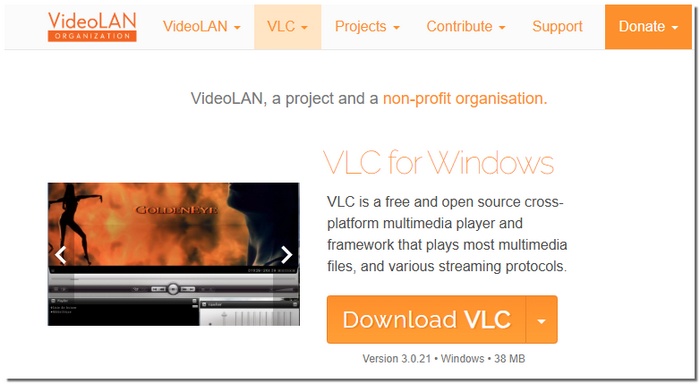
Without a doubt, VLC Media Player stands out as the most popular free media player for Windows. It is highly regarded for its feature of simply opening any file without needing to configure anything additionally. In case users desire a reliable choice that is still relatively simple compared to MS Media Player, they will find VLC to be versatile, steady, and have a performance record going back over a decade.
Features
- Integrated codecs that do not require extra downloads
- Advanced tools like media conversion, recording, and chromecasting on computer and mobile in VLC.
- Customizable playback settings for audio, video, and synchronization
pros
- More adept than most players at handling uncommon and damaged files
- No requests to upgrade or advertisements
- Regularly updated and actively maintained
Cons
- In comparison to more recent players, the interface seems antiquated
- Some sophisticated functions are not user-friendly for beginners and are concealed in menus
User Experience
VLC gives off a vibe of steady and consistent functionality. In fact, once a file is launched, the playback is stable even if an unusual format is used, and the performance is still solid. After understanding the layout, most users end up thinking that it is more powerful and trustworthy than a regular MS Media player for everyday video playback.
3. PowerDVD — Best for Premium Playback and Home Theater Experience
PowerDVD is an advanced media player designed for users who require more than just basic playback. Concentrating on the latest systems, it delivers amazing visuals and surround sound, thereby making it an ideal media player for Windows 11, a selection of those who want to watch movies in the highest possible quality.
Features
- Enhanced video technologies for sharper colors and improved contrast
- Advanced audio support for surround sound and home theater setups
- Blu-ray, DVD, and media library management in one platform
pros
- Excellent audio and visual quality
- A sleek, contemporary UI designed for big screens
- Robust support for high-quality formats and actual discs
Cons
- Paid software with no full free version
- Uses more system resources than lightweight players
User Experience
PowerDVD is basically your own home theater setup but on your PC. There is nothing that goes out of place, the visuals are bright, and it is really straightforward in navigating through the options. So, if you are on Windows 11 and intend to watch your videos with the highest quality, using PowerDVD is an absolute must. It offers a considerably deeper and engaging experience as compared to the regular players.
4. KMPlayer — Best for Advanced Playback Controls and Custom Viewing
For customers who desire extensive control over how their films play, KMPlayer is a highly adjustable media player. With extensive format support and detailed settings, it’s often considered the best media player for Windows by users who like to fine-tune their viewing experience.
Features
- Frame-by-frame playback and playback speed adjustment
- Built-in video enhancement options, such as color and sharpness tuning
- Support for 3D and VR video formats
pros
- Extremely customizable playback environment
- Handles both local and network-based media well
- Ideal for skilled users who desire exact control
Cons
- Ads may appear in the free version
- The interface can feel overwhelming at first
User Experience
Once you become accustomed to KMPlayer, the application actually gives off a strong impression of being quite powerful. There is a smooth running of videos accomplished with responsive controls. The sheer extent of customization available here practically empowers you to fashion playback in absolute accordance with your own tastes, making this an excellent option for those users looking for the best Windows media player with advanced features.
5. Zoom Player — Best for Smart Navigation and Keyboard Control
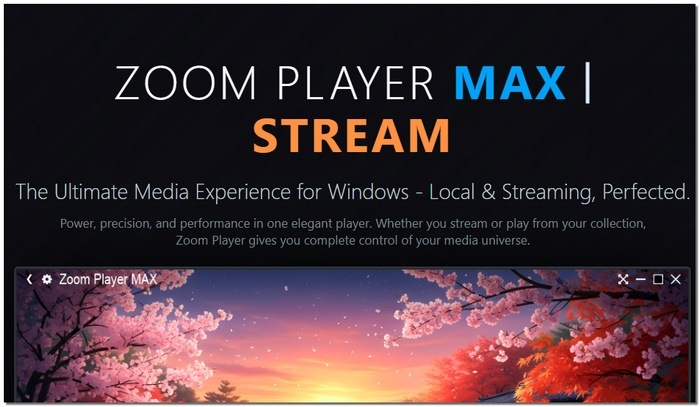
Zoom Player is a meticulously crafted media player for users who prioritize speed, accuracy, and control. The emphasis is on user, user-configurable navigation and shortcuts, enabled playback, thus it is a convenient media player for Windows 10 users who are not tempted by flashy visual effects but value efficiency.
Features
- Advanced keyboard and mouse shortcut system
- Intelligent movie, TV show, and music playback modes
- Preview of the timeline for quick scene changes
pros
- Very lightweight and responsive
- Great for heavy users who use keyboard controls
- Strong organizing tools and a clean UI
Cons
- Advanced features require the paid version
- The interface may feel technical for casual users
User Experience
Zoom Player is quick and accurate. Moving around is easy, jumping to a different part of a video is done in one step, and shortcuts allow you to quickly access functions during playback. It is a dependable and business, like media player for Windows 10 users who desire control and fast performance without any unnecessary visual elements.
6. PotPlayer — Best for Performance Tuning and Smooth Playback
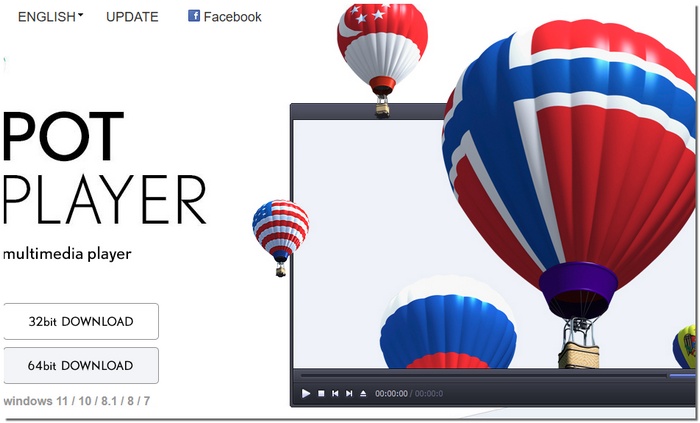
PotPlayer is a lightweight yet powerful video player known for its speed and deep performance options. It’s especially popular among users who want fine control without paying for premium software, making it a strong free media player for Windows 11.
Features
- Highly optimized playback engine with low CPU usage
- Comprehensive renderer and codec parameters for fine-tuning video quality
- Bookmarks, advanced filters, and playback presets are supported
pros
- Completely free with no restrictions on playback
- Seamlessly manages high-resolution films on contemporary computers
- Regular updates and robust community backing
Cons
- For novices, the settings menu may be intimidating
- The interface design seems out of date
User Experience
PotPlayer is a fast and efficient app. Videos start in no time, are smooth and stable, even if you keep the playback for a long time. Thus, it is an excellent and uncompromising performing option for Windows 11 users who want a free, reliable, and customizable solution.
7. Kodi — Best for Media Center and Custom Add-Ons
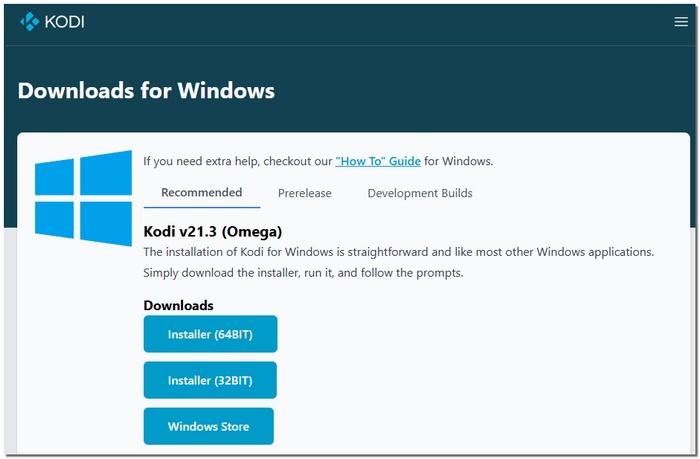
Kodi is an open-source media center made for users who need more than just simple playback. Rather than working as a regular player, it changes your PC into a complete entertainment hub, thus it has become a popular Windows media player for free with users who love customization and streaming freedom.
Features
- System of modular add-ons for live TV, streaming, and additional functions
- An interface that is completely changeable with themes and layouts
- Centralized management of film, television, and music libraries
pros
- Open-source and totally free
- Extremely adaptable with add-ons created by the community
- Perfect for TV-connected setups or home theater
Cons
- Requires setup and configuration
- Overkill for users who only need basic playback
User Experience
Using Kodi is almost like having your own personalized entertainment platform. After the initial setup, everything is quite slick and easy to browse through your media visually. Sure, setting it up takes time, but it is definitely worth it as you get way more control and freedom than just using a simple Windows Media Player and all that for free
8. Comparison Table of Windows Media Players
The table below highlights the differences between the most popular Windows media players. It allows you to easily choose the Windows Media Player that best suits your needs by comparing a number of factors, including supported platforms, maximum resolution, format compatibility, filter settings, and subtitle import.
| Media Player | Platform | Max Resolution | Supported Formats | Video Filters | Subtitle Import |
|---|---|---|---|---|---|
| VideoSolo Video Player | Windows | Up to 8K | MP4, MKV, AVI, MOV, FLV, WMV, MP3, more | Yes | Yes |
| VLC Media Player | Windows, macOS, Linux | Up to 8K | Almost all formats | Yes | Yes |
| PowerDVD | Windows | Up to 8K | MP4, MKV, AVI, Blu-ray, DVD, more | Yes | Yes |
| KMPlayer | Windows | Up to 8K | MP4, AVI, MKV, FLV, 3D formats | Yes | Yes |
| Zoom Player | Windows | Up to 4K | MP4, MKV, AVI, MOV, more | Limited | Yes |
| PotPlayer | Windows | Up to 8K | MP4, MKV, AVI, MOV, more | Yes | Yes |
| Kodi | Windows, macOS, Linux | Up to 4K | MP4, MKV, AVI, MOV, more | No | Yes |
Conclusion
Your best choice will depend very much on how you want to watch your videos. Some players are great for quick and easy playback of videos, while others allow you more control, better quality, or more features. What matters most is that you realize that you are not stuck with just a plain Microsoft Media Player. There are more innovative and more convenient options that can actually make your video-watching experience better. Once you realize what each player has to offer, it is much more convenient to choose one that matches your habits and is comfortable to use daily.
More Reading

Play your videos/music in 100+ formats and region-free DVDs/Blu-rays with 4K and Dolby Atmos experiences.

