



 Download Video Repair For FREE!
It's frustrating to encounter an "audio codec not supported" error while trying to play your favorite video. In general, a device or player will display this error when it cannot identify the audio codec contained within the video file. To keep you relaxed, there are several options to solve this issue. This article explains what the error means, how to use VideoSolo Video Repair to fix it, and provides other easy solutions, such as reinstalling the Codec pack, changing the video format, using VLC as a player, or updating the audio driver. Keep reading to find the best solution to get your audio working again!
Part 1. What Does Audio Codec Not Supported Mean
When you see the message "Audio codec not supported," it means your device or media player can’t read the audio format in your video. Every video file is made up of two main parts: The visuals and the sound, and each uses its own codec (short for coder-decoder). If your player doesn’t have the right codec installed or the file is in a format it doesn’t recognize, the audio just won’t play.
It is a common problem with downloaded or transferred videos from mobile devices, cameras, or some editing software that uses a less common audio format. It can also happen after a software update or if the software media player is outdated. In simpler terms, your video isn't broken, but it just needs help interpreting the sound format!
Part 2. How to Fix Audio Codec Not Supported
Once you understand what the message "audio codec not supported" means, you will want to fix it! We have several methods to help you get your video's sound working again! You can use a powerful repair tool like VideoSolo Video Repair, reinstall the audio codec on your devices, or convert your video format. In this part, we’ll go over quick and advanced solutions, so you can choose what works for your situation. We’ll get you watching videos with smooth sound again!
Fix 1. Repair the File with VideoSolo Video Repair
If you encounter an audio codec not supported on Samsung phone, the easiest and most helpful solution is using VideoSolo Video Repair. This software can auto-detect and repair broken, damaged, or unsupported audio and/or video codecs to recover playback in just a few clicks. It’s designed to fix all kinds of media errors, including corrupted soundtracks, unsupported codecs, or sync issues, so that you can enjoy your videos again without hassle.
Key Features
• Repairs corrupted or damaged videos caused by unsupported codecs.
• Fixes playback issues on devices such as Samsung phones, cameras, and computers.
• Supports multiple formats, including MP4, MOV, AVI, and more.
• Provides a side-by-side comparison before and after repair.
• Works with videos from various sources (phones, cameras, memory cards, etc.).
How to Use VideoSolo Video Repair to Fix Audio Codec Not Supported
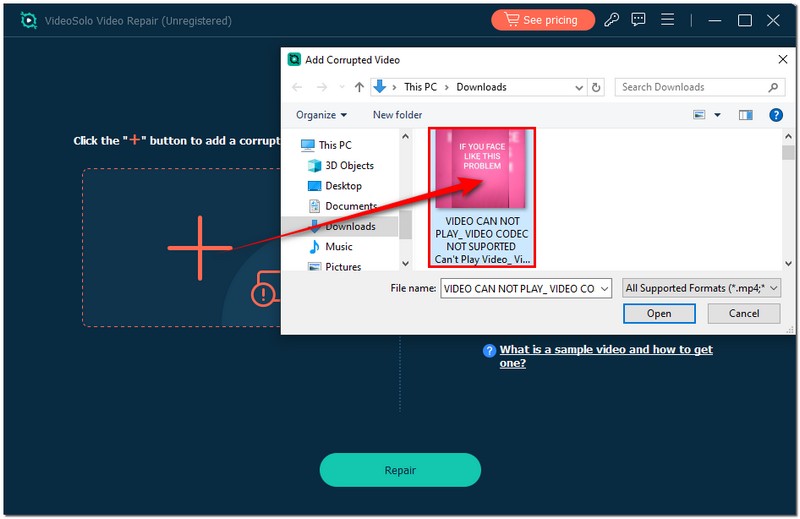
Step 1. Download and launch VideoSolo Video Repair on your desktop. Add the corrupted video that shows the audio codec not supported error.
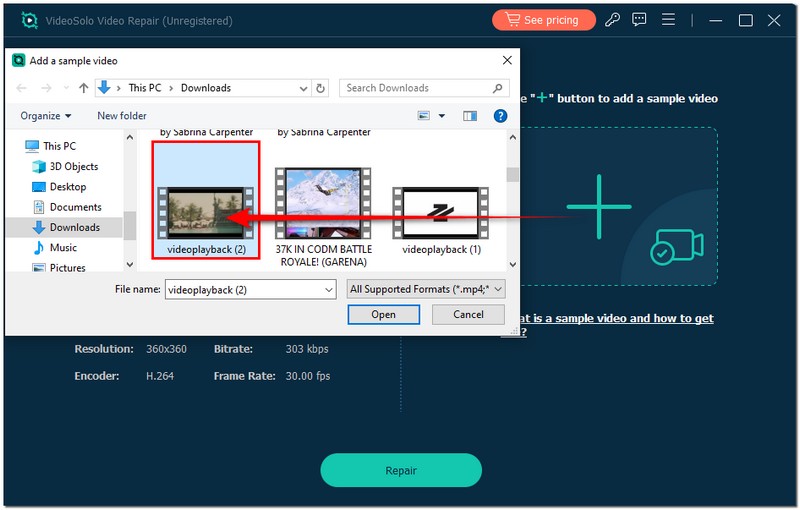
Step 2. Upload an example video from the same device to help the software analyze the correct encoding.
Step 3. After selecting the Repair option, watch for the procedure to finish.
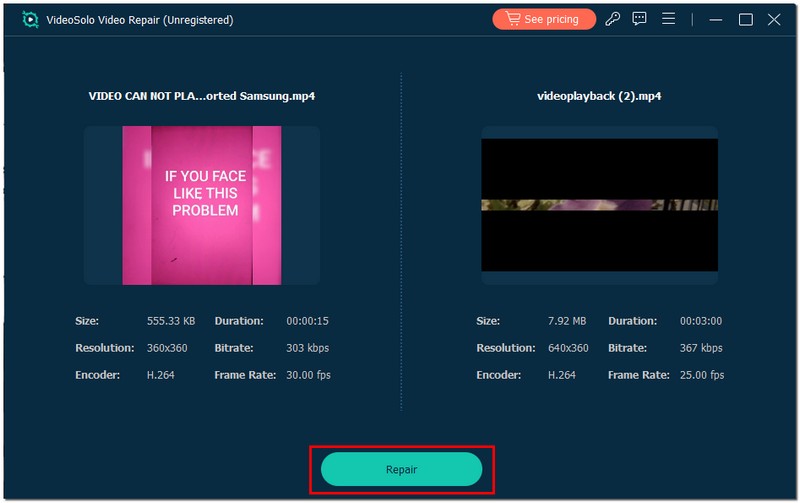
Step 4. Once done, preview and save the repaired video to check if the audio plays properly.
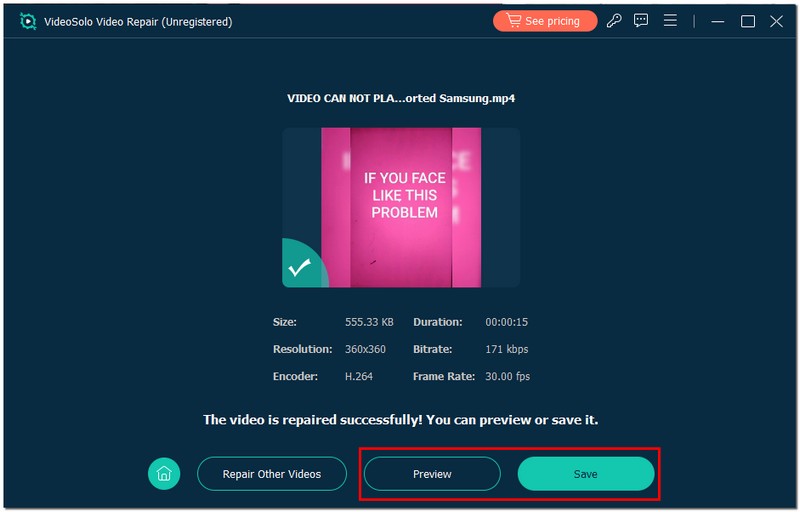
With this quick fix, you can easily restore your video’s sound and resolve no audio on videos, especially if you’re facing the audio codec not supported error on your Samsung phone.
Fix 2. Reinstall the Audio Codec Pack
If your device displays the "can’t play audio codec not supported" error pop-up, it may be due to a lack of necessary audio codecs on your system or their outdated status. Audio codecs are essentially translators for the code, enabling your device to play and understand the audio formats correctly. When it is missing or the codec is corrupted, it may play audio with no sound or not play at all. All you need to do is reinstall or update your audio codec pack. You can download a reliable codec pack such as K-Lite Codec Pack. These contain a wide range of audio and video codecs compatible with most formats.
Here’s how to do it
Step 1. Visit the website of K-Lite Codec Pack or another reliable codec provider.
Step 2. Get the most recent version that works with your macOS or Windows computer. Follow the on-screen directions to install it.
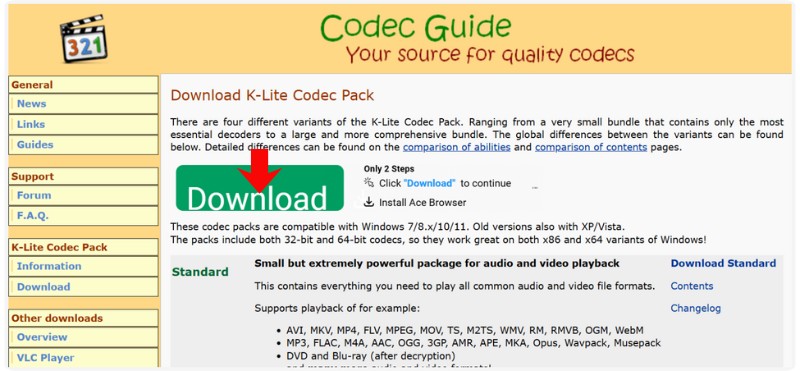
Step 3. Try playing your video again after restarting your computer.
Fix 3. Convert the Video to Another Format
If your video consistently presents the "audio codec not supported" message, it could be that your media player or device does not support the audio codec format in the video file. The most effective way to resolve this issue is to convert the video into a format compatible with a reliable video converter. It will convert the audio codec to a readable format that your device recognizes, typically AAC or MP3. This is a good option if you prefer not to install the codec pack or perform extensive troubleshooting on your system.
Here’s how you can do it
Step 1. Open a reliable video converter like Aiseesoft Video Converter Ultimate. Import the video file that displays the "audio codec not supported" message.
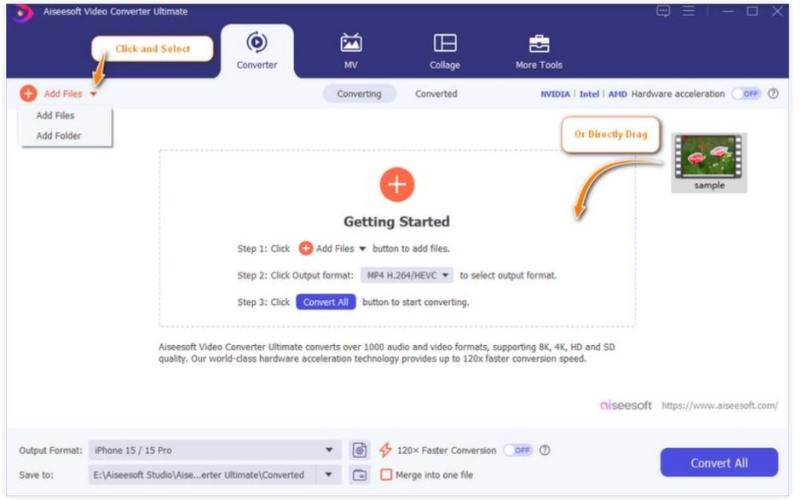
Step 2. Choose a widely compatible format, MP4 (H.264 + AAC).
Step 3. Click Convert and wait for the process to complete. After that, play the converted video on your device.
Fix 4. Use VLC to Fix the Video File
VLC Media Player isn’t just for watching videos, but it can also help repair files that cause the "audio codec not supported" error. Its built-in tools can detect minor corruption or mismatched codecs and fix them automatically, making your video playable again.
Step 1. Open VLC Media Player on your computer. Go to Media and click Convert / Save.
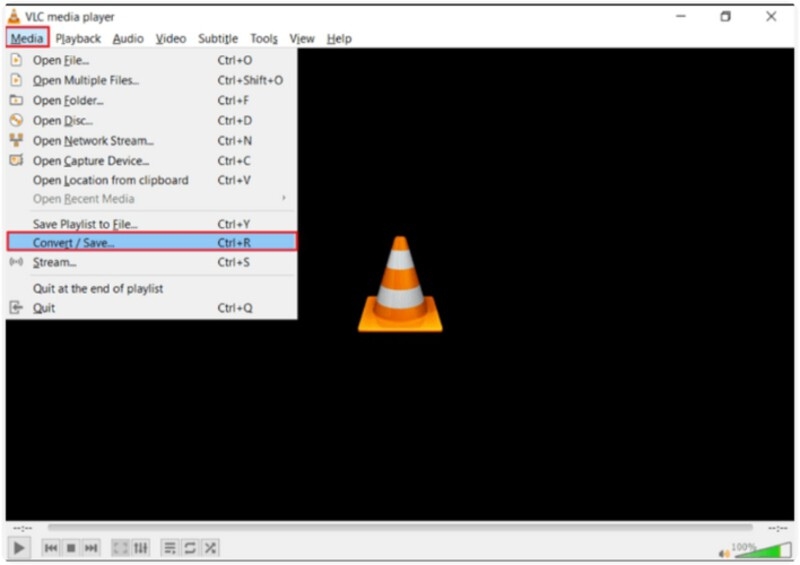
Step 2. Click Add and select the video with the audio issue.
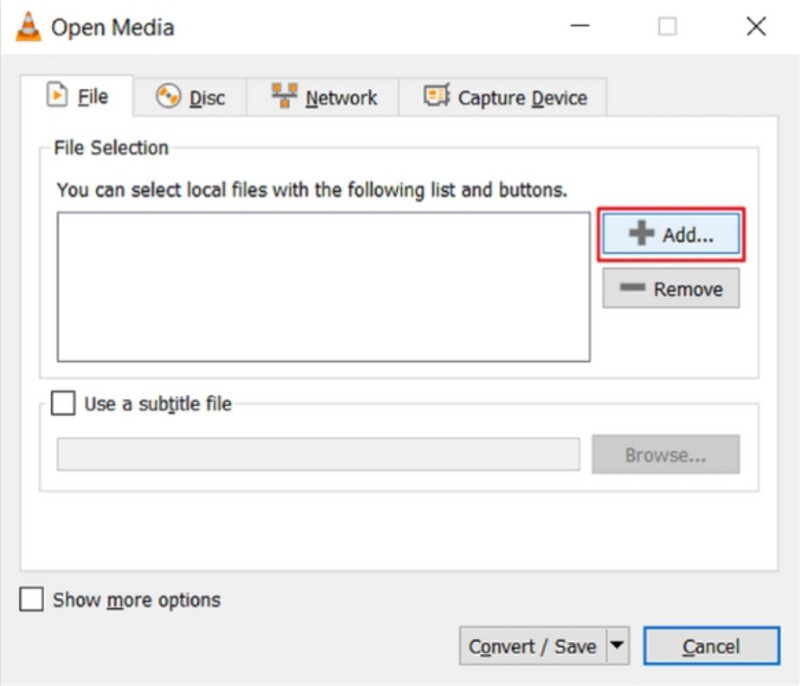
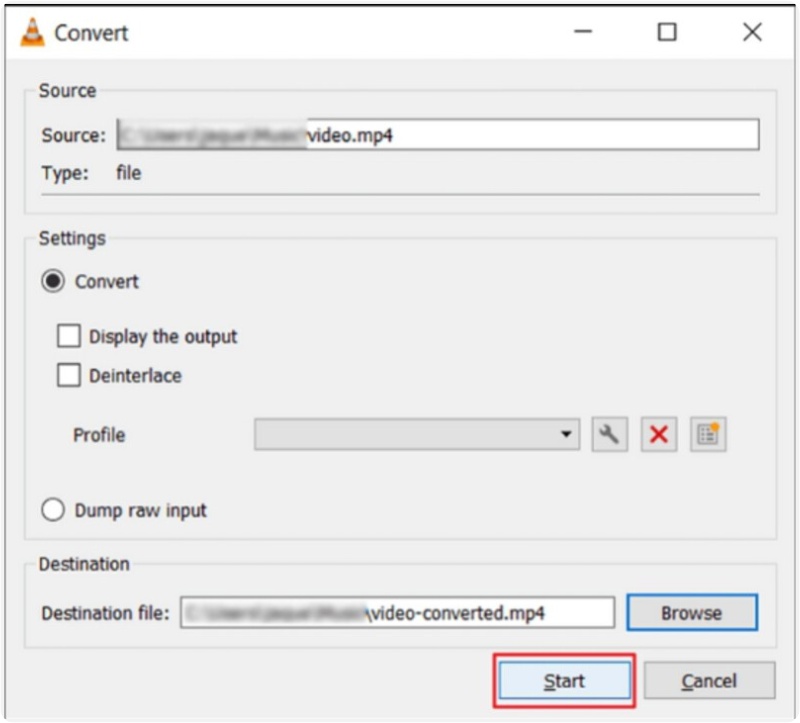
Step 3. Click Convert / Save, then choose a compatible output format like MP4 with AAC audio.
Step 4. Start the conversion and wait for VLC to process the file. Play the new file to confirm the audio is working correctly.
Fix 5. Update or Reinstall the Audio Driver
Sometimes, the audio codec not supported error occurs because your device’s audio driver is outdated, missing, or corrupted. Updating or reinstalling the driver ensures your system can properly decode and play different audio formats.
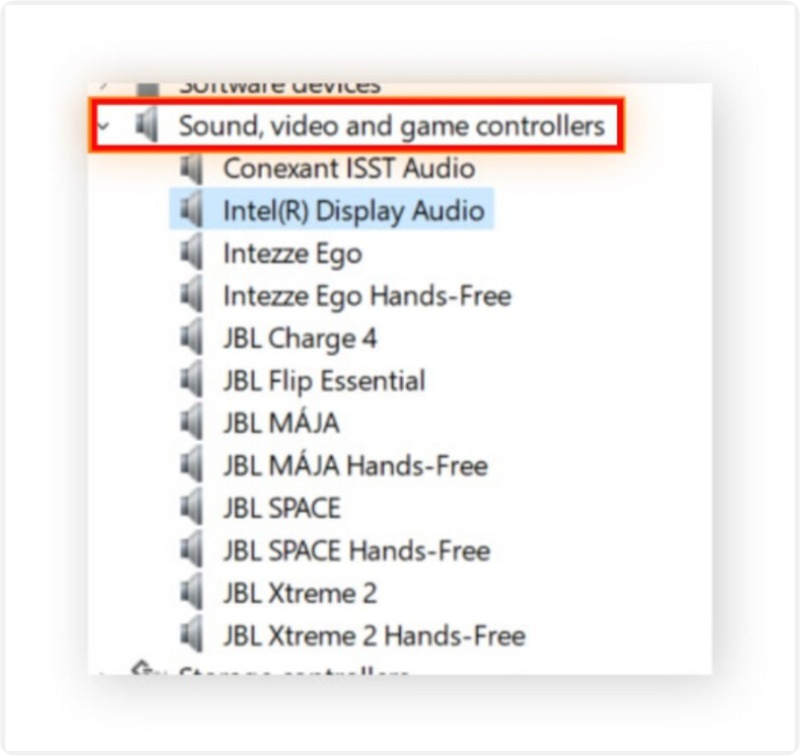
Step 1. Press Windows + X and select Device Manager.
Step 2. Extend the section on sound, video, and game controllers. To update the driver, right-click on your audio device and select Update.
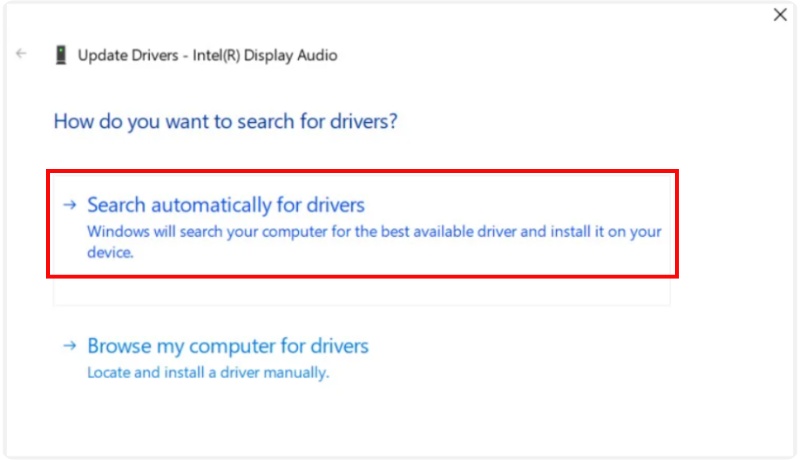
Step 3. Select Search automatically for drivers to let Windows find the latest version.
Step 4. If updating doesn’t work, right-click the device again and choose Uninstall device, then restart your computer. Windows will reinstall the driver automatically upon reboot.
Part 3. FAQs about Audio Codec Not Supported
How do I know which audio codec my video is using?
You can check it by right-clicking the file, selecting Properties, then Details on Windows, or by using a media player like VLC that displays codec information under Tools > Codec Information.
Why does the video play, but there’s no sound?
It usually means your video player can decode the video codec but not the audio codec. Converting the file to another format or updating your audio drivers should solve it.
How can I resolve the "audio codec not supported" issue on Android without using a PC?
You can install third-party video players like MX Player or VLC for Android, which support more audio formats than the built-in player.
Conclusion
You may undergo "audio codec not supported Samsung phone" error while transferring or playing videos at times. It often indicates that the audio format of the file is unsupported by the device you are using. That is, there is not necessarily a problem with the video itself, and you can manually get it working properly again with the right fixes. Solutions include changing the video format, updating the audio drivers, or using a video repair tool like VideoSolo Video Repair. Whatever solution you apply, either alone or in combination. The clips will play smoothly without loss of sync or jitters.
More Reading

Repair your damaged, unplayable videos with multiple mainstream formats like MP4, MOV, 3GP, etc.

