



 Download VideoSolo Player For FREE!
Blu-ray technology was created as the next step after DVDs, offering higher storage capacity, better picture quality, and improved sound. While Blu-ray discs deliver high-definition entertainment, many households still own large DVD collections. This raises a common question: can Blu-ray players play DVDs without compatibility issues? In most cases, Blu-ray players are designed with backward compatibility, allowing them to read and play standard DVDs. However, factors such as region codes, disc formats, and player specifications can affect performance. Understanding how Blu-ray and DVD compatibility works helps ensure you can enjoy both newer high-definition discs and your existing DVD library.

Part 1. Can Blu-ray Players Play DVD
If you’ve just upgraded your home setup, you’re curious about how Blu-ray players play DVDs, or do you need to keep your old DVD player too? Good news! In most cases, you’re completely covered. The best blu-ray players come with the feature of backward compatibility so that they can easily read and play the standard DVDs that have been used for a long time. Hence, if you are wondering whether Blu-ray players can play DVDs or not, the straightforward and brief answer is definitely yes.
Here’s what that means for you:
- • You can keep watching your existing DVD collection.
- • No need for two separate players in most setups.
- • The player automatically detects whether you inserted a Blu-ray or a DVD.
- • Just check the region code if a disc doesn’t play.
For most people, a Blu-ray player works as an easy all-in-one upgrade without making your DVDs obsolete.
Part 2. How to Play a DVD in a Blu-ray Player
So you’ve got your player ready and a stack of old movies sitting nearby. Maybe you’re still wondering, can you play a regular DVD in a Blu-ray without doing anything complicated? Yes! It’s actually very simple.
Here’s exactly what to do:
Step 1. Turn on your Blu-ray player and TV.
Step 2. Insert the DVD in a Blu-ray player just like you normally would.
Step 3. Wait a few seconds while the player reads the disc.
Step 4. Use your remote to press Play if it doesn’t start automatically.
That’s it. No special settings. No extra cables.
If the movie doesn’t start, double-check the disc for scratches or make sure the region code matches your player. But in most cases, it works right away with a smooth and hassle-free.
Part 3. How to Play a DVD or a Blu-ray on a Computer [Bypass Region Limits]
If you’ve ever dealt with region errors, you already know how confusing disc compatibility can be. People often ask things like does Blu-ray play DVD or will blu ray play on a regular DVD, especially when a movie refuses to load. Using a computer gives you more control, and that’s VideoSolo Player isn’t just a basic media player. Besides managing DVD and Blu-ray playback, it is capable of effortlessly reading discs even if they are region-locked. Additionally, it supports troubleshooting image freeze, video lagging, and similar issues through optimization of playback performance and decoding technology. Hence, you won't see an error message but enjoy the movie without any trouble.
 Features
- Supports both DVD and Blu-ray disc playback
- Bypasses most region restrictions
- Delivers HD and lossless audio quality
- Smooth playback with advanced decoding technology
- Allows subtitle and audio track customization
Step 1. Initially, grab the setup file of VideoSolo Player from the official site and install the software on your computer. Run it after the installation.
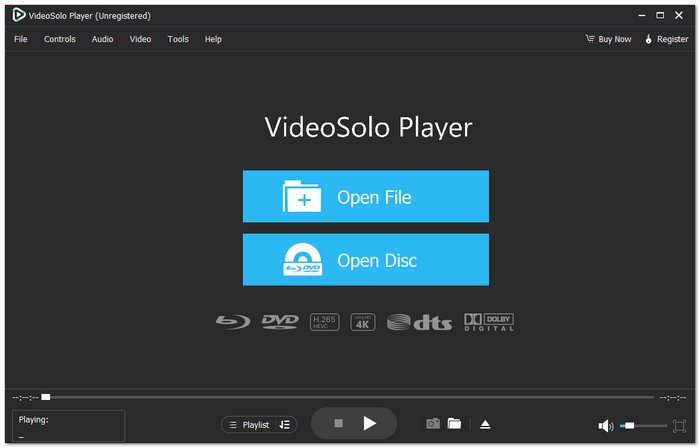
Step 2. After that, place your DVD or Blu-ray disc in the drive of your computer, be it internal or external. Wait a few seconds for the system to recognize the disc.
Step 3. Next, in the application, choose the option Open Disc and then pick the disc you have inserted. The software will look for the disc content and load it.
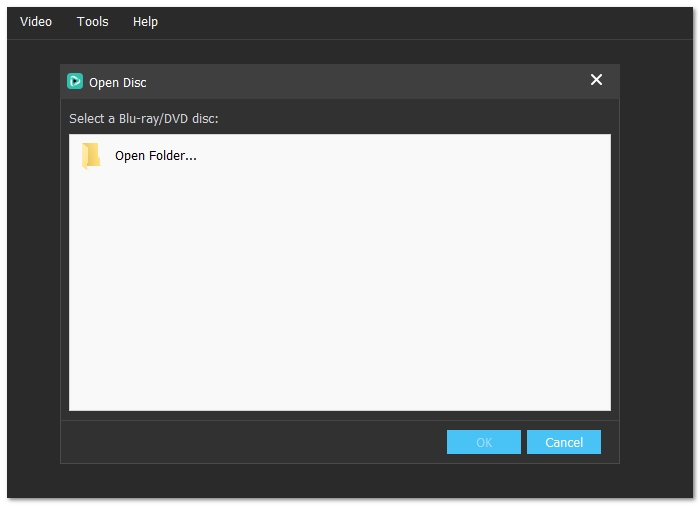
Step 4. When the menu is shown, just click Play to watch the film. You are free to change the subtitles, audio tracks, and display settings even while the movie is playing.
VideoSolo blu-ray player is one of the best convenient region-free Blu-ray player. One of the benefits of using a computer with suitable software for this task is that it becomes very convenient to watch the region, locked discs, and you are spared from compatibility issues.
Part 4. How to Play a DVD or a Blu-ray on a Computer [With Region Limits]
Occasionally, there is no need to bypass anything; you simply wish to use your disc in a regular way. If your DVD or Blu-ray corresponds to your computer's drive region, you can easily utilize built-in or free media players. The method is most effective when the disc and the drive have the same region code, and there are no encryption issues.
Here are two popular programs for reference.
Method 1. VLC Media Player (Best for Free and Flexible Playback)
VLC is a free media player that supports a multitude of file formats. It can play DVDs very well and also some Blu-rays as long as they are not heavily encrypted.
Step 1. To access VLC, is to go through the download and installation phase from the official VLC website.
Step 2. After setting up the software, open it and load the DVD or Blu-ray in your computer drive. To open the disk, go to the Media menu.
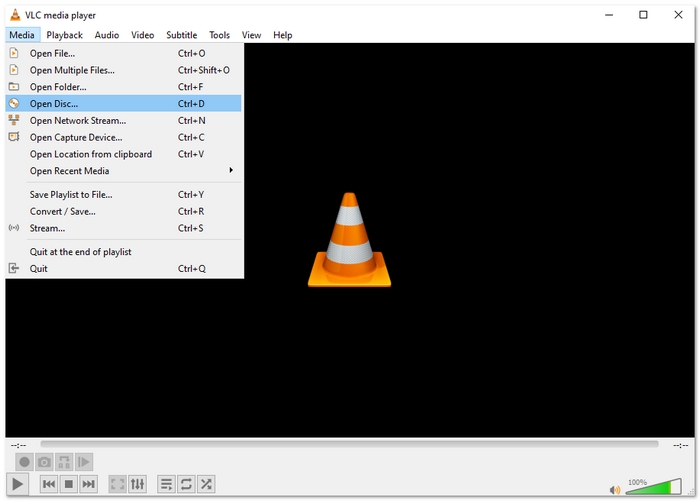
Step 3. Select Open Disc. Mark either DVD or Blu-ray, check the correct source of the disc, and finally hit Play. Your movie should run smoothly only if the region code is the same.
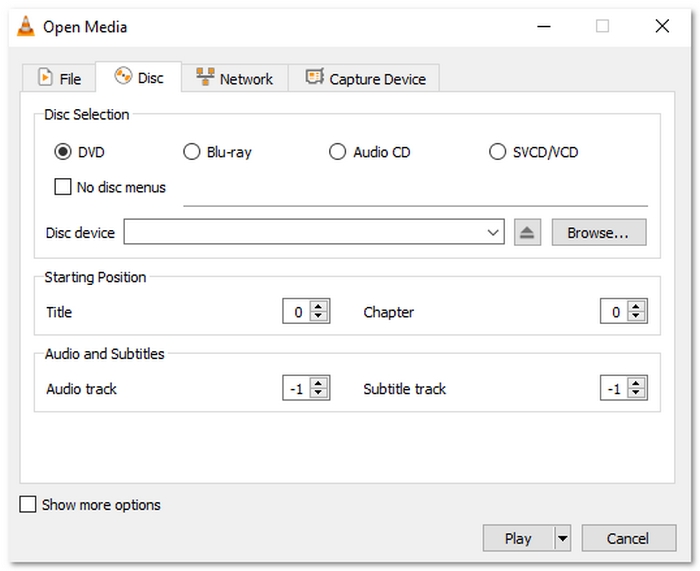
It is worth noting that, by default, VLC does not work on certain protected Blu-ray discs without some further settings.
Method 2. Windows Media Player (Best for Basic DVD Playback on Windows)
Windows Media Player comes pre-installed on many Windows computers and is ideal for standard DVDs that have the same region code.
Step 1. Put your DVD in the disc drive. After that, launch Windows Media Player.
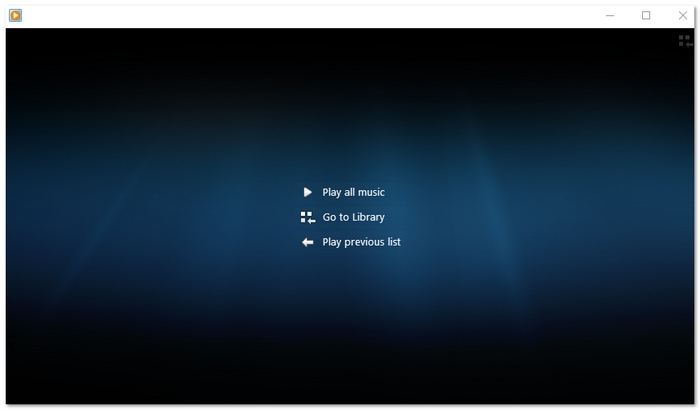
Step 2. Your DVD should be visible in the navigation pane.
Step 3. Just click on it, and it should start playing automatically. If it doesn't, just highlight the disc and hit Play.
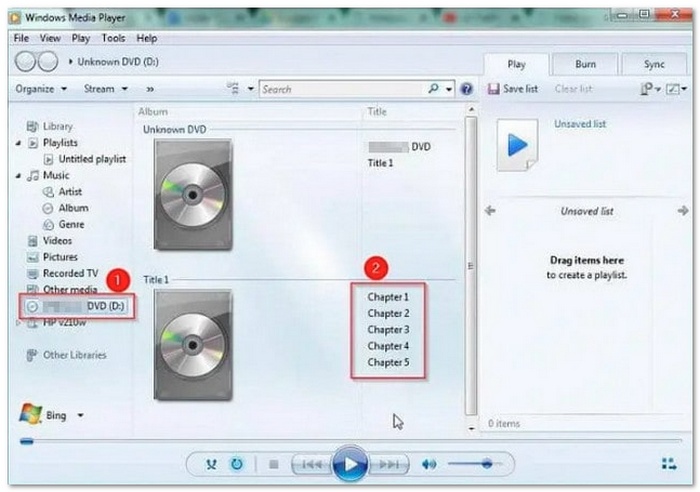
It should be noted that Windows Media Player does not have native support for Blu-ray playback, so it is mainly useful for DVDs.
Part 5. Tips: Why DVD Players Can't Play Blu-ray
The matter of DVD players being able to play Blu-ray discs is probably the most frequently asked question. To briefly put it, the answer is NO, and this is mainly because of the difference in technology.
Reasons:
Laser Technology
- • Since Blu-ray discs can store a great deal of data than DVDs, a different laser is needed to read them. A blue laser with a shorter wavelength is used by Blu-ray players, whereas DVD players produce a red laser.
- • Due to this hardware incompatibility, a standard DVD player cannot physically read Blu-ray discs.
Format and Encryption
- • Blu-ray discs have more recent video codecs and a more robust copy protection system. The older DVD players are not equipped to manage these formats or encryption methods.
Blu-ray DVDs on a regular DVD player
- • If you are thinking about playing Blu-ray DVDs on a regular DVD player, the short answer is no as well due to the same reasons.
Solutions:
Upgrade to a Blu-ray player
- • Most Blu-ray players nowadays are backward compatible, which means that they can play both Blu-ray and DVDs.
Use a Blu-ray drive on a computer
- • Simply combine it with compatible playback software to watch Blu-ray discs.
In a nutshell:
- • This limitation isn't a setting you can change. It's a hardware difference. Hence, the only real way is to upgrade your player.
Conclusion
At first, one might think that Blu-ray and DVD are two formats competing against each other, and a lot of people ask, do Blu-ray players play DVDs? Blu-ray players are backward compatible, so you can get the best of both high definition content and your good old DVDs that you have been using for years. By properly configuring your software, region settings, and playback options, you can get rid of the most common problems and enjoy your media collection in the best way possible. Ultimately, compatibility is not just a matter of convenience, but it is also a matter of preserving your cherished memories while moving on to the HD era.
More Reading

Play your videos/music in 100+ formats and region-free DVDs/Blu-rays with 4K and Dolby Atmos experiences.

