



 Download Video Repair For FREE!
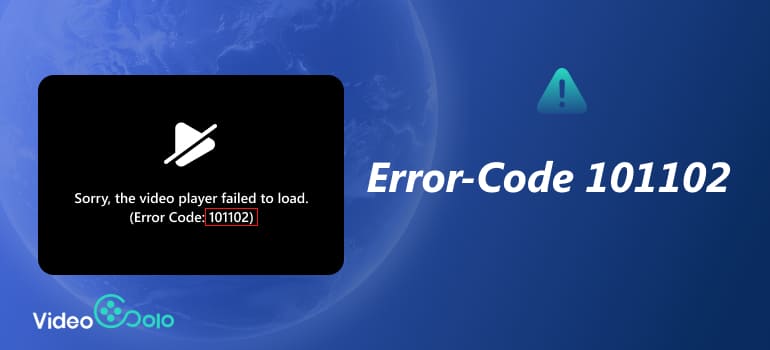
You’re watching a video online, and suddenly, your screen freezes with a dreaded message: "Error Code 101102." This common playback error can appear on streaming platforms, embedded videos, or even self-hosted media players. It often signals a problem with your browser, Flash player, or the video source itself.
However, you don’t need to be tech-savvy to fix it. In this guide, we’ll explain what 101102 error code means, why it happens, and how to solve it quickly. We’ll also show you how to repair damaged video files that may trigger similar playback errors using VideoSolo Video Repair — a professional AI-powered tool designed for seamless video recovery.
Part 1. Everything You Should Know about Error Code 101102
Error code 101102 in Chrome is a video playback error typically associated with media streaming services or websites that use Flash or HTML5 video players. It indicates that the browser or media player failed to load or play a video properly.
Common Causes:
• Outdated browser: Older versions of Chrome, Firefox, or Edge may not support the latest video codecs.
• Corrupted browser cache or cookies: These can interfere with how a video loads.
• Faulty or outdated Flash Player: If you’re watching older embedded videos, Flash Player compatibility might be the issue.
• Network interruptions: Unstable or restricted connections can block video playback.
• Temporary system or browser bugs: Occasionally, minor glitches can trigger error 101102 without any serious cause.
In short, this error code 101102 video player chrome is often related to browser environment or media decoding issues, not necessarily the video file itself — but as we’ll see later, a corrupted file can sometimes be the hidden culprit.
Part 2. How to Fix Error Code 101102
Try Another Browser
Sometimes, similar to 0xc00d5212 error, the 101102 error code occurs because your browser isn’t rendering the video correctly. If you’re using Chrome, try switching to Firefox, Edge, or Safari. Different browsers handle video codecs differently — switching can bypass incompatibility problems instantly.
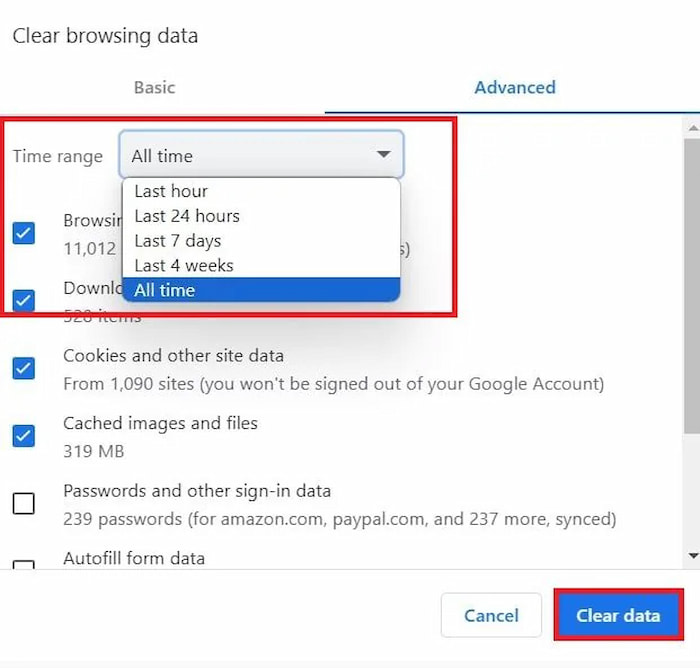
Clear the Cache and Cookies
A cluttered browser cache often causes video errors. Here’s how to clear it quickly:
Chrome: Go to Settings → Privacy and security → Clear browsing data → Cached images and files.
Firefox: Open Settings → Privacy & Security → Cookies and Site Data → Clear Data.
Edge: Navigate to Settings → Privacy, search, and services → Clear browsing data.
After clearing, restart your browser and try reloading the video.
Reset Your Browser Settings
If clearing cache doesn’t help, reset your browser to default. This removes conflicting settings or hidden extensions.
Chrome: Settings → Reset settings → Restore settings to their original defaults.
Firefox: Help → More Troubleshooting Information → Refresh Firefox.
Edge: Settings → Reset settings → Restore settings to default values.
Note: Resetting won’t delete bookmarks or saved passwords, but it will remove custom extensions and themes.
Update or Reinstall Flash Player
Error code 101102 sometimes links to Flash-based players, especially on older sites. Though Adobe officially discontinued Flash, some legacy platforms still rely on it.
• Check if your browser still supports Flash (some don’t).
• If necessary, reinstall an HTML5-compatible media player or use a video download + offline player tool instead.
If the error persists even after these steps, the problem might not lie in your browser or connection — it could be the video file itself.
Part 3. Extension: How to Fix a Damaged Video File with 101102 Error Codes
When a video file is corrupted, playback errors codes like 101102, 102630, or 233011 can pop up regardless of browser settings. That’s where VideoSolo Video Repair comes to the rescue.
VideoSolo Video Repair is an AI-powered desktop software designed to repair corrupted, unplayable, or damaged videos in just a few clicks. Whether your video got interrupted during download, transfer, or editing, this tool can bring it back to life — no quality loss.
Features
• Repairs videos from any camera, phone, or platform (MP4, MOV, AVI, etc.)
• Handles playback errors, codec issues, freezing, or missing frames
• Supports batch repair for multiple files at once
• Offers a preview function before saving the repaired video
Steps
Step 1. Click the section on the left and upload your damaged video.
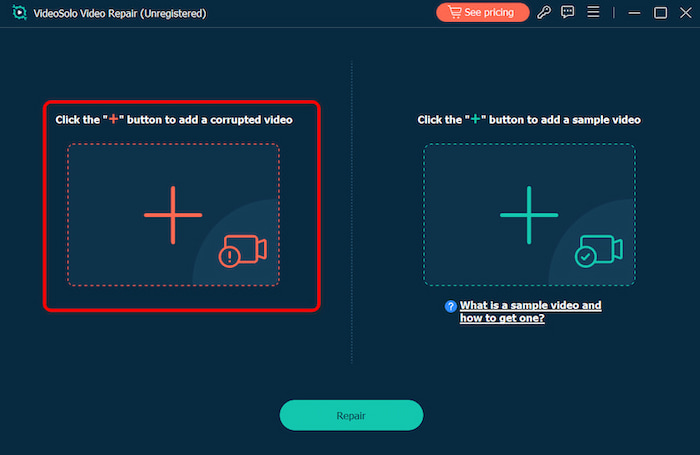
Step 2. Upload a sample video to help the app fix your video. The target video will keep its resolution and framerate the same as the sample video.

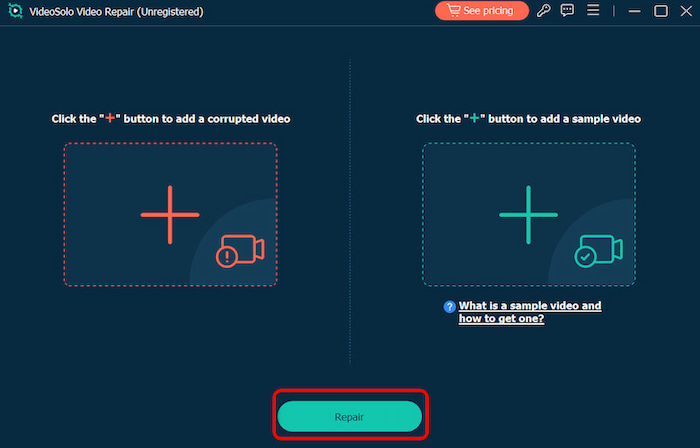
Step 3. Click Repair to start repairing.
VideoSolo Video Repair brings the best effect in AI fixing choppy videos with intuitive interface, suitable for both beginners and professionals.
Part 4. FAQs about Error Code 101102
Is Error Code 101102 a serious problem?
Not necessarily. It’s usually caused by browser or cache issues, not by your computer’s hardware.
My videos still won’t play — could they be corrupted?
If multiple browsers fail to play the same file, yes, the video might be damaged. Try using VideoSolo Video Repair to restore it.
Can I fix it without reinstalling my browser?
Yes. Clearing the cache, disabling extensions, or trying another browser often works.
Conclusion
Error Code 101102 can be frustrating, but it’s far from fatal. In most cases, a quick cache clear, browser reset, or Flash update solves the issue instantly. However, if you’ve tried every fix and the video still won’t play, the file itself might be corrupted — and that’s when VideoSolo Video Repair steps in. This AI-driven repair tool restores videos that seem lost for good, helping you recover precious memories or essential work footage with ease.
So, next time you see "Error Code 101102," don’t panic — follow these steps, and your video will be back up and running in no time.
More Reading

Repair your damaged, unplayable videos with multiple mainstream formats like MP4, MOV, 3GP, etc.

