



 Download VideoSolo Player For FREE!
Getting a DVD to play on your computer can feel tricky now. Most new laptops skip the disc drive entirely. Even when one is included, the preinstalled video app might not handle DVDs at all. People end up unsure: should they install something new, buy an external device, or convert the disc into digital files instead? This piece answers those questions plainly. Its goal is straightforward: to show easy ways on how to play DVDs on a laptop that anyone can follow. Each approach fits different needs. By the end, confusion fades. A path forward becomes obvious. Watching old discs again becomes possible.
Can I Play a DVD on my Laptop
Chances are, you’ve wondered whether your old DVDs will play on a laptop. Yes, they can, provided the machine allows it. A few laptops still ship with drives inside them. Others skip this feature entirely, leaving room for add-ons or programs instead. Without the right setup, spinning a disc feels pointless. At first, confusion hits when nothing loads after inserting a movie. Playback often stalls unless the correct player is installed.
How do I play a DVD on my laptop? Start by looking at the laptop. Does it have a slot for discs? When there is no built-in option, plug in a separate disc unit that connects through a port. Another path involves setting up software made for handling DVDs, something steady and straightforward. Or shift the whole thing into a format stored in files instead of plastic circles. Bottom line, it works just fine when matched with what the computer already allows. The way forward changes depending on which tools are ready to go.
Method 1. Use DVD Players
A fresh take on playing DVDs often begins with picking suitable software. Rather than stress over device limits or tangled configurations, a fitting media tool handles the task without delay, solving how can I play a DVD on my laptop fast. The right software means slipping in a disc, navigating menus like before, watching clearly, almost instantly. Here come several trusted choices worth trying.
1. VideoSolo Player – Best DVD Player for Laptop
Finding a solid way to play a DVD on a laptop? VideoSolo Player stands out without trying too hard. This tool focuses only on DVDs and Blu-rays. Nothing else gets in the way. Menus work just like they should. The picture stays sharp throughout. Most regular apps struggle here, but this one doesn't skip steps. Built from the ground up for discs, so things run smoother than usual.
 Features
- Full DVD menu support
- High-quality video and audio playback
- Supports DVD folders and ISO files
- Easy navigation controls (subtitle, audio track, chapters)
Steps to Use VideoSolo Player
Step 1. Download and install VideoSolo Player on your laptop. Insert your DVD into the built-in or external DVD drive.
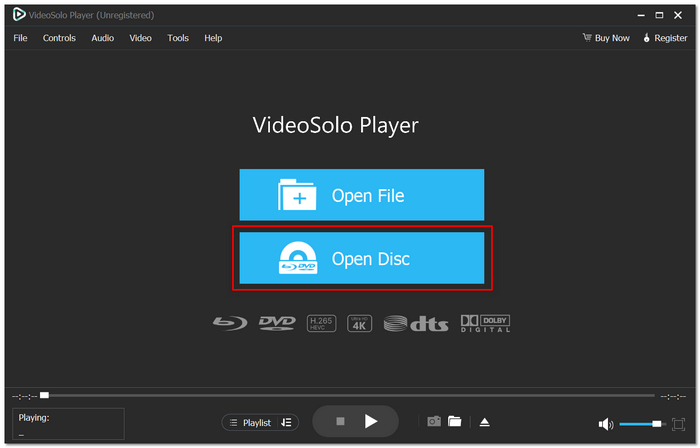
Step 2. Launch the program and click Open Disc.
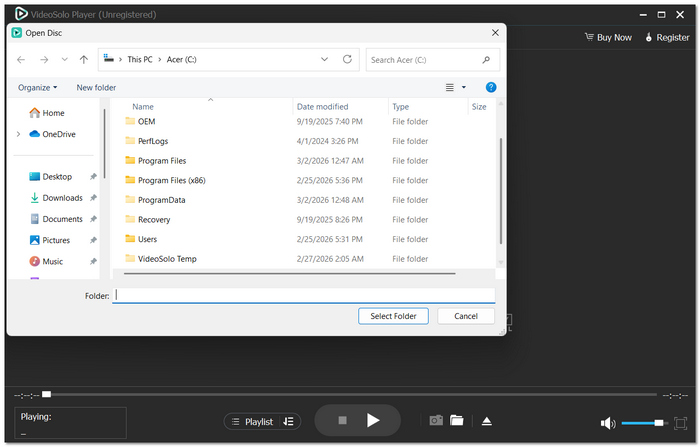
Step 3. Select your DVD and click OK. Use the menu controls to play, pause, or choose chapters.
Using Experience
Smooth moves right out of the box, VideoSolo Player keeps things light on the eyes. A clutter-free layout guides you through each step. Playback holds steady, never hiccuping mid-scene. Those tired of wrestling with menus often find it a quiet relief when popping in an old DVD.
2. VLC Media Player – Best Free DVD Player for Laptop
One reason users like VLC Media Player? It handles nearly every kind of video file. This tool works well even when others fail, especially with discs. Curious about how to play DVDs on an HP laptop? The answer often points here. Most formats run smoothly right out of the box. No added software needed, just open and go. Free to use, yet packed with quiet power behind its simple look.
Step 1. Download and install VLC Media Player on your HP laptop. Insert the DVD into your laptop’s DVD drive (or external drive).
Step 2. Open VLC and go to Media and click Open Disc.
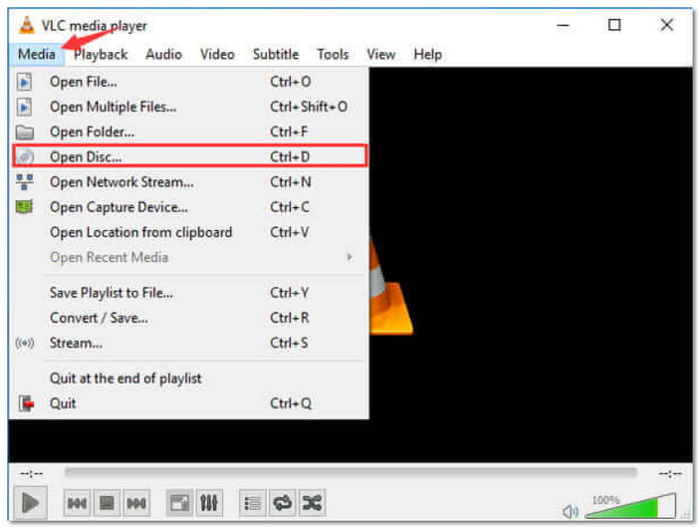
Step 3. Select the DVD and choose the correct drive letter.
Step 4. Click Play to start watching your DVD.
Using Experience
Playing DVDs with VLC feels natural. Its layout stays clean, yet gives quick control over captions, sound choices, plus moving between sections. Though the menus look less refined than commercial options, it works well without cost and runs steadily across laptops.
3. Windows Media Player – Best Built-in DVD Player for Laptop
Windows Media Player is a default media player on most Windows laptops, making it a convenient choice if your DVD is not playing on your laptop. Functionality covers essential playback straight out of the box, yet deeper tools might feel missing next to specialized alternatives.
Step 1. Insert your DVD into your laptop’s built-in or external DVD drive.
Step 2. If autoplay is enabled, the DVD should start automatically. If not, go to File and click Open DVD.
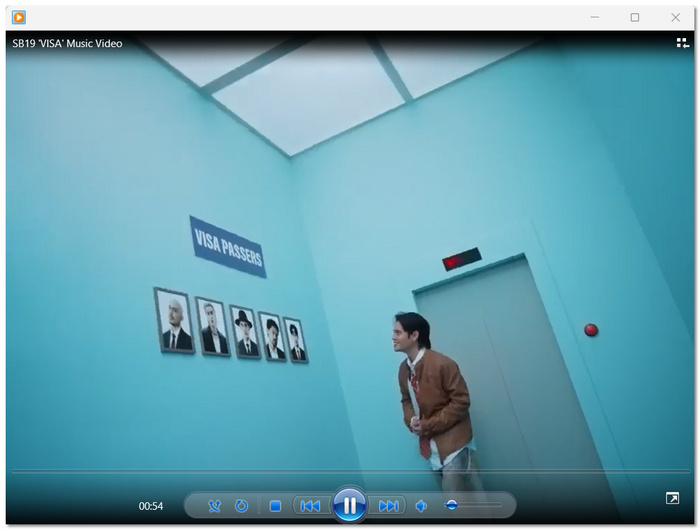
Step 3. Use the on-screen controls to play, pause, skip chapters, or adjust settings.
Using Experience
Watching DVDs can be simple with Windows Media Player. Yet sometimes it skips certain disc types or fancy menu options. Even so, popping in a movie for fast playback goes smoothly. Built right into the system, no new apps needed, which helps when you just need something now. It does the job quietly, without fuss, if your needs stay basic.
4. PowerDVD – Best Premium DVD & Blu-ray Player for Laptop
Right there on your computer, PowerDVD brings movies to life with sharp visuals and rich sound. When the goal is watching DVDs smoothly while getting top-tier clarity, this software steps up without slowing down. Instead of settling for basic players, many turn here for deeper immersion. Picture crisp scenes filling the display, backed by surround-style audio. For those who want more than standard playback, it opens a window into something closer to real theaters.
Step 1. Grab PowerDVD first, put it on your laptop later. Installation follows once the file lands on your device.
Step 2. Finding the slot? Slide the disc gently until it clicks inside the machine's tray, or you can use an external drive instead.
Step 3. Start PowerDVD first. Pick the DVD drive inside the media movies section. Then click the Discs.
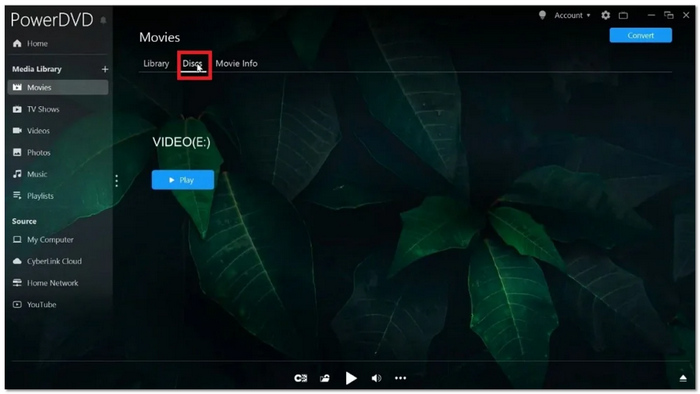
Step 4. Play when ready for the film to begin.
Using Experience
Smooth visuals stand out right away with PowerDVD. Its layout feels fresh and simple to move through. Crisp output sets it apart from simpler apps. Cost comes into play. This one requires payment. Yet those after strong tools and speed while playing discs will find it fits well. A solid pick lands here for detail, focused viewers.
Method 2. Convert DVD to Digital Format
A different option lets you view DVDs on your computer by turning discs into digital copies. Ripping the content into file types such as MP4 or MKV means playback happens straight from storage. Without requiring any physical drive, this approach suits machines missing an optical unit. People who keep films saved online often find it simpler to locate and start viewing.
1. VideoByte DVD Ripper – Best for Fast and High-Quality DVD Conversion
A spinning disc becomes a file fast with VideoByte DVD Ripper, built for turning physical media into something you can stream anywhere. Because it handles many types of outputs, moving films to a phone, tablet, or computer feels effortless, no optical drive required down the line.
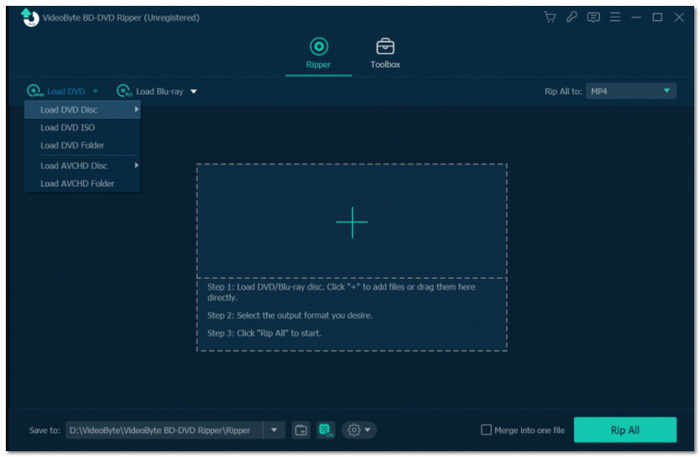
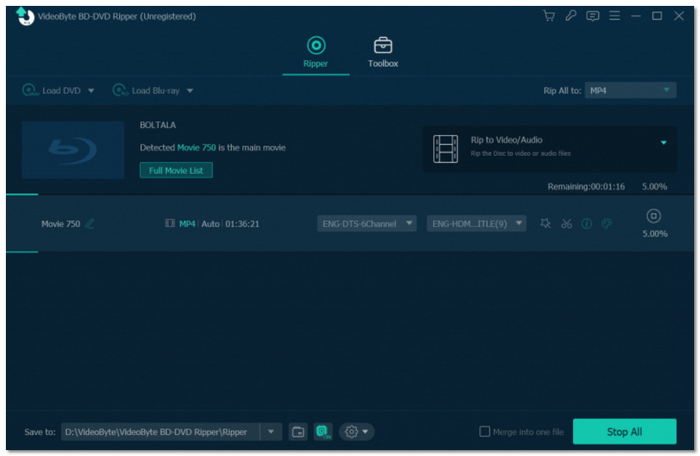
Step 1. Install and open VideoByte DVD Ripper on your laptop. Click the Load DVD Disc under the Load DVD to import your inserted DVD.
Step 2. After scanning, choose the movie title or specific chapters you want to convert and click the Format icon. Select a preset under the Video category.
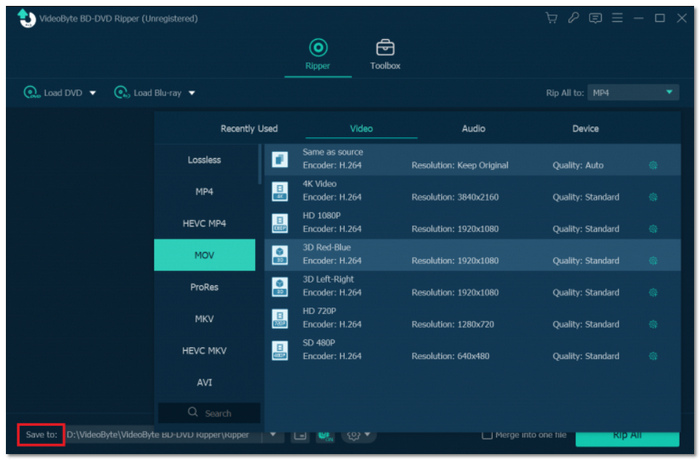
Step 3. Adjust optional settings like resolution or bitrate if needed.
Step 4. Click Rip All to begin ripping your DVD to a digital file.
Using Experience
Starting fresh with VideoByte DVD Ripper feels natural, even if you have never tried such a tool before. Its layout stays uncluttered, yet every button has a purpose that makes sense after one glance. Speed shows up right away once you begin converting, no waiting around for progress bars to crawl forward. Picture sharpness holds steady throughout each file, showing off crisp motion instead of blurry messes on screen. Anyone pulling old discs out of storage will find that this handles the job while skipping confusing menus altogether.
2. WinX DVD Ripper – Best for Backing Up and Copy-Protected DVDs
WinX DVD Ripper is a popularly DVD conversion software that can digitize discs very fast, even the ones with copy protection. It makes perfect sense if you want a versatile solution to the problem of how to play DVDs on a laptop without a physical drive every time.
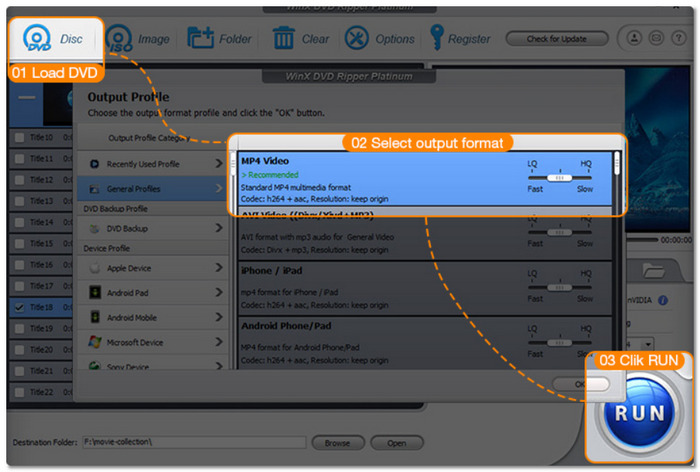
Step 1. Launch WinX DVD Ripper after installation. Choose DVD Disc, ISO Image, or Folder from the startup screen.
Step 2. Once the DVD content loads, select an output profile from the pop-up window and choose the destination folder where you want to save the file.
Step 3. Click Run to begin the ripping process.
Using Experience
WinX DVD Ripper has a clear and straightforward interface. Without tweaking technical settings, the preset profiles allow you to pick the right format quickly. The ripping speed is quite fast, and the converted file runs smoothly on most media players, so it's a handy option for DVD to digital conversion.
3. DVDFab DVD Ripper – Best for Advanced Customization and High-Quality Output
DVDFab DVD Ripper is practically packed with features that a normal DVD conversion tool wouldn't even have, and it is specifically targeted at those users who want to have complete control of their video output. Because it comes with top-notch editing features, a plethora of format options, and conversion at a great level of quality, it can be seen as a strong tool for users who are wondering how to play DVDs on a laptop without having to use a disc drive.
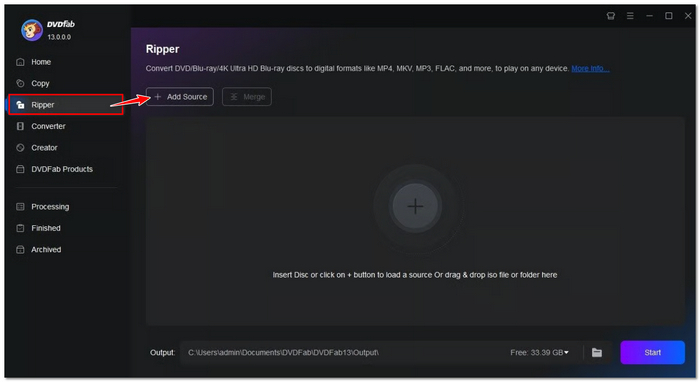
Step 1. Open DVDFab and switch to the Ripper module from the main interface.
Step 2. Click the Add Source or insert your DVD, and let the program automatically detect and load the disc.
Step 3. Click the profile selector and choose your desired output format or device profile.
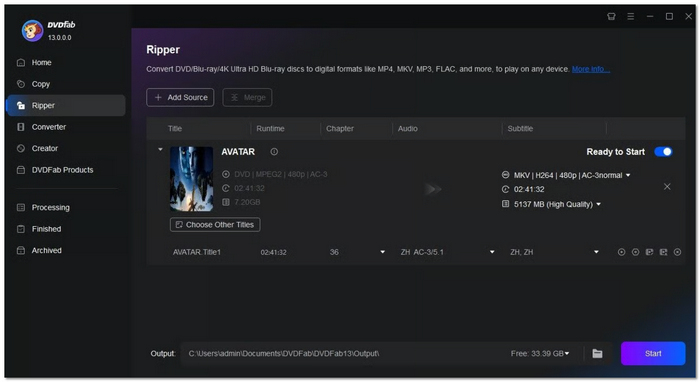
Step 4. (Optional) Use the Advanced Settings or Video Edit option to customize video parameters.
Step 5. Select the output directory at the bottom of the interface and click Start to begin converting the DVD into a digital file.
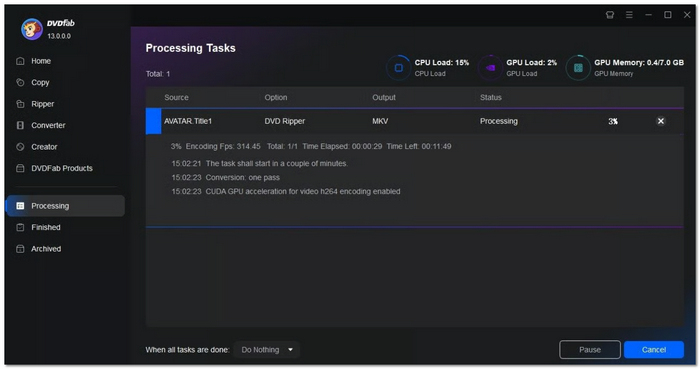
Using Experience
DVDFab DVD Ripper offers a more elegant and professional look, with the main modules well-organized and easy to find. The editing capabilities built in let users make a few quick video changes before their final export. You may feel like a little more 'techie' than if you were using a simple ripper, but overall, it is still very straightforward, and the final picture quality is great and very stable.
Method 3. Use an External DVD Player
As an alternative, an external DVD or Blu-ray player can be used if your laptop is not equipped with an internal DVD drive. This method results in reliable playback and excellent video quality even without the use of internal components. Here are a few dependable Sony players you may look at:
1. Sony BDP-S1700U Region Free Blu-ray Player – Best Budget External DVD/Blu-ray Solution
The Sony BDP-S1700U Region Free Blu-ray Player is a small and inexpensive external player that plays DVDs and Blu-ray discs. Being region-free, it can play discs from any region, which makes it perfect if you want to watch movies from different countries. The player features simple installation and dependable operation for laptops without an internal DVD drive.
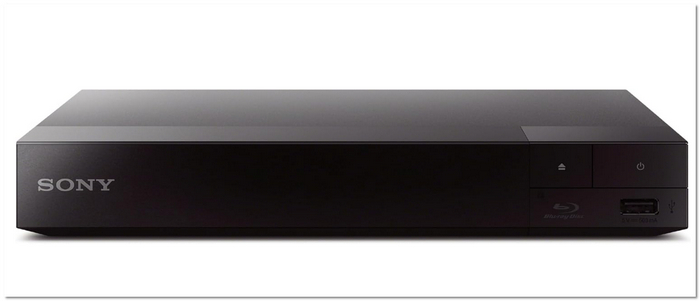
Using Experience
The Sony BDP-S1700U delivers smooth and consistent playback with minimal setup. Its straightforward remote control and clear on-screen menus make navigation easy, even for first-time users. Video and audio quality are solid for casual viewing, and the region-free capability adds versatility. While it doesn’t offer advanced smart features, it’s dependable for watching DVDs and Blu-ray discs on a laptop setup.
2. Sony UBP-X700M Region Free 4K UHD Blu-ray Player – Best Mid-Range External Player
The Sony UBP-X700M Region Free 4K UHD Blu-ray Player is a mid-level external player that is capable of playing DVDs, Blu-rays, and 4K UHD discs. This region-free DVD player allows you to use discs from any region without restrictions, and the 4K UHD compatibility provides stunning visual output, ideal when you want a high-end viewing experience even on your laptop.
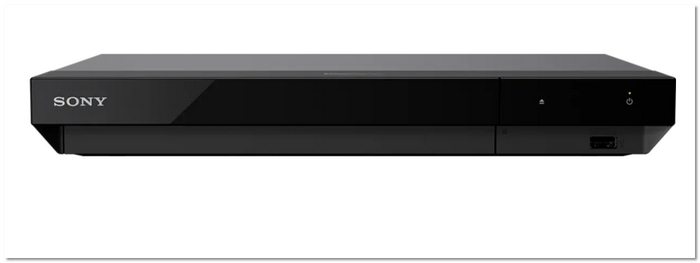
Using Experience
The Sony UBP-X700M provides smooth and sharp playback with very good video clarity, especially on 4K content. The UI is simple enough to be mastered quickly, and the device responds well even when loaded with high-res files. Thanks to the region-free feature, playing different types of discs, and the player never lost the signal. Although the price is higher than that of entry-level players, the extra quality and performance justify the purchase for people who are looking for better images and wider format compatibility.
3. Sony UBP-X800M2 Region Free 4K UHD Blu-ray Player – Best Premium External Player
Sony UBP-X800M2 Region Free 4K UHD Blu-ray Player is one of the premium external players that supports DVDs, Blu-rays, and 4K UHD discs. Thanks to the multi-region playback, it lets you watch movies from all over the world, and its excellent video and audio performance make it perfect for a high-quality viewing experience when connected to your laptop.
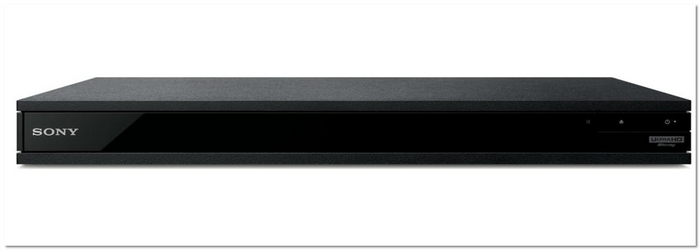
Using Experience
The Sony UBP-X800M2 produces an outstanding picture with vibrant colors and very smooth motion rendering, notably with 4K content. The interface is very straightforward, and the experience of moving around was quick and very natural. Thanks to the multi-region feature, discs from various regions played without any problems, and the player could easily handle both DVDs and Blu-rays. It's pricier than some other choices, but the improved performance and the high-end feel of the construction definitely justify the investment for those who crave the finest playback on their laptop setup.
Conclusion
Playing DVDs on a laptop is still doable even if it doesn't have a built-in drive. Depending on what you need, you can use software for playing DVDs, rip the disc to digital files, or plug in an external DVD drive. If you wonder how do I play a DVD on my laptop, the answer is just picking the way that fits your gadget and taste the most.
More Reading

Play your videos/music in 100+ formats and region-free DVDs/Blu-rays with 4K and Dolby Atmos experiences.

