

 Download Screen Recorder For FREE!
So you're thinking about how to record games on PC but don't really know where to begin. Well, to record the game on your computer, you have to render the game while encoding the video in the background all the time. Picking the best recording software will also let you keep your frame rates smooth and produce high-quality recordings while not overburdening your system. Throughout the article, I'll cover four ways to record reliably that might suit your preferences, give you a bit of insight into why and when each method is best, and what the ideal settings are that you can use to produce gameplay videos that you will consider smooth and look more professional.
- Part 1. Ultimate Way: Record Gameplay with VideoSolo Screen Recorder
- Part 2. Record Gameplay on PC with Xbox Game Bar [For Windows]
- Part 3. Record Gameplay on PC via OBS Studio [Open-Source]
- Part 4. Record Gameplay on PC with Insta360
- Part 5. Advanced Optimization Checklist for PC Games
- Part 6. FAQs on How to Record Gameplay on PC
Top 3 Picks
Gaming players may not all seek the same game recording software. While some may be obsessed with making their videos the top quality, those who prefer getting the whole workflow done within one platform or just want fine-tuning the capture may be on the other side. Based on aspects like ease of use, video recording performance, and flexibility in general, there are three of the best picks for me.
1. VideoSolo Screen Recorder - Best Overall
It is great for gamers as it can record smooth gameplay, allows for customizable settings, supports hardware acceleration, and can be used for long recording sessions with minimal performance impact.
2. Xbox Game Bar - Best Built-in Windows Recorder
Xbox Game Bar is for Windows 10 and 11 users who want to record gameplay fast and without installing any other software.
3. OBS Studio - Best Free Open-Source Recorder
OBS Studio is a solid option for power users who are looking for full control over their recording quality, multi-track audio, and livestreaming features.
Part 1. Ultimate Way: Record Gameplay with VideoSolo Screen Recorder
If you need to search for how to record a game on PC, I recommend VideoSolo Screen Recorder to let you play and record games at the same time with a very small reduction in performance. VideoSolo's screen recorder has a great feature set, including GPU-accelerated capturing, flexible settings for recording, etc.
 Features
- Record video games in the highest 4K UHD resolution available.
- NVIDIA, AMD, and Intel hardware will be accelerated with support.
- The recording of the game audio and microphone sound will be done separately.
- For making the commentary, it is possible to have live webcam images in the video.
- You can set the resolution, FPS (frames per second), bitrate, and format of the output on your own.
How to Record Games on PC with VideoSolo Screen Recorder
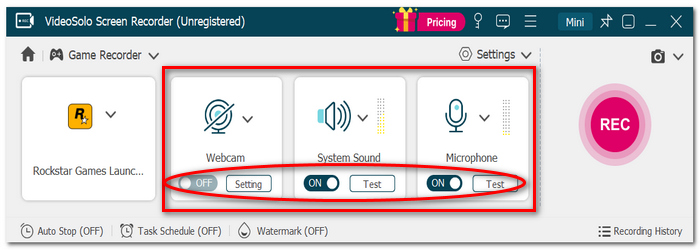
Step 1. Firstly, you can download and install VideoSolo Screen Recorder. Run the application if it's installed on your system. Select Game Recorder, but if you don't see your game listed, choose Screen Recorder. Then select the window of the game if it's not detected automatically.
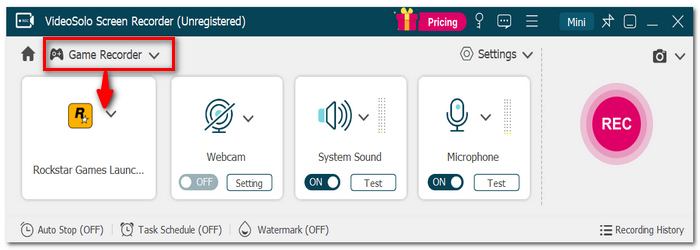
Step 2. Enable the recording of the System Sound and also the Microphone or Webcam in case you will be using voiceover or facecam.
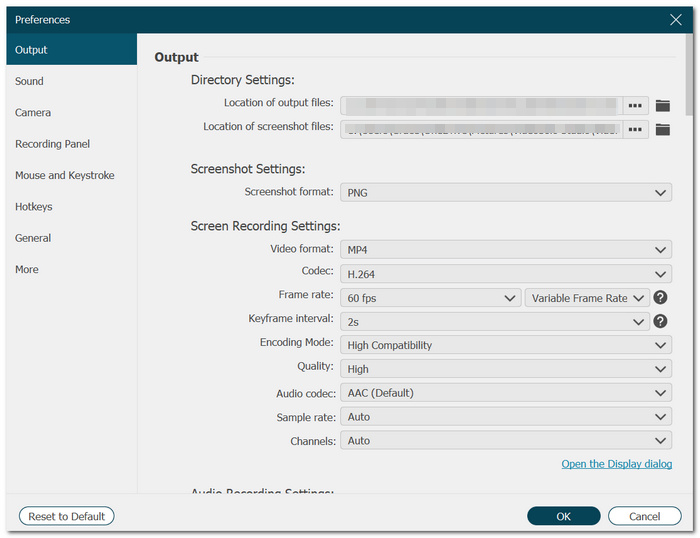
Step 3. Click Settings if you want to modify such factors as the resolution, frame rate, output format, and the folder for saving.
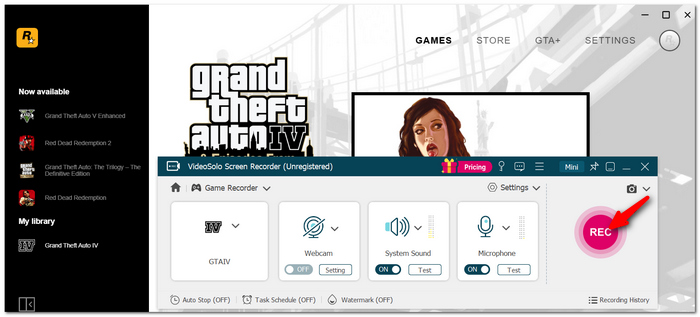
Step 4. Start playing the game and click on REC after everything is ready to begin recording. You can hit Stop once the recording is over, preview the video to find out what parts need trimming and editing, and finally save the result on your device.
Why I Recommend It
Thanks to NVIDIA, AMD, and Intel hardware acceleration support that VideoSolo Screen Recorder incorporates, it is able to reduce the CPU workload when it is making a recording. It also allows you to change the resolution, frame rate, bitrate, and audio settings for more fluid and better-quality gameplay videos.
My Testing Experience
I did testing on VideoSolo via GPU acceleration at 1080p and 60 frames per second. The different audio control features helped a lot and kept the edit process very straightforward. Even after recording, the videos were very smooth without significant FPS loss.
Part 2. Record Gameplay on PC with Xbox Game Bar [For Windows]
Xbox Game Bar is highly recommended for individuals running Windows 10 and 11 and looking for a way to record Xbox one gameplay without the need to download extra programs. Since it is pre-installed with Windows, it gives game players an easy way of capturing gameplay sessions.
How to Record Gameplay with Xbox Game Bar
Step 1. Play the game you'd like to record. Press Win + G to open the Game Bar.
Step 2. You can click on the Capture widget or select it from the menu if you can't see it.
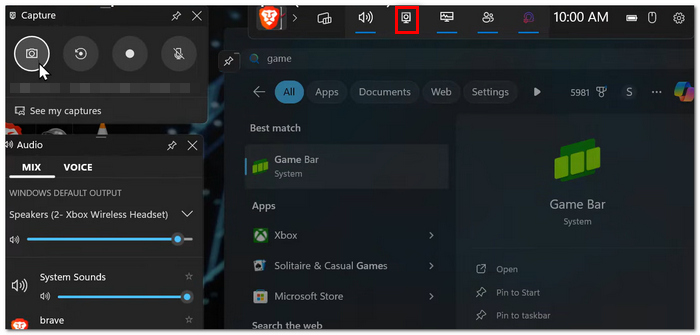
Step 3. Click on Start recording or press Win + Alt + R to start your recording.
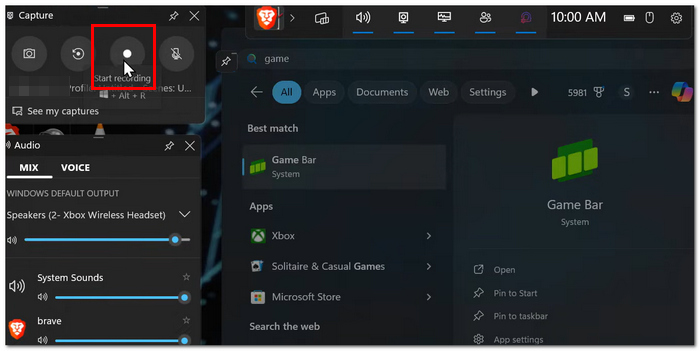
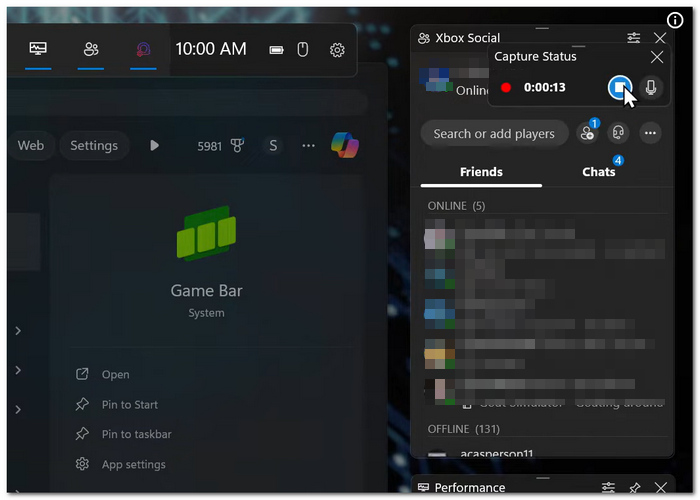
Step 4. Play your game normally. When you are about to end the game, you have the option to click on Stop recording or press Win + Alt + R.
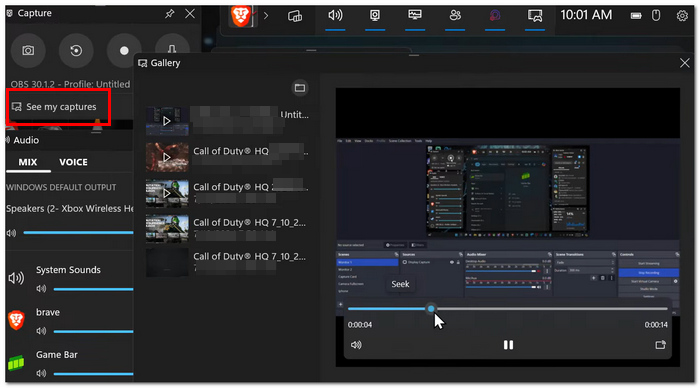
Step 5. By default, a folder under Captures in Video Library will save the recording automatically.
User Review
On Windows, a great number of users are fans of Xbox Game Bar because it's free, provides convenient access, and is great for quick recording needs. Still, some people argue that, compared to purpose-built game recording software, the feature set, including recordings and customization, is limited.
Part 3. Record Gameplay on PC via OBS Studio [Open-Source]
If you're looking to learn how to capture gameplay on PC, OBS Studio is a free, open-source program that gives users an opportunity to record gameplay, edit video, and stream gameplay online at the same time. This feature-rich recording software allows the user a great amount of control over all aspects of the production, including the video, audio, and the compression/encoding settings.
How to Record Gameplay with OBS Studio
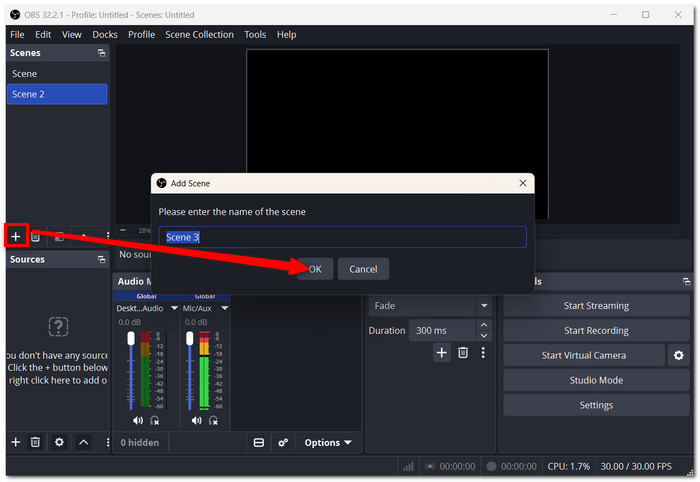
Step 1. Begin by downloading and installing OBS Studio, and then open the software. Beneath the Scenes section, click on the + sign to set up a new scene.
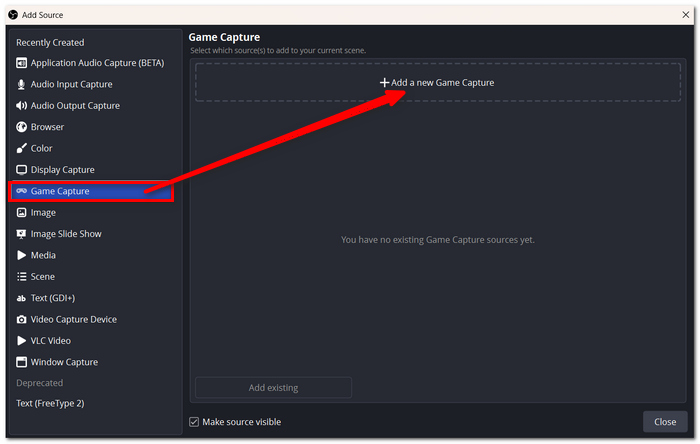
Step 2. Go to Sources and click +, then select Game Capture.
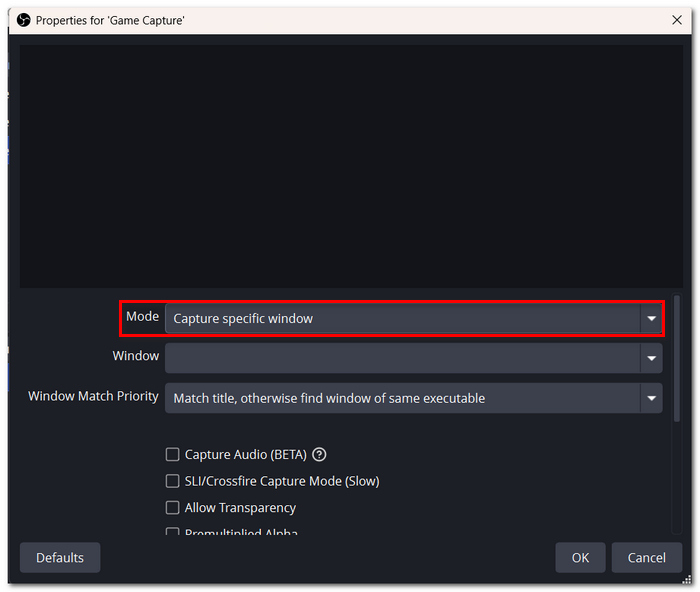
Step 3. Choose Capture Specific Window and choose the game you are using.
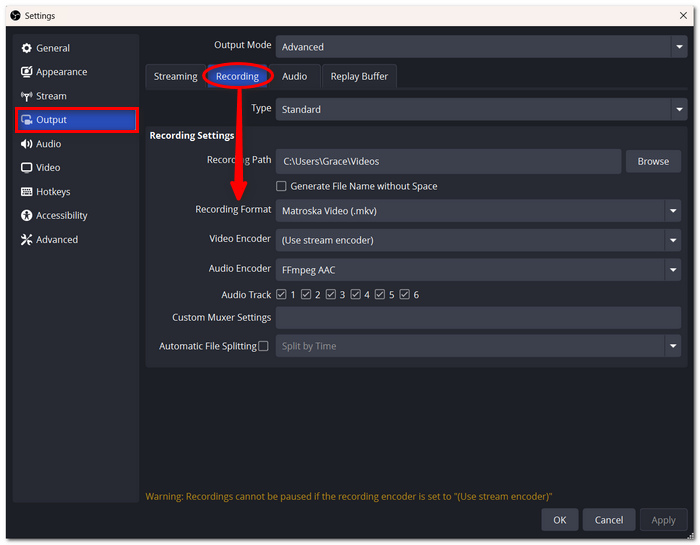
Step 4. To change the recording format, encoder, and quality, select Settings and then Output from the menu bar.
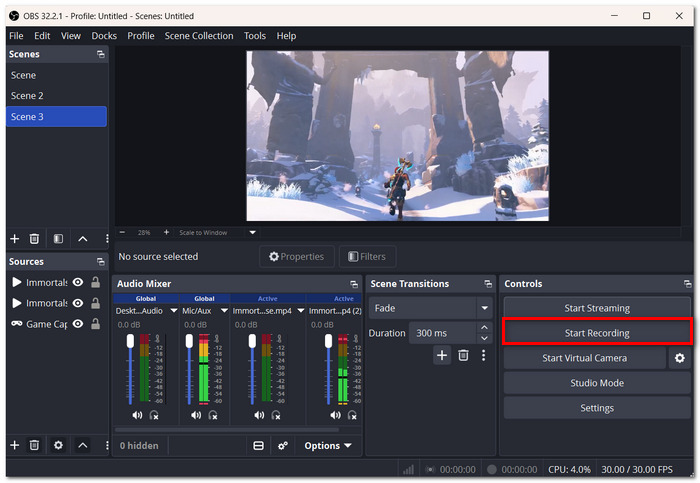
Step 5. Click Start Recording, and after that, switch over to the game. Upon completion, hit Stop Recording. The output folder you have selected is where your recording will be saved.
My Testing Experience
I tried out OBS Studio at 1080p 60 FPS and was really impressed by the video quality. Even though it takes a bit longer to set up compared with some other tools, it gives you a level of customization and control that most people would find extremely useful if they are making videos.
Part 4. Record Gameplay on PC with Insta360
Besides 360-degree video editing, as one of the PC gameplayer recorders, Insta360 also brings a screen-recording functionality, allowing users to record gameplay. If you're looking for how to record gameplay while gaming, it is one of the most straightforward options to record your screen and audio and offers basic customization.
How to Record Gameplay with Insta360
Step 1. To continue, get Insta360 Studio on your computer. Install the file and click on this shortcut to launch the software. Locate Screen Recording under the main menu of the application.
Step 2. You can either select the game window only or go with a whole-screen recording.
Step 3. If you want to record voice commentary in addition to game sound, check the boxes for System Audio and Microphone.
Step 4. To your liking, tweak the video quality, number of stills per second, and final delivery preferences.
Step 5. Initiate recording only after the game or another app is activated. Start screen recording by clicking the Record button. Once recording is over, you will press Stop and can either upload the video file or choose a different editing mode.
My Testing Experience
Having shot sample video footage at 1080p in 60 FPS format via Insta360, I was really impressed by the outcome - super clean, smooth-running visuals with an absolutely uninterrupted frame-by-frame. Its simple, uncomplicated layout makes this video recorder the perfect choice for novice game recorders who need a quick setup without the hassle.
Part 5. Advanced Optimization Checklist for PC Games
Your recording settings can have a big impact on game performance and video quality, even with the best recording software. Make use of these suggestions to get clearer recordings and more fluid gameplay.
| Setting | Recommended |
|---|---|
| Video Encoder | Use NVENC (NVIDIA), AMF (AMD), or Quick Sync (Intel) if available. Otherwise, use x264. |
| 1080p Bitrate | 12,000-20,000 Kbps for clear gameplay recordings. |
| 4K Bitrate | 35,000-60,000 Kbps for high-quality recordings. |
| Frame Rate | Record at 60 FPS for smoother gameplay videos. |
| Audio Sample Rate | Set the audio sample rate to 48 kHz for better compatibility with video editing software. |
| Storage | Save recordings to an SSD for faster write speeds and smoother recording. |
| Background Apps | Close unnecessary programs to reduce CPU and memory usage during recording. |
Quick Tips
- • Use the GPU hardware accelerator when it is available.
- • Have the same recording resolution as your game.
- • A better way, if you want video quality to stay the same, is to choose the CBR (Constant Bitrate).
- • Change your recording settings if necessary before recording lengthy gameplay.
Part 6. FAQs on How to Record Gameplay on PC
Q: Why is my gameplay clip jerky although the game is running smoothly?
A: You tend to hit this limitation when your recording settings are too high for your PC. You lower either the recording resolution or bitrate, turn on hardware acceleration, and get a fast disk like an SSD to reduce dropped frames.
Q: Which is better? Recording gameplay to an MP4 or MKV file?
A: MP4 is a very common and easily editable video format. However, MKV is a great choice for long recording sessions since this container format is less likely to corrupt the resulting file due to sudden interruption. Also, most capture software will let you convert MKV files to MP4 after recording.
Q: Is it possible to record gameplay and at the same time use Discord voice chat?
A: Yes, many game capture programs can record your game while you remain on Discord. Some even give the option for you to record your microphone separately so that editing is made easier.
Conclusion
You can be assured of making the right choice once you select a method that suits your system and recording goals based on what I have explained to you about how to record games on PC. Picking and using the right tool with appropriate settings will give you great results: the ability to record high-quality, smooth, and seamless game videos.
More Readings
Capture screen activities, audio, webcam, gameplay, and mobile screens on Windows and Mac with high quality.

