



 Download Video Converter Ultimate For FREE!
Sometimes you actually don't require the entire MOV video file, but only the audio (narration, music podcast, voice memo, etc). If that's the situation, then it would be more convenient to convert MOV to MP3 as MP3 files are obviously smaller, more portable, and widely compatible. And this is the reason why we have this special guide.
I'll explain how to convert MOV to MP3 by using both premium tools available on Windows and Mac systems, and a powerful converter with the lowest possible quality and the highest number of features. You will learn which way is more efficient and how to get a good result free from all the noise.
- Part 1. Convert MOV to MP3 on Windows/Mac - Official Methods
- Part 2. Best Third-party Tool to Convert MOV to MP3 – Lossless & Batch Conversion
- Part 3. 3 Alternative Converter for Various Usage
- Part 4. Advanced Tips: Choosing The Right Audio Settings
- Part 5. Troubleshooting: Common Issues of MOV to MP3
- Part 6. FAQs on MOV to MP4
Part 1. Convert MOV to MP3 on Windows/Mac - Official Methods
If you'd rather not install other programs, you can turn to Windows and Mac. Both operating systems also allow you to convert MOV to MP3 freely using the built-in features in the system. These are good for fast, easy conversions with no additional complications if you just want to work on one file at a time. Still, you should be aware of the restrictions that come with them, like reduced format options, slow processing, or limits on batch conversions.
How to Convert MOV to MP3 on Windows 10/11
Windows offers you two default ways of capturing audio from MOV files. These options are right there when you need them, but might not be as versatile as third-party converters.
Method 1. Using Groove Music (Windows 10/11)
Step 1. Open the MOV file in Groove Music if the feature is supported by your software. Find the file within the library of media files.
Step 2. Use the option for export or saving. Set up audio extraction settings.
Step 3. Choose MP3 as the destination format and save the result to a desired location.
Restrictions: The feature is available only on specific versions of Windows.
Method 2. Using Windows Media Player (Legacy Windows)
Step 1. Launch Windows Media Player and import the MOV file into the library.
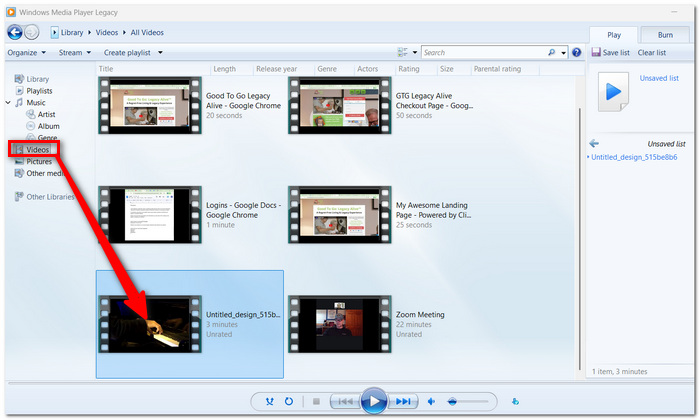
Step 2. Access conversion or rip settings if enabled. Choose MP3 as the output format.
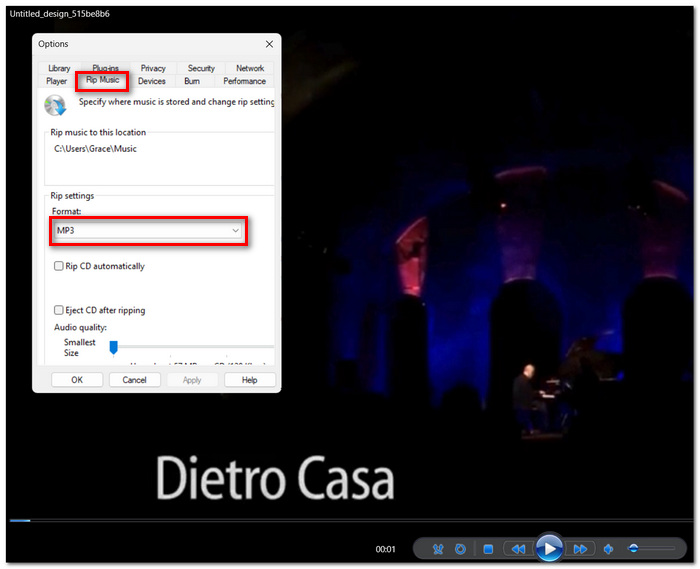
Step 3. Start the extraction process and save the audio file.
Limits: This method can feel outdated and may not work smoothly with newer MOV codecs. It’s better suited for older Windows environments.
These official tools can help if your goal is a quick way to convert MOV to MP3, but for better quality control and batch processing, dedicated software usually delivers a smoother experience.
How to Convert MOV to MP3 on Mac
For Mac users, there are already integrated ways to turn MOV to MP3, no extra downloads required. These are perfect for one/very little conversions.
Method 1. Using Apple Music (Formerly iTunes)
With the help of the import settings of the Apple Music application, users will be able to transform supported media files into an MP3 format.
Step 1. Open the Apple Music application on your Mac. Click Music > Preferences.
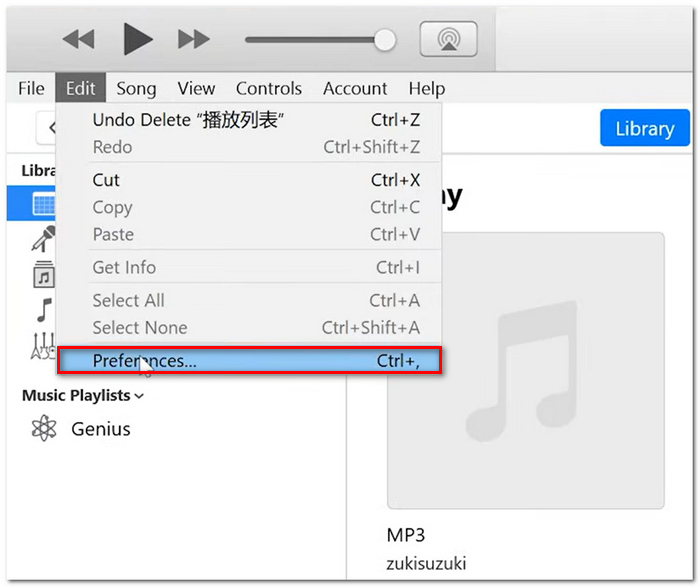
Step 2. Go to the Files tab and tap Import Settings.
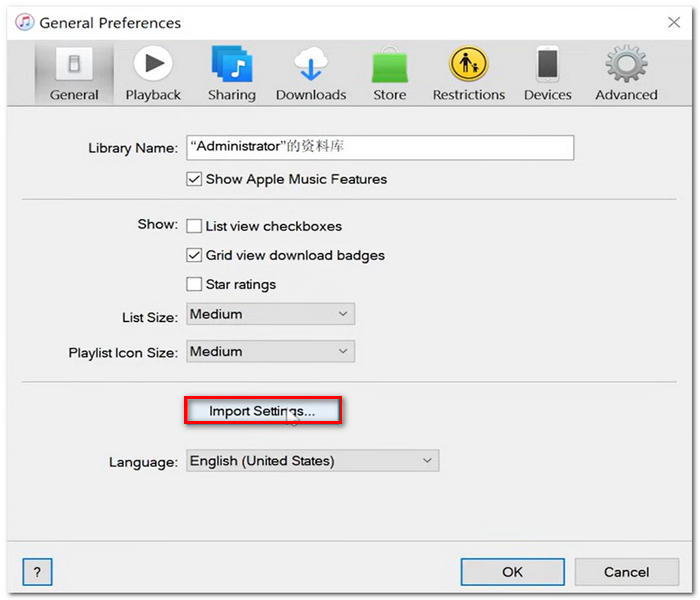
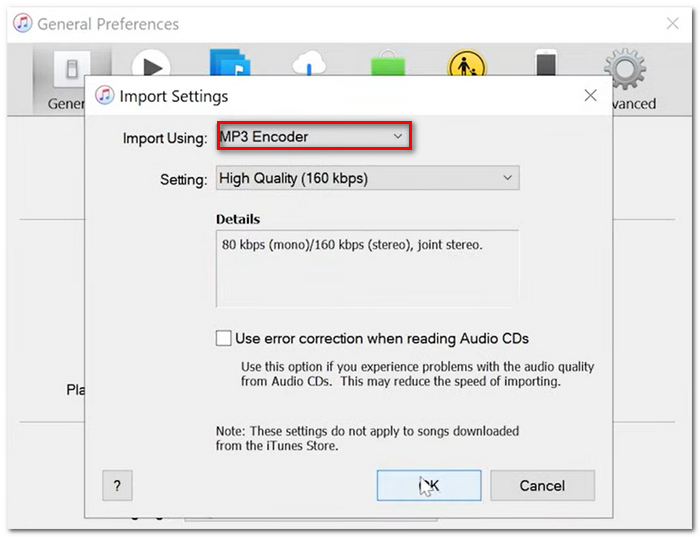
Step 3. Set the MP3 Encoder for the import format type and import your MOV file into the library.
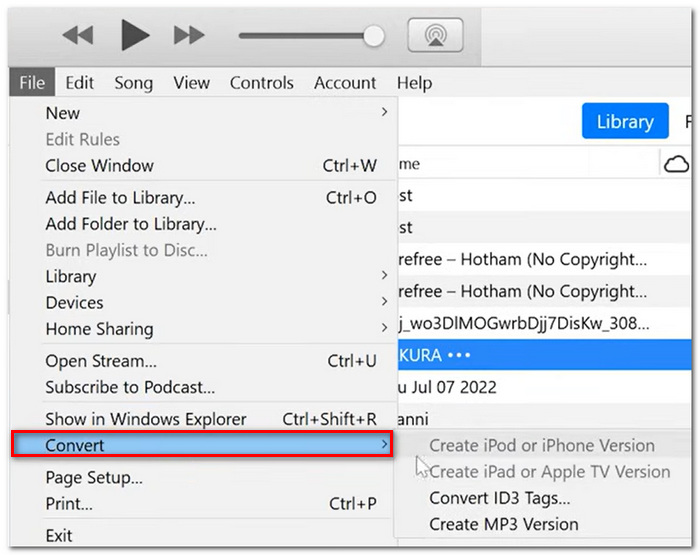
Step 4. Right-click the MOV file in the library and click Convert > Make MP3 Version.
Restrictions: This process is not always effective when it comes to all types of MOV files.
Method 2. Using QuickTime Player (Built-In)
QuickTime Player provides a straightforward option to extract audio from MOV files.
Step 1. Launch the QuickTime program on your computer. Select the File menu from the top toolbar and then choose Export, followed by selecting the Audio Only option.
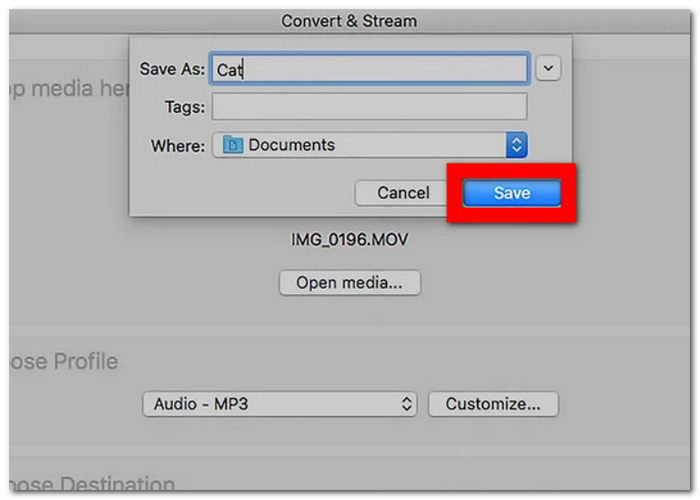
Step 2. After the pop-up window opens, enter the filename for your MP3 file. Make sure that the format displayed under the filename is MP3.
Step 3. Hit the Save button, and the QuickTime program will instantly convert your MOV file into an MP3 file.
Restrictions: Certain macOS versions will save the audio file in other formats apart from MP3, hence necessitating another step to convert it to MP3.
The above-mentioned native Mac tools will serve you effectively in extracting audio from MOV files. However, dedicated converters offer quicker and more efficient means of converting MOV to MP3.
Part 2. Best Third-party Tool to Convert MOV to MP3 – Lossless & Batch Conversion
Built-in ways may seem limited, then VideoSolo Video Converter Ultimate should be a superior alternative if you want a speedier conversion, a superior sound quality, and batch conversion. It is perfect if you convert multiple MOVs or want to regulate output formats more easily.
If you are searching for how to change a MOV to MP3. This utility will take the headache out of converting files, as it is efficient and preserves your audio quality while converting.
 Features
- Audio extraction from MOV without any quality degradation
- Multiple file conversions simultaneously
- Ability to specify bitrate and sample rate
- Inclusion of the audio trim feature before exporting
- Hardware acceleration for rapid processing
 pros
pros
- Extremely fast, even with large files
- High-quality output audio sounds
- Ideal for batch processes
- Simple enough for beginners
 Cons
Cons
- Complete functions are only available in the full version
Using VideoSolo Video Converter Ultimate
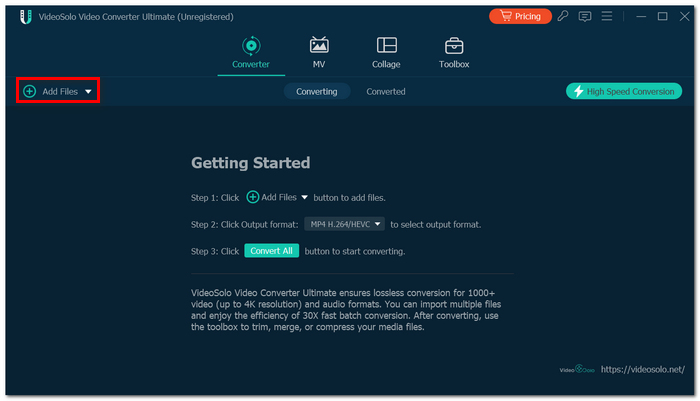
Step 1. Download the latest version of the program. Open the program and click Add Files.
Step 2. Add the MOV file you wish to convert. After that, go to Output Format and select Audio tab and pick MP3.
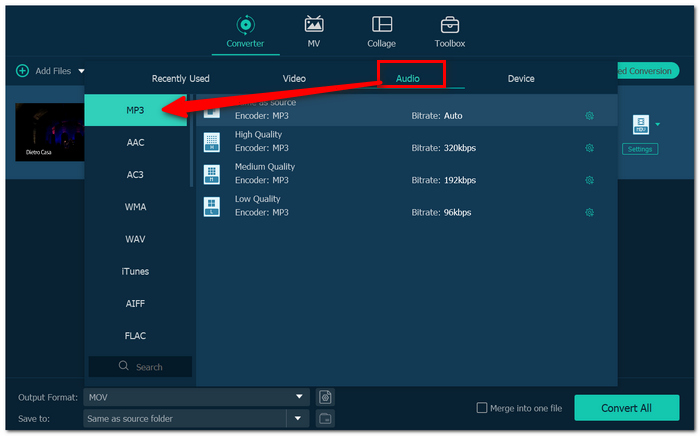
Step 3. Customize bitrate or sample rate according to needs. Specify the output destination.
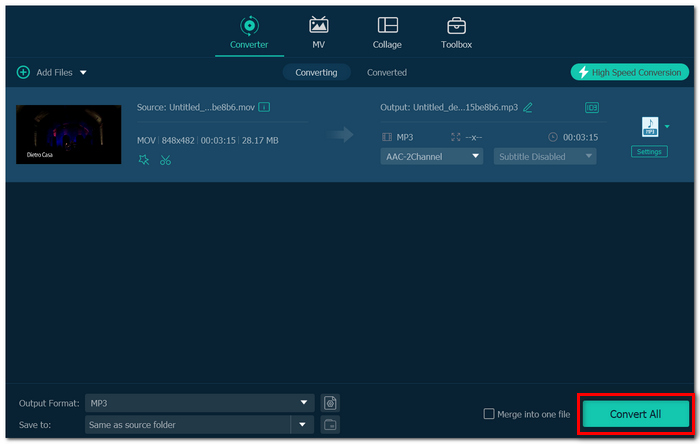
Step 4. Click the Convert All button to start the process. This tool is recommended for those looking for ways to convert MOV to MP3 because of its reliability.
Part 3. 3 Alternative Converter for Various Usage
1. VideoProc Converter AI — Best for Fast Processing with AI Enhancement
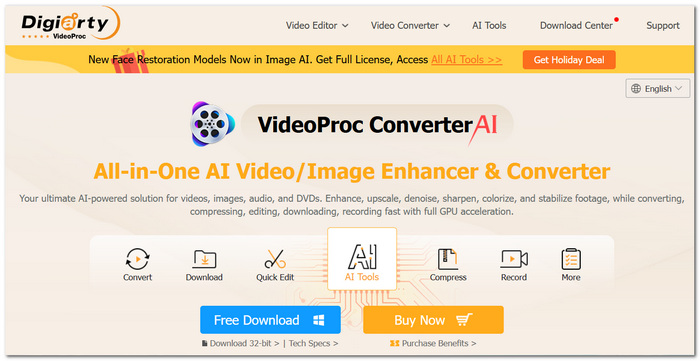
If you require something more than just a simple conversion, Video Proc Converter AI is a good alternative. The application is aimed at users who seek to extract MOV to MP3 quickly, but also want access to their AI Tuning media-editing tools.
Features
- Media enhancement through AI technology
- Conversion process optimized by GPUs
- Support for large file sizes
- Tools for noise removal
pros
- Works fast
- Efficient with high-res source files
- Includes powerful enhancement tools
Cons
- The user interface may be too overloaded
- Some features are only available via subscription
This tool is perfect for those wanting more from their conversion process.
2. FlexClip — Best for Quick Browser-Based Conversion
If you're searching for an online video converter MOV to MP3, no need to find freeware to install on your PC to get the job done. FlexClip is a handy and pro online video converter, MOV to MP3, that works straight away in your browser.

Features
- Conversion is fully done using the web
- Drag-and-drop capability for media uploads
- Trimming capabilities available
- Cloud-based processing system
pros
- No need to install anything
- Simple navigation system
- Available on most devices
Cons
- Internet connection dependent
- Not ideal for large files
The converter is ideal for those who want to convert videos to audio online without much hassle
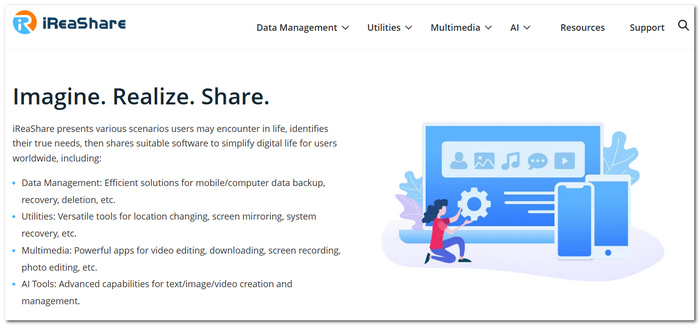
3. iReaShare — Best for Lightweight Desktop Audio Extraction
Another popular program when seeking a simple desktop converter is iReaShare. Again, not overly complex but highly effective, this program is more about the conversion of media. This might include users seeking speed in extracting the audio from an MOV file.
Features
- Specifically designed audio conversion mode
- Compact desktop-based software
- Rapid local file conversion
- Basic settings modification for output files
pros
- Simple and easy to install and operate
- Works well even on computers with limited performance
- Suitable for fast local file conversions
Cons
- Less sophisticated-looking interface
- Poor editing features
This tool is an effective choice for a basic MOV-to-MP3 converter program.
Part 4. Advanced Tips: Choosing The Right Audio Settings
It may happen that, despite converting your sound clip into the MP3 format, you still need to pay attention to its playback parameters in order to make it sound just like you want. In case the quality of playback is your priority, then consider:
What Bitrate Should I Use? 128kbps, 192kbps, or 320kbps?
The bitrate setting impacts the sound quality and size of the saved file.
- • 128kbps: Small size; perfect for general listening or voice recordings.
- • 192kbps: Good compromise between quality and size.
- • 320kbps: Best audio quality; great for music and podcasting.
Using a 320kbps bitrate will help retain more audio details from your MOV file.
Why 44.1kHz? Sample Rate
The sample rate refers to the accuracy of audio sampling during digitization.
44.1kHz is the preferred choice due to its consistent performance on nearly all types of media players. This format strikes an excellent balance between audio fidelity and file optimization.
Higher sample rates can result in larger file sizes without providing any significant advantages to the average listener.
Editing Before Conversion
When preparing for your MP3 export, it is advisable to edit your source file first.
This includes:
- • Deleting unneeded parts
- • Removing silent spaces
- • Editing out any background sounds
- • Identifying the precise audio file you want
It will assist you in making a clean MP3 file.
Part 5. Troubleshooting: Common Issues of MOV to MP3
The conversion can sometimes not go as smoothly as you want it to. If you come into trouble while converting MOV to MP3, we have some popular problems and easy steps to fix them.
Why Is My MP3 File Silent?
The usual cause of your converted MP3 file not having any sound is a problem with compatibility between the audio codec and the conversion tool. Some MOV files may employ an audio codec that some tools aren’t able to process.
Fixes for this issue:
- • Try using another MOV conversion tool
- • Upgrade your software to its latest version
- • Reconvert the MOV file from its source if you can
- • Use a decoding-capable converter such as VideoSolo Video Converter Ultimate
Conversion Failed?
Conversion may fail due to file corruption, unsupported encoding, or DRM.
Steps to resolve the issue:
- • Play the MOV file first to check whether it's working properly and fix your MOV file not playing.
- • Test your software with another MOV file for comparison purposes
- • Download or transfer the file again if there's any damage
- •Ensure that the file is not protected by playback limitations
Corrupted files will not be able to undergo conversion even with the help of converters.
Large MOV Files Taking Too Long?
MOV files that are very large may need to be uploaded and converted for an extended period of time.
Fix:
- • Use desktop software instead of online converters
- • Trim the MOV file before the conversion
- • Shut down other applications to make more resources available
- • Enable hardware acceleration if supported by your software converter
Desktop programs tend to convert large MOV files much faster compared to online converters.
Part 6. FAQs on MOV to MP4
Is it possible to make an MP3 from a MOV on a mobile device?
Definitely! Many mobile applications and online converters are equipped to perform simple MOV to MP3 conversion via your smartphone.
What's a better format if I want even more audio quality than MP3?
Again, it depends on how important quality is to you. Lossless formats are going to preserve more original data than lossy formats, so apart from FLAC, WAV is probably the best choice.
I want to convert the MOV file, but the audio track cannot be detected by our converter?
The file has an esoteric codec or multiple audio tracks not supported by your converter.
Conclusion
Once you know the right way to convert MOV files into the format that you want, then it's pretty straightforward. You may want to do it using system utilities if you only need to make the change every now and again, or install a dedicated MOV to MP3 converter for more rapid batch conversion with higher quality.
The most important lesson from this guide is that once you have the right converter and have adjusted the audio properties correctly, you will be able to convert MOV to MP3 files in just a few mouse clicks without wasting extra time or encountering conversion errors.
More Readings

