



 Download VideoSolo Player For FREE!
If you’ve ever tried to play Blu-ray on PC and ended up stuck with errors, unsupported formats, or a black screen, this guide is made for you. I wrote this article to help readers find the easiest and most reliable ways to enjoy Blu-ray movies on a computer, whether you’re using free software or looking for smooth 4K playback. In this article, I will take you through well-tested methods with popular Blu-ray players, show you what tools are best suited for different requirements, and give you some easy tips for Blu-ray discs that do not play at all. At last, you’ll be able to play Blu-ray on PC with no hassle, no loss of time, no trial, and no error guessing.
Way 1. Play Blu-ray on PC via VideoSolo Player
If you want a smooth, hassle-free way to watch Blu-ray movies on your computer, VideoSolo Player is one of the easiest options to get started with. I like this player because it’s designed specifically for high-quality disc playback, so you don’t need to tweak many settings just to get your movie running. It can handle standard Blu-ray discs and folder playback equally well, so it can be a perfect solution for home users who appreciate simplicity and nice performance, especially in the case you want to play 4K Blu-ray on PC without lag.
 Features
- You may easily navigate between chapters, additional scenes, and special features without manually skipping, thanks to its seamless Blu-ray menu access
- You can fine-tune playback with frame-by-frame viewing, adjustable playback speed, and quick chapter selection
- The player allows instant switching between different audio tracks and sound channels
- It lets you adjust subtitle size, timing, and display style for better readability.
- Even when playing high-definition Blu-ray content, the software is optimized to reduce system load.
Steps to Play Blu-ray on PC Using VideoSolo Player
Step 1. Download and install VideoSolo Player on your PC and insert your Blu-ray disc into the Blu-ray drive if you have one.
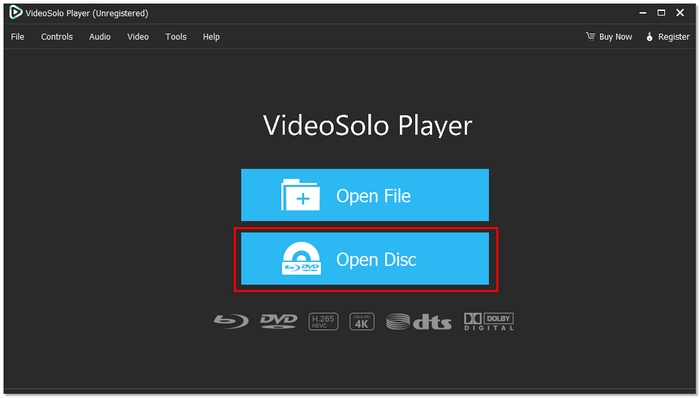
Step 2. Launch the player and click Open Disc.
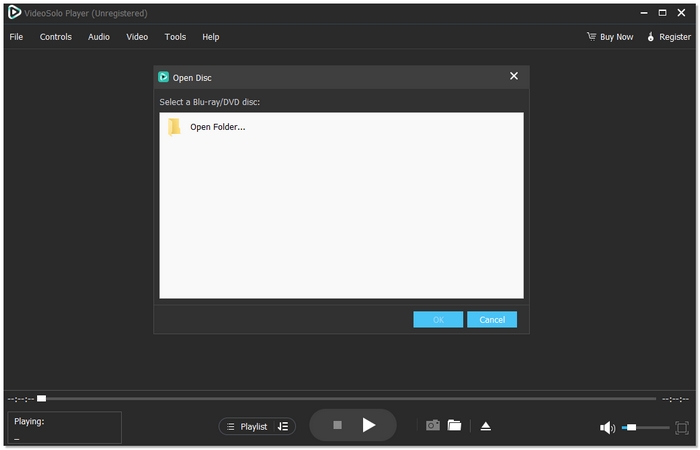
Step 3. Select your Blu-ray disc, then wait for it to load.
Step 4. Sit back and enjoy your movie in full quality.
Using Experience
VideoSolo Player gave me the impression of a really stable, fast, responsive app. This Blu-ray player for PC hardly takes any time to load, the play is smooth, and the user interface is simple enough even for newbies to get the hang of. However, the feature that caught my eye was its effortless way of dealing with high-resolution content, thus a dependable option for you if among your priorities is playing 4K Blu-ray on the PC with great picture and engaging sound.
Way 2. How to Play Blu-ray on PC via VLC
VLC Media Player is a familiar name for many PC users, and it can also be used as a solution if you’re wondering how to play Blu-ray on PC without paying for premium software. Being a free open-source media player, VLC supports almost all video formats and can work on most Windows systems. However, playing Blu-rays with VLC needs a little more work, especially for encrypted discs, and the whole process can seem a bit technical to beginners.
Steps to Play Blu-ray on PC Using VLC
Step 1. Place the Blu-ray disc into the Blu-ray drive on your computer. VLC Media Player's most recent version can be downloaded and installed from its official website.
Step 2. Add the required Blu-ray library files (KEYS and AACS files) to enable disc decryption.
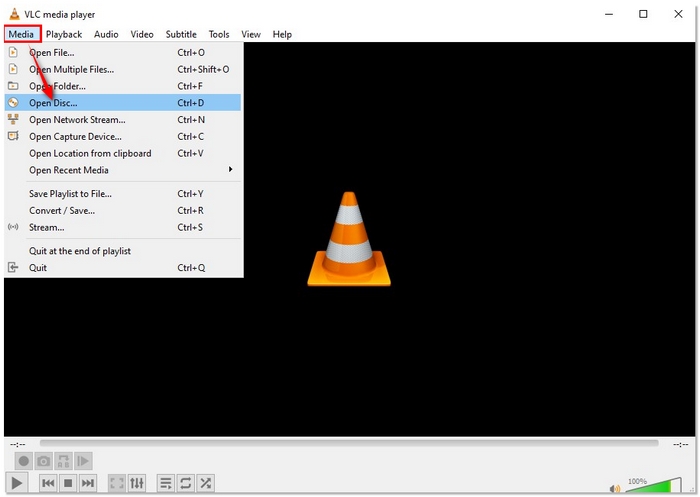
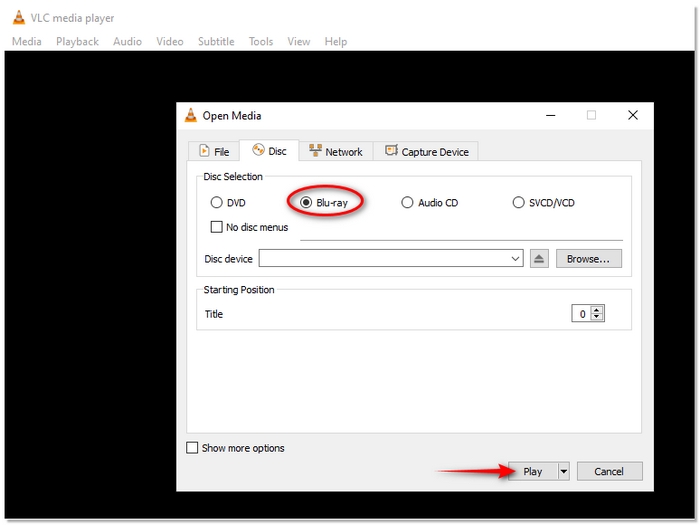
Step 3. Open VLC, click Media, and find Open Disc. Then select Blu-ray.
Step 4. Choose your Blu-ray drive and click Play to start watching.
Using Experience
In my experience, VLC functions quite well when everything has been set up correctly, but the process of setting up can take a lot of time. The quality of the playback is OK but for large files, it might freeze, so you have to fix VLC crash. However, the menus of Blu-ray and advanced navigation, in general, may not always work very smoothly. Nevertheless, for users who opt for a free solution and are not bothered by additional steps, VLC is still a useful option for playing Blu-ray discs on a PC.
Way 3. Play 4K Blu-ray on PC via Leawo Blu-ray Player
If you want to use an application to play Blu-ray on PC with less setup, Leawo Blu-ray Player is quite a good choice, in particular, if you want to watch 4K content. This software is specially made for Blu-ray and DVD playback, so you won't have to bother with extra plugins or manual settings. Leawo can play 4K Blu-ray discs, ISO files, and folders, so it's perfect for users who desire high-quality playback and less technical work.
Steps to Play 4K Blu-ray on PC Using Leawo Blu-ray Player
Step 1. Insert the 4K Blu-ray disc into your PC’s compatible Blu-ray drive. Install Leawo Blu-ray Player on your computer.
Step 2. Launch the program and click Play Disc from the main interface.
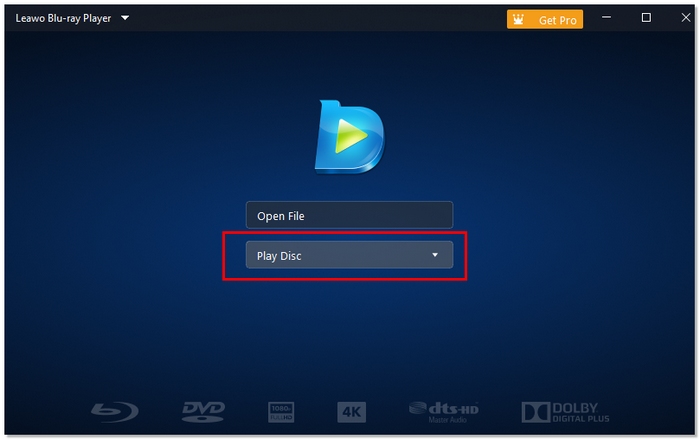
Step 3. After choosing your Blu-ray drive, the software will automatically load the disc. To control playback settings, audio tracks, and subtitles, use the on-screen controls.
Using Experience
In my experience, Leawo Blu-ray Player feels more straightforward than free players. The interface is clean, disc loading is quick, and 4K Blu-ray playback is smooth on capable hardware. Even though the free version has various restrictions and advertisements, it's still a dependable program to play Blu-rays on a PC if you want high-quality images with minimal trouble.
Way 4. How to Play Blu-ray on PC via PowerDVD
If you crave a top-notch, movie theater-like experience, CyberLink PowerDVD is usually regarded as the best Blu-ray disc player for PC. As a software of the upper tier, it is capable of playing Ultra HD Blu-ray, 4K UHD Blu-ray, HDR, and advanced audio formats. PowerDVD is certainly a great choice if you prioritize picture quality, surround sound, and a beautifully crafted environment for watching a movie over just simple playback.
Steps to Play Blu-ray on PC Using PowerDVD
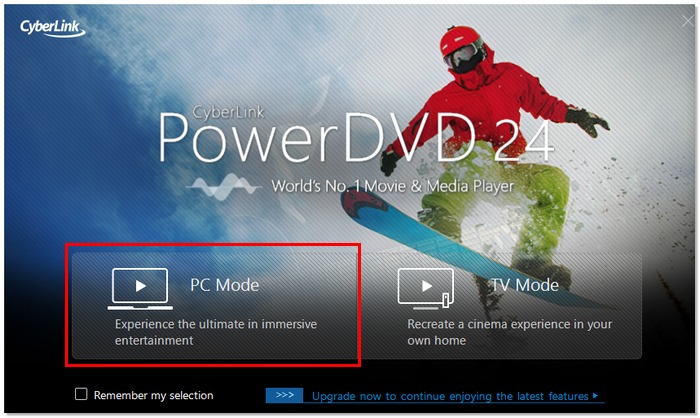
Step 1. Insert your Blu-ray disc into a Blu-ray–compatible drive on your PC. Open PowerDVD and select PC Mode.
Step 2. Sign in to your account and go to the Movies menu. Select the Disc menu and wait for the disc to load.
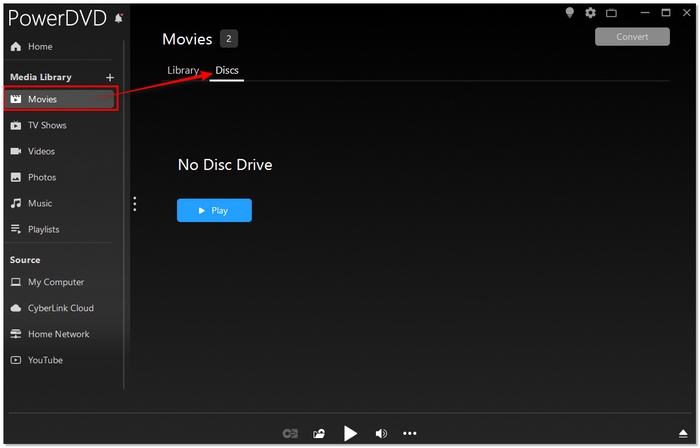
Step 3. Play the video and sit back and enjoy the movie with full menu navigation and playback controls.
Using Experience
I think PowerDVD provides a very smooth and immersive way to watch movies visually. The pictures are very clear, HDR videos really stand out, and disc menus are executed seamlessly, just like if you had a Blu-ray player by itself. It's a paid tool, but considering the stability and advanced features one can get, it is definitely worth it and the best PC Blu-ray player for a home theater experience if that is what you want from your computer.
Way 5. How to Play Blu-ray on PC via KMPlayer
KMPlayer is a versatile media player that attracts users who desire extensive format support without having to buy premium software. It is not a specialized Blu-ray player such as PowerDVD. However, it can still play Blu-ray discs if correctly configured. This makes it a fairly convenient choice for people who are looking for the best program to play Blu-ray on PC without shelling out the money.
Steps to Play Blu-ray on PC Using KMPlayer
Step 1. Connect an external or built-in Blu-ray drive to your PC and insert the Blu-ray disc.
Step 2. Open KMPlayer and right-click anywhere on the player interface to access the main menu. Navigate to Open and find the Open DVD. Then select Blu-ray from the list.
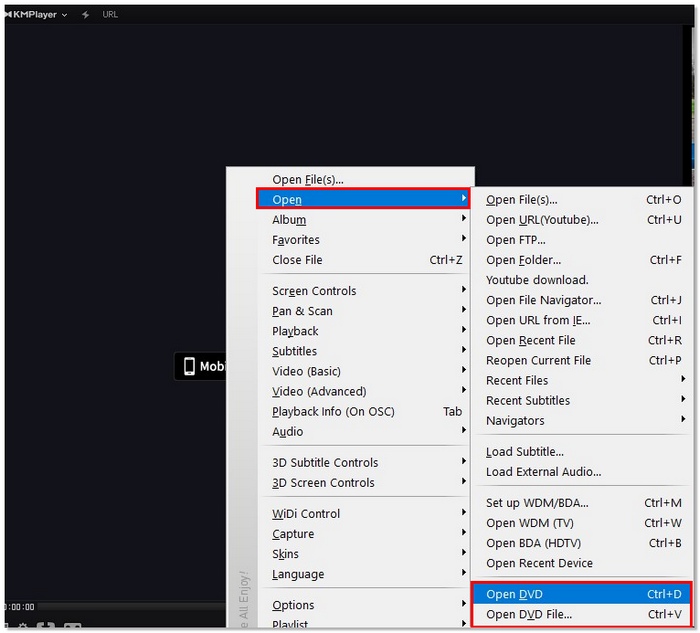
Step 3. Let KMPlayer scan the disc contents and load the available titles. If the menu does not come up automatically, choose the main movie file manually.
Step 4. Optimize playback by selecting different audio tracks, subtitles, and video filters inside KMPlayer.
Using Experience
From my point of view, KMPlayer looks like a light and easily customizable player, especially for people who play around with the DVD menu features. It performs pretty well on almost every system and can handle quite a few different media formats. That being said, the Blu-ray menu navigation is not very intuitive, and some encrypted discs may not play automatically. Anyway, if you are a low-key user who just wants a good program to play Blu-rays on PC without shelling out for a license, then KMPlayer is a strong and very user-friendly option.
Tips: Why Blu-ray Won't Play on PC
In most cases, the issue comes down to a few common problems. Here’s how to spot them and fix them fast.
1. No Blu-ray Drive Installed
Reason: A lot of personal computers actually don't have a Blu-ray drive built in.
Solution: You should first check whether your computer has a built-in Blu-ray drive. If not, then you can go ahead and attach an external USB Blu-ray drive before you try to play the disc.
2. The Blu-ray Disc Is Encrypted
Reason: Commercial Blu-ray discs use copy protection that most free video players can’t decode.
Solution: Use a Blu-ray player that supports decryption or install updated codecs/libraries required by the player.
3. Player Software Doesn't Support Blu-ray Reason
Reason: An outdated player, graphics driver, or system files can cause errors on playback.
Solution: Pick a Blu-ray player program that clearly shows compatibility with both Blu-ray and BDMV discs in its features.
4. Outdated Player or System Components
Reason: The player, graphics driver, or system files that are out-of-date can result in errors during playback.
Solution: You must update your operating system, GPU drivers, and Blu-ray player software to the most recent version.
5. Region Code Mismatch
Reason: Blu-ray discs are locked by region, and probably the disc's region won't match your drive's region.
Solution: Change the Blu-ray drive region or get software that can go around the region restrictions.
6. Disc Damage or Dirt
Reason: Due to scratches, dust, or fingerprints, the disk might be unreadable.
Solution: Clean the Blu-ray disc carefully and check if another device is able to play it.
7. Not Enough PC Performance
Reason: Blu-ray requires high specification hardware, especially for 4K Blu-ray playing.
Solution: Lower the playback settings, close the apps running in the background, or, if you have to, upgrade your GPU and RAM.
Conclusion
I really hope that this guide has helped you to see playing Blu-ray on your PC as something relatively easy. After reviewing several ways to get it done, the one thing that struck me is that there is not a single 'best' option for everyone. The most important thing is to be aware of what your PC can do and select a player that fits those capabilities. Once you have the right tools, figuring out how to play Blu-ray on PC becomes easy, reliable, and honestly more enjoyable than you might expect.
More Reading

Play your videos/music in 100+ formats and region-free DVDs/Blu-rays with 4K and Dolby Atmos experiences.

