



 Download VideoSolo Player For FREE!
It should be a breeze to watch videos on a Mac, but sometimes an MP4 file just doesn't want to play. In case it results in an error, opens silently, or simply refuses to load, the situation can get frustrating very quickly. If you have been considering how to play MP4 on Mac without encountering errors, you have the right choice. The first part of this guide explains how to identify the reasons an MP4 file cannot be opened. Next, we will show you six different ways to fix playback problems. You will find that there are easy, handy ways to get your video files working again, such as using a trustworthy third-party player or changing codec settings. Let's get started and resuscitate your MP4 files!
Part 1. Why Can't I play MP4 on Mac
Even though MP4 is widely supported, there are several reasons why you might struggle to play MP4 on Mac. Here are the most common issues:
• Unsupported Codecs – MP4 is just a container, and some videos use codecs (like certain H.265 or MPEG variants) that QuickTime can’t decode.
• Outdated macOS or QuickTime Version – Older systems may lack the necessary components to handle newer MP4 files.
• Corrupted Video File – If the MP4 is partially downloaded, damaged, or corrupted, Mac players won’t open it properly. You had to repair the corrupted MP4 video before playing it normally.
• DRM-Protected Content – Some MP4 files are protected by digital rights management (DRM) that blocks playback on unauthorized apps.
• Incorrect File Extension – Rarely, a file labeled as .mp4 may actually be encoded as another format, causing playback errors.
These issues can cause inconsistent MP4 playback, but fortunately, there are several reliable solutions to fix them.
Part 2. The Best Way to Play MP4 on Mac
If you’re looking for the smoothest and most reliable way how to play an MP4 file on Mac, VideoSolo Player is hands-down one of the best options. Unlike QuickTime, which often struggles with certain codecs, VideoSolo is built to handle almost any MP4 file you throw at it, with no errors, no lag, and no complicated settings. It’s lightweight, beginner-friendly, and delivers crisp, high-quality playback right out of the box.
Key Features of VideoSolo Player
• Supports All MP4 Codecs (H.264, H.265/HEVC, MPEG4, and more)
• HD, Full HD, 4K, and even 8K playback
• Hardware acceleration for smoother, faster video loading
• Adjustable audio/video settings like brightness, contrast, and sound enhancement
• Subtitle and playlist support for a better viewing experience
Here’s How to Use VideoSolo Player
Step 1. Download and install VideoSolo on your Mac. It only takes a minute. Open it, and you’ll see a clean, no-frills interface ready for your video.
Step 2. Drag your MP4 into the window or click "Open File" to browse manually.
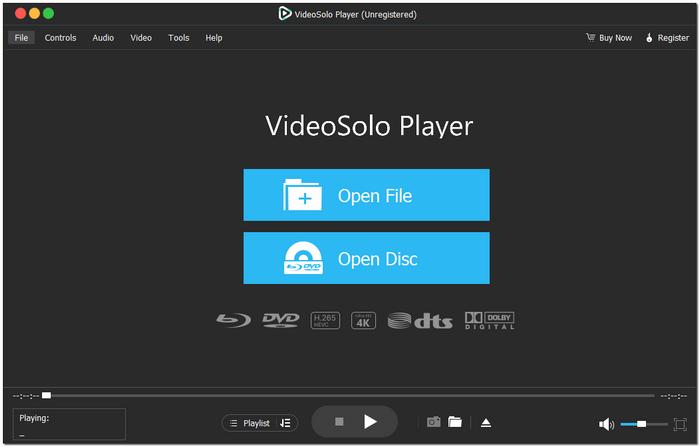
Step 3. Your video should play instantly without the usual Mac compatibility issues.
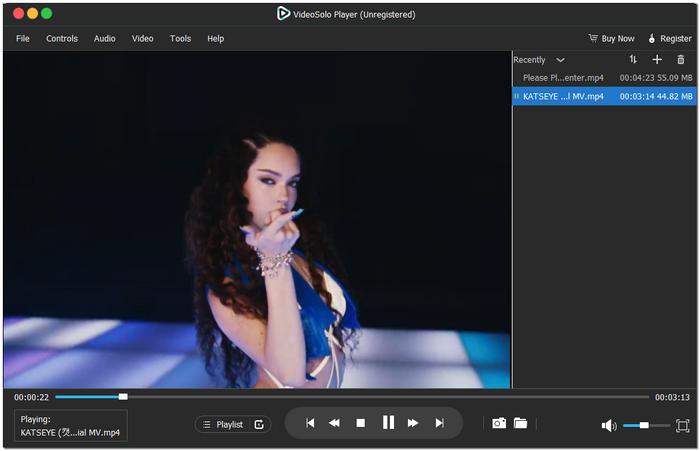
My Experience Using VideoSolo
VideoSolo immediately stood out during MP4 playback testing on a Mac. The colors appeared crisp, the video loaded rapidly, and even high-resolution files played smoothly. It makes watching MP4 files seem effortless. It’s the kind of tool you install once and wonder why Mac doesn’t have something like it built in.
Part 3. Other 5 Ways to Play MP4 on Mac
The good news is that macOS supports several reliable media players in addition to VideoSolo if you're still trying to figure out how to play MP4 on a Mac without encountering any issues. These substitutes can facilitate the smooth opening of MP4 files. Below, we’ll walk through five easy options, each with simple steps and a quick look at what it’s like to use, so you can choose the player that best fits your viewing style.
Method 1. How to Play MP4 on Mac Using QuickTime
QuickTime is an in-built app to play MP4 on Mac by Apple, which makes it the easiest choice for the majority of users. Since it's preinstalled on all Macs, there is no need for a separate download. Simply load your MP4 file and play it. To a great extent, it provides seamless playback, elementary editing tools, and stable performance for regular viewing.
Step 1. Locate your MP4 file in Finder, right-click the video, choose "Open With", and click "QuickTime Player".
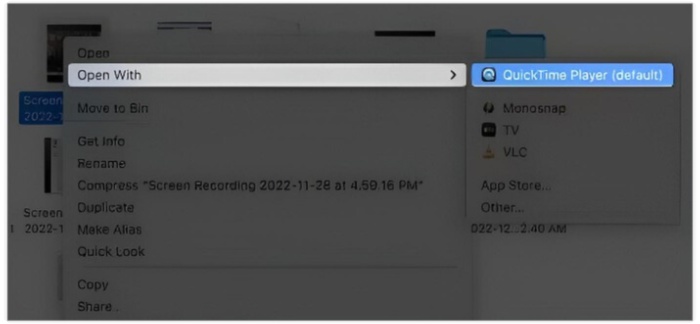
Step 2. To begin watching, click the "Play" button.
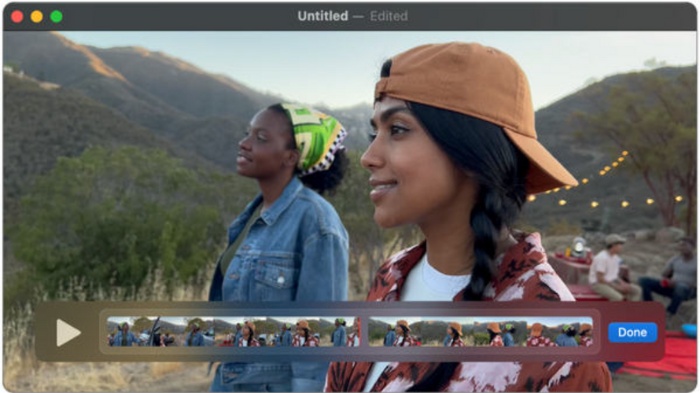
Step 3. Use the top menu to adjust the playback speed, trim the video, or view it in full-screen mode.
Using Experience
QuickTime is fast, clean, and stable. It opens most MP4 files easily, and the interface feels very intuitive. However, it may struggle with MP4 videos encoded in uncommon formats or high-bitrate files.
Method 2. Play MP4 on Mac Using VLC Media Player
If it can't play MP4 on Mac with QuickTime, then VLC Media Player is probably the best alternative you can rely on. Essentially, it is a robust and versatile tool capable of handling virtually any video format and codec, ensuring uninterrupted playback without the hassle of compatibility issues.
Step 1. First, get and install VLC Media Player from its official site. Launch the application and then simply drag your MP4 file into the window.
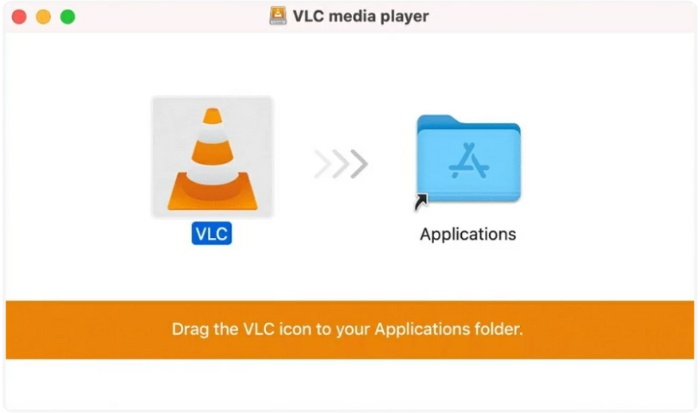
Step 2. Hit "Play" to begin viewing your video.
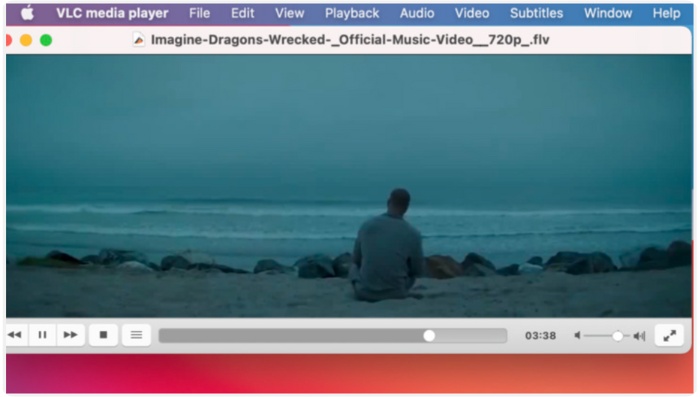
Step 3. Use the VLC toolbar to change subtitles, audio tracks, or playback speed.
Using Experience
VLC handles MP4 videos effortlessly, even those with rare codecs or large file sizes. It’s fast, lightweight, and packed with advanced controls perfect for users who want more than basic playback.
Method 3. How to Play MP4 on Mac via Elmedia Player
Elmedia Player is another great choice if you're wondering, "Can I play MP4 files on my Mac?" It was created specifically for macOS and features a polished, user-friendly interface, wide-format support, and fluid playback.
Step 1. Install Elmedia Player from the official website or the Mac App Store. Launch the app, go to "File", and click "Open".
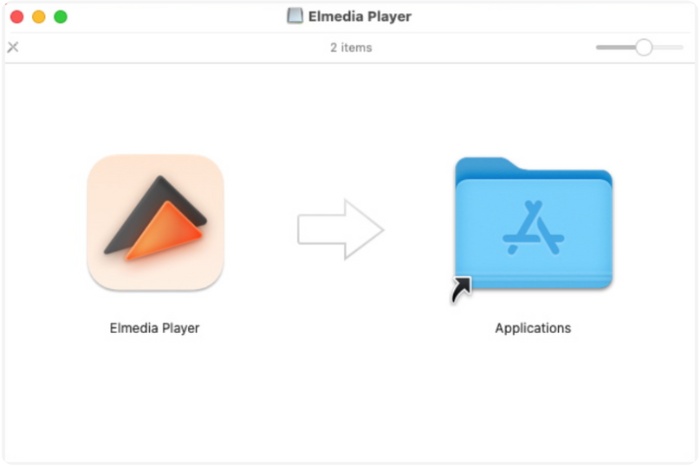
Step 2. Start playback and use the on-screen controls to adjust volume, subtitles, or screen size.
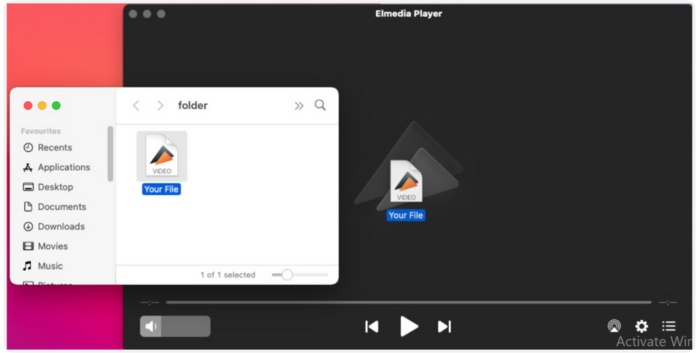
Step 3. Explore additional features, such as wireless streaming to smart TVs or AirPlay, if needed.
Using Experience
Elmedia Player delivers clean, stable playback with no lag, great for HD and even 4K MP4 files. Its smooth interface and helpful extra features make it a user-friendly choice for everyday viewing.
Method 4. Play MP4 on Mac Using Movist Pro Video Player
Movist Pro is a high-end media player for macOS that is widely recognized for its elegant user interface, extensive codec support, and sophisticated playback controls. If you are looking for a seamless and configurable way of watching videos, Movist Pro can hardly be beaten for MP4 playback on Mac.
Step 1. Download and install Movist Pro from the official website. Open the app and click "File" and choose "Open Media File".
Step 2. Select your MP4 video and start playback.
Step 3. Adjust subtitles, audio tracks, or video filters through Movist’s easy-to-access menus.

Using Experience
Movist Pro gives an impression of being well thought out and quick to react. Everything seems to be running very well and efficiently. Videos load very quickly, HD files play without interruptions or pauses, and user interface tools, such as color-changing and playlist controls, enhance the viewing experience, making it feel premium. If you help a player who is readier, more feature-rich, and still simple to use, then this is the one for you.
Method 5. How to Play MP4 on Mac Using JustPlay
JustPlay is a lightweight yet powerful MP4 player for macOS that opens almost any video format without installing extra codecs. It’s perfect for users who want a straightforward tool that loads quickly and plays MP4 files smoothly on any Mac model.
Step 1. Install JustPlay from the official website. Launch the app and click "Open File" on the home screen.
Step 2. Browse for your MP4 file and hit "Open" to start watching.
Step 3. Customize playback using tools such as speed control, subtitle sync, or audio settings, if needed.

Using Experience
JustPlay doesn't use many system resources and runs quickly. MP4 files, including large HD and 4K videos, open instantly, and the user interface is simple and easy to use even for beginners. It’s a great choice if you want a simple MP4 player that "just plays" without extra setup.
If the player above can’t meet your demand, you can also try an MP4 converter to convert the MP4 video to other playable and compatible formats.
Conclusion
Learning how to play MP4 on Mac doesn’t have to be complicated. There’s always a reliable solution. You have plenty of ways to enjoy smooth MP4 playback on macOS. Once you know the right tools, watching your MP4 videos becomes quick, easy, and completely hassle-free.
More Reading
- Top 10 Best MP4 to MP3 Converters in 2026 [All Devices]
- Top 15 MP4 Joiners to Combine Videos Easily & Lossless
- How to Add Subtitles to MP4 on Windows/Mac 2026 (Full Guide)
- How to Export iMovie to MP4 on Mac/Windows/iPhone (4 Ways)

Play your videos/music in 100+ formats and region-free DVDs/Blu-rays with 4K and Dolby Atmos experiences.

