



 Download Screen Recorder For FREE!
We provide several methods for how to screen record on Instagram across iPhone, Android, PC, and Mac, covering privacy concerns, a step-by-step guide, comparison of tools. In our test, VideoSolo Screen Recorder offers the best recording quality with zero privacy risks. Other built-in recording tools are more suited for public content that doesn't trigger the notification message.
Does Instagram Notify When You Record or Screenshot?
"John Smith took a screenshot."
Depends on what you want to capture. Instagram does not notify users when you screen record their stories, posts, or reels. But focus: Instagram does notify the sender if you screenshot or screen record intimate stuff via Direct Message (DM) and Vanish Mode.
Once keep some disappearing photos and videos, there will be invisible icons in the other’s chat that you cannot see. You could get your account temporarily suspended or permanently banned for doing so due to breaking the platform’s rules.
| Content Type | Notify? |
|---|---|
| Stories (regular stories, Close Friends stories) | ❌️ |
| Feed Posts | ❌️ |
| Reels | ❌️ |
| Instagram Live | ❌️ |
| Profile (Profile picture / Bio / Grid) | ❌️ |
| Highlights | ❌️ |
| Regular DM chats (text, gallery photos, regular videos) | ❌️ |
| Photos/videos in DMs | ✅️ |
| Any content in Vanish Mode | ✅️ |
Now that you know which types of Instagram content will trigger a notification, you can choose the recording method that best fits your needs. For common content, built-in screen recording tools on your phone or computer will work. If you plan to record View Once content or Vanish Mode chats, you have to use a professional tool like VideoSolo Screen Recorder to avoid the awkward.
Comparison of 4 Screen Recorder Tools for Instagram
| Feature | VideoSolo Screen Recorder | Phone Built-in | Xbox Game Bar | QuickTime Player |
|---|---|---|---|---|
| Record View Once | ✅️ | ❌️ | ✅️ | ✅️ |
| Audio Capture | System + Mic | Media + Mic | System + Mic | System only |
| Real-time Annotation | ✅️ draw, text, arrows, highlight | ❌️ | ❌️ | ❌️ |
| Output Format | mp4, wmv, mov, f4v, ts, avi | mp4 | mp4 | mov |
| Video Editor | Video Trimmer/ Compressor/Merger/Converter | Basic trimming | Basic trimming | Basic trimming |
| Scheduled Recording | ✅️ | ❌️ | ❌️ | ❌️ |
Screen Record Instagram via Ultimate Desktop Software
VideoSolo Screen Recorder supports various recording modes for you to capture and save different screen activities, like tutorials, webinars, online lessons, gameplay, and more.
 Features
- Lock the selected region on screen to avoid accidental touches and pop-ups.
- Capture screen in up to 4K resolution at 60fps with zero lag or watermarks.
- Record system audio, microphone sound, or both with noise reduction.
- Support real-time annotations, like adding text, lines, arrows, and more effects.
- Trim, split, merge, convert, or compress recordings immediately.
- Auto-stop or scheduled recording.
 pros
pros
- User-friendly interface and operation.
- Custom recording region and output quality.
- Real-time annotation and secluded recording.
- Advanced editing toolkit for video clips.
- Works for Windows, macOS, Android, and iOS.
 Cons
Cons
- Only record 3 minutes per video during the free trial.
How to screen record Instagram with VideoSolo?
Step 1. Open the program and choose Screen Recorder.
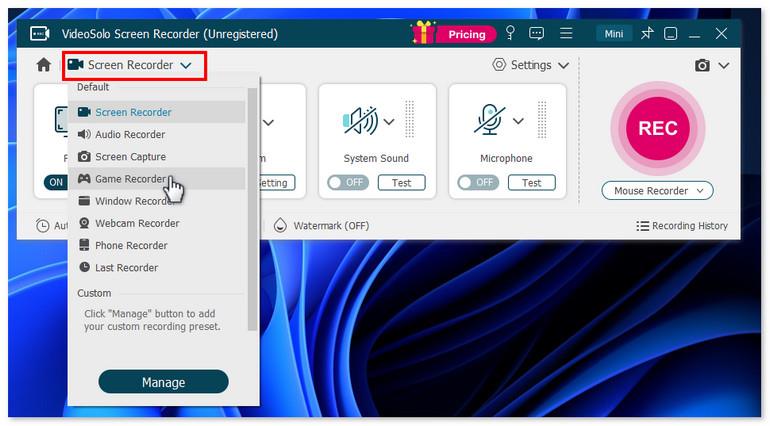
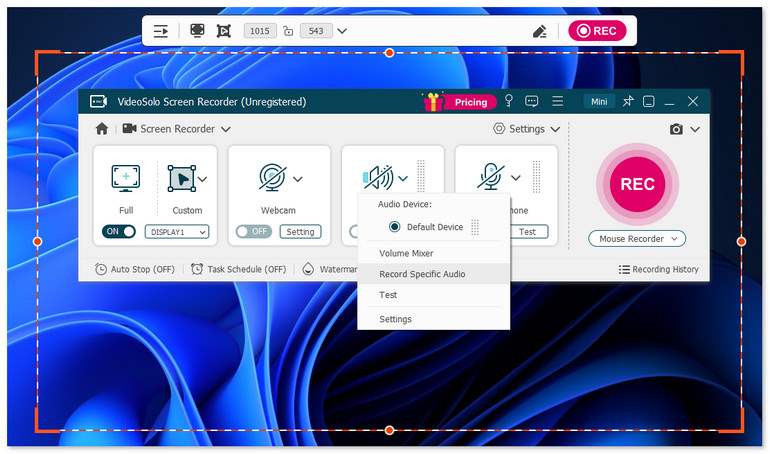
Step 2. Select Full or Custom to select what you want to record by dragging the corners or sides of the frame. Then adjust the volume bar for the system sound and microphone.
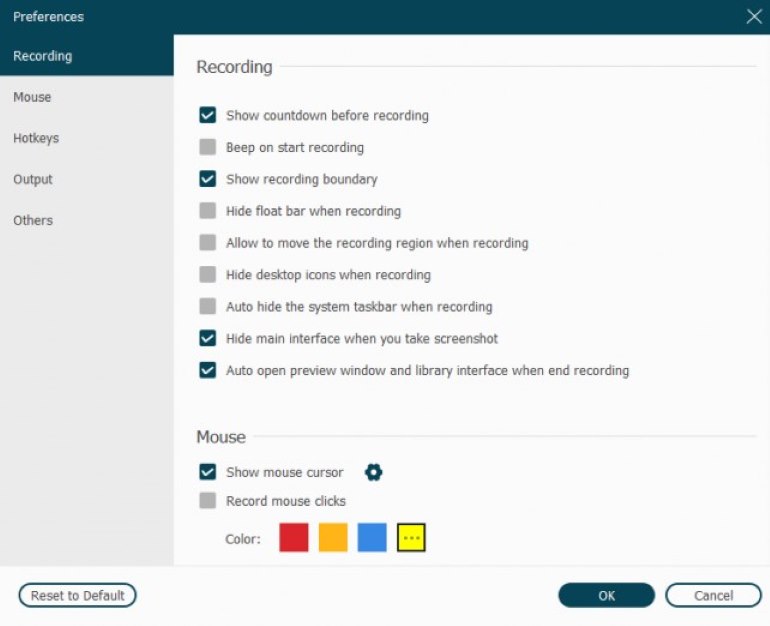
Step 3. Click Setting > Record Setting > Preferences on the interface. Output allows you to set your resolution, your format, frames per second, the folder your recordings default to, and the general quality of your audio and video.
Step 4. Open your Instagram and click REC to start recording. After done, stop the process and edit your video.
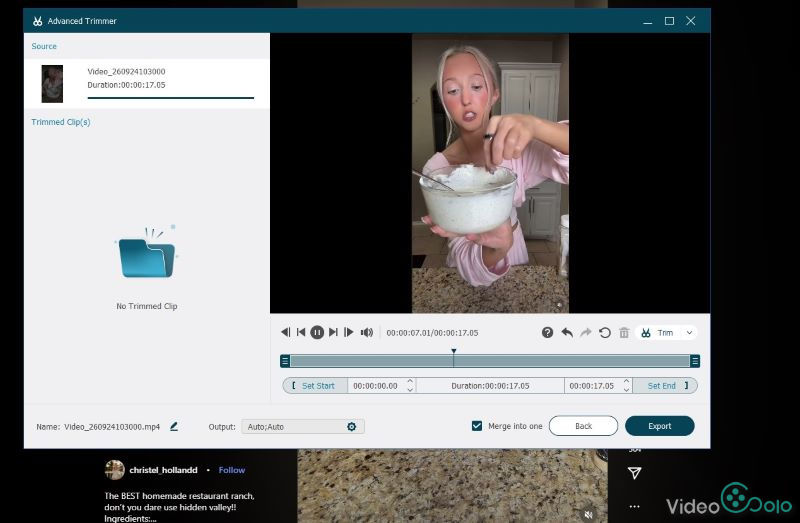
Note
The method needs to be used with the Instagram web version on a computer. Instagram does not send a notification when screen recordings are made in a browser. Therefore, you can make a screen recording with VideoSolo and no one will receive an alert.
Beyond this way, you can choose the Phone Recorder Mode when you want to save to your phone’s storage or capture 4K images without notifications.
How to Record Instagram via Mirroring Your Phone Screen?
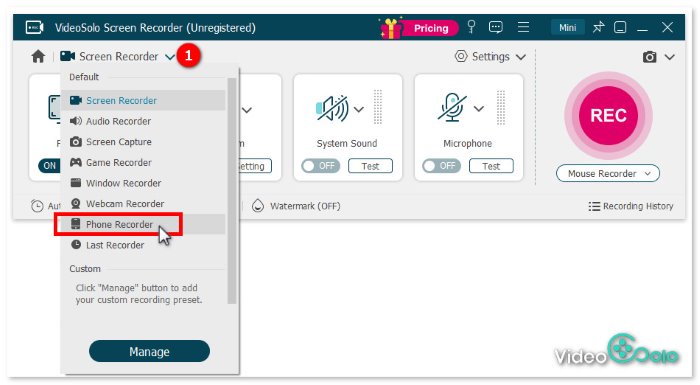
Step 1. Open VideoSolo Screen Recorder and choose Phone Recorder mode in the main interface. You can change some preferred output parameters through Settings.
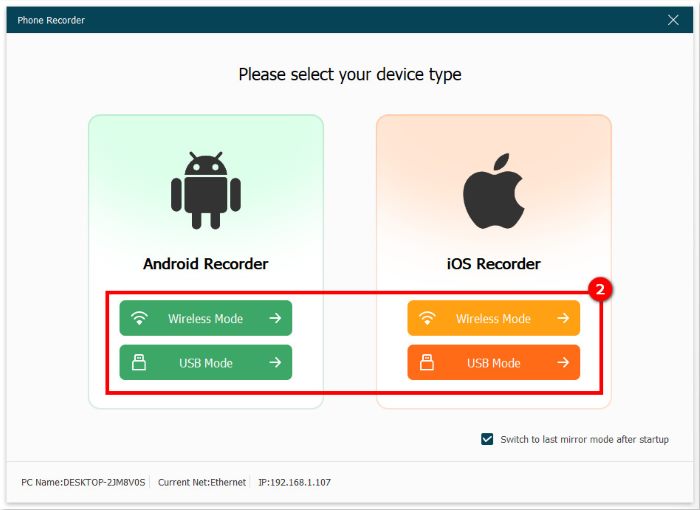
Step 2. In the pop-up window, select your mobile device and the way you want to connect to the computer, with a USB cable or wirelessly.
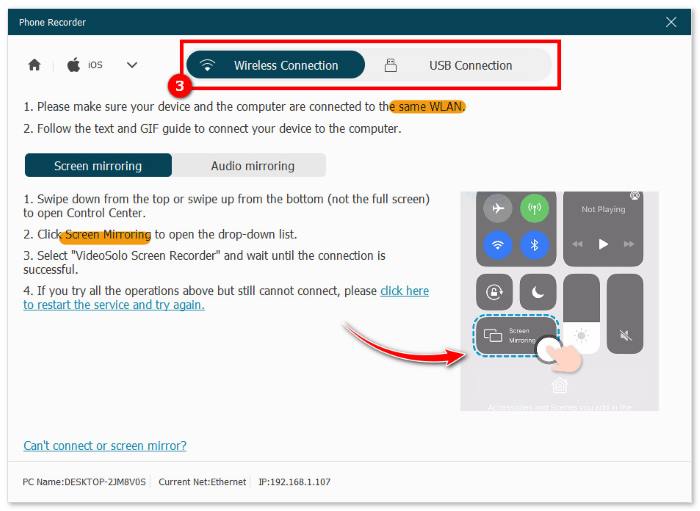
Step 3. Take iOS Recorder > Wireless Mode as an example. You can follow the tutorial to mirror your phone screen to your PC. Choose Screen mirroring or Audio mirroring with lossless quality and low latency.
Step 4. Click REC to record Stories, Reels, or other content, and then export clips as MP4/MOV.
User Review
I've been using VideoSolo Screen Recorder for a few months now to archive Instagram stories and reels for my content research, and it's honestly become my go-to tool. What I love most is that it captures system audio and my microphone simultaneously, so I can record a story while adding my own voice notes without any extra editing. The scheduled recording feature saved me during a live I couldn't attend—I just set the timer, and it recorded the whole thing automatically. The quality is crisp with no lag or dropped frames, even when I'm recording in HD. I also appreciate the real-time annotation tools; I can circle or highlight parts of the screen as I record, which is perfect for creating tutorials.
Screen Record Instagram on Mobile [Limited Built-in]
On iPhone (iOS 11 or later)
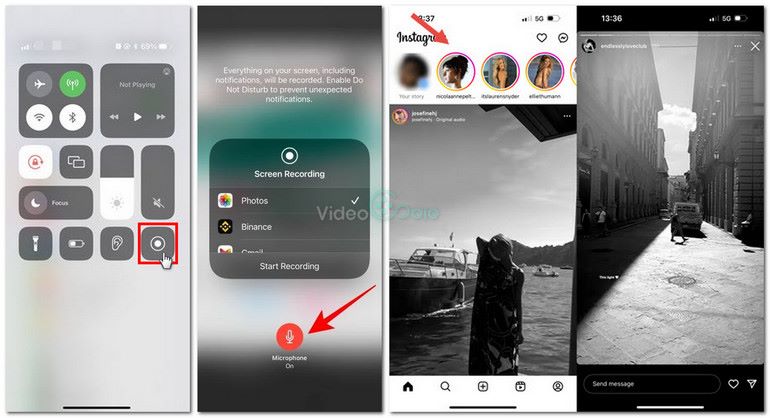
Step 1. Open the story, reel, or other in your Instagram first. Scroll down to Control Center and tap the Record button to start recording. If there is no icon, go to Settings > Control Center > Screen Recording, and add it to your Controls panel.
Step 2. Click the same button again to stop recording. The recorded Instagram video will be saved in your Photos app.
On Android
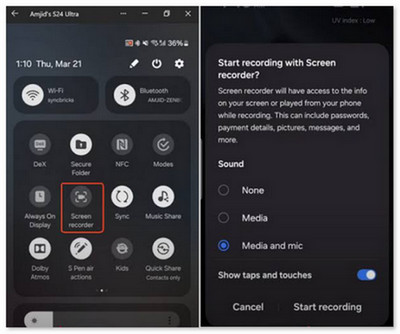
Step 1. Swipe down the notification panel and tap Record to start recording (add it if missing).
Step 2. Play the Story you wish to record. When finished, tap the Screen recorder to stop screen recording.
Limitations
- • You can capture Instagram posts or stories without alerting the original poster via screen Recording features on iPhone or Android. But notifications, pop-up messages, and everything on your screen will be captured.
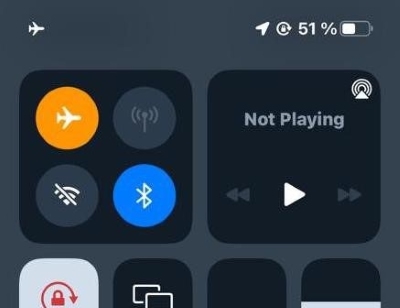
- • Recording DM photos and videos will send notifications. It’s feasible to turn on Airplane Mode or disable the internet for private but legal recording. However, it does nothing for live news or videos.
Screen Record Instagram on Windows/Mac [Free]
Using Xbox Game Bar [Windows 10/11]
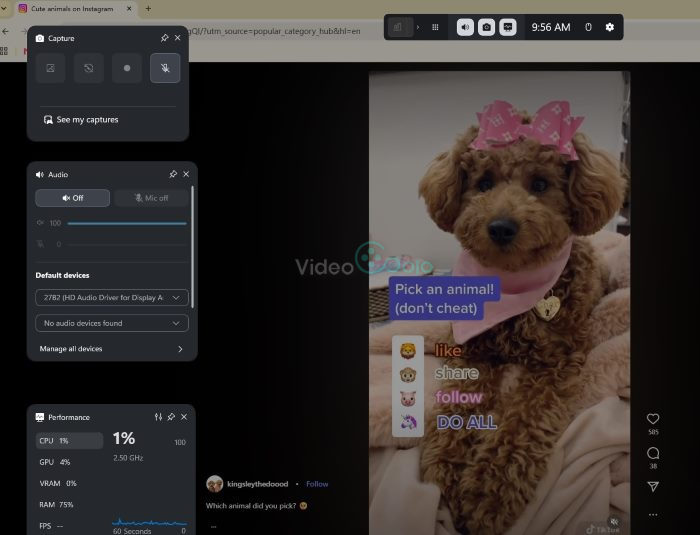
Step 1. Turn on the Xbox Game Bar through Settings > Gaming.
Step 2. Go to Apps > Apps & Features, find Game Bar, and check background apps permissions to avoid bad recording.
Step 3. Go to Settings > Gaming > Captures to set custom recording preferences like video quality and frame rate.
Step 4. Press shortcuts to quickly start the workflow:
- Win + G: Open the Game Bar overlay;
- Win + Alt + R: Start recording;
- Win + Alt + M: Open the microphone;
- Win + Alt +Print Screen: Take a screenshot.
Limitations
Xbox Game Bar supports basic screen recording on Windows 10 22H2 or later, but it isn’t available for the Windows desktop and File Explorer. So you should choose other browsers like Google Chrome and Microsoft Edge.
Using QuickTime Player [macOS Mojave or later]
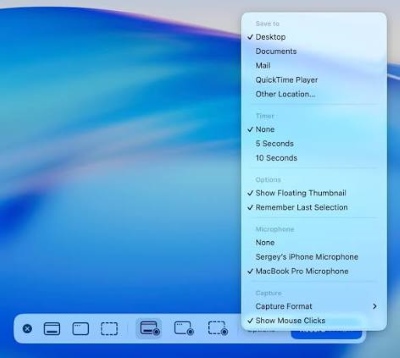
Step 1. Press and hold Shift + Command (⌘) + 5 to launch the on-screen toolbar.
Step 2. Click Options in the toolbar to adjust preferences before recording.
Step 3. Select one of two options: record the entire screen or a selected portion.
Step 4. Click Stop Recording in the menu bar, or press Command (⌘) + Shift + Esc to stop record Mac screen.
Step 5. Save and edit. Once finished, a small thumbnail will appear in the bottom-right corner of your screen. The recording saves automatically.
FAQs on Screen Recording on Instagram
Does Instagram block screen recording?
Depends on. Public stories, posts, Reels, or regular direct messages are allowed to be recorded. You can save and share them with friends without any alerts.
Does Instagram notify when you replay a video in DM?
No. The sender doesn’t receive any information when you replay a regular video or a video set to "Allow Replay". Instagram only shows a notification if it captures disappearing photos or videos (View Once/Allow Replay) or Vanish Mode chats in Direct Messages.
Conclusion
Now you have mastered how to screen record on Instagram across mobile and desktop devices. For account security and recording convenience, we recommend trying VideoSolo Screen Recorder for the ultimate, hassle-free recording experience with the highest quality.
More readings
Capture screen activities, audio, webcam, gameplay, and mobile screens on Windows and Mac with high quality.

