



 Download Video Converter Ultimate For FREE!
It can be really annoying when you tap a video on your iPhone and nothing happens. Or you get the video keeps loading, a black screen, a video failing to play, or even the app crashing completely. A video not working on iPhone problem might make you think that the file has been damaged or that your device is a serious mess.
Fortunately, most video playback issues are easy to explain and even easier to solve. Sometimes the problem is due to running out of device storage, issues with iCloud syncing, or using old software. Then again, the video format may not be entirely compatible, or the file may have been corrupted during recording or transfer.
I have put together a detailed guide to help you fix the videos not working on the iPhone issue in the most effective way.
Part 1. Why Won't My iPhone Play Videos: Basic Fixes
Before you think that the video file itself is corrupted, it might be good to check some usual causes first. Why are videos not playing on my iPhone? Usually, it is a problem of storage capacity, iCloud syncing, transient system glitches, or software that needs updating. The solutions provided here can help a lot in fixing playback issues within a very short time.
Solution 1. Force restart your iPhone
Temporary system bugs can sometimes cause videos to malfunction. Doing a hard reset will refresh the system and might fix the problem of videos not playing on iPhone without losing your personal data.
Steps to Force Restart an iPhone
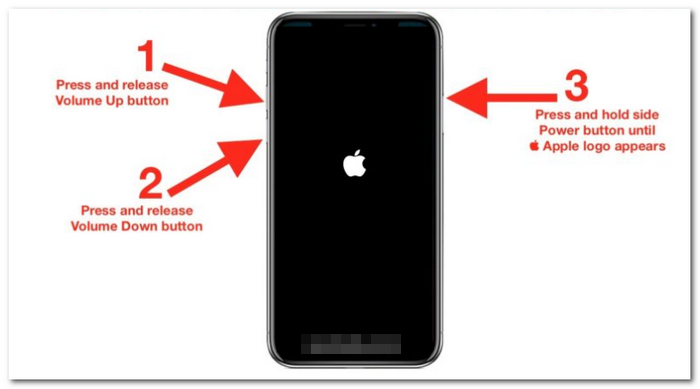
For iPhone 8, iPhone X, and later:
Step 1. Press and then instantly release the Volume Up button. Quickly release the Volume Down button after pressing it.
Step 2. Press and hold the Side button. Keep holding it until the Apple logo comes out.
Step 3. Let go of the button and wait for the iPhone to restart.
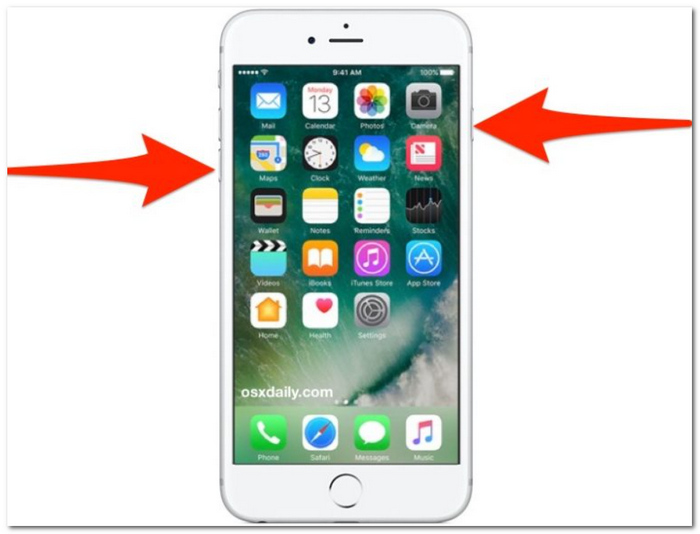
For iPhone 7 and iPhone 7 Plus:
Step 1. Press both the Power button and the Volume Down button at the same time and hold them.
Step 2. Do not let go of the two buttons until you see the Apple logo. If you see the logo, let go of the buttons and wait for your device to restart.
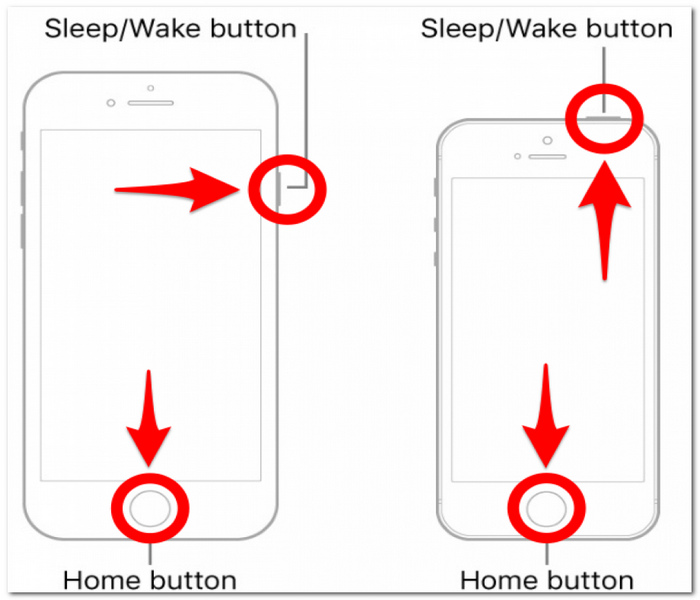
For iPhone 6s, iPhone SE (1st Generation), and Earlier:
Step 1. Press both the Home and Power buttons together and keep holding them. Hold them until the Apple logo appears.
Step 2. When the logo appears, you can release the buttons to let the iPhone restart. Once the restart is finished, you can open the video again to see if the playback issue has been fixed.
Solution 2. Check internal storage
Running out of storage space could be behind the problems you face while playing videos, like your videos not loading properly, playback becoming choppy, or your iPhone not playing sound on videos type of situation. Making sure that you have enough free storage space could be very helpful for your device to process and play media files without any issues.
Steps to Check iPhone Storage
Step 1. Open the Settings app on your device. First, tap on General.
Step 2. Now, choose iPhone Storage. Give iOS a few moments to determine how much space you are using. Look at the top of the screen to check how much space you have free.
Step 3. When storage space is almost used up, try removing apps, photos, videos, or other files that you don't need. Once you've done this, consider restarting your iPhone to let it register the change in storage.
Step 4. Give the video a try again.
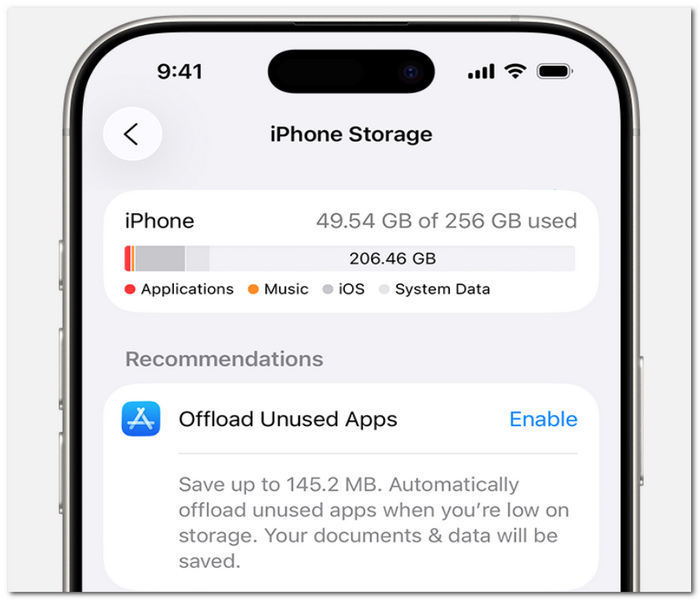
One useful tip is to always have a few gigabytes of free storage on your phone so you don't run into any performance or playback issues.
Solution 3. Toggle “Optimize iPhone Storage”
Sometimes, videos kept in iCloud Photos can freeze just when loading if the original file wasn't entirely downloaded to your device. Switching the Optimize iPhone Storage option on and off can renew the link between your iPhone and iCloud, and so, it can sort out a video not playing on iPhone problem if syncing has caused it.
Steps to Toggle Optimize iPhone Storage
Step 1. Launch the Settings application. At the very top, press on your Apple ID.
Step 2. Choose iCloud > Photos from the options. Make sure that the Optimize iPhone Storage option is enabled.
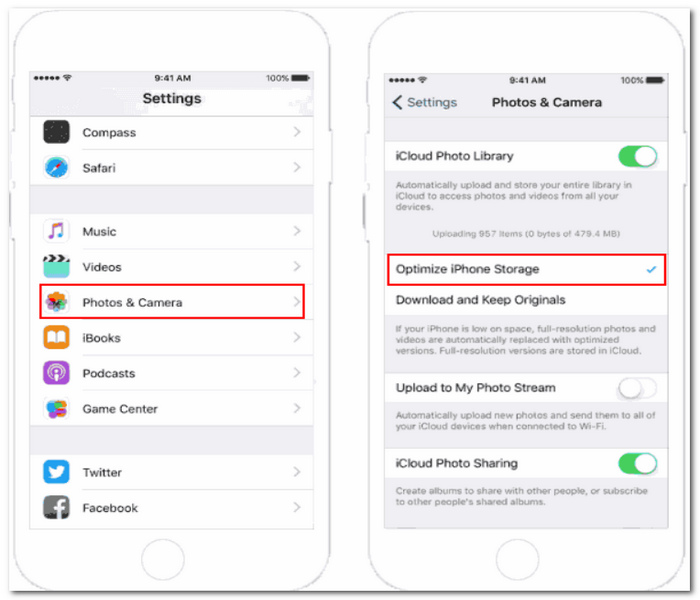
Step 3. You need to change to Download and Keep Originals here. Give it a few minutes for iCloud to start syncing.
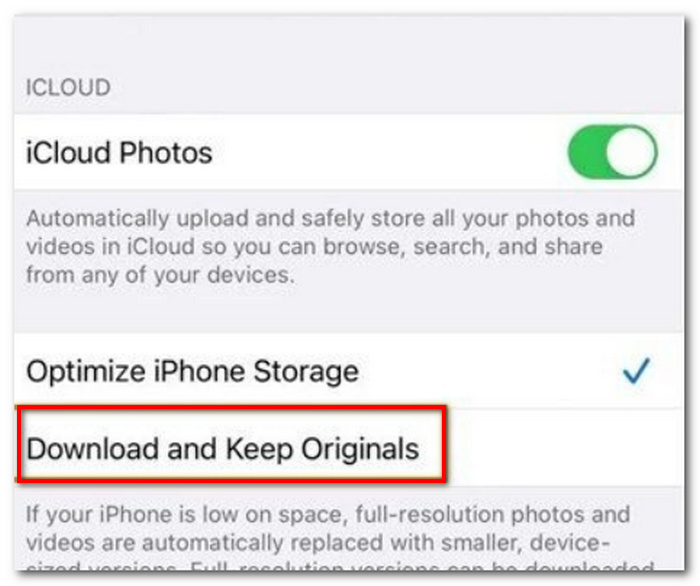
Step 4. Turn your iPhone off, then on again. Go back to the Photos app and try to open the video once more.
If it works properly, the problem probably stems from iCloud downloading or syncing the original video file.
Solution 4. Update iOS and the Photos App
There are occasions when videos do not play due to software bugs or incompatibility issues within iOS. Apple tends to issue updates that not only correct glitches in video playback but also enhance overall system performance and even fix problems in the Photos app.
How to Update iOS
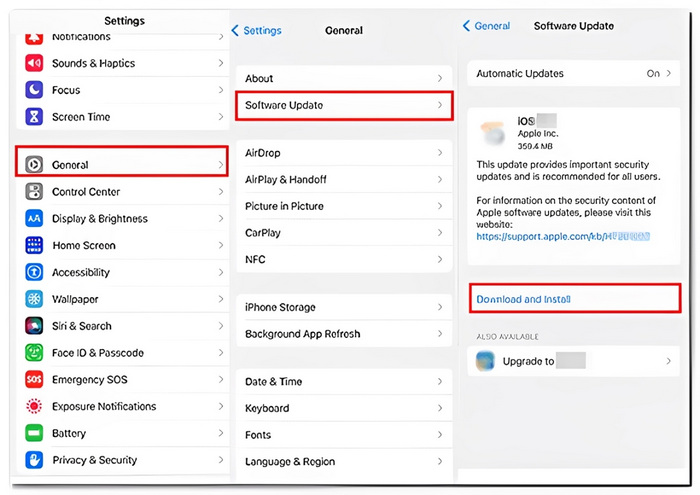
Step 1. Go to the Settings app on your iPhone. Press the General tab.
Step 2. Click the Software Update option. Allow your iPhone some time to scan for any new version of the software.
Step 3. When the update is ready, hit Download and Install. Perform the steps shown on your screen to finish the update.
Steps to Update the Photos App
Step 1. Go to the App Store. Hit on your profile picture located at the top-right corner. Scroll to the bottom of the page to find the list of apps that have updates available.
Step 2. If the Photos app shows up on the list, press the Update button next to it.
Step 3. Give the app some time to complete the update process.
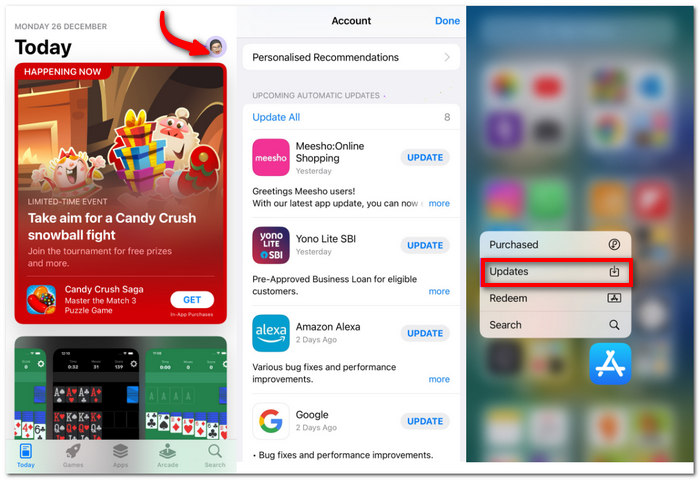
After you have updated, give the video playback another shot. Updating the iOS or Photos app might be the solution if the problem was due to a bug at the system level.
Part 2. Fixing Compatibility Issue
Most iPhones capture video in HEVC (H.265) format by default as a means of saving storage space while not compromising quality. The drawback is that older devices and certain apps may lack full support for HEVC files, which can result in playback issues like black screens or an unsupported format message. At times, incompatibility may even cause YouTube videos not to play on iPhones, a type of symptom leaving the user unaware that the real problem lies with the video format.
If compatibility is the issue, you can fix it by converting the video into a widely supported format like MP4 (H.264). VideoSolo VideoPro is a program for video conversion and enhancement that can be used to convert videos into different formats and codecs. The software is mainly useful for converting HEVC videos from iPhones into formats that will run smoothly on older devices, media players, and third-party applications.
 Features
- Convert HEVC (H.265) videos to H.264 MP4 MOV AVI etc.
- Support high-quality video output with very little quality loss.
- Batch convert multiple files simultaneously.
- Hardware acceleration for quicker running.
- Easy-to-use interface that even beginners can handle.
How to Convert iPhone HEVC Videos
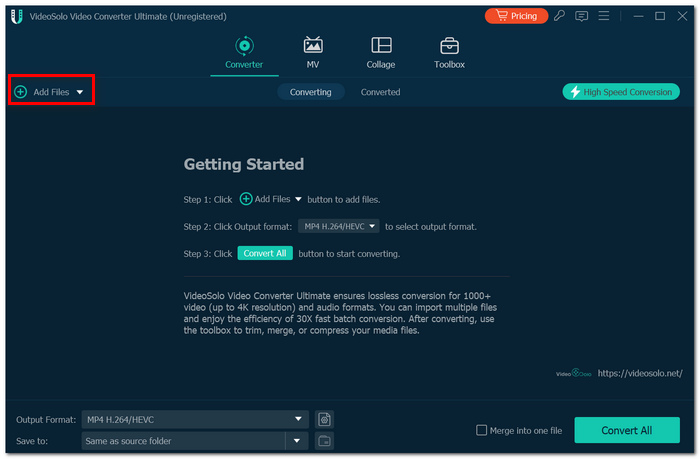
Step 1. Open VideoSolo VideoPro. Get the program running on your PC. Click the Add Files button and bring in the malfunctioning iPhone video.
Step 2. From the output menu, pick MP4 (H.264) or another well-supported format.
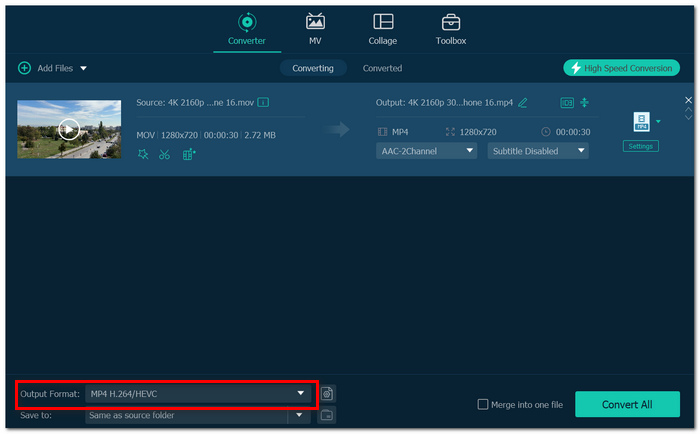
Step 3. If you want, you can change the resolution, bitrate, codec, etc. Pick a location for the converted video file.
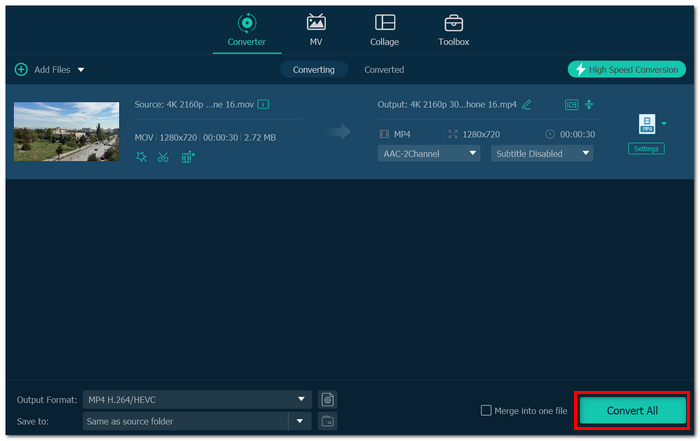
Step 4. Click the Convert All button to run the conversion. On your iPhone, PC, or the used application, check the new video file playback to make sure it works.
Part 3. Fixing Corrupted Files
It's possible the video file is corrupted instead of incompatible if a video refuses to open, shows a black screen while playing video, gets frozen, or makes the app crash.
This is a problem frequently caused if the recording is stopped because of a low battery, system crash, or a transfer error, since the video is damaged enough that it would not be possible to properly play it back. VideoSolo Video Repair is one of the video repair tools that can resolve corrupted, damaged, or difficult-to-play video files. The software can fix videos that have been corrupted by recording interruptions, transfer failures, and other file issues.
Features
- Fixes videos that won't open or play.
- Resolves playback issues and black screens.
- Supports a variety of video formats.
- Maintains the original quality of the video.
- An interface that is simple to utilize.
How to Repair a Corrupted Video
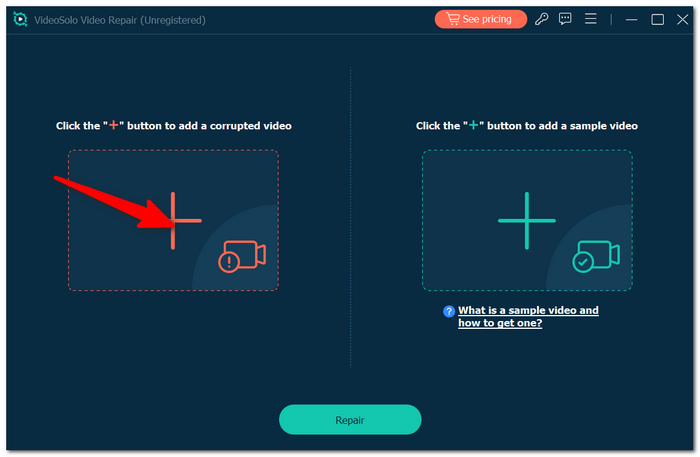
Step 1. Run VideoSolo Video Repair and add the corrupted video file.
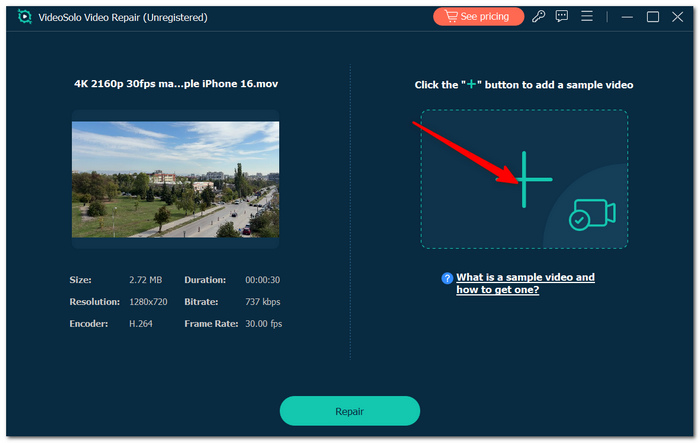
Step 2. Submit a sample video shot from the same device.
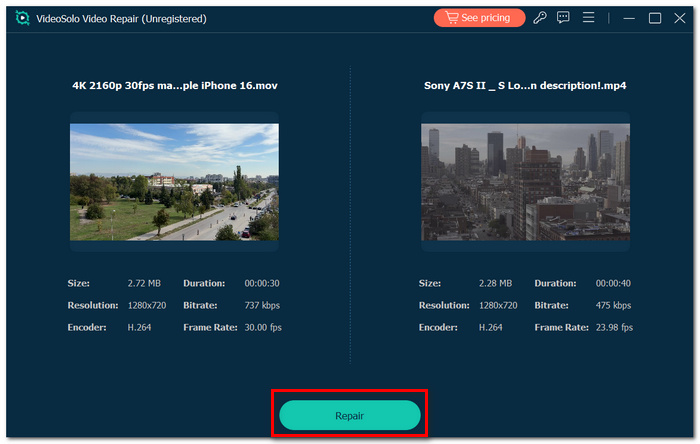
Step 3. Hit Repair to initiate repair. Have a look at the repaired video.
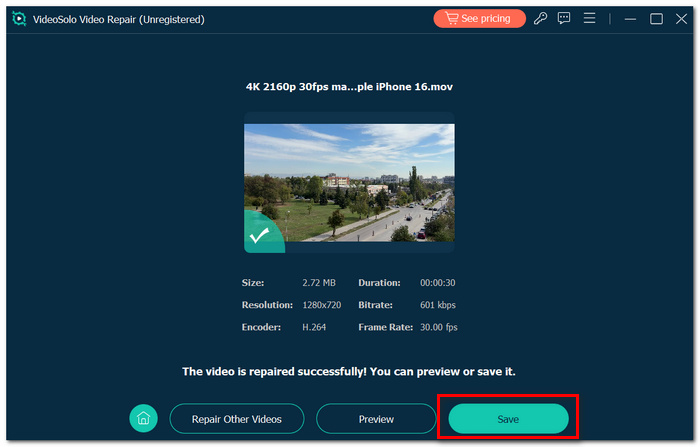
Step 4. Save the repaired video to your PC. Play the video and make sure it works fine now.
Part 4. FAQs about Video Not Working on iPhone
Why do I find that some videos on my iPhone only play when I switch off Low Power Mode?
Activating Low Power Mode could cause Apple's iOS to restrict some background operations, such as the download and sync of videos. As a result, you may encounter an instance where video playback is affected.
Is it possible that a video stops working just because it was renamed incorrectly?
Absolutely. Although very seldom, by manually changing the file extension, you might make iOS not identify the actual format of the video.
Videos are playing well in Photos, but in messaging apps, they are not. Why?
The reality is that some messaging apps rely on their own media processing systems, and because of this, they might not support a video's codec, resolution, or bitrate.
Conclusion
If your videos are not playing on your iPhone, the reason in most cases is one of these: lack of storage, software bug, wrong format, or corrupted file. Once you determine the biggest reason and pick the appropriate solution, you'll be able to get the video playing function back easily and even prevent such problems later on.
More Readings

