



 Download Screen Recorder For FREE!
Summary
The review of the top 10 screen recorders covers detailed comparisons, user experience, and tips for selecting the right tool. For most users, VideoSolo Screen Recorder comes out on top with its intuitive interface, 4K/60fps output, and watermark-free recording. If you're on a budget, OBS Studio is the best free option (powerful but complex), and for quick, no-install recording, Apowersoft Screen Recorder is a solid online choice.
You may need to record the screen instead of simply taking a screenshot: keep important details mentioned in a video meeting, or record online lessons? If you want to get the best screen recording app for preparation, this article has selected the 10 best screen recording software options for you.
A Table Comparison of the 10 Best Screen Recorders
How do the 10 screen recorders stack up against each other? A comparison table gives you a quick judgment at a glance. You can click on a target product name to jump to the detailed review that catches your eye.
How We Test
We run each screen recorder on Windows 11 (i7-12700K + RTX 3060) or macOS 14 (M2 Pro) to test their stability, file size, and performance. We cover screen‑only, webcam‑only, and picture‑in‑picture mode while testing audio capture. We compare output quality, CPU/GPU usage, and more features, so you get a clear, real‑world product review.
| Screen Recorder | Capture Modes | Video Quality | Output Formats | Audio Capture | Editing & Annotation | Advanced Features |
|---|---|---|---|---|---|---|
| VideoSolo | 20+: Screen, webcam-only, PiP, game, audio, phone recorder, and more | Up to 4K/60 FPS | MP4, WMV, MOV, F4V, TS, AVI | System sound, microphone, or both simultaneously | Real-time annotations (text, arrows, etc.); post-recording trim, compress, merge, convert | auto-stop/scheduled recording; noise cancellation; audio enhancement, etc. |
| FlashBack Express | Screen (full/window/region), webcam overlay | 720p export cap (free version); 6–60 FPS customizable | MP4, AVI, WMV | System sound + microphone | Real-time annotations | Scheduled recording; noise cancellation |
| Screencastify | Browser tab, desktop, webcam-only | Device-dependent; up to 30 FPS; 4K available (Pro) | WebM, GIF, MP4 (Pro) | Microphone + system audio (tab recording) | Basic trimming; annotations via extension | Direct upload to YouTube/Google |
| ScreenPal | Screen, webcam-only, screen+webcam | Free: 720p; Deluxe: 1080p; Premier: 4K | MP4, AVI, FLV, GIF | Microphone + system audio | Drawing; video editor (trim, transitions, chroma key) | Scripted recordings; video hosting platform |
| Camtasia | Screen (full/region), webcam, screen+webcam | 4K/60 FPS | MP4, MOV, GIF, AVI, and more | Microphone + system audio | Trim, transitions, effects, animations, captions | Interactive quizzes; extensive export presets |
| OBS Studio | Screen, webcam (fully customizable scenes) | Hardware-dependent; supports 4K+/60+ FPS | MKV (default), MP4, MOV, FLV, and more | Multi-track audio; system sound + microphone | No built-in editor; real-time scene composition, filters, and overlays | Rich customization via plugins; live streaming; advanced encoding controls |
| QuickTime Player | ❌️Screen (full/region); no webcam-only mode | Defaults to display refresh rate | MOV | ❌️Microphone only (no system audio) | ❌️ | ❌️ |
| Icecream | Screen (full/custom area/around mouse), webcam overlay | HD and 4K video with frame rates up to 60FPS | MP4, AVI, MOV, WMV | System sound + microphone simultaneously | Real-time drawing and annotations (text, arrows, highlights) | scheduled recording; screenshot capture |
| Apowersoft | Screen (full/custom/around mouse/window), webcam overlay | Up to 4K/60 FPS | WMV, AVI, MP4, MOV, MKV, FLV, etc. | System sound + microphone simultaneously | Real-time annotations and post-recording editor | Scheduled recording; direct upload to YouTube/cloud |
| VLC | ❌️Desktop screen capture; no webcam overlay | Up to 4K/60 FPS | MP4, M4V (H.264 + MP3/AAC) | ❌️Microphone only; no system audio capture | ❌️ | ❌️ |
Top 10 Best Screen Recording Software [2026 Updated]
Top 1. VideoSolo Screen Recorder
Pricing: $14.95/Mo, $49.95/Yr, $59.95/Lifetime
OS: Windows 11/10/8.1/8/7/Vista/XP (32 bit/64 bit), Mac OS X 10.12 or above (including macOS 26)
Best for: Beginners and users who want the simplest but high-quality recording outcomes
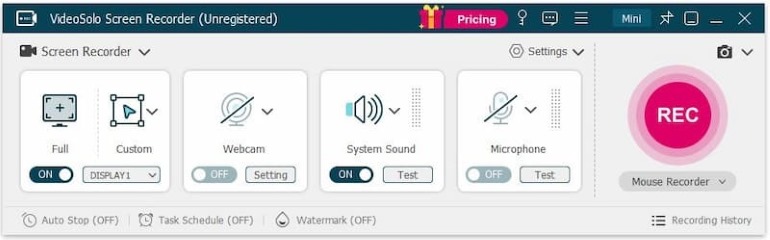
VideoSolo Screen Recorder has an intuitive UI, which allows users to conveniently record the screen, audio, webcam, or take a snapshot with only very simple clicks. In the latest version, VideoSolo Screen Recorder also provides a “Game Recorder” option that enables users to save their gaming moments with high quality. Users will find it extremely easy to create tutorials for sharing online. All in all, VideoSolo Screen Recorder stands out for its ease to use, and its versatility that can be used for recording different actions that appeared on your screen, such as Zoom meetings, online videos, games, skype chat, demonstrations, and so on.
 Features
- Offers an independent audio recorder to save audio tracks, music, phone calls, and more to MP3/AAC/M4A/WMA files with high audio quality
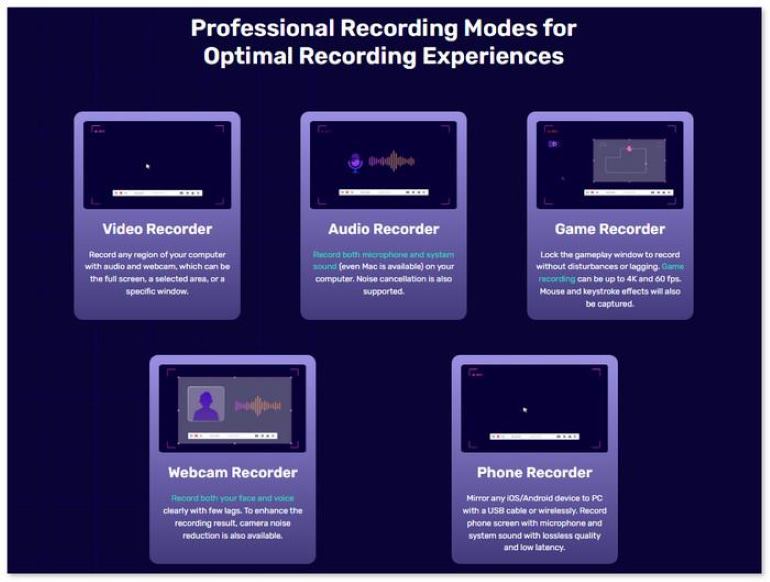
- Provides different recording modes such as Video Recorder, Audio Recorder, Game Recorder, Webcam Recorder, and iPhone Recorder to record more activities on desktop conveniently
- Allows taking a snapshot during the recording to save the special moments in images
- Provides a drawing panel for highlighting, adding annotations, and other elements during recording the video
- Offers shortcut settings to flexibly control the recorder for quickly start or end the recording
- Supports to preview the recording for trimming unnecessary parts from it before saving it to the computer
- Provides a mouse tracking function so that users can make use of the recorder to create video tutorials as well
 pros
pros
- Supports HD quality to record videos
- Keeps all the functions in the simplest way to use
- Provide real-time recording advantage without lagging back
 Cons
Cons
- If you use the free version, you are only allowed to save a 3-minute video, and the cutting tool is not available to use.
User Review
Having attention disorders, it's sometimes difficult for me to understand well during virtual meetings. With Screen Recorder, I can re-listen to a segment that I misunderstood in order to complete my notes and then delete it. – Maire Claude
The software provides error-free and continuous screen recording. It is extremely useful in recording Zoom meetings, online teaching, etc so that we can review the recording whenever we are free. – ZAW MIN OO
Top 2. Flashback Express
Pricing: $29/yr, $49/Lifetime.
OS: Windows 10/11
Best for: Professional users, especially those who need to make video tutorials
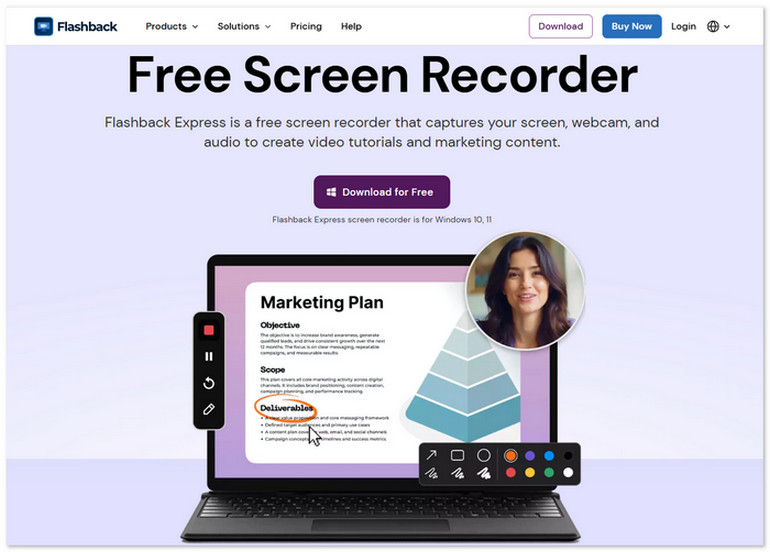
Flashback Express provides a powerful screen recording function, and it also combines great video editing tools. This desktop recording software is especially suitable for people who have more needs in creating video tutorials through recording, such as teachers, professional gamers, company leaders, and so on. And it doesn't impose any limits on video length.
With the ability to record several sources at the same time, including the screens, cameras, and system audio streams, Flashback Express, the all-in-one solution helps record screen activities with high quality and also creates tutorials flexibly at once.
pros
- Offers professional editing tools to adjust videos after recording
- Records videos without watermark
- Offers basic free version for using without cost
- Adds captions, arrows, and images as you need
Cons
- Supports only Windows system
- Limits the editings functions using free version
Author's rating⭐
Multi-Screen Recording: 4.2/5
Audio Capture: 4.5/5
Video Editing: 3/5
The interactive interface guided me to configure video quality, recording area, sound source…The process was user-friendly and effective. But it seems to capture windows only – you can't actually perform edits like cropping or deleting parts of the video, although it looks like a video editor. And the supported output formats are limited.
Top 3. Screencastify
Pricing: Limited Free Plan, starting from $19/month
OS: fully compatible with ChromeOS, Windows, and macOS.
Best for: Users who have higher needs in recording browser content in Chrome
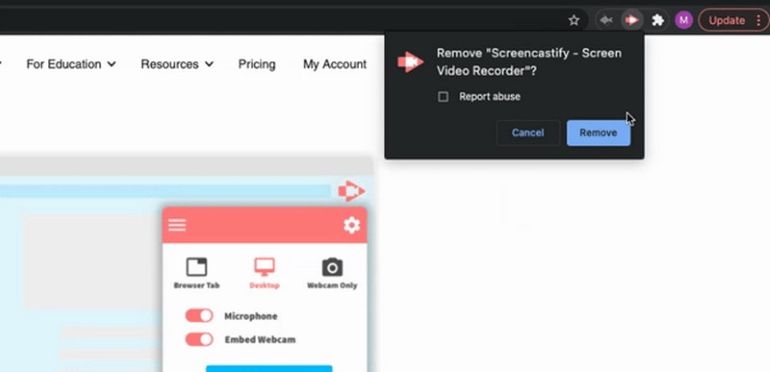
Screencastify is not a desktop recording software, but a browser extension that can be added to Chrome for helping people to record website activities more conveniently. Unlike some desktop screen recording apps, Screencastify does not need to get any software installed. After adding it to your browser, by clicking the icon on the extension bar and you can begin to record the screen easily. Screencastify brings the simplest way to record videos, audios, and even add annotations to them.
pros
- Offers a very simple set-up process
- Is able to record microphone and embed webcam at the same time
- Provides immediate share to upload recordings to Google Drive or YouTube
Cons
- It would be inconvenient to record software actions but does better in recording web page actions in the browser.
Note
You can capture the full screen, browser window, and a single tab, but the recording duration is allowed to 5 minutes. And the quality and stability depend on your system performance. If you need to save the video files locally, MP4 is the only common format you can use.
Top 4. ScreenPal
Pricing: Limited Free Plan, starting from $4/month
OS: Windows 7/8/10/11, Mac, iPhone, iPad, Android, and Chromebook.
Best for: Those who want to flexibly record screen on more systems without software downloaded
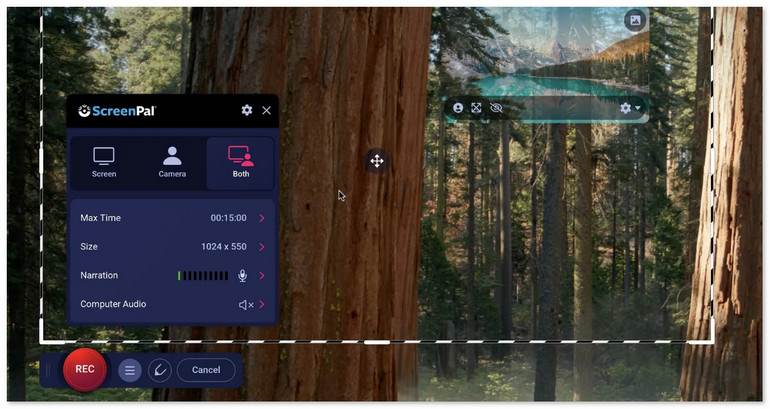
ScreenPal (formerly known as Screencast-O-Matic) capture any area of your screen and add/resize video from your webcam without watermarks. You can add a virtual background to enhance your message when recording your webcam. For picture-in-picture, it allows you to move the camera to customize the layout and make it transparent. Except for the basic recording function, this no-lag screen recorder also brings small tools for editing videos and auto-generates transcripts, captions, chapters, and more.
pros
- Allows people to use under different situations such as education, work, and personal use
- Records videos with audio, webcam on
- Provides easy built-in editor to edit videos by adding texts, shapes, images, animations, special effects for free
Cons
- Unable to hid cursor or webcam using free version
- Watermark will be added to the recordings if you use the free plan
- Unable to record system audio freely
User Review
ScreenPal makes recording videos, tutorials, and quick walkthroughs incredibly simple. The interface is clean and easy to understand, so even new users can start recording right away. But sometimes, the upload or export process can take a bit longer than expected, especially for large, high-quality videos. Even if you choose the highest quality, the videos you upload to the repository have some loss of quality.
Top 5. Camtasia
Pricing: Various Plans start from $39/yr
OS: Windows 10/11 (64-bit), macOS 14 Sonoma or later
Best for: Users need to record screen for making professional and attractive video tutorials
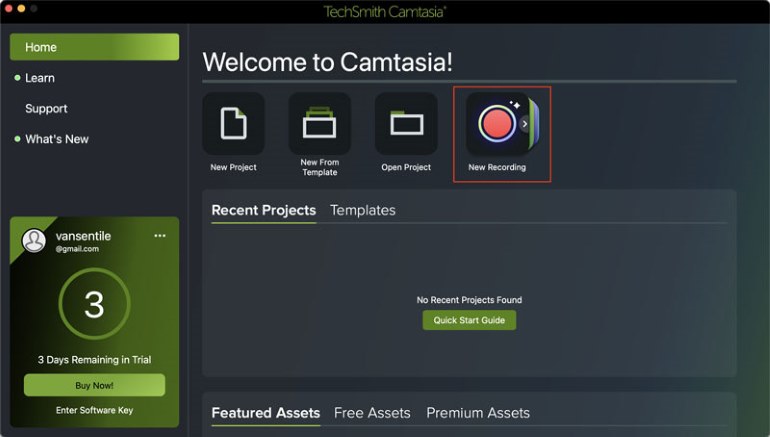
As we can see, Camtasia is also a renowned screen recording app that has integrated both the screen recorder and video editor into one software. People can easily capture screens and create professional tutorial videos on Windows and Mac computers with Camtasia. To enhance the resultant video, the software also provides some effects or filters to add to the recordings. Basically, it is a reliable tool for recording high-quality video to meet most of your needs including situations such as creating software using tutorials, recording video calls, presentations, and so on.
pros
- Offers rich templates to help reduce the editing time after recording the videos
- Works better in dealing with the video editing parts
- Supports screen recording with web camera, both microphone and system sound on
Cons
- The price is expensive
- Is more suitable for professional users or groups
Feedback
Basic setup is sufficient for most new users. Background video remover is easy to add my video over the background with basic cuts. Not as powerful as proper video editing tools. So you might still need to go back to those for higher-quality produced content. And export time can take a while, naturally.
Top 6. Open Broadcaster Software(OBS)
Pricing: Free
OS: Windows, macOS, and Linux
Best for: Users who need to record screen without cost and Linux system users.
Open Broadcaster Software (OBS) is the best choice for users who are finding desktop recording software that costs no fee. A highlighted feature that Open Broadcaster Software can outperform the others should be its ability to support the Linux system. This can be essential as most screen recorders for computers can only support Windows and Mac. But don't underestimate the free OBS, its professional ability in screen recording can save you more time and energy when it comes to video recording and live streaming. Many gamers opt for OBS to capture their gameplay videos, making it convenient to find some best OBS settings to improve the recording and hence create stunning videos.
pros
- Offers recording services without the need to pay
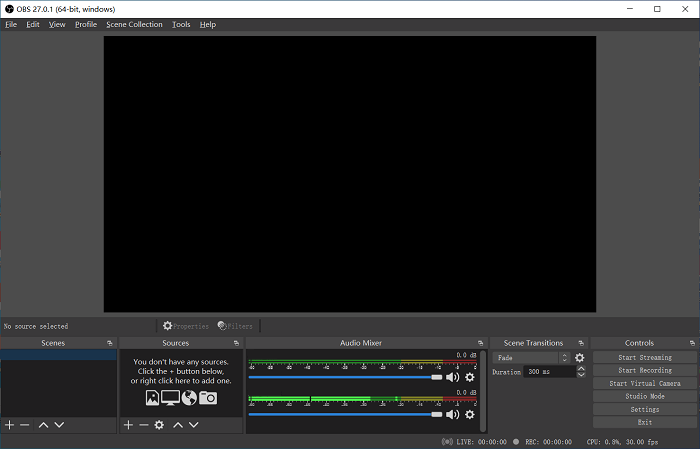
- Divides the main functions into different parts for controlling the screen recording professionally
- Provides audio mixer, scene transitions, filters, and other preference settings to create good video recordings
Cons
- The interface would be a little complex for starters to use, which is not easy to learn at a quick speed
Author’s Note
To be honest, OBS Studio has mixed reviews: Some users are satisfied with the full freedom and total control over the video layout. You can build custom scenes, layer specialized overlays, and configure multi-track audio routing as your demands. And others think this program always makes users get lost in complex controls. You don’t know which of them matter for your situation.
And it’s inevitable that occasional glitches and bugs occur, making it stutter or crash without warning. For better application, VideoSolo Screen Recorder is not hard to get started with while offering rich features.
Top 7. Quicktime Player
Pricing: Free
Best for: Mac users who don't want to install another app to record the screen
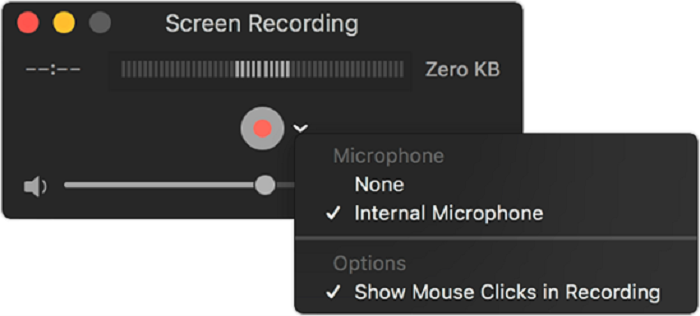
Quicktime is a built-in media player developed by Apple company. More than working as a simple media player, Quicktime also provides the recording function to let Mac users record videos, audio, and microphone without installing other apps. After opening Quicktime and you can quickly find the recording function by going to “File” > “New Screen Recording”. But the shortcoming of it is obvious – the application doesn't offer any editing tools to edit the recordings before saving.
pros
- Doesn't need users to download other apps to record the screen
- Offers the recording function with the simplest operations
- Needs no cost for using the recording service
Cons
- Quicktime is only supported on Mac computers
- Provides no editing tools to adjust the recordings after recorded
Limitation
When I first tried using QuickTime to record a Zoom meeting on my Mac, I was frustrated to find that it only picked up my mic, completely muting the other attendees. It is noted that system sound recording is prohibited. And the size of the recorded video takes up a lot of space, even after exporting to lower quality. I doubt that we have any choice but to change the bitrate for macOS screen recording.
Top 8. Icecream Screen Recorder
Pricing: $29.95/yr, $59.95/Lifetime, $78/ Pro Package
OS: Windows 11/10/8.1/8/7, macOS 10.9 or later, and Android
Best for: Users who are not familiar with computer software and only the most basic video recording is required
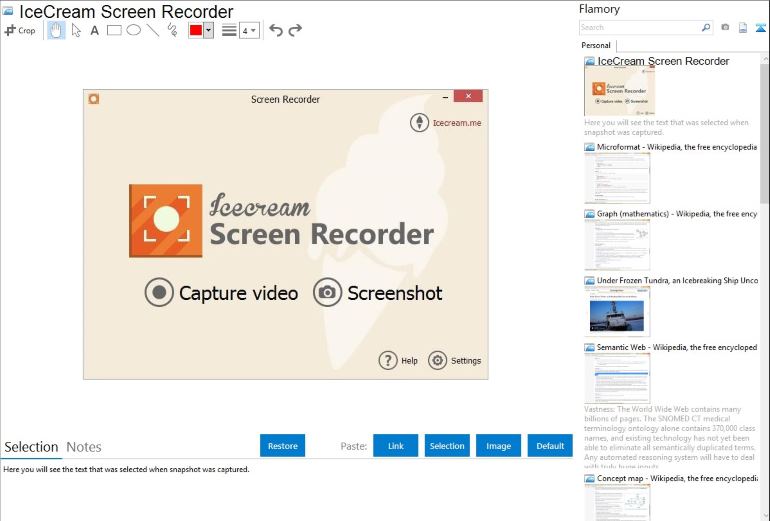
Similar to other screen recorders listed, Icecream Screen Recorder also supports basic features such as recording from a select window, recording audio or webcam, and etc. At the same time, it still has some advanced recording features such as scheduling recording, and real-time annotation. All these amazing features and functions make it perfect for game recording, recording a live stream , webinars, Skype calls, and more. The main difference lies in that Icecream Screen Recorder provides an Android version, so that it is convenient to record the phone screen as well.
pros
- Compatible with Windows, macOS, and Android
- Support most recording features like recording webcam and computer screen at the same time
- Upload to YouTube, Dropbox, and Google Drive directly
Cons
- The free trial version can only record 5 minutes
- The output format can only be webM on the free trial version
User Review from G2
Its easy-to-use interface and annotation tools are very helpful, and its different capture modes and task options make things easier while recording the screen for content like tutorials. The webcam capture option does not provide an option to use a circle frame or "no frame "mode and adjusting the camera size is a bit difficult to handle. And the disk volume (10GB) sometimes hits this limit.
Top 9. Apowersoft Screen Recorder
Pricing: USD 39.95
Best for: Users need to edit screencast in real-time or afterwards
Apowersoft Screen Recorder is one of the best free online screen recorders, it is also a professional desktop tool for recording screen and audio activities at the same time. Compared with other programs, Apowersoft is noticeably lightweight and convenient to use.
There is no doubt that the web-based Apowersoft Free Online Screen Recorder is an ideal option for those who prefer not to download a new desktop app. Just open its official website and click on the Start Recording button and it will ask you to download a launcher.
pros
- Don't need to download and install an extra program on computers with the online one
- Provides a cloud storage service
- Can upload the video to YouTube, Vimeo, Google Drive, and Dropbox
Cons
- Some functions are limited: Doesn't allow task schedule recording with the online one
- Doesn't support real-time editing on your recording
- Might happen to lose your recording if heavily rely on its cloud service to store your recording
As a multi-device-compatible screen recorder, it’s enough for daily screen capture tasks, but you have to make sure the network connection is stable to record contents fluently. However, the free version is limited and requires an upgrade to be used. The functions of the Mac version are also fewer than the Windows version.
Summary
Related Article: Apowersoft Screen Recorder Review: Is it Trustworthy? [2026]
Top 10. VLC
Pricing: Free
Best for: Users not only need to screen record, but also want to play multimedia files as well as DVDs, Audio CDs, VCDs in the software
VLC is a free and open-source cross-platform multimedia player. Although it is mostly used for playing DVDs, VCDs, CDs, and almost every digital file, the powerful VLC has many hidden features to explore and make use of.
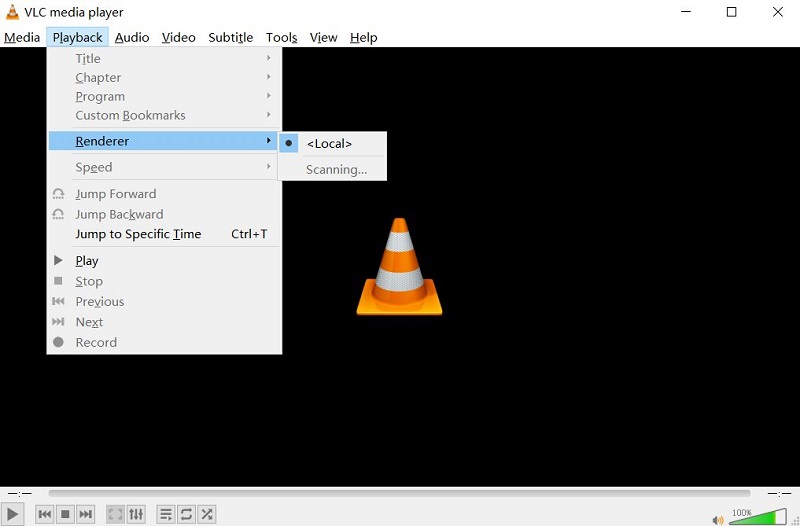
Besides playing video or audio, VLC Player is so versatile that you can even record a screen. And it performs smoothly and amazingly. Best of all, VLC is free and has no time limit in recording your computer screen. However, as it is not designed for screen recording, the process of capturing screen with VLC may seem a little complicated and its interface for customization is basic and limited.
pros
- Is totally free to use
- Record without watermark
- Can be used as a media player and screen recorder
Cons
- Complicated operation steps
- Old-fashion user interface
- No advanced recording features such as scheduling recording tasks
Top 10 Best Screen Recording Software [2026 Updated]
After introducing the 10 best screen recording software for PC, you may also wonder how we select them as the “best” ones. Are there any tips provided to choose screen recording tools in the future when more options appear? This part sets for you if you need such pro tips.
Recording Quality
Recording quality should be the most important factor that many users would consider. Especially for gaming recordings, the requirement of quality would be higher than in other situations. Therefore, screen recording apps that support 30 FPS or even 60 FPS can help create smooth motion and further capture gameplay such as drifting or racing scenes that occur too fast for our naked eye.
Audio/Webcam recording
People would need to include voice and camera recordings sometimes, such as recording a video call or presentations. So screen recorders that come with audio and webcam recording functions are also important because the voice annotation more or less can add vividity and include much more information in the video than recording the screen singularly. And you don't have to find an extra tool to record and combine both the video track and audio track into one file.
Basic Editing Functions
When the recording completes, using small tools like video cutting may be necessary for some users to cut or trim the unwanted parts from their recordings. And obviously, screen recording software with such editing features can provide much convenience.
Easy-to-use UI
Many users may be new to screen recording software and are not professional in video recording or creating. All their needs are just to record activities such as an online meeting for preview sometimes, so a simple UI is friendly for newbies to quickly know how to use the recorder and capture the important moments that they want.
Stable Recording Process
A screen recorder without slowing the computer running speed can ensure a successful recording process. So you'd better choose the one that can fast resolve the recording without dragging down the performance of your computer.
Concluded from the above tips, the best-recommended screen recording software for desktop still turns to VideoSolo Screen Recorder, which makes sure high output recordings' quality, simple UI, shortcuts control, trimming function, webcam/audio recording modes, and more features that are friendly for both starters and professionals. Why not try it for once?
A Table Comparison of the 10 Best Screen Recorders
With their own features, these 10 screen recording softwares each stand out in different situations. Now let's have a quick overview of the details about their features and performance of them.
| Product | Clear Interface | Area Selection | Audio Selection | Quality | Editing Tool | No Lag | Overall Score |
|---|---|---|---|---|---|---|---|
| VideoSolo | √ | √ | √ | Lossless | √ | √(up to 60fps) | 4.9 |
| FlashBack Express | √ | √ | √ | High | × | √ | 4.7 |
| Screencastify | √ | √ | √ | Middle | √ | × | 4.6 |
| ScreenPal | × | √ | √ | High | √ | √ | 4.5 |
| Camtasia | √ | × | √ | High | √ | × | 4.5 |
| OBS | × | √ | √ | High | × | √ | 4.5 |
| Quicktime Player | √ | × | √ | High | × | √ | 4.5 |
| Icecream | √ | √ | √ | High | √ | × | 4.6 |
| Apowersoft | √ | √ | √ | High | √ | × | 4.6 |
| VLC | × | × | × | Middle | √ | × | 4.3 |
FAQs about Screen Recording Software
Q1:Does Windows 10/11 have a built-in screen recorder?
A: Yes. Some Windows users choose to use the Xbox Game Bar as a handy tool to record app windows with system and microphone audio. However, it doesn't capture the full desktop or File Explorer.
Q2: How do I record my screen with both system audio and microphone?
A: To record dual-track audio, recommend you use some professional screen recording software, like OBS, VideoSolo, and ScreenPal, which support simultaneous system and microphone sound. Common built-in tools like QuickTime and VLC don’t capture internal audio.
Q3: Why is my screen recording laggy or dropping frames?
A: Your computer may not be keeping up with the encoding. Try lowering the resolution (e.g., 1080p → 720p) and framerate (60fps → 30fps), closing background apps, or switching to hardware encoding (NVENC for NVIDIA GPUs).
Verdict
Here is all the information of 10 best free screen recorders. You may ask which is the best screen recording software for your PC? The answer is decided on your needs. If you want a free screen recorder with no watermark that is used to record gameplay in 60fps without lag, you are recommended to use VideoSolo Screen Recorder which performs well during our test. Download and have a try!
More Reading
Capture screen activities, audio, webcam, gameplay, and mobile screens on Windows and Mac with high quality.

