



 Download Screen Recorder For FREE!
Brief Summary
Loom Screen Recorder excels at quick screen recording with AI-powered features like auto-transcription and summary. But there’s a downside to its reliability, subscription plans, and basic video editing. We also compare Loom against VideoSolo Screen Recorder — a powerful alternative with no recording limits, watermark-free output, and more advanced editing tools. In this Loom review, you'll know exactly which screen recorder fits your various needs and use cases.
Whether you're attending remote meetings, making a tutorial, or showing a presentation to clients, screen recording makes communication effectively. Loom Screen Recorder has been widely adopted as a go-to option to capture messages. But is it the right choice for your workflow? We put it to the test and offer a detailed review to help you record your screen quicker and smarter.
What is Loom?
Michael Rudenko, an expert at The Adaptavist Group, said that many are now looking to dynamic video messaging tools as an alternative way to improve internal and external communication.
Loom is an asynchronous video messaging tool that was acquired by Atlassian in 2023 and fully integrated into the Atlassian ecosystem. You can use it as a super handy screen recording tool that lets you record your screen, webcam, and voice on a computer and mobile.
The best part is that as soon as you finish recording, it automatically uploads your video to the cloud and gives you a shareable link. This HD screen recorder, which can also integrate seamlessly into browsers, is primarily designed for remote teams, educators, and professionals. Instead of typing out long emails or scheduling unnecessary meetings, you can just send a quick video link to explain things or walk people through a project.
Loom Pricing Plans 2026
| Plan | Price | Videos | Length | Resolution | Key Features |
|---|---|---|---|---|---|
| Starter | Free | 25 | 5 min | Standard | Basic recording |
| Business | $18 per user/mo | Unlimited | Unlimited | Up to 4K | Branding, analytics |
| Business+AI | $24 per user/mo | Unlimited | Unlimited | Up to 4K | Auto-video enhancement, video-to-text, auto meeting notes, etc. |
| Enterprise | Custom | Unlimited | Unlimited | Up to 4K | Advanced security |
Features Overview of Loom Screen Recorder
A. Recording Modes 3.5/5 ⭐⭐⭐
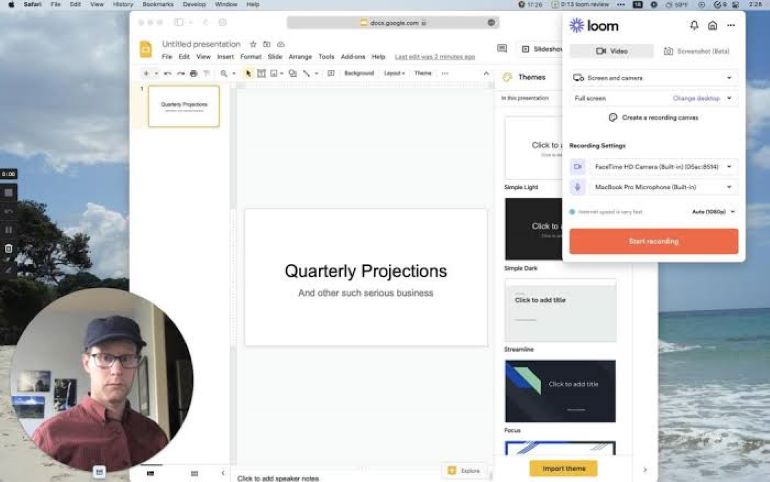
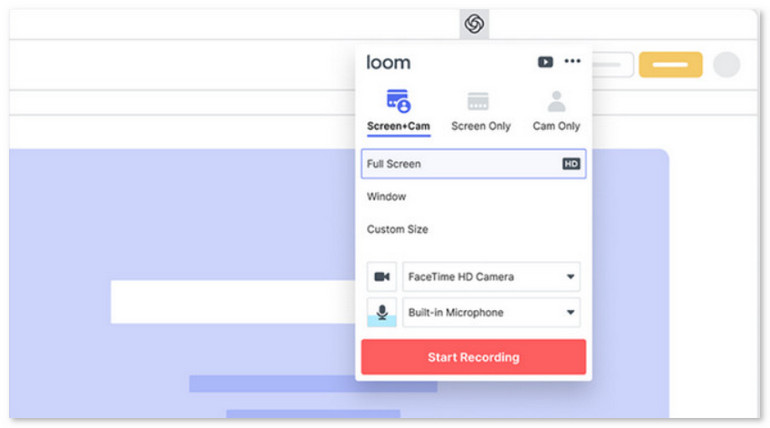
- • Full Screen: Capture entire screen for presentations and walkthroughs
- • Specific Windows: Choose individual application windows to record
- • Custom Size: Set custom recording area ratios
- • Screen + Camera: Popular for team updates and onboarding—captures screen with webcam overlay
- • Microphone Recording: Can be applied to any mode
B. Video & Audio Quality 3.5/5 ⭐⭐⭐
- • Supports resolutions up to 4K HD (720p, 1080p, 1440p, 4K available)
- • Records computer audio and microphone simultaneously
- • Quality depends on plan—higher resolutions require paid tiers
C. Editing Tools 2.9/5 ⭐⭐⭐
- • Trim: Cut unnecessary sections from videos
- • Drawing tools: Annotate during recording
- • Emoji reactions: Add lightweight engagement
D. AI-Powered Features 5/5 ⭐⭐⭐⭐⭐ (Paid Plans)
- • AI Transcripts: Automatic transcription of recordings
- • AI Summaries: Generate summaries from long recordings
- • AI Highlights: Extract key points automatically
- • Auto-titles, auto-chapters: Available in Business + AI plans
- • Filler word removal: Polish presentations
E. Cloud Sharing 4.6/5 ⭐⭐⭐⭐⭐
- • Instant Links: No downloads needed—share via link instantly
- • Team Collaboration: Teammates can comment, react, and reply
- • Integrations: Works with Slack, Jira, Salesforce, and more
- • View notifications: Get alerted when someone views or reacts to your video
Performance & Pros and Cons of Loom
 pros
pros
- Clean, beginner-friendly interface and setup.
- Supports uploading videos to the cloud and sharing via link.
- Powerful AI features for high-end recordings.
- Works on Windows, Mac, iOS, Android, and Chrome.
 Cons
Cons
- Many limitations for free users.
- Videos are public by default and may cause privacy issues.
- No advanced editing features.
- Chrome extension offers fewer features than the desktop app.
- Requires an internet connection for uploading and viewing.
I have installed the app on my computer and added its Loom Chrome extension as well. It allows users to record screen and webcam simultaneously, but you must choose one or the other on the iOS version—they can’t run together. Beyond the fluent recording, I found that the recording can be polished simply…well, the editing function is limited to basic trim and splice.
Once you upload videos, everyone can visit and react to your content by linking. If you go through the extension and share videos to social media sites, conveniently, the program will turn links into embedded videos for seamless playback and streamlined flow. But that's not really the point I want to insist on:
“I've been using Loom for a while, but honestly, the 5-minute limit on the free plan and the fact that all my data is on their servers started to bother me, plus the 25-video cap is just annoying when you are doing quick demos.”
Although Loom offers an easy way to share screen recordings, for most people, its subscription plans are relatively high, especially when you don’t want to pay for features you never use. Loom is not ideal for Users who need long free recording and advanced editing.
How to Choose: Loom vs. Alternative
Loom's cloud‑based approach is great for teams, not for everyone. If you want a reliable screen recorder that offers more recording modes and captures the screen without a watermark, take a look at how the two stack up and determine which tool is suitable for you:
| Feature | Loom | VideoSolo Screen Recorder |
|---|---|---|
| Recording Modes | Screen + Camera + Microphone (basic) | Video, Audio, Game, Webcam, Phone screen mirroring & recording |
| Max Resolution | Up to 4K (Paid Version) | 1080p/4K, 60fps |
| Real‑Time Annotation | Basic drawing tools | Add text, arrows, freehand drawings, and highlight mouse effects |
| Watermark | Loom branding can only be removed with paid plans | Completed watermark-free |
| Video Editing | Basic trimming only | Trim, compress, merge, and convert video |
| Scheduled / Auto Recording | ❌️ | ✅️ |
| Output Formats | MP4 | MP4, WMV, MOV, F4V, TS, AVI, etc. |
| Cloud Storage | ✅️ | ❌️ |
| Free Version Limit | 25 videos per person, 5‑minute limit per video, 720p resolution | Unlimited recording time, but can only save a 3‑minute clip locally |
VideoSolo: All-in-One Screen Recorder
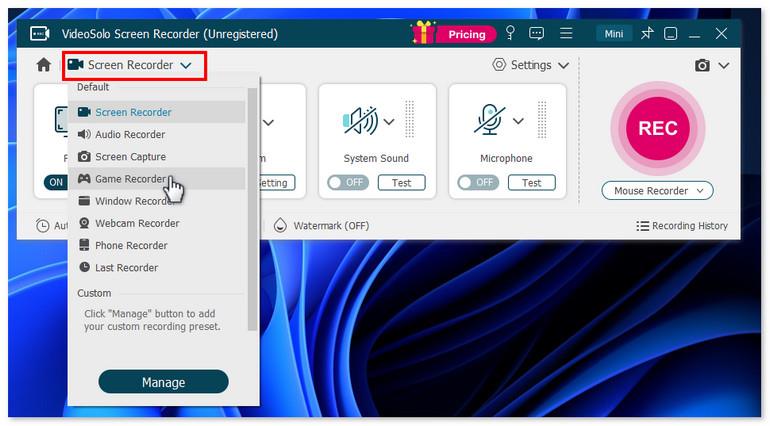
VideoSolo Screen Recorder provides various recording modes, such as Screen/Window Recorder, Audio Recorder, Game Recorder, Webcam Recorder, Phone Recorder, and Screen Capture. No matter whether you’re an educator, business professional, gamers and content creator, you can customize recording presets to suit your needs.
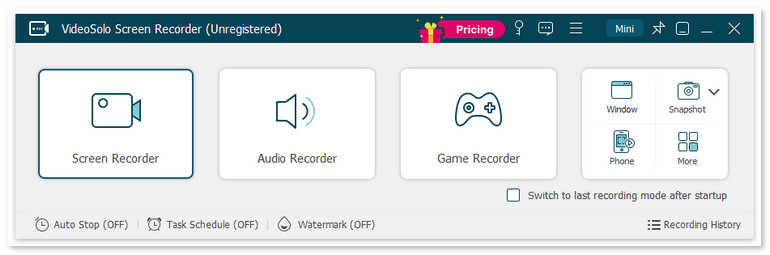
It delivers no-lag 4K screen recording with system and microphone audio, while the tool automatically applies noise cancellation and enhances sound effects. During recording, you can easily draw a brush, draw arrows, add text boxes, and even use a magnifying glass to zoom in on details or highlight mouse trails. This saves a lot of post-editing time for recording lectures or tutorials. It also has built-in format conversion, video merging, and compression, which are features that Zoom doesn’t offer.
 Features
- Various recording modes for gameplay, video, audio, etc.
- Provide scheduled recording and auto-stop recording.
- Record your screen in quality up to 4K/60FPS.
- Offer noise reduction & audio enhancement.
- Advanced editing tools to polish your videos.
- 10+ output formats for different devices' compatibility.
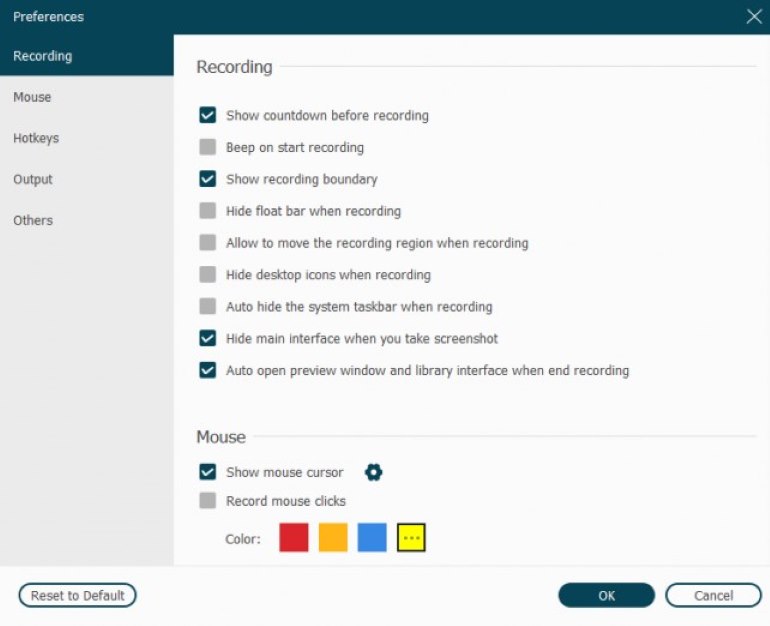
- Customize handy hotkeys in preferences for quick recording.
pros
- Record your screen with low latency.
- Trim, duplicate, compress, add, merge, or convert videos.
- Lock targeted windows for a clean and mute-notification recording.
- Scheduled recording lets you be free from constantly monitoring.
Cons
- No webcam shooting and noise cancellation for free users.
- Can’t record audio from a specified application before purchasing.
How to screen record with VideoSolo?
Step 1. Open the program and choose a recording mode as you like.
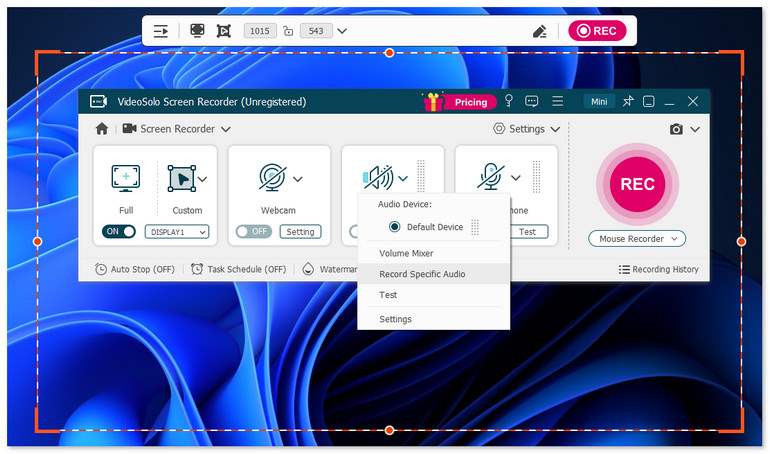
Step 2. Select Full or Custom to select what you want to record by dragging the corners or sides of the frame. Then adjust the volume bar for the system sound and microphone.
Step 3. Click Setting > Record Setting > Preferences on the interface. Output allows you to set your resolution, your format, frames per second, the folder your recordings default to, and the general quality of your audio and video.
Step 4. Click REC to start recording. After done, stop the process and edit your video.
Testing Experience
I did an entire test recording for a podcast, YouTube video, and sent some rather goofy audio and a few snippets from World of Warcraft to a friend. VideoSolo Screen Recorder captures all my important moments without a watermark. It offers options to separate your audio and video into two separate folders, which is useful for editing purposes. The sky’s the limit, only limited by your creativity and needs. It’s incredibly lightweight and won’t eat up my GPU. The only pity is that it cannot add filters, advanced polishing, or modern effects.
FAQs on Loom Screen Recorder
Q1: Which is better, Loom or OBS?
A: Depends on your needs. Loom is better for fast, workplace communication because it supports uploading your recorded content to the cloud and generates an instant shareable link for quick sharing. OBS Studio is better for complex, high-resolution game recording and live streaming.
Q2: Do people on Loom see if I saw their videos?
A: Yes. When you watch videos on Loom, your name will appear in the viewer activity log. If you view the video without logging in, the creator will still see an increase in their total view count and may see your general location or IP-based analytics.
Q3: How long can you record on Loom for free?
A: On Loom's free plan, users can record up to 5 minutes per video and are limited to 25 videos in total. To record longer videos without a time limit, you need to upgrade to a paid plan or switch to a desktop screen recorder like VideoSolo Screen Recorder.
Final Words
They may differ from each other and have a different focus. Loom is a lightweight tool designed for better team communication. Although you can quickly pre-record messages from your screen and camera, but more cool features with Loom focus on AI-powered workflows. As a professional recording software, Videosolo Screen Recorder can be even better for flexible capture, output quality, and long-term spending on usage.
More readings
Capture screen activities, audio, webcam, gameplay, and mobile screens on Windows and Mac with high quality.

