



 Download Screen Recorder For FREE!
TL;DR
DU Recorder is a free screen recording app for mobile devices, later expanding to desktop platforms. It offers one-click screen capture, built-in video editing, and live streaming without root access. However, the app lacks an official download source and updates now, which may lead to many problems like frequent crashes and audio sync issues. Based on that, we also compare DU Recorder against Videosolo Screen Recorder—a better alternative to capture high-quality videos without watermarks and limits.
Is DU Screen Recorder trustworthy? Still good to use? Many people come across software that has been popular for years, but they still have some concerns about its security and availability. By the end of this review, you'll know exactly whether DU Recorder still deserves a spot on your device or if it's time to switch to a more reliable alternative.
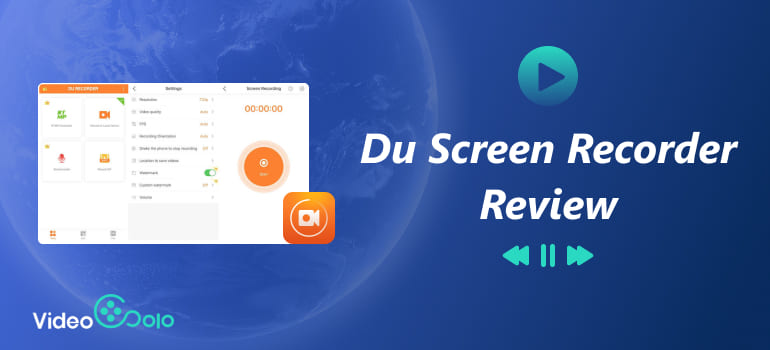
What Is DU Screen Recorder?
DU Recorder is an all-round software with a clear positioning—It integrates recording, editing, and livestreaming into a single program, making it work for users who need quick screen capture, sharing, and live streaming to YouTube, Facebook, etc.
You can record the screen on Android, iOS, macOS, and Windows (the functionality of the PC versions is relatively limited). It can be quickly activated through the iOS Control Center or Android floating buttons. One major highlight is that it can access all recording functions with no root or jailbreak required, which makes it much easier to record gameplay, phone calls, and videos on streaming platforms.
Everything It Can (and Can't) Do
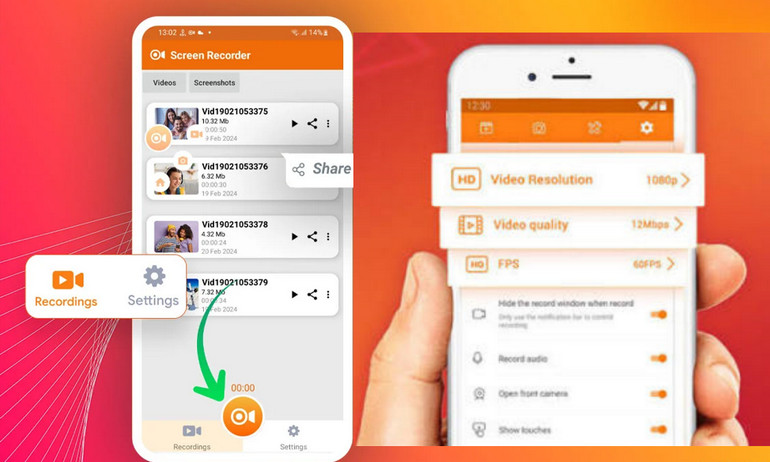
DU Screen Recorder is more than just a simple screen recording tool. Its key features include:
High‑Definition Screen Recording: Supports recording up to 1080p/60 FPS with a 12Mbps bitrate. You can also capture a camera overlay (picture‑in‑picture). Users can customize resolution, frame rate, and bitrate, and capture both microphone audio and system sound simultaneously.
Built‑in Video Editor: You can polish your recording by trimming, cropping, merging multiple clips, adding filters/stickers, background music/subtitles/intro & outro, and rotating videos. For clear playback, it allows you to adjust speed and volume.
GIF Maker: Converts video clips into GIF images with one tap, making it easy to share highlights in a smaller size on social media.
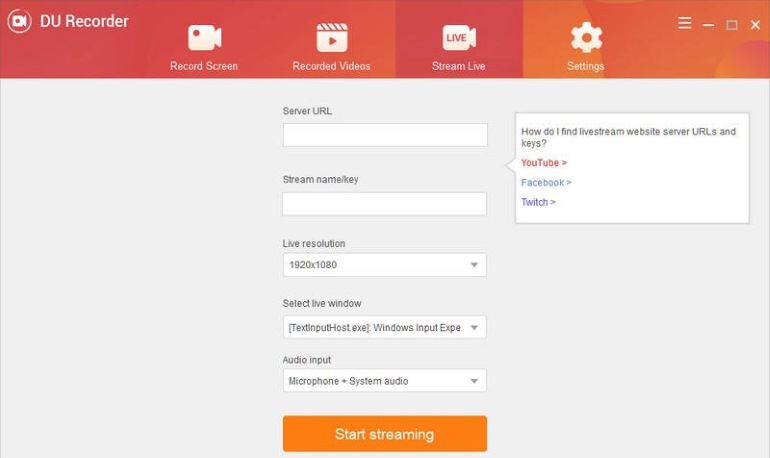
Real‑Time Live Streaming: Supports live streaming to platforms such as YouTube, Facebook, Twitch, and more RTMP (Real-Time Messaging Protocol) media sources. You can host a live streaming room and customize the live streaming preferences without installing other applications or video cameras.
 pros
pros
- Zero cost for basic, timeless recording.
- Smooth performance with minimal lag.
- High-quality video capture in 1080p/60FPS.
- Supports recording both internal and external sound.
 Cons
Cons
- You have to download the APK from unofficial sites.
- Potential data privacy risk.
- Adds a brand watermark on videos in the free plan.
- Unstable operation can cause crashes or fail to work.
- Desktop versions have fewer features than mobile apps.
Pricing Plans
| Plan | Price | Watermark | Ads | Update |
|---|---|---|---|---|
| Free | $0 | ✅️ | ✅️ | ❌️ |
| Premium | $2.99-$59.99 | Removed | Removed | Custom watermarks, higher compression, more export formats, access to all advanced features. |
How to Use DU Recorder?
📱 On Mobile Devices
For Android Users:
Step 1. Download the APK file from the DU Recorder website or a third-party store.
Step 2. Launch the app and enable necessary permissions like overlay and microphone.
Step 3. Click the floating camera icon on your phone screen and select Record.
Step 4. You can pause/resume recording, add annotations, or enable the front camera overlay to record PiP.
Step 5. Click Stop and choose Play/Edit/Share/Delete your recording as needed.
Note
The app has been removed from Google Play due to policy violations. Be careful when downloading APK files from thirdparty sources.
For iPhone Users:
Step 1. Download the program from the App Store (available for iOS11 and later).
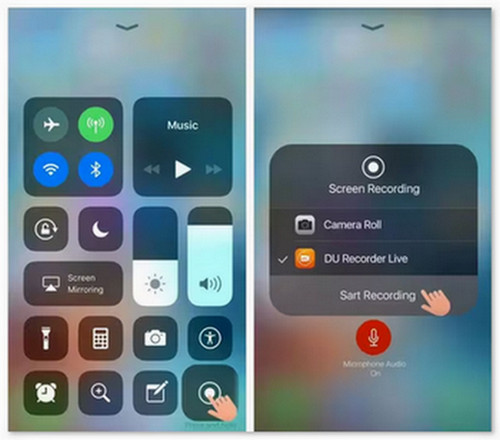
Step 2. Go to Settings > Control Center > Customize Controls and add Screen Recording to your Control Center.
Step 3. Long-press the Screen Recording icon in Control Center. Then tap DU Recorder as the recording source.
Step 4. Click Start Recording and wait for the 3-second countdown to record the screen on your iPhone.
💻 On Computer (Windows/Mac)
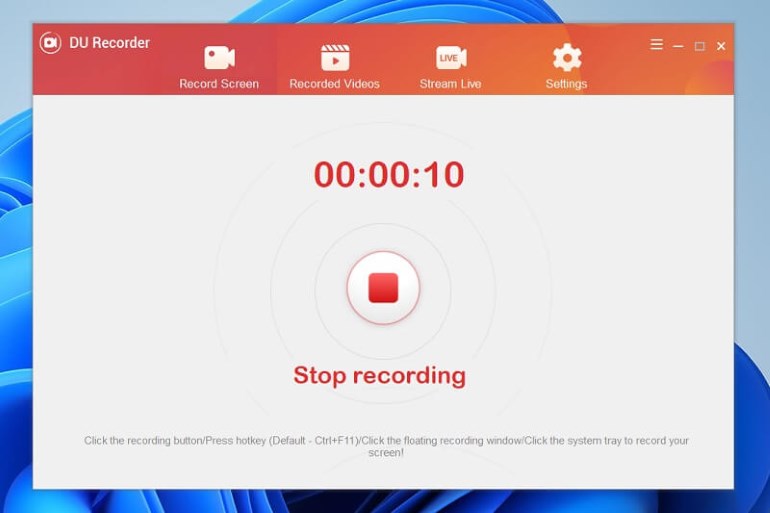
Step 1. Download the desktop version for your operating system from its official website.
Step 2. Open DU Recorder and set your recording settings, including video quality and resolution, FPS, output folder, and audio source.
Step 3. Click Record and adjust the region you want to capture. Then click Start.
Step 4. Click Stop and save the recorded file on your computer.
Test Results & User Feedback
“When I first got this app, it was going all right, and I was recording and doing edits. Everything was fine. However, this app has some downfalls, such as not working properly or just breaking down when I first open the app and won’t work.”
“You have to watch an ad to use the recording software. You also have to watch an ad to use each of the editing features, not one ad to use all.”
“It only gave me 24 hours to use the app until I had to get a subscription to literally record.”
——Comments from Apple App Store
It's worth noting that the free version of DU Screen Recorder adds a "DU Recorder" watermark to all exported videos. Users must subscribe to the Premium plan to remove it. Since this application has been removed from Google Play, Android users have safety concerns and care about the app will be removed from other platforms – all of which you should carefully consider before using it. In that case, you’d like to pick a more stable and professional screen recorder.
Better Alternative: DU vs. VideoSolo
| Features | DU Screen Recorder | VideoSolo Screen Recorder |
|---|---|---|
| Recording Modes | Full screen, basic region captures | Full screen, custom window, webcam, game mode, audio only |
| Video Quality | 1080p / 30fps (mobile version) | Up to 4K Ultra HD & 60fps |
| Export Formats | MP4, GIF | MP4, MOV, WMV, AVI, TS, F4V, MP3, M4A, GIF |
| Audio Recording | Internal audio + mic (subject to OS rules) | system sound + microphone |
| Real-Time Annotation | Basic draw/brush tools on screen | Text, shapes, arrows, callouts, real-time magnifying glass |
| Built-In Editing | Basic trimming & cropping | Advanced trimmer, video merger, audio booster, compressor |
| Scheduled & Auto Recording | ❌️ | ✅️ |
| Watermark-Free | Remove watermarks in paid plans. | ✅️ |
What Makes VideoSolo Stand Out?
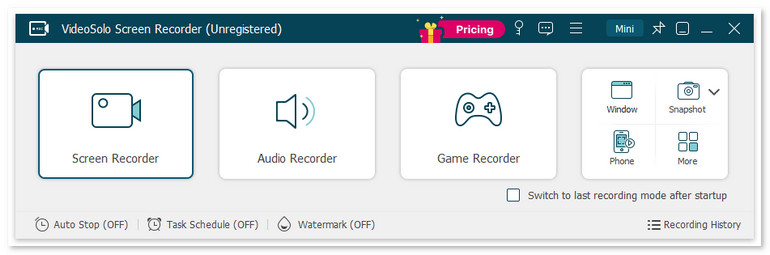
VideoSolo Screen Recorder provides various recording modes, such as Screen/Window Recorder, Audio Recorder, Game Recorder, Webcam Recorder, Phone Recorder, and Screen Capture. No matter whether you’re an educator, business professional, gamers and content creator, you can customize recording presets to suit your needs.
It delivers no-lag screen recording with system and microphone audio, while the tool automatically applies noise cancellation and enhances sound effects. During recording, you can easily draw a brush, draw arrows, add text boxes, and even use a magnifying glass to zoom in on details or highlight mouse trails. This saves a lot of post-editing time for recording lectures or tutorials. It also has built-in format conversion, video merging, and compression, which are features that Zoom doesn’t offer.
 Features
- Various recording modes for gameplay, video, audio, etc.
- Provide scheduled recording and auto-stop recording.
- Record your screen in quality up to 4K/60FPS.
- Offer noise reduction & audio enhancement.
- Advanced editing tools to polish your videos.
- 10+ output formats for different devices' compatibility.
- Customize handy hotkeys in preferences for quick recording.
pros
- Record your screen with low latency.
- Trim, duplicate, compress, add, merge, or convert videos.
- Lock targeted windows for a clean and mute-notification recording.
- Scheduled recording lets you be free from constantly monitoring.
Cons
- No webcam shooting and noise cancellation for free users.
- Can’t record audio from a specified application before purchasing.
How to screen record with VideoSolo?
Step 1. Open the program and choose a recording mode as you like.
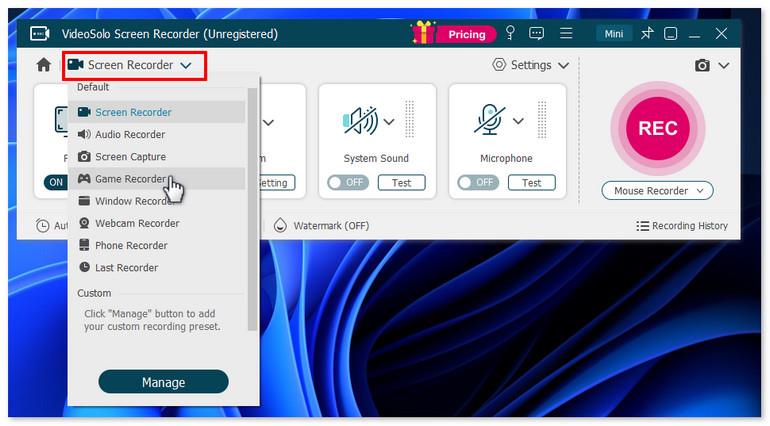
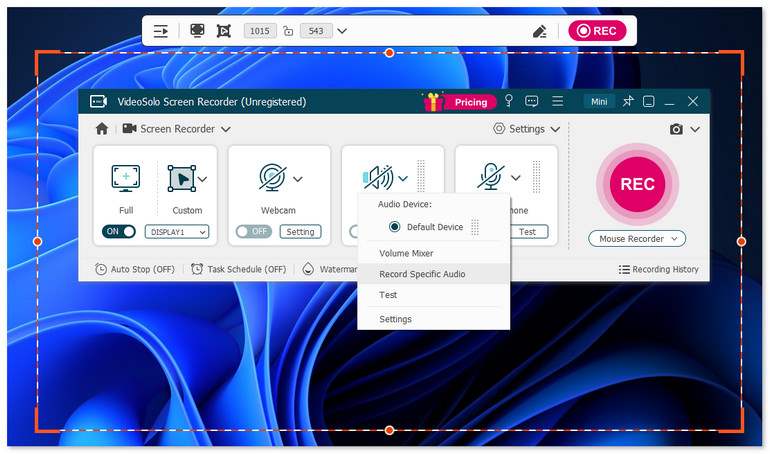
Step 2. Select Full or Custom to select what you want to record by dragging the corners or sides of the frame. Then adjust the volume bar for the system sound and microphone.
Step 3. Click Setting > Record Setting > Preferences on the interface. Output allows you to set your resolution, your format, frames per second, the folder your recordings default to, and the general quality of your audio and video.
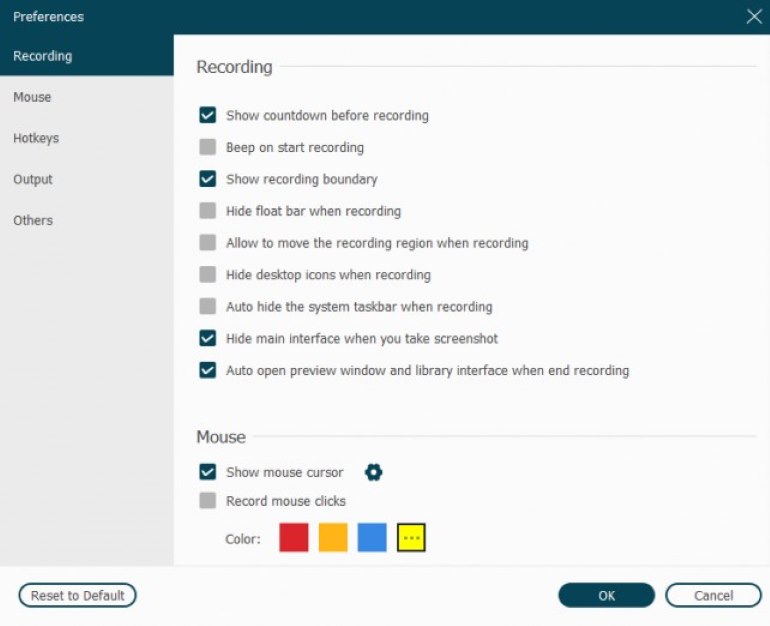
Step 4. Click REC to start recording. After done, stop the process and edit your video.
Testing Experience
I did an entire test recording for a podcast, YouTube video, and sent some rather goofy audio and a few snippets from World of Warcraft to a friend. VideoSolo Screen Recorder captures all my important moments without a watermark. It offers options to separate your audio and video into two separate folders, which is useful for editing purposes. The sky’s the limit, only limited by your creativity and needs. It’s incredibly lightweight and won’t eat up my GPU. The only pity is that it cannot add filters, advanced polishing, or modern effects.
FAQs on DU Screen Recorder
Q: Is DU Recorder safe to use?
A: No. It has been removed from Google Play, forcing Android users to sideload APK files from untrusted sources. Users also report malware issues and excessive permissions that enable device fingerprinting.
Q: How do I remove the DU Recorder watermark?
A: The only official way is to upgrade to a Premium subscription, as no free method exists. However, paying a monthly or yearly fee just to remove a watermark isn't cost‑effective. Consider switching to other screen recorders, which offer watermark‑free recording.
Q3: Is there a recording time limit on DU Recorder?
A: There’s no limit on recording length with DU Recorder. However, most user feedback says that it only allows you to use one day if you don’t pay for its Premium plans. You can choose another tool called VideoSolo Screen Recorder. This screen recording software provides a 15-day free trail within all advanced features. For long-term use, its lifetime subscription is worth considering.
Conclusion
DU Recorder was a software giant in mobile screen recording, but now it's no longer the best choice for screen recording. If you are concerned about data privacy and professional workflow, Videosolo Screen Recorder stands out with rich features and better performance.
More Reading
Capture screen activities, audio, webcam, gameplay, and mobile screens on Windows and Mac with high quality.

