

 Download Screen Recorder For FREE!
Brief Summary
We put NVIDIA ShadowPlay's recording power to the test: where it excels and discover the hidden limitations. Based on real reviews, some bugs need to be fixed, such as length limits, file sizes, game compatibility, and more issues. We provide a more reliable and all-round solution to meet your capture demands – VideoSolo Screen Recorder supports unlimited and hands-free recording with the best video quality.
If you’re looking for a tool to record the in-game highlight reel, NVIDIA ShadowPlay is a hot choice. Many gamers use it due to the advanced hardware optimizations, making high-quality video recordings while minimizing the impact on game performance. However, the NVIDIA shortcut will not be appropriate for all people seeking help. Please join me as I take you through this deep NVIDIA ShadowPlay review.
What Is NVIDIA ShadowPlay?
NVIDIA ShadowPlay (originally called Nvidia Share) is a hardware-accelerated screen recording tool created by NVIDIA for its GeForce graphics card users. While older versions of GeForce Experience allowed direct live streaming to Twitch, YouTube, or Facebook, NVIDIA removed this feature in the modern unified NVIDIA app. The current program focuses fully on video recording, instant replays, screenshots, and system/game optimization. If your computer is equipped with GeForce Game Ready and NVIDIA Studio, you can capture exciting lived moments or real-time check FPS changes with an in-game overlay. With the NVIDIA H.264 encoder, most mainstream 3A games and online game players are allowed to record gameplay on PC without reducing the frame rate.
Fulfill several conditions before enabling NVIDIA recording:
OS requirements: Windows 10/11 (64-bit)
Hardware:
CPU: Intel Pentium G series, Core i3/i5/i7 or higher; AMD FX, Ryzen 3, 5, 7, 9, Threadripper or later
GPU: GeForce RTX 20, 30, 40, and 50 series GPUs
Software: The latest version of the NVIDIA App or the older GeForce Experience
How to Record Gameplay with NVIDIA?
Step 1. Enable NVIDIA overlay hotkey
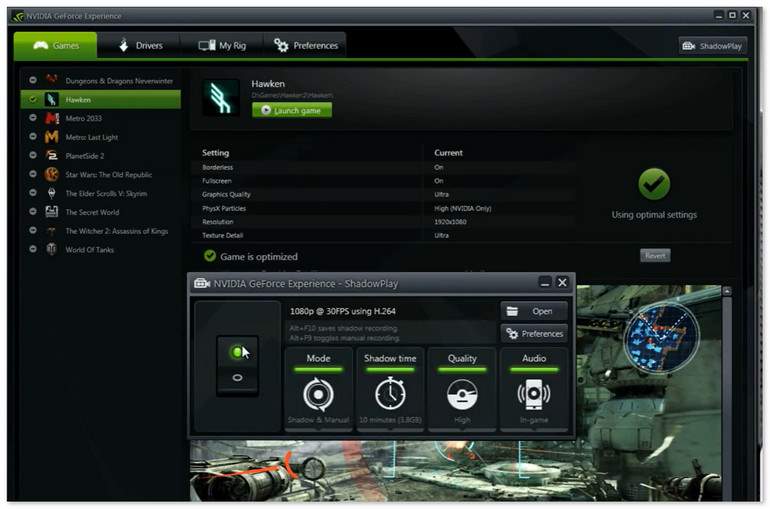
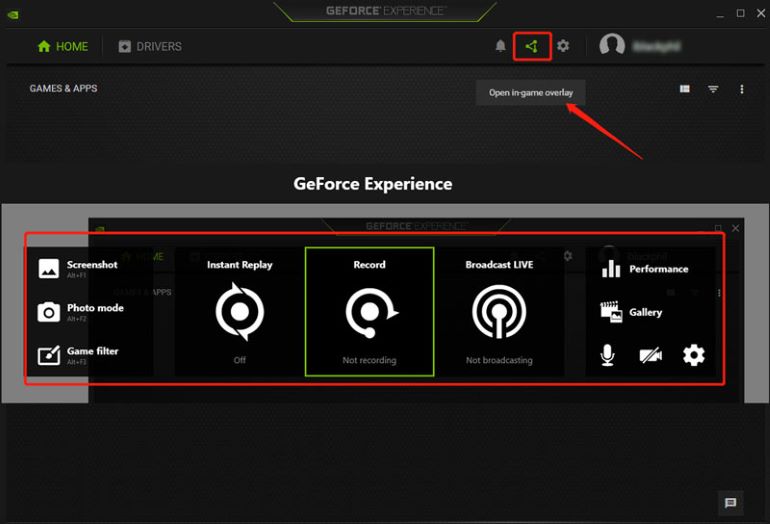
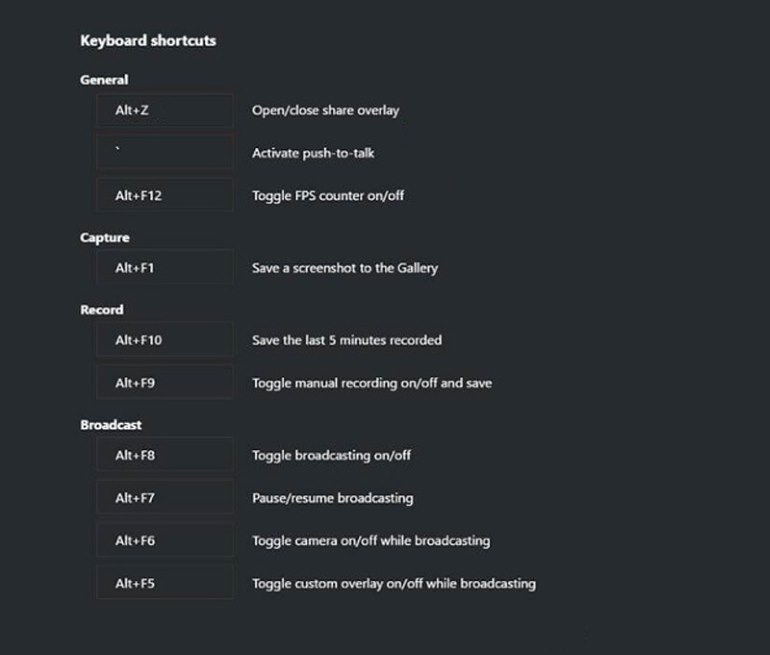
Install and launch GeForce Experience on your PC. Then log in to your account and go to Home to open the game you want to record. Click Open in-game overlay or press Alt+Z to access NVIDIA ShadowPlay.
Step 2. Adjust recording parameters
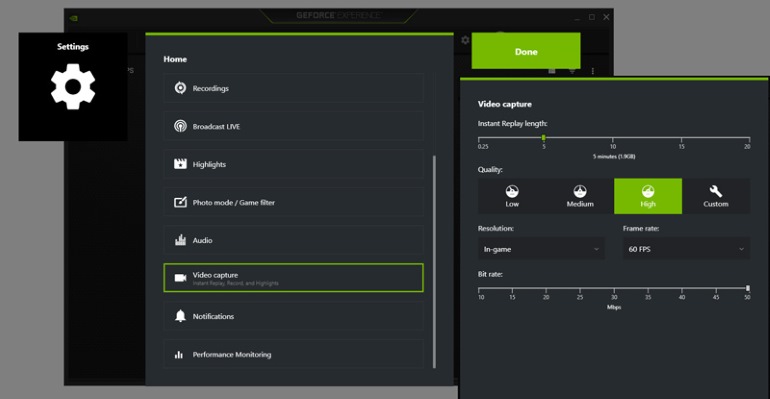
Click Settings to customize preferred video/audio quality, frame rate, resolution, bitrate, capture lengths, and shortcut keys. If you want to record PiP, you can also add a webcam and microphone.
Step 3. Start to record game play with NVIDIA
There’re some recording modes you can choose.
- • NVIDIA Instant Replay: It will constantly maintain a rolling buffer of your gameplay in system memory (usually in SSD space on C). Hit Alt+F10 to save the last 30 seconds to 20 minutes of footage.
- • Record (Alt+F9): Quickly begin recording by clicking Start, Stop, and Save.
- • Screenshot: Press Alt+F1 to one-click capture high-definition game footage. Or use edit filters for your screenshots using Alt+F2.
Key Features and Limitations of NVIDIA ShadowPlay
NVIDIA ShadowPlay offers a suite of recording tools designed specifically for gamers. In this section, we'll walk through its key features, strengths, and trade-offs. Whether you're a casual player or a gaming streamer, this section will help you decide if this PC gameplay recorder fits your workflow.
 Features
- Process recordings with a dedicated NVENC hardware encoder on the GPU to reduce performance impact.
- Support saving up to the last 20 minutes of gameplay clips.
- Support high-quality recording up to 8K/30FPS or 4K/120FPS.
- Support AV1 encoding for better image quality at smaller file sizes. (available for RTX 40-series)
- Offer screenshot and 15-second GIF Capture.
- Separates dual-track audio (microphone + system audio) into a single track.
Limitation
- • Platform Lock‑in: ShadowPlay works with NVIDIA graphics cards. AMD and Intel GPU users cannot use it.
- • Supported Games: Games running on DirectX 9, 10, 11, 12, and OpenGL. Some compatibility bugs and unexpected crashes will be caused during play certain games with anti‑cheat systems.
- • Input Lag: Enabling ShadowPlay recording can introduce a slight amount of input lag.
- • Limited Video Contents: When DRM‑protected content or what the system detects as "protected content" is being displayed, ShadowPlay's Instant Replay feature may automatically disable itself.
If you are seeking a lag-free recording with no obstacles, you can try another robust screen recording software for both Windows and macOS.
Performance and Reviews of NVIDIA ShadowPlay
| Performance Impact | |
|---|---|
| Metric | Data |
| CPU Usage (1080p60) | 2–4% |
| GPU Usage | ~18% |
| Input Lag | ~15ms |
| 1080p FPS Drop | 1–3 FPS |
| 1440p FPS Drop | ~2 FPS |
| File Size Test | ||
|---|---|---|
| Recording Spec | Bitrate | File Size (h) |
| 1080p60 (HEVC) | 35 Mbps | ~16 GB |
| 1440p60 (HEVC) | 60 Mbps | ~27 GB |
| 4K 60fps | 80+ Mbps | ~100 GB |
For 1440p resolution, the average game frame rate drops by only 2 FPS. However, performance degradation is slightly greater when recording at 4K resolution. Anyway, using the app will impact your gameplay performance more or less, depending on how demanding the game is on your computer.
While the game was going on, I can check the GPU/CPU utilization, power consumption, fan speeds, memory clock, and more in Nvidia Shadowplay. Monica J. White, a computing writer focusing on PC hardware, reported, before you try out Automatic Performance Tuning, make sure your drivers are up to date and close all other programs, or the feature may not work.
In terms of video quality, I compared the recorded video with the screen display. It can be seen that NVIDIA ShadowPlay has very precise control over image details. When recording 1 hour of 4K footage from Cyberpunk 2077, I found that the file size was around 60GB. If you don’t have enough disk space, it’s recommended to choose a lower resolution instead.
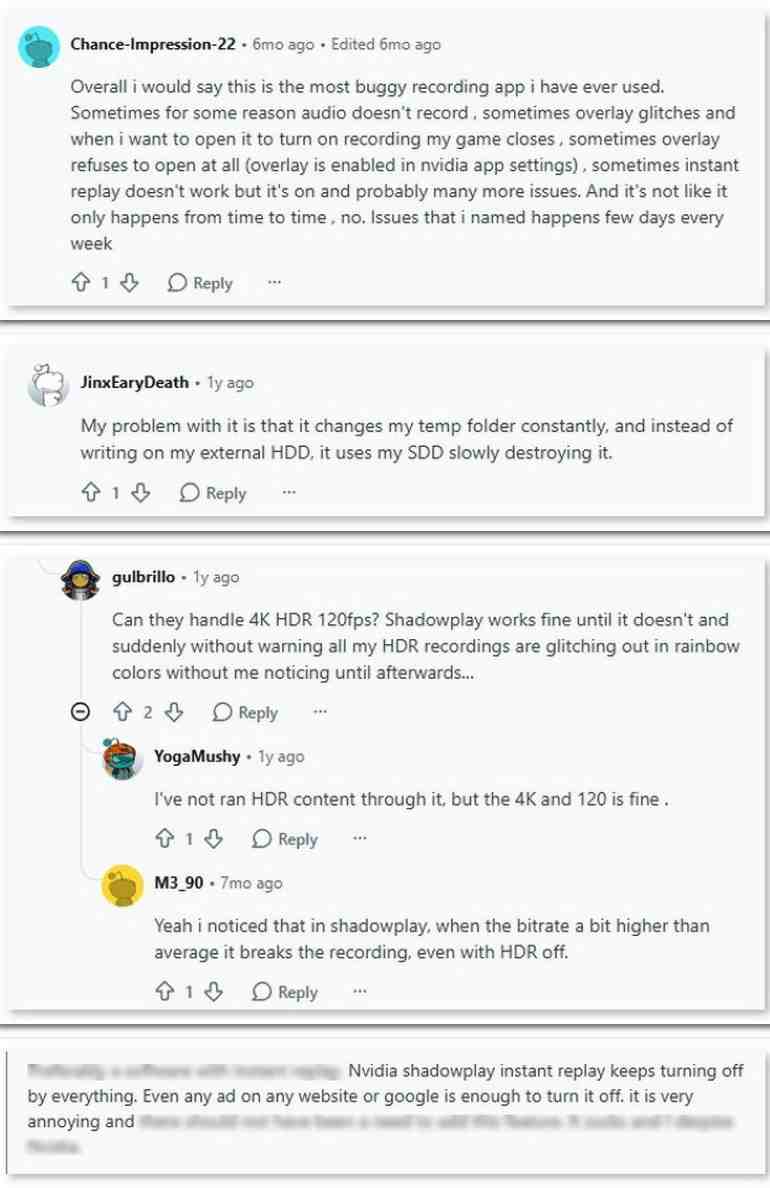
User Feedback from Reddit
Best NVIDIA ShadowPlay Alternative
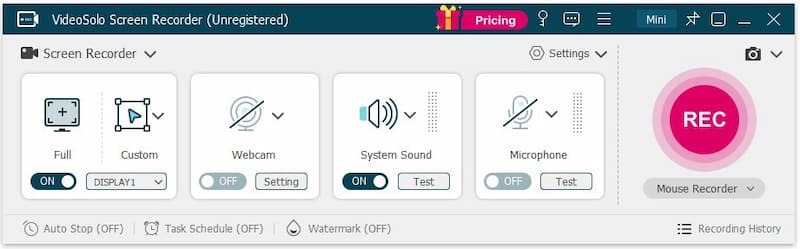
We can see that although Powerful, some particular needs have restricted the usage scenarios and recording experience of NVIDIA ShadowPlay. For advanced, limitless features or better system compatibility, I’ll suggest you try VideoSolo Screen Recorder. It can record high-quality screen up to 4K/60FPS with internal/external sound that supports noise cancellation. It provides 20+ recording modes, which means that you can capture any content on your screen, including gameplay, online tutorials, meetings, and even streaming video from Netflix, Hulu, Amazon Prime, etc. You can take full control of your recording with its embedded video editing toolkits.
Features
- Provide scheduled recording and auto-stop recording.
- Adjust output video/audio format and quality.
- Microphone noise and camera noise reduction & enhancement.
- Trim, duplicate, compress, add, merge, or convert videos.
- Real-time annotation during recording.
- 10+ output formats for different devices' compatibility.
- Customize handy hotkeys in preferences for quick recording.
How to screen record with VideoSolo?
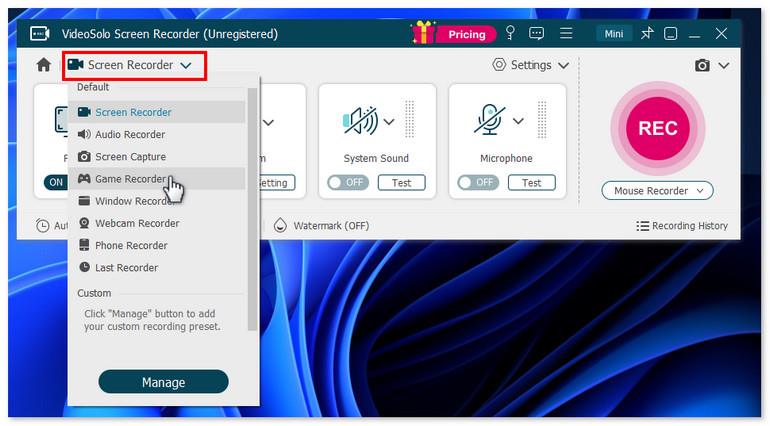
Step 1. Open the program and choose a recording mode as you like.
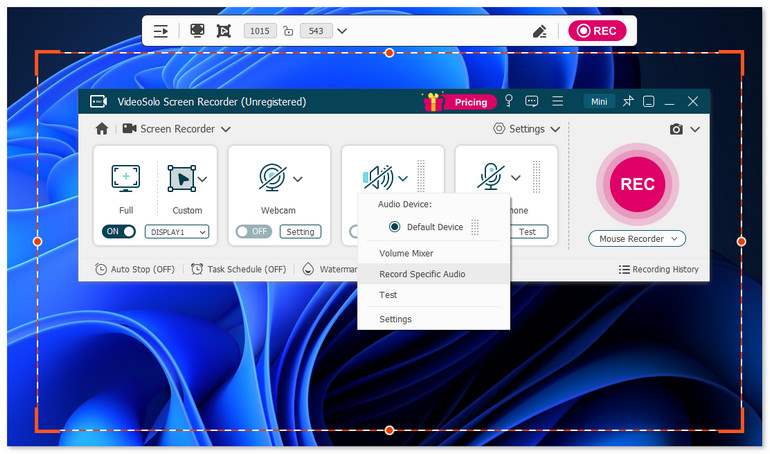
Step 2. Select Full or Custom to set the recording region/window. Then adjust the volume bar for the system sound and microphone.
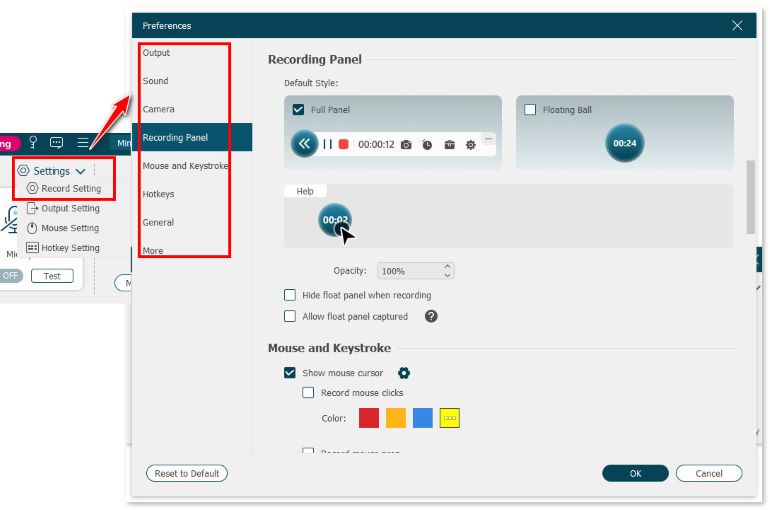
Step 3. Click Setting > Record Setting > Preferences on the interface. You can choose the video format, video quality, frame rate, and location of output files here.
Step 4. Click REC to start recording when a reminder box pops up with hotkeys. You can still use the cut-screen feature to capture your preferred images.
 pros
pros
- Mirror and record your screen with low latency.
- Lock targeted windows for a clean and mute-notification recording.
- Timed recording allows you to do other things without constantly monitoring.
- Record your screen with your face and voice with little lag.
 Cons
Cons
- The free trial doesn’t allow continuous webcam shooting and noise cancellation.
- You can’t record audio from a specified application before purchasing.
Feedback
Rohan Mathawan, a Content Editor at Techstory Media, reported, “The trial edition only allows you to store three minutes of each recorded video (there is no time limit for recording). If you want an easy-to-use and powerful screen recorder, VideoSolo Screen Recorder is worth a shot. Setting recording length, task scheduling, modifying recording presets, and other complex capabilities are available.”
FAQs about NVIDIA Recording
Q1: Does Nvidia ShadowPlay affect FPS?
A: There is no denying that it will affect your FPS to some degree. Your gaming performance may be affected just a little or a lot, depending on your graphics card. Using Instant Replay and Record is very likely to lower your frame rates. Closing Instant Replay during gameplay can improve it.
Q2: Why is ShadowPlay unable to record?
A: Make sure weather you encounter these common causes:
• Outdated graphics driver;
• In-Game Overlay is disabled in settings;
• Lack of insufficient disk space;
• Conflict with other recording software running simultaneously.
For most users, simply updating the driver or toggling the overlay off and back on resolves the issue.
Q3: What is the difference between ShadowPlay and Xbox Game Bar?
A: Xbox Game Bar works on Windows as well. Compared with NVIDIA ShadowPlay, this built-in screen recorder relies more on software encoding, resulting in slightly higher performance overhead and fewer advanced features like Instant Replay. But if you lack compatible graphics cards, you can choose Xbox Game Bar or other recorder software.
Conclusion
If you're a gamer with an NVIDIA card who just wants quick clips, NVIDIA ShadowPlay is a solid free choice. But if your recording needs go beyond gaming—or if you're tired of fighting with an overlay that randomly stops working—VideoSolo Screen Recorder offers the cross-platform compatibility and reliability that ShadowPlay can't deliver.
More Readings
Capture screen activities, audio, webcam, gameplay, and mobile screens on Windows and Mac with high quality.

