

 Download Screen Recorder For FREE!
How to record Switch gameplay? - If that's the question you're asking yourself, the best way to record your gameplay is going to be highly dependent on where you intend to use your recordings. If your plan is just to upload short clips to social networks, then using the built-in recording option on Switch will be the simplest and quickest way to do it. Still, if you're producing videos for YouTube, doing live streams on Twitch, or want long-term recordings in top quality, then your best bet would be recording using a PC with a capture card and good software. In this post, I'm breaking down each method, so you can decide which one suits you the most based on what you want to accomplish both in games and in your content creation.
Method 1. How to Record Switch Gameplay Using Switch [Short Clips]
When you're learning about how to record gameplay on Switch, there's something you have to figure out, namely the limitations and capabilities of the built-in recording feature. For example, unlike PCs or an Xbox, your Nintendo Switch has no game recording software at its disposal to record entire gameplay sessions. In fact, the device serves its users better by saving short snippets of the gameplay, so it fits quite well if someone's planning to post quick game highlights to social media only, not long game recordings for platforms like YouTube or Twitch.
Steps on How to Record Gameplay on Switch
Step 1. Get a game on Nintendo Switch that your device can run. If a scene worth being memory material happens in a game moment, hold down the Capture Button on the left Joy-Con for about the blink of an eye.
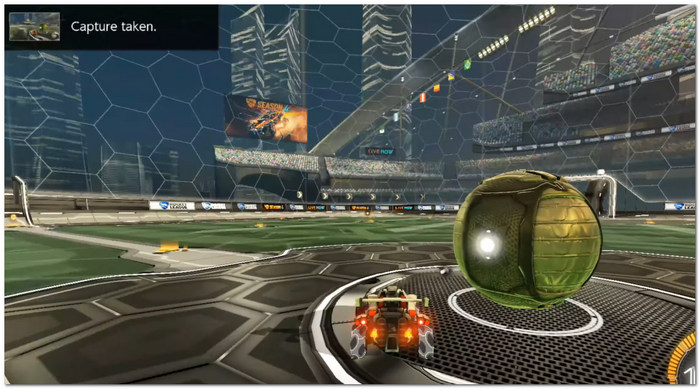
Step 2. Your game session of the past 30 seconds will be recorded and saved by the Nintendo Switch without you getting off the couch.
Step 3. Go to Album from the Home Menu to view your captured footage. If necessary, cut the video, and then copy it to a linked social media account or move it yourself to a microSD card.
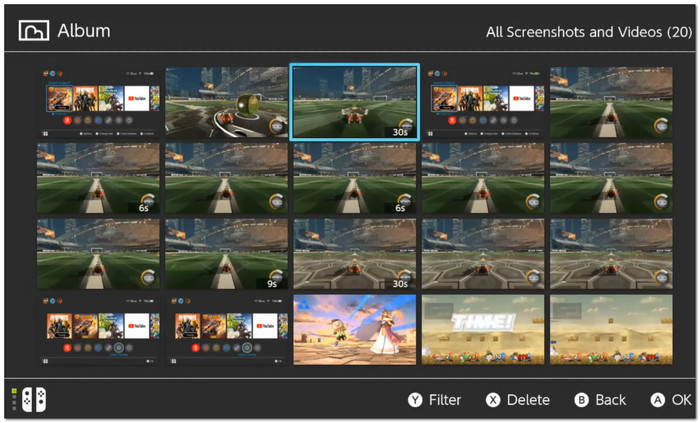
Limitations
Although it is convenient and easy to use, the default recorder still has these restrictions:
- • A single recording clip cannot exceed 30 seconds.
- • Maximum recording quality is 720p at 30 FPS.
- • Incompatible with all Nintendo Switch games, and some games or cutscenes may not even allow a video recording.
- • Lacks features that would normally be found in a more advanced editor, like adding overlays, using a webcam, saving different audio tracks, or live-streaming.
When recording on your Nintendo Switch with a longer time and better video quality or want to produce content professionally, switching from Nintendo Switch to PC is preferred. Let's discuss the next step and the reasons behind this method.
Method 2. Record Switch Gameplay Using VideoSolo Screen Recorder [Unlimited]
For those who'd like to record without time limits and at higher video quality, I suggest you use VideoSolo Screen Recorder. Compared to the Nintendo Switch's built-in recording feature, it can do this: record videos in resolution up to 4K, enable unlimited recording time, generate movies with adjustable frame rate, and customize output settings. Besides that, hardware acceleration is enabled here, giving it an extra advantage when it's all about making high-quality videos for YouTube, live streaming on Twitch, tutorial videos, or gameplay guides.
Main Features
 Features
- Capturing gameplay without time limits.
- Using an HDMI capture card, you can record your Nintendo Switch gameplay.
- Capturing your videos at up to 4K resolution with various recording quality options.
- Smoother performance through NVIDIA, AMD, and Intel GPU hardware acceleration.
- Care for your game audio and computer microphone recording at the same time with individual controls.
How to Record Switch Gameplay on PC?
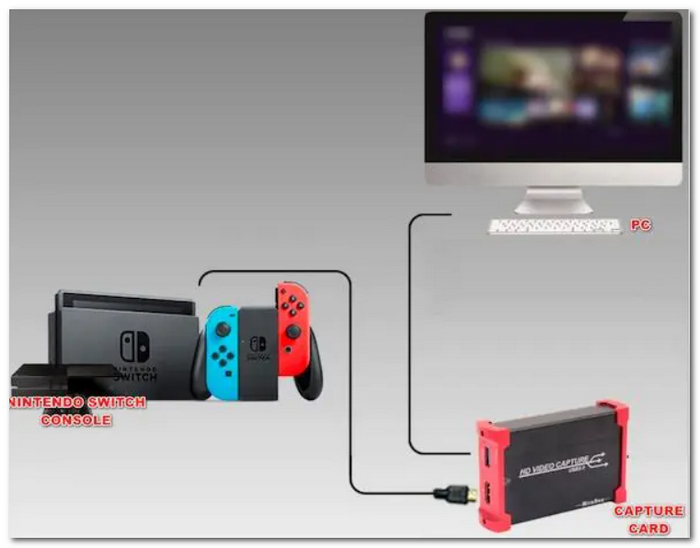
The first thing you'll come across is a capture card because the gaming console, Nintendo Switch, isn't even capable of sending its video straight to a computer via the port, which is also the one for charging it - the USB-C.
What You'll Need
- • Nintendo Switch or Switch OLED
- • Nintendo Switch Dock
- • HDMI cable
- • USB capture card
- • Windows or Mac computer
- • VideoSolo Screen Recorder
Step 1. First, put the Switch inside the dock, and then link the capture card HDMI cable from the dock's HDMI OUT port to the capture card's HDMI IN port. To end it, just plug your capture card into the computer with the USB cable that came with it.
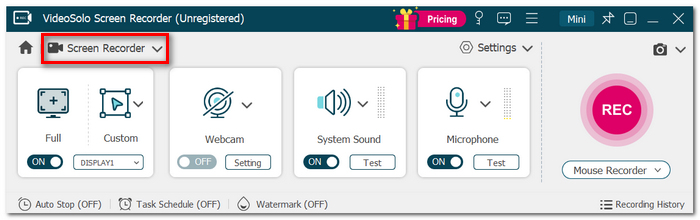
Step 2. Run VideoSolo Screen Recorder on your computer and hit Screen Recorder.
Step 3. Select your capture card from the available video input device list. If you need to, also select the capture card as your audio input to get game sound recorded.
Step 4. Choose your desired resolution, frame rate, output format and hardware encoder. I personally find that recording at 1080p at 60 FPS (if your capture card supports it) sounds best.
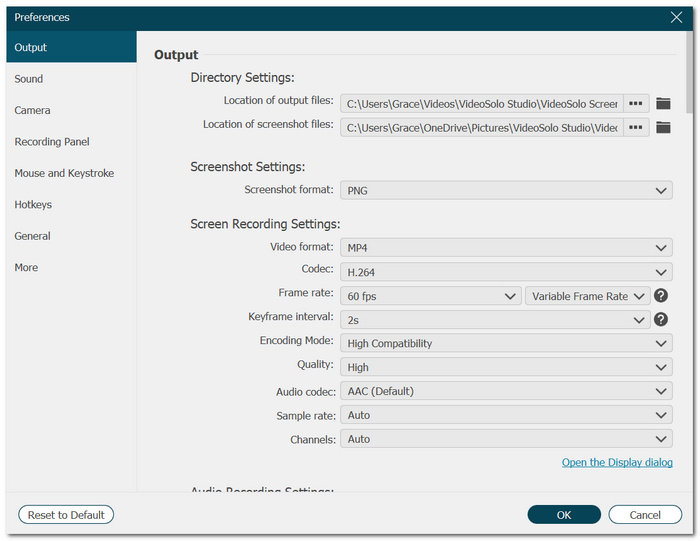
Step 5. Click REC and play on your Switch Console. When finished, stop recording using VideoSolo's integrated preview recorder and make the edit or save the video.
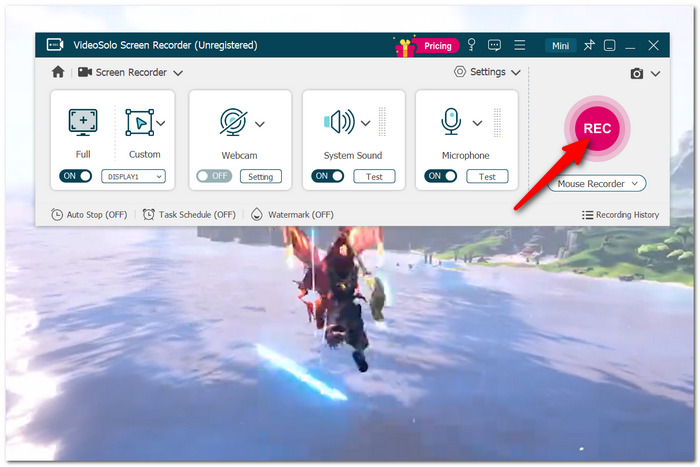
My Testing Results
With a USB 3.0 capture card, I gave it a try on this setup. The gameplay preview was smooth and reactive. A 1080p 60 FPS recording generated quality video with vivid colors, and there were no noticeable frame drops. Input lag in the preview window was negligible, which made it a lot more enjoyable watching and recording gameplay at the same time. The benefit of GPU hardware acceleration is that CPU usage remains low for the entire duration of a recording session. The computer stays responsive, and even multitasking becomes possible.
Why I Recommend VideoSolo Screen Recorder
Learning to record gameplay on Nintendo Switch without built-in limits can be hard, but with VideoSolo Screen Recorder things change. It supports longer recording sessions and higher video quality, plus it has hardware-accelerated recording and the ability to customize settings. That means it makes an excellent choice when you want to create YouTube videos, do livestreams, write and record gameplay tutorials, etc.
Expert Guide: How to Make Game Capture High Quality?
If you want to know about ways to get good-quality capture for game recording, here are some tips that might guide you to creating better gameplay videos.
1. Enable Hardware Encoding
NVIDIA NVENC, AMD AMF, or Intel Quick Sync can be switched on to achieve a much lower CPU workload and keep the recording smooth at the same time.
2. Match Your Recording Settings
Set the video resolution and frame rate to fit the source you're capturing from. If you capture through most Switch playing sessions, 1080p at 60 FPS (as long as it is supported by your capture card) will bring you a perfect equilibrium between sharpness and size of video files.
3. Get a Quality Capture Card
A proven USB 3.0 or PCIe capture card gives a more stable video signal, less lag, and a much better picture.
4. Raise the Video Bitrate
A high bitrate setting retains more details of the picture, especially when playing and recording fast-action games with lots of movement.
5. End Unneeded Programs in the Background
Release CPU, GPU power, as well as your disk by closing all other running apps while you're recording. This will avoid recording stutters and help you deliver a steady recording quality.
FAQs on How to Record Switch Gameplay
Q: Why won't the Capture button record my gameplay?
A: Nintendo has disabled video capture for certain cutscenes and menus in the game you may be playing.
Q: Can I live stream on my Nintendo Switch?
A: Naturally, Nintendo Switch does not feature native live streaming. As long as you are using a capture card and a PC, you are able to run live stream services like Twitch or YouTube, though.
Q: Why is the screen of my capture card black?
A: Loose HDMI connections, outdated capture card drivers, incorrect input selection, or unsupported capture settings may cause the screen to be black. It is often the case that the problem is fixed by going through and checking these points first.
Conclusion
Now that you have found out how to record gameplay on Switch, you can pick the one that is most suitable for you. The built-in recorder is ideal for catching short highlights that you want to keep, while a capture card and VideoSolo Screen Recorder will give you the option to record indefinitely, with better video quality and greater flexibility to make your online videos, live streams, or any other media. The right tools and settings would make the difference, and you can shoot great game footage, even more so than before.
More Readings
Capture screen activities, audio, webcam, gameplay, and mobile screens on Windows and Mac with high quality.

