

 Download Screen Recorder For FREE!
Quick Answer
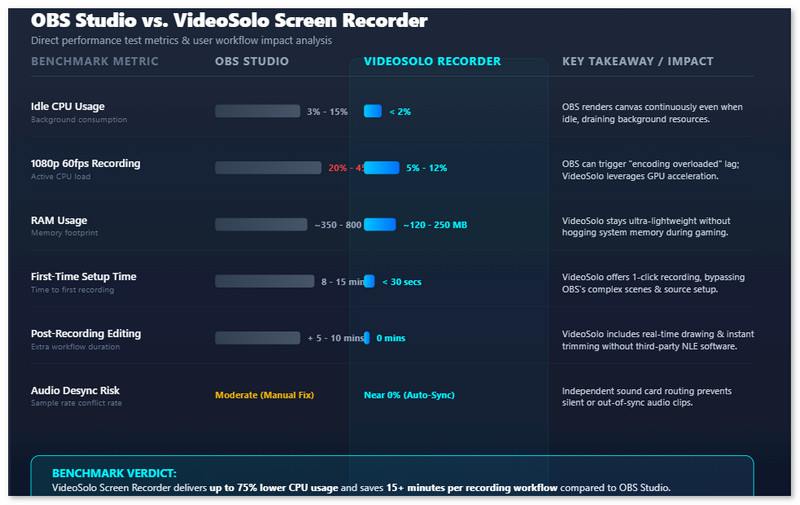
If you are a gamer streamer needing multi-camera setups, complex scene transitions, and custom plugins, OBS Studio is a perfect option to capture a clear screen seamlessly. However, for a lightweight, hassle-free screen recorder for tutorials, online meetings, daily gameplay, or quick screen captures, VideoSolo Screen Recorder provides more powerful features for you, such as built-in editing tools, real-time annotation, auto-recording, etc.
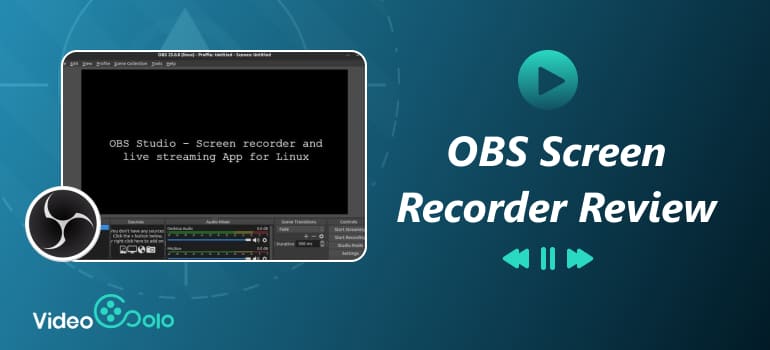
OBS Screen Recorder is one of the most popular free screen recording software available. Youth gamers and streamers remain a vital part of its market due to the powerful gameplay capture capability. But it might not be the best choice for everyone – In this review, we will detail the major strengths and hidden drawbacks, helping you to get an end-to-end understanding of OBS and determine when to pick a perfect-fit tool.
Overview & Key Features of OBS Screen Recorder
What is OBS?
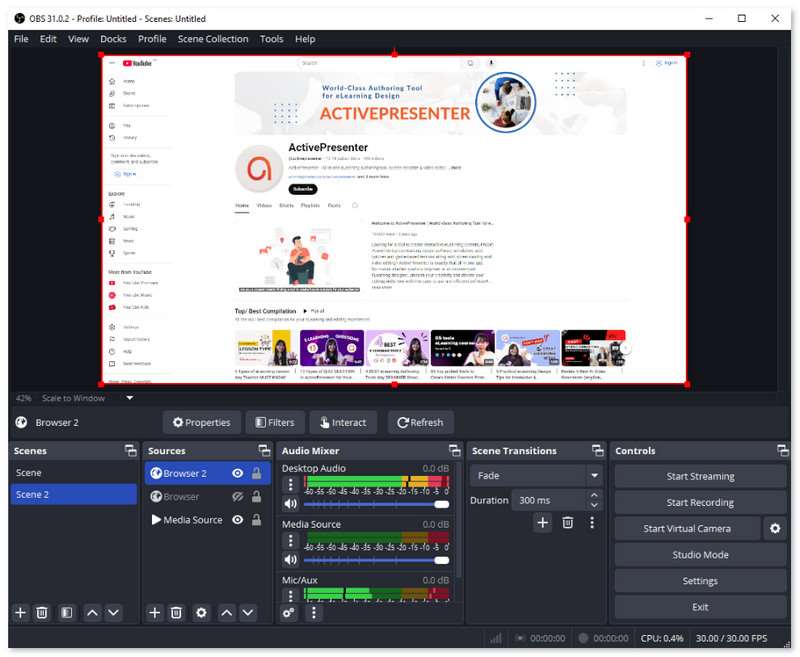
OBS (Open Broadcaster Software) Studio is a powerful program for screen recording and live streaming that has little impact on the performance of your computer. In addition to basic screen capturing, what makes it really popular is the fact that free software can offer features that others don’t have, like real-time scene switching, source layering, and multi-platform streaming.
You can customize scenes that combine multiple window screens, webcam, capture cards, etc., and switch between them with seamless transitions. You can add various customizable transitions and your own video clips. For those who need to show many mixed video and audio recordings through livestreaming, it allows you to take full control of up to 8 different scenes simultaneously and switch to any of them with merely a single or double click. OBS Replay Buffer is a satisfactory feature – you can capture the moment instead of keeping long recordings.
 Features
- Manage high-performance video/audio capturing and mixing, including images, text, browser windows, webcams, and desktop displays.
- Support live broadcasting with platforms like YouTube and Facebook.
- Process audio with intuitive mixer settings, like noise gate and noise suppression.
- Support for custom plugins and modular docks to rearrange the layout.
- Preview and adjust all scenes and sources before the screen is displayed.
- Hotkeys and shortcuts activate your commands quickly.
From everything we covered so far, I believe you can tell the best target audience of this screen recording tool. Definitely, it has wide popularity with content‑creators and advanced streamers for high‑fidelity screen capture and multi-source overlay layouts. It is also suitable for gamers who always host gameplay livestreams with audio mixing and chat widgets.
Detailed Performance Review [Pros & Cons, Feedback]
 pros
pros
- Totally free without watermark or feature limits.
- Highly customizable layers and video outputs (Up to 1080p/240fps).
- Flexible audio settings with powerful third-party VST plugins.
- Lightweight for high-end gaming hardware.
- Integrated with YouTube, Twitch, and Facebook Live.
- Compatible with Windows, Mac, or Linux.
 Cons
Cons
- The interface is not very intuitive for beginners.
- Requires complex manual setup for recording presets.
- Lacks a built-in video editor like drawing tools, mouse effects, etc.
- High-resolution recording has requirements for device configuration.
- Complicated and redundant for ordinary users.
- CPU/GPU load rises sharply with multiple sources, filters & plugins.
Testing Experience and User Review
Some users reported that the resolution is low, the color is faded little bit and there is some blur and low contrast. Rahul Rana, Head of Marketing at VdoCipher Media Solutions, has concluded that There’s no single best OBS setting for everyone, but there is a best setup for every use case. Your OBS output settings have the biggest impact on recording quality, file size, and system performance.
My primary experience is that I have to spend much time to understand how record screen with OBS and how to get the most out of it. Honestly, one incorrect setting can lead to lag, dropped frames, or poor audio quality. I often get stuck and search for guides on how to record screen on OBS. For beginners with simple needs, it can be kind of overwhelming.
Go-to Alternative: VideoSolo Screen Recorder
All of these complicated settings and technical hiccups prove that OBS is not perfect for everyday screen‑recording demands. If you’re seeking a straightforward but fully‑featured recorder, VideoSolo Screen Recorder is an out-of-the-box solution. It can record high-quality screen up to 4K/60FPS with internal/external sound that supports noise cancellation. No more worrying about the voice not being heard well enough. And the recorded video is free from any watermark even with the free version.
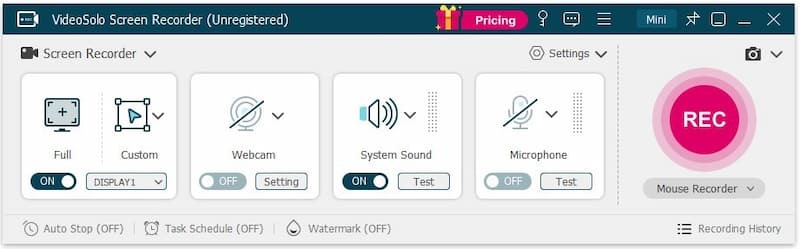
What’s more, VideoSolo Screen Recorder can pull in a wider audience with more diverse features. It provides 20+ recording modes — You can record streaming video on YouTube, Netflix, Hulu, and Amazon Prime, online courses, webinars (Zoom, Google Meet, etc.), gameplay clips, and mobile screen. You can take full control of your recording with its embedded video editing toolkits.
You Will Get:
- • 4K/60FPS high-quality recording without lag.
- • Scheduled recording and auto-stop recording.
- • Adjust output video/audio format and quality.
- • Microphone noise and camera noise reduction & enhancement.
- • Trim, duplicate, compress, add, merge, or convert videos.
- • Real-time annotation during recording.
- • 10+ output formats for different devices' compatibility.
- • Customize handy hotkeys in preferences for quick recording.
pros
- Mirror and record your screen with low latency.
- Lock targeted windows for a clean and mute-notification recording.
- Timed recording allows you to do other things without constantly monitoring.
- Record your screen with your face and voice with little lag.
Cons
- The free trial doesn’t allow continuous webcam shooting and noise cancellation.
- You can’t record audio from a specified application before purchasing.
How to screen record with VideoSolo?
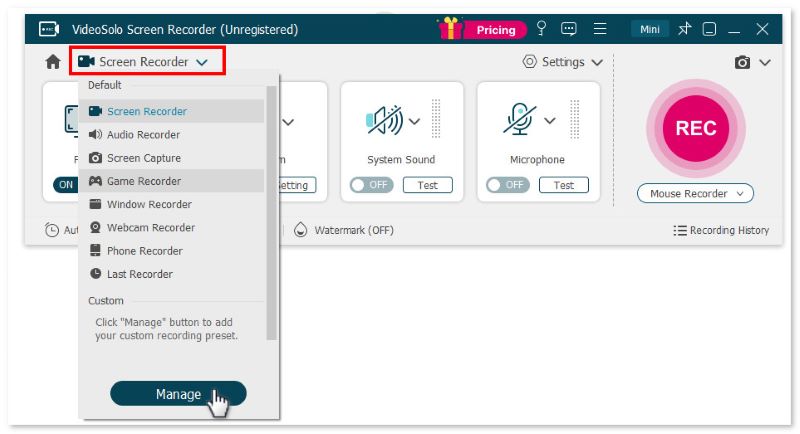
Step 1. Open the program and choose a recording mode.
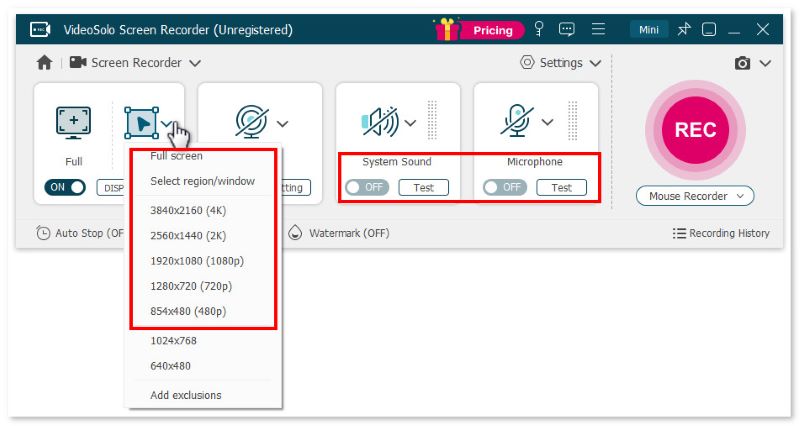
Step 2. Select Full or Custom to decide the recording area. Then adjust the volume bar of the system sound and microphone according to your needs.
Step 3. Click Setting > Record Setting > Preferences on the interface. You can choose video format, video quality, frame rate, and location of output files here.
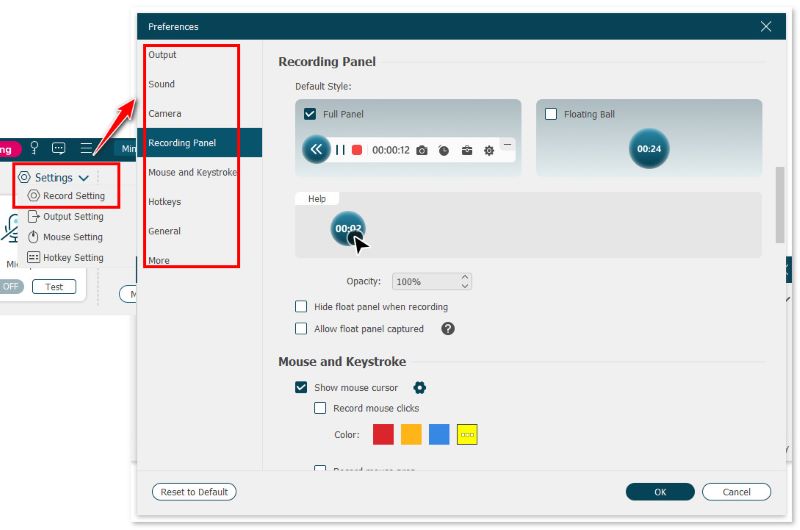
Step 4. Click REC to start recording when a reminder box pops up with hotkeys. You can still use the cut-screen feature to capture your preferred images.
Feedback
Rohan Mathawan, a Content Editor at Techstory Media, reported, “The trial edition only allows you to store three minutes of each recording video (there is no time limit for recording). If you want an easy-to-use and powerful screen recorder, VideoSolo Screen Recorder is worth a shot. Setting recording length, task scheduling, modifying recording preset, and other complex capabilities are available.”
How to Choose: VideoSolo VS. OBS Studio
| VideoSolo Screen Recorder | VS | OBS Studio |
|---|---|---|
| One-click recording with simple configuration that you can understand with a glance. Ready to capture in under 1 minute. Intuitive UI built for casual users. | Ease of Use | Steep learning curve; requires complex settings before first recording. Beginners may spend 15–30 mins on initial setup. |
| ✅️Real-time annotation (draw, highlight, add text arrows); built-in editor (trim, compress, merge, convert, etc.) | Editing & Annotation | ❌️No native editor or annotation tools. All editing and highlighting must be done in external post-production software. |
| ✅️Provides 20+ recording modes: dedicated game recorder, locked-window capture, and built-in phone screen mirroring, etc. | Capture Modes | ✅️Highly customizable. ❌️No phone screen recording. |
| Customize the audio source device (system or mic), AI noise reduction, and audio enhancement | Audio Recording | Record multiple audio sources separately. |
| ✅️Preset the Start time and stop recording automatically | Auto- & Scheduled Recording | ❌️ |
| Supports hardware acceleration (NVENC / Quick Sync). Minimal frame drops in gameplay capture. | System Resource Impact & Stability | Lightweight and stable, occasional crashes with complex setups. |
| 24/7 customer support via email; online guides, video tutorials & FAQ. | Customer Support & Guidance | No official support team and Community-driven fixes only (forums, Reddit, etc.) |
| Windows XP/7/8/10/11, macOS 12.0 or later | Supported OS | Windows 10/11, macOS 12.0 or later, and Linux |
Choose OBS Studio if:
- • You are an experienced live streamer needing custom overlays and scene transitions.
- • You have a powerful setup and require open-source plugin compatibility.
- • You have technical experience and prefer 100% free tools without budget constraints.
Pick VideoSolo Screen Recorder if:
- • You want a clean, simple interface with zero configuration delays.
- • You need to capture online lectures, business meetings, tutorials, or gameplay without lag.
- • You require quick editing and trimming options immediately after recording.
FAQs on OBS Screen Recorder
Q1: Why does the recorded video appear to be choppy?
A: On lower systems, they always cause dropped frames. Besides, make sure that you are equipped with an empty solid-state drive (SSD) to record high-resolution source (1080p/60fps) and monitor the “Dropped Frames (Recording)” stat in OBS.
Q2: What are the best settings for OBS recorded gameplay?
A: 1080p/60FPS is enough. About Rate Control, I recommend you use CQP instead of CBR. The lower the quality setting for it, the higher the target bitrate and quality. If you still need to edit your recordings, you can choose either Nvidia NVENC (H.264) or Intel QSV.
Final Verdict
OBS Screen Recorder offers powerful live streaming and recording, but its steep learning curve and lack of built-in editing tools discourage many users. By comparison, with VideoSolo Screen Recorder, you can record a specific locked computer or even a mobile screen instantly without setting up complex scenes.
More reading
Capture screen activities, audio, webcam, gameplay, and mobile screens on Windows and Mac with high quality.

