


 Download Screen Recorder For FREE!
TL;DR
For most Android users, the built-in Screen Recorder feature (available after quick settings) is enough. But some older devices don’t have it originally, so you should rely on other third-party but reliable apps to achieve the recording. Here we recommend the most robust tool, VideoSolo Screen Recorder, which is also suitable for stronger needs for making detailed tutorials, capturing gameplay, or online work presentation.
The process of screen recordings on Android is generally fast, but doing it perfectly can be a challenge due to a lack of advanced controls. This post shares a step-by-step guide, practical tips, and more powerful screen capture software to help you solve common limits and capture polished videos and images.
Note:
Recording copyrighted content from streaming platforms is intended for personal use only. Or refer to the corresponding service rules first.
Method 1: Using Android Screen Record Icon [Built-in]
Best for: Handle short clips without installing other apps.
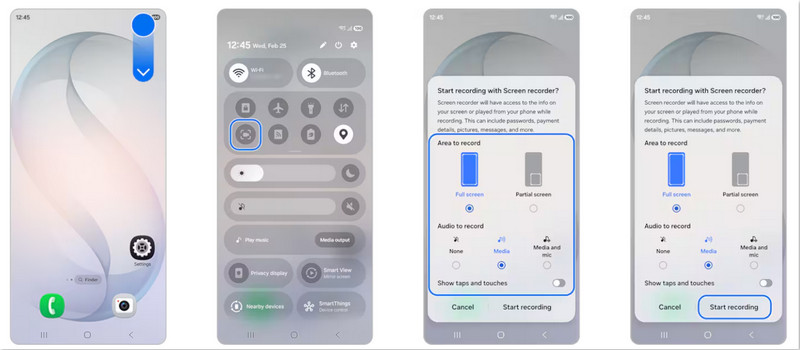
Quick settings are crucial but always operate in a similar way for screen recording on Android. Take Samsung Galaxy as an example, you can follow these steps to start screen recording.
Step 1. Screen Recorder is located in the Quick panel. Swipe down from the top of the screen to open it.
Step 2. Tap the Screen Record icon on your android. You can first set what audio (Media, or Media and Mic) or area (Full/Partial screen) you need to capture.
Step 3. Then click Starting recording and wait for a 3-second countdown.
Step 4. Click Stop on the floating control bar to end recording. You can check the video from Photos library. The default storage location is Internal storage > DCIM > Screen recordings. You can change it as well.
Limitation:
When the recording has finished by the middle, a message box pop-up! I have to start over again. It's been recording for 30 minutes, gods! 😭
I found that there’s toolbar allowing you to annotate on the screen will keep out the view in some way. Although you can hide or drag it to the screen edge, well, marking would become less convenient. The operable range of the screen and a simple pen tool are still too limited.
Speak to editing video, I can only shorten the duration by dragging the start/end point. Besides, older Samsung phones are not equipped with a built-in screen recorder. Just go to an external screen recorder.
Method 2: Using Best Desktop Screen Recorder App 🔥
“The built-in tools are confusing and some apps I tried either have bad quality or no sound. Can someone walk me through a reliable, easy method to record the screen with clear audio…” – from ClarkConnect Forum
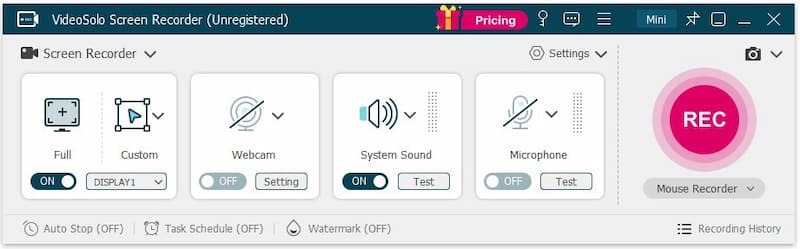
Best for: screen recordings to online classes, meetings, tutorials, gameplay, webcam, and audio.
Much feedback shows the inconveniences of the native Screen Recorder feature. As Jack Wallen, a Contributing Writer on ZDNET, said, “it's not quite as flexible as the other offerings.” This is where VideoSolo Screen Recorder comes into play as a dedicated screen capturing tool beyond mobile limitations.
Once mirrored Android screens to a PC, it enables users to capture any on-screen activity.
Unlike the fixed “start-stop” recording mode on Android, you can choose to output various video formats and quality. During my test, I took full control over the screen – It not only provides specific window locking to block distracting notifications, but also integrates a rich-feature recording panel and hotkey shortcuts to control the program and switch to different recording modes. It eliminates mobile overheating and battery drain while saving high-definition video files, making it a good option for content creators, educators, and gamers alike.
 Features
- Exclude Window Recording: Lock selected screen to avoid accidental touches and protect privacy.
- Lossless recording: Capture Android screen in up to 4K resolution at 60fps with zero lag or watermarks.
- Multi-source audio: Choose system audio, microphone sound, or both with noise reduction.
- Real-time annotations: Insert text, lines, arrows, callouts, and mouse effects while recording.
- Post-editing suite: Trim, split, merge, convert, or compress recordings immediately.
- Automated recording schedules: Customize start/stop time and then automatically shut down or sleep the computer.
How to use this Android screen recorder?
Step 1. Link your Android device to your computer via a USB cable or wireless connection.
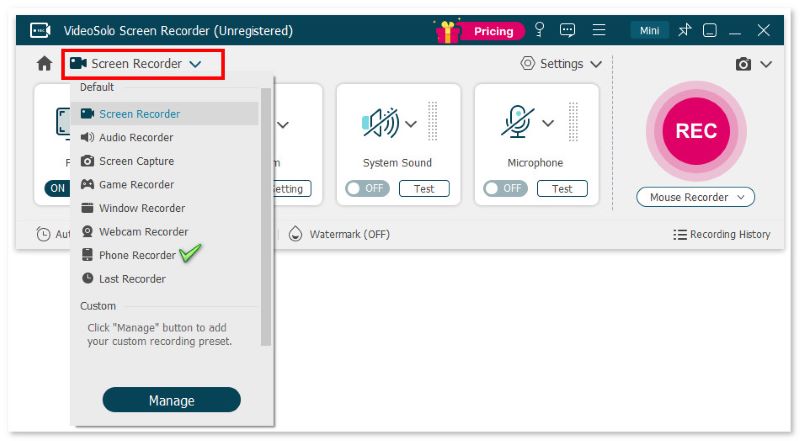
Step 2. Open the program and choose a recording mode called Phone Recorder.
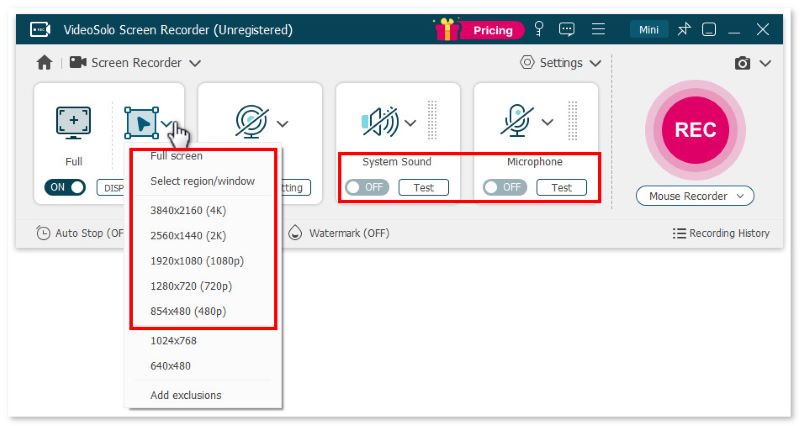
Step 3. Select Full or Custom to decide the recording area. Then adjust the volume bar of the system sound and microphone according to your needs.
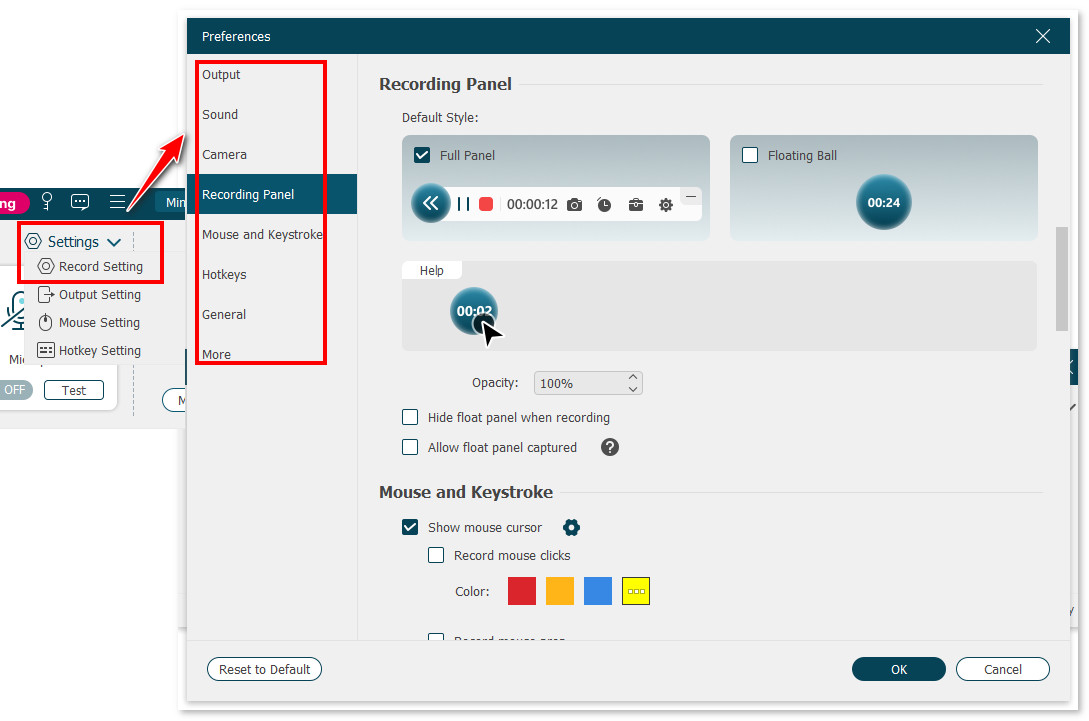
Step 4. Click Setting > Record Setting > Preferences on the interface. You can choose video format, video quality, frame rate, and location of output files here.
Step 5. Click REC to start recording when a reminder box pops up with hotkeys. You can still use the cut-screen feature to capture your preferred images.
User Review
I could record a screen tutorial, take a snapshot, and change audio settings without opening another app. Large files are normal when you record long videos in high quality. I will change the output format to MP4 to lower the frame rate. Note it allows up to 3-minute recording during the free trial. It lets you record and edit in one place, which saves time if you're making tutorials or content. I recommend you buy the lifetime license, as I am, to save more expenses.
Method 3: Using Screen Capture Software for Android
There are two highly popular mobile apps for recording the screen on Android. You can determine what kind of tool you really need based on its features and reviews.
AZ Screen Recorder
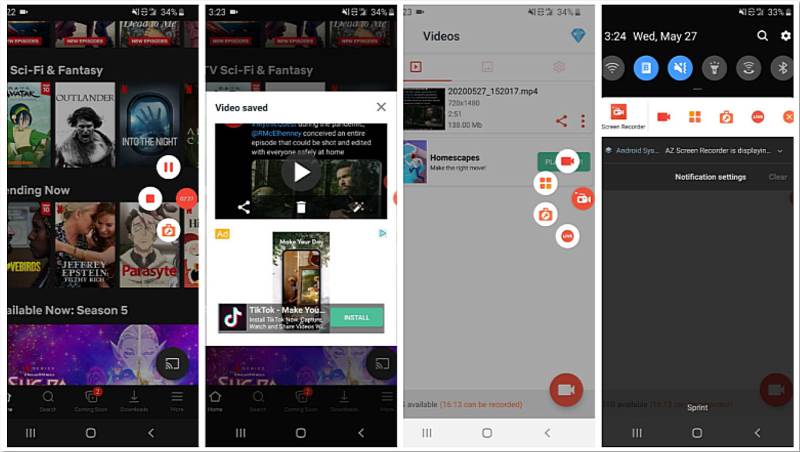
AZ Screen Recorder is a stable screen recording software that delivers screen recording, screen capture, video editing, and live streaming. It allows you to record video up to 1080p/60fps and adjust bitrate, keeping a balance between file size and video quality. Anyone who wants to instantly engage with their community can add the front camera for recording reactions.
Feedback
Google restricted internal audio capture for third-party apps starting with Android 10. The workaround most people use is AZ Screen Recorder with microphone audio instead, or rooting the device. Not ideal, but that's where things stand.
XRecorder
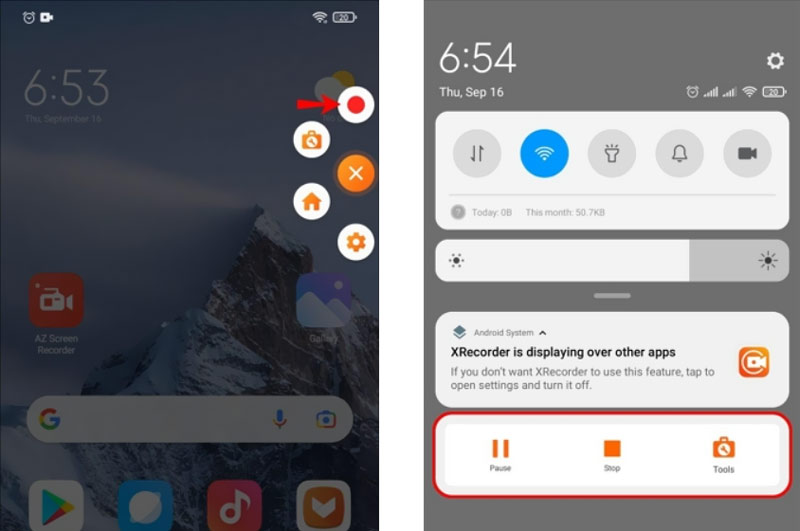
XRecorder helps you to record screen videos smoothly with no root & time limits. The program takes small memory on your phone. It can record internal audio recording, face Cam, and YouTube livestream, etc. Meanwhile, you can process simple editing, like trim, merge, and adjust the speed or quality based on your requirements. It still supports live streaming to YouTube and Twitch, which is my preference line.
Comments from Google Play
“I use this quite often. Despite the ads, which are very non-intrusive, it's very simple to use. However it's recently stopped recording audio. It doesn't let me know right away, typically like ten seconds in, it says doesn't detect audio.”
“Just turn on notifications and pull the screen like you do on phone, then tap the app icon and press the red record button and it comes back.”
Pro Tips of Android Recording
1. Before recording, make sure all setting have done, whether using a built-in feature or recorder apps. You can capture a 20-second clip first and watch it. Check audio sync, text clarity, and fluency.
2. Adjust resolution and bitrate until it looks ok without lag or huge file sizes. If your phone has enough space and works smoothly, try 1080p. 6 to 10 Mbps looks clean for 1080p. Higher bitrate means larger files.
3. Don't blindly go for higher fps always. 30 fps is enough for presentation, menus, or browser use. 60 fps only matters if you’re recording a game, of course, heat up the phone, uses more battery, and storage. Sometimes, you will find some frame drops in the video.
4. If allowed, record in sections. It would be much easier to re-record a segment rather than a full perfect video. And fewer mistakes will occur halfway through a 10‑minute recording.
FAQs about Screen Capture on Android
Q1: How to record both system audio and mic sound on Android?
A: Step 1: Open the Quick Settings panel and Long press Screen Record icon.
Step 2. tap Record audio / Audio source.
Step 3. Select Device audio and microphone (or System sound & Mic, depending on your phone's brand).
Note that it won't allow internal audio recording due to privacy policy of platfroms.
Q2: my screen recorder isn't recording the sound. What's the problem?
A: 1. Check your audio settings (None / System sound / Microphone / Both).
2. Ensure Microphone is allowed in Settings.
3. Try to use other screen recorder tools to check if the microphone/system audio is working.
4. Make sure that what you’re recording is permitted to capture. Some streaming apps or games block internal audio recording.
5. Restart your phone and try it again.
More readings
Capture screen activities, audio, webcam, gameplay, and mobile screens on Windows and Mac with high quality.

