


 Download Screen Recorder For FREE!
Quick Takeaway
The built-in Control Center feature works well for screen recording on iPhone, but the native way still has limitations like limited storage, lack of advanced editing, and restrictions on certain apps. For high-quality screen recording, you can mirror and record your iPhone on a computer using VideoSolo Screen Recorder, which provides a professional, lag-free solution with editing tools.
Recording the iPhone screen is very common and popular in daily life for live gaming, online meetings, etc. According to different needs, you can record your screen with Control Center on iPhone or choose a desktop recorder tool to customize your video.
Here’s a first look at the native method vs. ultimate desktop solution, helping you to make a choice.
| Features | iOS Screen Recording | VideoSolo Screen Recorder |
|---|---|---|
| Location | Quick, on-the-go screen recording | Long-form gameplay, professional video tutorials, and online class recordings |
| Window Locking | Full-screen only (pop-ups will be recorded) | Flexible (locked app window, area selection) |
| automation & scheduling | ❌ manual start and stop | ✅ scheduled recording, auto-stop timer, and file-size limits |
| Audio Capture | Basic (internal sound and mic voice, no way to avoid noise) | built-in noise reduction |
| Real-time Annotation | ❌ no live editing or drawing on screen during recording | ✅ full toolbar: live pen, arrows, shapes, text callouts, and mouse highlight effects |
| Post-recording | Basic trimming and adjustment in photos app | Built-in video editor (trimming, merging, compressing, format conversion, etc.) |
| System Performance | High battery drain, overheating fault, and out-of-memory on long-term recording. | direct to PC/Mac hard drive (unlimited recording space) |
Way 1: Screen Record on iPhone using Built-in Shortcut
Apple's built-in Screen Recording Feature can help you to grab your screen activity without any downloads. Here’s how to enable screen recording on iPhone, crucial steps, and limitations.
Enable Screen Recording in the Control Center
By default, the iPhone screen recording feature is ready. You can follow the guide below to make sure it is turned on.
Step 1. Open Settings > Control Center on your phone.
Step 2. Scroll down to More Controls and find Screen Recording. Check whether the symbol next to it is "+" or "-". The red minus means you have access to or can add the feature in the Control Center.
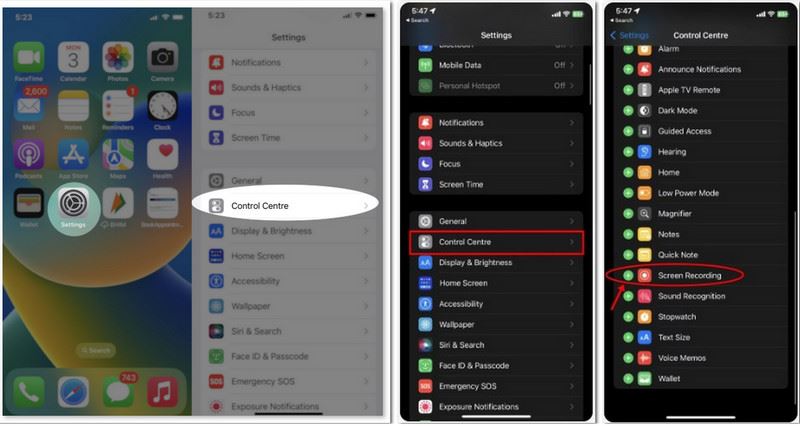
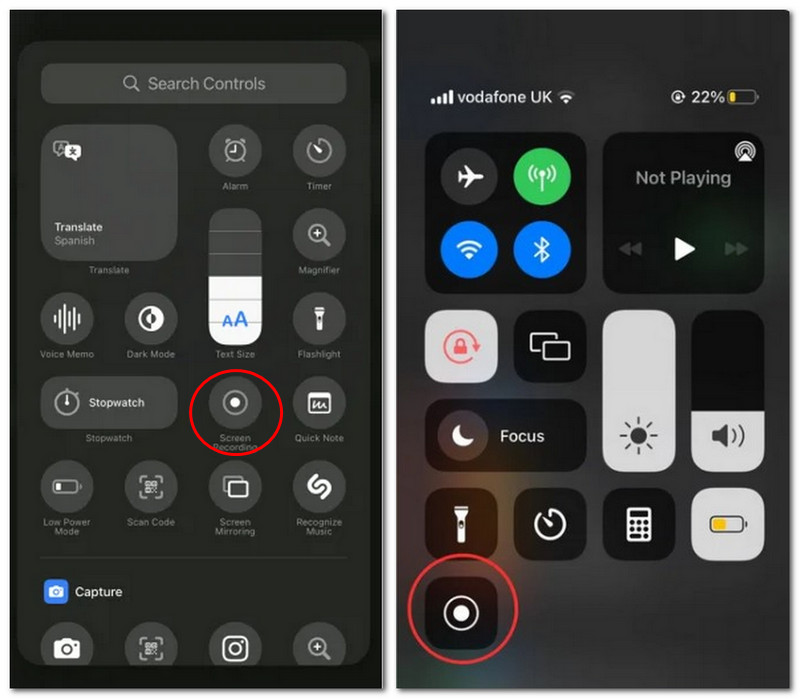
Step 3. For iPhone X model or later, swipe down from the upper-right corner of the screen and click the plus sign in the upper left corner. Or you can press and hold anywhere on the current interface to find Add a Control. For iPhone 8/8 Plus or previous models, swipe up with your finger from the bottom edge to the top.
Step 4. Choose Screen Recording and add it to your Control Center.
Start to Screen Record on iPhone
Now you can take a video screenshot by clicking the circular Screen Recording button.
There is a 3-second countdown before the screen recording begins. You can quickly switch to the screen that you plan to capture. Several recording modes to choose from:
• Record Without Sound: No other actions. Just wait till show a red clock-like icon in the upper-left corner of your screen. The recording button will turn red as well.
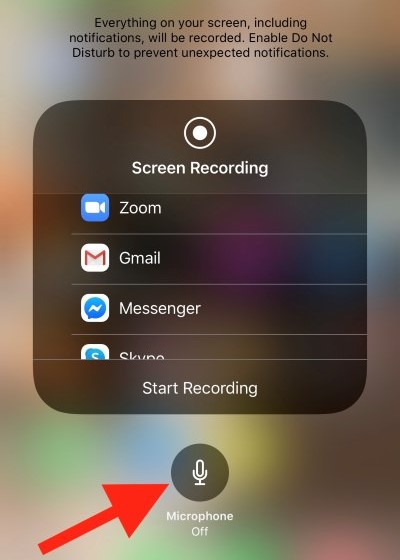
• Record With Sound: If you want to record video with audio on iPhone or add a narration, tapping and holding on the screen recording button will pop up an option: Microphone Off. Turn it on.
Author Note: Some inescapable problems
We can find that the Screen Recording feature will capture all contents and operations on the screen, such as sudden pop-up messages, false triggering, and other parts you don't want to show. That means you can’t choose the area where the screen recording is taken.
Moreover, Apple has said that it is not allowed to record any video or sound from some apps. If not, you will see a black screen in your recording. I think those contents must not be duplicated or distributed without the copyright holder's permission.
For video creators, basic screen capturing is not enough. You can’t add annotations to the video in real time or adjust the output format and quality. Only let you edit it after the recording.
Way 2. Record iPhone Screen via Ultimate Recorder Software
Best For: Flexible and 4K Recording for gameplay, webcam, screen and audio capture on phone/computer.
OS: Windows 11/10/8/7/Vista/XP, and Mac OS X 10.7 or above.
Price: $14.95/Month, $59.95/Lifetime
Why upgrade to VideoSolo Screen Recorder?
As we mentioned before, native screen recording on iPhone has limitations when it comes to advanced controls. When we need more functions, the native recording tool cannot meet our demands. VideoSolo Screen Recorder figures these problems out for all—the UI design is very clean and easy to get started, but its function is fully capable of meeting all kinds of recording requirements.
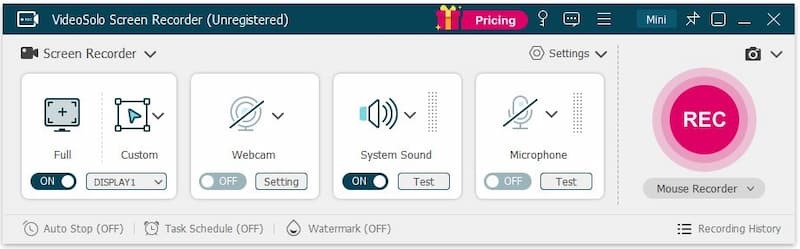
It can lock target windows to exclude unnecessary images on your screen, avoiding being distracted by other notifications. You can record the screen with audio on iPhone, including the system audio and microphone voice, while the tool will automatically apply noise cancellation and enhance sound effects.
Another handy tool is Real-time Annotation. You can easily draw a brush, arrows, add text boxes, and even use a magnifying glass to zoom in on details or highlight mouse trails. This saves a lot of post-editing time for those creating online courses or tutorials. It also has built-in format conversion, video merging, and compression—never download any extra editing software anymore!
 Features
- Mirror and record your iOS screen on PC with low latency.
- Provide scheduled recording and auto-stop recording.
- Adjust output video/audio format and quality (up to 4K).
- Trim, compress, merge, or convert videos with easy-to-use editing tools.
- Add text or other notes to highlight important content during recording.
- 10+ output formats for different devices' compatibility.
How to screen record on iPhone?
Step 1. Mirror your iPhone screen to a computer with a USB cable or wirelessly first.
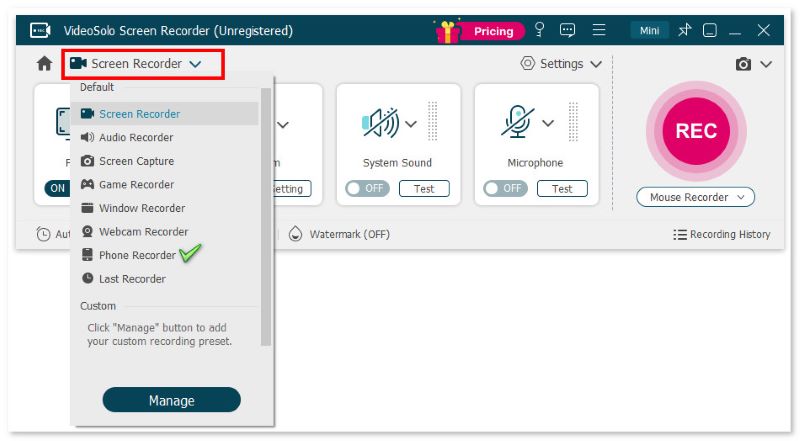
Step 2. Open the program and choose a recording mode called Phone Recorder.
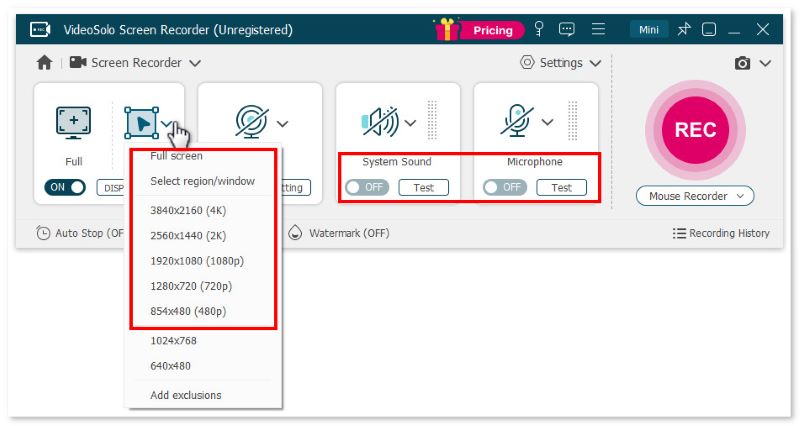
Step 3. Select Full or Custom to decide the recording area. Then adjust the volume bar of the system sound and microphone according to your needs.
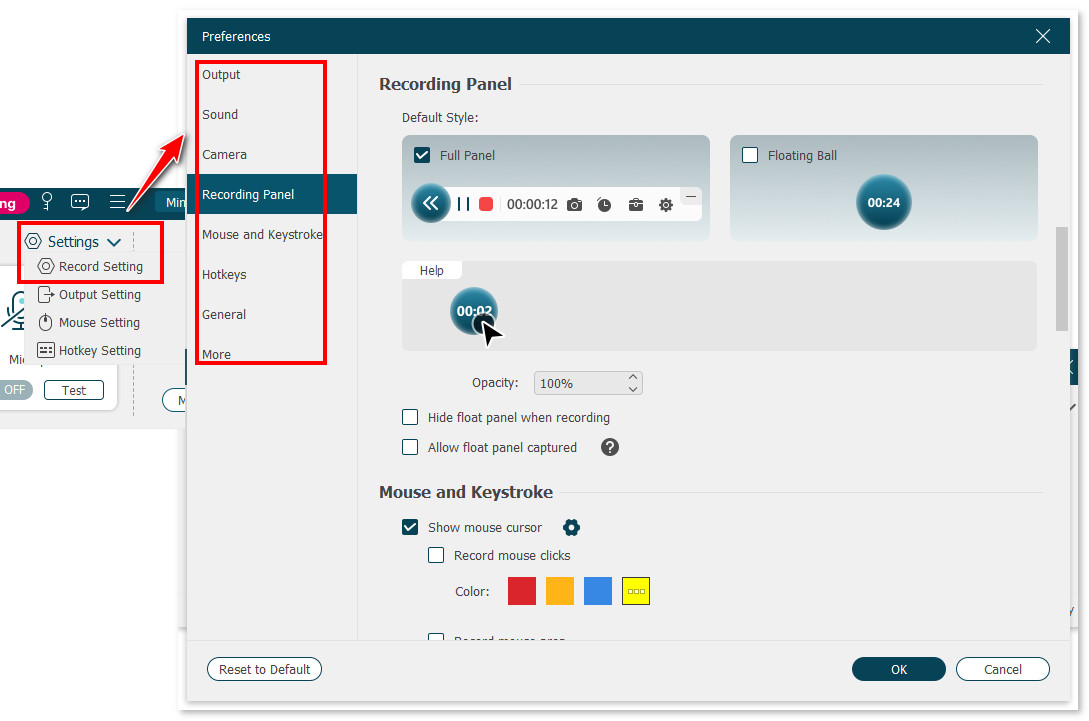
Step 4. Click Setting > Record Setting > Preferences on the interface. You can choose video format, video quality, frame rate, and location of output files here.
Step 5. Click REC to start recording when a reminder box pops up with hotkeys. You can still use the cut-screen feature to capture your preferred images.
You may be interested in: Advanced Recording Tips of VideoSolo Screen Recorder
User Review
“Having attention disorders, it's sometimes difficult for me to understand well during virtual meetings. With Screen Recorder, I can re-listen to a segment that I misunderstood in order to complete my notes. With other video recorders, we don't always have the option to adjust the section on our screen we want to record, I like it to be discreet without annoying my pairs.” —Maire Claude from Trustpilot.
FAQs about Screen Capture on iPhone
Q: Can I screen record and mirror my iPhone at the same time?
A: Yes. You can mirror your iPhone screen to TV or other devices while recording. These two operate independently without interference. Note that what can be captured is only the actual screen instead of a mirror image.
Q: How to edit my screen recording on an iPhone?
A: Directly find your recording in the Photos app and click the edit icon on the taskbar at the bottom of the screen. You can move the sliders on both sides to trim the video. But when you save the edit, it overwrites the original file. If you need beautiful editing without losing original clips, VideoSolo Screen Recorder with a rich editing toolkit is far more flexible.
Q: Why is there no sound on my recorded video?
A: Two cases here: First, you don’t toggle off your microphone (long-press the Screen Recording icon to set it). Second, callings or other streaming services cut off the audio recording due to privacy and copyright restrictions.
Q: Why did my recording stop automatically or be corrupted?
A: When you go on a long-term recording or record the screen while playing a game, your phone can overheat and become laggy, and iSO will automatically force-close the recorder, resulting in lost or corrupted files sometimes.
Conclusion
iPhone screen recording or a robust screen recorder app - you can have either based on your individual needs. Make sure that keep your phone battery fresh and have enough space by using the built-in feature. If you have to comment, mark, or re-edit the recorded content, VideoSolo Screen Recorder is the right tool to record screen on iPhone and better customize your videos or images.
More Readings
Capture screen activities, audio, webcam, gameplay, and mobile screens on Windows and Mac with high quality.

