



 Download Screen Recorder For FREE!
Trying to record on Snapchat with your finger still pressed on the record button quickly becomes inconvenient. Perhaps you want both hands or need to stabilize your phone, or maybe you just want to record for a longer period without having to hold your screen the entire time. No problem! In this article, we will explore three solutions for how to record without holding the button on Snapchat, including built-in options within Snapchat, an iPhone accessibility hack, and a desktop solution. Each solution operates in a different manner, so you can choose the one that best suits your way of using Snapchat.
Part 1: Record Hands-free Inside Snapchat (iOS & Android)
Using the Built-in Camera Lock
Snapchat's camera lock lets you start a recording normally, then lock the record button so you can take your finger off the screen.
Step 1. Open Snapchat and prepare your camera, lens, or filter.
Step 2. To begin recording video, press and hold the circular Record button.
Step 3. While holding it, quickly slide your finger to the left toward the lock icon.
Step 4. Once the lock appears, release your finger. Snapchat will continue recording without requiring you to hold the button. Tap the Record button again when you're ready to stop and save the Snap.
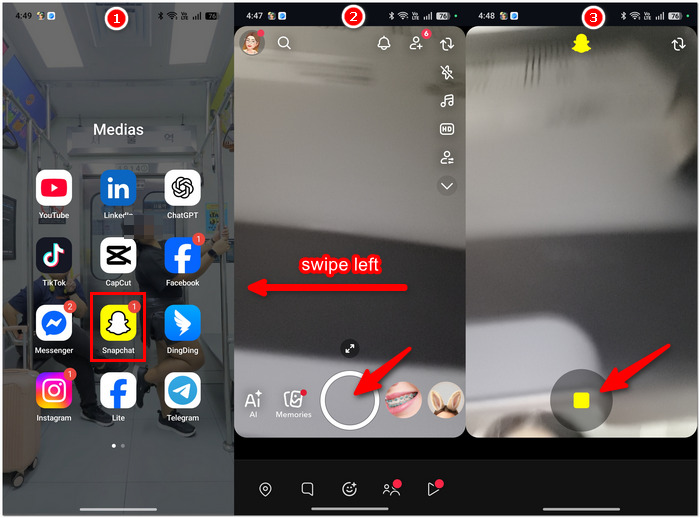
Note: The lock icon's precise location or appearance may differ slightly between Snapchat's iOS and Android versions.
Verdict
The camera lock should be the first option if you decide to learn how to video record on Snapchat without installing any additional software. Still, you will have to use the same recording controls provided by the app.
Using the Built-in Timer
Snapchat's timer gives you another hands-free option. Instead of holding the shutter, you can set a short countdown and let the camera start recording on its own.
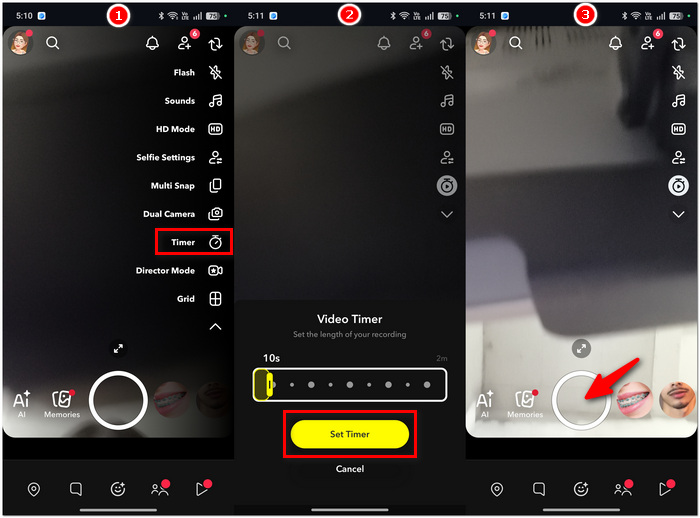
Step 1. Tap the arrow-down option on Snapchat's side toolbar, then select Timer.
Step 2. Drag the timeline slider to choose your recording duration, up to 10 seconds.
Step 3. Tap Set Timer, then tap the shutter button once. Snapchat will start the countdown and begin recording automatically.
Verdict
The timer is handy when you want your hands completely free up until the moment before recording. Unfortunately, it only lasts up to 10 seconds, giving you less flexibility than the camera-lock technique. If you're looking for ways to record hands-free on Snapchat, the timer is preferable for short recordings you need to set up.
Part 2. Bypass the Button on Mobile (iOS Only)
If Snapchat's built-in hands-free options aren't enough, iPhone's AssistiveTouch can provide another workaround. It lets you create a custom gesture that can hold the recording button for you.
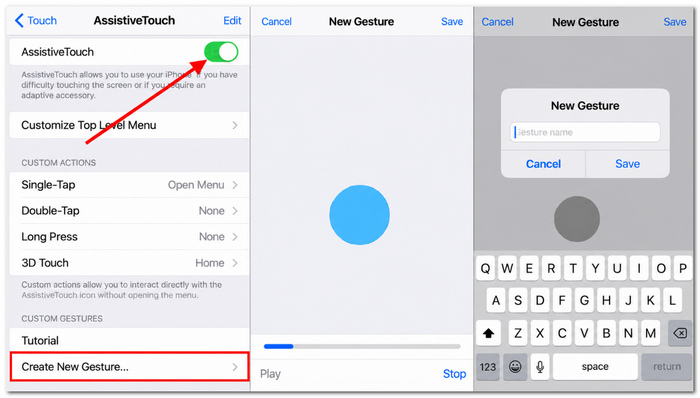
Step 1. Go to Settings > Accessibility > Touch > AssistiveTouch, then turn AssistiveTouch on.
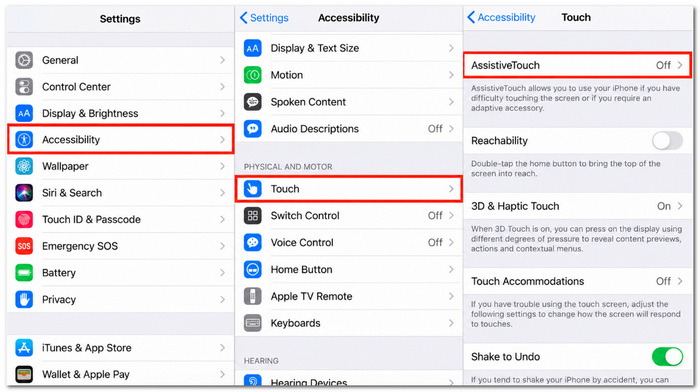
Step 2. Tap Create New Gesture. Press and hold your finger on the blank screen until the recording finishes, then save the gesture as Snapchat Hold.
Step 3. Open Snapchat and tap the floating AssistiveTouch button. Choose Custom, then select your saved Snapchat Hold gesture.
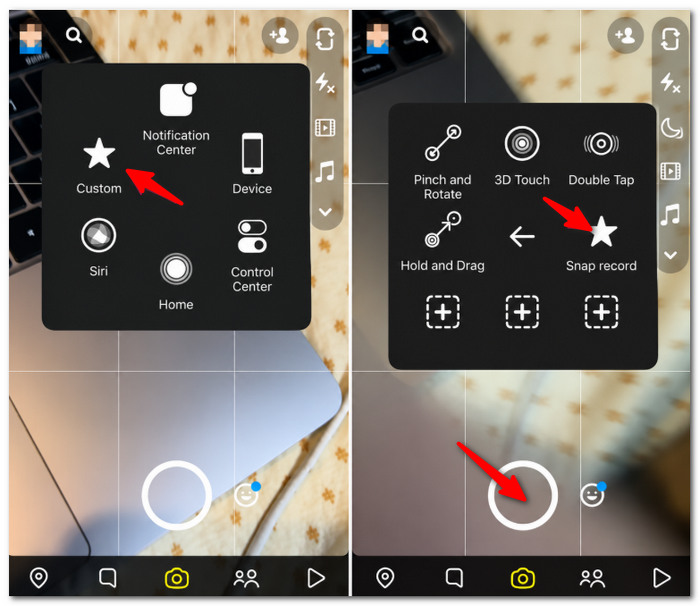
Step 4. Drag the gesture's target icon over Snapchat's camera shutter button. iOS will then perform the holding gesture for you while Snapchat records.
This workaround can come in handy when you're trying to record a Snapchat without holding the button, particularly if you want to keep your hands free while recording.
Part 3. Record Snapchat Hands-free on PC & MAC (Ultimate Bypass)
When recording from your computer, you get a bigger view and greater flexibility to record. Simply go to Snapchat for Web, and on a desktop browser, you have the option to capture the whole computer screen or just a particular window, and you can also record system audio & mic sound.
For this, I suggest VideoSolo Screen Recorder. It enables users to record a specific window or a part of the screen while including system sound and microphone. It is a desktop recorder for Windows and Mac that offers some basic editing and file-management tools, making it a good option for hands-free Snapchat recording.
How to Record Snapchat on PC & Mac
Step 1. Open Snapchat for Web in a supported browser and sign in to your account.
Step 2. Download and Launch VideoSolo Screen Recorder.
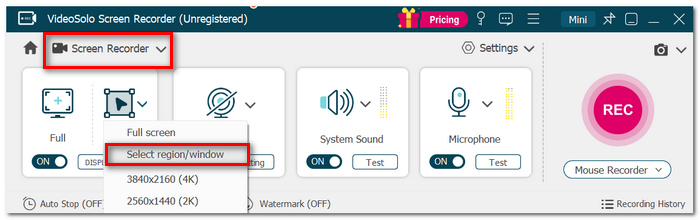
Step 3. Click Screen Recorder and select Window or a specific region where you situate your Snapchat window.
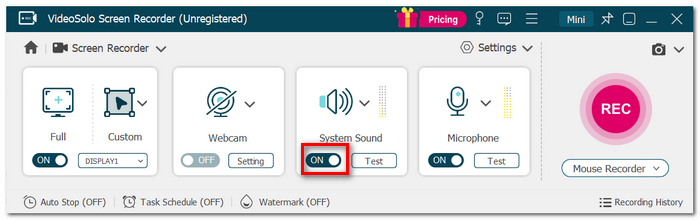
Step 4. Enable System sound if you would like to record sound.
Step 5. Launch the Snapchat video you would like to record and then click REC.
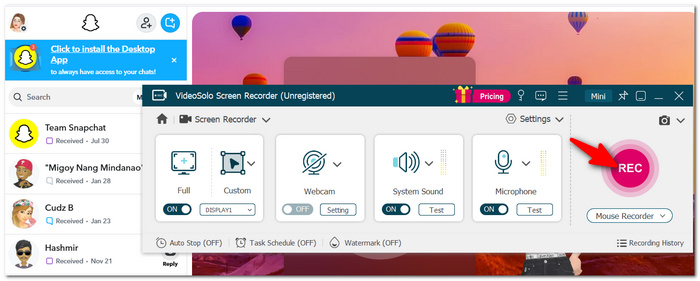
Step 6. When finished, hit Stop. Preview the recording, edit as needed, then save.
 pros
- Allows you to record just one window or part of the desktop.
- Can record system playback and capture computer microphone simultaneously.
- It has features including editing, deleting, and jumping around.
 Cons
- Can be used on any Windows or Mac computer.
- The paid edition of Adobe Audition supports some extra recording features.
Part 4. FAQs about Recording without Holding the Button on Snapchat
Can I switch between the front and rear camera while recording hands-free?
Yes, you can switch between Snapchat's selfie and rear-facing cameras while creating a Snap. However, the exact controls available during a hands-free recording can depend on the camera mode you're using.
Can I use Snapchat Lenses while recording hands-free?
Yes. You can prepare and apply a Lens before starting your hands-free recording, allowing you to record with the chosen effect just like a regular Snap.
Can I change the speed of a hands-free Snapchat video?
Yes. Snapchat's camera tools include a Speed option that lets you change how quickly the recorded video plays.
Why can't I find the Hands-Free option on Snapchat?
The location can vary depending on your Snapchat version. Snapchat says the Hands-Free feature may appear as a separate tool in the Camera toolbar or as part of Director Mode. Updating the app is also worth trying if a camera feature is missing.
Does Snapchat save hands-free recordings automatically?
No. Hands-free recording only handles the recording process. After recording, you still need to review and save or send the Snap using Snapchat's normal controls.
Conclusion
Sometimes recording on Snapchat doesn't have to involve keeping your finger on the shutter. The default camera lock and timer are straightforward, and AssistiveTouch offers iPhone users another solution for these situations. If you're looking to have more options, recording from a computer may be preferable. Use these to figure out the best approach once you understand how to video record on Snapchat hands-free.
More Readings
Capture screen activities, audio, webcam, gameplay, and mobile screens on Windows and Mac with high quality.

