



 Download Screen Recorder For FREE!
Top 3 Recommendations
• VideoSolo Screen Recorder: The best choice for professional-grade recording and many capture options.
• OBS Studio: Top free software for gamers, streamers, and people who have advanced setup needs for their recordings.
• Loom: A great program that allows you to record short message videos, host meetings, and collaborate with your team.
No matter if it's a gameplay recording, an interactive meeting recording, or a video tutorial making, the right software can be the difference between a delightful experience and a painful one. In this article, we looked at and compared the most common options in both the online and desktop categories after putting them through real-time usage scenarios. I'll cover their recording quality, functionality, user-friendliness, and constraints so that you can discover the perfect video recorder for your work style or creative flair.
Quick Comparison of the 9 Best Video Recorders
| Software | OS | Recording Quality | Built-in Editing | Online/Offline | Best For |
|---|---|---|---|---|---|
| VideoSolo Screen Recorder | Windows, Mac | Up to 4K/60fps | Yes | Offline | Professional recording |
| OBS Studio | Windows, Mac, Linux | Up to 4K | Basic | Offline | Gaming & streaming |
| EaseUS RecExperts | Windows, Mac | Up to 4K/60fps | Yes | Offline | Screen & webcam recording |
| Bandicam | Windows | Up to 4K/480fps | Basic | Offline | Gaming & high-FPS capture |
| Icecream Screen Recorder | Windows, Mac | Up to 4K | Yes | Offline | Lightweight recording |
| Loom | Windows, Mac, Chrome | Up to 1080p | Basic | Online | Video messages & work |
| ScreenCapture.com | Windows, Mac | Up to 1080p | Basic | Online | Quick browser recording |
| Apowersoft Free Online Recorder | Windows, Mac | Up to 1080p | Basic | Online | Quick screen capture |
| Vmaker | Windows, Mac, Chrome | Up to 4K | Yes | Online | Business & tutorials |
How We Test
In the assessment process, each recorder was put through nearly identical basic tests: screen video, web video camera recordings, audio clarity, video output fidelity, video editing features, and overall level of user-friendliness. In addition, we were interested in finding out the speed with which each tool initiates the recording mode and the way it functions for prolonged recording periods. For web-based recorder apps, we most of all focused on browser performance, app stability, and the recording experience in general.
Part 1. 5 Professional Desktop Video Recorders (Windows & Mac)
1. VideoSolo Screen Recorder – Editor's Choice | Best for 4K Recording & Built-in Editing
Star rating: ★★★★★
Best for: Creative people, game creators, teachers, and individuals looking to record everything they do at the highest quality while being able to edit in the very same program
VideoSolo Screen Recorder is the first in my list of recommendations because it is the only desktop program on the market that combines screen capture, audio capture, webcam recording, gameplay, and even phone recording in one complete package. It can shoot 4K video at an amazing 60 fps. It also supports editing functions like trimming, cutting, merging, compressing, and converting, saving you from opening up yet another editor to finish the editing job.
 Features
- Supports multiple modes of recording (screen, webcam, audio game, mobile phone, etc.)
- Edit recordings (cut/merge/compress/convert) right at the point of recording.
- You're not likely to have any background noise with this feature of noise cancellation for mic recording.
- Create a schedule or let the software stop the recording for you when the recording time is limited, without any hassle.
- Options to lock the window/exclude it to remove any unwanted content from your recording.
How to Record with VideoSolo Screen Recorder
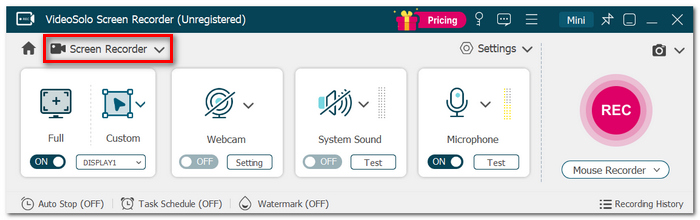
Step 1. Open VideoSolo Screen Recorder, go to the main recorder option and choose Screen Recorder.
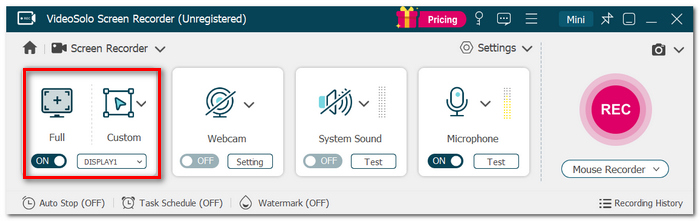
Step 2. Pick either to record the entire screen or select a specific area on your screen that you want captured for the recording.
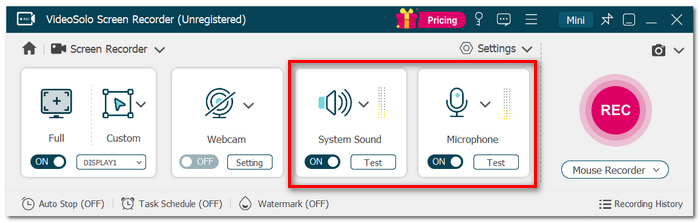
Step 3. Decide whether you want to record audio and video by turning on the respective recording devices.
Step 4. Select webcam video if you want to display your face. Change the recording output parameters, such as type, quality, and frame rate, via the settings.
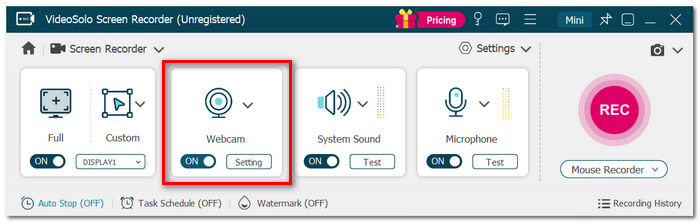
Step 5. Begin your recording. With a click on the toolbar, you can draw over the recording or change how it is played.
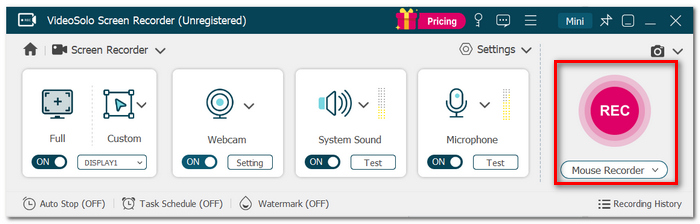
Step 6. Click the Stop button upon completion of the recording. Watch a preview of your record, cut out unnecessary parts, and store the file in whatever folder you like.
 pros
pros
- Allows high-quality recording at 4K/60fps.
- It has features like screen and webcam recording, gameplay recording, audio recording, and phone recording.
- The editing and annotation tools can be used for making adjustments after recording.
 Cons
Cons
- Some of the high-level features can be obtained only with a paid plan.
User Review
During my evaluation process, VideoSolo impressed me as one of the best video recording and editing software. The reason I picked it was that I could use one app to record, do some editing, and still maintain the whole workflow so that I don't have to switch constantly between different software just to do one thing after another.
2. OBS Studio – Best for Streaming & Custom Recording
Star rating: ★★★★☆
Best for: Gamers, streamers, and creators who need detailed recording controls.
Price: Free
OBS Studio is a free, open-source tool mainly used on Windows computers that is capable of recording as well as live-streaming your gameplay. It offers great control over screens, webcams, microphones, and other audio or video sources.
pros
- Free software with unrestricted recordings and no watermark.
- You get the chance to personalize the scenes and the audio as much as you want.
- It is fully compatible with the main audio filters and plugins.
Cons
- It's quite challenging for newcomers to grasp everything.
- It could strain your PC a bit with some high-end streaming configurations.
Testing Experience
OBS worked well for one of the best video recording software needs, especially when I wanted more control over different audio and video sources.
3. EaseUS RecExperts – Best for Easy Screen & Webcam Recording
Star rating: ★★★★☆
Best for: Those who are new and need a simple setup while having additional recording options available.
Price: Free version; premium features are also available
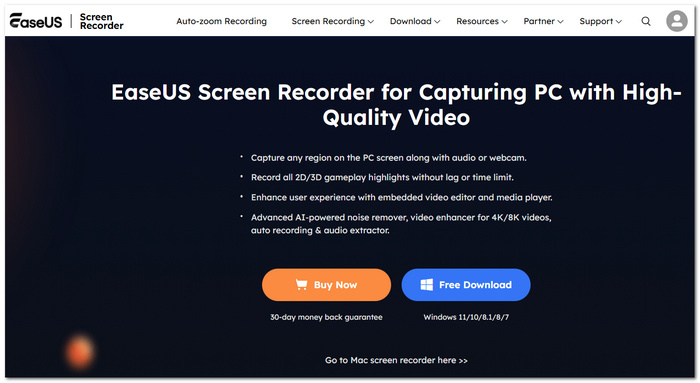
It's a very straightforward screen recording tool that allows you to record the screen, webcam, system sound, and microphone at the same time, by the way Eazeus RecExperts works.
pros
- Simple and user-friendly setup.
- It can record screen, webcam, and audio at the same time.
- Offers basic editing tools for making quick edits.
Cons
- Paid features are limited in the free version of the software. For example, it's difficult to record a movie or edit a movie without any paid features.
- Advanced features need a paid plan.
Testing Experience
To try this out, I used the webcam and system audio and made a screen presentation. The interface is user-friendly. I didn't face difficulties finding out which controls to use, and after only minimal configuration, the record button was clicked, which is a big plus considering that it is a video recording software mainly aimed at everyday usage.
4. Bandicam – Best for High-FPS Game Recording
Star rating: ★★★★☆
Best for: Gamers and users who require smooth, high-frame-rate screen recording
Price: Free version; paid version also available
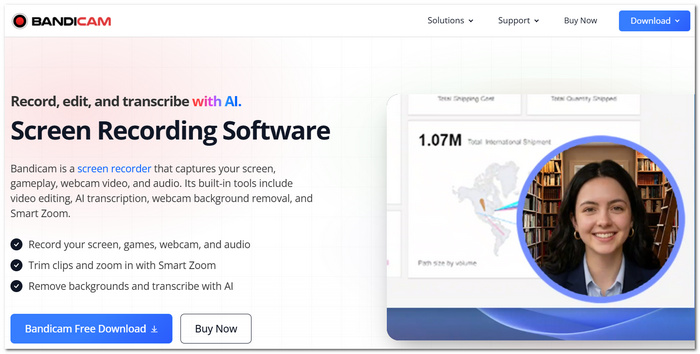
Bandicam is a Windows screen recorder that has a good reputation for recording quality games, screens, and webcams with support for high frame rates.
pros
- Supports recording at high resolution and very high FPS.
- Built-in game recording mode.
- Very light on system requirements compared to many other editing suites.
Cons
- The free version includes a watermark.
- Only available to Windows users.
Testing Experience
I tested Bandicam with a fast-paced game, which was ideal for checking high-FPS capture of video games. The videos turned out well, though the free edition's watermark would be a point to highlight when it's being compared with other free video recording software.
5. Icecream Screen Recorder – Best for Lightweight Screen Capture
Star rating: ★★★★☆
Best for: People who want a clean, uncomplicated recording device that doesn't weigh them down physically or mentally
Price: Free version; paid features also available
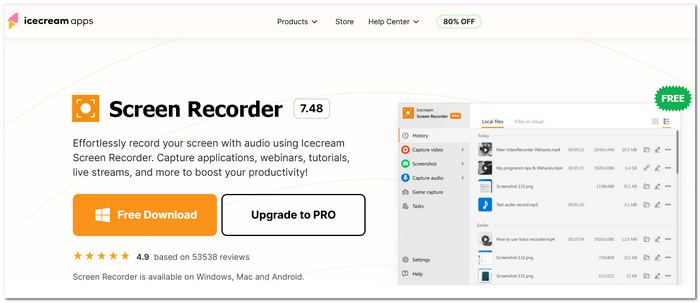
Icecream Screen Recorder is an easy-to-use desktop recorder that allows screen, window, webcam, and audio recording without having to undergo a complicated installation or setup.
pros
- Straightforward and easy interface, mainly suitable for beginners.
- Can be used to record the desktop, camera, and audio.
- Some basic annotation features are available during the recording.
Cons
- The free version is limited in recording capabilities.
- Some advanced features can only be accessed by purchasing the Pro version.
Testing Experience
I tried out this software by creating a screen recording tutorial using system audio and found the setup quick and simple. It's a good choice for those wanting video capture software that is free, simple to control, and does not bring unnecessary setup hassles with it.
Part 2. 4 Online Video Recorders (Web-Based)
1. Loom – Best for Quick Video Messages
Star rating: ★★★★☆
Best for: Teams that communicate remotely, people who need very fast explanations, and short screen recordings
Price: Free plan; paid plans are also available
Loom is an extremely convenient online recorder that enables one to record screens, cameras, and microphones without having to download and install a full-scale desktop recorder. It provides an easy way to make a video by sharing one's face with a camera, desktop activity, or an animated screen capture, whichever is preferable.

pros
- Start recording very quickly.
- It's an excellent option to quickly send someone a video link.
- It can support your internal meetings, training sessions, and presentations in an effective manner.
Cons
- It works in cloud mode, so it needs a stable internet connection to be used.
- Some features can be done on a free version.
Testing Experience
While using Loom, I recorded a short screen video with my webcam and mic. It was very smooth and easy to upload and share the video. So looks like if you want an instant and hassle-free recording solution for light recordings, it is the ideal online video recorder choice.
2. ScreenCapture.com – Best for Quick Browser-Based Recording
Star Rating: ★★★⯨☆
Best for: Making quick screen recordings without having to go through the trouble of installing desktop software.
Price: Free
ScreenCapture.com is a totally browser-based screen recorder that allows you to take screenshots, videos of yourself and the webcam, and audio all together in the browser.
pros
- No full desktop installation is necessary.
- Quick and easy for making basic recordings due to a very user-friendly interface.
- Recording of the screen and webcam is available.
Cons
- The user must have a reliable internet connection.
- Not very suitable for long or demanding recordings.
Testing Experience
I tried it for a short browser recording where the screen and the webcam were both captured. It was very straightforward to initiate, but compared to the professional free video recorder software options, I can see the browser-based interface is probably more suited for quick recording purposes than for really big projects.
3. Apowersoft Free Online Audio & Video Recorder – Best for Quick Captures
Star rating: ★★★☆☆
Best for: People who want a fast browser-based recording tool without installing a full desktop application
Price: Free
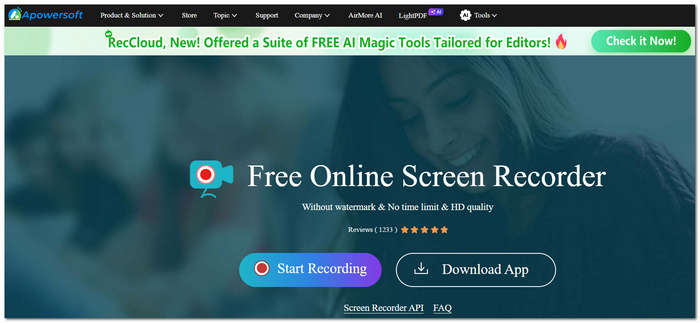
Apowersoft Free Online Audio & Video Recorder is an online tool which gives the means to record screen activity, webcam film, and audio, by the way from the browser.
pros
- It's free and readily available.
- Screen recording, webcam recording and audio recording are all supported.
- It's user-friendly, which makes it suitable for simple recording tasks.
Cons
- It is reliant on your internet and browser speed for smooth operation.
- It lacks the wide variety of tools found in professional desktop recording software.
Testing Experience
I used it for a temporary screen-and-audio capture, and the recording was simple enough. It's a nice video recorder for when I just need a quick solution, but if you're working for a long time or on difficult projects, it's better to use desktop software.
4. Vmaker – Best for Team Videos & Tutorials
Star rating: ★★★★☆
Best for: Distance teams, instructional videos, and quick screen explanations.
Price: There is a free version; premium versions at extra charges available.
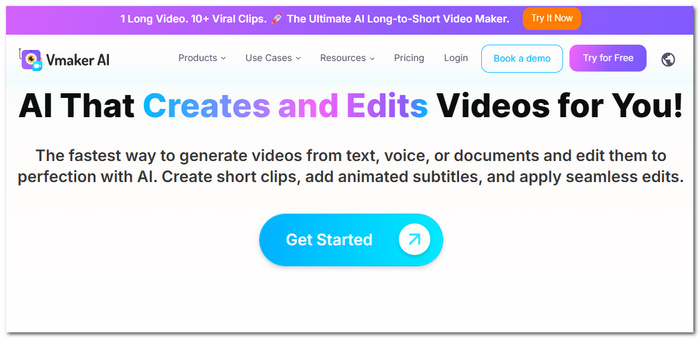
Vmaker is an online screen recorder and webcam that is mainly suitable to generate videos you can share with teammates, clients, or other people that learn.
Testing Experience
I got to test Vmaker by creating a short screen-casting and webcam video. It was simple to create a video and share it around, which means it could be a great fit for making work or training videos, but as a tool, it lacks much of the desktop control functionality.
Part 3. Verdict: Limitations of Using Online Video Recorders
Online tools are very convenient for recording a piece of video, but they become unreliable for doing a larger or more confidential capture.
1. Risk of Data Loss
Recordings on web pages use mainly WebRTC and active browser resources. There is a high chance that, if the recording is not being done at the time that the browser crashes, the tab is closed or the connection drops, the video will disappear.
2. Lag and Hardware Throttling
Using only a browser to do 1080p/60fps recordings will drain a lot of RAM and require a powerful CPU. If your computer is already running a bunch of heavy apps, doing something like that could make the screen freeze momentarily or cause a frame drop, as well as audio and video getting out of sync.
3. Security and Privacy Limits
Recording over the internet usually involves using third-party servers, which, among other reasons, is not the thing you would want if you are dealing with recording secret meetings, private chats, or training content that is protected by copyright.
Part 4. FAQs on Video Recording Software
Why is there a black screen in my video?
The application you are recording is using hardware acceleration, protected content or a method of capturing that the recorder cannot detect.
Is it possible to record a screen while having a virtual background on my webcam?
You will most likely be able to, if the video editing tools you use have webcam effects or if the virtual camera software that you use is providing the virtual background. This setup can help you make tutorials, presentations and professional video messages more smoothly.
Why does my recording look blurry even though my monitor is high-resolution?
Your monitor display and the recording are two different things. For example, your recording may have a different resolution or compression quality than your display does. Try to check the recorder's output resolution and quality settings before the recording starts.
Conclusion
Determining the optimum video recording software for users depends on different factors, first and foremost on what you want to record and, to some extent, on the level of control you are able to have throughout the process. Desktop software is suitable where you need to record long, higher-quality work, and online recorders are appropriate when you just need some quick and basic footage.
More Readings
Capture screen activities, audio, webcam, gameplay, and mobile screens on Windows and Mac with high quality.

