


 Download Screen Recorder For FREE!
Quick Answer
When you are after top-tier internal Android sound quality, VideoSolo Screen Recorder is definitely my favorite method since it enables me to display the smartphone on a computer and record the sound with more precision. If it's about call recording, Cube Call Recorder is capable of working on certain devices, and the integrated recorder is an easy tool for capturing meetings and voice notes.
Getting great sound on Android could be very easy, except there are times when permissions stand in your way, background noise comes out, and the phone blocks the internal sound you actually want to record. How to record audio on Android? Then I think it only makes sense to show you the most practical methods for recording app sounds, phone calls, and everyday voice recordings. I will also give you some very easy-to-follow tips and a few simple settings to help you record better audio without introducing complexity.
Scenario A: Record High-Quality Internal Android Audio (Apps, Games & Streaming)
Recording internal audio on Android can sometimes be a challenge, as certain devices and applications even prevent direct capturing of system audio. Rather than using the mobile phone's mic to record the sound playing through the speakers, I can cast the Android device onto my PC and record the sound with VideoSolo Screen Recorder without any loss of quality.
 Features
- Mirroring an Android phone: Connect the phone to a PC with USB or a supported wireless connection.
- Capturing system audio: Get the audio of a mirrored Android device.
- Microphone support: Optionally, talk through a microphone while recording.
- Recording in different qualities: Change the audio and recording settings before recording.
- Using a computer for storage: Record lengthy videos directly on your computer rather than only saving on the phone.
How to Record Android Internal Audio with VideoSolo Screen Recorder
Step 1. First, you have to connect your Android phone to your PC via a USB cable or a wireless connection supported by your phone.
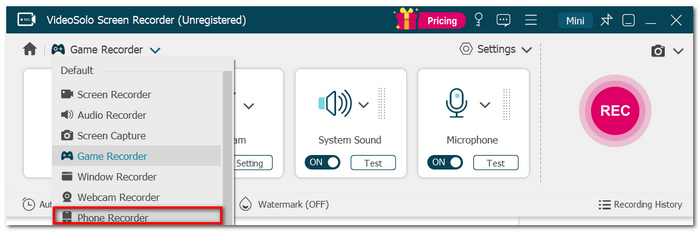
Step 2. Launch VideoSolo Screen Recorder and click Phone Recorder.
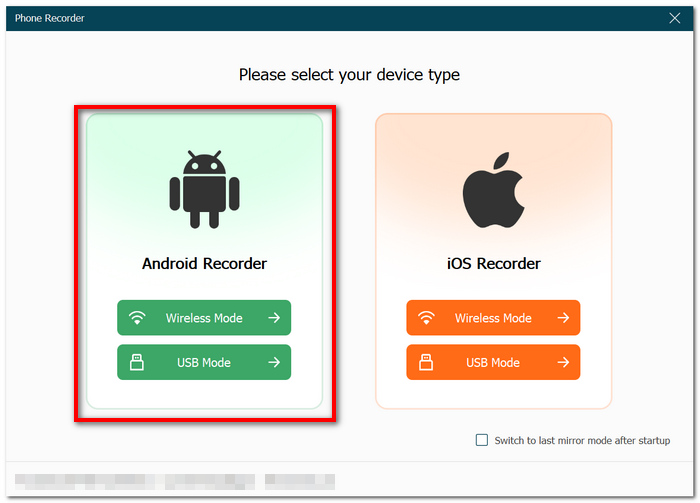
Step 3. Select Android Recorder and then mirror your phone by following the instructions on the screen.
Step 4. Pick a connection method and finish the mirroring procedure. Turn on Enable phone speaker mirroring and make volume adjustments. If you want to record the voice, also turn on Enable phone microphone mirroring.
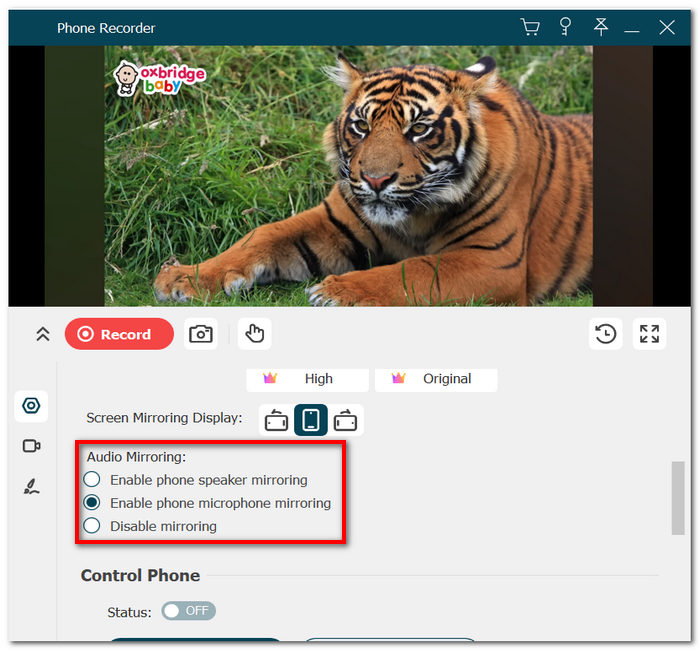
Step 5. Launch the app, game, or streaming content that you want to record. Hit the Record button to begin the recording process.
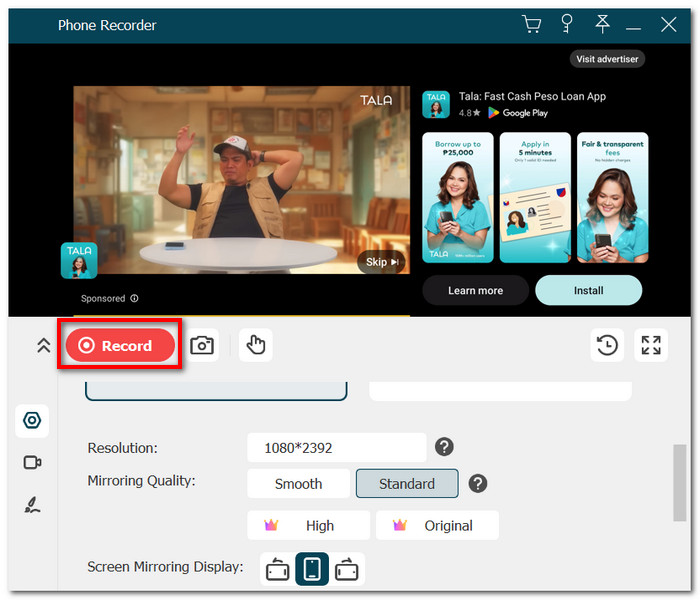
Step 6. Click Stop when you finish, and you can check the recording. Download the final recording you made to your PC.
In case you want to record sound on Android without the phone's mic having to capture the microphone output, walking through the desktop breakout of this method offers you an even cleaner, more controlled workflow.
Scenario B: Record Phone Calls and VoIP Logs on Android
Recording calls on Android is quite complicated, as the possibility of recording calls depends on the device, the Android version, and the calling app. Even then, the call recording feature is not enabled by default. If your device supports it, Cube Call Recorder ACR can be used to automatically record incoming and outgoing calls as well as supported VoIP conversations.
How to Set Up Cube Call Recorder
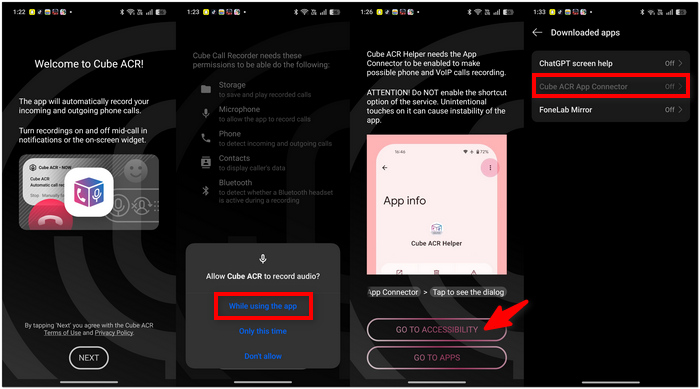
Step 1. Download and launch Cube Call Recorder ACR. Set up the app by following its instructions and granting the necessary permissions.
Step 2. If necessary, allow the app to use the microphone by tapping the While using the app and handle notifications.
Step 3. Enable the Cube ACR App Connector in Accessibility settings on Android when the system asks you to do so.
Step 4. Try a trial call to check the recording of both voices. If using compatible VoIP apps, just start the call, and the Cube recorder widget will begin recording the call automatically.
Step 5. Later, launch Cube ACR to listen, organize, or save the recording.
How to record audio on an Android phone? Cube ACR is a great option, mainly if you are after recording phone and VoIP calls that are supported, rather than normal voice notes.
Important: Laws about recording calls vary from place to place, so ensure that you have the necessary consent when recording a conversation. Besides that, Cube ACR points out that there may be certain devices and VoIP services that do not allow two-way recording.
Scenario C: Record Ambient Voice Memos Natively (Meetings & Lectures)
If it's a quick meeting, lecture, or just a personal note, I don't always feel the need to download another app. Besides, Samsung and Pixel phones come with recording tools pre-installed that are quite handy for capturing voice on a daily basis.
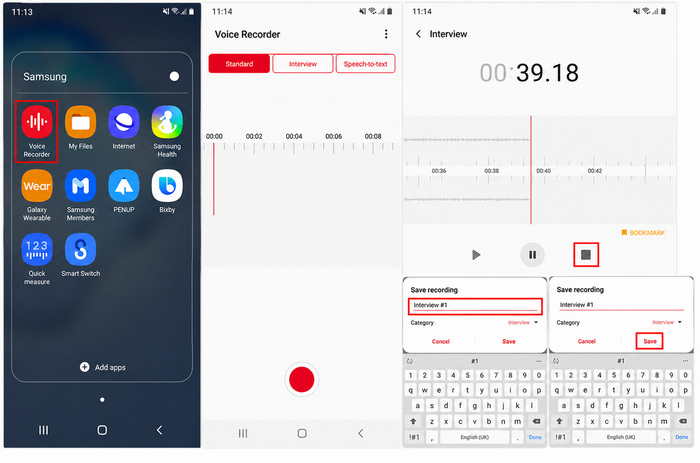
How to Record on Samsung
Step 1. Launch the Voice Recorder app. Press the red button to begin the recording.
Step 2. If you have a Samsung phone that supports this feature, go to the recording settings and change the mode to Interview. The phone's mics will then focus on better capturing voices coming from different sides.
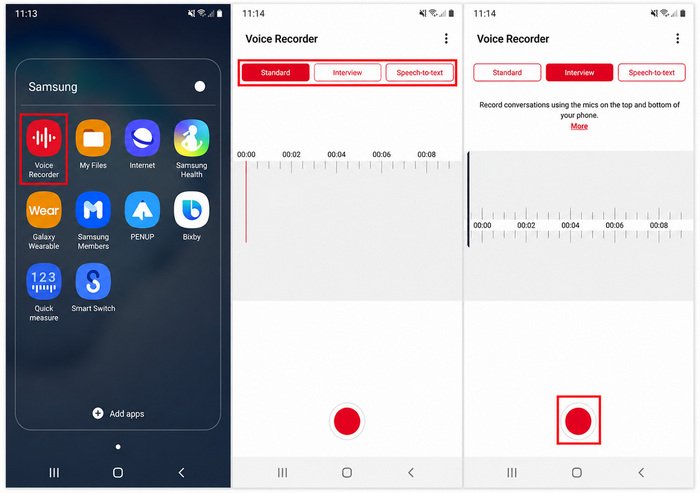
Step 3. Press Stop to end the recording. Save and rename the audio.
How to Record on Google Pixel
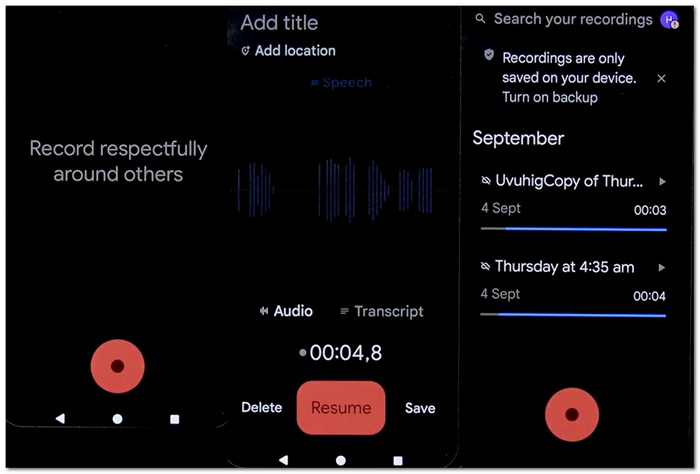
Step 1. Run the Recorder app. Press the red button to start.
Step 2. Work with the transcription option at hand if you want to generate a text copy of your recording.
Step 3. Tap Pause or Stop after that. Keep the recording and read the transcript.
Limitation
The integration of these tools is quite useful, but their functionalities vary by phone model, and they are not really designed for all recording scenarios. If I want to make longer recordings, have extra features, or save the video on my PC, I find VideoSolo Screen Recorder a better fit for my needs.
For typical Android Samsung audio recording needs, one can often get by with the totally sufficient built-in Voice Recorder. Still, on the occasions when I want a more sophisticated recording environment, VideoSolo Screen Recorder is the way to go.
Troubleshooting: How to Record Good Quality Audio on Phone
If you have a good recorder, a few simple tweaks can still work wonders on the final audio, making it sound much cleaner.
1. Change the Sample Rate
See the audio settings section of your recording app and raise the sample rate if you want to record at higher quality. For music, interviews, and content creation, 44.1 kHz or 48 kHz is usually a much better option than 22 kHz. Remember that higher settings will result in bigger files.
2. Keep the Microphones Clear
Typically, Android phones come with multiple microphones. Most of the time, they are near the bottom edge and around the top or back camera. Don't cover the holes with your hand or case. Also, if there's dust or dirt, clean it carefully. Since the microphone spots differ with each phone model, looking up the manufacturer's layout is the most reliable way to find them.
3. Reduce Background Noise
Try to capture your screen in a place free from fans, air conditioners, traffic, and other constant noise emitters. For example, rather than turning up the recording level, you might just get the phone nearer the speaker when you're recording a podcast or a sermon.
4. Use an External Microphone When Needed
When native microphones do not provide the clarity I require, I have the option of attaching a USB-C or wireless microphone that is compatible. In fact, this comes in handy in interviews, presentations, and professional content where the positioning of the microphone is really important.
FAQs on Recording Audio on Android
What are the reasons for the buzzing sound in my Android recording?
A continuous buzz may arise from electrical interference, other electronic devices nearby, a cheap cable, or an external microphone connection. You may want to disconnect your accessories and record again in a different place.
Does it matter if I put my phone on the table when I record?
It is possible. Vibrations caused by tapping, moving things, or putting something on the table may go straight to the phone's microphones. If you put the phone on a soft and steady surface working as a kind of isolation, unwanted sounds can be reduced.
Which one is better for a voice recording: mono or stereo?
When it comes to one person speaking, mono is more than enough, and it will help you keep the file size smaller. Stereo makes more sense when recording a musical performance, a natural environment, or multiple sound sources where spatial detail is important.
Conclusion
Now you have a thorough understanding of how to record sound on Android, covering internal audio, phone calls, meetings, and regular voice notes. The main aspect is selecting the suitable recording technique and configuration based on the kind of sound you intend to record.
More Reading
Capture screen activities, audio, webcam, gameplay, and mobile screens on Windows and Mac with high quality.

