



 Download VideoSolo Player For FREE!
Perhaps you might have considered Jellyfin media player if you have been searching for a freeware solution to organizing and streaming your personal media collection. It is a very popular media centre software among many users because it brings the highest degree of control over movies, TV shows, music, and home streaming with minimal reliance on paid media platforms.
Still, Jellyfin, despite being a very user-friendly media platform, also throws in some unexpected complexities with some playback issues that may not be immediately noticed by the user. Here is a detailed review of how Jellyfin works, what features make it stand out, troubleshooting tips, whether it is still a good choice, and a mention of a modern alternative for those who prefer a more straightforward and smooth media experience.
Part 1. What is Jellyfin Media Player
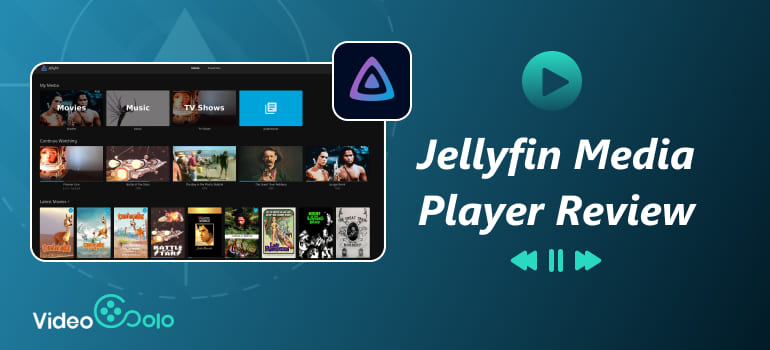
Jellyfin is, in fact, a free media server platform that enables users to save, organize, and play their personal media collections on computers, TV, phone, and other supported devices.
It is much like a media center platform, such as Plex or Emby, for functionality, yet it places more emphasis on privacy and user control. If I were to describe Jellyfin simply, I'd say it's a personal home media server that allows you to have complete control over your movies, TV shows, music, and other media files.
Instead of depending solely on streaming subscriptions, it empowers you to arrange and stream your own collection across various devices. One of the main reasons users get attracted to it during a Jellyfin review search is that, in reality, it is completely free and open-source. You don't have to be forced to subscribe just to access your own content, and for many media users, this is a great plus.
What Makes Jellyfin a Powerhouse?
My own perception of what sets Jellyfin apart is its flexibility after proper setup. These are just some of its best qualities:
- • Movies, TV shows, music, and even live TV are supported
- • Ability to stream on multiple devices
- • Personal organization of media library
- • User account creation for the whole family
- • Remote streaming capabilities
Part 2. How to Set up and Use Jellyfin
Jellyfin setup is not as complicated as it seems at first glance, but I have to admit it does require a bit more installation work than normal media players. Still, after the initial configuration, managing your own media collection becomes a lot simpler.
Below is an introductory tutorial for the most recent Jellyfin media player download and setup steps.
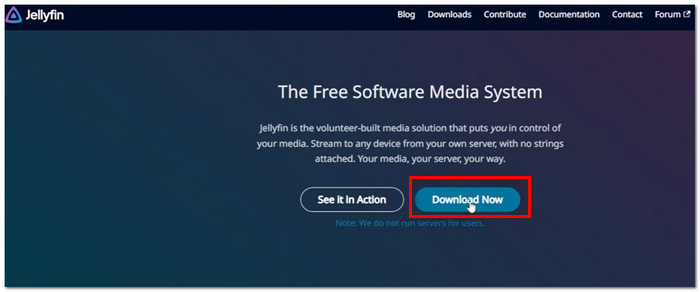
Step 1. Visit the Jellyfin homepage and pick the edition that suits your device or operating system. Do the installation as you normally would for a desktop program.
Step 2. When installation is done, run Jellyfin on your PC. The software should take you to your local media server setup page via your browser.
Step 3. Make your username and password for the administrator account. You might want to set a strong password, especially if you decide later to access your media over the internet.
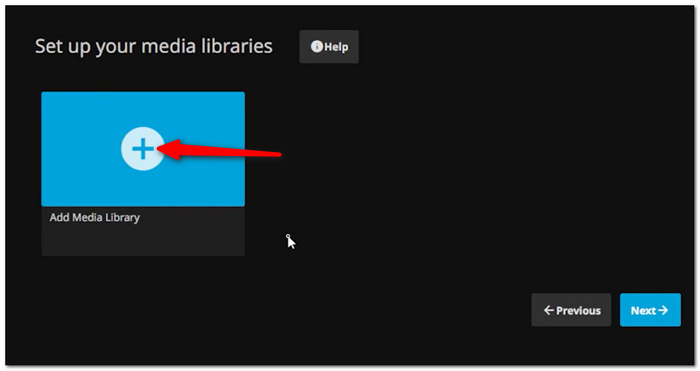
Step 4. Hit Add Media Library and select the folders where you have your movies, TV shows, music, or videos. Jellyfin will start to scan and arrange the content.
Step 5. During the scan operation, the program will fetch posters, descriptions, episode info, and artwork for your files. This is how your library acquires a look similar to a streaming platform.
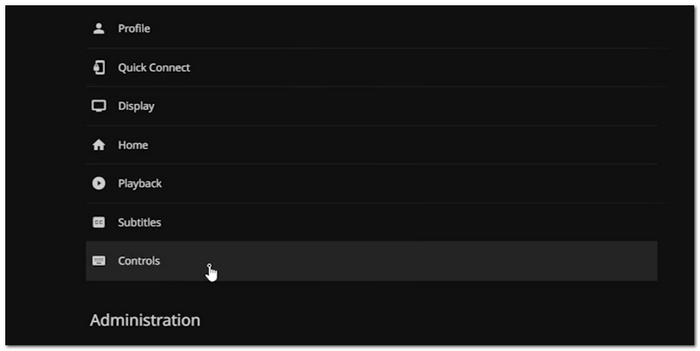
Step 6. Go to the control panel settings to change playback quality, subtitle preferences, and hardware acceleration if your PC is compatible.
Step 7. To stream through cell phones, TVs, or tablets. Install the Jellyfin client app on those and connect it to your server. After finishing all the setup, you will be able to watch your content straight from your personal server library.
Following the major Jellyfin media player installation step, your regular activities will be much more effortless and manageable.
Part 3. Common Jellyfin Playback Issues You Should Know
When I test Jellyfin, I experienced that the experience could be really good when it is working well. But at the same time, it's not always the smoothest solution for the newbies. Many users seek solutions for this because sometimes Jellyfin won't play media because of incompatible or server problems.
Playback Can Depend Heavily on Your Setup
Unlike traditional media players, Jellyfin requires the proper functioning of both the server and playback device simultaneously. This results in potential problems due to:
- • Unrecognized codecs
- • Weak server hardware
- • Incorrect transcoding configurations
- • Restrictions in the network
- • Incompatibility with the device
For some users, configuration becomes complicated beyond expectations.
4K and High-Bitrate Videos May Lag
One problem I discovered is that very big 4K files can buffer at times if hardware acceleration settings have not been set up properly. This occurs particularly when:
- • Streaming from elsewhere
- • Working with old technology
- • Handling extensive catalogs
- • Watching HDR content
Transcoding Can Be Confusing
The transcoding ability of Jellyfin is robust, although it can be challenging for newbies to set up properly. Improper setup may lead to:
- • Playback delay
- • Intermittent buffering
- • Lack of synchronization of audio
- • Heavy CPU utilization
This could be among the reasons why many look for solutions on how to get Jellyfin to play videos.
App Stability Varies Across Devices
The consistency between the desktop and mobile device will also be affected by which one of them is being utilized. These issues have been reported:
- • App crash
- • Library refresh lag
- • Subtitle loading problems
- • Playing pauses
Once it is optimized, however, it will be more consistent and smooth.
My Verdict
Having played around with Jellyfin, I think it still remains one of the more powerful free home media server platforms in existence now. What makes it so impressive is the amount of control and customization it offers its users, without requiring subscriptions. Same thing, I wouldn't call this the most user-friendly option for occasional users.
If you want straightforward, smooth, and reliable playback and are not concerned about time spent on configuration, there are other cooler options that might seem more relaxed.
Part 4. The Best Alternative: VideoSolo Player
In my opinion, after trying out several media playback methods, VideoSolo Blu-ray Player is a great option for end users who just want fluent and secure playback and don't want to deal with complex installation. If you want to stop fighting with codec issues or unsupported formats, you can simply relax as the player is devoted to solid performance and effortless viewing.
Users get the opportunity to view Blu-ray discs, DVDs, 4K videos and regular media formats without any hiccups in a single cool player.
 Features
- compatible with contemporary audio and video formats
- Playback in 4K and HD with ease
- Support for hardware acceleration
- Playback compatibility for Blu-ray and DVD
- Superior audio quality
Why VideoSolo Wins?
One of the reasons I chose to go with VideoSolo Player is its user-friendly nature. It really needs no complicated configuration just to be able to watch your videos the right way. The software emphasizes a hassle-free playback, improved composability, and a more enjoyable viewing experience not only for beginners but for regular users as well.
 pros
pros
- High-resolution playback that is fluid
- Multiple media formats are supported
- Controls that are easy for beginners
 Cons
Cons
- The premium version is necessary for several advanced features.
- Installation on a desktop is necessary
Part 5. How to Use VideoSolo as a Home Media Server
Generally considered a typical modern media player, I really did not expect to find VideoSolo Player so great for home video viewing, thanks to the smoothness of playback and the diversity of formats that it supports. A movie lover can just watch the flicks, Blu-ray discs, DVDs, and 4K video without getting into complicated server settings or outdated playback systems.
This, to me, is a much easier and simpler way for a viewer who desires an at-home media experience that is clean and without any hassles.
How to Use VideoSolo Player for Home Viewing
Step 1. Get VideoSolo Blu-ray Player and install it on your system. Once done, open the player.
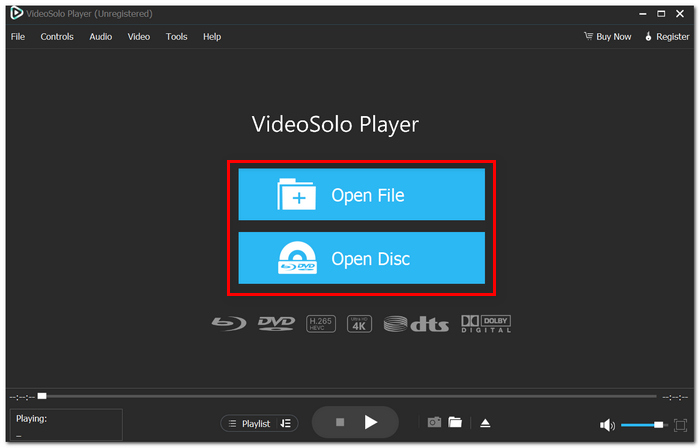
Step 2. To bring in your movies, TV shows, or personal videos, just hit the "Open File" button, whereas if you want to play a Blu-ray or DVD, "Open Disc" would be the way.
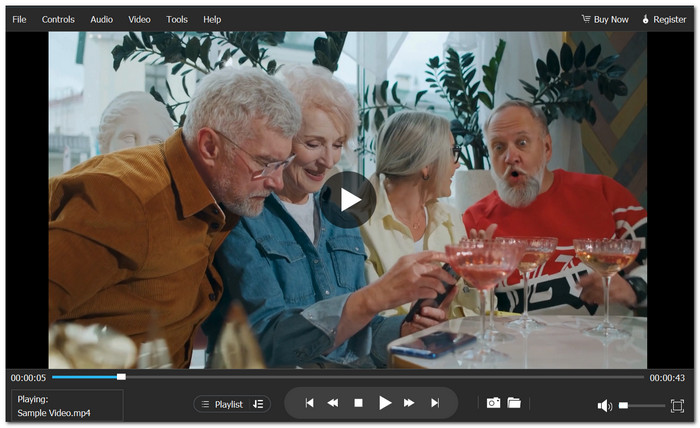
Step 3. Pick the media you want to view, and the player will handle loading the content on its own. You can change subtitles, audio tracks, screen size, and playback progress anytime with the playback controls per your needs.
Verdict
Personally, I believe VideoSolo Blu-ray Player is an excellent 4k blu-ray player for those people whose primary goal is to enjoy smooth and reliable media playback at home. It doesn't have the features of a streaming server ecosystem, but it does provide a much simpler and neater way to watch Blu-ray discs, DVDs, 4K videos, and a host of other media formats with no playback issues.
Part 6. FAQs on Jellyfin Media Player
Q: Does Jellyfin properly classify anime and private videos?
A: Yes, however, proper naming of the files can help Jellyfin in properly classifying them.
Q: What is the reason behind movie posters not appearing on Jellyfin?
A: It occurs when the metadata provider cannot recognize the files because of improper naming.
Q: Why does Jellyfin keep prompting transcoding?
A: This occurs when the playback device does not have a compatible format with that of the video/audio file.
Conclusion
For those who seek absolute freedom in managing their own media collection by avoiding paid streaming services, Jellyfin is an excellent choice, providing high flexibility and personalization possibilities.
On the other hand, from the analysis provided, it becomes clear that this tool might not be suitable for everyone since it requires some knowledge from the user's side. Hence, in order to select the right Jellyfin media player download for yourself, learn about the benefits and disadvantages of this product first.
More Readings
Play your videos/music in 100+ formats and region-free DVDs/Blu-rays with 4K and Dolby Atmos experiences.

