



 Download VideoSolo Player For FREE!
If you have been looking around for new media players in recent times, then you would definitely have heard of the MPV media player several times by now. It has managed to create quite an impression amongst users looking for a lightweight, highly versatile video player capable of supporting a wide range of formats.
In this review, I will try to introduce you to MPV Media Player, tell you about some of its main features, installation instructions, user experience, and compare it to other similar media players available on the market today. Let’s begin!
Part 1. Why do Users Choose MPV Media Player
One of the aspects that I discovered when I first used the MPV player was its uniqueness in relation to other media players. In contrast to many media players that emphasize the development of menus and media libraries, the MPV player concentrates more on performance and playback quality.
Many users appreciate this program due to the fact that it has a small file size and is able to work with different formats of videos.
Mpv is a freely licensed cross-platform multimedia player written from scratch, intended primarily for the playback of video and audio files. The software features a minimalistic design, an advanced video and audio engine, and wide format compatibility. The program itself is based on previous projects such as MPlayer and mplayer2.
Deep Dive Into Its Key Features
The main reason why many people consider the MPV player as the best media player is the level of control they can get from it, although visually it is minimalistic.
Among the features, these are those that most commonly appeal to the users:
- • Wide format support (video & audio)
- • Top-class video renderer engine
- • Hardware-accelerated performance
- • Advanced subtitle management
- • Customizable keyboard shortcuts
- • Automation with Lua scripting support
- • Minimal use of system resources
- • Support for high-resolution playback and HDR
- • Compatibility between platforms
Another point of interest that I have realized for myself is the fact that MPV deliberately has a minimalist interface. Instead of making more button menus available, it gives its users an opportunity to customize the program based on their personal preferences.
Those who like experimenting with different playback settings can thus become loyal MPV players for many years in a row.
Part 2. How to Use the MPV Media Player
Actually, once the installation is complete, using the MPV video player is so much easier than most people think. The player actually takes a minimalist approach. That's why most of the user interaction is via shortcuts and quick controls rather than big menus.
Below is the current comprehensive starter guide on MPV media player downloading and setup.
Step 1. Visit the official MPV website and open the download section. Choose the version that matches your operating system. For Windows users, you’ll usually download a compressed package from the recommended installer source linked on the website.
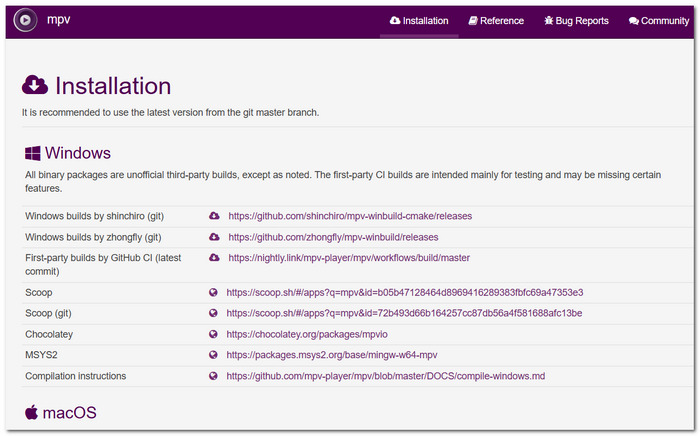
Step 2. Extract the files and launch the executable file to start using the player. Mac and Linux users can install it through their respective package managers or installation tools.
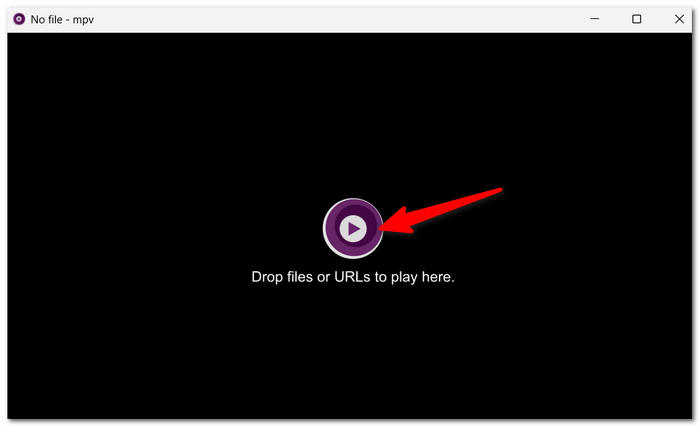
Step 3. After installation, drag and drop your video directly into the player window. You can also right-click a video file and choose Open with MPV.
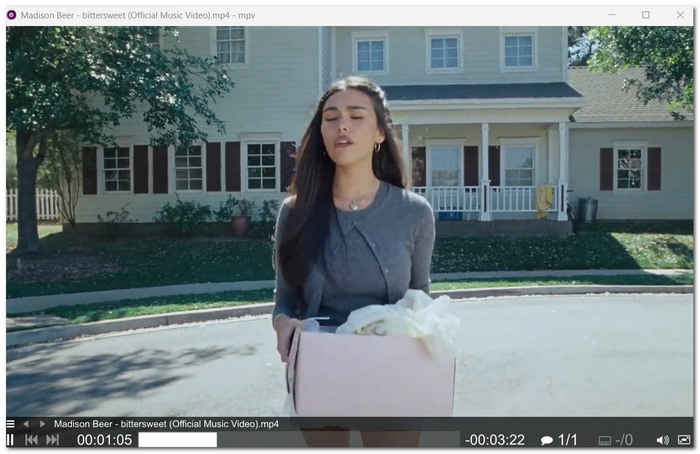
Step 4. Once setup is complete, you can start watching videos with smooth playback and broad format support using MPV.
Part 3. Why MPV Isn't for Everyone
Having used MPV for a while, I do get why some users love it. On the flip side, I also came to know that it isn't the most user-friendly media player for casual or first-time users.
In fact, its minimalist look combined with a very customization-oriented approach could even scare away those who just want a ready-made solution.
Compatibility Issues
One thing I observed is that the design of MPV is more in line with the habits of Linux users. Anyway, it does, in fact, run under Windows and macOS, but in some ways it can feel a bit less user-friendly because there is no standard official Windows installer as a part of the project, if you know what I mean.
Generally, users of Windows may have to:
- • Obtain builds from online sources
- • Operate unpacking of compressed files by hand
- • Set up the configuration on their own
Actually, for beginners, this whole thing might even seem like a kind of geeky thing to do versus contemporary media players, which have one-click installation.
Hard Configuration for Beginners
MPV is highly customizable. This is one reason why advanced users really like MPV because it allows them to control playback behavior in great detail. But at the same time, such flexibility can be quite a lot for beginners to understand.
Many advanced features require:
- • Changing config files
- • Using scripts
- • Learning keyboard shortcuts
- • Understanding command line configurations
To a person who simply wants to play the file without changing any settings, the learning curve might appear to be very steep.
The Interface Feels Too Minimal
I think that this is probably one of the main reasons why some users quit using MPV after just a few days. MPV developers purposefully maintain such a minimalistic interface, yet this minimalist philosophy does not work well for everyone.
Compared to other contemporary media players, MPV misses quite a few features:
- • Fully illustrated play controls,
- • Integrated media library management,
- • Simple settings panels,
- • Navigation is suitable for beginners.
Some people really like the clean design, but others might feel that important controls are either completely hidden or missing altogether.
This is the reason why I generally see MPV being most effective for users who like to customize and have technical control, rather than those who want a simple, out-of-the-box media experience.
Part 4. The Best Alternative: VideoSolo Player
Having tried different media players, to me personally VideoSolo Blu-ray Player is definitely among the top picks. Mainly if you want your media playback to remain smooth without having to get your hands dirty with lots of manual tweaking or advanced configurations. Rather than relying on manual adjustments, it is more centered on user-friendliness, having lots of supported formats, and delivering stable working performance on various devices.
This is a state-of-the-art media player intended for those who just want to watch their movies, Blu-ray, DVD, and 4K video without any fuss or complex setup, simply and clean.
 Features
- Works with most popular video and audio formats
- Support for 4K and HD playback
- Very fast hardware acceleration
- Convert multiple videos in one batch
- Built-in video compressor
Here’s a simple and updated way I personally use VideoSolo Player for smooth playback:
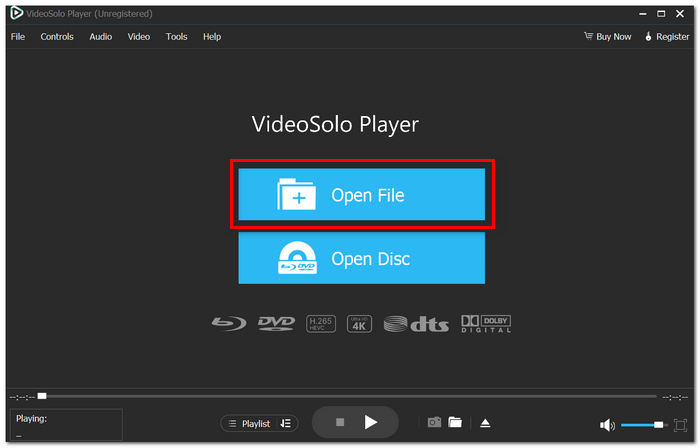
Step 1. First of all, install and launch the VideoSolo Blu-ray Player program after installing it on your computer system. If you want to add your video, music file, or movies, just open the "Open File" button in the main interface.
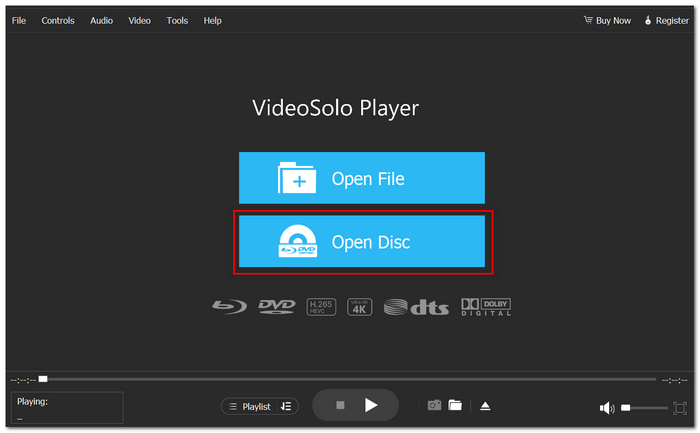
Step 2. If you want to watch your content, which is loaded from a disc, just select the "Open Disc" option. (optional)
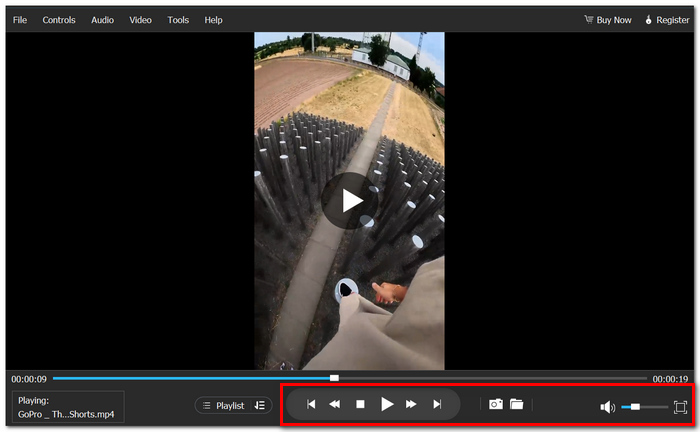
Step 3. You can use the control buttons during the playing process for controlling video volume, subtitles, audio track selection, screen dimensions, and even more.
After completing all these steps, you are free to play your media, of course.
Part 5. Comparison: MPV vs. VideoSolo Player
Upon testing both products, I realized that they can hardly be compared as they target completely different groups of users. For example, mpv is more of a hardcore video player coder tool with immense flexibility for technical tweaking. This makes it quite suitable for those who crave video processing manipulation to the letter, scripting, and playback behavior control.
Conversely, VideoSolo Blu-ray Player emphasizes simplicity and user-friendliness. Besides a neat interface, it supports the latest media formats and features a very easy operation. This way, the users will watch the videos without having to fiddle around with settings and parameters most of the time.
| Feature | MPV | VideoSolo Player |
|---|---|---|
| Quality | Excellent playback rendering quality | Smooth HD and 4K playback performance |
| Supported Formats | Broad codec support | Wide modern video and audio format support |
| Easy-to-Use | More technical for beginners | Beginner-friendly interface |
| Interface | Minimal and lightweight | Modern and organized layout |
| Operating System Support | Windows, macOS, Linux | Windows and macOS |
| Advanced Functions | Script support and deep customization | Simple playback tools with essential controls |
| Hardware Acceleration | Strong GPU acceleration support | Stable and optimized hardware acceleration |
| Setup Difficulty | Requires more manual configuration | Easy installation and quick setup |
| Best For | Advanced and technical users | Everyday users and beginners |
My Verdict
In my opinion, both tools are great and capable of serving quite different cohorts of users. Those who like to make adjustments, remap keys, and use advanced playback controls might find mpv perfect for their needs.
Then again, for people who want comfortable and relaxed media playback where everything works smoothly without too much effort, VideoSolo Player tends to be considered as a more practical, and at the same time, a more friendly Blu-ray player towards beginners. The setup process does not need to be deep-dived; a regular user will love it for daily use and not feeling out of depth.
Part 6. FAQs on the MPV Media Player
Q: Why does MPV launch sometimes without any playback controls showing?
A: As mentioned earlier, the MPV player software design focuses on minimalist UI elements with lots of keyboard shortcuts.
Q: Why does the video appear dark while viewing in MPV?
A: It may depend on the video render settings, HDR options, and monitor profile settings.
Q: Does MPV support playing music files such as FLAC and MP3?
A: Indeed, MPV not only plays video but is able to decode audio file formats.
Q: Is MPV suitable for projectors and multiple screens?
A: Yes, it has features specifically targeted for such use cases.
Q: Why might some people opt for MPV over media center software?
A: The lack of media center options can actually be an advantage for some users.
Conclusion
By the time of the day, the MPV player is best for its powerful playback engine, lightweight, and deep levels of customization. It is a player that offers experienced users a range of features to get the best quality of video playback.
At the same time, this review also demonstrates that MPV is not necessarily the best option for all, mainly for new users who prefer an easier, more visual interface. The main idea to think about here is what media player will best suit you, quickly enough for regular use or feature-rich enough for advanced control.
More Readings

Play your videos/music in 100+ formats and region-free DVDs/Blu-rays with 4K and Dolby Atmos experiences.

