



 Download Screen Recorder For FREE!
Recording audio from YouTube can be very subjective to your needs. Pure music enthusiasts could be after the superior quality of audio recordings. Video producers may be in need of fast editing. Mobile users are mostly concerned with a more convenient solution. Audacity is a good free tool for Windows, but it can be a bit more complicated to set up on a Mac. For a plug-and-play desktop solution, the VideoSolo Screen Recorder can provide a stable recording platform for system sounds.
Yet, how you do this will vary given what you want to do with the audio afterward. Perhaps you want to listen to the song offline, cut a specific part out, or have the song handy for editing a video. This guide will examine a few simple methods to record audio from YouTube that work on Windows, Mac, iPhone, and Android so you can record YouTube audio in the most suitable way.
| Tool/Method | Capture Source | Output Formats Supported | Setup Complexity | Key Audio Features |
|---|---|---|---|---|
| VideoSolo Screen Recorder | System sound + mic | MP3, WAV, M4A, MP4 | Plug-and-play | High-quality system audio, noise reduction, easy recording |
| Audacity – Windows | System sound | MP3, WAV, M4A, FLAC | Moderate | Loopback capture, detailed audio editing |
| Audacity – Mac | System sound | MP3, WAV, M4A, FLAC | Driver/setup required | Advanced editing and audio processing |
| iPhone Screen Recording | System sound | MP4 | Plug-and-play | Native capture, microphone control |
| Android Screen Recording | Media/system sound | MP4 | Plug-and-play | Media-only audio capture, microphone control |
| Video-to-Audio Conversion | Recorded video | MP3, M4A | Simple | Extracts an audio track from a saved recording |
Part 1. How to Record YouTube Audio on Windows/Mac
VideoSolo Screen Recorder – Best for Easy System Audio Capture
VideoSolo Screen Recorder is available as a desktop recording utility for Windows & Mac and enables you to record sound from your system, microphone, or both. It is suitable for recording audio from your computer when recording YouTube.
 Features
- System audio and microphone recording
- Noise cancellation
- Custom recording area
- Various output formats and quality options
- Natively integrated trimming and audio/video editing features
 pros
- Easy configuration for capturing system audio from YouTube.
- Supports both Windows and Mac.
- An integrated microphone that lets you capture audio without needing an external microphone.
 Cons
- There is a paid version to use advanced features.
- Recording system audio on a Mac might require an audio driver.
How to Record YouTube Audio with VideoSolo Screen Recorder
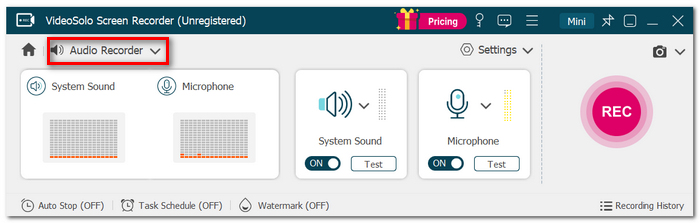
Step 1. Open VideoSolo Screen Recorder and navigate to Audio Recorder.
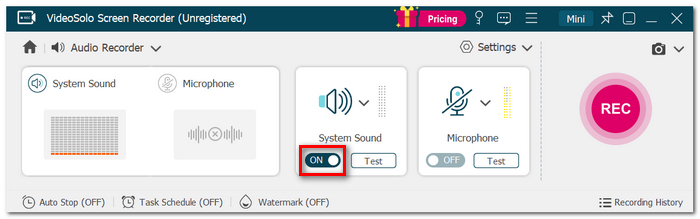
Step 2. Switch on the System Sound and keep the Microphone off if you'd prefer to record just the ambient sound of the YouTube video.
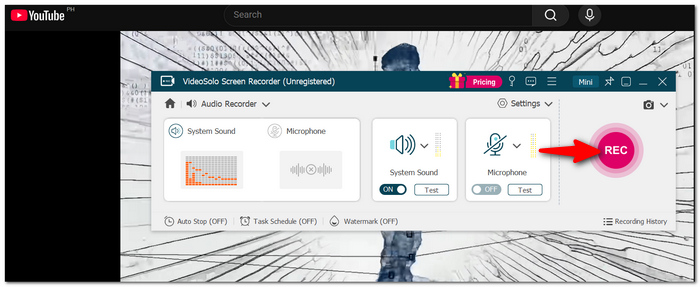
Step 3. Launch the YouTube video you'd like to record and hit play. Click REC to start recording the sound.
Step 4. Once the video is complete, click Stop. Review the recording, remove any unnecessary material, and save the final version of the video.
Here's another simple way to pull sound from YouTube without having the recording track focus on your computer's system audio.
User Review
Most users praised VideoSolo Screen Recorder for its ease of use and the ability to record audio. One reviewer noted that "it was user-friendly software that was easy to understand, and I think I will keep using it. Another user liked that it was able to "save only the 'sound'.
Audacity – Free System Audio Capture
Audacity is a free, open-source program for recording and editing audio, capable of capturing sound from your computer and then modifying the recording.
How to Record Audio off YouTube on Windows
If you want to know how to record audio from YouTube, then you can use the Windows system loopback, which is supported by Audacity, to record your computer output directly without a physical microphone.
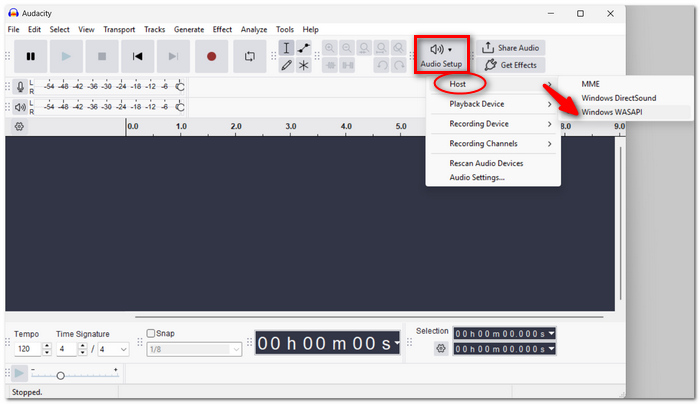
Step 1. Starting from your desktop, open Audacity. Under the Audio Host setup, choose Windows WASAPI.
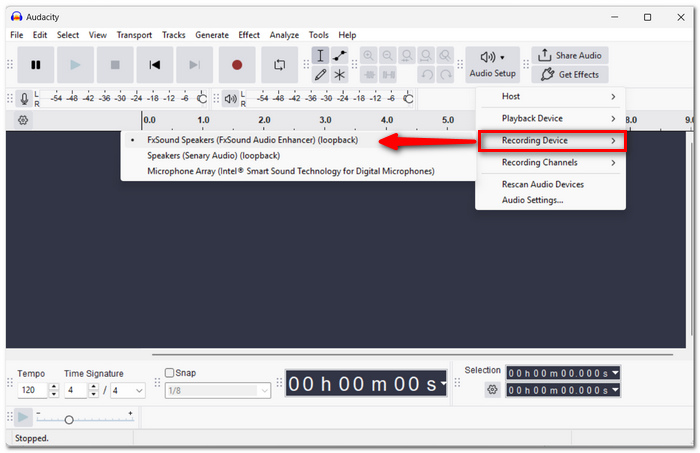
Step 2. Go to the Recording Device and select the speakers or headphones so that loopback is identified as the recording device.
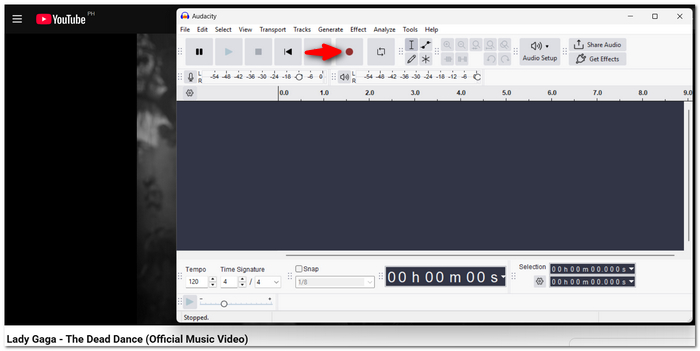
Step 3. Open YouTube and turn on the video you intend to record. Click the red button in Audacity, then play the video on YouTube.
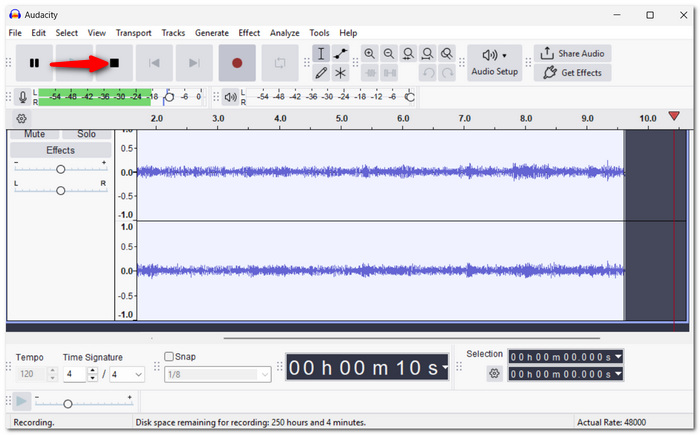
Step 4. Once complete, hit Stop, then export your recording to the format of your choice.
Important: Audacity records all other Windows sounds as well. So you should mute Discord, Slack notifications, and any other apps you don't want to be recorded.
How to Record Audio from YouTube on Mac
Now, if you want to record audio from YouTube on a Mac, Audacity needs a little bit more because the default setup cannot directly access the internal audio of the system, though a sound-to-call device is installed, for example, using Soundflower.
Step 1. Download Soundflower for macOS, run the installer, and provide your administrator password when asked.
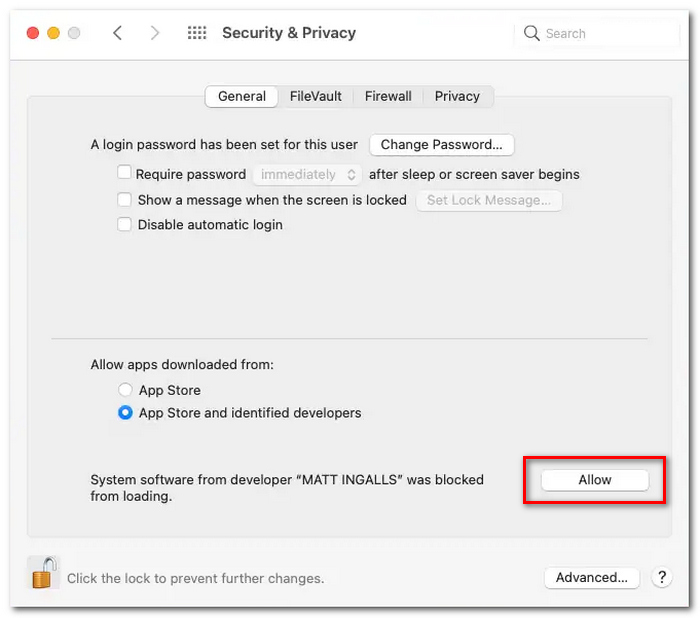
Step 2: If you're on macOS High Sierra, Mojave, or Catalina, you might be prompted with a security message that your software can't be opened because it is from an unidentified developer. Head over to the Apple menu > System Preferences > Security & Privacy > General and hit Allow to authorize the setup.
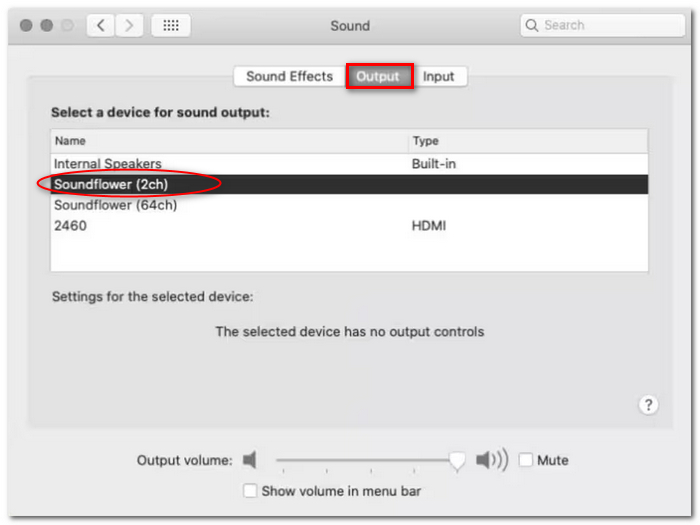
Step 3. Head to System Preferences, then to Sound, and switch to the Output tab, then set the output device to Soundflower (2 ch).
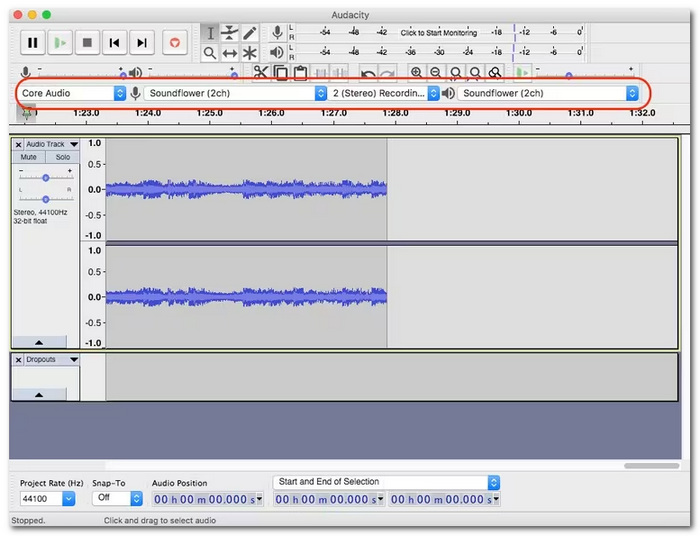
Step 4. Download and run Audacity for Mac. In Applications, open Audacity and, under Audio Host, select Core Audio. For the input and output, select Soundflower (2ch) and set the recording channel to 2 (Stereo).
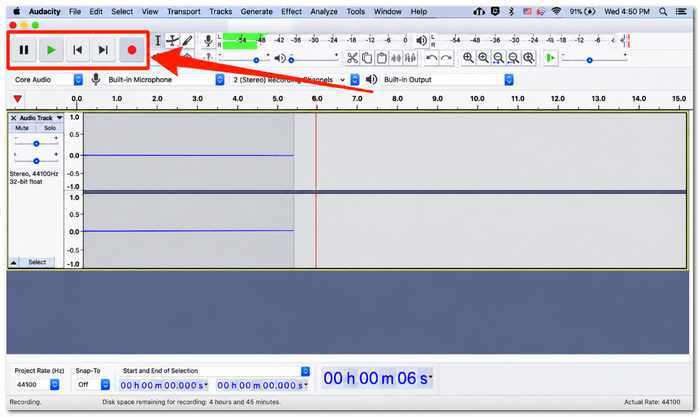
Step 5. Click the record button in Audacity and quickly start the YouTube video you are trying to record. When you are finished, click Stop.
Step 6. Select File > Export, select whatever audio format you want, and save your recording. The MP3 format will be a suitable choice if you want a common audio format.
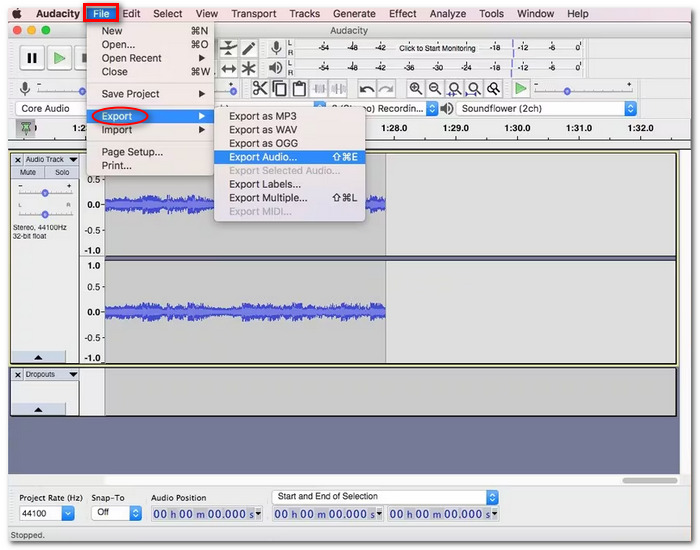
Note: Compatibility with Soundflower may depend on your Mac model and the version of macOS you're using. Newer Mac models and macOS updates can affect how well Soundflower functions.
Part 2. How to Record YouTube Audio on Mobile (iPhone & Android)
On iPhone – Best for Quick, Built-In Capture
There isn't a way to save a YouTube video as an audio-only file in the background on iOS. But you can record the digital audio from the video using the native Screen Recording feature on the iPhone, then extract the audio track later. Note that enough spare space is required to avoid recorded video not playing.
How to Record Audio from YouTube on iPhone
Step 1. Launch YouTube and get the video ready that you wish to record.
Step 2. Launch Control Center and tap and hold the Screen Recording button.
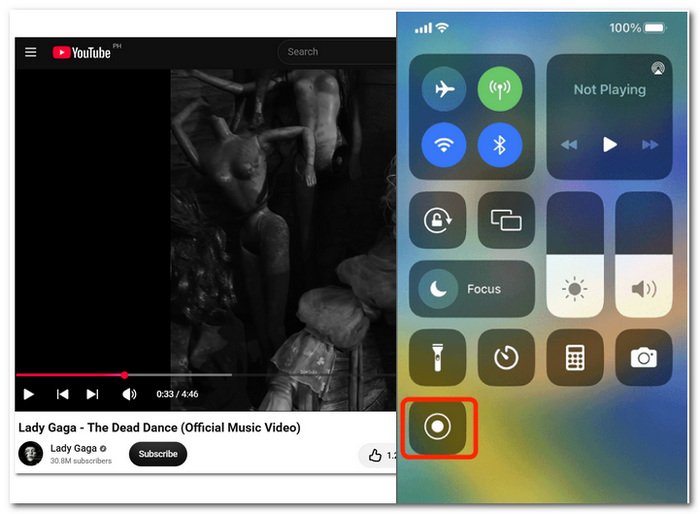
Step 3. Check the Microphone. Ensure this is switched off. This will allow you to record into your digital video and not record sounds from your phone's microphone.
Step 4. Click Start Recording and go back to the YouTube video.
Step 5. Once the video is done playing, go to the Control Center again and hit the Screen Recording button once more to stop. The recording will automatically save as an MP4/video file in the Photos app.
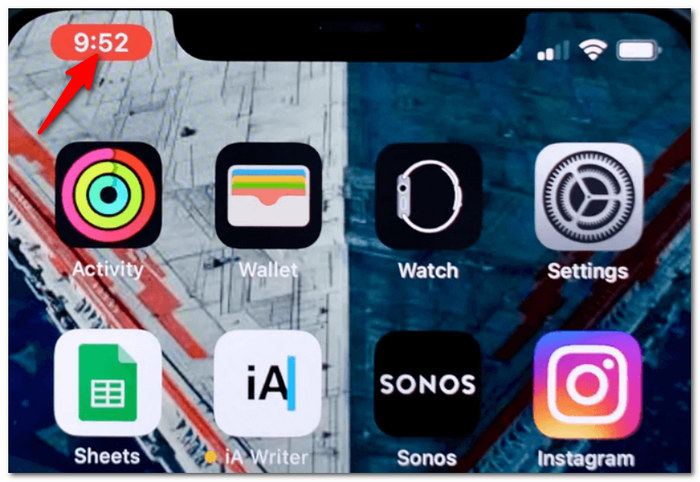
Step 6. Apply a suitable video to audio shortcuts/apps and save the audio as M4A (MP3) so it can be heard and edited.
Tip: Disable notifications or activate an appropriate Focus mode before recording so distracting alerts don't show up in the saved video.
On Android – Best for Capturing Media Sound
If you’re curious to record audio from YouTube on Android, then the default screen recorder is an easy solution, as you can record the audio from the video media itself without a microphone.
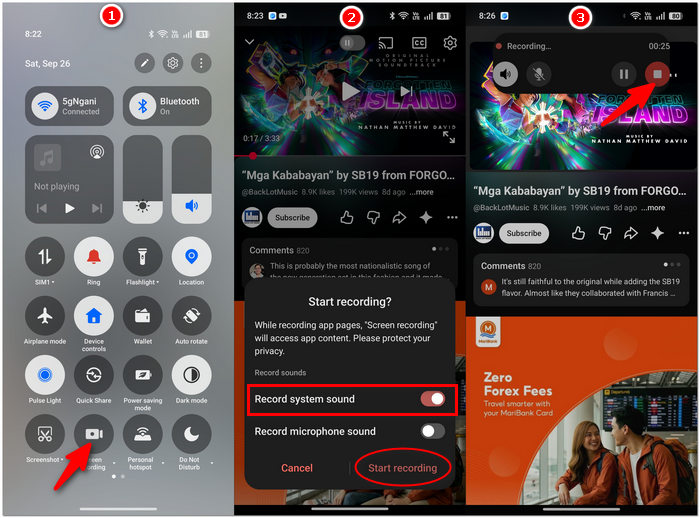
Step 1. You should log in to YouTube and be ready to record the video you want to. In your phone's Quick Settings, select Screen Recorder.
Step 2. Open the audio options for a moment before beginning recording and toggle on Record system sounds and try to turn off Record microphone sound. This way, you won't have the microphone on the phone picking up breathing, sound from the keyboard, or any people chatting.
Step 3. Click Start recording and put the YouTube video in the play position.
Step 4. When you are done, end the recording. The recording will be saved to your cell phone's gallery.
Step 5. To create an audio-only file, use a video-to-audio converter to extract the soundtrack and save it as an MP3.
Part 3. FAQs on Recording Audio from YouTube
Why is my recording occasionally quieter than the YouTube video?
The final volume may be affected by your system volume, the volume of YouTube, plus the recording settings. Check these. Do not set the source volume too low.
How do I use recorded YouTube audio in my own?
Not automatically. The copyright owner of this recording or audio extract still owns the original content. It is possible the copyright owner will need something indicating permission or licensing before use or publication.
Is YouTube Audio Library a better option for background music?
If you need music for your own videos, it's worth checking YouTube's Audio Library because it provides music and sound effects intended for use by creators.
Conclusion
It just depends on what device you are using, how much control you want/need over the recording, and what you plan to do with it. Whether you just want to capture sound from YouTube so you can listen to it, alter it, or just save it, a good recording setup will give you cleaner audio with less work!
More Readings
Capture screen activities, audio, webcam, gameplay, and mobile screens on Windows and Mac with high quality.

