



 Download Screen Recorder For FREE!
Brief Summary
The post reviews how different users can record meetings in Microsoft Teams. You can learn about the permissions and restrictions of built-in recording, including the duration/size limits and the storage time for recordings. For users who have no recording permissions, need unlimited recording time, or want to record quietly without notifications, we introduce VideoSolo Screen Recorder, a professional tool to overcome the Teams recording limitations.
“My teammates have really strong accents, and I already have ADHD, so I zone out so easily. Some of the training sessions have been recorded, and it's been very helpful to watch it over again. Is there external software that I can use to record the Microsoft Teams meetings so I can watch them back? ”
Many users will ask for methods to record Microsoft Teams without others knowing to avoid missing any important information. But recording a meeting on Teams itself will cause some embarrassment or awkward situations. How do you record a Teams meeting properly? Let's keep finding the answer here.
Can You Record a Microsoft Teams Meeting?
Of course. But the native recording function is not available to everyone, as it is blocked by your subscription and meeting role. Otherwise, you won't be able to find the recording button. This will create the illusion that the meeting can’t be recorded via Teams.
| Recording Dimension | Supported | Not Supported |
|---|---|---|
| License | Business Standard/Premium/Essentials, and enterprise/education plans like E1, E3, E5, F3, A1, A3, A5. | Microsoft 365 Basic or free version of Teams |
| Admin Policy | IT admin can enable recording permissions via the Teams admin center. | Many organizations disable it by default or restrict it to specific scenarios. |
| Role Permissions | Host, Co-organizer, Presenter | Attendees, external users from other organizations, and external guests |
Simply, you should be a Pro user in Teams with a valid plan first. If you schedule a meeting or need to present something during the meeting, you can record it. However, if you attend as a participant, you’re not allowed to record whether you are internal or external.
Note
Teams does not record by default. The “auto-recording” option must be enabled by the host.
Other Teams Meeting Limits
• Send an Alert to All Attendees
Once recording starts, all participants will receive a notification banner with a red indicator on both desktop and mobile devices to indicate that recording is in progress. For those who attend the meeting via the PSTN gateway, a voice message will also be played by the system.
• Duration Cap
If the recording lasts more than 4 hours or the recorded file size reaches 1.5 GB, the workflow will automatically end and start a new process. Only one person is allowed to record at a time. The recording will not stop even if the sponsor leaves, but another organizer or presenter has to manually end it.
• Recording Content and Modes
Teams doesn’t offer an audio recording mode. What it can record is the entire screen, audio, and screen sharing during the meeting, not including one-on-one private chat. Even if everyone has their cameras on, only the four most important people’s activities will be recorded. There is no freedom to switch between different content.
• Effective Storage Period
The recorded Discord meetings are always deleted automatically after 120 days, and are stored in the host’s OneDrive or the channel’s SharePoint. All these files can only be downloaded by the host or the person who started the recording. Others must use a specialized encrypted link to access them.
Note
If it turns out that the built-in methods are not suitable for you, go to Part 3 to learn about solutions that work for everyone, even if you are just a regular participant.
Record a Meeting in Teams [Native Built-in]
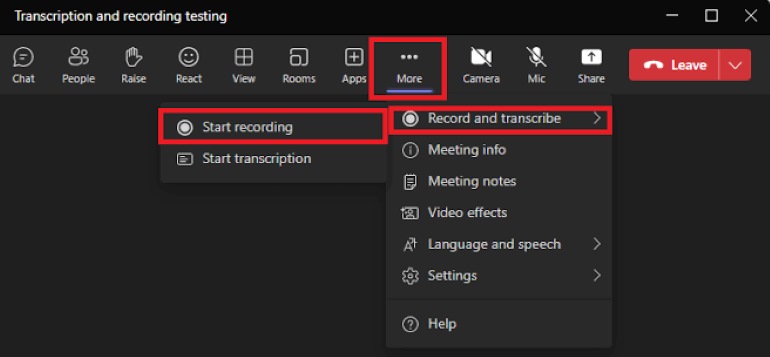
Step 1. In the meeting controls toolbar, click More actions (the three-dot "…" menu). Select Record and transcribe > Start recording.
Step 2. To stop, return to More actions > Record and transcribe > Stop recording. The recording also stops automatically when the meeting ends.
The recording process on the browser and the mobile app are same as that in desktop. If you record a recurring meeting regularly, the organizer can open Meeting options >Record automatically. This is off by default and must be set separately.
Verdict: Native recording is suitable for transparent meetings with permissions. For full-day training sessions, long-term seminars, or in-depth customer communications, fragmented video files make it difficult to do a debrief or replay. If you want to avoid these, you can try professional Teams voice recording software for full and unlimited capture.
How to Record a Teams Meeting Secretly? [All Users]
VideoSolo Screen Recorder offers a more reliable recording solution. It allows any participant or external guest to record the full screen, a window, a customized region, or audio with unlimited time and zero notification. Additionally, the software supports window locking, scheduled recording, and track separation. The recordings are stored locally directly with no risk of expiration. This screen capture software is suitable for ordinary users who need to take notes or want to save the recordings for personal reference.

 Features
- 20+ recording modes for capturing video, audio, gameplay, etc.
- Record videos up to 4K/60fps.
- Offer noise reduction & audio enhancement.
- Provide scheduled recording and auto-stop recording.
- Support built-in advanced editing toolkits.
- 10+ output formats for all device playback.
- Customize hotkeys for quick recording.
Teams cannot perform unnotified recording. VideoSolo Screen Recorder captures the screen activities directly on your computer instead of triggering the Teams recording function, so no notification will be displayed. It is not restricted by permissions and limits in Teams.
How to Record Teams Meetings Secretly for Personal Use?
Step 1. Start the process. Choose either “Screen Recording Mode” or “Audio Recording Mode” as needed.
Step 2. Select the area you want to record. If you only need to capture meeting content, you can customize the Teams window or a specific region as the recording area.

Step 3. Click the downward arrow next to the sound settings, and make sure both "System Sounds" (other people’s voices) and "Microphone" (your own voice) are selected. Perform a "test" operation to confirm that the settings are correct, then you can begin recording.
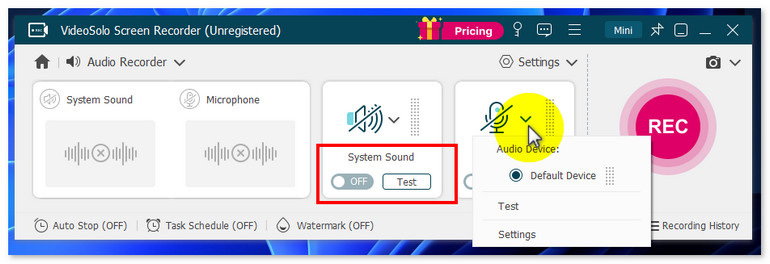
Step 4. Click the “REC” button to start recording locally while continuing to participate in the Teams meeting. Other participants will not see any red alerts.
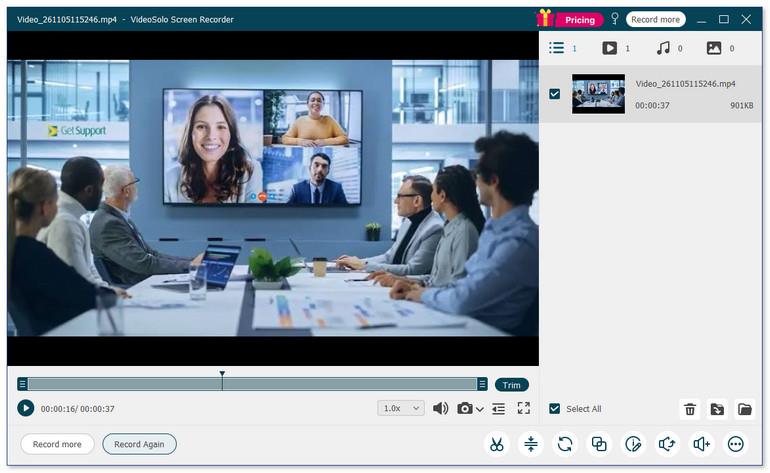
Step 5. Once the meeting is over, stop recording. VideoSolo will open a preview window; you can save the video file in supported formats such as MP4, MOV, AVI, or edit the video according to your needs.
User Review
I often participate in Teams training and seminars, but my company has disabled cloud recording. VideoSolo Screen solved my problem. I recorded a meeting at 1080P that lasted 2 hours, and the video size was about 2.2GB. There was almost no mismatch between audio and video. This makes it suitable for me to review the meeting content for future reference.
FAQs on Recording Teams Meeting
Q: Why can't I record my Teams meeting?
A: You cannot record a Microsoft Teams meeting, usually due to role restrictions, account types, administrator policies, or meeting settings.
Q: Why can't I see the Record Button in Teams?
A: Teams native recording may be unavailable due to: free account limits, insufficient attendee role permissions, host disabled recording settings, 1-on-1 call restrictions, or admin policy blocks.
Q: Can I discreetly record a Teams meeting?
A: Teams sends a notification to all participants when recording. Third-party screen recording tools can capture both screenshots and audio independently and do not trigger any notifications within Teams. Some AI meeting notes tools can participate in meetings as “robots”.
Conclusion
Native Teams recording is the right choice when you are the host or presenter. When you encounter role restrictions, notification sensitivity, and duration limits, the recording fails. VideoSolo Screen Recorder is positioned for every Teams user.
More Reading
Capture screen activities, audio, webcam, gameplay, and mobile screens on Windows and Mac with high quality.

