



 Download Screen Recorder For FREE!
Quick Summary: Popular browser-based recorder choices are VEED.IO, FlexClip, Clipchamp, Vidnoz Flex, Panopto Express, and Webcamera.io. These browsers give you a decent gaming video recorder but might be limited in recording length, performance, and other features. VideoSolo Screen Recorder is a desktop program that gives you more options when recording videos.
The recording tool you use can greatly affect the quality of your videos as well as your workflow. If you need a quick recording, then an online webcam recorder will do the trick, but lag, recording time limits, and basic audio controls can start to get really annoying during more advanced recordings. Check out the comparison of 6 common tools and an alternative.
How We Test
Our testing includes use cases to compare each webcam recorder's usability, recording quality, and features. We film a five-minute webcam test to identify lag, freezes, and picture quality, then evaluate microphone controls and noise reduction capabilities. We also examine webcam recorder recording limits, whether they have watermarks and export limitations, editing and annotation features, and privacy and security controls. With these tests, we can tell you which webcam recorder is best for quick recordings and which is better suited for more intensive work.
Quick Comparison: Top Webcam Recorders at a Glance
| Feature | Online Webcam Recorders | VideoSolo Screen Recorder |
|---|---|---|
| Performance Stability | May experience browser lag or interruptions | Runs as a desktop application |
| Recording Limits & Watermarks | Restrictions may apply depending on the tool and plan | Depends on the software version and license |
| Audio Control | Features vary; noise reduction may be limited | Audio controls depend on supported features |
| Real-Time Annotations | Available only on select platforms | Depends on the version and supported features |
| Privacy & Security | Depends on the service's privacy policy and storage practices | Offers local recording options, depending on configuration |
Browser-based recorders work well for short recordings, but your process can be interrupted by several open tabs, a slow browser, or free plan limitations. VideoSolo Screen Recorder might be your best option for longer recordings and more flexibility in recording options. Of course, actual stability and video quality will be affected by your computer's specs, software setup, and preferences.
Part 1. Top 6 Online Webcam Recorders Reviewed
1. VEED.IO Online Webcam Recorder – Browser-Based Recording and Quick Video Editing
Score: 4/5
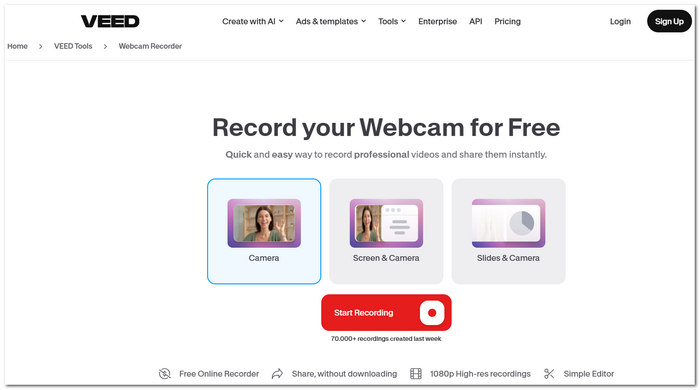
VEED.IO is a website platform for video editing that takes webcam recordings and puts them all into a browser-based editor. We think it's perfect for content creators who want to film a selfie video and edit it all through their web browser.
 pros
- Trim clips, add subtitles, and boost videos all within a single platform.
- Insert text, logos, and other visual elements for business or social media content.
- Edit and prepare recordings for publishing online with one app.
 Cons
- Subscription may affect the export options that are available as well as the use of some features.
- Performance can also be impacted by the resources available to the system and browser stability.
Testing Experience
Designed more for recording quickly and doing some casual editing and perhaps throwing in a few graphics or subtitles, VEED.IO is the biggest on-screen recorder that also does editing in one tool. If you're planning on a long recording, or one that will take a lot of quality, test export limits and browser stability first.
2. FlexClip Online Camera Recorder – Webcam Videos with Creative Editing
Score: 4.5/5
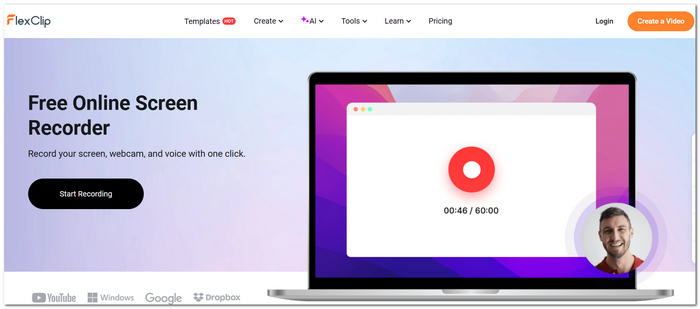
Combining webcam recording with a visual editor, FlexClip is perfect for creators looking to turn raw video into sleek content. Looking to record video with a webcam and also want to give the footage some enhancement and polish before publishing? It also offers features for inserting subtitles, changing layouts and backgrounds, and more.
pros
- Crop the webcam into a circle or select a different green-screen background.
- Capture your webcam by itself or overlay the webcam on the screen.
- Provide captions and deliver transcripts for accessibility.
Cons
- Certain editing assets and features are locked for free plans.
- If you are just after a raw webcam clip, you may feel that the editing workspace is overkill.
Testing Experience
FlexClip is a good option if you want to add some visual polish to a recording that you plan to publish. Its webcam combination and editing features make it a good choice for demo videos and social content. But you may prefer a simpler app if you just want to record and save.
3. Clipchamp Webcam Recorder – Quick Recordings with Automatic Silence Removal
Score: 4.5/5
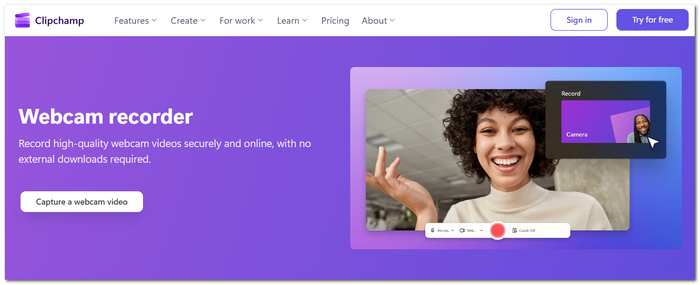
A webcam recorder is also available in Microsoft's Clipchamp, a video editor that you can install in your browser. Searching for record video online from webcam is a good way to find this tool. It lets you record yourself in a browser video camera, and then edit the recording. Its standout feature is the option to cut out silence to clear up your recordings.
pros
- Helps accelerate recordings by eliminating extended pauses.
- Webcam videos are available to download without a watermark.
- Select, silence, or alter audio if you are working with clips.
Cons
- Recording sessions using a webcam are only 30 minutes long.
- Editing and exporting may be more time-consuming for larger projects.
Testing Experience
If you need to make short presentations, video messages, or talking-head videos, Clipchamp is an easy option. Its ability to eliminate unwanted silences is handy when making recordings with on-the-fly mistakes. But a limit on your session length could be frustrating for long interviews or lectures.
4. Vidnoz Flex – Personalized Business Videos and Viewer Analytics
Score: 4/5
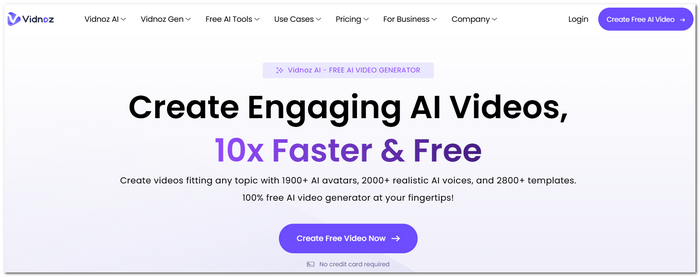
Vidnoz Flex is a simple platform to communicate by video online. As a free online webcam recorder for business, users can record videos of themselves, record their screen and camera, and share via links, as well as use engagement tracking so that they can discover how their videos are watched.
pros
- Insert calls to action, forms, and polls to get responses from your audience.
- Review the video's statistics for plays and viewer engagement.
- Can be used for sales outreach, onboarding, and remote team updates.
Cons
- The business-centric workflow might be more than required when just recording from your webcam.
- Certain features may be available to you only with an account, or certain features may have usage limits.
Testing Experience
Vidnoz Flex is a fantastic option for recording personalized video messages and audience tracking. The business-oriented features make it more valuable than a webcam recorder. But if you simply want to record and save a simple video, you might not need everything the Vidnoz Flex tools offer.
5. Panopto Express – Lectures, Presentations, and Multi-Source Recording
Score: 4.5/5
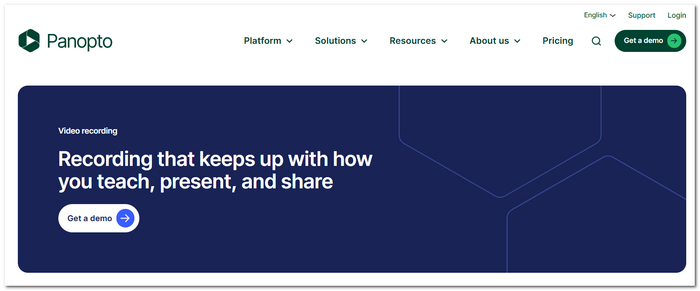
Panopto Express is the online webcam recorder for recording videos of presentations, lectures, and demonstrations. It can combine multiple webcam feeds with screens or videos into a single recording without requiring you to install anything or even log in.
pros
- Record your camera, screen, browser tabs, and applications all in one video.
- The Express recorder claims to have no limit on recording sessions.
- Save the recordings or share them to supported destinations.
Cons
- Recording can be impacted by browser compatibility and permissions granted to your device.
- It has less creative editing capabilities than full-featured video editing software.
Testing Experience
Panopto Express is a good choice for lectures or presentations with a speaker and slides or screen content. Multiple camera support makes it more advanced than a simple webcam. Make sure the browser works with the service and that the camera is authorized to record. For Google Meet sessions, compare these Google Meet screen recorders to find an option that suits your recording and audio needs.
6. Webcamera.io by 123apps – Simple Webcam Recording with Adjustable Settings
Score: 4/5
Webcamera.io is a very simple-to-use browser camera recorder for recording videos and saving them instead of wasting time on complex editing workflows. Adjustable video settings, mirror mode, volume control, and local/cloud saving options are included.
pros
- Select video quality and set the camera image to mirror.
- Reduce echo with the audio controls available to you.
- Save recordings to your computer or a supported cloud service.
Cons
- It lacks the ability to do large-scale creative editing and collaboration.
- It is not as suitable for complex layouts or for creating walk-throughs or demonstrations.
Testing Experience
Webcamera.io works well for most users who need to create a site, record a video, and save without much setup. Its tweakable camera and audio controls provide value without a full suite of editing tools. If you produce slick marketing videos, you'll want to use a different editor.
Verdict: Which Webcam Recorder Should You Choose?
What's the most useful tool? VEED.IO is perfect for editing videos in a short amount of time. FlexClip is for making creative videos. Clipchamp is for clipping out pauses. Vidnoz Flex is for making a video for your business. Panopto Express is for making a video presentation. Webcamera.io is for recording simply.
If you do any longer projects with more precision and continuous work, VideoSolo Screen Recorder can be a worthwhile option as a desktop version. It has a more reliable workflow, and the recording quality and its functionality are based on the settings and version of the software.
If you need more than webcam capture, compare these video recording software options for online and desktop recording.
Part 2. Desktop Alternative: VideoSolo Screen Recorder (Top Recommended)
Why Choose a Dedicated Desktop Recorder Over Online Browser Tools?
Is using web-based recorders easy? While there are advantages to using online webcam recorders, browser performance, limitations on features, and recording options make them a less practical solution if you want to record for an extended period. VideoSolo Screen Recorder is a desktop software app that operates with independent recording modes, controls, and tools.
 Features
- Either use your camera alone, or connect your monitor.
- Record microphone and system sound with noise cancelling (supported modes).
- Boost your screen recordings by adding text, arrows, and callouts.
- Change the selection of the image-capturing area, output format, and video resolution.
- Cut, join, compress, and convert the recordings.
Step-by-Step Guide: How to Record with VideoSolo Screen Recorder
Step 1. Download VideoSolo Screen Recorder from its official site. Choose Webcam Recorder to record yourself.
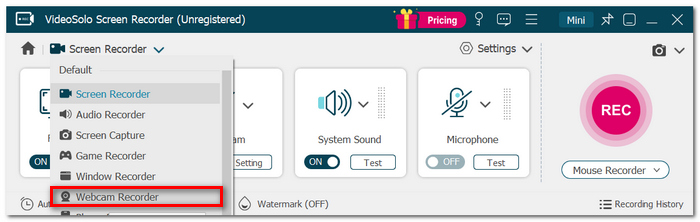
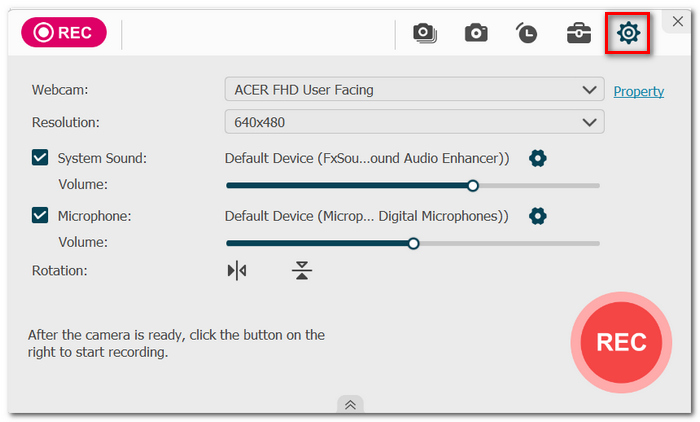
Step 2. Choose a webcam, microphone, system sound, and the recording quality you desire.
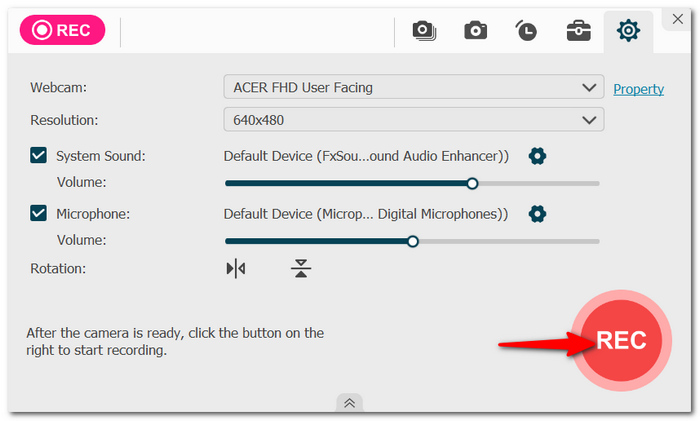
Step 3. To record your presentation or video, hit the REC button.
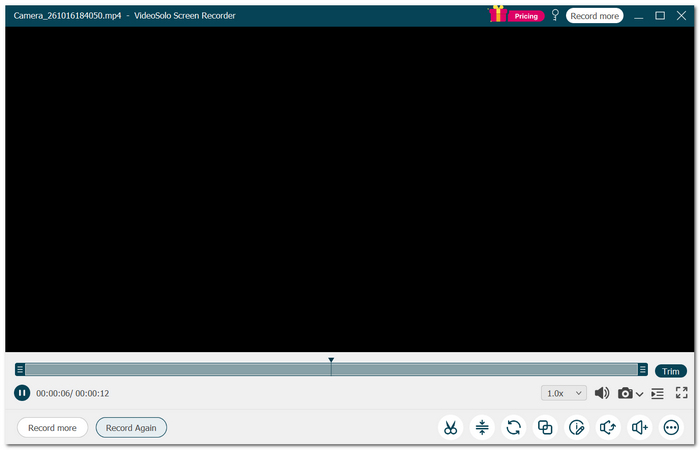
Step 4. Complete the recording, then play back the recording to preview the result and clip it as needed. Select a supported output format and download the recording to your computer.
User Review
Wrapping up, VideoSolo Screen Recorder is suitable for content creators who want cam recording, screen recording, audio management, and editing tools, all in a single desktop tool. This is one of the ideal tools when you're looking for the best webcam video capture software, mostly for recording tutorials and presentations.
Part 3. FAQs on Online Webcam Recorders
Why is there no thumbnail, or why is the duration wrong on my downloaded webcam video?
Some browsers also store a WebM version of your recordings that requires a different media player. If you see the wrong thumbnail/duration, look for the file in a media player that will play it or convert it to MP4 with a reliable converter.
Why won't my online webcam recorder recognize my external camera?
The browser may not pick up on the camera until you give permission, reconnect the device, or refresh the list of possible devices. Quit any other applications that may be using the camera, then check your browser's site permissions, and pick the proper input device.
Can I move an unfinished browser recording to another computer?
No, not typically. A lot of web browsers will allow you to keep incomplete, unedited recordings in memory, a feature stored within the browser tab. If the tab unexpectedly closes or the browser crashes, those clips will be gone. Make sure to stop and download your clip before closing your browser tab or device.
Conclusion
The answer to which webcam recorder is best is determined by your usage. If you want an online service to do a quick job, then there is a wide array of available choices, but you would be better served by looking at the options for those who require more control over the recording. I think the best choice is the one that does not require additional clicks in your webcam recording process.
More Readings
Capture screen activities, audio, webcam, gameplay, and mobile screens on Windows and Mac with high quality.

